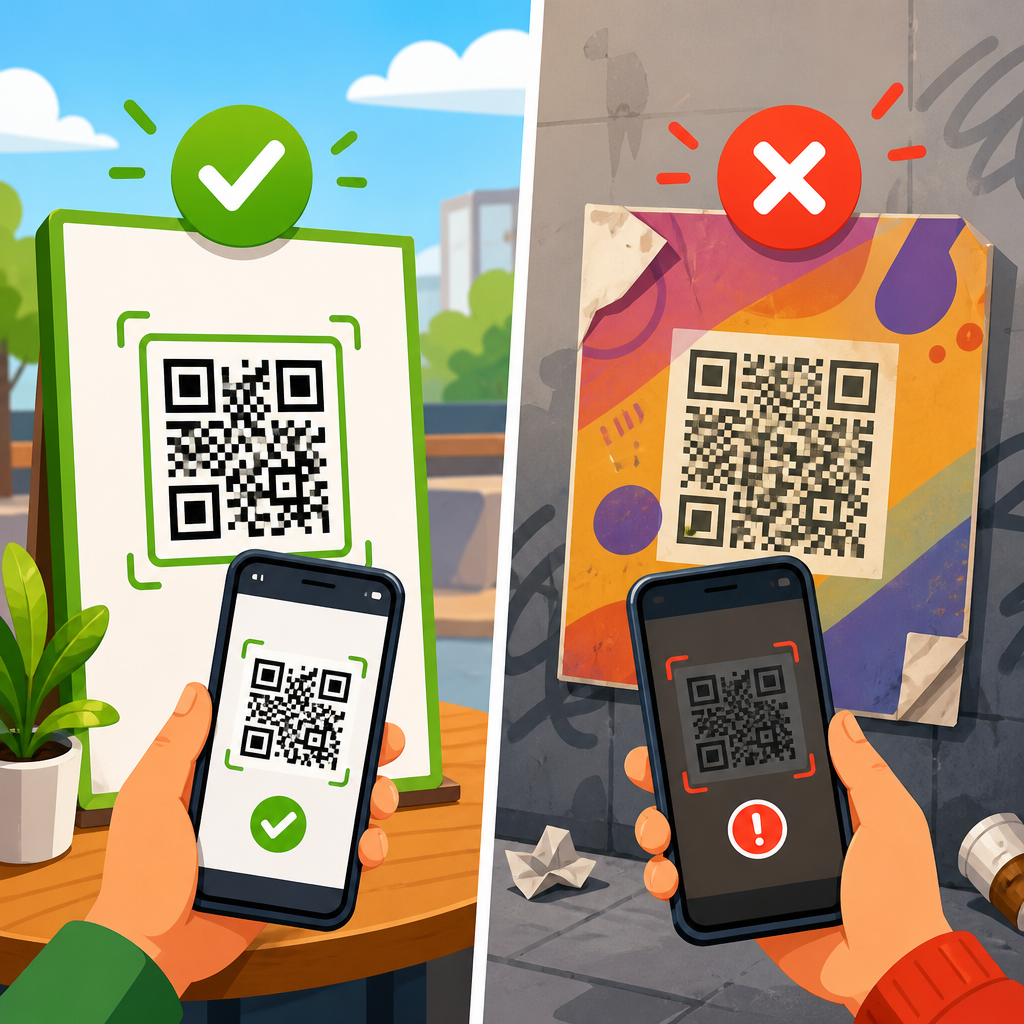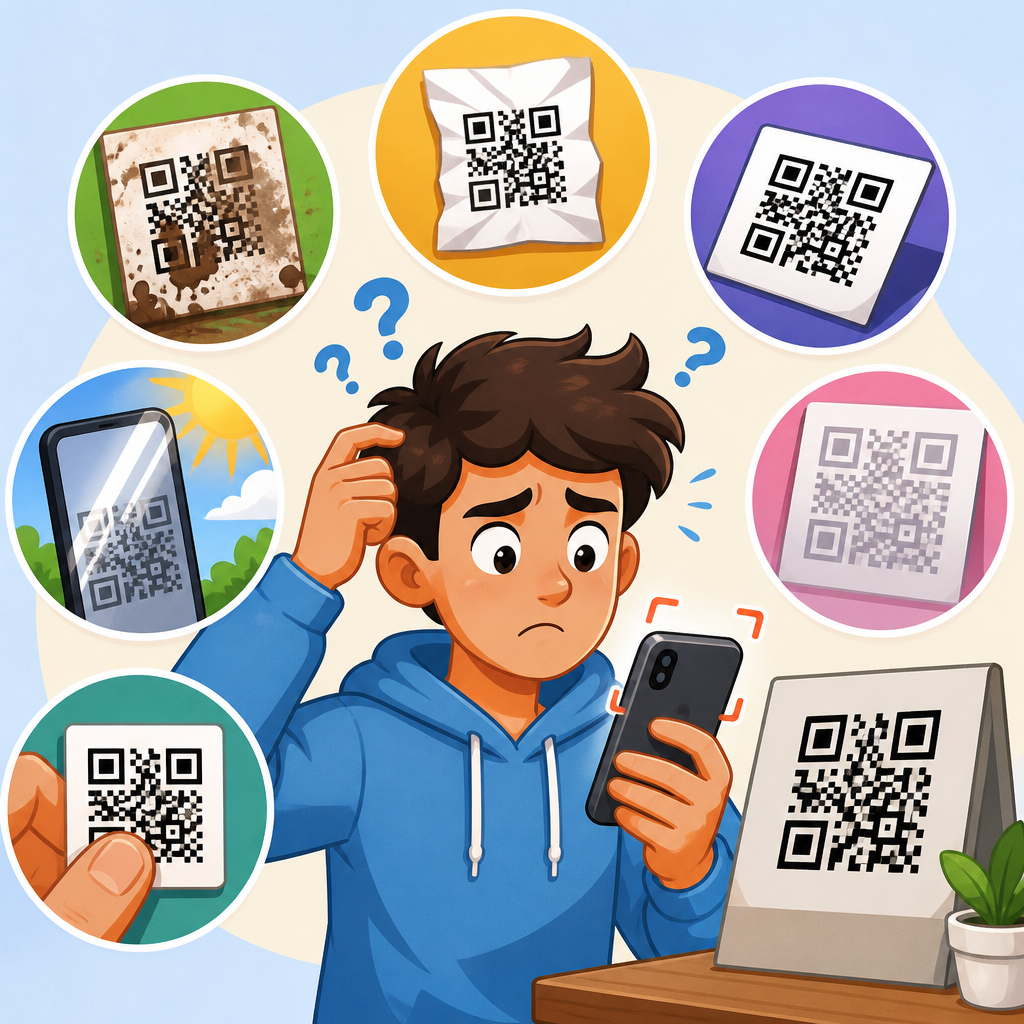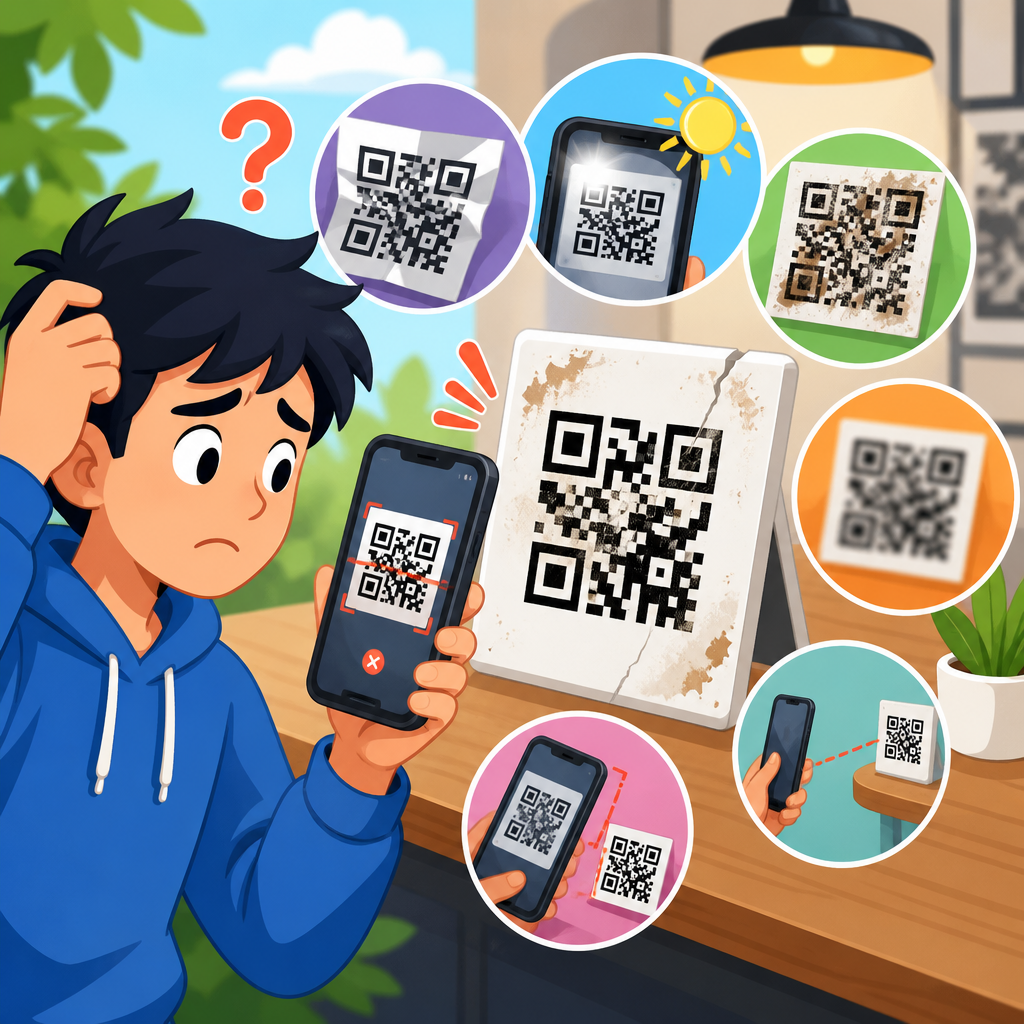
A printed QR code can fail for reasons that have nothing to do with the phone and everything to do with the way the code was created, designed, exported, printed, placed, or maintained. When someone asks, “Why won’t my printed QR code scan?” they are usually dealing with a breakdown somewhere between digital generation and real-world use. In practice, I see the same causes repeatedly: low contrast, poor sizing, quiet zone violations, weak print quality, damaged surfaces, bad redirects, and testing that happened on only one device under ideal conditions. Understanding why QR codes don’t work starts with understanding what a scanner needs. A camera must detect square modules, locate three position markers, distinguish foreground from background, and decode data despite perspective distortion, glare, blur, or partial obstruction. Printed QR code troubleshooting matters because QR codes often sit at critical conversion points: packaging, menus, posters, direct mail, labels, event signage, invoices, and product instructions. A failed scan breaks the user journey immediately. It wastes ad spend, reduces trust, and hides the real problem because many businesses assume users simply “didn’t try.” This article explains the core causes of printed QR code scan failures, how to diagnose them, and what standards consistently improve scan reliability.
Start with the most common causes of QR code scan failure
The fastest answer to “why won’t my QR code scan?” is usually one of five issues: the code is too small, the contrast is too low, the print is blurry, the quiet zone is missing, or the destination itself is broken. Those are the first checks I make before looking at anything more technical. QR scanners do not read a code the way people view artwork. They need crisp module boundaries and enough surrounding whitespace to separate the symbol from nearby graphics. If your code sits inside a busy flyer, over a photo, against metallic foil, or near dense typography, the camera may not isolate it correctly.
Size is one of the biggest practical failures. A tiny code on packaging may look sharp on screen and still be unscannable in real use. A useful rule is the 10:1 distance-to-size guideline: for every ten units of scanning distance, provide one unit of code width. A code meant to be scanned from 20 inches away should be about 2 inches wide. For poster placement, larger is usually safer because users scan at variable angles and lighting conditions. If the code stores more data, it becomes denser, and density raises the minimum printable size needed for clean decoding.
Contrast should be high, ideally black modules on a white background. Light gray on pastel, dark blue on black, or transparent overlays often fail, especially in dim environments. In testing campaigns, I have seen beautifully branded codes underperform because designers prioritized aesthetics over luminance contrast. In print, contrast can also drop because of ink gain, substrate color, varnish, or textured stock. A code that passes on a bright monitor may fail once printed on kraft paper or uncoated cardboard.
How print quality, materials, and placement affect scannability
Printed QR codes live in the physical world, where materials and production methods matter as much as the file itself. Laser printing usually produces cleaner edges than low-end inkjet output, while thermal labels can work well if the printer is calibrated and the label stock is suitable. Problems appear when modules bleed together, corners soften, or thin white gaps fill in. That is why a high-resolution export matters. Vector formats such as SVG, EPS, or press-ready PDF generally hold up better than low-resolution PNG files stretched inside design software.
Placement also changes results. Curved bottles, wrinkled labels, seams, folds, and corners distort the code geometry. Gloss lamination and glass create glare, which blocks the camera from seeing key finder patterns. Outdoor signs add fading, scratches, rain spots, and directional sunlight. On vehicles, motion and reflection worsen the challenge. If a code will be scanned through a shop window, from a car, or under fluorescent lighting, test in those exact conditions. Controlled office tests are not enough.
Another overlooked issue is the substrate underneath the code. Brown cardboard, brushed metal, transparent stickers on tinted surfaces, and textured fabric can all reduce edge definition. White underprint may be necessary on clear labels or colored packaging to preserve contrast. In retail environments, nearby barcodes, bold borders, or promotional bursts can visually compete with the QR symbol. Leave breathing room around the code and keep it away from folds, perforations, and package openings.
| Problem | What it looks like | Why scanning fails | Best fix |
|---|---|---|---|
| Code too small | Looks sharp but tiny on package or flyer | Camera cannot resolve individual modules | Increase printed size based on scan distance |
| Low contrast | Gray, colored, metallic, or transparent design | Scanner cannot separate foreground from background | Use dark code on light solid background |
| Missing quiet zone | Text or graphics crowd the edges | Scanner cannot isolate symbol boundaries | Keep at least four modules of clear space around code |
| Blur or pixelation | Soft edges, stretched raster file, ink spread | Module pattern becomes ambiguous | Export vector artwork or high-resolution files |
| Glare or curvature | Code on glossy bottle, window, or bent label | Reflection and distortion hide finder patterns | Move location, enlarge code, use matte finish |
| Broken destination | Camera recognizes code but page will not load | Problem is link, redirect, or server response | Test URL, redirects, certificates, and mobile landing page |
Design mistakes that make a QR code harder to read
Custom QR code design is often where scan reliability drops. Branding can work, but only within technical limits. Common mistakes include changing the square modules into dots that are too small, reducing the size of the finder patterns, placing a large logo over the center, inverting colors, or using a complex background image. QR codes do have error correction, but error correction is not permission to ignore structure. It exists to recover from minor obstruction or damage, not to compensate for poor design decisions layered on top of each other.
There are four standard error correction levels: L, M, Q, and H. Higher levels allow more restoration of damaged data, but they also increase symbol density. In plain terms, adding a giant logo and then increasing error correction can produce a denser code that now requires larger print dimensions to scan reliably. That tradeoff is often missed. If you want branded QR codes, keep the logo modest, preserve the finder patterns, maintain a proper quiet zone, and print larger than you would for a plain code.
Color inversion is another risky choice. Many modern phones can scan light-on-dark codes, but performance is inconsistent across camera apps, older devices, and poor lighting. Gradient fills can also create low-contrast zones within the symbol. Decorative frames that mimic the finder pattern may confuse detection. The safest branded approach is subtle: keep the core matrix dark and clean, use brand color in surrounding callouts, and let the landing page deliver the visual identity.
Data, encoding, and destination problems behind printed QR code errors
Sometimes the printed symbol is fine and the real issue is what the code contains. Static QR codes embed the final data directly, while dynamic QR codes usually point to a short redirect URL managed by a platform. If the destination URL is malformed, the redirect expires, the domain lapses, the SSL certificate breaks, or the mobile page times out, users experience a failed scan even though the camera decoded the symbol correctly. This is why troubleshooting printed QR codes must include both scan detection and post-scan behavior.
Encoding choices matter too. A short URL generally produces a less dense code than a long URL with tracking parameters. Dense codes are harder to print small. I regularly shorten campaign URLs before generating print assets, especially for labels and business cards. Character set issues can also appear when vCard data, Wi-Fi credentials, or special symbols are encoded incorrectly. If the code opens odd characters, fails to launch the intended app, or behaves differently between Android and iPhone, inspect the payload format.
Landing page design affects perceived scan success. A code that opens a non-mobile PDF, a blocked cookie banner, a geo-restricted page, or an app store dead end will look broken to the user. Test on cellular and Wi-Fi. Check server response codes, redirect chains, and page speed with tools such as Google PageSpeed Insights, Chrome DevTools, and URL redirect checkers. If analytics are enabled, compare scans with successful page loads to see whether the code is unreadable or the destination is failing after decode.
How to test a printed QR code the right way
The most reliable way to find out why a printed QR code does not work is to test systematically. I use a simple sequence. First, scan the original digital file from another screen. If it fails there, regenerate the code before touching print. Second, print at intended size on the real substrate or the closest available match. Third, test with multiple devices: recent iPhones, mid-range Android phones, and at least one older model. Fourth, test in the actual environment, including distance, angle, and lighting. Fifth, test the landing page path, not just the scan event.
When evaluating results, note whether the phone detects the code box at all. If not, the issue is usually visual: size, contrast, quiet zone, glare, or distortion. If the phone detects the code but does not open content, the issue is usually payload or destination related. If one phone scans instantly and another struggles, the design may be marginal rather than completely broken. Marginal codes are dangerous because they pass internal review and then underperform publicly.
Formal verification is worth using for high-volume print. ISO/IEC 15415 defines print quality test methods for two-dimensional symbols, including QR codes, and specialized verifiers grade parameters such as symbol contrast, modulation, fixed pattern damage, and axial non-uniformity. Most small businesses will not buy a verifier, but packaging printers, medical label suppliers, and industrial manufacturers often should. For everyday campaigns, the next best substitute is broad device testing and conservative design choices.
Best practices that prevent printed QR codes from failing
Reliable printed QR codes come from a disciplined workflow. Start with the shortest practical payload, or use a dynamic code with a reputable platform so destinations can change without reprinting. Generate the code in a trusted tool that exports vector files. Keep strong contrast, preserve a four-module quiet zone, and avoid decorative interference near the edges. Size the code for real scanning distance, then increase size if the symbol is dense, customized, glossy, or likely to be damaged.
Choose materials intentionally. Use matte finishes where possible, white underprint on transparent labels, and print methods that preserve sharp edges. Place the code on flat surfaces away from folds, seals, corners, and heavy texture. Add a clear call to action such as “Scan for setup instructions” so users know what to expect. That improves scan intent and gives you a natural way to place supporting text nearby without crowding the symbol itself.
Finally, build a maintenance habit. Check dynamic links regularly, renew domains and certificates before they expire, and keep a record of where each printed code appears. For large deployments, maintain a simple QR inventory with asset location, destination URL, owner, creation date, and last test date. Printed codes feel permanent, but the web endpoints behind them are not. The organizations that avoid QR failures over time are the ones that treat codes as operational assets, not just design elements.
If your printed QR code will not scan, the cause is usually identifiable and fixable. Most failures trace back to a short list: undersized symbols, weak contrast, missing quiet zones, soft print quality, reflective or curved placement, overdesigned customization, or a broken destination after the scan. The practical lesson is that a QR code is both a visual symbol and a delivery system. It must be readable by a camera and useful after decoding. Ignoring either side creates avoidable friction for users.
As the hub for QR code troubleshooting and support, this topic connects to every stage of QR performance: generation, design, print production, placement, testing, analytics, and ongoing link management. The strongest results come from conservative technical choices backed by real-world validation. Use high-contrast designs, export clean files, print at an appropriate size, test across devices in actual conditions, and verify that the linked experience loads quickly on mobile. When branding goals conflict with scan reliability, reliability should win.
Audit your current printed QR codes today. Re-scan every live asset, review print specs, check destinations, and document weak points before they affect customers. A few disciplined fixes can turn a frustrating non-scan into a dependable entry point that supports conversion, service, and trust.
Frequently Asked Questions
Why won’t my printed QR code scan even though it works on my screen?
A QR code that scans perfectly on a phone or computer screen can still fail once it is printed because printing introduces physical limitations that do not exist in a digital preview. On-screen, the code is usually sharp, high-contrast, evenly lit, and displayed at an ideal size. Once printed, however, several things can go wrong at the same time: the code may be reduced too much, the edges of the squares may soften, the contrast may drop, or the surrounding white space may be trimmed away. Even slight distortion during export or print production can make a code much harder for a camera to interpret.
Another common issue is that the file used for printing was not prepared correctly. If a QR code is exported as a low-resolution image and then enlarged in a layout program, the crisp square modules can become blurry or pixelated. That makes it harder for scanning apps to identify the pattern accurately. A code may also be placed on textured paper, glossy material, curved packaging, or a surface with glare, which can reduce readability even if the code itself is technically correct.
The most reliable approach is to treat print as a separate testing environment. Use a high-quality export, preferably a vector format when possible, maintain strong contrast such as black on white, preserve the quiet zone around the code, and print test copies at the actual final size. Then scan the code from multiple devices and distances under normal lighting conditions. If it works digitally but not in print, the problem is usually with print execution rather than the phone.
What print design mistakes make a QR code difficult or impossible to scan?
The most common design mistake is low contrast. A printed QR code needs a clear difference between the dark modules and the light background. If the code uses light gray on white, pastel colors, metallic inks, or a patterned background, scanners may struggle to distinguish the data blocks. Dark-on-light is the safest option, and black on white remains the most dependable standard for print.
Another major mistake is violating the quiet zone, which is the empty margin around the QR code. This clear space helps a scanner identify where the code begins and ends. When text, logos, borders, images, or design elements are placed too close to the code, that detection process becomes less reliable. Designers sometimes crop the code too tightly for visual neatness, but doing so can directly interfere with scanning performance.
Size is also a frequent issue. If a QR code is printed too small, especially on flyers, labels, business cards, or packaging, the camera may not capture enough detail to decode it. Small codes become even more problematic when printed on absorbent materials or at lower print quality because the individual modules can fill in or blur together. In addition, stylized QR codes can create trouble when customization is pushed too far. Rounded modules, embedded logos, inverted colors, decorative frames, and heavily altered shapes may look attractive, but they reduce the margin for error. A well-designed QR code should still prioritize function over appearance.
Finally, placement matters more than many people realize. Putting a code over folds, seams, curves, reflective coatings, or busy artwork can cause real scanning problems. A QR code should be placed on a flat, stable, non-glare area where users can easily position their phone camera. Good QR performance is usually the result of simple, disciplined design choices rather than creative experimentation.
How big should a printed QR code be to scan reliably?
There is no single perfect size for every QR code because the ideal dimensions depend on the amount of encoded data, the printing method, the scanning distance, and the material it is printed on. That said, one of the most common reasons a printed QR code will not scan is that it has been made too small for the real-world context. A code that looks acceptable in a design proof may be unreadable once printed if the camera cannot clearly resolve the individual modules.
As a practical rule, the farther away people will scan the code from, the larger it needs to be. A code on a business card can be smaller than one on a poster, sign, storefront window, or product display. If the code will be scanned at arm’s length, a modest size may work well. If it needs to be scanned from several feet away, it must be significantly larger. Also remember that the more data a QR code contains, the denser the pattern becomes, which means the code often needs more physical space to remain readable in print.
Print quality also affects the minimum usable size. On high-resolution, clean printing, a smaller code may still scan. On textured stock, porous labels, corrugated packaging, or inexpensive print methods, fine detail can degrade quickly. In those situations, increasing the code size gives the camera more usable information and improves performance. If you are unsure, it is usually better to make the code larger than you think you need rather than trying to save a small amount of layout space.
The best practice is to print the QR code at its intended final size and test it with different smartphones before approving production. Scan it in normal indoor lighting, brighter light, and slightly less ideal conditions. A code that only works when the phone is perfectly positioned is not robust enough for public use. Reliable scanning depends on adequate size, clean printing, and realistic testing together.
Can print quality, surface damage, or placement cause a QR code to stop working?
Yes, and these are some of the most overlooked causes of printed QR code failure. Even if the code was generated correctly, poor print output can make it unreadable. Ink spread, toner inconsistency, low-resolution printing, banding, dot gain, and fuzzy edges can all distort the clean geometry that scanning software expects. When the small squares lose definition, merge together, or become uneven, decoding becomes unreliable or impossible.
Surface condition matters just as much. A QR code printed on a scratched sign, wrinkled label, curved bottle, creased brochure, or weathered poster may become hard to scan because parts of the pattern are obscured or visually distorted. Glare from glossy lamination, plastic coverings, glass, or direct sunlight can also wash out key parts of the code. Dirt, scuffs, fading, moisture, and peeling corners are especially common problems in retail, warehouse, outdoor, and industrial settings where the printed material is exposed to repeated handling or environmental wear.
Placement can create its own scanning obstacles. A code positioned too close to an edge, across a fold, around a corner, or on a moving surface can be difficult for users to capture cleanly. If people cannot hold their phones steady or squarely in front of the code, scan rates will drop. The same applies when the code is mounted too high, too low, or in a poorly lit location. A technically valid QR code can still fail in practice if the environment makes it inconvenient to scan.
To prevent these issues, use a print method that preserves sharp edges, place the code on a flat and accessible area, avoid high-gloss finishes when possible, and inspect printed pieces for damage before distribution. If the code will be exposed to wear, weather, or handling, choose durable materials and re-test periodically. A QR code is not a set-it-and-forget-it element; it needs to remain physically readable throughout its life in the field.
What if the printed QR code scans sometimes, but leads to the wrong page or does nothing?
If a printed QR code scans inconsistently or opens the wrong destination, the issue may not be the visible code pattern at all. In many cases, the code itself is readable, but the destination it points to has problems. This can happen when the encoded URL contains a typo, uses an outdated page, redirects incorrectly, has expired tracking parameters, or relies on a dynamic QR service that has been misconfigured. From the user’s perspective, it looks like the QR code is broken, but the real failure happens after the scan.
Redirect chains are a particularly common problem. If the QR code points to one URL that forwards to another, which then forwards again, scanning may feel slow or fail on weaker connections. Some links break because a campaign page was removed, a domain changed, SSL settings were not updated, or mobile routing was not tested properly. In other cases, the code may work on one phone but not another because of browser behavior, app interception, location restrictions, or network-related delays.
This is why end-to-end testing matters. Do not just verify that a scanner recognizes the QR code visually. Confirm that the printed code opens the correct final page quickly and reliably on both iPhone and Android devices. Test on Wi-Fi and mobile data. Check whether the landing page is mobile-friendly, secure, and still live. If you are using a dynamic QR platform, verify that the redirect settings, analytics, expiration rules, and destination URL are all correct.
It is also wise to create a maintenance habit for printed QR campaigns. Once something is printed and distributed, replacing it can be expensive, so link management becomes critical. Periodically scan production samples, monitor destination uptime, and review any redirects or edits that may have changed over time. Many “bad QR code” complaints are actually bad destination management problems, and they are completely preventable with proper testing and ongoing oversight.