A QR code should scan in under two seconds on a modern phone, so when it fails, the problem is usually not mysterious. It is almost always tied to data quality, print conditions, contrast, size, damage, or the destination behind the code. If you are asking, “Why is my QR code not working?” the useful answer is that a QR code can fail at three different stages: the camera cannot detect the symbol, the decoder cannot interpret the pattern, or the phone can decode it but cannot complete the action, such as opening a web page. Knowing which stage is failing saves time and prevents blind trial and error.
In my work troubleshooting QR campaigns, product packaging, menus, flyers, labels, and event signage, I have seen the same issues repeat. A beautifully designed code gets inverted into low contrast colors and disappears under dim restaurant lighting. A code printed on corrugated cardboard warps enough to confuse low-end Android cameras. A dynamic QR code scans perfectly in tests, then stops working because the linked domain expired or a redirect chain triggers a security warning. These are not edge cases. They are the common reasons QR codes do not work in the real world, where glare, movement, distance, bad connectivity, and rushed production all introduce friction.
It helps to define a few terms. A static QR code stores the final data directly in the symbol, such as a URL, Wi-Fi credential, or plain text. A dynamic QR code usually stores a short redirect URL that points to a server, which then forwards the user to the final destination and often enables analytics or later edits. Error correction is the redundancy built into the code, using levels commonly labeled L, M, Q, and H. More error correction can help a damaged code remain scannable, but it also increases symbol density, which can make small prints harder to scan. The quiet zone is the empty margin around the code; without it, scanners often fail to separate the code from the surrounding design.
This topic matters because QR codes now sit directly on customer journeys. They connect packaging to setup instructions, posters to ticket sales, tables to menus, invoices to payments, and displays to app downloads. When they fail, users rarely troubleshoot with patience. They give up, blame the business, or move to a competitor. For teams responsible for marketing, operations, retail, hospitality, manufacturing, or support, understanding why QR codes do not work is not a technical side note. It is conversion protection, service continuity, and brand credibility. The sections below break down the main causes, how to diagnose each one, and what to fix first.
Scan failures: when the camera cannot detect the QR code
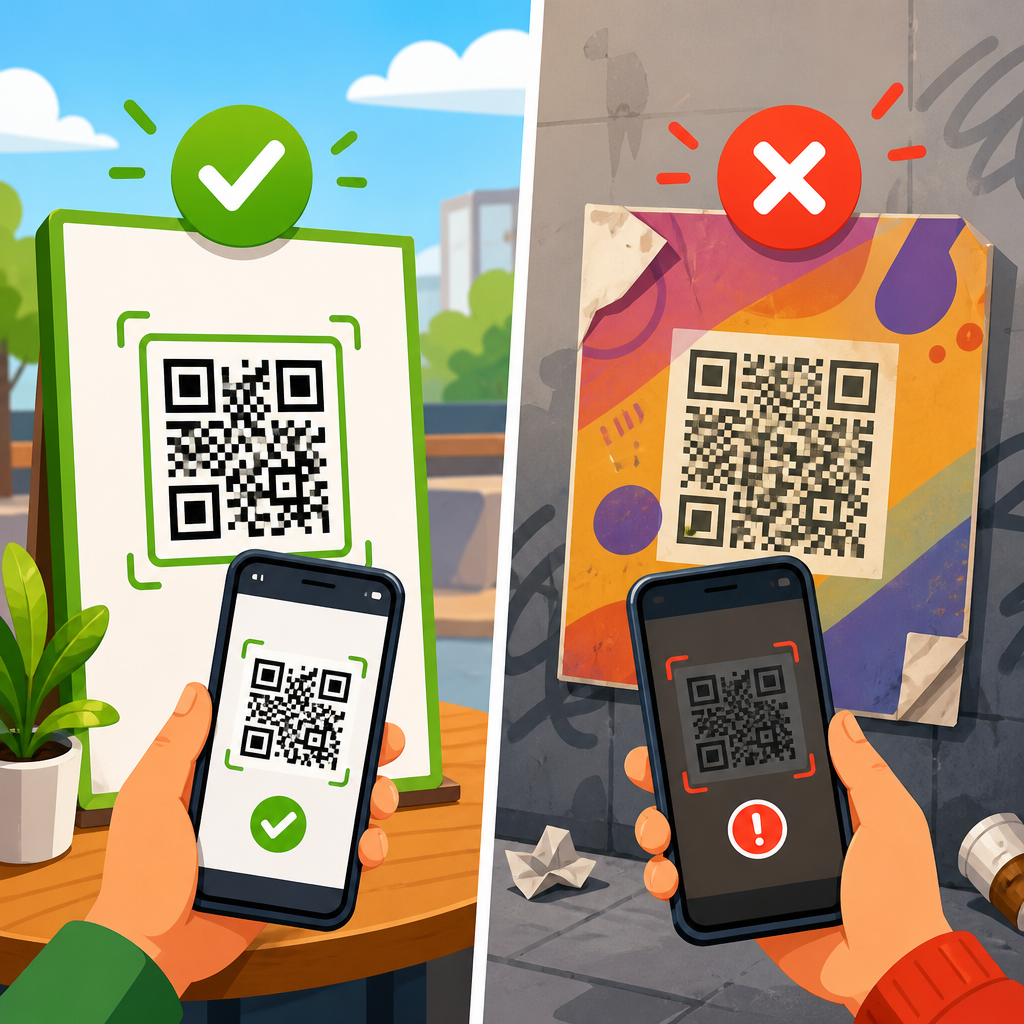
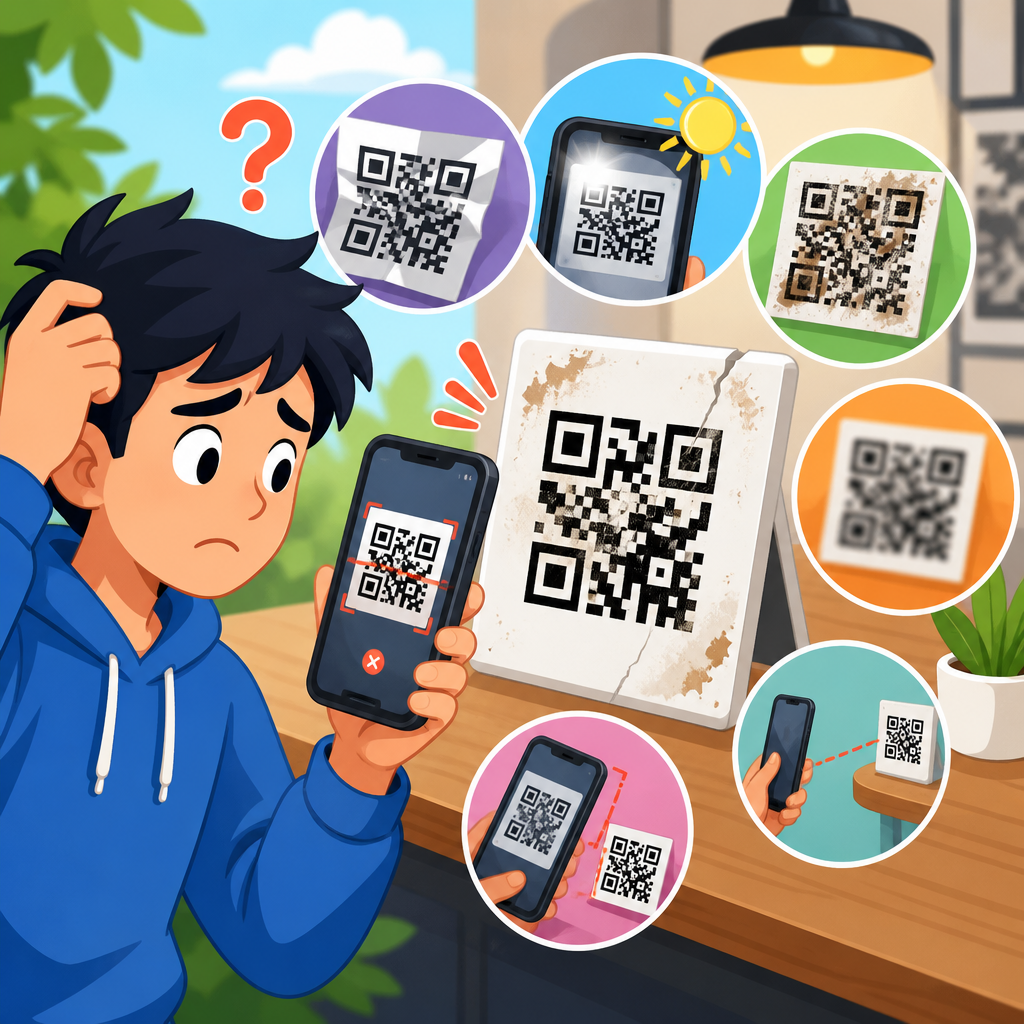
The first and most common failure is simple: the phone camera never recognizes the symbol as a QR code. In practical terms, the user points a camera at the code and nothing happens. Detection failures usually come from size, contrast, glare, distance, angle, motion blur, or a missing quiet zone. If the scanner cannot isolate the square finder patterns in the corners and see enough separation between dark and light modules, the process stops before decoding begins.
Size is the starting point. A code that is technically valid can still be too small for the expected scanning distance. A reliable rule in print environments is that the scanning distance should be about ten times the code width. A 2 centimeter code is comfortable at around 20 centimeters, while a poster viewed from two meters needs a much larger symbol. This is why table tents can use compact codes, but storefront windows, trade show banners, and transit ads need significantly larger ones. I have seen campaigns fail because a designer reused a business-card-sized QR code on a hanging sign intended to be scanned from the sidewalk.
Contrast is the next priority. Black on white remains the safest choice because most consumer cameras and decoders expect strong luminance contrast. Light gray on white, pastel-on-pastel, metallic ink, or transparent overlays can look refined on brand proofs and still collapse in everyday conditions. Reverse codes, such as white modules on a black background, may scan on some devices but are less reliable across older phones and third-party apps. Uneven lighting matters too. Glossy lamination, window reflections, and curved bottles can create hot spots that wash out critical modules.
The quiet zone causes many hidden failures. QR standards require a blank margin around the code, typically four modules wide. In plain terms, if the code is visually touching text, borders, illustrations, or a photo background, scanners may not know where the symbol begins and ends. Packaging teams often crop this margin to save space, and event graphics teams often place the code inside decorative frames. Both choices reduce detection reliability. The code may still scan on a flagship iPhone in ideal office lighting but fail on midrange phones in the field.
Physical distortion is another major factor. A QR code printed across a fold, seam, shrink sleeve, or curved cup can stretch the grid enough to break detection. Low print resolution can produce fuzzy edges, especially on thermal labels and low-end office printers. If a code is viewed through tinted acrylic, etched glass, or a protective film, the pattern can blur further. When users report that “some phones scan it and some do not,” I usually test for these basic physical issues first, because they account for a large share of inconsistent results.
Decoding failures: when the phone sees the code but cannot read it
A second category appears when the camera clearly recognizes the QR code, yet the device struggles to decode it. The user may see a focusing box or tap prompt, but the scan stalls or returns an error. At this stage, the symbol is visible enough to detect, but the data pattern is too dense, too damaged, or too altered by design to decode consistently.
Data density is a frequent cause. The more characters you encode directly, the more complex the QR matrix becomes. Long URLs with tracking parameters, deep links, and appended campaign tags can create dense patterns that demand larger print sizes. This is one reason many teams use dynamic QR codes. A short redirect URL keeps the matrix simpler, which improves scanning performance and also allows destination changes later. If your static code contains a long destination with UTM parameters, session IDs, or product variants, density may be the hidden issue.
Over-customization also creates decoding problems. Logos, center badges, rounded modules, gradients, and decorative cutouts can all work, but they reduce tolerance. Error correction is not a license to remove large parts of the symbol. If a logo covers too much of the center, or if stylized dots become too thin, decoders may misread the matrix. I have rebuilt many “designer QR codes” that passed an online preview tool but failed in retail lighting because branding choices consumed too much functional area. The safest approach is to keep finder patterns untouched, preserve the quiet zone, and test across multiple camera apps before approval.
Damage and occlusion matter even when the code still looks intact to the human eye. Scratches on acrylic signage, wrinkles in stickers, tape crossing the symbol, condensation on refrigerated packaging, and fingerprints on touchscreen kiosks can all block enough modules to disrupt decoding. Error correction helps, but only within limits. High correction levels are useful for labels and outdoor placements where wear is expected, yet they do not compensate for poor contrast or severe distortion.
| Problem | What it looks like | Most likely cause | Best fix |
|---|---|---|---|
| Nothing happens when scanning | Camera sees the code but no prompt appears | Low contrast, glare, missing quiet zone, code too small | Increase size, use black on white, restore blank margin, reduce reflections |
| Prompt appears but scan fails | Phone recognizes QR format but cannot resolve it | Dense data, over-styled design, damaged modules | Shorten data with a dynamic link, simplify artwork, reprint cleanly |
| Code scans on some phones only | Inconsistent results by device or app | Marginal print quality, reverse colors, weak lighting | Test cross-device, increase contrast, avoid inverted palettes |
| Code scans but page will not open | Browser error, warning, or blank page | Broken URL, expired domain, redirect issue, blocked content | Verify destination, reduce redirects, renew domain, test mobile landing page |
Encoding errors also occur upstream. If the QR generator inserted the wrong character set, malformed URL syntax, or unintended whitespace, the code may technically decode into unusable content. This shows up often with copied links, spreadsheet exports, and bulk QR creation workflows. A single missing slash in https, an accidental line break, or a smart quote replacing a standard character can make the destination fail. When troubleshooting, decode the raw content with more than one scanner and inspect the exact output rather than assuming the encoded data is correct.
Destination failures: when the QR code works but the action does not
Many people say a QR code is not working when the symbol itself is fine and the real problem sits behind it. The phone decodes the code, tries to open the destination, and runs into a dead page, blocked app link, redirect loop, certificate warning, or mobile usability problem. These destination failures are especially common with dynamic QR codes because the code depends on multiple systems: the QR platform, the redirect URL, the destination domain, the site host, and the user’s connection.
Broken links are the simplest example. If the final URL returns a 404 error, has been unpublished, or points to a product page that no longer exists, users blame the QR code. Expired domains create the same experience. So do suspended accounts on landing page builders or e-commerce platforms. I regularly advise teams to maintain a QR destination inventory, especially for evergreen print assets like packaging, manuals, brochures, and permanent signage. Unlike a digital ad, a printed QR code may remain in circulation for months or years, long after a campaign page has been retired.
Redirect chains are another issue. A dynamic QR code might redirect to a tracking domain, then a marketing automation link, then a consent page, then the final landing page. Each step adds latency and potential failure. Some mobile browsers treat long or mismatched redirect chains as suspicious. If the chain crosses from HTTP to HTTPS incorrectly, users may see a security warning. If the destination opens inside an in-app browser from Instagram, Facebook, or WeChat, cookies, pop-ups, and login states can behave differently than in Safari or Chrome. Shorter redirect paths are safer.
Mobile page compatibility is often overlooked. A QR code is inherently a mobile entry point, so the landing experience must load quickly, render correctly on small screens, and avoid blocking interstitials. Pages that rely on unsupported scripts, oversized PDFs, autoplay media, or intrusive cookie banners can appear broken even though the scan technically succeeded. App deep links create additional edge cases. If the app is not installed, or if universal links and intent filters are misconfigured, users can land on a blank screen or fallback page. Testing should include both installed and not-installed app states.
Network conditions matter too. In stores, warehouses, stadiums, basements, and transit environments, cellular data can be weak or captive Wi-Fi portals may interrupt loading. This is why a code may appear to “work at the office but not on site.” If a mission-critical workflow depends on scanning, keep the destination lightweight and resilient. In some support contexts, encoding plain text, a short phone number, or offline Wi-Fi credentials is more robust than depending entirely on a remote web page.
How to troubleshoot a non-working QR code systematically
The fastest way to fix a bad QR experience is to isolate the failure stage in a repeatable sequence. Start by asking four direct questions. Does any phone detect the code? If yes, does any phone decode it into the expected content? If yes, does the destination load fully? If yes, does the intended action, such as purchase, download, menu view, or form submission, complete on mobile? This sequence prevents teams from redesigning a perfectly valid code when the real issue is an expired landing page.
I use a practical test stack. First, scan with the native camera on a recent iPhone and a recent Android device. Then test with at least one third-party scanner app because different decoders have different tolerance. Next, photograph the code from the expected real-world distance and under the actual lighting where users will encounter it. A code that scans on a desk at arm’s length may fail on a glossy poster in a sunny window. Print a proof at final size, not a scaled mockup. On-screen QR previews are useful, but they do not expose print, glare, texture, and placement problems.
After that, decode the raw data using two separate tools and compare the output exactly. Verify URL syntax, protocol, redirects, and response codes. Check for 301 or 302 chains, mixed content warnings, certificate validity, and mobile rendering. Tools such as Google Chrome DevTools, mobile-friendly testing workflows, and standard HTTP header checkers make this straightforward. If the code is dynamic, confirm that the QR platform account is active, scan quotas are not exhausted, and destination rules have not been changed by another team member.
When the code itself needs repair, fix fundamentals before aesthetics. Increase physical size. Restore a full quiet zone. Switch to dark modules on a light background. Remove gradients and heavy logo treatments. Re-export at high resolution for print, or use vector output such as SVG, EPS, or PDF when supported by the production workflow. If damage is likely, choose a higher error correction level but remember that the denser matrix may require a larger final print. Then retest across multiple devices and environments. Reliable QR performance comes from disciplined testing, not guesswork.
Prevention: how to make QR codes work reliably in the real world
The best QR code troubleshooting strategy is prevention. Build each code for the environment where it will be scanned, not just for how it looks in a presentation. For packaging, account for curvature, condensation, abrasion, and shelf lighting. For restaurants, account for dim interiors, laminated surfaces, and hurried users. For outdoor signs, account for distance, weather, and sun glare. For industrial labels, account for low-resolution thermal printing, dust, and older rugged devices. Context determines whether a technically valid code performs reliably.
Use a short destination whenever possible, especially for web links, and prefer dynamic management for assets that will live a long time. Maintain destination governance so links do not break after campaigns end. Set minimum size standards by use case, preserve the quiet zone, keep contrast high, and avoid visual experiments that reduce module clarity. Test on both iOS and Android, on premium and budget devices, and in the actual scan location. If the code supports an important business action, add a plain-text fallback such as a short URL or customer support instruction near the symbol.
The central lesson is simple. QR codes fail for understandable reasons, and each reason can be diagnosed. Most non-working QR codes trace back to five root causes: poor physical presentation, excessive design changes, overly dense data, broken destinations, or weak mobile execution after the scan. If you treat the QR code, the print environment, and the landing experience as one connected system, reliability improves dramatically. Audit your current codes, test them under real conditions, and fix the basics first. That process turns QR troubleshooting from a recurring support problem into a controlled, repeatable standard.
Frequently Asked Questions
Why is my QR code not scanning at all?
If your QR code is not scanning at all, the failure usually happens at the very first stage: the phone’s camera cannot reliably detect the symbol. In most cases, that comes down to size, contrast, lighting, or print quality. A working QR code should stand out clearly from its background, with dark modules on a light background and a clean white margin around the outside known as the quiet zone. If the code is too small, blurry, glossy, low-contrast, or placed in dim light, the camera may struggle to lock onto it. Distortion also matters. If the code is wrapped around a curved bottle, stretched during design, or printed on a textured surface, the square grid can become hard for the camera to recognize.
Another common cause is poor image output. A QR code exported at low resolution, compressed heavily, or screenshotted multiple times may look fine to the eye but still lose the sharp edges scanners need. Physical damage can create the same problem. Scratches, folds, smudges, and partial obstructions over the finder patterns in the corners can stop detection immediately. If you are troubleshooting, start simple: test the original digital file on a modern smartphone, view it at a comfortable size on screen, make sure there is strong contrast, and confirm the code has adequate empty space around it. If the digital version scans but the printed one does not, the issue is almost certainly with printing conditions, material, placement, or surface finish rather than the QR data itself.
Can a QR code be detected but still fail to work?
Yes. A QR code can be visible to the camera and still fail at the second stage, where the decoder tries to interpret the pattern. In that situation, the phone sees that a QR code is present but cannot extract valid data from it. This often happens when the pattern has been altered too much. Examples include adding an oversized logo in the center, customizing the modules so aggressively that they lose their shape, changing the corner markers, using decorative gradients with weak contrast, or trimming the quiet zone too tightly. QR codes do have error correction, but it is not unlimited. Once the pattern crosses the threshold of what can be reconstructed, decoding fails.
Encoding problems can also cause this kind of failure. If the QR code was generated incorrectly, includes malformed data, or was exported through a tool that introduced rendering issues, the symbol may technically exist but not decode consistently. This is especially common when people resize codes manually in ways that soften edges, place them into design files with unexpected scaling, or convert them through formats that create artifacts. The best fix is to regenerate the code from the original content using a reliable QR generator, keep the design simple, preserve strong black-on-white contrast, and test the final asset on multiple devices before publishing. If scans are inconsistent across different phones, the code is usually operating too close to the edge of readability and needs a cleaner, more conservative design.
Why does the QR code scan, but nothing happens afterward?
When a QR code scans but does not complete the intended action, the problem is usually not the symbol itself. At that point, the phone has already detected and decoded the QR code successfully, which means the failure is happening at the destination. For website links, the target URL may be broken, mistyped, expired, redirected incorrectly, blocked by security settings, or simply loading too slowly. If the QR code points to a page that returns a 404 error, triggers a bad redirect chain, or requires a login the user does not have, the person scanning will experience the code as “not working” even though the QR image is fine.
This issue can also affect other types of actions, such as opening Wi-Fi settings, saving contact details, launching an app, sending an SMS, or triggering a payment flow. Some devices handle these actions differently depending on the operating system, browser, or installed apps. A code that works smoothly on one phone may behave differently on another if the destination relies on unsupported app deep links or nonstandard formatting. The most effective troubleshooting step is to inspect exactly what the QR code contains and test that destination directly outside the scan flow. Open the URL in a browser, confirm the page loads quickly on mobile, and make sure any redirects, forms, or app behaviors are working as expected. If the QR code decodes consistently but the end result fails, fix the destination rather than redesigning the symbol.
How do print size, contrast, and placement affect whether a QR code works?
Print conditions have a major impact on real-world scanning performance. Even a perfectly generated QR code can fail once it is printed too small, placed too high for a phone camera to frame comfortably, or produced with poor contrast. As a practical rule, the code needs to be large enough for the expected scanning distance. A small code on packaging might scan fine from a few inches away, while a poster code meant to be scanned from several feet away must be much larger. If users need to zoom, step awkwardly close, or tilt their phones repeatedly, the design is not giving the code enough room to succeed.
Contrast is equally important. Dark code on a light background is still the safest choice by far. Reversed designs, busy patterns behind the code, metallic inks, transparent materials, and glossy finishes can all reduce readability. Placement matters too. A QR code printed across a fold, seam, curve, or reflective surface will always be harder to scan than one placed flat on a matte, stable area. Avoid putting codes near edges where they might get trimmed, bent, or covered by packaging elements. If reliability matters, print a test batch and scan under realistic conditions: different lighting, multiple phone models, varying distances, and common user angles. A QR code should not only work in ideal studio conditions; it should work quickly and repeatedly in the environment where people will actually use it.
What is the fastest way to troubleshoot a QR code that is not working?
The fastest way to troubleshoot a non-working QR code is to isolate where the failure occurs: detection, decoding, or destination. First, test the original digital code file on a modern phone. If it does not scan on screen, the problem is likely with the QR design, the data, or the way it was generated. Regenerate it with a trusted tool, keep the design plain, and verify that there is a proper quiet zone and strong contrast. If the digital version scans but the printed version does not, inspect print quality, size, glare, distortion, and physical damage. Compare a clean reprint against the failing copy to see whether the issue comes from production rather than the code itself.
Next, if the code scans but the result is wrong or incomplete, examine the encoded content directly. Confirm the URL or action is valid, mobile-friendly, and not dependent on a broken redirect or unsupported app behavior. Then test across multiple devices, because device-specific differences can reveal whether the issue is marginal readability or a destination compatibility problem. In practice, most QR failures are resolved by simplifying the artwork, increasing size, improving contrast, protecting the quiet zone, and verifying the destination works independently of the code. QR technology is generally very reliable, so if a code is not working, the cause is usually practical and fixable rather than mysterious.