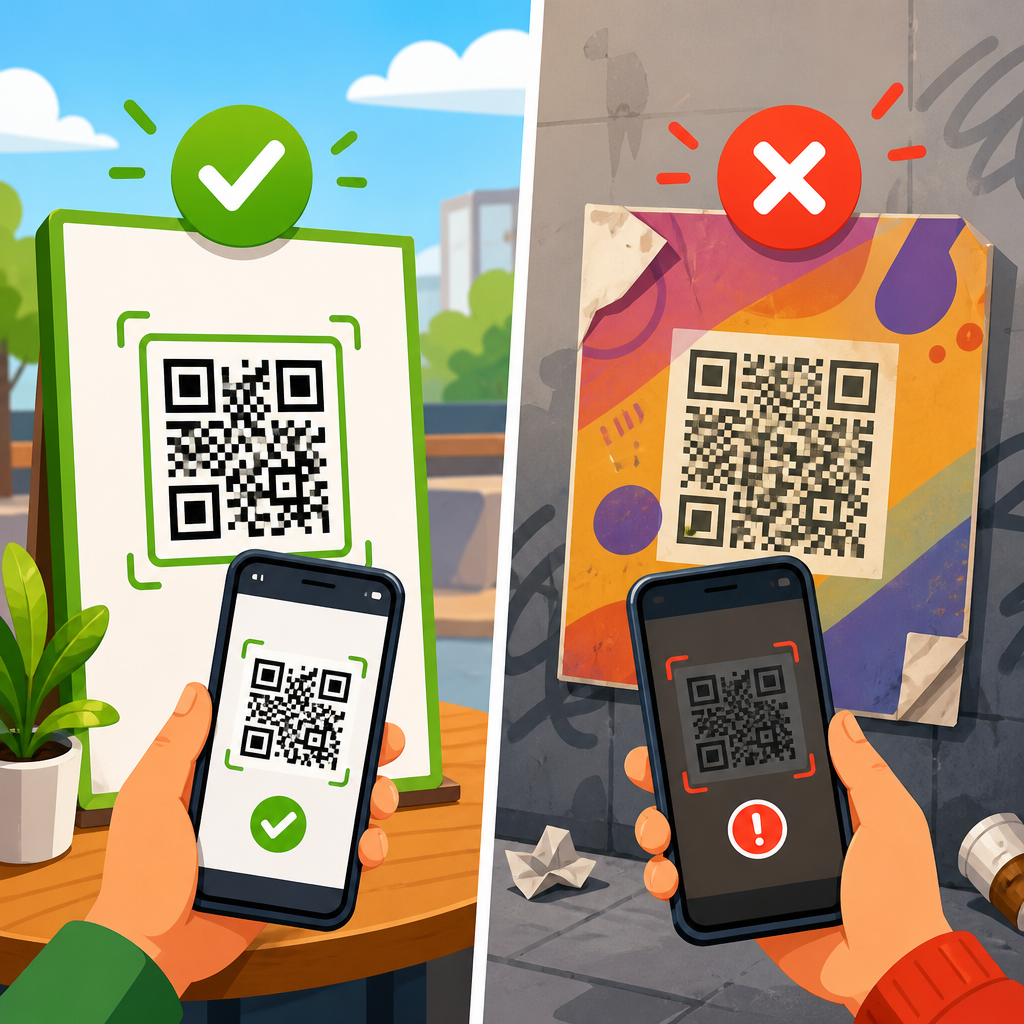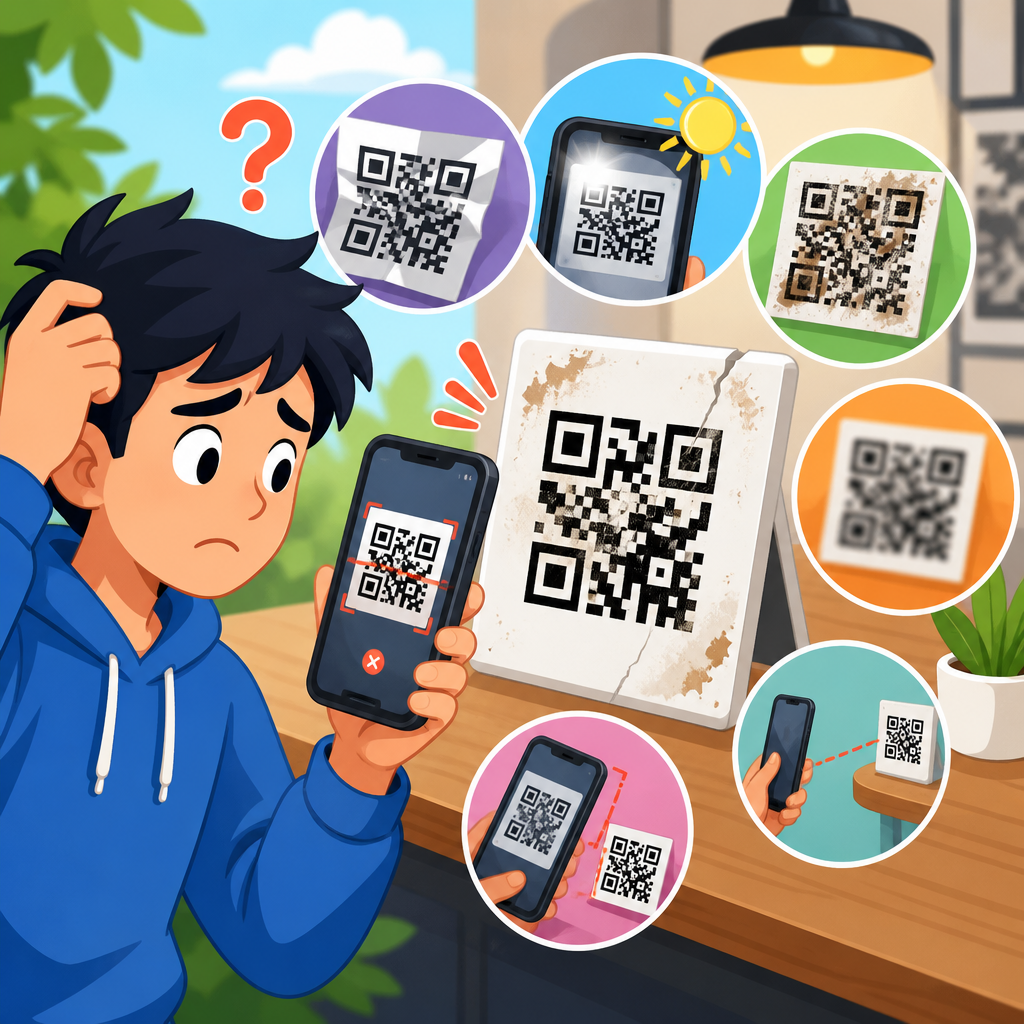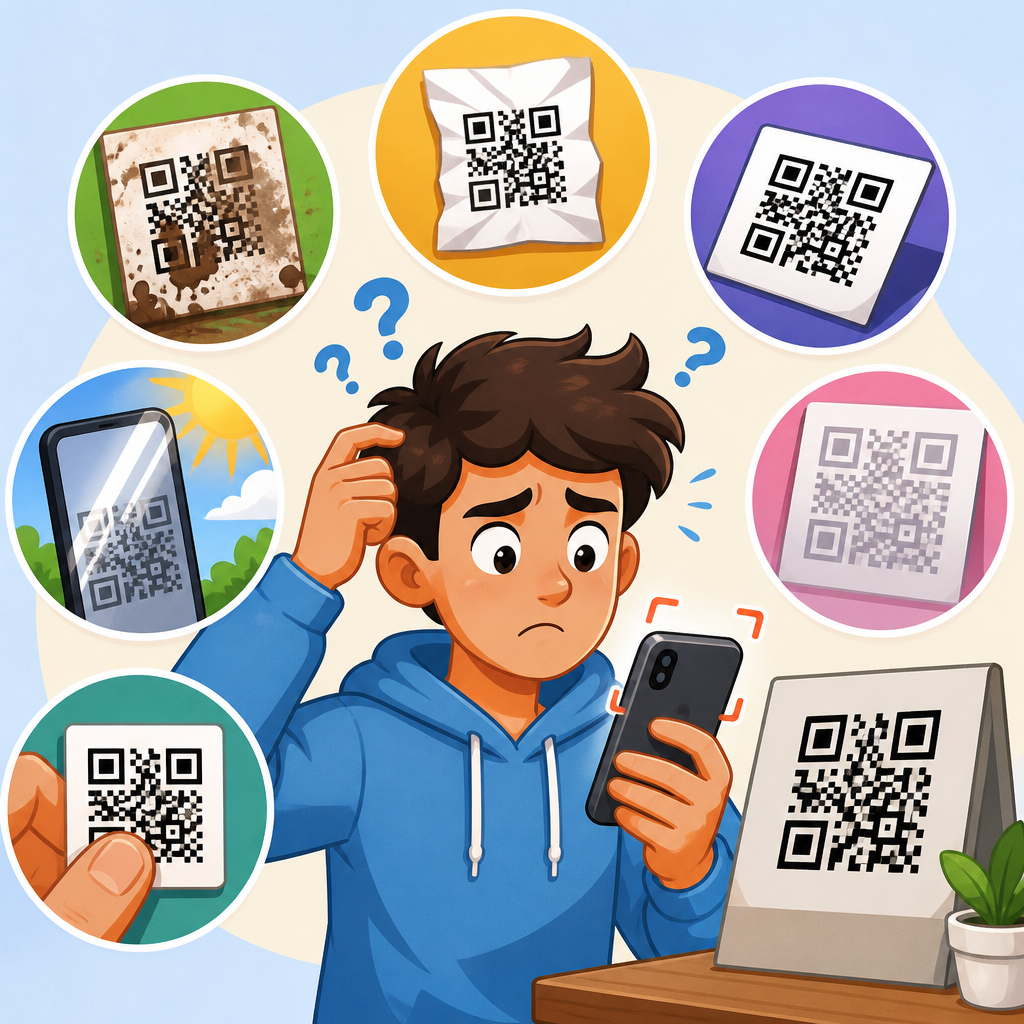
QR codes are simple in concept but surprisingly easy to break in practice, which is why understanding the common reasons QR codes fail to scan matters for marketers, operations teams, retailers, event organizers, restaurants, and support staff. A QR code is a two-dimensional matrix barcode that stores data in a grid of dark and light modules, then relies on a camera, decoding software, contrast, and error correction to turn that pattern into a usable action such as opening a URL, downloading a file, joining Wi-Fi, or launching payment instructions. When people ask why QR codes don’t work, they usually mean one of three things: the phone camera cannot detect the code, the scanner can detect it but cannot decode it, or the code decodes but the destination fails after the scan. Those are different failure points, and treating them separately saves time. In support work, I have seen teams replace perfectly good printed codes when the real issue was a broken landing page, and I have seen others spend hours debugging links when the actual problem was low contrast on glossy packaging. QR code troubleshooting starts with the full scan chain: code design, printing, placement, camera quality, lighting, scanning app behavior, network access, and destination reliability. The reason this topic matters is practical and measurable. A failed scan interrupts the user journey at the exact moment of intent. In a restaurant, that means slower ordering and frustrated diners. In direct mail, it means lost campaign attribution and lower response rates. In industrial settings, it can delay inventory updates or maintenance workflows. The good news is that most QR code scan failures are preventable once you know the usual causes and the checks that isolate them quickly.
Print quality, size, and physical damage are the first places to look
The most common reason QR codes fail to scan is that the printed or displayed symbol is physically hard for a camera to read. QR codes need sharp module edges, adequate size, and enough quiet zone, which is the blank margin around the code. According to ISO/IEC 18004, the quiet zone should be at least four modules wide on all sides. If a designer crops too tightly, adds decorative frames, or lets text overlap the edges, many scanners struggle to locate the symbol at all. I see this often on flyers, labels, and product packaging where space is tight and branding pressure is high.
Size matters more than many teams expect. A tiny QR code on a business card might work at close range, but the same size on a poster mounted behind a storefront window can be effectively unscannable from the sidewalk. A useful field rule is to scale the code based on expected scan distance. If people will scan from farther away, the code needs larger modules and a larger overall footprint. Dense codes that store long URLs, UTM parameters, or vCard data need even more space because each module becomes smaller as data density rises.
Physical damage also causes failures, especially for outdoor signage, shipping labels, tabletop displays, and industrial assets. Scratches, folds, dirt, condensation, and sun fading can interfere with key positioning patterns or enough data modules to exceed error correction capacity. QR codes do include Reed-Solomon error correction, typically at L, M, Q, or H levels, but that is not a free pass for poor handling. High error correction can help recover from partial damage, yet it also increases symbol complexity, which can make marginal prints harder to decode if the code is too small.
When troubleshooting print issues, start with simple checks. View the code up close. Are edges crisp or fuzzy? Is the quiet zone intact? Is the surface curved, wrinkled, reflective, or scratched? Test the same code from multiple phones. If none can detect it, the symbol itself is likely the problem. If detection improves when you move closer or zoom, size and print resolution are the probable causes.
Low contrast, poor lighting, and reflective surfaces confuse scanners
If a QR code exists in the right size but still will not scan reliably, contrast and lighting are the next likely causes. Scanners work best when dark modules sit on a light background, usually black on white. Brand-driven color choices often reduce that contrast below a practical threshold. Light gray on white, pastel combinations, metallic inks, translucent overlays, and photographic backgrounds can all break detection. In the studio, a designer may scan the code once on a high-end phone and assume it is safe. In the real world, lower-end cameras, dirty lenses, glare, and movement expose weaknesses immediately.
Lighting problems show up in two directions. Too little light raises noise and blur, especially on older devices. Too much directional light creates glare on laminated menus, acrylic signs, glossy posters, and phone screens. I have had codes fail under bright restaurant pendant lights because the reflection washed out half the symbol. Tilting the menu slightly solved the immediate issue, but the permanent fix was matte stock and stronger contrast.
Inverted codes, such as white modules on a dark background, are supported by many modern scanners but not all of them. The same goes for heavily stylized codes with rounded modules, gradients, embedded logos, and patterned fills. These can work when generated carefully, but every visual effect reduces decoding tolerance. For support teams answering why a QR code won’t scan, the direct answer is often that the code is aesthetically customized beyond what the average camera can handle consistently.
A fast way to test contrast and glare is to print the same destination as a plain black-on-white QR code and compare scan rates side by side. If the plain version performs better, the issue is visual design rather than the content or destination. This is why production teams should validate final artwork in realistic conditions, not just on a designer’s monitor.
Bad encoding, wrong format, and broken destinations can make a valid code useless
Sometimes the QR code scans perfectly, yet users still say it does not work. In those cases, the failure is usually in the encoded data or what happens after decoding. The most common example is a URL that is malformed, outdated, redirected incorrectly, or blocked by the destination server. A static QR code permanently stores whatever was entered at creation time. If that URL later changes, returns a 404 error, or points to a page removed during a site migration, the code becomes functionally useless even though the symbol is technically valid.
Encoding mistakes happen more often than teams admit. I have seen spaces inserted into URLs, protocols omitted, test links shipped to production, and shortened links expire because a third-party service was abandoned. Wi-Fi QR codes fail when the SSID, password, or security type is entered incorrectly. vCard codes can behave inconsistently across mobile operating systems if fields are malformed. Payment codes may be rejected if they do not match the expected regional standard or acquirer format.
Destination issues extend beyond the link itself. Some landing pages block mobile access, load too slowly on weak connections, trigger certificate warnings, or rely on scripts that fail in in-app browsers. A user experiences all of that as a QR code problem. From a support perspective, the distinction does not matter to the user; the scan failed to deliver the promised result. That is why every QR troubleshooting process should include destination testing on both iOS and Android, on Wi-Fi and cellular, and inside common camera and social app browsers.
| Failure point | Typical symptom | Likely cause | Best fix |
|---|---|---|---|
| Detection | Camera does not recognize code | Low contrast, missing quiet zone, glare, small size | Increase size, restore margin, use black on white, reduce reflections |
| Decoding | Code is recognized but not read | Blur, dense data, print defects, excessive styling | Simplify design, shorten data, improve print resolution |
| Launch | Prompt appears but action fails | Malformed URL, bad encoding, unsupported data type | Regenerate code with validated data and test on multiple devices |
| Destination | Page opens but does not work | 404 page, slow site, SSL warning, mobile usability problem | Repair landing page, check redirects, optimize mobile performance |
Device limitations and scanner app behavior affect real-world performance
Not every phone scans QR codes equally well. Camera sensor quality, autofocus speed, lens cleanliness, operating system support, and built-in scanner behavior all influence results. Newer iPhones and flagship Android phones generally lock onto codes quickly, while older budget devices may need more light, steadier hands, and larger codes. Cracked camera lenses, smudges, and cheap screen protectors over front-facing kiosks can also degrade image quality enough to cause intermittent failures.
Scanner software introduces another variable. Some users rely on the default camera app, others use wallet apps, social apps, or dedicated barcode readers. These apps differ in how they detect inverted codes, custom designs, and non-URL payloads. For example, a camera app may recognize a plain web link immediately but ignore a stylized code with low contrast. Some apps also handle redirects, app deep links, and custom URI schemes inconsistently. That is why a code that scans on one device may fail on another even when the symbol itself is acceptable.
Permissions and security settings can interfere too. Enterprise-managed phones may restrict browser launches. Privacy features may block clipboard actions or pop-ups. Certain environments disable camera access entirely. In corporate, healthcare, and warehouse deployments, these policy controls should be part of troubleshooting because the QR code may be fine while the device is locked down.
The practical lesson is simple: test with a representative device mix before launch. If your audience includes older Android phones, low bandwidth conditions, or kiosk-mounted tablets, validate on those exact scenarios. The best-performing QR code is not the one that scans on your latest office phone; it is the one that scans reliably across the weakest devices your users actually carry.
Placement, context, and user environment often determine scan success
Even a well-made QR code can fail because it is placed in the wrong context. Location affects scan angle, distance, stability, and available time. A code mounted too high on a wall forces users to tilt their phones awkwardly. A code on a moving vehicle or digital billboard gives too little time for focus and decoding. A code behind glass can combine glare, reflections, and parallax. A code printed around a bottle or cup curves the modules, which may distort enough of the symbol to break scanning from common angles.
Context also shapes whether the scan result feels trustworthy. If the code appears without instructions, users may hesitate. If the call to action is vague, they may not know what should happen after the scan and assume it failed when the destination loads a generic home page. I have seen event signage improve dramatically when the team changed “Scan here” to “Scan to download your ticket and venue map.” The code itself did not change; expectations did.
Environmental conditions matter especially in operations and field service. Warehouse labels collect dust. Manufacturing plants have low light and vibration. Outdoor real estate signs fade in sun and get wet in rain. In each case, a QR code support plan should account for wear, cleaning, replacement intervals, and material selection. Matte laminates, UV-resistant inks, durable substrates, and protected mounting can make the difference between a code that works for a week and one that works for a year.
For digital displays, refresh rate and resolution add another wrinkle. Some phones struggle to scan codes from low-brightness screens, flickering LED panels, or displays with moiré effects. If the code is shown on a presentation slide or check-in monitor, keep it large, static, high-contrast, and on screen long enough for slower devices to acquire it.
How to troubleshoot QR code scan problems methodically
The fastest way to solve QR code scan failures is to isolate where the chain breaks, then test one variable at a time. First, determine whether the issue is detection, decoding, launch, or destination. If the phone does nothing at all, inspect size, quiet zone, contrast, damage, and glare. If the phone recognizes a code but cannot complete the action, inspect the encoded data and landing page. This simple split prevents guesswork.
Use a known-good baseline. Generate a plain black-on-white QR code for the same URL with a reputable generator, then print or display it at adequate size. If the baseline scans and the original does not, the issue is almost certainly design, print, or formatting. If neither works, test the URL directly in a mobile browser. This instantly reveals redirect loops, 404 errors, certificate problems, or pages blocked by robots, authentication, geofencing, or app requirements.
Next, test across conditions: two operating systems, multiple camera apps, bright and dim light, Wi-Fi and cellular, and different distances. Document the exact failure mode. Support teams that log “QR code broken” learn very little. Teams that log “Samsung A13 detects code only at close range under direct light; iPhone 14 scans instantly; URL loads 404 on cellular” find root causes quickly.
Preventive quality control is just as important as reactive troubleshooting. Before launch, verify destination uptime, mobile page speed, HTTPS validity, and redirect behavior. Check print proofs at full scale, not just PDFs. Confirm the quiet zone survives trimming. Avoid over-customization unless scan testing proves reliability. Where updates are likely, use dynamic QR codes managed through a stable platform so the destination can change without reprinting the symbol. Finally, maintain internal links to detailed guides on QR code size, quiet zone, print materials, dynamic versus static codes, and mobile landing page optimization so teams can move from diagnosis to a specific fix without delay.
QR codes fail to scan for predictable reasons, and most of them sit somewhere in a short chain of dependency: symbol quality, visual readability, device capability, environmental conditions, encoded data, and destination performance. If you remember one principle, make it this: a QR code is not just an image. It is a complete user pathway that begins with camera detection and ends only when the intended action succeeds on a real mobile device. That perspective explains why a code can look fine to the eye and still fail in the field.
For day-to-day troubleshooting, start with the highest-probability causes. Check size, quiet zone, contrast, and glare. Then confirm the content behind the code, especially URLs, redirects, and mobile page behavior. After that, test on the devices and in the environments your audience actually uses. This method is faster than redesigning from scratch and more accurate than assuming every failure is a printing defect or every complaint is user error.
As a hub for QR code troubleshooting and support, this topic leads naturally into deeper guides on unreadable printed codes, QR code sizing, color and contrast rules, dynamic versus static code failures, camera compatibility, and landing page issues after the scan. Use those supporting resources to build a repeatable checklist for your team. When you treat QR performance as a system rather than a single asset, scan rates improve, support tickets drop, and users get the seamless experience they expected. Audit your live QR codes today, test them in real conditions, and fix the weak link before it costs you conversions or trust.
Frequently Asked Questions
Why do QR codes fail to scan even when they look clear and undamaged?
A QR code can appear perfectly fine to the human eye and still fail during scanning because successful decoding depends on more than whether the printed square looks sharp. A phone camera or scanner has to detect the full grid of dark and light modules, identify the finder patterns, measure spacing, and interpret the encoded data accurately. If the code has low contrast, slight distortion, poor lighting, glare, camera focus issues, or a size that is too small for the scanning distance, decoding can break down even when the code does not look obviously damaged. In many cases, the issue is not the code design itself but the real-world scanning conditions around it.
Another common reason is that the QR code may contain valid structure but poor usability. For example, a code placed on a curved bottle, glossy menu, reflective window, or moving screen can be hard for a camera to capture cleanly. Similarly, if the destination link is broken, expired, or blocked by network restrictions, users may think the QR code did not scan when the actual failure happened after the code was read. That is why troubleshooting should include both the visual integrity of the code and the full user path, from camera detection to final destination.
How do size, distance, and placement affect whether a QR code scans properly?
Size and placement have a major impact on scan success because QR codes need enough physical space for each module in the grid to remain distinguishable to the camera. If a code is printed too small, especially one that stores a lot of data and therefore has a denser pattern, the individual modules can blur together. A general rule is that the farther away a person will scan from, the larger the code needs to be. A code on product packaging viewed from a few inches away can be much smaller than one on a poster, storefront window, trade show sign, or restaurant wall, where users scan from several feet back.
Placement matters just as much as size. A code positioned too high, too low, around corners, near folds, on curved surfaces, or in areas with poor lighting can create practical scanning barriers. Codes should be easy to approach, fully visible, and placed where users can hold a phone steady without awkward angles. Avoid putting QR codes too close to edges, seams, or design elements that crowd the symbol. It is also important to preserve the quiet zone, which is the blank margin around the code. Without enough empty space around it, scanners may struggle to isolate the code from surrounding graphics or text.
Can colors, logos, and custom branding make a QR code harder to scan?
Yes, customization is one of the most common ways teams accidentally reduce QR code reliability. QR codes work best when there is strong contrast between the dark modules and the lighter background. Black on white is the most dependable option, but other color combinations can also work if the contrast remains high. Problems start when brands use similar tones, gradients, metallic finishes, transparent overlays, or light colors on light backgrounds. What looks attractive in a design mockup may become difficult for a camera to distinguish in real-world conditions.
Logos and styling can also interfere with readability if they cover too much of the pattern or alter key structural features. While QR codes do include error correction, that does not mean the center can be heavily blocked or the corners can be artistically reshaped without risk. Rounded modules, decorative frames, and embedded branding should always be tested across multiple phones and lighting conditions before launch. A branded QR code should still behave like a machine-readable symbol first and a design element second. The safest approach is to keep high contrast, preserve the quiet zone, avoid excessive visual effects, and verify that the customized version scans as reliably as the plain original.
What printing or display problems commonly cause QR codes to stop working?
Printing and display issues are a leading cause of scan failures because they can subtly distort the code even when the original digital file was correct. On printed materials, low resolution, ink spread, faded output, smudging, paper texture, and poor reproduction settings can blur module edges. Stretching the code disproportionately during layout is especially harmful because QR codes must remain perfectly square. If a designer resizes the image by dragging only one side, the grid can become warped and much harder to decode. Export settings also matter, since compressed or low-quality raster files may introduce artifacts that reduce clarity.
On screens, brightness, glare, refresh behavior, and surface reflections can interfere with scanning. A code displayed on a cracked phone, dim tablet, glossy kiosk, or low-quality monitor may be technically present but difficult for another camera to read. Screen captures that are too small or compressed can create the same problem as undersized print. In both print and digital use, testing the final production version is essential. Teams should not assume that because the source file scans on a desktop monitor, it will scan equally well once printed on labels, shown on POS screens, or displayed in outdoor environments.
How can businesses prevent QR code scan failures before customers encounter them?
The best prevention strategy is to treat QR codes as operational assets rather than simple graphics. Start by generating the code from a trusted platform, using the correct data format and an appropriate error correction level. Keep the destination simple and reliable, such as a short, working URL that loads quickly on mobile devices. Design the code with strong contrast, enough size for the use case, and a proper quiet zone. If branding is added, apply it conservatively and test the final version rather than the template file. Make sure the code remains square, uncompressed, and high resolution across all production formats.
Just as important, test the QR code in the environment where it will actually be used. Scan it on different phone models, with different camera apps, under bright and dim lighting, and from realistic distances and angles. Verify not only that the code reads, but that the landing page loads correctly, the Wi-Fi connection is stable, and the final action is easy for users to complete. For marketers, retailers, restaurants, event teams, and support staff, ongoing quality checks are worth the effort because a failed scan can mean lost conversions, frustrated customers, and extra support volume. A QR code should be validated as part of the full customer journey, not just approved as a visual asset.