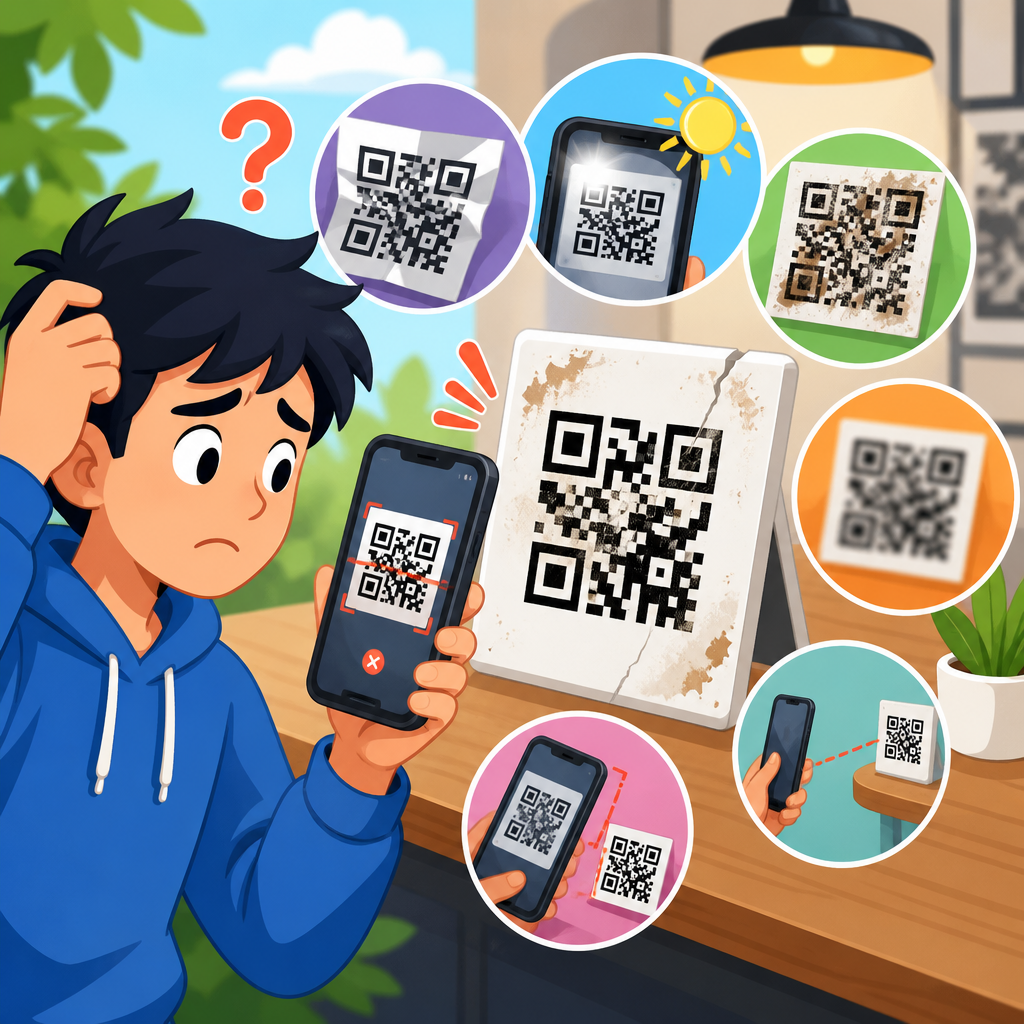
Few things are more frustrating than aiming a phone at a QR code and getting nothing: no link, no prompt, no action, just a stubborn square pattern that refuses to scan. If you have ever asked, “Why won’t my QR code scan?” the answer is usually not a mystery inside the phone camera. It is almost always a problem with contrast, size, damage, placement, content, or the way the code was generated and tested. A QR code is a two-dimensional barcode designed to be read quickly by cameras and decoding software, but it only works when several technical conditions are met at the same time.
Understanding why QR codes don’t work matters because they now sit at the center of payments, menus, product packaging, event check-in, authentication, app downloads, and printed marketing. When one fails, the result is not minor inconvenience. It can mean lost sales, missed registrations, broken customer journeys, support tickets, and wasted print spend. I have seen businesses reprint thousands of labels because a code was placed too close to a package seam, and I have seen restaurant table tents fail simply because the designer inverted the colors and laminated them with a glossy finish that reflected overhead lights.
At a basic level, a QR code stores data in a grid of dark and light modules. The scanner identifies three position markers, measures the grid, corrects some errors, and decodes the payload, which might be a URL, text string, Wi-Fi credential, payment token, vCard, or app deep link. If any part of that chain breaks, the user experiences the same symptom: the QR code will not scan. That is why troubleshooting has to move beyond guesswork. You need to know whether the problem is physical, visual, environmental, software-related, or content-related.
This hub explains the most common reasons QR codes fail, how to diagnose the issue, and what to fix first. It also gives you a practical framework for deciding whether the problem sits with the printed code, the device, the destination, or the campaign setup. If you manage QR code troubleshooting and support, mastering these fundamentals will solve most failures quickly and help you prevent them before they reach customers.
Common physical and design reasons a QR code will not scan
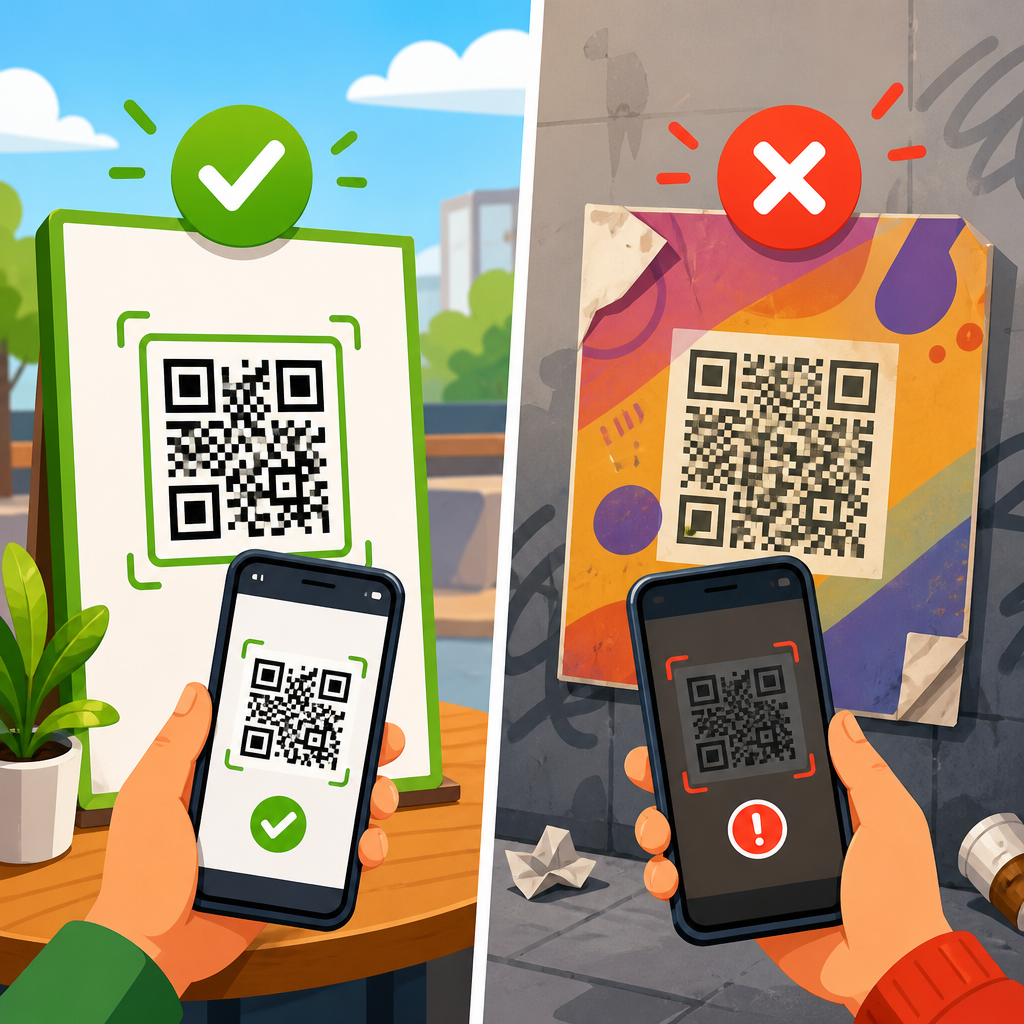
The most frequent cause of a QR code not scanning is poor code design. Cameras and decoding apps are forgiving, but not infinitely so. The first rule is contrast. A QR code should usually be dark on a light background. Black on white remains the safest standard because scanners can separate the modules clearly. Problems begin when brands use low-contrast combinations such as light gray on white, yellow on cream, or pastel colors chosen for aesthetics rather than readability. Metallic inks, gradients, and transparency effects also reduce scan reliability because the module edges stop appearing crisp to the camera.
Size is the next major issue. A QR code that looks fine on a desktop screen may become unscannable when reduced for packaging, business cards, or labels. A practical rule used in print production is the 10:1 distance-to-size guideline: for every ten units of scanning distance, provide one unit of code width. If a user is expected to scan from 50 centimeters away, the code should be about 5 centimeters wide. Tiny QR codes are especially vulnerable when they encode long URLs because more data means denser modules and smaller squares.
Quiet zone errors are common and often overlooked. Every QR code needs an empty margin around all four sides, typically at least four modules wide. This border tells the scanner where the code begins and ends. When a designer pushes text, logos, borders, or background patterns too close to the symbol, detection can fail before decoding even starts. I have fixed many “bad QR code” cases by restoring proper white space rather than regenerating the data.
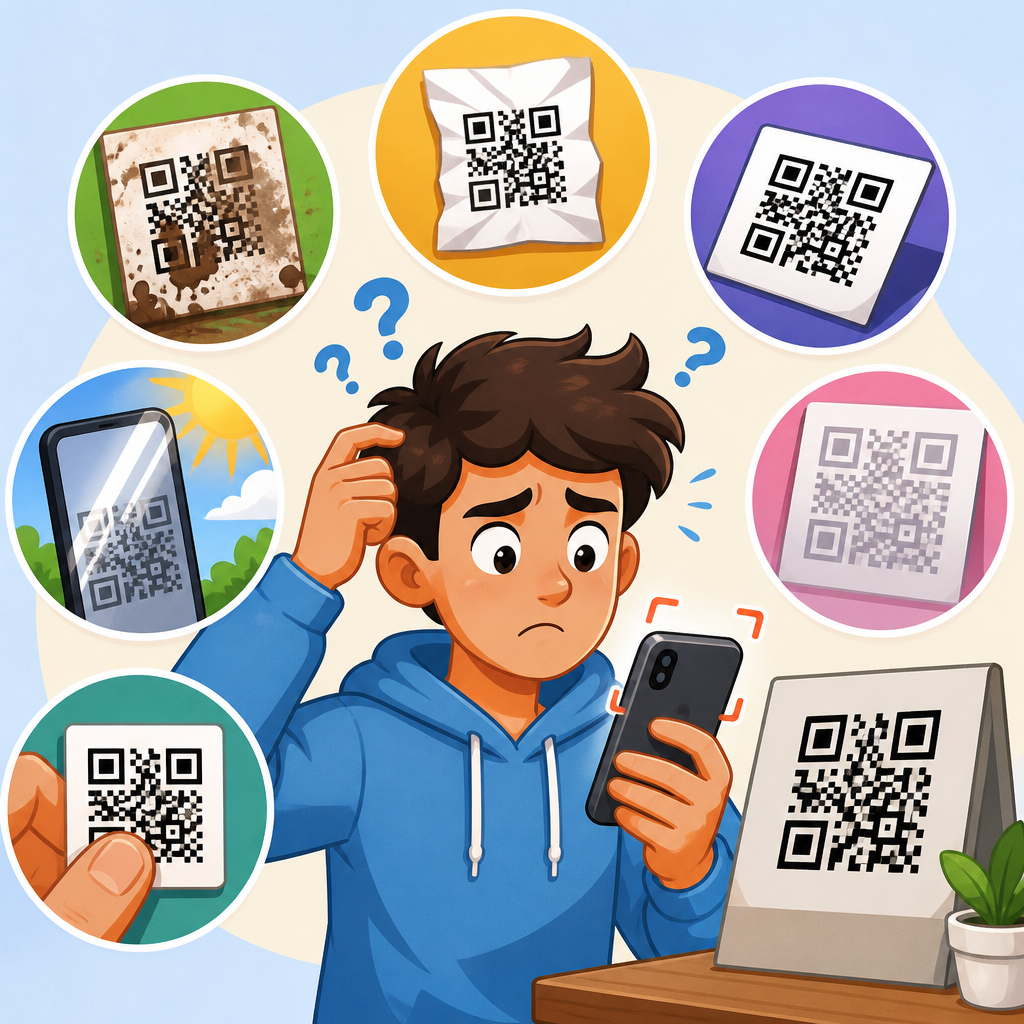
Damage and distortion also matter. Folded flyers, wrinkled stickers, curved bottles, scratched acrylic signs, and low-resolution screenshots can all interfere with scanning. Stretching a QR code nonproportionally is especially harmful because the grid geometry changes. So is exporting a code as a low-quality JPG, then resizing it repeatedly in design software. The safest production workflow is to generate the code as SVG, EPS, or high-resolution PNG, preserve its aspect ratio, and print a proof at final size.
Environmental problems that stop QR codes from working
Even a perfectly generated code can fail in the real world because scanning depends on lighting, angle, distance, and motion. Glare is one of the biggest culprits. Gloss lamination, acrylic holders, shop windows, and polished metal surfaces reflect light into the camera and wash out parts of the symbol. The code may be technically correct but practically unreadable. This is why matte finishes consistently outperform glossy ones for QR-heavy signage.
Placement errors create the second cluster of failures. If users must scan a code above eye level, near the floor, across a counter, through glass, or on a moving object, the success rate drops quickly. I have seen transit ads place QR codes where commuters had only a few seconds to aim while walking. The campaign analytics looked weak, but the issue was not user intent. The issue was bad placement. A code should be positioned where the user can pause, frame it fully, and maintain focus long enough for the phone to decode it.
Outdoor use adds another layer. Direct sunlight can create overexposure, while nighttime environments may produce noise and blur in lower-end phone cameras. Rain on a sign or condensation on a cooler door can obscure modules. Curved surfaces, such as cups and cans, can deform the grid enough to reduce readability, especially if the code wraps around an edge. In warehouses and manufacturing sites, dust, abrasion, and frequent handling gradually degrade labels until scanning becomes intermittent.
These failures are predictable, which means they are preventable. Before launching any printed QR campaign, test in the exact environment where people will scan: under store lighting, through protective coverings, at expected viewing distances, and on the actual substrate. Lab-perfect scans on a monitor do not prove field performance. Real-world validation does.
Device, camera, and software issues behind QR scan failures
Sometimes the QR code is fine and the scanning device is the problem. Older phones may have weaker autofocus, lower-resolution sensors, or slower image processing. Dirty camera lenses are more common than people realize; fingerprints can soften contrast enough to stop detection, especially on dense codes. Users may also block the lens accidentally with a case edge or crack. When troubleshooting support requests, one of the fastest diagnostic steps is to test the same QR code on a second phone with a clean camera.
Software behavior varies by device and operating system. On current iPhone and Android models, the native camera usually recognizes QR codes automatically, but some users disable camera permissions or scanning settings. Enterprise-managed devices sometimes restrict browser launches or app switching, which makes a successful scan appear broken. In other cases, the code scans but opens an unsupported deep link, a disabled app scheme, or a page blocked by a corporate firewall.
Third-party scanner apps introduce further inconsistency. Some decode only basic URL payloads well, while others mishandle unusual character sets, non-UTF-8 encoding, or specialized QR types. Payment codes, Wi-Fi configuration codes, and regional standards may behave differently depending on the app. That is why compatibility testing should include native iOS, native Android, and at least one reputable third-party scanner.
User technique also matters more than teams expect. If the phone is too close, too far, tilted sharply, or moving, the code may not lock. Dense symbols often require a brief pause for focus. The fastest support script is simple: clean the lens, improve lighting, hold the phone steady, frame the full code, move slightly back, and try the native camera first. If that works on one device but not another, you likely have a device or software issue rather than a broken QR code.
Content and destination problems: when the code scans but still “doesn’t work”
Many people say a QR code does not work when the real failure happens after scanning. The code may decode correctly, but the destination is wrong, broken, slow, blocked, or confusing. This distinction matters because it changes the fix completely. If the scanner recognizes the code and opens something, your problem is no longer scanability. It is content, routing, or landing-page performance.
Broken URLs are a classic example. A static QR code that embeds a mistyped link cannot be updated after printing. I have seen campaigns fail because the final production asset contained a staging-domain URL, an expired UTM parameter path, or a redirect chain that mobile browsers handled poorly. Dynamic QR codes reduce this risk because the printed symbol points to a short management URL that can be edited later, but they introduce their own dependencies such as service uptime, DNS health, SSL validity, and account status.
Mobile usability issues are just as damaging. A scanned code that opens a desktop-only form, a PDF too large for cellular networks, or a page with intrusive pop-ups will feel broken to users. So will a destination that demands an app they do not have, a login they did not expect, or a geofence they are outside of. If the code is on packaging inside a basement retail space, poor connectivity can also interrupt the experience after the scan succeeds.
| Symptom | Likely cause | Best first fix |
|---|---|---|
| No recognition at all | Contrast, size, glare, damage, missing quiet zone | Test a larger high-contrast version under matte lighting |
| Recognizes slowly or inconsistently | Dense data, poor focus, curved surface, low-resolution print | Simplify payload, improve print quality, retest on multiple phones |
| Scans but opens wrong page | Mistyped static URL or bad redirect | Verify encoded content and redirect map |
| Scans but page fails to load | Dead link, weak signal, SSL or hosting issue | Check destination uptime and mobile network conditions |
| Works on some phones only | Device camera limits, app incompatibility, deep-link behavior | Test native camera apps across iOS and Android |
How to troubleshoot a QR code step by step
The fastest way to troubleshoot a QR code is to isolate each layer in order. First, inspect the symbol itself. Check contrast, size, quiet zone, print sharpness, and physical damage. If possible, compare the production version against the original exported file. Second, test with multiple devices: at least one recent iPhone, one recent Android phone, and ideally one mid-range older device. If only one phone fails, the issue is likely device-specific.
Third, decode the QR code with a trusted scanner or desktop verification tool and inspect the raw payload. Does it contain the exact URL, text, or command you intended? Tools from ZXing-based decoders, QR TIGER, Bitly-linked dynamic platforms, and browser-based readers can help confirm the encoded content quickly. Fourth, open the destination manually in mobile browsers on Wi-Fi and cellular. Measure load speed, inspect redirects, and verify that HTTPS certificates are valid.
Fifth, test in context. Scan from the actual distance, angle, and lighting conditions users will experience. If the code is on a menu stand, test while seated. If it is on a retail shelf, test around product glare. If it is on a shipment label, test after handling and abrasion. Document each result so support teams can distinguish between code-generation errors, print-production defects, and destination issues. This disciplined process prevents expensive misdiagnosis.
One more important point: do not rely on a single successful scan as proof. A QR code should scan reliably, quickly, and repeatedly across common devices. In production, consistency matters more than best-case performance. If a code only works when held at one precise angle under ideal light, it is not ready for customers.
Prevention best practices for reliable QR codes
The best fix for QR code problems is preventing them during design and deployment. Keep payloads short whenever possible so the module density stays manageable. Use dynamic codes for campaigns that may need URL changes, but choose a reputable provider with analytics, redirect control, uptime monitoring, and export documentation. Maintain high contrast, preserve the quiet zone, and avoid decorative edits that interfere with finder patterns or alignment patterns. If adding a logo, keep it modest and verify that error correction levels remain appropriate rather than assuming the code will tolerate large overlays.
For print, export vector files when possible and approve physical proofs at final size. Avoid placing codes on folds, seams, corners, highly curved surfaces, or reflective finishes. Use matte coatings for signage and table displays. Pair every code with a short fallback URL or clear instruction so users have another path if scanning fails. This is especially important in accessibility-conscious design and in environments with poor signal.
Operationally, build a testing checklist before launch and a maintenance routine after launch. Recheck public-facing codes regularly, especially dynamic destinations that may change over time. Monitor analytics for sudden drops in scans, spikes in bounces, or device-specific anomalies. Those patterns often reveal a broken redirect, a damaged sign, or an environmental change before customers begin complaining. Reliable QR performance is not luck. It comes from disciplined design, realistic testing, and ongoing support.
If you are trying to answer “Why won’t my QR code scan?” start with the simplest truth: most failures come from avoidable design, print, environment, device, or destination mistakes. The code may be too small, too low-contrast, missing white space, damaged, glossy, poorly placed, or linked to content that fails after the scan. Once you separate these categories, troubleshooting becomes far easier and much faster.
For teams responsible for QR code troubleshooting and support, this hub should serve as the starting point. The right approach is methodical: inspect the symbol, test across devices, verify the encoded payload, confirm the landing experience, and retest in real conditions. That process solves the majority of QR code problems without guesswork, and it helps you identify whether the root cause belongs to design, production, IT, or marketing.
The real benefit of understanding why QR codes don’t work is prevention. When you apply proven sizing rules, preserve contrast and quiet zones, choose durable materials, and validate every destination on mobile, scan rates improve and support costs fall. Review your current QR codes with this checklist, test the weakest performers first, and fix issues before your users encounter them.
Frequently Asked Questions
Why won’t my QR code scan even though it looks fine?
A QR code can appear perfectly normal to the human eye and still fail when a phone tries to read it. In most cases, the issue is not the camera itself but the code’s readability under real-world conditions. The most common causes are low contrast, a code that is too small, blurry printing, poor lighting, screen glare, or distortion from stretching the image. QR codes depend on clean, high-contrast edges so the scanner can identify the pattern quickly. If dark modules are printed in gray, placed on a busy background, or covered by reflections, the scanner may not detect them at all.
Another common problem is that the code was generated correctly but used incorrectly afterward. For example, exporting it at a low resolution, compressing it, embedding it inside a cluttered design, or printing it too small can make a valid QR code unreadable. Even if the code scans on one device at close range, it may still fail for other users in different lighting or at a greater distance. The best way to diagnose this is to test the code across multiple phones, both iPhone and Android, in print and on screen. If it only works in ideal conditions, the design or placement likely needs improvement.
How big should a QR code be to scan reliably?
Size matters more than many people realize. A QR code that is too small may technically contain valid data, but it can still be difficult for a camera to focus on and decode quickly. A good rule of thumb is that the scanning distance should be about ten times the width of the code. So if someone will scan it from 10 inches away, the code should be at least 1 inch wide. If the code will be scanned from farther away, such as on a poster, sign, or menu board, it needs to be much larger.
Size also depends on data complexity. A QR code that contains a short URL usually has a simpler pattern and can remain readable at smaller sizes. A code storing a long string of text, Wi-Fi credentials, or dense tracking parameters becomes more visually complex, which means it needs more physical space to print clearly. In print, tiny modules can blur together, especially on textured materials or lower-quality printers. If you want reliable scanning, use a short destination URL whenever possible, give the code enough space, and test it at the final printed size before distributing it widely.
Can colors, logos, or design changes stop a QR code from working?
Yes, absolutely. Customized QR codes can work well, but design changes are one of the biggest reasons codes stop scanning. Standard QR codes are easiest to read when they use a dark foreground on a light, solid background. Once you start reversing colors, adding gradients, using low-contrast combinations, or placing the code over a patterned image, scan reliability can drop fast. Many branded QR codes look attractive but become difficult for cameras to interpret, especially in less-than-perfect lighting.
Logos and decorative changes can also cause problems if they cover too much of the code or interfere with critical areas. QR codes have built-in error correction, which allows some damage or obstruction, but that does not mean you can safely remove large sections. The corner detection patterns and the quiet zone, which is the empty margin around the code, are especially important. If a logo intrudes too far into the center, or if text and graphics crowd the edges, scanners may fail to recognize the code structure. If you want a branded QR code, keep the contrast strong, preserve the required margins, use moderate customization, and always test the final design on several devices before publishing it.
Does the link or content inside the QR code affect whether it scans?
Yes, and this is an important distinction. Sometimes the QR code scans correctly, but users think it failed because the destination does not load or the action does not complete. A QR code can be visually readable while still leading to a broken URL, a mistyped link, expired content, restricted page, or unsupported action. For example, the phone may decode the code instantly, but if the embedded link returns a 404 error, opens an inactive landing page, or points to content blocked by security settings, the user experience feels like a scan failure.
The amount and type of data encoded can also influence reliability. Very long URLs or dense content create more complex QR patterns, which are harder to print and scan consistently. That is why short, clean URLs generally perform better. If possible, use a short link or a dynamic QR code platform that lets you manage the destination without reprinting the code. Most importantly, test the exact content after generating the QR code. Confirm that it opens properly on different phones, browsers, and network conditions. A scannable code is only useful if the destination works smoothly once the scan is complete.
What are the best ways to fix a QR code that won’t scan?
Start with the basics: check contrast, size, quiet zone, and image quality. Use a dark code on a plain light background, make sure there is clear empty space around all four sides, and avoid stretching or compressing the image. If the code is printed, inspect it for smudges, damage, folds, glare, or placement on curved surfaces. If it is digital, check for screen brightness issues, reflections, and low-resolution display. Regenerate the code using a trusted QR generator if there is any doubt about the original file. When possible, encode a short URL instead of a long one to reduce pattern complexity.
Next, test methodically. Try scanning with multiple devices, operating systems, camera apps, and distances. Test in bright and dim environments, and from the angle users are most likely to approach it. If the code is going on packaging, signage, menus, labels, or printed marketing materials, test on the actual material before full production. Also verify that the destination page loads quickly and works on mobile devices. In most cases, a non-scanning QR code is fixed by improving contrast, increasing size, simplifying the encoded content, and preserving proper spacing. The key is not to assume a code is good just because it scanned once in the office. Reliable QR performance comes from real-world testing.