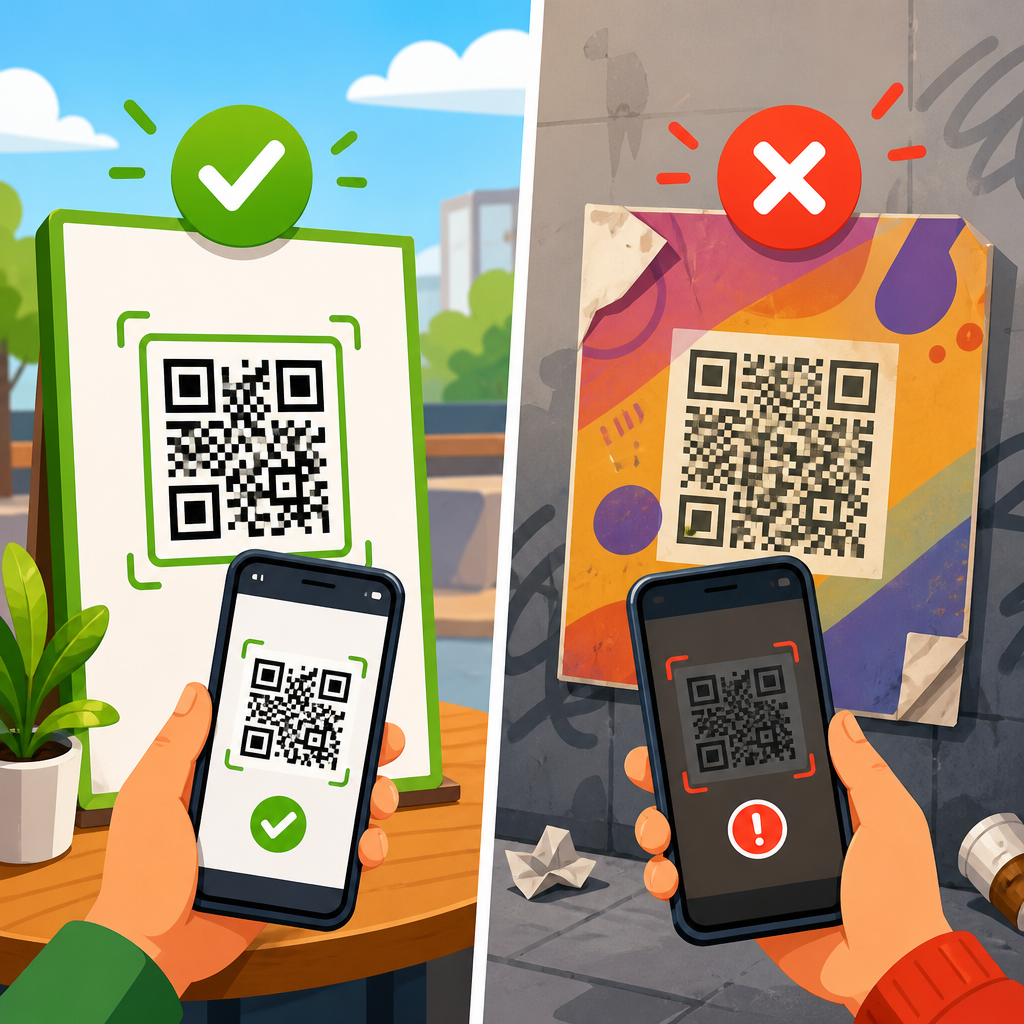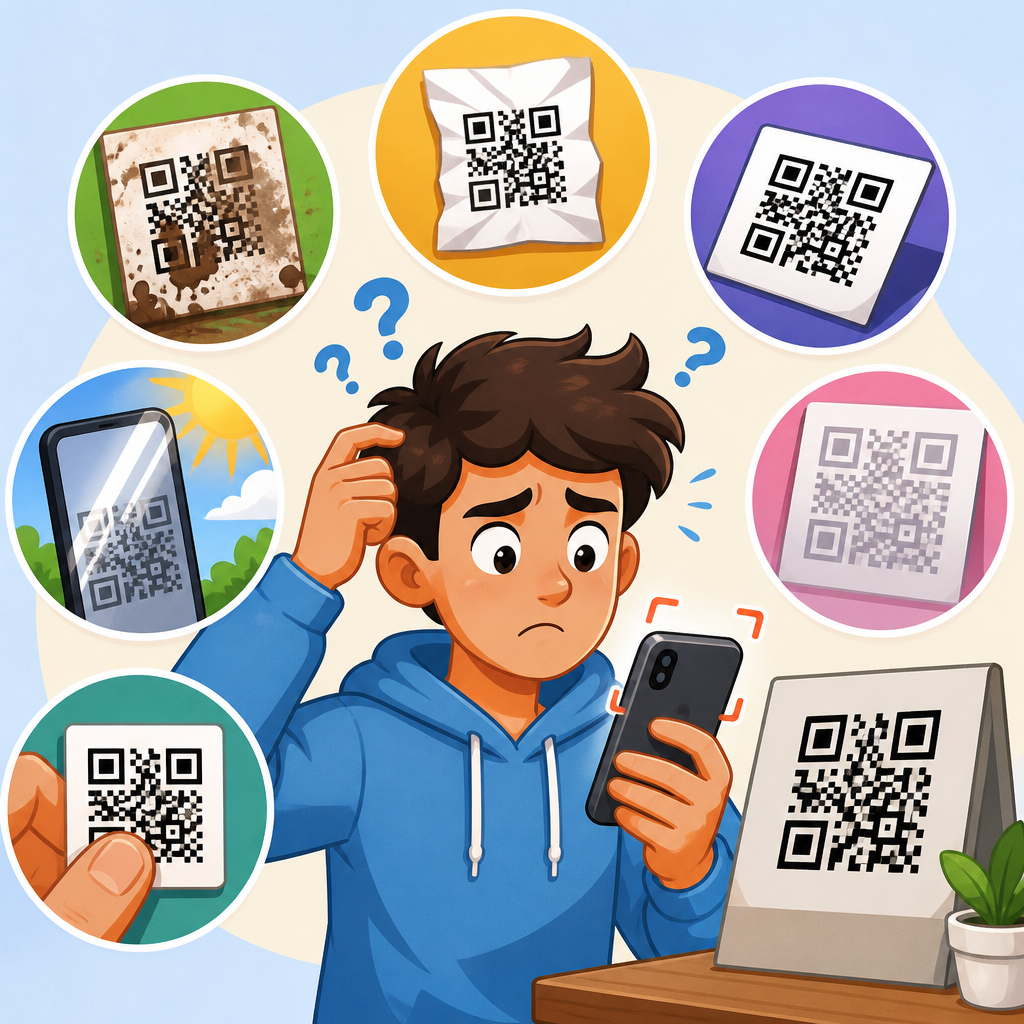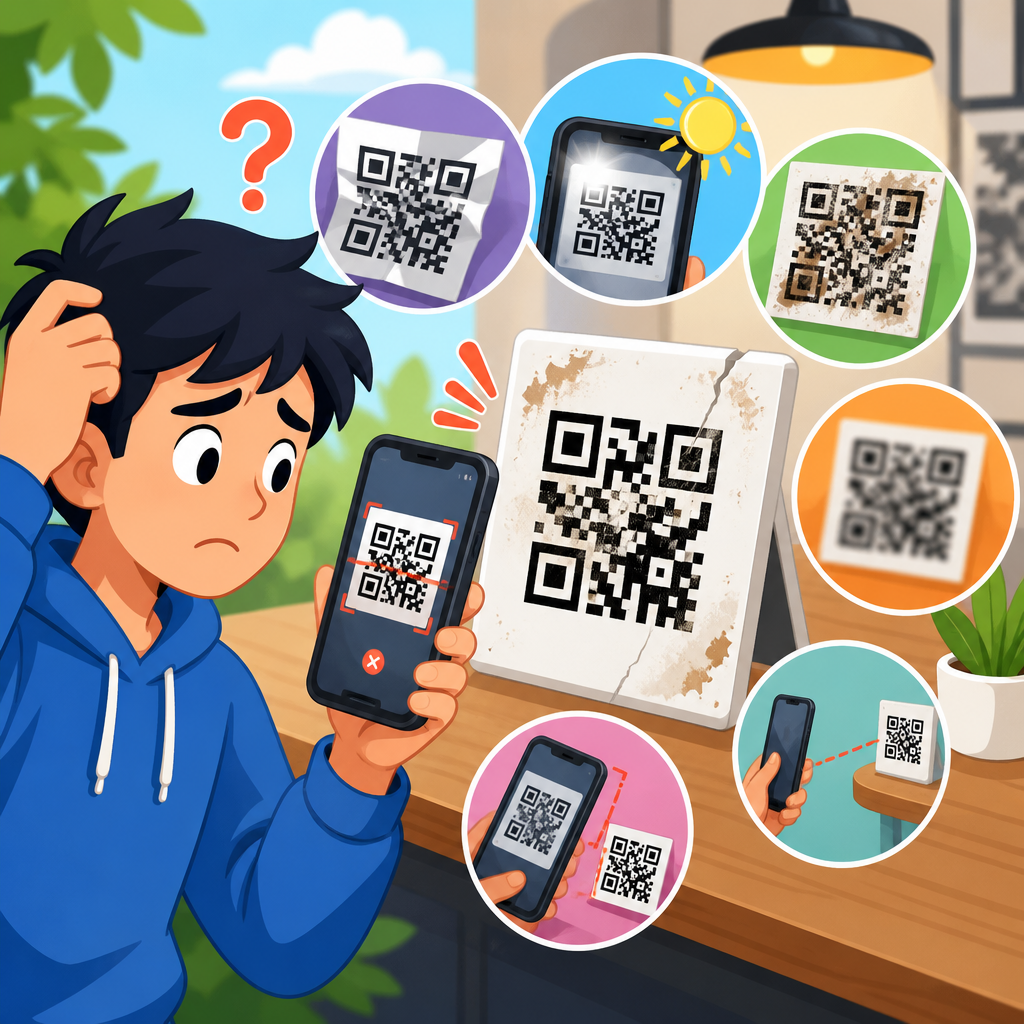
A blurry QR code usually fails for one simple reason: the scanner cannot clearly separate the dark modules from the light background, so the encoded pattern becomes ambiguous. In practice, though, blur is only one symptom inside a broader category of QR code failure. When people ask, “Why is my QR code blurry?” they often mean “Why does my QR code not work?” and the answer can involve image resolution, print quality, sizing, contrast, error correction, quiet zone violations, bad redirects, damaged surfaces, or even camera behavior on the scanning device.
This matters because QR codes sit at a fragile intersection of physical design and digital delivery. A code may look fine on a designer’s screen yet fail after export, compression, resizing, lamination, or placement on curved packaging. I have seen restaurant menus break because a print shop converted vector artwork into a low-resolution raster file, event posters fail because glossy lamination reflected overhead lights, and direct-mail campaigns underperform because tiny codes were placed beside dense text with no margin. In each case, the symptom was “blurry,” but the root cause lived somewhere else in the production chain.
To troubleshoot correctly, it helps to define a few terms. A QR code is made of square data cells called modules. Scanners detect finder patterns in three corners, then interpret the grid based on contrast and geometry. The quiet zone is the empty margin around the code; ISO/IEC 18004 specifies that this border is required for reliable detection. Resolution refers to pixel density in digital use or effective sharpness in print. Error correction is the built-in redundancy that allows a scanner to recover some lost or damaged data, usually at levels L, M, Q, or H.
If you manage marketing, packaging, operations, or design, understanding these failure modes saves money and protects conversions. A QR code is often the final bridge to a menu, payment page, app download, support article, or warranty form. If it fails, the user rarely retries more than once. The rest of this guide explains why QR codes do not work, how blur fits into the bigger picture, and what to check first when a scan fails.
What makes a QR code look blurry and fail to scan
A QR code becomes blurry when edge definition is lost. Scanners do not “read the idea” of a code; they measure sharp boundaries between black and white modules. If those boundaries soften, merge, or bleed, the software cannot reliably determine whether a square is dark or light. The most common causes are low-resolution exports, image compression, screenshotting instead of downloading the original, enlarging a small raster file, out-of-focus photography, print dot gain, and motion blur from a moving camera.
Low-resolution files are especially common in web workflows. Someone exports a 150-pixel PNG, drops it into a document, and scales it up for a flyer. On screen, anti-aliasing can hide the damage, but a phone camera sees rounded, fuzzy modules instead of crisp squares. JPEG compression makes this worse because it introduces artifacts around high-contrast edges. QR codes should almost never be saved as JPEGs. Use SVG, EPS, or PDF for print, and PNG at adequate pixel dimensions for digital placements.
Print introduces its own blur mechanisms. Ink can spread into neighboring areas, especially on uncoated stock, corrugated cardboard, thermal labels, or fabric. Lamination and varnish can reduce edge clarity or add glare that mimics blur. Curved bottles and flexible pouches distort the grid. Even a code that is technically high resolution can become unreadable if module shapes are no longer square and distinct when viewed by a camera at normal scanning distance.
Device behavior also matters. Budget phones, dirty lenses, low light, and aggressive camera smoothing can all create temporary blur during scanning. This is why a code that scans on one phone may fail on another. The correct conclusion is not that scanners are random, but that the code lacks enough tolerance for common real-world conditions.
Why QR codes do not work even when they are not obviously blurry
Many broken QR codes are perfectly sharp. They fail because the symbol is invalid, the destination is broken, or the environment interferes with detection. A code can scan but lead nowhere if the URL has a typo, the landing page returns 404, the domain has expired, or a redirect chain times out. Dynamic QR platforms can also fail when campaigns are paused, account limits are hit, or tracking links are malformed. In those cases, users often report “the QR code doesn’t work,” even though the symbol itself is readable.
Contrast is another major issue. Black on white remains the most reliable combination. Dark blue on pale yellow can work, but light gray on white often fails. Inverted codes, where the background is dark and modules are light, may scan on some modern devices but still perform inconsistently across older scanning libraries. Patterned backgrounds, transparent overlays, drop shadows, and gradients all reduce readability because they interfere with the scanner’s ability to distinguish module boundaries.
The quiet zone is frequently ignored in branded layouts. When text, icons, borders, or illustrations crowd the code, the scanner may not detect where the symbol begins and ends. The required margin should be at least four modules wide on all sides. Designers often think the code itself is the only important part, but the empty space around it is functionally part of the symbol.
Data density can also create problems. The more characters you encode, the more modules the QR code needs. A dense code printed at a small size becomes hard to scan because each module shrinks. I regularly recommend shortening URLs, removing unnecessary UTM clutter when possible, or using a dynamic short link so the symbol can stay simpler and larger.
How size, resolution, and distance affect scan performance
The practical rule is straightforward: smaller modules require cleaner production and shorter scanning distance. If users must stand far away, the code must be physically larger. If the code will appear on a phone screen, a user can move closer, but a code on a billboard must be dramatically larger because the camera needs enough pixel data to resolve the module grid. There is no single universal size that works everywhere.
For print, I treat 0.8 x 0.8 inches as a rough minimum for simple, high-contrast uses at close range, but many campaigns benefit from 1.2 inches or larger. Packaging often needs more because curves, seams, and textured substrates reduce readability. For signage scanned from several feet away, size should increase in proportion to expected distance. A common field guideline is about one inch of code width for every ten inches of scanning distance, though testing in the actual environment is more important than any formula.
On screens, pixel dimensions matter more than physical inches. A tiny embedded code inside a busy email signature may look acceptable on a laptop but become unreadable when compressed inside a mobile mail app. Retina displays can mask low-quality source files because they render them attractively for the eye while the camera still struggles to isolate module edges. Always test with the final display brightness, scaling, and app environment.
| Failure factor | What happens | Typical real-world example | Best fix |
|---|---|---|---|
| Low raster resolution | Modules soften and merge | Small PNG enlarged for a poster | Use vector artwork or larger PNG export |
| Insufficient quiet zone | Scanner cannot isolate the symbol | Border, text, or logo too close to edges | Keep at least four modules of clear margin |
| Poor contrast | Camera cannot distinguish dark and light areas | Gray code on beige packaging | Use dark foreground on light background |
| Overly dense data | Modules become too small at final size | Long URL with heavy tracking parameters | Shorten the link or use a dynamic QR code |
| Surface glare or distortion | Reflections or curvature break the grid | Glossy label on a bottle | Move placement, enlarge code, change finish |
| Broken destination | Code scans but page fails | Expired landing page after a campaign ends | Audit URLs, redirects, and hosting uptime |
Testing should always match the intended use case. A code that scans from your desktop monitor in a bright office may fail outdoors on a reflective sign. A code that works before print production may fail after it is reduced to fit packaging regulations. The only reliable standard is end-to-end testing using the final file, substrate, finish, size, and destination link.
Design choices that commonly break QR codes
Brand customization causes a large share of failures. Rounded modules, embedded logos, colored finder patterns, and decorative frames can all work, but they reduce tolerance. Every visual change spends part of the code’s error budget. If you also print small, choose low contrast, and place the code on a curved surface, the cumulative effect can push scan performance below acceptable levels. The issue is not that customization is forbidden; it is that customization must be validated against the final production environment.
Logo overlays deserve special attention. Many generators let users place a logo in the center and compensate by increasing error correction, often to level H. That can be safe when the code is otherwise simple and generously sized. It becomes risky when the encoded data is already dense, because higher error correction increases the number of modules. I have seen brands make the code both denser and more obstructed at the same time, which is exactly the wrong tradeoff.
Another common mistake is exporting from design tools with unintended scaling or transparency effects. In Adobe Illustrator, Figma, Canva, or similar platforms, a QR code may be resized non-proportionally, clipped inside a frame, or flattened with a background texture. The file can still look polished in the mockup while becoming less machine-readable. If a design system requires a stylized code, keep one master version untouched and compare scan speed between the branded and standard versions before approving production.
Placement is design, too. Do not put codes near folds, seams, perforations, bottle necks, or package edges. Avoid locations where users cannot comfortably frame the code with a phone camera. A technically valid code placed on the underside of a product display is functionally broken because the customer cannot scan it without awkward positioning and shadowing.
How to troubleshoot a QR code that will not scan
Start by separating symbol problems from destination problems. First, scan the code with multiple devices and apps. If none can detect it, inspect the symbol itself: size, sharpness, quiet zone, contrast, and physical damage. If it scans on some devices but not others, suspect borderline design choices such as low contrast, dense data, glare, or small size. If it scans consistently but the page fails, inspect the URL, redirects, SSL certificate, mobile usability, and server response.
Next, trace the production path. Ask which file format was exported, whether anyone took a screenshot, whether messaging apps compressed the image, whether the print vendor rasterized a vector, and whether the final piece was scaled after approval. In troubleshooting sessions, the root cause is often a handoff mistake rather than a generation mistake. A correct code generated on day one can become unreadable by day ten after multiple edits and exports.
Use recognized tools to verify the payload and decode quality. ZXing-based scanners, Google Lens, iPhone Camera, and dedicated QA apps can reveal whether detection is inconsistent. For print workflows, preflight in Acrobat and request vector retention from the printer. For dynamic campaigns, inspect HTTP status codes, redirect hops, canonical behavior, and page load time. A QR code that leads to a slow mobile page can appear broken because users abandon before the destination finishes loading.
Finally, document a pass-fail checklist. I recommend including minimum size, vector source requirement, contrast standard, quiet zone requirement, approved placements, and mandatory multi-device testing. This turns QR code troubleshooting from guesswork into process control.
Best practices to prevent blurry and non-working QR codes
Use vector files for print whenever possible. Keep the foreground dark, the background light, and the quiet zone clear. Encode the shortest practical destination, preferably through a managed dynamic link when campaigns may change. Size the code for the real scanning distance, not for available white space in the layout. Increase size before increasing decoration.
Test under realistic conditions: different phones, low light, glare, motion, and actual production materials. Confirm not just that the code scans, but that the landing page loads quickly, renders well on mobile, and matches user intent. A working QR code is not merely readable; it completes the action smoothly.
To improve results across your whole support content, build a standard operating procedure and link it to related guidance on sizing, file formats, print placement, dynamic versus static codes, and redirect management. That hub approach reduces repeated mistakes because teams can diagnose issues by category instead of treating every failed scan as a one-off mystery.
The key takeaway is simple: blurry QR codes are usually the visible symptom of lost clarity, poor production choices, or weak deployment standards. Most failures come down to a short list of preventable issues: low resolution, bad contrast, missing quiet zones, overly dense data, physical distortion, or broken destinations. When you fix those fundamentals, scan rates improve quickly and consistently.
If your QR code does not work, start with the file, then the design, then the print or display environment, and finally the landing page. Test the final output the way real users will encounter it. If you maintain a troubleshooting library, use this page as the hub and expand into focused guides for size, contrast, format, printing, and destination-link errors so every future QR code launches with fewer surprises.
Frequently Asked Questions
Why does a blurry QR code stop working?
A QR code works only when a scanner can clearly distinguish each dark module from the surrounding light background. When the image is blurry, those sharp square boundaries begin to soften, and the camera may interpret multiple modules as one shape or fail to separate the pattern correctly. That makes the encoded data ambiguous, which often causes slow scans, repeated scan failures, or inconsistent results across different phones.
In many cases, “blurry” is just the visible symptom of a larger scannability problem. A low-resolution export, compression from messaging apps, poor print quality, glossy glare, motion during scanning, or an overly small code can all create the same effect: the scanner cannot read the grid with enough precision. Even if the QR code looks mostly fine to the human eye, phone cameras and decoding software need crisp edges, reliable contrast, and a proper quiet zone around the symbol to interpret it accurately.
That is why a QR code may seem blurry and fail even though the design itself is technically correct. The issue is usually not that the code contains the wrong data, but that the visual presentation prevents the scanner from reading that data cleanly. Improving edge sharpness, increasing size, preserving contrast, and using a higher-quality source file usually resolves the problem.
Can a low-resolution image make my QR code blurry and unscannable?
Yes. Low resolution is one of the most common reasons a QR code becomes blurry and unreliable. QR codes are made of small, precise square modules, and when an image does not contain enough pixels, those modules lose definition. The result is a soft, blocky, or pixel-smeared appearance that scanners struggle to decode. This often happens when a QR code is downloaded as a tiny PNG, enlarged after export, copied from a screenshot, or compressed by social media platforms, email clients, or design tools.
The problem becomes worse when a small raster image is scaled up for print. Enlarging a low-resolution file does not add detail; it only stretches existing pixels, which makes edges jagged or fuzzy. For print use, vector formats such as SVG, EPS, or PDF are usually the best choice because they preserve clean lines at any size. For digital use, exporting a high-resolution PNG from the original generator is typically safer than relying on screenshots or repeatedly resaving the image.
If your QR code appears blurry, go back to the original source and re-export it at the correct size rather than resizing a poor-quality copy. Keep the file sharp, avoid unnecessary compression, and test the final version on multiple devices before publishing. A clean source image is one of the easiest and most important ways to prevent scan failures.
How do print quality, size, and contrast affect whether a QR code looks blurry?
Print quality, physical size, and contrast all directly affect readability. A QR code may technically be generated correctly but still fail if it is printed too small, on a low-quality printer, or with insufficient contrast between the dark and light areas. If the modules bleed into each other because of ink spread, rough paper, or low print resolution, the code can appear blurry even when the original file was sharp. Likewise, if the code is too small for the intended scanning distance, the phone camera may not capture enough detail to decode it.
Contrast is equally important. Scanners perform best when there is a strong difference between dark modules and a light background. Black on white is the safest standard. If you use pastel colors, gradients, metallic finishes, transparent overlays, or patterned backgrounds, the scanner may have trouble identifying module boundaries. What looks stylish in a design mockup can easily reduce real-world scan reliability, especially under poor lighting or glare.
The best approach is to print the code at an appropriate size for the context, maintain strong contrast, and use a printing process that preserves crisp edges. Also make sure there is enough blank space around the code, known as the quiet zone, because clutter near the edges can interfere with detection. A QR code should not just look good in the layout; it should remain clear and easy to isolate in real scanning conditions.
Could my QR code seem blurry when the real problem is something else?
Absolutely. Many people describe a QR code as blurry when the actual issue is a broader failure point in the scanning experience. The code might have a damaged quiet zone, excessive logo coverage, weak contrast, a distorted shape, or a decorative style that changes the modules too much. In other cases, the QR code scans visually but still “does not work” because the destination URL is broken, the redirect is misconfigured, the landing page is down, or the content loads poorly on mobile devices.
Error correction also plays a role. QR codes can tolerate some damage depending on the error correction level used, but that does not make them invincible. If a design includes too much customization, if parts of the symbol are obscured, or if physical damage affects key areas, the code may cross the threshold from “recoverable” to “unreadable.” To a user, that often looks like a blurry-code problem, even though the root cause is structural or technical rather than purely visual.
This is why troubleshooting should go beyond appearance alone. Test the QR code with multiple phones, under different lighting conditions, from realistic scanning distances, and in the exact format where it will be used. Confirm the image is sharp, but also verify the destination works, the quiet zone is intact, the contrast is strong, and the code has not been overdesigned. A QR code can fail for many reasons, and blur is only one of them.
How can I fix a blurry QR code and prevent the problem in the future?
Start by regenerating or re-exporting the QR code from the original source file. If possible, use a vector format for print and a high-resolution raster export for digital placement. Avoid screenshots, avoid stretching a small image larger, and avoid repeated compression through apps or editors. Next, check the design fundamentals: use dark modules on a light background, preserve the quiet zone on all sides, and keep decorative edits minimal so the code remains easy to detect and decode.
Then review real-world usability factors. Make sure the code is large enough for the expected scanning distance, printed with sharp edges, and placed where glare, wrinkles, folds, or curvature will not interfere with reading. If the code appears on packaging, posters, menus, or labels, test the exact final production version rather than just the digital proof. A code that scans on a desktop monitor may behave very differently once reduced in size, printed on textured stock, or viewed in dim lighting.
Finally, test everything end to end. Scan the QR code on both iPhone and Android devices, from different camera qualities, and confirm that the destination loads correctly and quickly. If you use a dynamic QR code, check that the redirect is active and the linked content has not changed or broken. Prevention comes down to preserving image clarity, respecting QR code design rules, and validating the full scan experience before the code reaches the public.