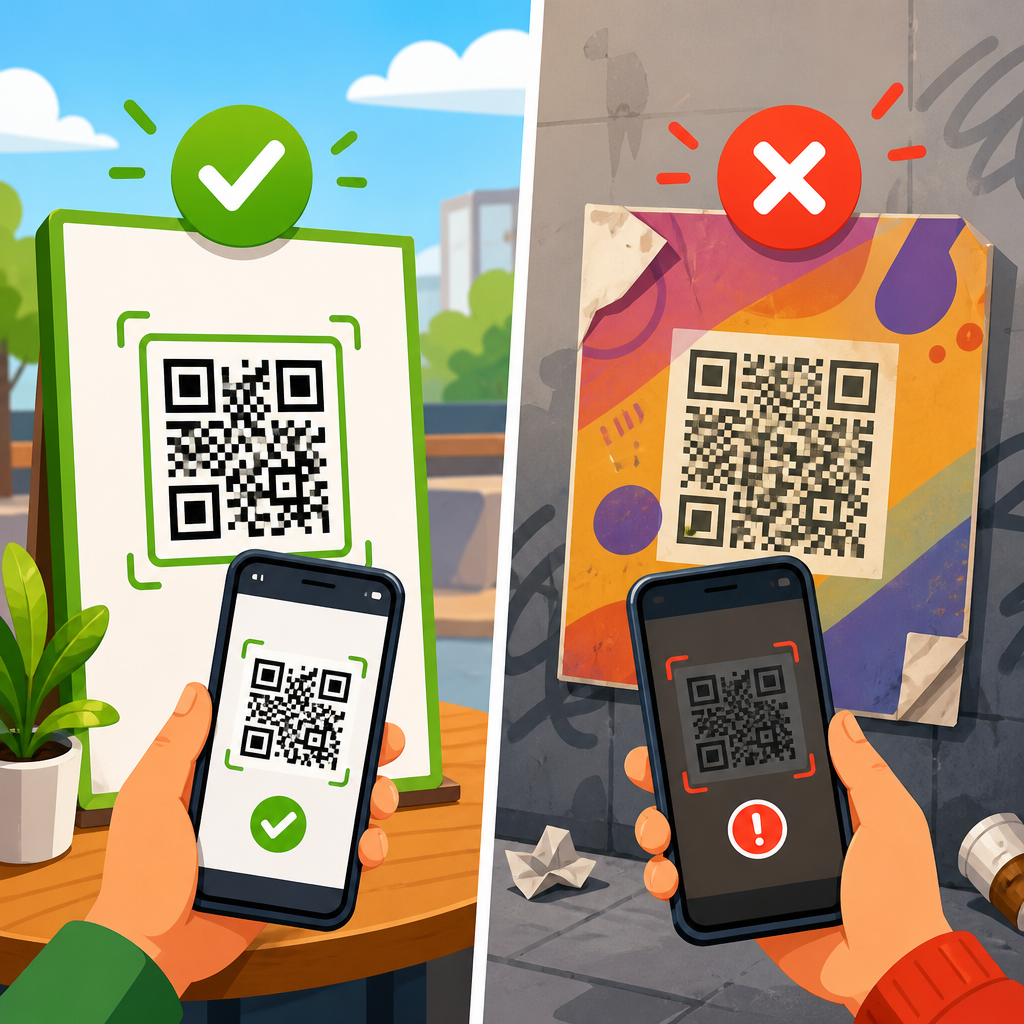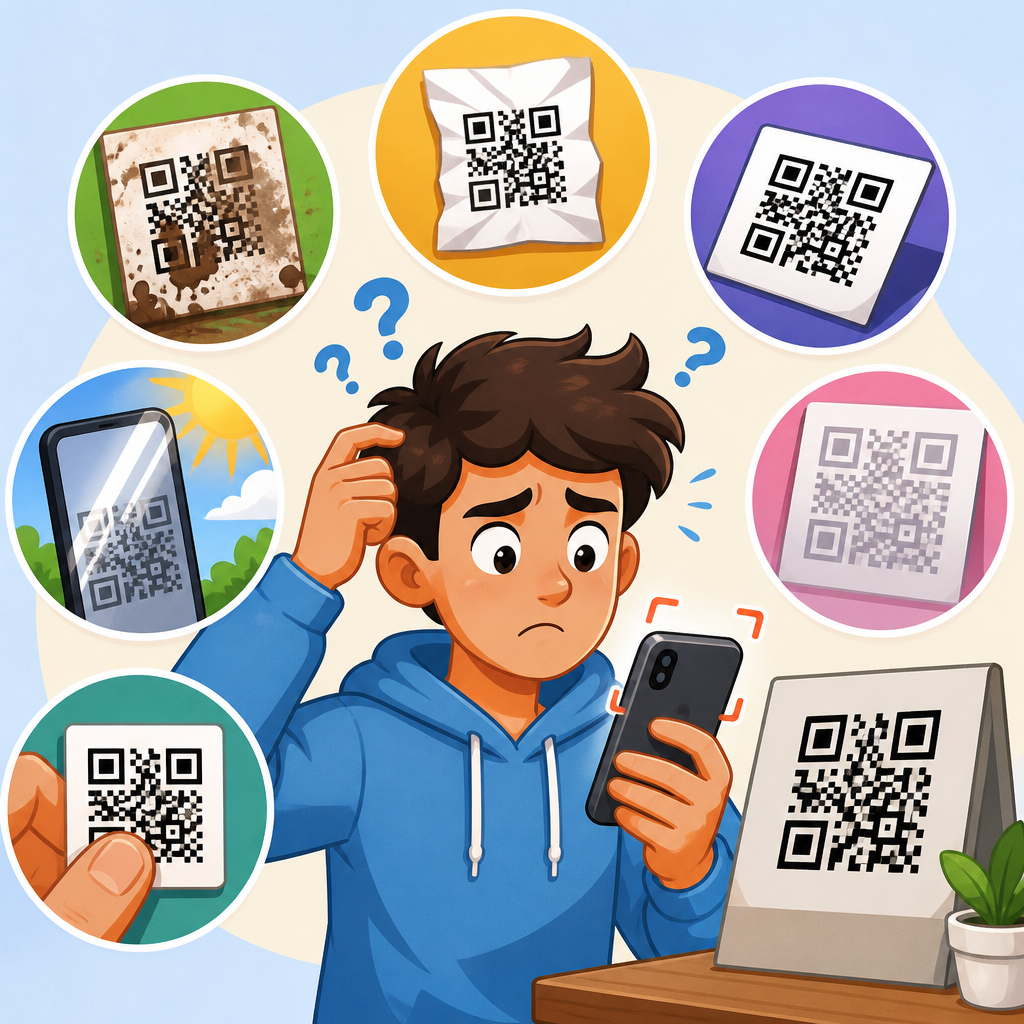
QR codes fail for reasons that are usually simple, but the failure can happen at several points between the printed square and the final webpage. A QR code is a two-dimensional barcode that stores data, most often a URL, which a phone camera or scanning app decodes and opens. When people ask, “Why does my QR code link not open?” they usually mean one of three problems: the code will not scan, the code scans but produces the wrong action, or the code scans and tries to open a link that fails. I have diagnosed all three in packaging runs, restaurant menus, event signage, direct mail, and in-app campaigns, and the pattern is consistent: most broken QR experiences come from preventable issues in design, printing, destination setup, or device behavior. This matters because a QR code is often the first step in a conversion path. If it breaks, the user does not complain; they leave. A failed scan can mean lost orders, missed registrations, support tickets, and damaged trust. For businesses using QR codes at scale, understanding why QR codes do not work is not a technical detail. It is a revenue, usability, and brand reliability issue.
To troubleshoot effectively, it helps to define the key components. The source is the QR symbol itself: the matrix, finder patterns, quiet zone, size, contrast, and error correction level. The content is the encoded payload, such as a static URL, dynamic redirect, vCard, Wi-Fi credential, PDF, app link, or payment request. The destination is what the user reaches after scanning, including the web server, redirect service, landing page, and browser behavior. Finally, the environment includes lighting, camera quality, operating system permissions, mobile browser support, and network conditions. A problem in any layer can stop the link from opening. The goal of this hub article is to explain the full landscape of why QR codes do not work, how to identify the exact failure point, and what to fix first. If you manage printed materials, retail displays, labels, menus, posters, invoices, packaging, or digital screens, this guide gives you a practical framework that prevents repeat failures and improves scan success rates.
Start by identifying where the failure happens
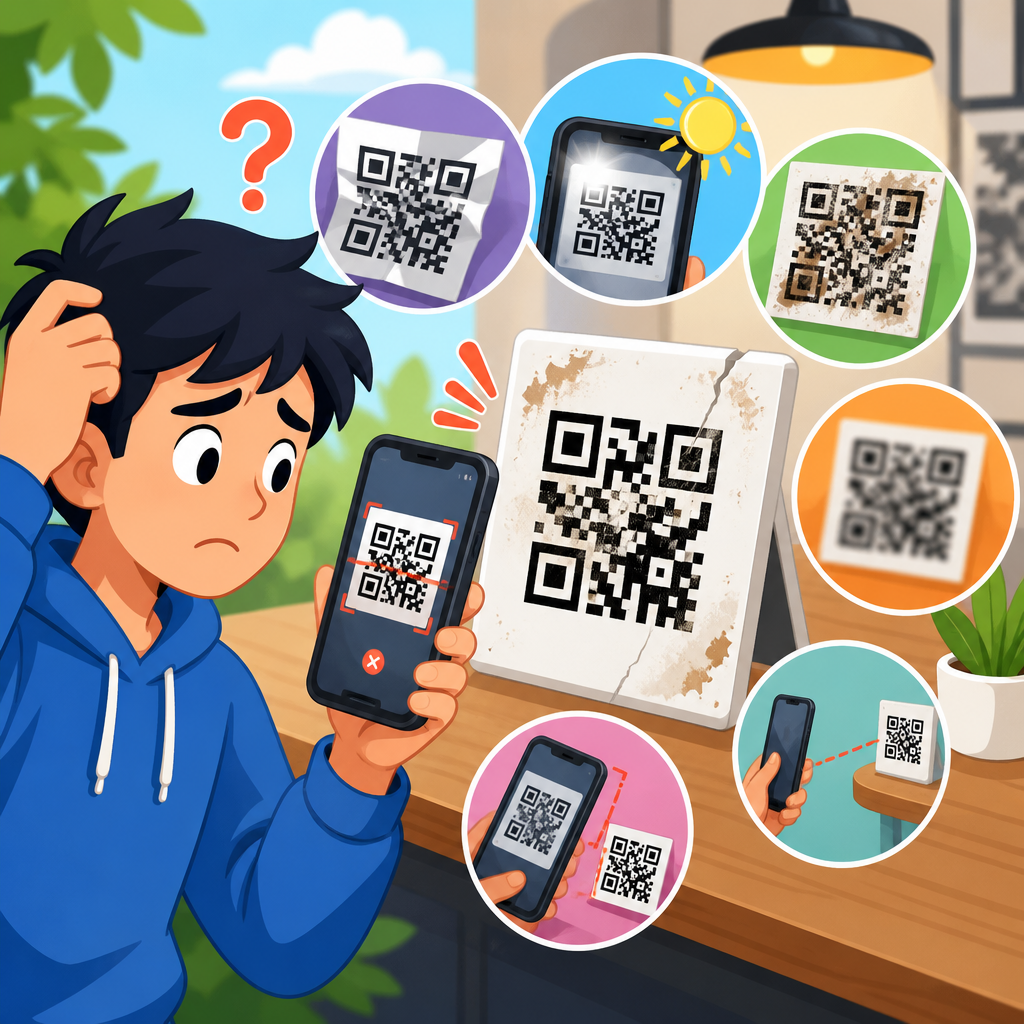
The fastest way to solve a QR code problem is to locate the break in the chain. Ask three direct questions. First, does the camera detect the QR code at all? If not, the issue is usually physical: poor contrast, missing quiet zone, distortion, low print quality, glare, or insufficient size. Second, does the phone recognize the code but refuse to open anything? That usually points to OS permissions, a scanning app limitation, unsupported content type, or malformed encoded data. Third, does the phone open a browser or app and then fail? In that case the QR symbol itself is often fine, and the real problem is the URL, redirect, SSL certificate, destination page, geoblocking, mobile compatibility, or network access.
In practice, separating scan failure from link failure saves time. I have seen teams redesign artwork for hours when the real issue was a 404 page after a deleted campaign slug. I have also seen developers check server logs when the actual problem was a glossy poster under track lighting that caused reflection over the code. A reliable test method is to scan the same code with at least three devices: an iPhone using the native Camera app, an Android device using the default camera or Google Lens, and a third-party scanner. Then test in two lighting conditions and from realistic user distance. If all devices fail to detect the code, start with symbol design and print quality. If all devices detect it but none open the link, validate the encoded data and destination setup.
Common design and print issues that stop QR codes from scanning
Most non-scanning QR codes are damaged by design decisions. The quiet zone is the first thing to check. This is the blank margin around the QR code, and scanners need it to separate the code from nearby text, borders, or background images. A common rule is a quiet zone of at least four modules on all sides. Remove that margin and many cameras struggle immediately. The second issue is contrast. Black on white remains the most dependable option. Light gray on white, brand colors with similar luminance, metallic inks, and transparent overlays often look stylish in proofs and fail in real use. Scanners read tonal difference, not branding intent.
Size also matters more than many teams expect. A practical baseline is around 2 x 2 centimeters for close-range use, but posters, shelf wobblers, bus shelters, and storefront windows need significantly larger codes because users scan from farther away. An old field rule is a scanning distance ratio near 10:1, meaning a code intended to scan from one meter away should be about 10 centimeters wide. Distortion is another frequent problem. Stretching a QR code non-proportionally, wrapping it across a curved bottle, placing it over a fold, or compressing it in layout software can break the module geometry enough to reduce readability. Export settings matter too. Raster images saved at low resolution can introduce blur and aliasing. For print, vector formats such as SVG, EPS, or PDF are safer than screenshots or compressed PNG files.
Error correction can help, but it is not a license to overdecorate. QR codes support four levels of error correction: L, M, Q, and H. Higher levels recover more damage, but they also increase density. Adding logos, cutouts, gradients, or custom shapes while encoding a long URL can create a dense symbol that weaker cameras cannot parse quickly. I have seen branded codes pass on the designer’s latest phone and fail on midrange Android devices that still represent a huge share of real traffic. The safe path is simple: preserve the finder patterns, keep module shapes conventional, maintain quiet zone, use strong contrast, and proof with older devices before approving print runs.
When the code scans but the link still will not open
If the QR code scans but the link does not open, the symbol is usually fine and the URL workflow is broken. The first check is the encoded data itself. A single typo in the domain, path, query string, or protocol can send users nowhere. Missing “https://” is less catastrophic today than it once was because many scanners infer a web address, but malformed syntax still causes failures. I often verify payloads by decoding the QR code with a trusted tool and comparing the extracted string character by character with the intended destination. Shortened links deserve special scrutiny because one error in a Bitly slug or a custom short domain can look valid while resolving incorrectly.
Redirects are another common source of failure. Many dynamic QR code platforms work by sending the user to a short tracking URL, which then redirects to the final landing page. If the redirect service is paused, the domain expires, DNS records break, or the account is suspended, every printed QR code depending on that chain fails instantly. The same happens when a campaign redirect points to a page that was unpublished during a site migration. SSL issues also block openings. Modern mobile browsers reject expired certificates, hostname mismatches, mixed-content setups, and weak HTTPS configurations. To a user, this looks like a QR code problem, but the failure sits on the destination server.
Some links fail only on mobile because the landing page was built for desktop assumptions. Oversized scripts, cookie walls that render badly in embedded browsers, PDF files that load slowly on cellular data, and forms hidden behind unsupported pop-ups can make it seem like the QR code did nothing. Test the final page on current iOS Safari and Android Chrome over both Wi-Fi and mobile data. Check server status codes, redirect hops, canonical paths, and robots or firewall settings if a managed browser opens but the page stalls. If a user reaches an app deep link, verify fallback behavior. A deep link without the installed app should route to an app store or mobile web page, not a dead end.
Device, app, and network limitations that create false QR code failures
Not every failure is in the code or the link. Device behavior matters. Some users disable camera permissions, and some corporate-managed phones restrict opening external URLs from camera scans. Older Android devices vary in native QR support; many rely on Google Lens or manufacturer camera software with inconsistent parsing. Third-party scanner apps can also add friction by showing ads, rewriting links, or failing on certain content types. On iPhone, native camera recognition is generally reliable, but users can still hit problems if Screen Time restrictions or enterprise mobile device management profiles block the action.
Network conditions create another class of invisible failure. In stores, warehouses, conference halls, and stadiums, a QR code may scan perfectly while the destination times out on congested cellular service. Guest Wi-Fi portals can intercept requests and confuse the browser. Indoor environments with poor signal make heavy landing pages especially fragile. If your QR code opens a large PDF, embedded video, or JavaScript-heavy microsite, the experience may look broken even when the server is healthy. In troubleshooting, always test with airplane mode off, both Wi-Fi and mobile data, and if possible on a different carrier. If the page opens on Wi-Fi but not cellular, reduce page weight, inspect CDN configuration, and check whether firewall or bot protection is challenging mobile requests.
| Failure symptom | Likely cause | First fix to try |
|---|---|---|
| Camera does not detect code | Low contrast, missing quiet zone, glare, small size | Reprint with larger size, black on white, proper margins |
| Code detects but no prompt appears | Scanner limitations, camera permissions, malformed payload | Test native camera, Lens, and decode payload directly |
| Prompt appears but page will not load | Bad URL, redirect failure, SSL error, deleted page | Open the exact URL manually and inspect redirects |
| Works on some phones only | Device compatibility, app differences, dense custom design | Test simpler code design and standard URL destination |
| Opens slowly or seems broken | Poor network, heavy mobile page, PDF or script overload | Optimize page speed and test on cellular data |
Static versus dynamic QR codes and why the difference matters
A static QR code stores the final destination directly inside the symbol. Once printed, it cannot be changed. A dynamic QR code usually stores a short URL controlled by a platform, which redirects users to a destination you can edit later. Both types can fail, but they fail differently. Static codes are durable because they do not depend on a third-party redirect service, yet they are unforgiving if you encoded the wrong link. Dynamic codes are flexible and support analytics, A/B routing, expiration rules, and campaign updates, but they introduce dependencies on domain management, platform uptime, account status, and redirect configuration.
For troubleshooting, identify which type you are using before changing anything else. If the code is static, decode it and test that exact URL. If the site moved, you may need a server-side redirect from the old path to the new one because the printed code cannot be edited. If the code is dynamic, inspect the full redirect chain using tools such as Redirect Path, cURL, or browser developer tools. I recommend keeping ownership of the short domain instead of relying entirely on a vendor-branded domain, especially for long-lived packaging or signage. I have seen campaigns break years later because a platform plan lapsed and the vendor disabled the redirect endpoint. Dynamic codes are excellent when managed well, but they need governance, renewal tracking, and documented ownership.
How to test, prevent, and monitor QR code link problems
The best QR code troubleshooting process starts before launch. Generate the code from a validated URL, export in vector format, preserve adequate quiet zone, and lock the aspect ratio in design files. Print physical proofs at actual size, on actual material, under actual lighting. A matte finish usually scans better than glossy stock because it reduces glare. Test with multiple devices, including at least one older phone and one midrange Android handset. If the code appears on a screen, check brightness, animation, moire effects, and whether refresh rate or pixel density makes edges shimmer at scanning distance.
After launch, monitor both the code and the destination. For dynamic QR codes, review scan analytics alongside web analytics to spot drop-offs between scan and session. If scans rise but pageviews lag, the redirect or landing page may be failing. Track uptime, certificate expiration, DNS health, and 404 errors for destination pages used in print. Keep a QR inventory with owner, placement, creation date, destination URL, redirect domain, and expected retirement date. This simple governance step prevents orphaned codes after staff turnover or site migrations. Finally, avoid the most common preventable mistake: never approve a QR code based only on a desktop mockup. The only meaningful test is a real-world scan in the environment where customers will use it.
When a QR code link does not open, the cause is almost always traceable to one of four areas: the symbol design, the encoded data, the destination infrastructure, or the user environment. That is good news, because each area can be tested systematically. Start by determining whether the problem is scan failure or link failure. Then check the fundamentals first: quiet zone, contrast, size, distortion, URL accuracy, redirect health, SSL status, mobile page performance, and network conditions. In my experience, teams solve QR issues faster when they resist jumping straight to redesigns and instead verify each layer in order.
The broader lesson is that QR codes are not just graphics; they are operational assets. A code printed on packaging, menus, labels, mailers, and storefronts may stay in use for months or years, so it needs the same discipline you apply to URLs, certificates, and landing pages. Use static codes when permanence matters and the destination will not change. Use dynamic codes when you need flexibility, but document ownership and monitor the redirect path. Test on real devices, in real locations, with real lighting and connectivity. If you build that process now, far fewer customers will ever ask why your QR code does not work. Audit your active QR codes today, fix the weakest links, and treat every scan as a critical user journey.
Frequently Asked Questions
Why does my QR code not scan at all?
If a QR code does not scan, the problem is usually with readability rather than the link itself. A phone camera or scanning app has to clearly detect the square shape, alignment markers, and data pattern before it can decode anything. If the code is blurry, too small, stretched out of proportion, cropped, printed on a reflective surface, or placed in low light, scanning can fail immediately. Even a valid URL will not open if the scanner cannot first read the symbol correctly.
Size and contrast matter more than many people expect. A QR code should have strong contrast, ideally dark modules on a light background, and it should include enough empty space around the edges, known as the quiet zone. If that border is missing because the design was trimmed too tightly or blended into a busy background, many devices will struggle to recognize it. Scanning issues also happen when logos cover too much of the code, when decorative colors reduce contrast, or when the image has been compressed or distorted during upload to a website, social post, or print file.
To troubleshoot, test the code on multiple phones and scanning apps. View the original QR image at full resolution, confirm it is not warped, and make sure the destination data was encoded correctly. If it is printed, inspect the physical copy for smudges, glare, folds, or placement on curved surfaces. In many cases, simply regenerating the QR code at higher resolution, increasing its print size, restoring proper margins, and using a plain high-contrast background solves the problem.
Why does my QR code scan but the link will not open?
When a QR code scans successfully but the link does not open, the QR pattern itself is usually working, and the problem shifts to the URL or the device trying to open it. The most common issue is an invalid or broken web address. A small typo in the encoded URL, a missing part of the address, an extra character, or a formatting mistake can cause the browser to fail. For example, the code may point to a page that no longer exists, a domain that expired, or a shortened link that no longer redirects properly.
Another common cause is the way the URL is structured. Some devices and apps handle links more reliably when they include the full protocol, such as https://. If the QR code contains an incomplete address, an outdated redirect, or a malformed tracking link, the phone may decode it but fail when it tries to hand the link to the browser. In other cases, the website itself may be down, blocked by server settings, protected by login requirements, or incompatible with mobile browsers. If the page loads on desktop but not on phones, the issue may be the site experience rather than the QR code.
The best way to diagnose this is to decode the QR code and inspect the exact URL it contains. Test that URL manually in multiple mobile browsers and on different networks, including both Wi-Fi and cellular data. Check for redirects, SSL certificate problems, regional restrictions, or pages that require cookies or scripts to function. If the encoded link is wrong, regenerate the QR code with the corrected URL. If the link is right but the website fails, fix the page, hosting, or redirect chain so the QR code leads somewhere that reliably opens on mobile devices.
Why does my QR code open the wrong page or perform the wrong action?
If a QR code scans but sends users to the wrong page, launches the wrong app, or triggers an unexpected action, the encoded data may not match what you intended to create. QR codes can store many data types, including website URLs, phone numbers, email drafts, Wi-Fi credentials, SMS messages, payment requests, and app deep links. If the wrong format was selected during creation, a scanner may interpret the code correctly but do something you did not expect. A code meant to open a webpage might instead trigger a text message, open a map location, or try to launch an app.
This also happens with dynamic QR codes, where the visible pattern points first to a redirect service rather than directly to the final destination. Dynamic codes are useful because they can be edited later, but they introduce another point of failure. If the destination inside the QR management platform was changed, mistyped, paused, expired, or reassigned, users may be sent to the wrong page even though the code image itself has not changed. Similarly, if multiple campaigns use similar short links or redirect rules, an incorrect mapping can route traffic to the wrong content.
To fix this, inspect the QR code with a decoder and confirm the exact raw content inside it. If it is a direct QR code, verify that the stored data type and URL are correct. If it is dynamic, log into the service managing the redirect and review the live destination, campaign settings, expiration rules, and any device-based routing. Then test on several devices to make sure the intended action is consistent. Wrong-destination issues are usually easy to correct once you identify whether the mistake is in the encoded content or in the redirect layer behind it.
Can the size, design, or placement of a QR code prevent the link from opening?
Yes. The design and physical placement of a QR code can absolutely stop a valid link from ever being reached. A QR code has to be scanned accurately before any link can open, and design choices often interfere with that first step. If the code is too small for the viewing distance, placed where users cannot hold a phone steady, printed on a curved bottle or glossy window, or surrounded by visual clutter, scanners may fail or decode inconsistently. In those cases, people often assume the link is broken when the real issue is that the code was difficult to capture cleanly.
Custom styling can also reduce reliability. Rounded modules, low-contrast color palettes, heavy gradients, transparent backgrounds, reversed light-on-dark designs, and oversized logos can all make scanning less dependable, especially on older phones or under poor lighting. While modern QR generators often support branded designs, every visual edit reduces the safety margin if not done carefully. Error correction helps, but it does not make a severely altered code foolproof. A QR code that looks attractive in a design mockup may perform poorly in the real world once printed or displayed on screens of different sizes.
Placement matters as much as the code image itself. Outdoor signs may suffer from glare or weathering. Storefront codes may be blocked by reflections. Event posters may be mounted too high. Digital displays can introduce motion blur, low brightness, or pixelation. The practical solution is to design for scanning conditions, not just appearance. Use adequate size, strong contrast, a clean quiet zone, and a flat readable surface. Test at the actual intended distance and angle before launch. A well-placed basic QR code almost always outperforms a highly stylized one in difficult environments.
How can I test and fix a QR code link problem before other people try to use it?
The most reliable approach is to test the QR code as a complete user journey, not just as an image. Start by scanning it with multiple devices, including iPhone and Android, and try both the native camera app and at least one third-party scanner. Confirm whether the code scans quickly, what exact content it decodes, and whether the expected page or action opens. If it points to a website, test the destination under real-world conditions: mobile browser, normal connection speed, Wi-Fi and cellular data, and without being logged into any special accounts that might hide access problems.
Next, isolate where the failure occurs. If the phone cannot read the code, inspect image quality, size, contrast, and quiet zone. If it reads the code but shows the wrong content, verify the encoded data or the dynamic redirect configuration. If it reads the correct URL but the page fails, test the website for uptime, redirect problems, SSL issues, mobile compatibility, and permissions. This step-by-step method matters because the phrase “QR code link not open” can describe several very different failures, and each one has a different fix.
Before publishing widely, test the final version in the exact format people will use. If it will be printed, test the printed copy rather than only the digital file. If it will appear on packaging, signage, menus, or screens, test it in the actual environment with realistic lighting and distance. Keep the destination simple, stable, and mobile-friendly. Whenever possible, avoid long redirect chains and confirm that your domain, hosting, and certificates are active. A short pre-launch testing routine catches most QR code problems before customers ever see them, which protects both usability and trust.