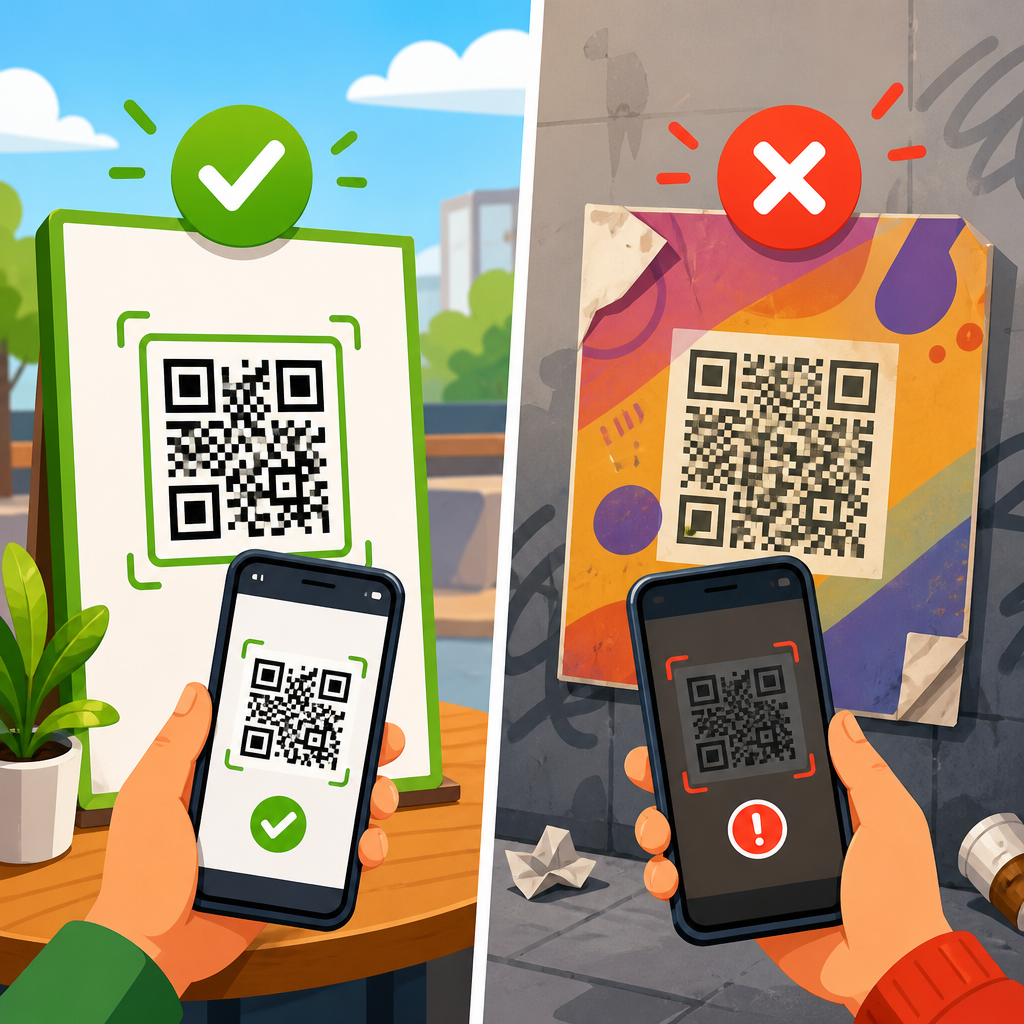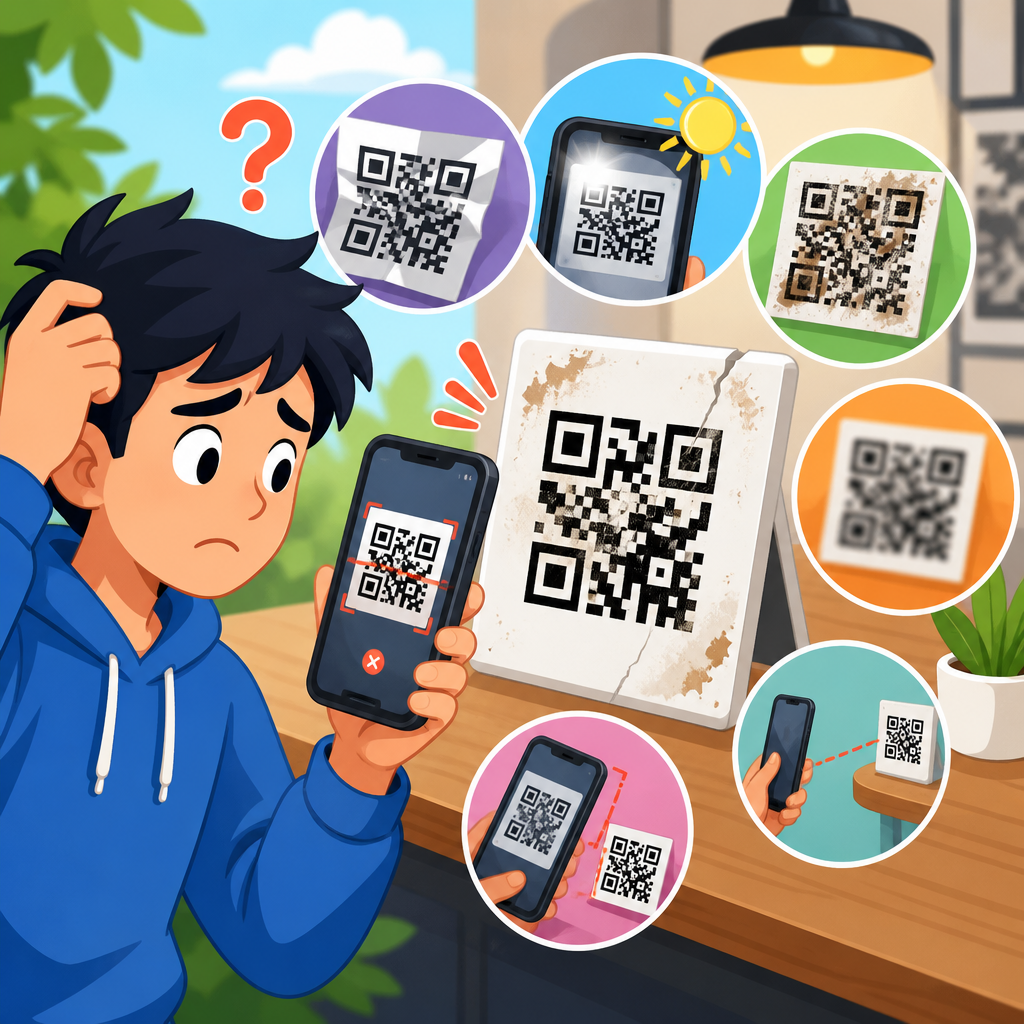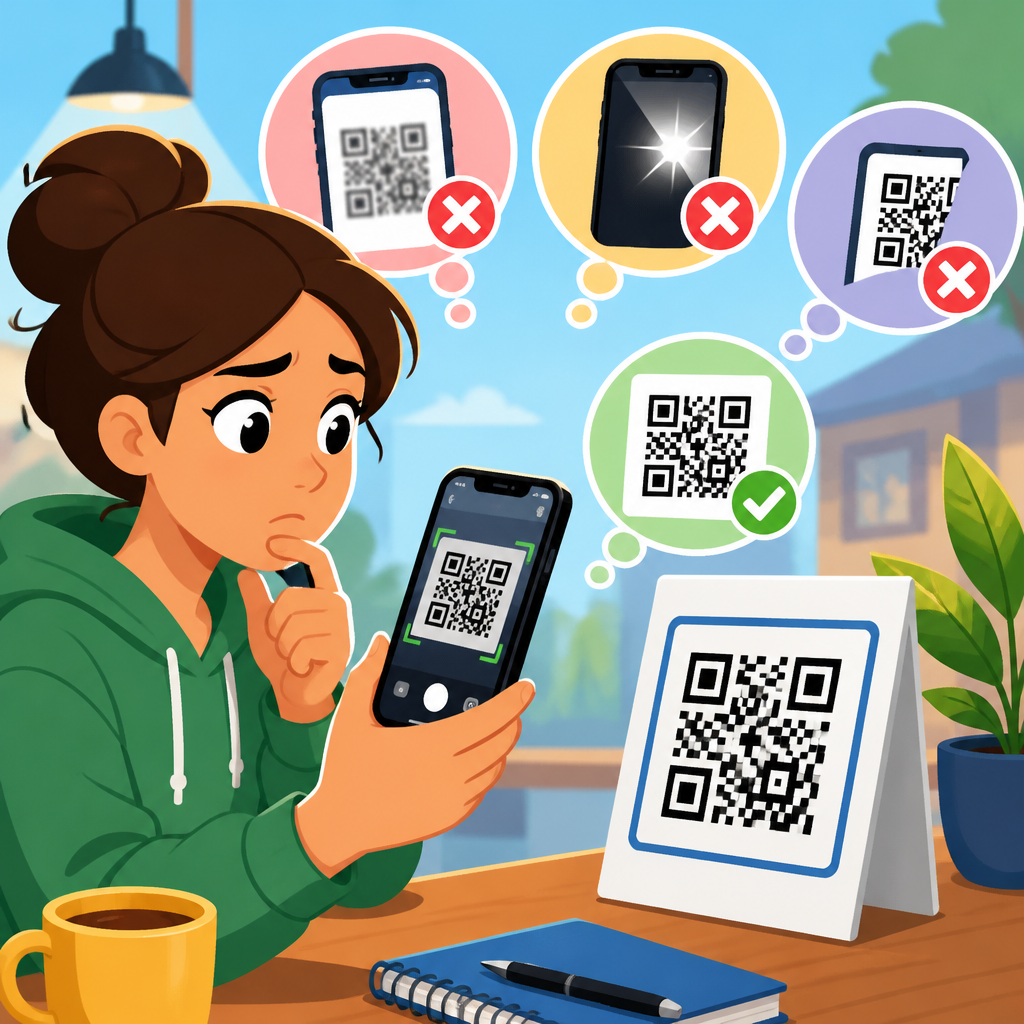
QR codes are simple on the surface, but when a code will not scan, the failure can come from image damage, poor printing, bad contrast, incorrect encoding, weak lighting, camera limitations, or a destination link that no longer works. In practical support work, I have found that most “broken QR codes” are not truly broken in one single way; they fail because the full scanning chain has weak points from creation to placement to decoding. If you need to fix broken QR codes, this hub explains the causes, the testing process, and the repair options so you can restore scannability quickly and prevent repeat failures across print and digital campaigns.
A QR code, or Quick Response code, is a two-dimensional matrix barcode standardized under ISO/IEC 18004. It stores data in square modules arranged around three position markers, with optional alignment patterns, timing patterns, format information, and error correction. A scanner does not “read the whole picture” like a person does. It looks for contrast, locates the finder patterns, corrects perspective, samples the module grid, applies Reed-Solomon error correction, and then interprets the payload, which might be a URL, vCard, Wi-Fi credential, PDF link, payment string, or app deep link. When any part of that process is disrupted, users see a code that appears valid but behaves like a dead end.
This matters because QR codes often sit at the exact handoff point between offline attention and online action. A broken code on packaging can block product registration. A damaged menu code can slow restaurant service. A poor event badge code can create check-in lines. A QR code on a poster may generate expensive impressions but no measurable traffic if it is too small to scan from expected viewing distance. Businesses also face hidden costs when dynamic links expire, redirects loop, or mobile landing pages fail after the code is successfully decoded. Troubleshooting, therefore, is not just about the symbol itself. It is about the entire user journey from camera to destination.
For support teams, designers, marketers, and operations managers, the goal is to diagnose scanning problems in a repeatable way. Start by separating physical damage from digital destination issues. Then verify code structure, size, contrast, quiet zone, print quality, placement, and content. Test across multiple devices, operating systems, and scanning apps because native camera behavior differs between iPhone and Android models and between newer and older sensors. Finally, choose the right remedy: regenerate the code, repair the asset, reprint the material, update the destination, or replace the use case with a better format. This article serves as the hub for fixing broken QR codes comprehensively and points you toward the right corrective action for each failure mode.
What a broken QR code actually means
A broken QR code is any code that fails at one or more stages of use: detection, decoding, launching, or landing. Detection failure means the scanner cannot recognize the symbol as a QR code. Decoding failure means it sees the code but cannot recover the data because modules are obscured, warped, or too low quality. Launch failure happens when the code decodes but the phone cannot open the payload, such as a malformed URL or unsupported scheme. Landing failure means the destination opens but returns an error, loads too slowly, or is blocked by mobile compatibility issues. Distinguishing these stages is the fastest way to narrow the root cause.
In field troubleshooting, I ask three direct questions. Does the camera recognize a code frame? Does any scanner return readable text or a URL? Does that destination open correctly on mobile data as well as Wi-Fi? Those answers sort the issue immediately. If no scanner recognizes it, focus on image integrity, contrast, quiet zone, reflections, curvature, and size. If scanners recognize it inconsistently, suspect print resolution, stylized customization, compression artifacts, or insufficient error correction. If scanners decode it but users still complain, inspect redirects, SSL certificates, DNS propagation, app deep links, and landing page responsiveness. A code can scan perfectly and still fail commercially if the destination experience is poor.
Common causes of QR code scanning problems
The most common cause is inadequate contrast. Black modules on white background remain the safest choice because scanners depend on clear luminance separation. Light gray on white, metallic inks, translucent overlays, or reversed designs often reduce contrast below reliable thresholds. The second common cause is a missing quiet zone, the blank margin around the code. Industry guidance generally expects a quiet zone of at least four modules on all sides. Designers often crop too tightly or place text and graphics too close, which prevents the scanner from isolating the symbol.
Size and distance problems are also frequent. A practical rule used in print production is a scanning distance ratio of about 10:1, meaning a code intended to be scanned from 50 centimeters should be around 5 centimeters wide. Tiny codes on business cards can work because viewing distance is short, but the same size on a wall poster will fail. Print quality matters too. Low DPI output, ink spread on porous material, banding from thermal printers, and JPEG compression can distort module edges enough to cause read errors. Curved surfaces such as bottles and cans add geometric distortion, especially when the code wraps across the seam.
Content design creates another class of failures. Static QR codes cannot be edited after distribution, so a typo in the URL, an expired campaign page, or a removed file creates a permanent break unless the physical material is replaced. Dynamic QR codes are more forgiving because the destination can be updated behind the short URL, but they introduce infrastructure risk if the service provider account lapses or the redirect domain is misconfigured. Over-customization is another problem. Adding a logo is usually safe only when the underlying code has sufficient error correction and the logo does not cover critical patterns. Excessive rounding, decorative gaps, gradients, and image overlays often push the code beyond recoverable limits.
How to diagnose a non-scanning QR code step by step
A reliable troubleshooting workflow begins with controlled testing. First, scan the code with at least three tools: the native iPhone camera, the native Android camera, and a dedicated scanner app such as QRbot or NeoReader. If none can detect the code, take a straight, glare-free photo and inspect basic structure: are all three finder patterns visible, are edges sharp, and is the quiet zone intact? Next, test the original digital asset rather than the printed piece. If the digital file scans but the print does not, the issue lies in output, material, or placement. If the digital file also fails, regenerate the code from the source content.
Then isolate variables one by one. View the code under bright indirect light and then under softer light to check for glare. Change the angle to rule out reflections from lamination, glass, or glossy packaging. Measure the printed size and compare it with expected scan distance. Zoom in on the artwork at 400 percent to look for anti-aliasing, jagged edges, blurred modules, or accidental transparency. Verify color values, especially if a brand palette was used instead of black and white. If a logo is present, temporarily test a plain regenerated version of the same payload to confirm whether styling caused the failure. This process prevents guesswork and reduces unnecessary reprints.
| Symptom | Likely cause | Fastest fix |
|---|---|---|
| Camera never recognizes code | Low contrast, missing quiet zone, severe damage, glare | Increase contrast, restore margin, remove reflections, reprint |
| Some phones scan, others fail | Code too small, stylized design, low print quality | Enlarge code, simplify design, export as SVG or high-DPI PNG |
| Code scans but link errors | Broken URL, expired redirect, SSL or DNS issue | Correct destination, update redirect, verify hosting |
| Printed code fails, digital file works | Material distortion, ink spread, curved surface | Adjust substrate, move placement, increase module size |
| Only close-up scanning works | Code too small for viewing distance | Increase physical size based on scan distance |
Fixing physical and design-related QR code damage
When the symbol itself is the problem, repair usually means replacement, not patching. Start with the source file. If the code was exported as a low-resolution raster image, regenerate it as SVG, EPS, or a PNG at print-ready resolution, typically 300 DPI or higher at final size. Keep modules square and edges crisp. Use a white background and dark foreground unless controlled testing proves an alternative is robust. Restore the quiet zone to at least four modules. If your code includes a center logo, reduce its size or remove it entirely and choose error correction level Q or H only when the larger data density remains scannable at target size.
Material and placement choices often matter more than people expect. On corrugated cardboard, fibrous textures can break fine module edges. On shrink sleeves, heat distortion can warp the grid after printing. On curved bottles, a code placed across the highest curvature will sample unevenly. In stores, glossy labels under spotlights create hot reflections that wash out finder patterns. The practical fix is to increase code size, move to a flatter area, switch to matte stock, and keep the code off folds, seams, perforations, and transparent windows. For outdoor signs, weathering and abrasion can damage the surface, so laminates should be matte and UV resistant.
If the code has visible physical damage, such as scratches, stains, torn paper, or overprinted stickers, error correction may save it only up to a point. QR codes support four levels of error correction: L, M, Q, and H, roughly allowing recovery of 7 percent, 15 percent, 25 percent, and 30 percent of codewords. Those figures are not a promise that any random damage amount will scan, because damage concentrated over finder patterns or timing patterns can break decoding entirely. In practice, if critical markers are obscured, reprinting is usually faster and more reliable than trying to preserve a compromised asset in the field.
Fixing content, link, and destination failures
If the QR code decodes but the experience still fails, move from image troubleshooting to destination troubleshooting. Copy the decoded URL and open it manually in multiple mobile browsers. Check for 404 and 500 status codes, redirect chains, mixed-content warnings, certificate errors, and mobile usability problems. I regularly see campaign codes fail because the landing page was unpublished after a promotion, a PDF was moved without a redirect, or a short-link platform account expired. Broken destinations often look like scanning issues to end users, so support teams should test the payload independently before changing the artwork.
Dynamic QR codes are usually the best long-term fix for operational content because the destination can be updated without replacing printed materials. They are especially useful for menus, manuals, app download flows, real estate listings, and seasonal promotions. However, they require governance. Keep ownership of the redirect domain, monitor uptime, document account access, and avoid long redirect chains that slow launch time. For static QR codes, validate the exact payload before printing at scale. Use canonical URLs, HTTPS, and short human-readable paths when possible. If you need analytics, add UTM parameters carefully and test that the full URL remains functional on mobile networks and within messaging apps.
Some payload types need special attention. Wi-Fi QR codes must follow the proper syntax for SSID, encryption type, and password escaping. vCard codes can fail if fields are malformed or too large for the chosen symbol size. App deep links may work only when the app is installed, so a fallback web page is essential. Payment codes must comply with the relevant standard used in your market, such as EMVCo-based merchant-presented QR for many payment systems. If a destination is business-critical, build a maintenance checklist around it. A scan path is only as reliable as its weakest digital dependency.
Prevention standards that stop QR code failures
The most effective way to fix broken QR codes is to prevent them before release. Use a documented production checklist that covers payload validation, file format, color contrast, quiet zone, physical size, material, placement, and device testing. Generate master artwork in vector format. Keep a versioned record of the exact payload and campaign owner. Test on current iPhone and Android devices, and include at least one older midrange phone because weaker cameras reveal marginal designs quickly. Confirm scan performance in the real environment, not just at a desk. A restaurant code should be tested under dining room lighting; a window decal should be tested with daylight glare.
For teams managing many codes, establish clear governance. Centralize creation in approved tools such as QR Code Generator Pro, Bitly, Adobe Express, or enterprise label systems, and lock down brand templates so designers do not improvise risky styling. Create internal links to deeper support articles for specific issues like poor print quality, dynamic QR redirect problems, small QR code sizing, and mobile landing page errors, so staff can solve recurring failures consistently. Track scan complaints by symptom. Patterns usually appear fast: one printer may be producing soft edges, one venue may have reflective placement, or one campaign may have a bad redirect. Standardization turns troubleshooting from emergency response into quality control.
Fixing broken QR codes starts with one principle: identify where the failure occurs before changing anything. A non-scanning code may suffer from poor contrast, missing quiet space, small size, low print quality, curvature, glare, or physical damage. A code that scans but disappoints users usually points to a malformed payload, dead link, redirect issue, certificate problem, or weak mobile landing page. Once you separate symbol failures from destination failures, solutions become straightforward and cost-effective.
Across print and digital use cases, the strongest results come from disciplined testing and conservative design. Use dark-on-light contrast, preserve the quiet zone, size the code for real scan distance, export high-quality artwork, and avoid excessive customization. Favor dynamic QR codes when content may change, but manage the infrastructure behind them carefully. Verify every campaign on multiple devices and in the environment where people will actually scan. That practical workflow prevents most support tickets before they happen.
Use this hub as your starting point for QR Code Troubleshooting & Support, then apply the relevant fix: regenerate the code, improve the print, correct the link, or redesign the scan experience. If you manage QR codes at scale, build a checklist today and test your highest-traffic codes this week before small defects turn into lost conversions.
Frequently Asked Questions
Why is my QR code not scanning even though it looks fine?
A QR code can appear perfectly normal to the human eye and still fail during scanning because the problem is often hidden somewhere in the full scan path. The issue may come from low contrast between the dark and light areas, a quiet zone that is too small, slight image damage, poor print quality, glare on the surface, weak lighting, motion blur, or a camera that cannot focus closely enough. In many cases, the code itself is technically valid, but the conditions around it make decoding unreliable.
A good troubleshooting approach is to isolate one variable at a time. First, test the code on multiple phones and scanning apps. Then try scanning it in brighter, even lighting and from a steady angle. If it is printed, check whether the edges are soft, the black areas are fading, or the white background is dirty or reflective. If it is digital, make sure the image has not been compressed, stretched, cropped, or placed over a busy background. A QR code that “looks fine” often fails because one small design or environmental issue is enough to break recognition.
How can I tell whether the problem is the QR code itself or the phone camera?
The fastest way to separate those two possibilities is comparative testing. Scan the same QR code with several devices. If one phone fails but others read it immediately, the issue is probably camera quality, focus ability, software limitations, or the specific scanning app. Older phones may struggle with small codes, glossy surfaces, low light, or dense QR patterns that require sharper image processing. A dirty camera lens can also make a bigger difference than many people expect.
If every device fails, the code is more likely the source of the problem. At that point, inspect the QR code for common faults: missing quiet zone, poor contrast, excessive styling, incorrect dimensions, damage to the finder patterns, or bad encoding. You should also test the destination itself. Sometimes the scan works, but the link is dead, mistyped, expired, blocked, or redirected incorrectly, which users interpret as a scanning failure. In support situations, it is important to distinguish between “the camera cannot decode the symbol” and “the symbol decodes, but the destination does not work,” because the fix is completely different.
What printing and design mistakes most commonly cause QR code scanning problems?
The most common design and print mistakes are poor contrast, insufficient margin around the code, overly small size, and decorative customization that interferes with the data pattern. QR codes work best when dark modules sit on a clean, light background with a clear quiet zone around all sides. If that border is cropped too tightly, scanners may not detect where the code begins and ends. Problems also happen when designers invert colors, place the code over textures, add shadows, distort the square shape, or embed a logo so large that it removes too much data.
Printing introduces another layer of risk. Ink spread can cause modules to bleed together, while low-resolution printing can make edges fuzzy. On labels and packaging, curved surfaces can warp the code enough to prevent reliable reading. Glossy finishes may reflect light and create glare, and outdoor placement can fade contrast over time. To reduce failures, print test samples at real-world size, scan them with multiple phones, and evaluate them under actual lighting conditions. A QR code that scans well on a desktop proof may fail once it is reduced in size, printed on textured material, or mounted in a difficult location.
Can a QR code be valid but still send people to a broken or unsafe destination?
Yes. A QR code can decode correctly and still lead to a bad result. The code itself only stores information, such as a URL, and the scanner’s job is simply to read that information. If the destination page has been removed, the domain has expired, the redirect was changed, the page is blocked by regional or firewall settings, or the link contains a typo, users may assume the QR code is broken even though scanning worked exactly as intended.
This is why troubleshooting should always include destination testing after scan testing. Open the decoded URL directly in a browser and confirm that it loads properly on both mobile and desktop. Check for HTTP errors, redirect loops, certificate warnings, login restrictions, and slow page behavior that may look like failure to the end user. If you are using a dynamic QR code service, make sure the short link is still active and has not been paused or deleted. From a support perspective, a QR code is only truly successful when the symbol scans quickly and the destination experience works cleanly from the user’s device.
What is the best step-by-step process to fix a broken QR code?
Start with the simplest checks. Clean the phone camera lens, improve the lighting, hold the device steady, and test from different distances. Next, try scanning the code with more than one phone and more than one app. If the code is on a screen, increase brightness and make sure the image is not pixelated. If it is printed, examine it closely for blur, fading, damage, glare, or warping. These quick checks often reveal whether the issue is environmental, hardware-related, or tied to the code presentation itself.
If the code still fails, move into structured diagnostics. Verify that the code has strong dark-on-light contrast, a proper quiet zone, and no cropping or distortion. Confirm that the encoded content is correct and that the destination URL opens normally. If the code was customized, test a plain black-and-white version of the same data to see whether styling caused the problem. If print quality is questionable, generate a fresh file at higher resolution and print a new sample. In practical troubleshooting, the most effective mindset is to treat scanning as a chain: creation, export, placement, lighting, capture, decode, and destination. Once you test each link in that chain, the cause of the failure usually becomes much easier to identify and fix.