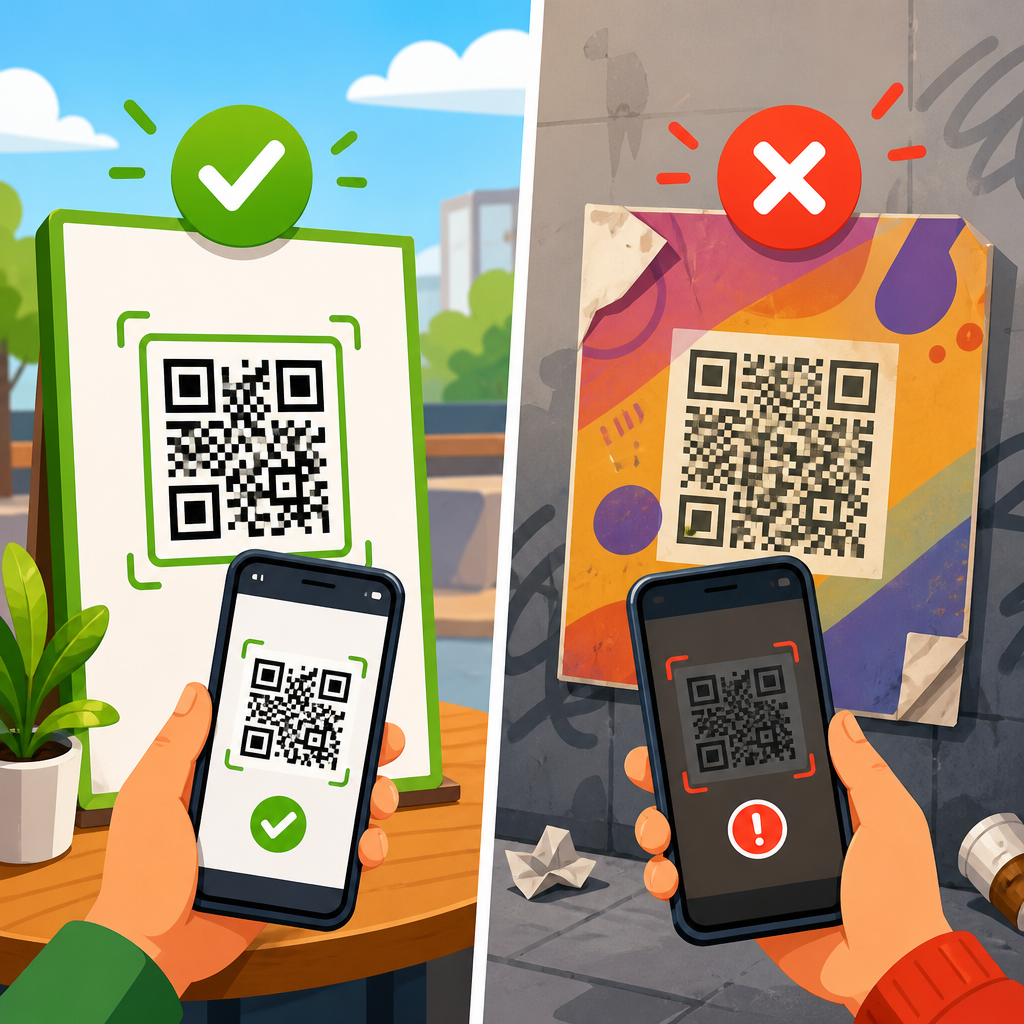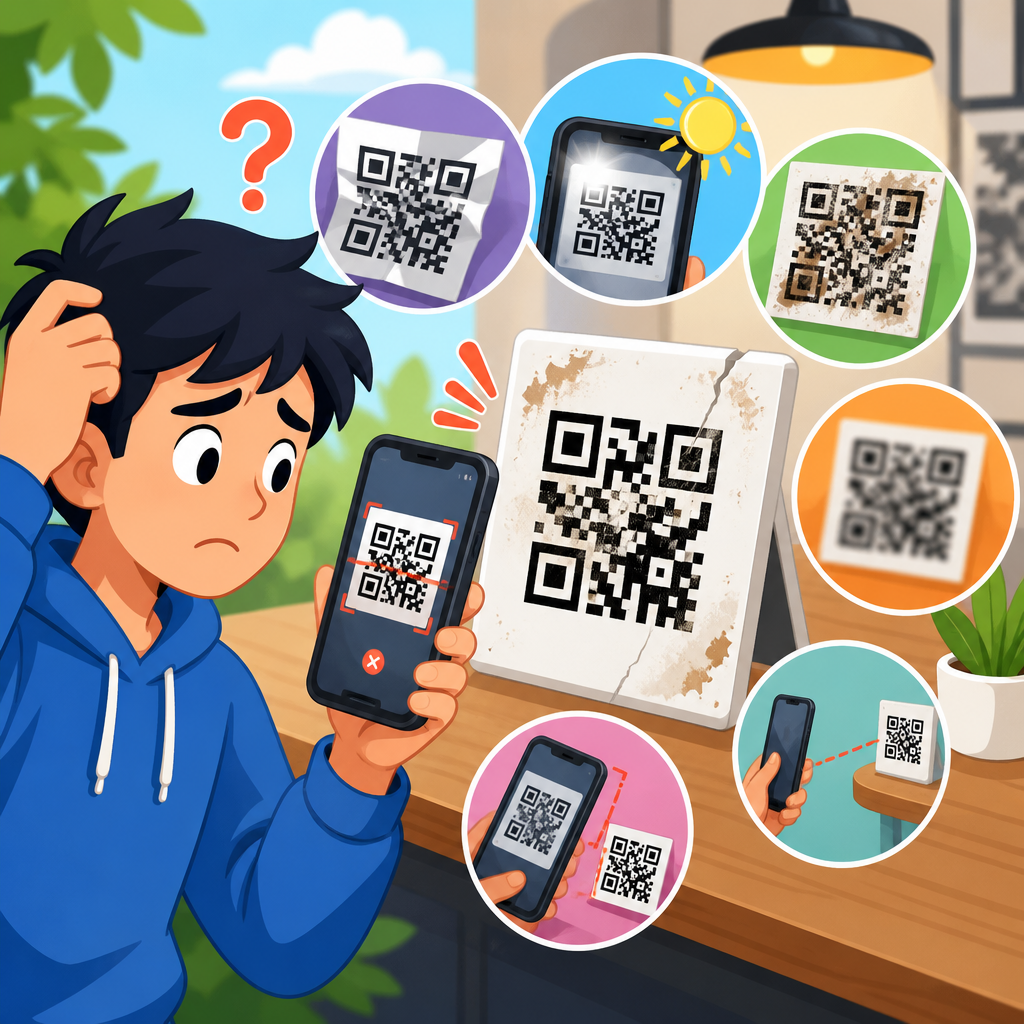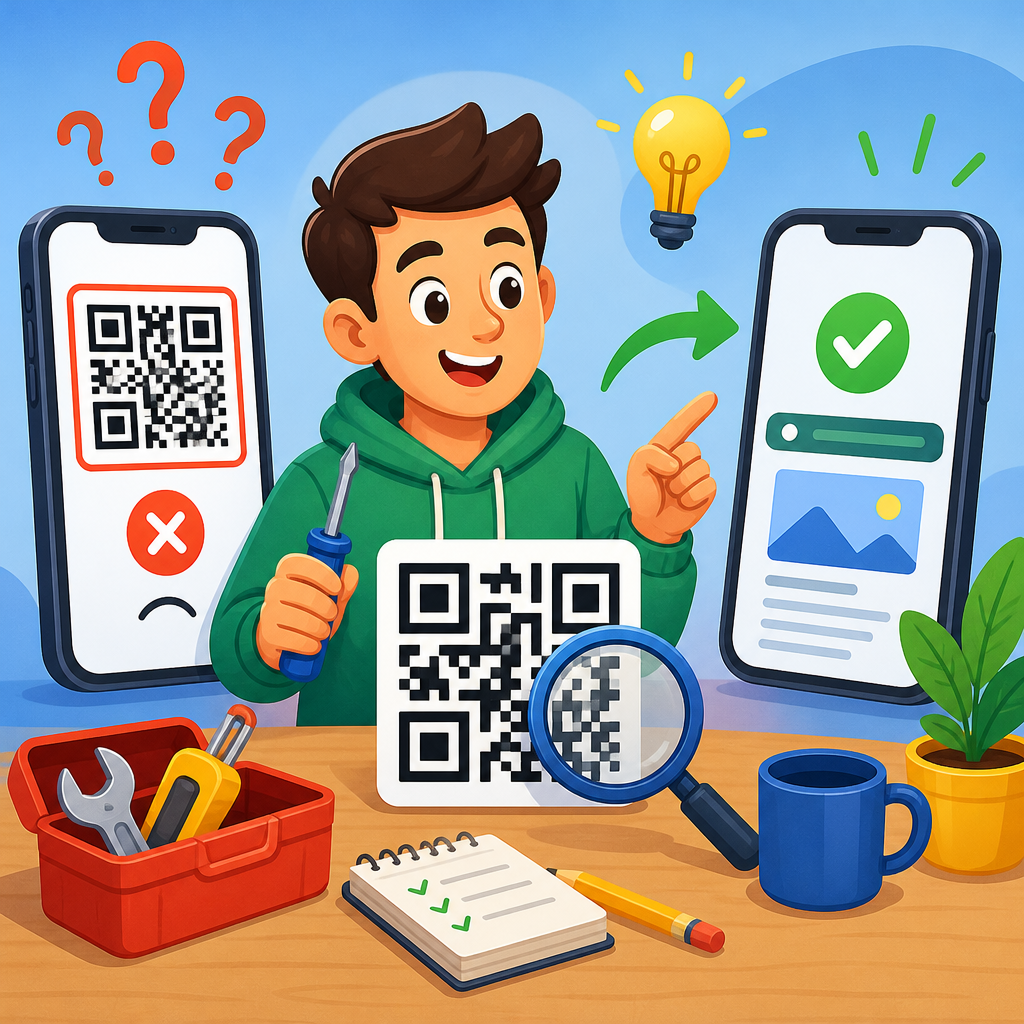
QR codes fail for predictable reasons, and most URL-opening problems can be fixed without redesigning everything from scratch. A QR code is a two-dimensional barcode that stores data such as a web address, phone number, Wi-Fi credential, or payment string. In this article, the focus is URL QR codes: the black-and-white patterns people scan expecting a website to open immediately on a phone. When that does not happen, the issue usually sits in one of four places: the printed code itself, the encoded URL, the scanning device, or the redirect path after the scan. I have diagnosed all four in production campaigns, retail packaging, event signage, restaurant menus, and field service labels, and the patterns repeat.
Understanding the difference between a static QR code and a dynamic QR code matters from the start. A static code contains the final destination directly in the symbol, so any typo or dead link requires generating a new code. A dynamic code points to a short redirect URL managed by a QR platform, letting you update the destination later without changing the printed artwork. That distinction affects how you troubleshoot. If a static code opens the wrong URL, the encoded data is wrong. If a dynamic code scans but lands nowhere, the redirect, DNS, SSL certificate, or campaign settings may be broken even though the symbol is perfectly readable.
This topic matters because a failed QR scan is not a minor inconvenience; it is a conversion leak. On packaging, it can block warranty registration or product instructions. In restaurants, it can break digital menus at the table. In healthcare, it can delay access to forms or patient education. In B2B operations, it can stop technicians from reaching maintenance manuals in the field. Users rarely troubleshoot patiently. They try once, maybe twice, then give up. That means every broken QR code carries direct revenue, support, and trust costs. The good news is that a disciplined troubleshooting process can usually identify the exact failure point quickly and prevent it from recurring across future codes.
Start by identifying where the failure happens
The fastest way to fix a QR code that does not open a URL is to separate scanning failure from destination failure. These are different problems with different remedies. If the camera never recognizes the symbol, you likely have a print, contrast, damage, size, or quiet-zone issue. If the phone recognizes the code but does nothing, the device, camera permissions, or scanning app may be interfering. If the scan opens a browser and then shows an error page, the problem is usually the URL, redirect chain, server response, or security configuration.
In practice, I test in this order: first, scan with two native camera apps, usually iPhone Camera and a recent Android camera. Second, scan with a dedicated app such as Google Lens if native scanning is inconsistent. Third, inspect the resolved URL rather than only the visible final page. A code can appear broken when the actual issue is a 404 page, a redirect loop, mixed-content warning, geoblock, expired campaign, or app deep link that fails outside one device type. You want to know whether the symbol is unreadable, the URL is malformed, or the web infrastructure is failing after the scan.
A simple triage matrix keeps troubleshooting efficient:
| Observed behavior | Likely cause | Best first fix |
|---|---|---|
| No scan recognition at all | Low contrast, small size, missing quiet zone, damage, glare | Reprint with proper sizing, contrast, and clear margins |
| Phone detects code but nothing opens | Camera restrictions, app conflict, unsupported scanner behavior | Test with native camera and alternate scanner app |
| Browser opens error page | Wrong URL, 404, DNS failure, expired redirect, SSL error | Validate the encoded link and test HTTP response chain |
| Works on some phones only | OS-specific handling, deep link issue, browser compatibility | Use a standard HTTPS landing page and cross-device test |
| Worked before, fails now | Link changed, site moved, certificate expired, campaign paused | Review hosting, redirects, analytics settings, and platform status |
This triage approach prevents a common mistake: regenerating the code immediately. If the symbol is fine and the target website is down, a new QR code changes nothing. Likewise, if the site works but the printed code has a crushed quiet zone, server-side fixes will not help. Diagnose the stage of failure first.
Fix scanning problems caused by design, printing, and placement
Most non-opening URL complaints begin with scanability, not web development. A QR code needs high contrast, clean edges, adequate size, and a quiet zone, which is the empty border around the symbol. ISO/IEC 18004 defines the QR code symbology, and while end users never read the standard, its practical rules matter. The quiet zone should be at least four modules wide on all sides. If branding, background graphics, or trim lines invade that space, recognition drops sharply. I have seen codes fail simply because a designer centered them inside a decorative box that clipped the border by a few millimeters.
Minimum size depends on scan distance, but a reliable baseline for printed consumer materials is at least 2 x 2 centimeters for short URLs, larger if the code contains more data or will be scanned from farther away. On posters, storefronts, and trade show graphics, undersizing is the most common failure. A useful field rule is a scan distance ratio around 10:1, meaning a code intended to be scanned from 1 meter away should be roughly 10 centimeters wide. This is not absolute, because camera quality and code density vary, but it prevents unrealistic layouts.
Contrast also matters more than styling. Black on white remains the most dependable choice. Inverted codes, low-contrast brand colors, glossy finishes, metallic substrates, and transparent labels all increase failure rates. If you must use branded colors, test luminance contrast, not just visual appeal on a monitor. Print conditions introduce further risk. Dot gain, toner spread, poor resolution, and warped surfaces can blur module boundaries. For packaging, curved bottles and crinkled pouches often distort the symbol enough to break scanning. In those cases, move the code to a flatter panel or increase size significantly.
Error correction is helpful but often misunderstood. QR codes support levels L, M, Q, and H, allowing increasing redundancy to recover from partial obstruction. Higher error correction helps when logos, scratches, or dirt cover part of the code, but it also increases symbol density. If you add a centered logo and raise error correction to H, the code may still become harder to scan at small sizes because there are more modules packed into the same area. Use error correction strategically, not as a cure-all for poor design decisions.
Fix broken URLs, redirects, and destination page errors
If the code scans but the URL does not open correctly, inspect the destination like a web technician. First confirm the exact encoded string. Use a trusted decoder or scanner that shows the raw URL before opening it. Look for obvious problems: misspellings, missing slashes, spaces, uppercase-sensitive paths on case-sensitive servers, accidental UTM parameter corruption, or unescaped characters. One common production error is encoding a staging URL or shortened preview link instead of the public page. Another is omitting HTTPS, which can trigger warnings or misrouting on some devices.
Next, test the HTTP response chain. Tools such as Redirect Checker, cURL, Chrome DevTools, or Screaming Frog can show whether the URL returns 200 OK, 301, 302, 404, 410, 500, or a redirect loop. A QR code should ideally lead through the fewest redirects possible. Multiple hops slow the experience and increase failure risk on poor mobile connections. I routinely find codes routed through a QR platform, then a link shortener, then a campaign tracker, then a geolocation service, before finally landing on the site. Every extra hop is another dependency that can fail.
SSL certificate problems are another major cause of broken scans. If the site certificate is expired, misconfigured, or missing intermediate certificates, some mobile browsers will block the page entirely. This often appears to users as “the QR code does not work,” when the code itself is fine. Check the certificate with SSL Labs or your hosting dashboard, verify that the full chain is installed, and ensure all redirects stay on HTTPS. Also test whether the site loads over mobile networks, not only office Wi-Fi. Firewalls, bot protection rules, and country restrictions can accidentally block users coming from QR campaigns.
Dynamic QR codes add another layer: account status and platform configuration. If the subscription lapses, if the campaign is paused, or if the destination was deleted inside the platform, the printed code may suddenly stop resolving. That is why dynamic code governance matters. Keep an inventory of every public-facing code, its owner, its destination, and its platform dependency. For enterprise teams, this is as important as managing DNS records. A QR code on packaging can stay in circulation for years, long after the original marketing tool has been replaced or forgotten.
Fix device-specific issues and test across real conditions
Not every QR failure is universal. Some codes work on one phone and fail on another because QR handling differs across operating systems, camera apps, browsers, and in-app scanners. Native camera support on current iPhones and Android devices is generally reliable, but older devices may require a dedicated app. Enterprise-managed phones may restrict camera permissions or browser behavior. Social media in-app browsers can also break destination pages, especially if the URL relies on pop-ups, cookies, JavaScript-heavy consent banners, or unsupported deep links.
For that reason, cross-device testing should be part of every QR deployment. At minimum, test on recent iPhone and Android models, on Wi-Fi and cellular, in bright and low light, and from the intended scan distance. I also recommend testing the code after printing, not only from the digital artwork on a monitor. Many teams approve a pristine PDF and never verify the final substrate, lamination, and placement. Then the code reaches stores, job sites, or mailboxes and fails under glare, folds, or outdoor wear. Real-world testing catches the problems lab conditions hide.
Destination pages should also be mobile-first. A QR code is fundamentally a mobile entry point, so landing users on a desktop-only page is a preventable mistake. Pages must load quickly, fit small screens, and avoid interstitials that hide the content. If the QR code is supposed to launch an app, provide a fallback web page for users who do not have the app installed. Universal links and app links can work well, but they must degrade gracefully. A plain HTTPS landing page remains the most compatible and supportable option for most campaigns.
Analytics can help isolate device issues. Review server logs, analytics events, and QR platform reports to see whether scans drop off by operating system, browser, geography, or time period. If Android traffic shows higher bounce from one code, the page may have a rendering or redirect issue specific to Chrome on Android. If scans collapse after a site migration, compare old and new redirect rules. Troubleshooting is easier when you treat QR codes as part of a monitored digital system rather than static artwork printed once and forgotten.
Build a repeatable process to prevent future QR code failures
The best fix for broken QR codes is a quality-control process that catches problems before release. Use a standard workflow: generate the code from a verified final URL, choose appropriate error correction, export in vector format for print, preserve the quiet zone, place the code on a high-contrast background, and test the final printed piece across devices. Keep the encoded content as short as practical. Shorter URLs usually produce less dense symbols, which scan more reliably. If tracking is needed, shorten the path before encoding rather than stuffing long query strings into a static code.
For teams publishing at scale, maintain a QR code register. Include the code image, destination URL, whether it is static or dynamic, the owner, launch date, print locations, linked campaign, and review date. This becomes invaluable when a site changes, a campaign ends, or a certificate expires. It also supports customer service: when someone reports that a QR code on box version B12 fails in Canada, your team can identify the exact asset and destination quickly instead of searching across folders and platforms.
Governance should extend to content lifecycle. If a URL is likely to change, use a dynamic code controlled on infrastructure your organization owns or can reliably maintain. If the use case is permanent, such as appliance manuals or medical device instructions, avoid fragile chains and point to a stable evergreen page. Archive or redirect old destinations rather than deleting them. A printed QR code can outlive product packaging runs, posters, and manuals by years, so its web target needs the same long-term planning as any public permalink.
Finally, create a troubleshooting checklist for support teams. It should ask: does the code scan, what exact URL is decoded, does the URL load directly in a mobile browser, what HTTP status appears, does the page load on both iPhone and Android, and is the print physically damaged or poorly placed? With that checklist, most QR issues can be resolved quickly and consistently. If you manage multiple articles under QR Code Troubleshooting & Support, link this hub to deeper guides on print quality, quiet zone errors, dynamic versus static QR codes, mobile browser problems, and redirect debugging so readers can move from diagnosis to the exact repair step they need.
Fixing broken QR codes starts with one principle: treat the symbol, the URL, and the landing experience as a single system. When a QR code does not open a URL, the root cause is usually scanability, destination integrity, device compatibility, or long-term governance. By isolating the stage of failure first, you can avoid wasted redesigns and repair the actual problem faster. That saves conversions, reduces support tickets, and protects trust at the exact moment a user is trying to act.
The most reliable QR codes are simple, high-contrast, properly sized, surrounded by a clean quiet zone, and linked to stable HTTPS pages with minimal redirects. They are tested on real printed materials, across current iPhone and Android devices, and monitored after launch. Dynamic codes add flexibility, but they also require ownership, inventory, and platform oversight. Static codes reduce platform dependence, but they demand extra care before anything goes to print. Neither format is inherently safer unless it matches the use case and is managed correctly.
If you are responsible for packaging, signage, manuals, menus, or campaign assets, audit your live QR codes now. Scan them on multiple devices, verify the decoded URL, test the full redirect path, and document what each code points to. Then fix the weak links before users find them first. A small review today can prevent a large support problem tomorrow.
Frequently Asked Questions
Why does a QR code scan but fail to open the website?
When a QR code scans but does not open the intended website, the problem is usually not the QR format itself. In most cases, the phone camera is reading the symbol correctly, but the encoded URL is broken, incomplete, outdated, or blocked by the device or browser. Common examples include missing parts of the web address such as the protocol, typing errors in the domain, extra spaces or characters introduced during generation, expired redirect links, or a destination page that no longer exists. If the QR code points to a shortened URL or tracking link, that redirect layer can also fail even when the code itself is perfectly readable.
Another common cause is device behavior. Some phones preview the QR result and require the user to tap a notification before opening the link. Others may suppress opening a page if the URL looks suspicious, uses an unsupported scheme, or triggers a security warning. In business settings, mobile security software, content filters, or restricted Wi-Fi networks can prevent the page from loading. The fastest way to diagnose the issue is to scan the code with more than one device, copy the decoded URL if possible, and test that address directly in a browser. If the URL does not work when typed or pasted manually, the fix is in the encoded link or destination page rather than the visual code.
How can I tell whether the issue is the printed QR code or the URL inside it?
A simple way to separate a print problem from a link problem is to test in two stages. First, scan the code with multiple devices and apps. If none of them can detect the QR code at all, the issue is likely physical: poor print quality, low contrast, incorrect sizing, glare, distortion, damage, or a design choice that interferes with readability. If the devices detect the code and show a link, then the symbol is probably fine and the trouble is in the encoded destination. That destination could be malformed, offline, redirected incorrectly, blocked, or no longer valid.
You can also use a QR decoder tool or a dedicated scanning app that displays the raw data instead of opening it automatically. This lets you inspect the exact URL stored in the code. Look closely for missing letters, wrong slashes, uppercase or lowercase issues in case-sensitive paths, outdated campaign parameters, and accidental punctuation. Then paste that URL into a browser on both mobile and desktop. If it fails there too, you know the printed code is not the real problem. If the URL works when pasted but scanning remains inconsistent, revisit the physical production: increase the size, ensure strong black-on-white contrast, keep a clear quiet zone around the code, and avoid placing it on curved, glossy, folded, or textured surfaces.
What print and design mistakes most often stop a URL QR code from working?
The most frequent design failures are size, contrast, and interference around the code. A QR code that is too small for the expected scanning distance becomes unreliable, especially on posters, packaging, storefront signs, and menus. Low contrast is another major issue. Dark gray on black, pastel colors, gradients, busy backgrounds, and transparent overlays may look attractive but often reduce scan accuracy. The code should have strong visual separation from the background, and the quiet zone, the empty margin around the symbol, must remain clear so scanners can identify the edges correctly.
Distortion is equally important. Stretching a QR code non-proportionally, placing it on a curved bottle or wrinkled label, covering parts of it with logos or text, or exporting it at low resolution can make the pattern unreadable even though it still looks recognizable to the human eye. Print production can introduce problems too, such as ink spread, blurring, poor alignment, or reflective lamination that causes glare under indoor lighting. The safest approach is to generate the code from a trusted source, keep it in a vector format when possible, print at an appropriate size, preserve the quiet zone, and test the final printed version under real-world conditions before full distribution. That means scanning from typical user distances, in typical lighting, on several phone models.
Can I fix a QR code that points to the wrong or broken URL without reprinting everything?
That depends on the type of QR code you created. If it is a dynamic QR code, you can usually update the destination URL behind the scenes without changing the printed pattern. This is one of the main advantages of dynamic codes: the symbol points to a managed redirect, so you can correct typos, swap destinations, update tracking parameters, or replace an expired landing page after the code has already been printed. For campaigns, packaging, signage, and long-term materials, that flexibility can save substantial time and reprint costs.
If it is a static QR code, the encoded URL is permanently embedded in the pattern. In that case, you cannot change the destination without generating a new code. However, you may still have options short of a full redesign. If you control the mistyped or old destination path, you may be able to create a redirect on your server so the broken URL forwards to the correct page. If the domain is still under your control, adding a 301 or 302 redirect can effectively rescue the experience. If you do not control the destination or the encoded address is fundamentally invalid, then replacing the QR code is the reliable solution. Before reprinting at scale, test the new code thoroughly and consider using a dynamic format for future flexibility.
What is the best step-by-step process to troubleshoot a QR code that does not open a URL?
Start by confirming whether the code can be detected at all. Scan it with at least two or three different phones, ideally using both the native camera and a separate QR scanning app. If no device recognizes it, inspect the physical code for low contrast, small size, cropping, missing quiet zone, blur, glare, warping, or damage. Compare the printed version to the original file to see whether production changed anything. If devices do recognize it and display a link, write down or copy the decoded URL exactly as shown.
Next, test the decoded URL directly in a browser. If it does not load, check for obvious formatting errors, redirect failures, SSL or certificate issues, dead pages, geo-restrictions, firewall blocks, and mobile-only compatibility problems. If the page loads on desktop but not on mobile, the issue may be with the website rather than the QR code. Also verify that the phone has a stable connection and that no app, security policy, or captive portal is interrupting the request. If the URL works manually but not when opened from the scan result, try different scanning apps and review how the phone handles QR links, since some devices add a preview or browser handoff that can fail independently.
Finally, correct the problem at the right layer. Improve print quality or layout if readability is weak. Update the destination if you are using a dynamic code. Add redirects if a static code points to an old path you still control. Replace the code entirely only when necessary. The key is to avoid guessing. A disciplined test sequence—scan, decode, verify the URL, test the website, and then inspect the print—quickly reveals whether the issue sits in the printed symbol, the encoded address, the redirect chain, or the destination page itself.