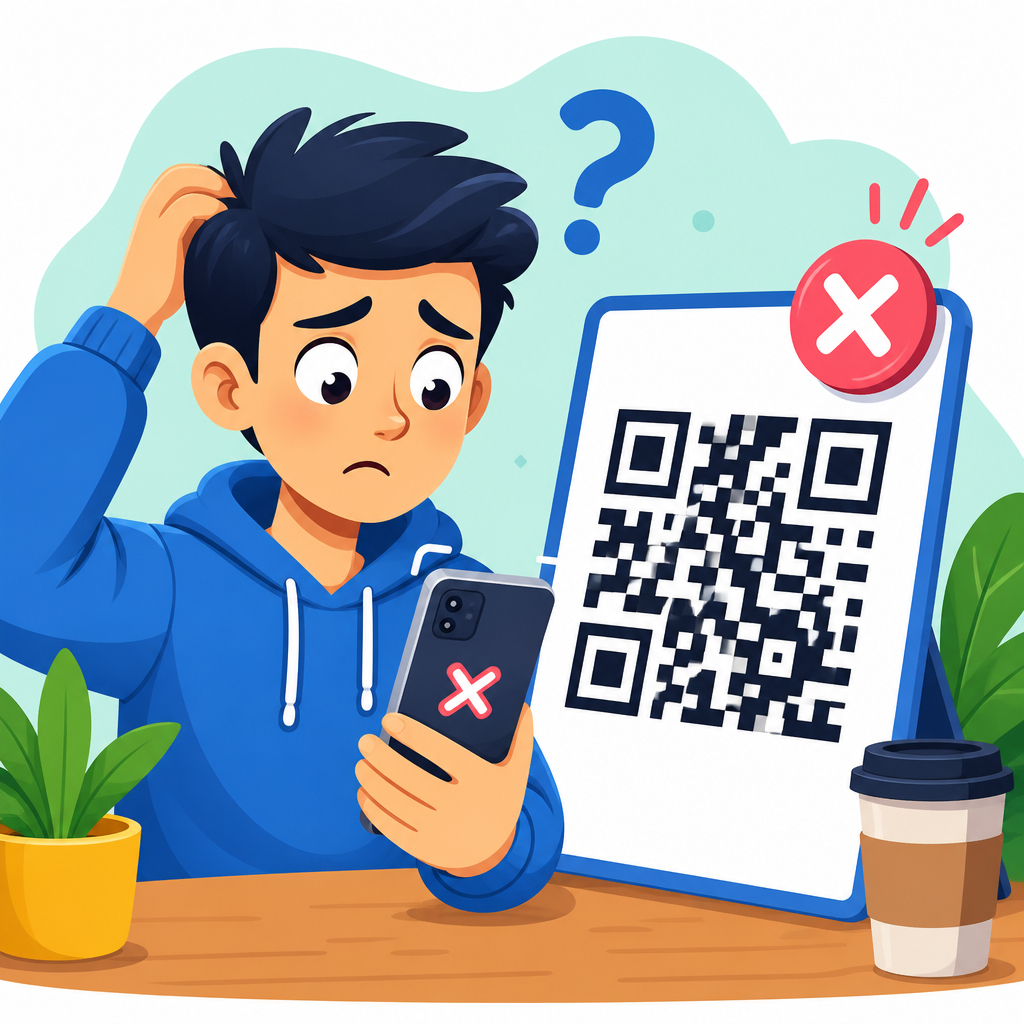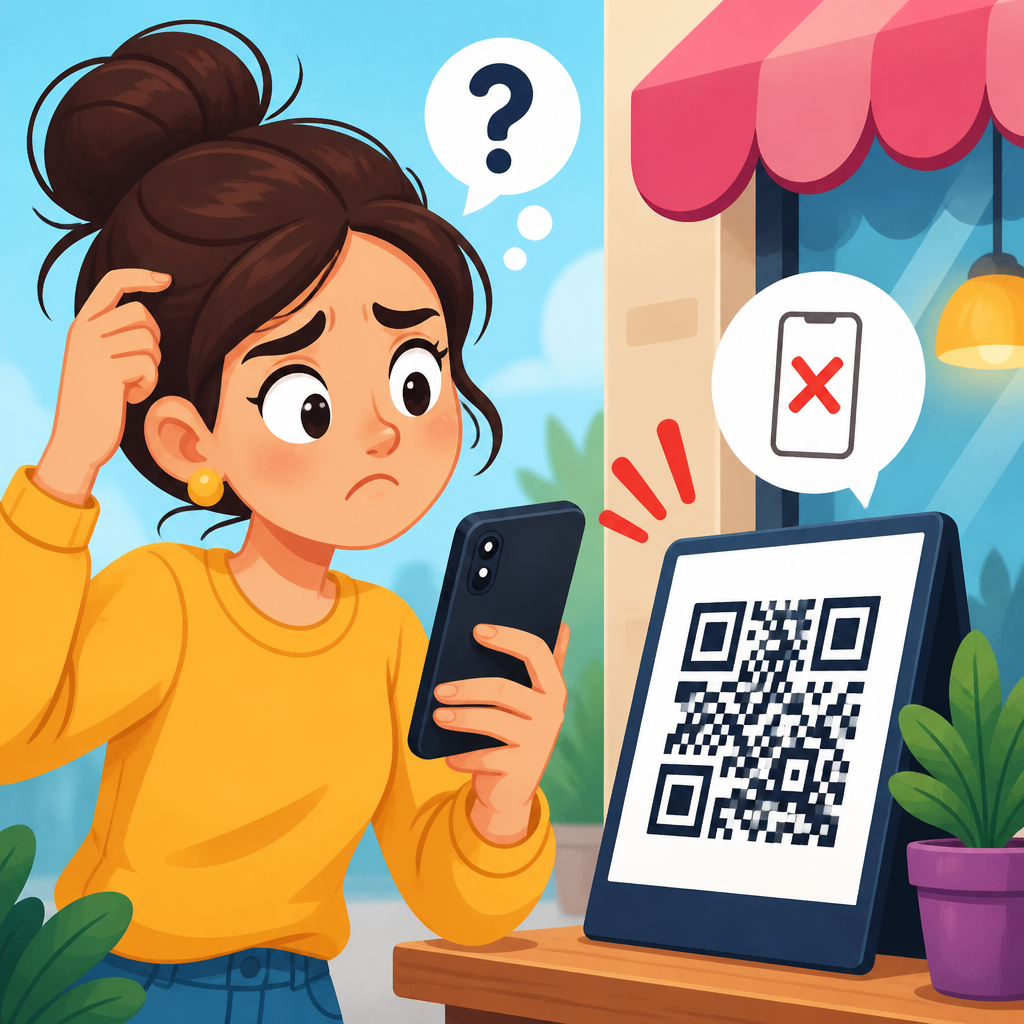
QR code focus problems are one of the most common reasons a code will not scan, even when the code itself is printed correctly and the landing page works. In practical support work, I have found that users often assume a damaged code, a broken app, or a network error is to blame, when the real issue is simpler: the camera cannot achieve sharp enough focus to resolve the small square modules that make up the symbol. Understanding how to fix QR code focus issues starts with understanding what the camera is trying to do, what conditions interfere with it, and which adjustments reliably restore a readable image.
A QR code is a two-dimensional barcode made of high-contrast modules arranged in a square grid, with position markers in three corners that help the scanner detect orientation. For a phone or tablet to scan that code, the camera system must capture enough detail for software such as Apple VisionKit, Google ML Kit, ZXing, or an in-app scanner SDK to distinguish black modules from white background without blur, glare, or digital noise. Focus issues occur when the lens is too close, too far, blocked, shaking, confused by low contrast, or overridden by device settings such as macro mode, digital zoom, or third-party camera permissions.
This matters because scan failures create immediate drop-off. In retail packaging, event check-in, restaurant menus, warehouse labels, and printed marketing materials, a user who cannot scan within a few seconds often gives up. Support teams then waste time investigating the QR generator, URL redirects, or print vendor when the problem sits at the device layer. A clear troubleshooting process reduces failed scans, shortens support tickets, and protects campaign performance. As the hub for scan issues on devices, this article explains the root causes of QR code focus problems, shows how to diagnose them on phones and tablets, and points to the practical fixes that work in the field.
What causes QR code focus issues on devices
Most QR code focus issues come from a mismatch between camera optics and code size. If a code is physically small, the camera needs to be close enough to capture detail, but not so close that it falls inside the lens minimum focus distance. Many modern phones can focus only within a certain range, often around 7 to 12 centimeters for the main lens, while some budget tablets need even more distance. When users push the device directly against a label or poster, the code becomes blurry because the lens cannot lock. Pulling back slightly is often the fastest fix.
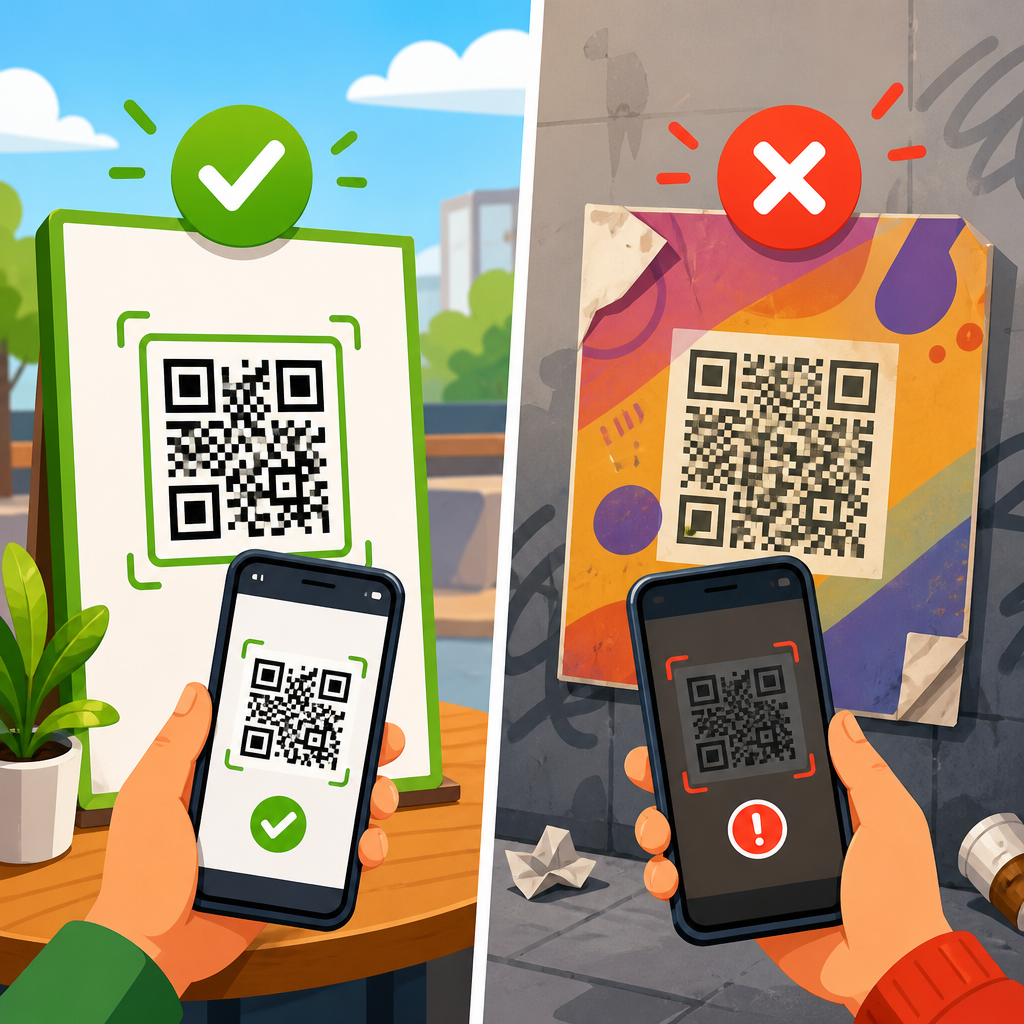
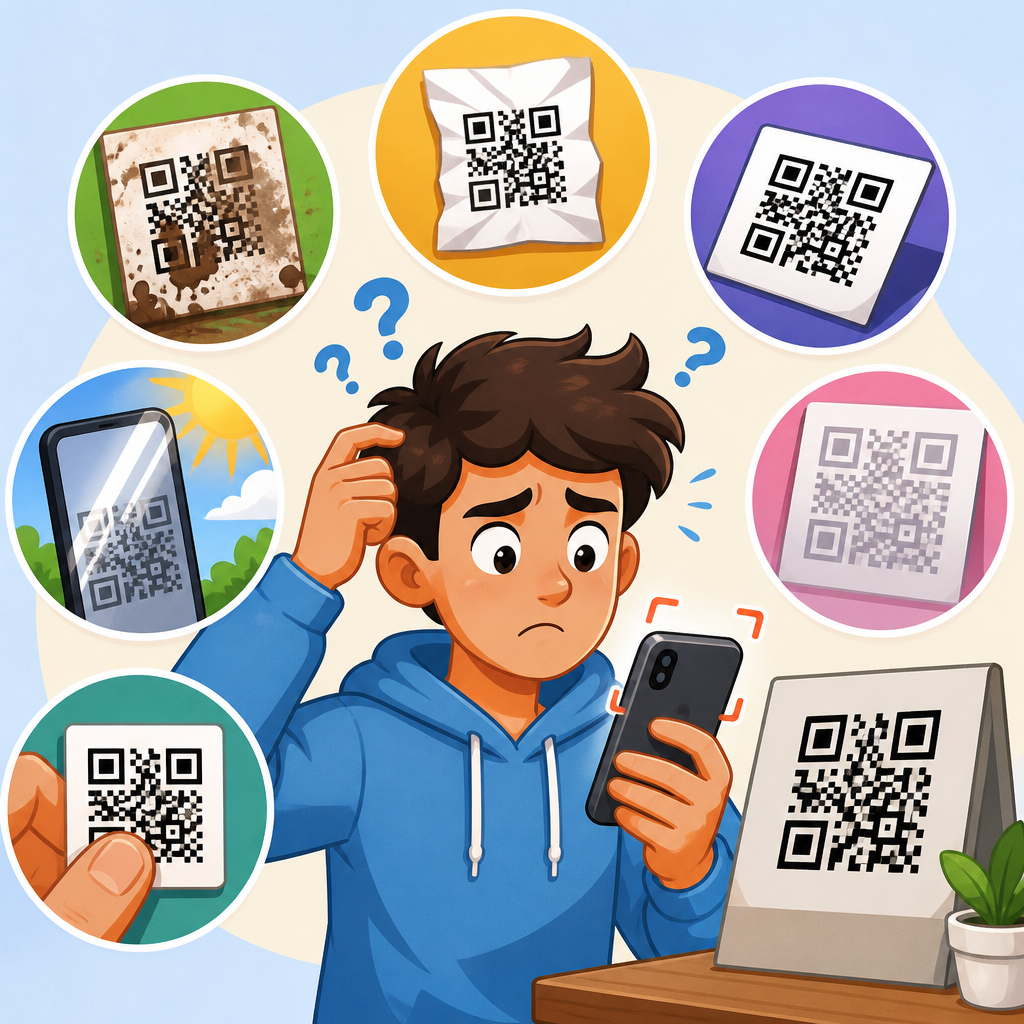
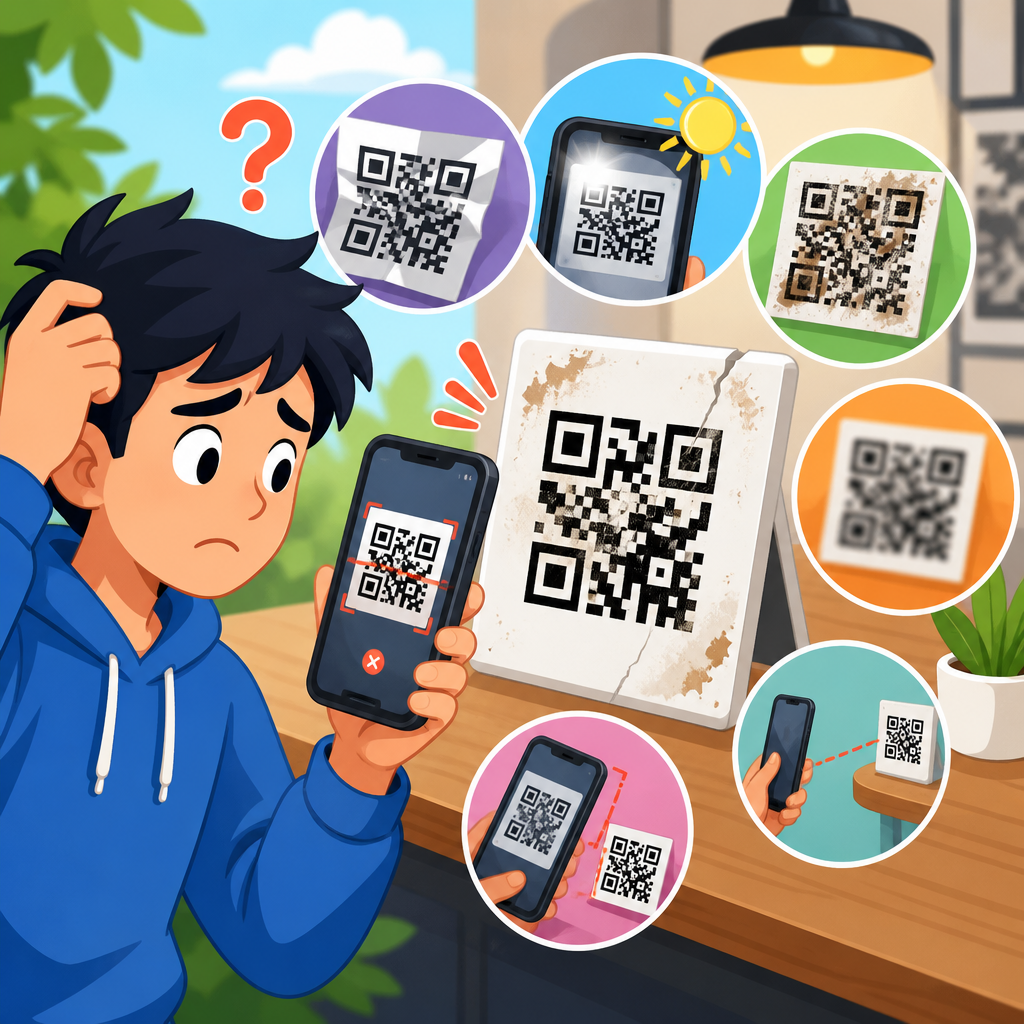
Lighting is the next major factor. In dim conditions, the camera raises ISO sensitivity and lowers shutter speed, which increases image noise and motion blur. Autofocus systems also perform worse when the scene lacks contrast. A black-on-white QR code usually gives enough contrast, but gloss lamination, curved bottles, reflective screens, and wrinkled stickers can create bright hotspots that wash out modules. I have seen checkout counter lighting make perfectly valid codes unreadable until the phone angle changed by ten degrees. The code was never broken; the reflection was.
Device software can also interfere. Some camera apps prioritize face detection, macro mode, night mode, or digital stabilization over fast close-range barcode capture. Third-party scanners sometimes process frames at lower resolution than the native camera, making small QR codes harder to decode. Screen protectors covering the lens area, fingerprints, protective cases with raised edges, and scratched lens glass all reduce image clarity. On older Android devices, low-cost camera modules may hunt for focus repeatedly, especially on glossy packaging. In those cases, the best solution is often environmental adjustment, not repeated rescanning.
How to tell whether the problem is focus, code quality, or software
Accurate diagnosis prevents wasted effort. A focus problem has recognizable signs: the code looks soft on screen, edges shimmer when the camera moves, the scanner box appears but never completes, or the camera keeps pulsing in and out. If a second device scans the same code instantly, that strongly suggests a device-specific issue rather than a code-generation defect. If the code scans only when photographed first and opened from the gallery, the live autofocus or scanner app is the likely weak point.
A code-quality problem looks different. Printed modules may bleed together, the quiet zone may be too narrow, colors may lack contrast, or the code may be physically damaged. Industry guidance commonly recommends high contrast, a clean margin around the symbol, and adequate print size relative to scanning distance. A practical rule used in print environments is roughly one unit of code size for every ten units of scanning distance, though real-world camera quality changes the threshold. If every device struggles, inspect the artwork before blaming focus.
Software issues usually show up as permissions errors, crashes, frozen preview, or a scanner that recognizes text and faces but not barcodes. On iPhone, the native Camera app is often the baseline test because Apple’s built-in detection is reliable on supported models. On Android, Google Lens, the default camera app, and a well-maintained scanner app provide useful comparison points. If one app scans and another does not, the problem is not optical alone. As a hub page, this topic connects naturally to deeper guides on blurry QR codes, damaged QR codes, low-light scanning, reflective surfaces, and app-specific scanner failures.
Step-by-step fixes that solve most QR code focus problems
The fastest way to fix QR code focus issues is to control distance, stability, light, and lens clarity in that order. Start by cleaning the camera lens with a microfiber cloth. Even a thin fingerprint film can lower contrast enough to break scanning. Then hold the phone 10 to 20 centimeters from the code and move slowly closer or farther until the modules appear crisp. Users often move too quickly; autofocus needs a brief moment to settle. Tapping the screen on the QR code can help force focus on many devices.
Next, improve lighting without adding glare. Turn on ambient light, move closer to a window, or use the flashlight only if it does not create a hotspot. For glossy surfaces, angle the phone or the item slightly so reflections move away from the code. Disable digital zoom because it enlarges blur rather than detail. If the phone has an automatic macro switch, test both states. I have repeatedly solved scans on newer phones by stepping back and letting the device use the main lens instead of macro, which often has lower low-light performance.
If the native camera still will not scan, try a second scanner app or scan from a saved photo. Taking a sharp photo first works because the device can process a still image more carefully than a live video frame. On Android, Google Lens is an effective fallback. On iPhone, long-pressing a QR code visible in a photo can trigger detection. Restarting the camera app, updating the operating system, and removing a lens-obstructing case are also worthwhile. In enterprise environments, mobile device management profiles can restrict camera behavior, so support teams should check policy settings when failures appear across a managed fleet.
| Symptom | Likely cause | Best fix |
|---|---|---|
| Code looks blurry up close | Inside minimum focus distance | Move back 5 to 10 cm and let autofocus lock |
| Scanner pulses in and out | Low light or reflective glare | Increase soft light and change angle |
| One app fails, another works | App-level decoding limitation | Use native camera or Google Lens |
| Small printed code will not scan | Insufficient module detail in frame | Use better light, no zoom, higher-resolution scanner |
| Only managed work phones fail | Device policy or camera restriction | Review MDM settings and permissions |
Device-specific troubleshooting for iPhone, Android, and tablets
On iPhone, start with the native Camera app because it uses Apple’s system-level barcode detection and generally outperforms many third-party tools. Make sure the rear lens is selected, not selfie mode, and avoid Portrait mode or video mode. If the phone switches aggressively between lenses on Pro models, change distance until the main wide lens takes over. In Settings, confirm Camera access for any third-party scanner. If Live Text overlays are distracting, a quick switch to the basic camera view can help the device prioritize the code. iOS updates can improve barcode detection behavior, so keeping current matters.
On Android, results vary more because camera hardware and software pipelines differ by manufacturer. Samsung, Google Pixel, Motorola, Xiaomi, and rugged enterprise devices all handle focus differently. First test the default camera app, then Google Lens, then any business app with built-in scanning. Disable scene optimizer or beauty filters if they are active. Some phones expose focus better after a tap-and-hold on screen; others use continuous autofocus only. If battery saver is limiting background processing, decoding speed may suffer. On low-cost devices, backing up slightly and filling more of the frame often works better than trying to get extremely close.
Tablets deserve separate attention because many have weaker rear cameras than phones. Front cameras on tablets are especially poor for QR scanning and often lack fast autofocus entirely. In warehouses, schools, and healthcare settings, I regularly see users trying to scan wristbands or labels with tablet front cameras and blaming the code. Switching to the rear camera, adding brighter task lighting, or using a dedicated scanning sled fixes the workflow. Rugged tablets from Zebra or Honeywell may rely on enterprise scan engines rather than standard camera focus, so support should verify whether the barcode service is enabled and correctly integrated.
When the environment is the real problem
Many scan issues on devices are environmental, not technical. Outdoor sunlight can overwhelm the screen preview, making users think the code is not detected when the problem is simply visibility. Indoors, LED spotlights can create narrow reflections on laminated menus or acrylic signs. Curved surfaces, such as bottles and cups, distort module geometry enough that focus alone cannot save the scan. In manufacturing plants and storerooms, dust, vibration, and low illumination combine to make camera autofocus unreliable. The fix is often to change the setting rather than the software.
Printed placement matters as much as optics. QR codes placed near folds, seams, bottle necks, or transparent packaging windows are harder to scan because the code cannot lie flat in the frame. Codes printed too close to other graphic elements may lose the quiet zone required for detection. A poster mounted behind glass can be sharp but unreadable because reflections from passing cars or ceiling fixtures cover key position markers. In one field audit, moving a countertop sign five feet away from a pendant light improved scan success immediately without changing the design.
Screen-based QR codes create a different set of focus traps. If the code is displayed on another phone with low brightness, cracked glass, a privacy screen, or PWM flicker artifacts, the scanning device may struggle. Moiré patterns can appear when one screen photographs another. Increasing the source screen brightness, enlarging the code, and holding both devices steady usually solves it. For support teams, this is where internal links to deeper troubleshooting articles become useful: one guide should cover printed codes, another glossy surfaces, another scanning from screens, and another low-light device behavior.
Prevention: how to reduce future QR code focus failures
The best way to fix QR code focus issues is to prevent them at the design and deployment stage. Use adequate code size for the expected scanning distance and choose strong contrast, ideally dark modules on a light matte background. Preserve the quiet zone and avoid placing codes on busy artwork, metallic foil, curved containers, or reflective laminate unless you have tested them with multiple devices. Dynamic QR codes help with destination changes, but they do not fix optical problems, so print testing remains essential.
Test across a realistic device mix before launch. A code that scans instantly on a flagship iPhone may fail on an older Android handset used by a large share of your audience. Include at least one budget Android phone, one recent iPhone, and one tablet if tablets are common in your workflow. Check scans in bright daylight, normal office lighting, and dim conditions. Test native camera apps and any required in-app scanner. If your organization supports frontline staff, write a short SOP covering lens cleaning, ideal distance, glare control, and fallback apps so simple focus problems do not escalate into avoidable incidents.
Measurement closes the loop. Track where scan failures happen: on packaging, kiosks, event badges, menus, or equipment labels. Note device models, operating system versions, app versions, and environmental conditions in support tickets. Patterns emerge quickly. If one venue, one print batch, or one device family accounts for most complaints, you can fix the root cause instead of repeating generic advice. The payoff is straightforward: faster scans, fewer abandoned interactions, and lower support volume. Review your current QR placements, test them on real devices, and update your troubleshooting playbook before the next campaign or rollout goes live.
Frequently Asked Questions
Why won’t my phone camera focus on a QR code even when the code looks fine?
In many cases, the QR code itself is not the problem at all. A phone camera has to resolve the code’s tiny square modules clearly enough for the scanner to distinguish one from another, and if the image stays soft, the device cannot decode it. This often happens when the phone is too close to the code, because many smartphone lenses have a minimum focusing distance. If you hold the device closer than that limit, the camera may hunt back and forth or stay blurry. It can also happen in dim lighting, where the camera lowers shutter speed or raises processing noise, both of which reduce detail. Smudges on the lens, glare on glossy packaging, screen reflections, motion from shaky hands, and low-contrast printing can all interfere with focus too. The simplest fix is usually to move the phone slightly farther away, pause for a second so autofocus can lock, improve the lighting, and make sure the camera lens is clean. If the code is very small, try zooming with your feet rather than digital zoom by stepping back until the camera can focus properly, then letting the scanner crop the image naturally.
What is the best distance and angle for scanning a QR code clearly?
The best distance is the one that lets the camera focus sharply while keeping the QR code large enough in the frame to read. For most phones, that means not pressing the camera right up against the code. A good rule is to start several inches away, then slowly move closer or farther until the code appears crisp on screen. Many focus problems come from being too close rather than too far. Angle matters as well. The scanner works best when the camera is as square to the code as possible, because heavy tilt can distort the pattern and make the small modules harder to separate visually. If the code is behind plastic, laminated, glossy, or displayed on a bright screen, even a slight angle adjustment can reduce glare and immediately improve readability. In practical terms, hold the phone steady, center the code, keep it flat in relation to the camera, and avoid extreme slants unless you are intentionally trying to dodge reflections. A stable, straight-on view with enough light usually gives the autofocus system the best chance to lock properly.
How can I fix QR code focus issues caused by lighting, glare, or reflections?
Lighting has a major effect on focus and scan reliability because autofocus needs visible detail and contrast to work well. In poor light, the camera may struggle to detect edges, and the resulting image can be noisy or blurred. The easiest fix is to move into brighter, even lighting. Natural daylight often works very well, but indirect indoor light can be just as effective if it is strong and consistent. If the QR code is printed on glossy paper, a label, a menu sleeve, or product packaging, direct overhead light can create bright hotspots that wash out parts of the pattern. In that case, changing the angle of either the phone or the code by a few degrees is often enough to remove the reflection. If the code is on a screen, lowering screen brightness slightly or tilting the device can help. You can also use your phone’s flashlight when scanning a printed code in a dark environment, although you should watch for flash glare on shiny surfaces. The goal is not just more light, but cleaner light that preserves contrast across the entire symbol.
Can a QR code be too small, too dense, or too detailed for my camera to focus on?
Yes. Even a technically valid QR code can be difficult to scan if its modules are too small for the camera to resolve at a practical distance. This is common when a code contains a lot of data, which increases its density, or when it is printed at a very small physical size. The camera may appear to focus, but the individual squares still blur together, making decoding unreliable. This is why some support cases are mistakenly blamed on app issues or damaged printing when the real problem is symbol size and detail. A dense code on a tiny sticker, business card, or distant sign is much less forgiving than a larger code with a shorter URL or lighter data load. If you are the one creating the code, increasing the print size and reducing the encoded content can make a major difference. If you are the one trying to scan it, better lighting, a steadier hand, and a more suitable distance may help, but there are limits. When the module size is below what the camera can capture sharply, focus adjustments alone may not fully solve the problem.
What should I do if I’ve cleaned the lens, adjusted the distance, and the QR code still will not scan?
If you have already addressed the most common focus issues, the next step is to isolate whether the problem is the camera, the scanning app, the display or print surface, or the QR code itself. First, test your phone on a different QR code that you know works. If it scans other codes quickly, your camera and app are probably fine, and the original code may be too small, too reflective, too low-contrast, or otherwise difficult to resolve. If your phone struggles with all codes, try restarting the camera app, switching to a different QR scanning app, updating the device software, or testing another camera mode if your phone automatically changes lenses at certain distances. On some devices, macro behavior, lens switching, or heavy image processing can affect close-range scanning. If the code is on a screen, increase sharpness by avoiding screenshots that have been compressed, and display the code larger if possible. If it is printed, inspect it for blur, ink spread, low contrast, or damage near the finder patterns. At that point, the issue may no longer be pure focus but symbol quality. A well-printed, adequately sized code in good light should scan consistently once the camera can achieve a crisp image.