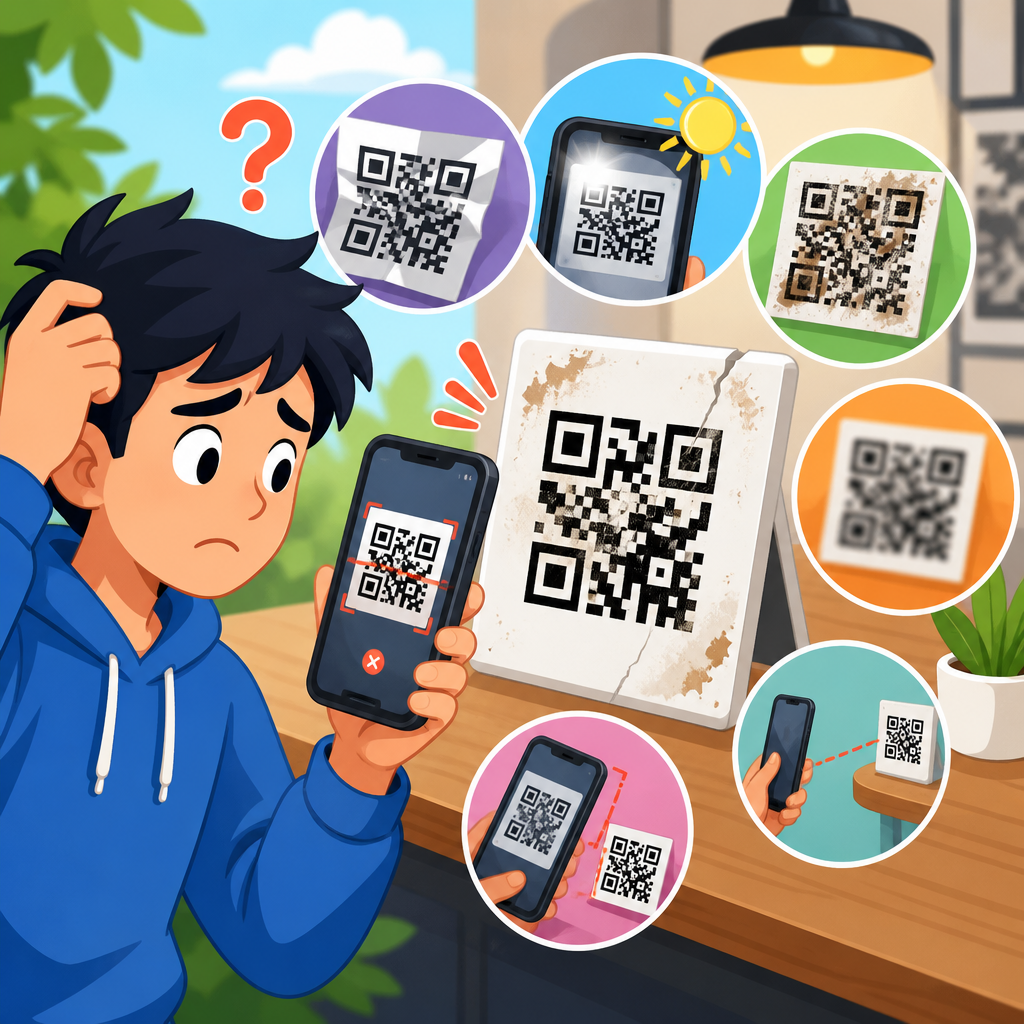
QR code scanning on Android should work in seconds, yet many users still run into disabled camera permissions, missing scanner options, outdated software, and confusing manufacturer settings that stop a phone from reading a code. In practical support work, I have found that most scan failures are not caused by the QR code itself. They are usually caused by a device-level setting, an app conflict, poor camera focus, or a software limitation tied to a specific Android version. If you want to enable QR code scanning on Android reliably, you need to understand how Android handles camera access, which apps include native scanning, and what troubleshooting steps solve scan issues on devices fastest.
A QR code, short for Quick Response code, is a two-dimensional barcode that stores data such as website URLs, Wi-Fi credentials, contact details, payment information, app download links, and login tokens. Android can scan QR codes either through the default Camera app, through Google Lens, through a manufacturer tool like Samsung Camera or Xiaomi Scanner, or through a third-party scanning app. “Enable QR code scanning” can therefore mean several different actions: turning on a camera app feature, granting camera permission, updating Google Play services, enabling Lens suggestions, or installing a scanner when the device does not support native reading.
This matters because QR codes are now embedded in everyday tasks. Restaurants use them for menus, banks use them for payment initiation, airlines use them for boarding passes, and workplaces use them for guest check-in and multi-factor authentication. When scanning fails, the problem is not just minor inconvenience. It can interrupt payments, block account access, delay travel, or stop someone from joining a secure network. For support teams and site owners building a QR Code Troubleshooting & Support hub, Android scan issues deserve special attention because Android is fragmented across brands, OS versions, and camera app designs.
The good news is that almost every Android scanning problem is diagnosable. There is a clear sequence: verify native support, enable permissions, test the camera app, switch to Google Lens if available, rule out hardware and lighting problems, and then escalate to updates, cache clearing, Safe Mode, or a trusted third-party scanner. Once users know that sequence, they can solve most scan issues on devices without guessing.
How QR Code Scanning Works on Android
Android does not rely on a single universal QR reader. The scanning method depends on device brand, Android release, and installed Google components. On newer phones, the Camera app often detects a code automatically and displays a banner with the embedded action, such as opening a link. On many devices, Google Lens performs the recognition layer. Lens can be integrated directly into the camera, accessible through the Google app, or launched from Google Photos for codes saved in screenshots.
From a technical standpoint, the camera captures the image, computer vision software identifies the square finder patterns in the code, and the decoder translates the encoded payload into plain data. If any part of that chain breaks, scanning fails. I have seen support cases where the user assumed the code was broken, but the real issue was that the Camera app lacked permission after a privacy reset. In other cases, the phone camera opened normally, yet no QR prompt appeared because Lens suggestions had been disabled or the camera app version was outdated.
Android 9 and later made QR support more common, but native behavior still varies widely. Pixel devices tend to offer the most straightforward experience through Google Camera and Lens. Samsung devices usually support scanning in the Camera app, though the specific toggle may be under Camera settings. Motorola, OnePlus, Xiaomi, Oppo, Vivo, and budget Android phones can differ substantially. Some low-cost devices ship with minimalist camera apps that do not decode QR codes at all, which means users must rely on Lens or a reputable third-party app.
How to Enable QR Code Scanning in the Camera App
The fastest way to enable QR code scanning on Android is to check whether the built-in Camera app already supports it. Open Camera, point it at a well-lit QR code, and hold the phone steady about six to ten inches away. If the device supports native scanning, a pop-up banner, link preview, or Lens icon should appear. If nothing happens, open the camera settings and look for options such as “Scan QR codes,” “Google Lens suggestions,” “Smart features,” or “Scene optimizer.” Turn those on, then test again.
On Samsung Galaxy phones, open Camera, tap the settings gear, and enable the QR code scanning option if present. On Pixel phones, QR detection is usually active by default through Google Camera, and Lens is available inside the camera interface. On Xiaomi and Redmi devices, some versions place scanning in a separate Scanner app rather than the camera itself. On OnePlus phones, newer camera builds can recognize codes, but some older versions require Lens or another app. These differences matter because users often look for one universal Android setting that does not exist.
If you still cannot find the option, confirm the Camera app is updated through Google Play or the manufacturer’s app store. I have resolved cases where QR detection appeared immediately after a camera update because the vendor had added or restored Lens integration. Also check whether battery optimization or privacy dashboards are restricting camera behavior in the background. While these settings rarely disable scanning directly, they can interfere with the supporting services that generate QR prompts.
Use Google Lens When Native Scanning Is Missing
Google Lens is the most dependable fallback when a phone does not scan QR codes through the default camera. To use it, open the Google app, tap the Lens icon, grant camera permission, and point the camera at the code. Lens can also scan codes from images already saved to the device, which is useful when a QR code appears in a screenshot, email, or social post on the same phone.
Lens is especially valuable on Android because it standardizes scanning across brands. In support workflows, I often recommend Lens before suggesting any third-party scanner because it is maintained by Google, broadly compatible, and integrated with Android’s permission system. If Lens does not appear, update the Google app and Google Play services. Those two components quietly power a large share of Android QR recognition behavior.
A common question is whether Lens must be installed separately. On many devices, no. It is built into the Google app or surfaced inside the Camera app. Another common issue is a blank or frozen Lens viewfinder. In that case, clear the Google app cache, verify camera permission, and check that the phone is not in a work profile that restricts camera access. Managed corporate devices sometimes block Lens intentionally for data handling reasons.
Check Permissions, Updates, and Device Compatibility
When QR code scanning is not working on Android, permissions and compatibility should be checked before deeper troubleshooting. Camera permission is essential, but location, network access, and app overlays can also affect what happens after the scan. A code may be recognized visually yet fail to open the destination if the app handling the result is blocked.
| Issue | What to Check | Typical Fix |
|---|---|---|
| Camera opens but no QR prompt appears | Camera app settings, Google Lens availability, app version | Enable scan option, update Camera and Google app |
| Scanner says permission denied | Android camera permission settings | Allow Camera access for Camera, Google, or scanner app |
| QR code visible but won’t focus | Lens cleanliness, lighting, distance, damaged camera module | Clean lens, improve light, move farther back, test rear camera |
| Code scans but link will not open | Internet connection, browser defaults, security restrictions | Reconnect, set a default browser, remove app restrictions |
| No native QR support on device | Android version, manufacturer camera limitations | Use Google Lens or a trusted third-party scanner |
Compatibility matters most on older Android phones. Devices running Android 7 or 8 can still scan codes, but often not through the stock camera. Very old or heavily customized devices may never gain native support. In those cases, forcing users to keep hunting for a hidden toggle wastes time. The correct answer is simple: install a reputable scanner from a known publisher, verify permissions, and test with a standard URL QR code first.
Fix Common Scan Issues on Android Devices
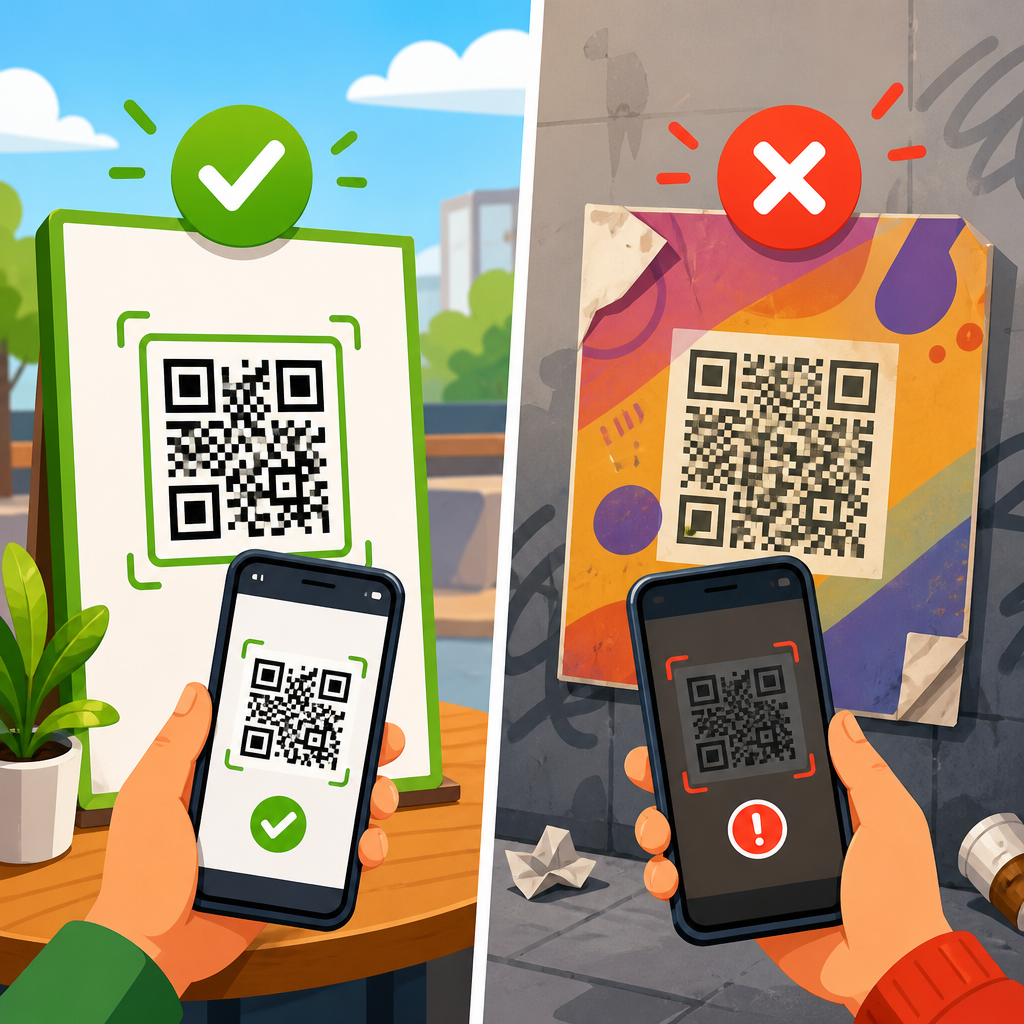
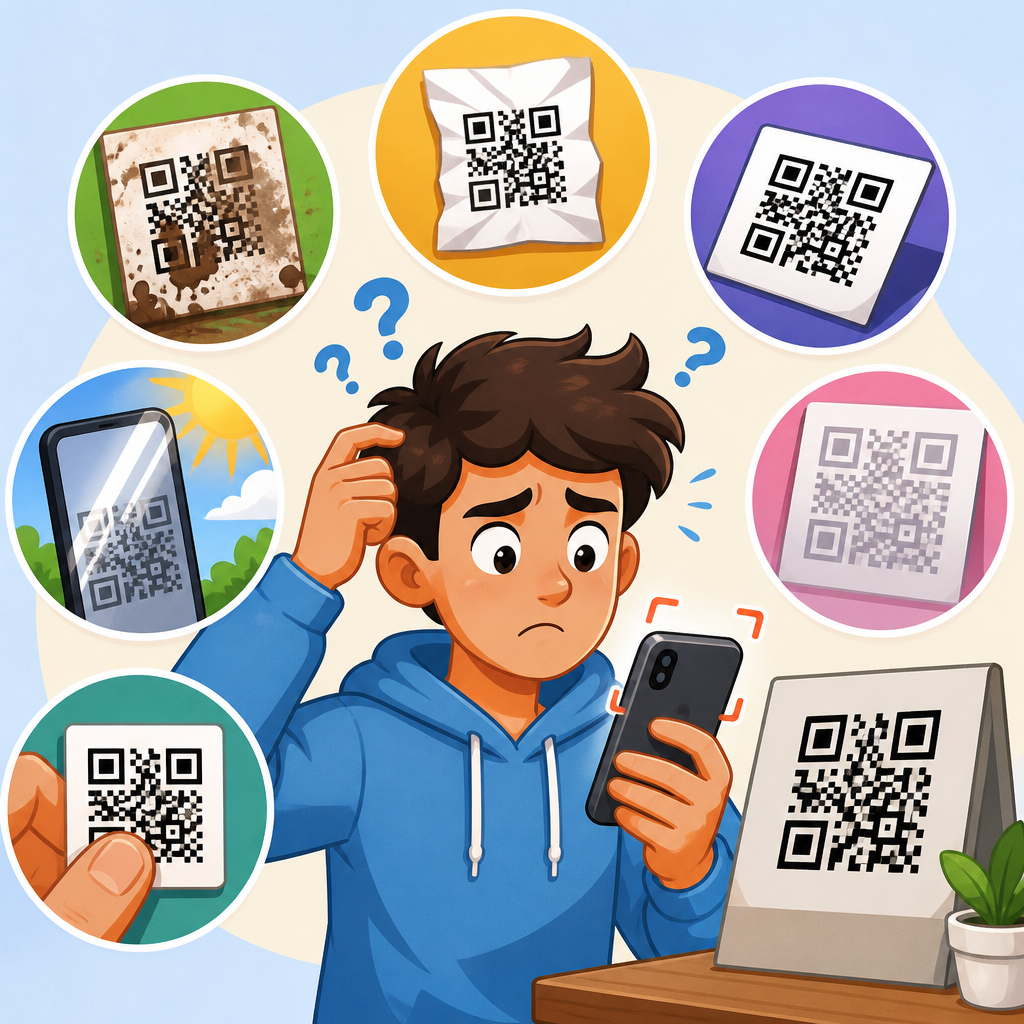
Most scan issues on devices fall into a small number of patterns. The first is focus failure. QR codes need sufficient contrast and sharpness. If the code is glossy, curved, tiny, cracked, or displayed on a dim screen, the camera may fail before software ever gets involved. Ask users to increase screen brightness, flatten printed material, avoid glare, and step back slightly so autofocus can lock. Many people move too close, which reduces clarity.
The second pattern is software conflict. Third-party camera apps, privacy utilities, and enterprise mobility tools can override default handlers or block the scanner from launching the resulting action. I have seen Android phones where a security app prevented scanned links from opening in Chrome, making users think the QR code was unreadable when the real problem happened after decoding. Testing in Safe Mode is useful here. If scanning works in Safe Mode, another installed app is interfering.
The third pattern is stale app data. Clear cache for Camera, Google, and Google Play services, then restart the device. If that does not work, clear storage only if you understand the tradeoff, because it can reset app preferences. Also install pending system updates. Manufacturers frequently patch camera stability, autofocus tuning, and service integrations in monthly releases.
The fourth pattern is hardware degradation. A scratched lens cover, failed autofocus motor, or weak low-light performance can cripple QR scanning even when ordinary photos seem acceptable. Test with another app and both front and rear cameras if relevant, though rear cameras are far better for scanning. If all camera-dependent apps struggle to focus, the issue is physical, not a settings problem.
When to Use a Third-Party QR Scanner
A third-party QR scanner is appropriate when the built-in camera does not support code recognition, Google Lens is unavailable, or a specialized workflow requires scanning history, batch handling, or enterprise management. Choose carefully. Many scanner apps ask for excessive permissions, inject ads into sensitive flows, or open links aggressively without warning. A good scanner needs only camera access and should show the decoded content before taking action.
In support environments, I recommend evaluating the publisher reputation, Play Store review patterns, update recency, and permission scope before suggesting any app. Avoid scanners that request contacts, microphone, SMS, or broad storage access without a clear reason. Trusted barcode tools from established developers generally support QR, Data Matrix, and Code 128, which is helpful for broader troubleshooting across retail, logistics, and event check-in scenarios.
Third-party tools also help isolate whether the failure is code-related or device-related. If three scanning apps cannot read the same code under good lighting, the code itself may have low error correction, poor print quality, or an invalid payload. If a third-party app reads it instantly while the stock camera cannot, the issue is clearly tied to the native camera stack.
Security, Privacy, and Support Best Practices
Enabling QR code scanning on Android should always include a security warning: scanning is easy, but not every code is safe. Malicious QR codes can direct users to phishing pages, app sideload prompts, fake payment destinations, or device fingerprinting sites. The best scanner behavior is to preview the URL and let the user decide whether to open it. Shortened links deserve extra caution because the destination is obscured.
For site owners creating a QR Code Troubleshooting & Support hub, this Android article works best as the main entry point for scan issues on devices. From here, users should be able to move to deeper guides on Samsung-specific QR settings, Google Lens troubleshooting, camera permission errors, blurry code fixes, screenshot scanning, and safe QR scanning practices. That internal structure reduces repeated support tickets because people can self-select the exact fault pattern faster.
Keep troubleshooting language direct and diagnostic. Instead of saying “try a few things,” say “confirm camera permission, test the stock Camera app, then test Google Lens.” Instead of saying “older phones may struggle,” say “some Android 7 and 8 devices lack native QR decoding in the default camera and require Lens or a separate app.” Specificity solves problems and builds trust.
To enable QR code scanning on Android successfully, start with the built-in Camera app, then move to Google Lens, permissions, updates, and compatibility checks in that order. Most Android scan issues on devices come down to four causes: the feature is off, the app lacks permission, the software stack is outdated, or the camera cannot focus clearly enough to decode the pattern. Once you identify which of those categories applies, the fix is usually straightforward and quick.
The central benefit of understanding this process is consistency. Instead of guessing why a QR code will not scan, you can use a repeatable troubleshooting path that works across Pixel, Samsung, Xiaomi, OnePlus, Motorola, and other Android devices. That saves time for individual users, customer support teams, and publishers building help content under a broader QR Code Troubleshooting & Support strategy.
If you are maintaining this support hub, use this page as the starting point for every Android-related scan problem, then link out to the exact device, app, or permission issue the user is facing. If you are troubleshooting your own phone, begin now: open Camera, test a known-good QR code, enable scan settings, and switch to Google Lens if the native option fails.
Frequently Asked Questions
How do I enable QR code scanning on an Android phone?
On most Android phones, QR code scanning is enabled through the default Camera app, but the exact path depends on the device brand and Android version. Start by opening the Camera app and pointing it at a QR code in good lighting. If nothing happens, tap the camera settings icon and look for options such as Scan QR codes, Google Lens suggestions, or Smart features. These settings are commonly found on Samsung, Google Pixel, Xiaomi, Motorola, OnePlus, and other Android devices, although the wording can vary. If the feature is turned off, enable it and then try scanning again.
If your Camera app still does not recognize QR codes, make sure camera permissions are properly enabled. Go to Settings > Apps > Camera > Permissions and confirm that camera-related access has not been restricted by privacy settings, digital wellbeing controls, or enterprise device policies. On some phones, QR scanning also relies on Google services or built-in visual search tools, so updating the Camera app, Google app, and Android system software can restore missing functionality. In real-world troubleshooting, this is one of the most common fixes because the scanner itself is often present, but disabled by default or affected by a system setting the user did not realize had changed.
Why is my Android camera not scanning QR codes even though the feature should be available?
If your Android camera should support QR scanning but does not respond, the issue is usually not the QR code itself. More often, the problem comes from poor focus, dirty camera lenses, disabled permissions, or software conflicts. Begin with the basics: clean the rear camera lens, hold the phone steady, and make sure the QR code is fully visible on screen. Try moving the phone slightly closer or farther away, because some cameras struggle to focus at certain distances. Bright, even lighting also matters. A perfectly valid QR code can fail to scan if glare, shadows, or blur prevent the camera from reading its pattern clearly.
Beyond camera focus, app conflicts are another major cause. Some third-party camera apps, privacy tools, battery optimizers, or security apps interfere with the default camera behavior. If scanning stopped after installing a new app, test the built-in Camera app directly and temporarily disable any apps that control permissions or overlays. It is also worth clearing the Camera app cache from Settings > Apps > Camera > Storage. If the issue persists, restart the phone and install any pending Android updates. Manufacturer-specific software can also affect scanning reliability, especially on older devices where QR recognition was added later through system updates rather than included from the start.
Where is the QR code scanner setting on Samsung, Pixel, and other Android phones?
The scanner setting is usually located inside the default Camera app, but each manufacturer labels it differently. On Samsung Galaxy phones, open the Camera app, tap the settings gear, and look for Scan QR codes. On Google Pixel devices, QR recognition is often tied to Google Lens and the stock camera experience, so you may simply need to open the Camera app and point it at the code. On Xiaomi, Redmi, or POCO phones, the option may appear under camera settings, AI features, or a separate Scanner app. Motorola and OnePlus devices often support QR scanning directly in the Camera app, though older models may depend more heavily on Google Lens.
If you cannot find a built-in setting, do not assume your phone lacks support. Some Android phones hide scanning behind the Google Lens icon in the camera interface or place it inside quick settings, smart tools, or manufacturer utilities. You can also search your phone’s settings menu for terms like QR, scanner, Lens, or visual search. If nothing appears, check the Google Play Store for updates to the Camera app and related system apps. In support situations, many users overlook the fact that their device can scan QR codes, but the feature is integrated under a brand-specific name rather than being labeled plainly as “QR scanner.”
Do I need a separate app to scan QR codes on Android?
In many cases, no. Most modern Android phones can scan QR codes using the built-in Camera app or Google Lens, so a separate app is often unnecessary. If your phone is running a recent version of Android and uses a current camera application, simply opening the Camera app and pointing it at the code should trigger a notification or preview link. Google Lens is also widely available through the Camera app, Google app, Google Photos, or as a standalone shortcut on some devices. This built-in support is usually safer and more reliable than downloading an unknown third-party scanner.
That said, some older Android phones or heavily customized manufacturer devices may not include dependable native scanning. In those cases, a reputable QR scanning app can help, but it is important to choose carefully. Avoid apps that request unnecessary permissions, display aggressive ads, or ask for access unrelated to scanning. A scanner only needs basic camera access. If you use a third-party app, install it from the Google Play Store, review recent ratings, and keep it updated. For most users, however, a separate app should be a fallback option rather than the first step, because native Android scanning is typically faster, more secure, and easier to manage.
What should I do if QR code scanning is still not working after enabling it?
If QR code scanning still fails after you have turned it on, work through the problem methodically. First, test more than one QR code to rule out damage, low print quality, or poor contrast in the original code. Next, confirm that your camera can focus properly in general by taking a normal photo. If the image appears blurry, the problem may be with autofocus rather than QR recognition specifically. Restarting the phone is also worthwhile, because temporary camera service errors can stop scanner functions from working correctly until the device reloads system processes.
If basic checks do not solve the issue, update Android, the Camera app, and Google-related components such as the Google app or Google Play services. Then clear the Camera app cache and, if needed, reset app preferences to restore default permission behavior. Check whether battery saver, privacy dashboard controls, work profile restrictions, or parental controls are limiting camera functions in the background. On older devices, the scanner may simply not be supported natively, in which case Google Lens or a trusted QR scanning app is the practical workaround. If none of these steps helps, the final possibility is a hardware or firmware issue, especially if the camera is failing in other situations too. At that point, manufacturer support or device diagnostics become the next logical step.