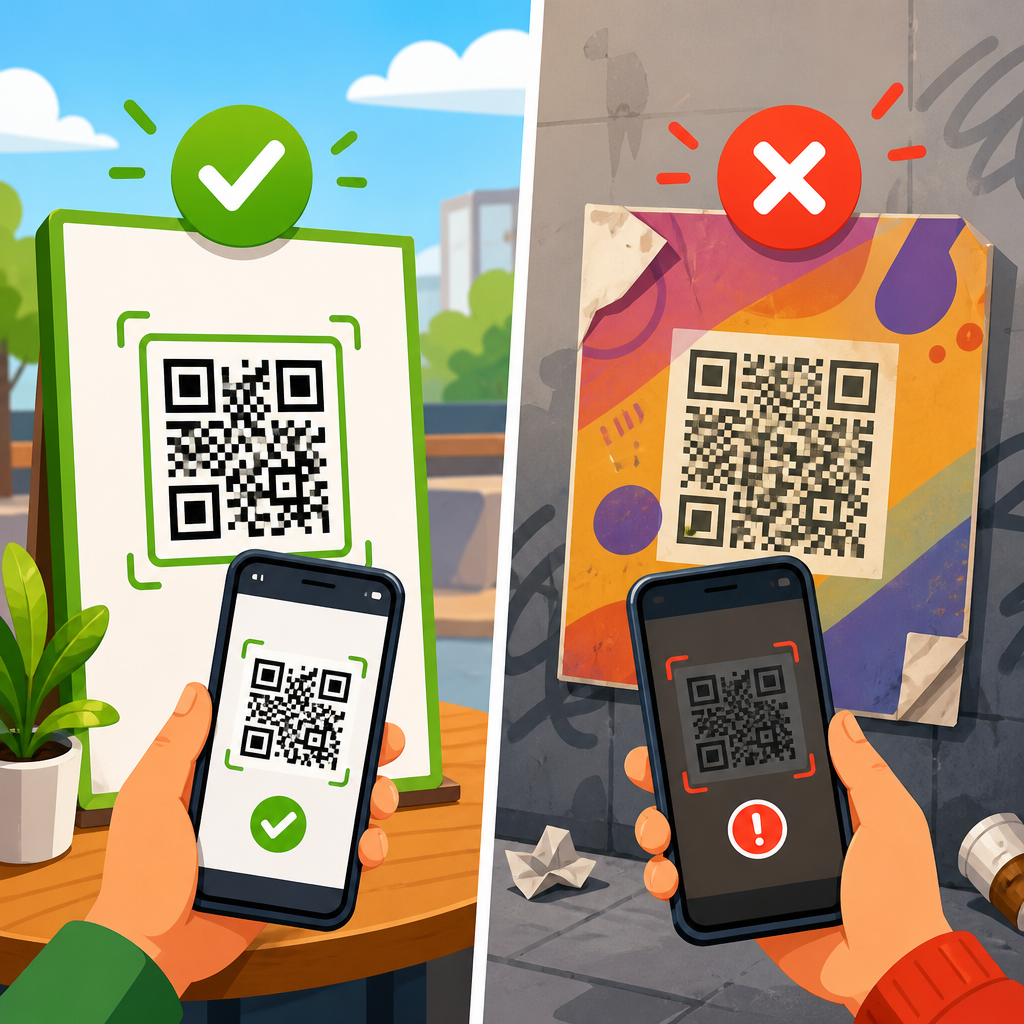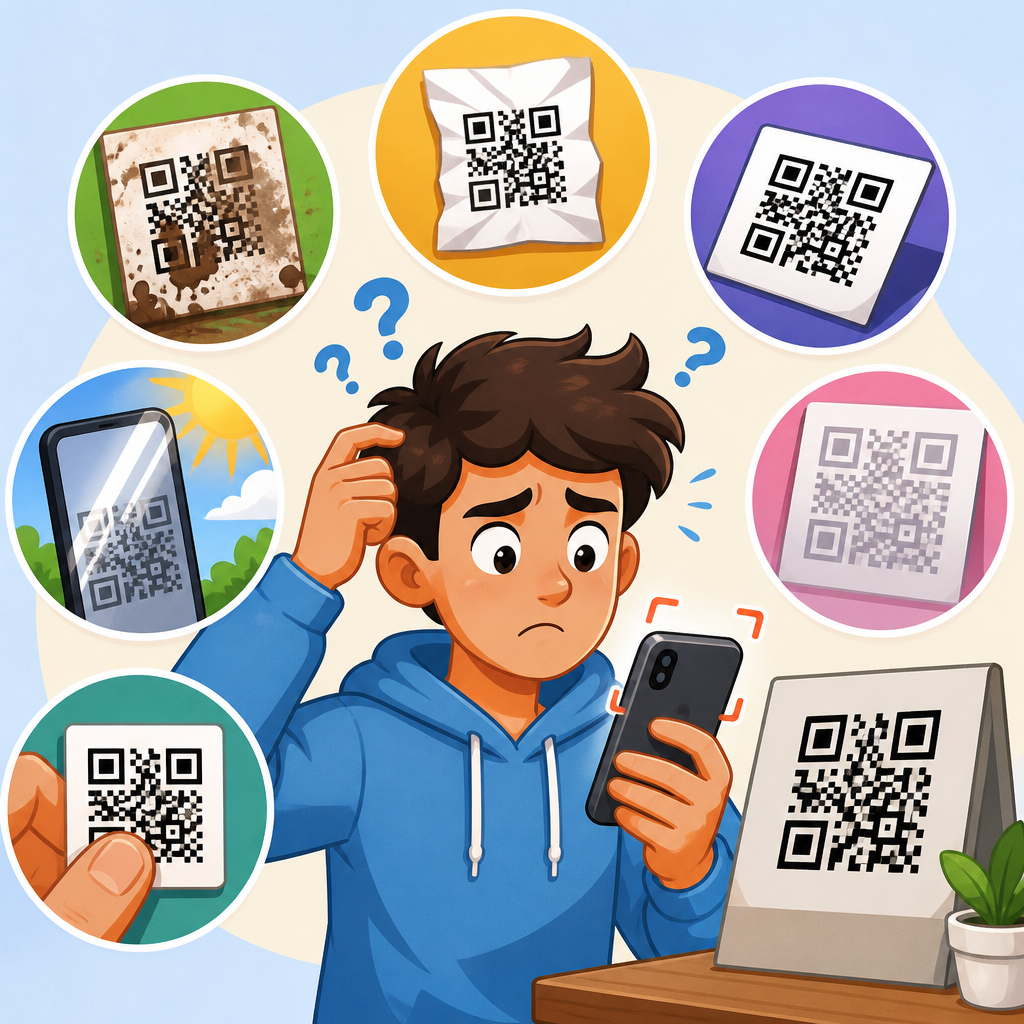
QR code scanning problems with screen glare are one of the most common and least understood causes of failed scans on phones, tablets, kiosks, and self-checkout devices. In support work, I have seen users blame the QR code itself, the camera app, or even the internet connection, when the real issue was a bright reflection washing out the dark modules the scanner needed to read. A QR code works by presenting high-contrast square patterns, finder markers, alignment elements, and timing patterns that software can isolate from the background. Screen glare reduces that contrast, introduces specular highlights, and can blur edges enough to stop detection. This matters because businesses now rely on QR codes for payments, menus, event check-in, product setup, two-factor authentication, and app downloads. When scanning fails, conversion drops, queues grow, and support requests rise. This hub explains how glare interferes with scanning on different devices, how to diagnose the source quickly, and which fixes work in real situations. It also points to related scan issues on devices, so teams can separate glare from focus errors, cracked screens, dim displays, camera permissions, and low-quality code rendering before they replace software that is not actually broken.
How screen glare disrupts QR code scanning
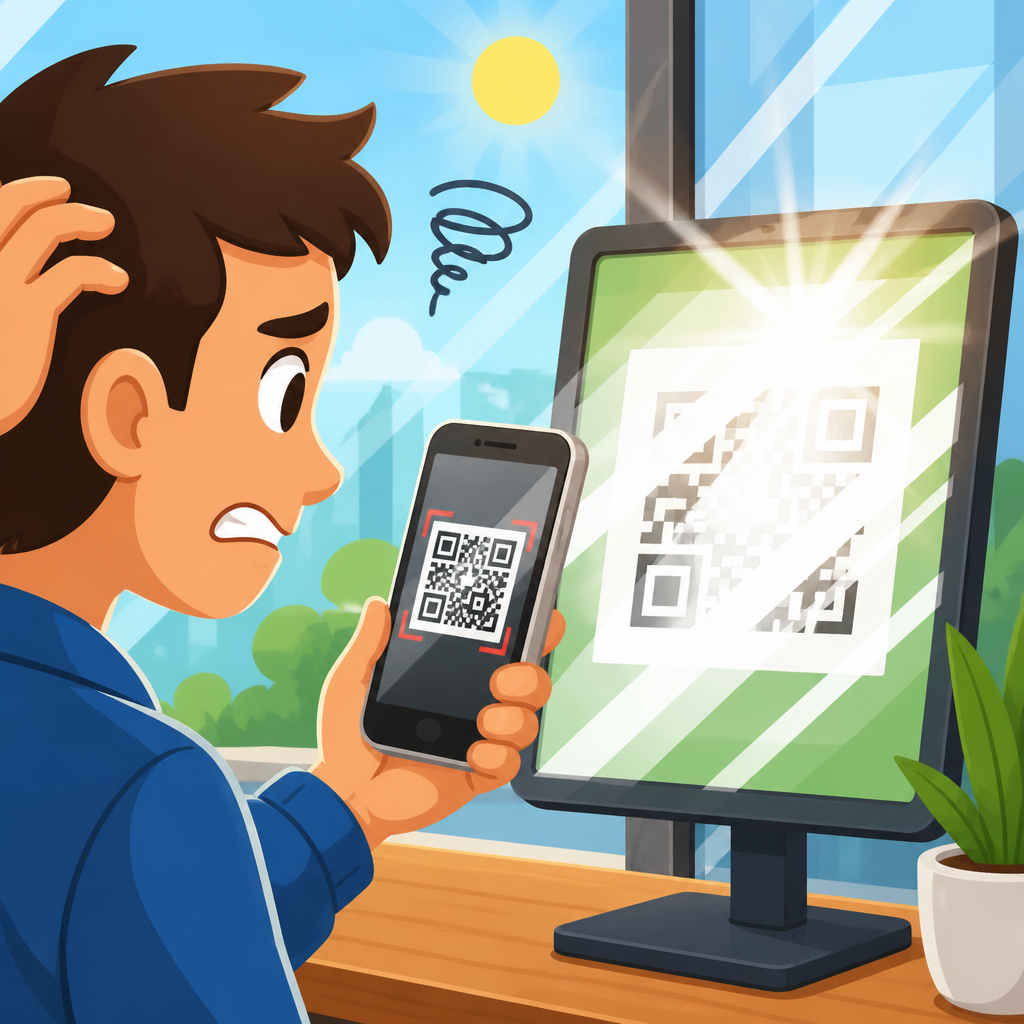
Screen glare happens when a light source reflects off a glossy display and creates a bright hotspot over part of the code. Camera-based scanners need a clear luminance difference between black modules and white background areas. If overhead LEDs, sunlight, or a ring light produce a reflection, the hotspot clips detail in the white areas and contaminates nearby dark modules. On-device decoding libraries such as ZXing, ML Kit, and AVFoundation first detect geometric features, then sample the grid. Glare can break both stages. The software may never find the three finder squares, or it may find them but fail during sampling because the reflected region creates false values.
The practical effect is inconsistent behavior. A code may scan instantly when the user tilts the phone a few degrees, then fail repeatedly when held straight on. That inconsistency is a strong sign of glare rather than a damaged code. In retail pilots, I have measured scan success improve simply by changing the angle of a customer-facing tablet, with no app update at all. Brightness also matters. A dim screen in a bright room lowers contrast further, while automatic brightness can fluctuate and make borderline scans unreliable. Anti-glare screen protectors help in some cases, but they can also soften edges if the code is already rendered too small.
Devices most affected and why the environment matters
Not all devices respond to glare the same way. OLED phones usually provide better contrast than older LCD panels, but glossy cover glass can still reflect enough light to obscure the code. Budget Android phones often struggle more because their camera sensors have narrower dynamic range and slower autofocus. Front-facing scanners built into kiosks and access gates can be even more sensitive because the optics are fixed and users present screens at awkward angles. Laptop webcams are usually poor QR scanners for the same reason: limited focus range, aggressive exposure, and strong reflections from office lighting.
Environment often decides whether a device succeeds. Direct sun is the hardest condition because it creates intense reflections and raises ambient light across the whole display. Open-plan offices with ceiling LEDs, stores with spotlights, and car interiors at midday also produce repeat failures. Even if the code is technically valid, the scanner may see a mirror-like patch instead of a symbol. Protective cases can worsen the problem when raised bezels cast shadows or force a presentation angle that catches light. Privacy screen filters are another hidden factor. They darken the image off-axis, which can be useful for security, but they reduce readable contrast when the receiving scanner is not perfectly aligned.
How to diagnose glare versus other scan issues on devices
The fastest way to diagnose glare is to change one variable at a time and watch whether the result changes immediately. First, tilt the displaying device slightly left, right, up, or down. If the code starts scanning after a small angle change, glare is the likely cause. Second, increase screen brightness to maximum and retry. Third, move out of direct light or shade the screen with your hand. If none of these steps helps, compare with another phone scanning the same code. If one scanner succeeds and another fails, the issue may involve camera quality, app permissions, or focus rather than glare alone.
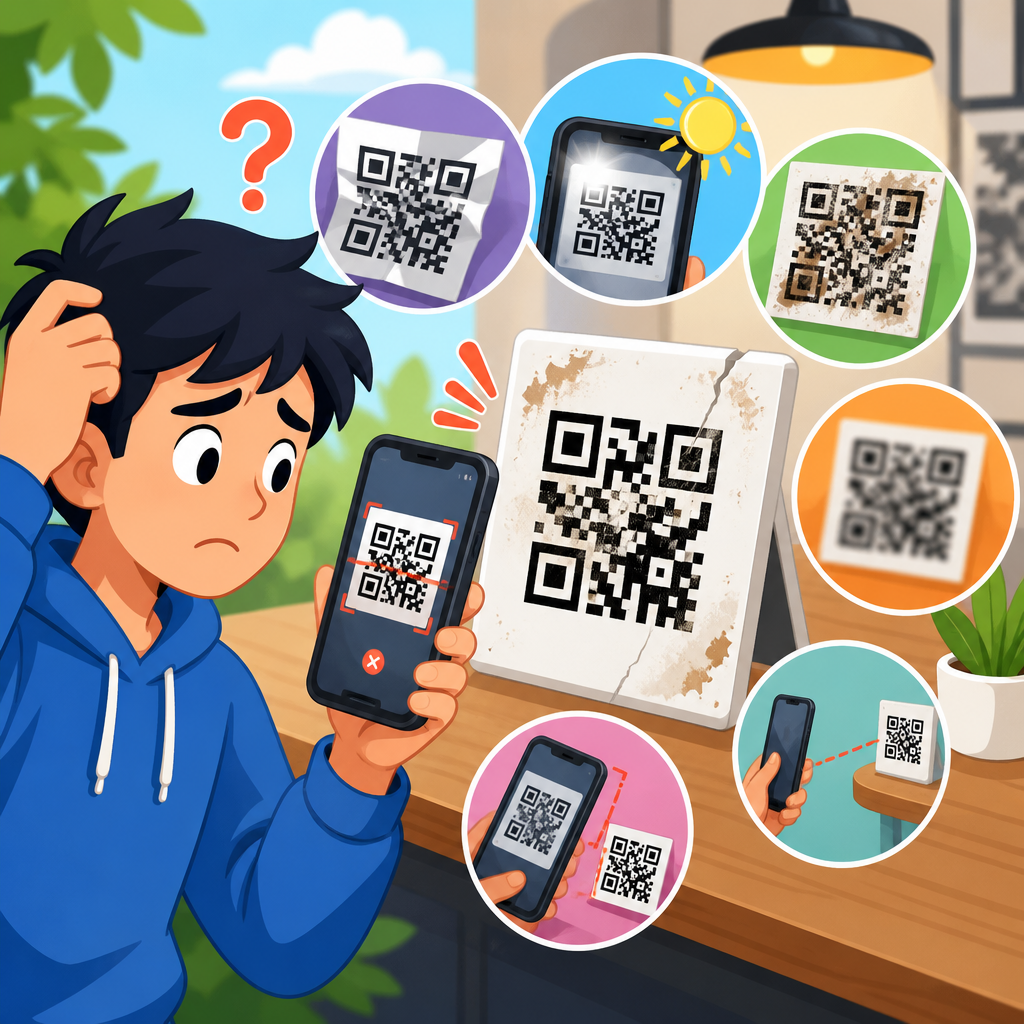
It is important to separate glare from similar symptoms. A cracked screen can break finder patterns. A dirty camera lens can mimic blur. A low-resolution screenshot of a QR code can create jagged module edges that decoding software rejects. Some apps also embed branded logos in the center of codes; if the error correction level is too low, scans fail more often under glare because there is less recovery margin. Support teams should ask for a photo of the full setup, not just the code image, because reflections, distance, and surrounding light usually reveal the cause faster than log files.
Practical fixes that work on phones, tablets, and kiosks
The most effective fix is simple: change the angle between the display, the light source, and the scanner. Even a ten-degree tilt can move the reflection away from the code area. Next, raise display brightness, enlarge the QR code, and present it on a plain white background with strong black modules. For kiosks, mount screens with a slight downward tilt and avoid placing spotlights directly above them. For tablets used at counters, use adjustable stands so staff can rotate the screen toward the scanner without lifting the whole device.
Design choices also matter. A QR code should have a generous quiet zone, sufficient pixel size, and high contrast. Avoid light gray backgrounds, gradients, animated overlays, or transparent panels over the code. If the code appears inside an app, disable motion effects near it. On printed signage that asks users to scan a code displayed on another device, include a fallback link or short URL. In onboarding flows, let users tap to copy a setup token if scanning fails. That reduces abandonment while the root cause is addressed. For support teams managing scan issues on devices, these operational fallbacks are as important as technical fixes because they preserve task completion when conditions are poor.
Comparison of glare-related symptoms, causes, and fixes
| Symptom | Likely cause | How to confirm | Best fix |
|---|---|---|---|
| Code scans only when device is tilted | Specular reflection on glossy screen | Change angle slightly and retry | Reposition screen or light source |
| Code fails in sunlight but works indoors | Direct sun overpowering display contrast | Move to shade and test again | Use shade, max brightness, larger code |
| Only older phones fail to scan | Lower camera dynamic range or autofocus limits | Test with newer device on same code | Increase code size and contrast |
| Kiosk scanner misses customer phone screens | Fixed scanner angle plus overhead lighting | Observe hotspot on presented screen | Adjust mount and reduce top lighting |
| Branded code fails more than plain code | Reduced error correction margin | Swap in plain black-and-white version | Rebuild code with higher correction |
Best practices for creating device-friendly QR code experiences
If this page is the hub for scan issues on devices, the core lesson is that scan reliability starts before the user opens the camera. Generate codes at adequate size, usually at least 256 by 256 pixels for on-screen use, and larger when the viewing distance increases. Keep contrast near pure black on white whenever possible. Follow ISO/IEC 18004 guidance for structure and error correction, but do not treat error correction as a substitute for clean presentation. It helps recover damaged or partially obscured modules; it does not magically solve glare.
Teams should also test on a realistic device matrix. I recommend checking current iPhone models, mid-range Samsung devices, one budget Android phone, and the exact kiosk or scanner hardware used in the field. Test in office light, retail light, and daylight near windows. Record failure conditions with photos and note screen brightness, code size, and app version. If you publish support content under QR Code Troubleshooting & Support, link users to targeted pages for camera focus problems, permission errors, low-brightness displays, cracked screens, and scanning from screenshots. A good hub reduces guesswork by helping readers identify the most probable cause from the first symptom they see.
When to escalate beyond glare troubleshooting
Some scan failures look like glare but come from deeper issues. If multiple devices cannot scan the same code in controlled lighting, inspect the payload and image generation process. The code may be truncated, compressed, color-inverted, or rendered with insufficient quiet zone. If one app fails while another succeeds on the same phone, review the scanning SDK, camera pipeline, and autofocus settings. Enterprise environments can introduce additional blockers, including mobile device management policies that restrict camera access, kiosk apps that cap brightness, or accessibility overlays that interfere with presentation.
Escalation should be evidence-based. Capture screenshots of the code source, photos of the device under actual lighting, and test results across at least two scanners. Confirm whether the issue affects static codes, dynamic codes, or both. Dynamic codes add another layer because the image may scan correctly while the destination fails to load, leading users to report a scan problem that is really a network or redirect issue. Support teams that document these distinctions resolve cases faster and avoid sending users through generic steps that do not match the fault.
Screen glare is a small physical detail with outsized impact on QR code performance, and it deserves a permanent place in any QR Code Troubleshooting & Support hub. The reason is simple: glare interrupts the contrast and geometry that every scanner depends on, yet it often appears random to users. Once you know the pattern, it becomes easier to diagnose. If the code works after a tilt, in shade, or at higher brightness, glare is the first suspect. From there, the fixes are practical: adjust angle, reduce direct light, enlarge the code, maximize contrast, and provide a fallback path when scanning is inconvenient.
The broader takeaway for teams managing scan issues on devices is that reliability comes from the full system, not only the QR image. Display technology, camera quality, environmental lighting, app behavior, mounting hardware, and code design all interact. Treating glare as part of that system leads to better support articles, better field testing, and fewer failed transactions or check-ins. Review your current QR flows, test them in the lighting your users actually face, and update your support links so people can quickly move from symptom to solution.
Frequently Asked Questions
Why does screen glare stop a QR code from scanning even when the code looks clear to me?
Screen glare interferes with scanning because a camera does not interpret a QR code the way your eyes do. A QR code scanner looks for strong contrast between the dark modules and the light background, along with distinct structural elements such as finder patterns, timing patterns, and alignment marks. When a bright reflection hits the screen, it can wash out parts of those dark squares or create shiny hotspots that hide the code’s edges. To you, the code may still seem visible overall, but to the camera sensor, some of the critical data has effectively disappeared.
This is especially common on glossy phone screens, tablets under overhead lighting, kiosks near windows, and self-checkout displays with strong ceiling reflections. In these situations, glare may only affect one section of the QR code, but that is often enough to prevent detection. Scanners do not need a “bad” code to fail. They only need key portions of the pattern to become unreadable for a split second. That is why users often assume the issue is the app, the code generator, or the internet connection, when the real problem is simply reflected light reducing contrast.
How can I tell whether glare is the real scanning problem and not the QR code, camera, or app?
A good way to diagnose glare is to look at the screen from the camera’s point of view rather than your own. If you see bright white patches, mirror-like reflections, ceiling lights, sunlight, or your own face reflected over any part of the code, glare is a likely cause. Another strong clue is inconsistency: the same QR code fails repeatedly at one angle or in one location, then suddenly scans when the device is tilted or moved slightly. That pattern usually points to a lighting issue rather than a broken code.
You can also test by changing only one variable at a time. Lower the screen brightness slightly if the display is blooming, tilt the device to remove the reflection, shade the screen with your hand, or move a few steps away from direct light. If the code scans immediately after one of those changes, the code itself was probably fine. By contrast, if the QR code fails under multiple lighting conditions and on multiple devices, then the issue may be with the image quality, print size, display resolution, or the code content. In support settings, this simple troubleshooting process often resolves confusion quickly because it shows that the scanner was struggling with visibility, not connectivity or software.
What are the best ways to reduce screen glare so a QR code scans more reliably?
The most effective fix is to change the angle of either the screen displaying the QR code or the camera scanning it. Even a small tilt can move the reflection away from the code’s key patterns and restore enough contrast for detection. If possible, avoid positioning the screen directly under overhead lights or facing a bright window. Stepping to one side, rotating the device, or slightly lowering the screen can make an immediate difference.
It also helps to control the display itself. Increase brightness if the code is too dim, but not so much that the white background blooms and reduces edge definition. Clean the screen, because fingerprints and smudges can spread reflections and blur the code. If you are scanning from a kiosk or self-checkout unit, cup your hand around the screen to block direct light, or use your body to cast a shadow over the code. For organizations deploying QR codes on screens regularly, matte screen protectors, anti-glare coatings, better screen placement, and balanced ambient lighting can dramatically improve scan rates. In practice, reliable scanning usually comes from reducing reflections first and adjusting brightness second.
Are some devices and environments more likely to have QR scanning problems from glare?
Yes. Devices with highly glossy displays are more prone to glare, especially when used outdoors or under strong retail and office lighting. Large tablets, payment terminals, kiosks, and self-checkout displays often have fixed positions, which makes it harder for users to find a reflection-free angle. Phones can have the same problem, but because they are easier to tilt and move, users can often correct the issue faster. Older screens with lower brightness or reduced contrast can be even more challenging because glare competes with a weaker image.
Environment matters just as much as the device. Direct sunlight is one of the worst conditions because it creates intense reflections and can overpower the visible contrast of the code on screen. Bright point-source lighting, such as LED spotlights and ceiling fixtures, can create concentrated glare patches right over the finder patterns. Retail counters with polished surfaces and glass partitions can also add extra reflections. If scanning problems happen in a specific location more than others, that is a strong sign that lighting design and screen placement are contributing factors. In many real-world cases, the environment is the hidden cause behind repeated scan failures.
Can a QR code be designed or displayed in a way that makes it less vulnerable to screen glare?
Yes, although no design can completely overcome poor lighting and heavy reflections. The first priority is maintaining strong contrast: dark modules on a clean, light background with no low-contrast color choices. The code should be large enough to display clearly, with sharp edges and a proper quiet zone around it so the scanner can separate the symbol from surrounding content. On digital screens, avoid scaling artifacts, compression blur, or placing the code over gradients, animations, or busy interface elements that reduce clarity.
Display decisions also matter. Present the QR code at a stable size, centered on screen, and away from glossy UI highlights or bright decorative elements. If possible, use a plain background and ensure the screen has enough brightness to render the code crisply without overexposing the white areas. For public-facing systems like kiosks and self-checkout machines, anti-glare display materials, thoughtful screen tilt, and lighting-aware mounting can reduce failures significantly. In short, a well-generated QR code helps, but reliable scanning depends just as much on how the code is shown in real conditions. Good contrast, adequate size, clean rendering, and glare-conscious display setup are what make a code easier for cameras to read consistently.