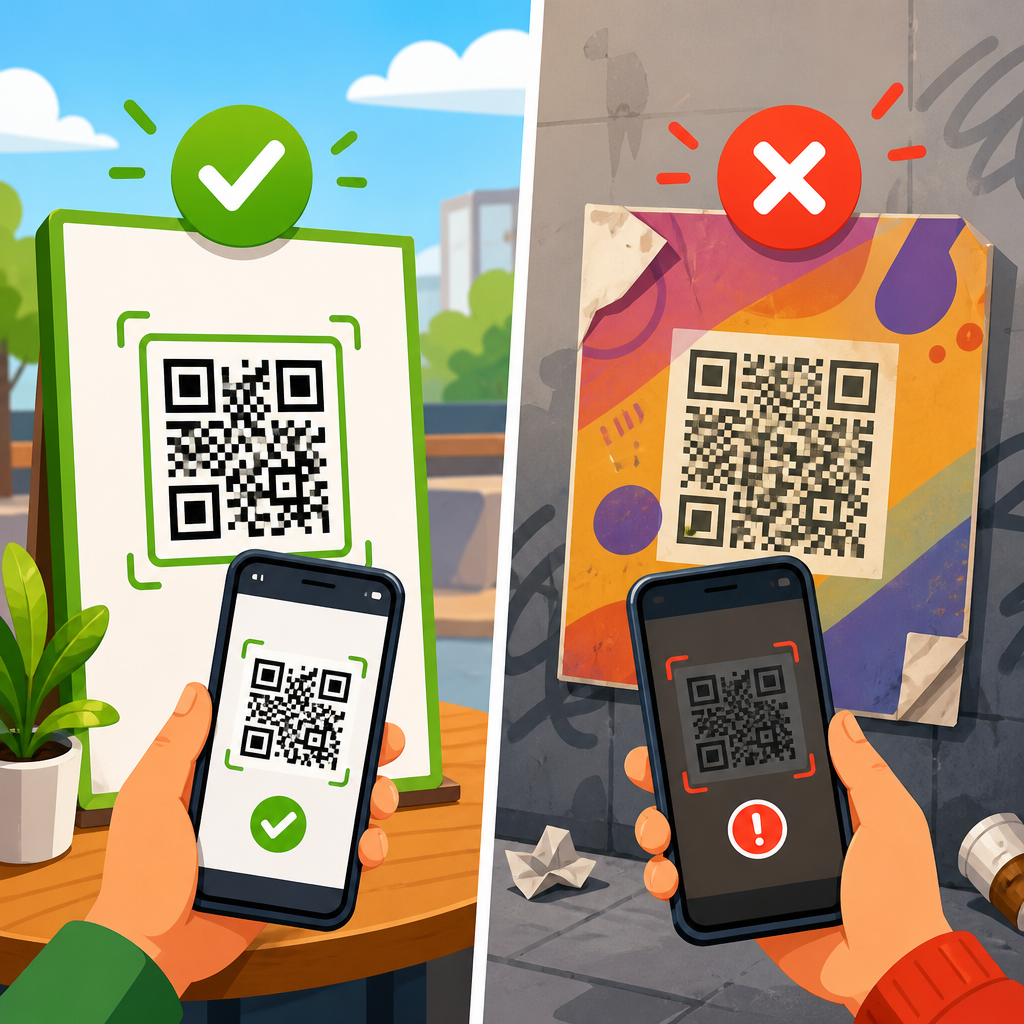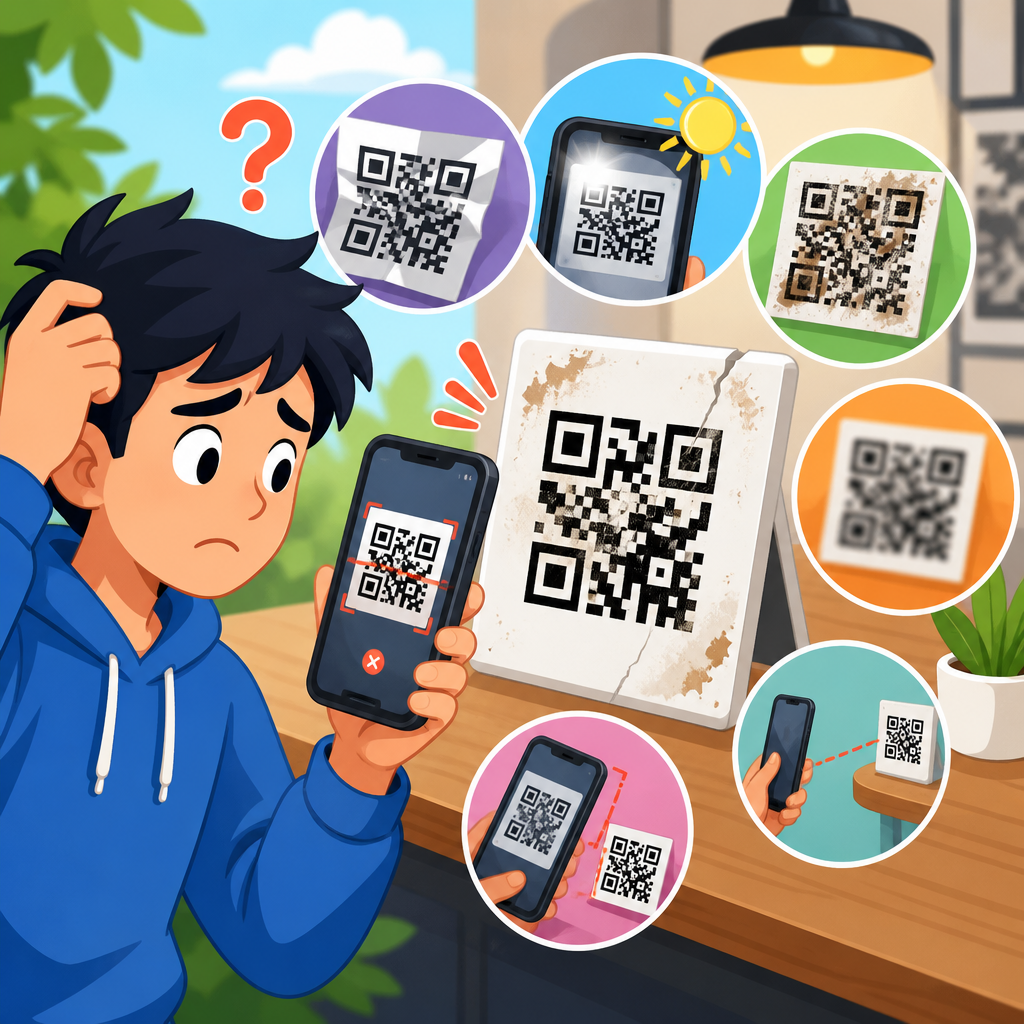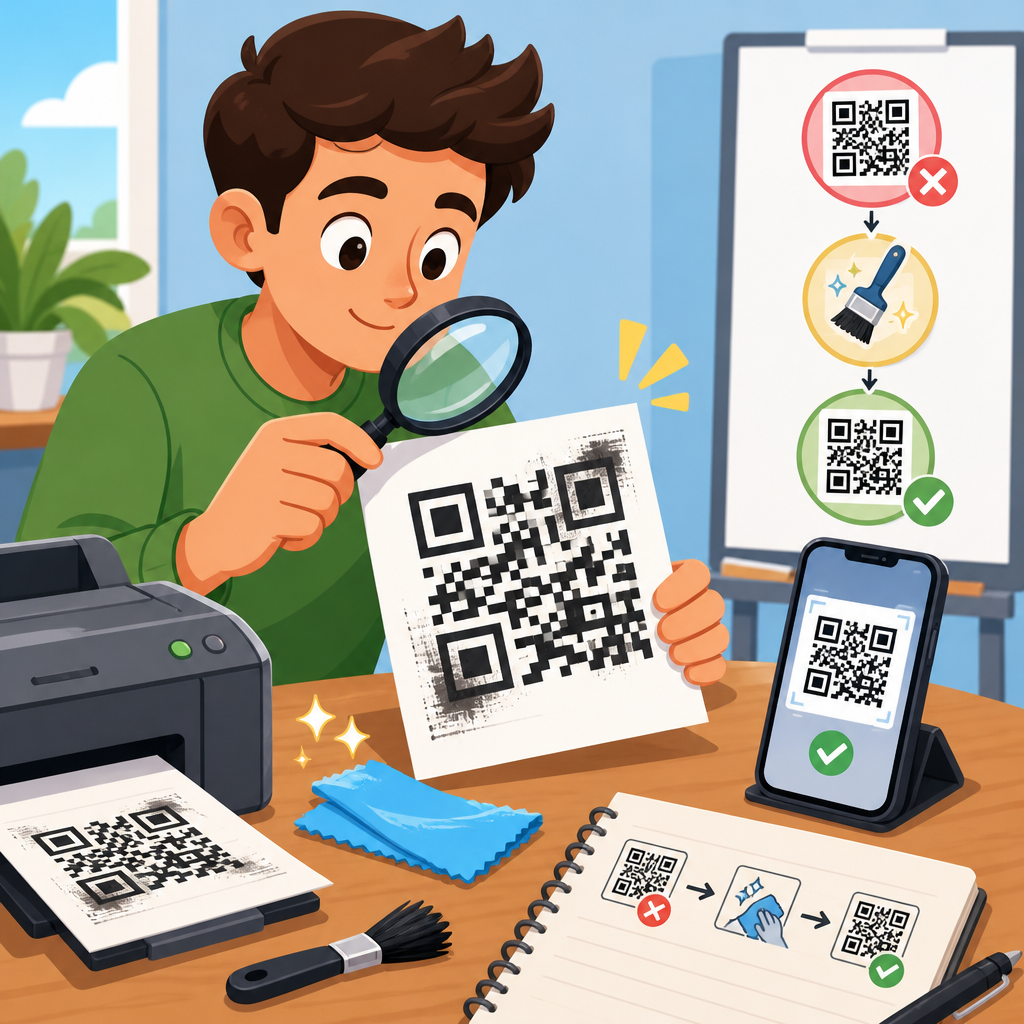
Printed QR code failures are usually fixable, but the right remedy depends on why the code stopped scanning after it left the screen and went onto paper, packaging, labels, signs, or product inserts.
A QR code is a two-dimensional barcode that stores data in square modules arranged around position markers, timing patterns, quiet zones, and error correction blocks. “Broken” does not always mean destroyed. In practice, a printed code can fail because the image was exported poorly, resized incorrectly, cropped too tightly, printed with low contrast, placed on reflective material, curved around a bottle, or linked to a destination that no longer works. After years of troubleshooting print campaigns, retail packaging, event badges, direct mail, and warehouse labels, I have found that most post-print QR code errors fall into a handful of repeatable categories. Once you identify the category, the fix becomes straightforward.
This matters because printed QR codes are expensive to get wrong. Reprinting product packaging, menu cards, flyers, manuals, or posters adds direct production cost and lost time, but the hidden cost is worse: missed scans, abandoned customers, lower campaign attribution, and support tickets from people who assume your brand is careless. Unlike a digital asset, a printed code may stay in circulation for months or years. That makes diagnosis, remediation, and prevention essential. This hub explains how to fix QR code errors after printing, what can be salvaged without a reprint, when replacement is unavoidable, and how to build a reliable troubleshooting process for every future print run.
Start by identifying the exact failure
The fastest way to fix a broken QR code is to define the failure precisely. There are three primary print-stage outcomes. First, the code does not scan at all with any device. Second, it scans inconsistently, working on some phones or at some angles but failing for other users. Third, it scans reliably but leads to the wrong or dead destination. Each outcome points to a different root cause. A no-scan issue usually involves print quality, size, contrast, damage, or missing quiet zone. An inconsistent scan often indicates marginal conditions such as low module size, glare, curved placement, dense data payload, or a cheap camera struggling in low light. A destination problem is usually unrelated to the printed symbol itself and instead involves the encoded URL, redirect, landing page, certificate, or app deep link.
Before changing anything, test the code under controlled conditions. Scan with both iOS and Android devices, using the default camera and at least one dedicated scanner app. Test in bright, even light and again in the real-world environment where the code is used, such as a glossy store shelf, restaurant table, vehicle wrap, or warehouse aisle. Photograph the printed code, compare it against the approved artwork, and inspect whether any modules filled in, blurred, or dropped out. Then ask four direct questions: Is the destination live? Is the code physically readable? Is the placement introducing glare or distortion? Was the artwork altered after approval? These answers usually narrow the problem quickly.
Check the destination before blaming the print
One of the most common mistakes is assuming the printed QR symbol failed when the actual problem is the destination. A static QR code permanently encodes a URL, text string, vCard, Wi-Fi credential, or other payload. If the encoded URL has a typo, old path, expired campaign page, or removed parameter, the print may be perfect while users still hit an error. Dynamic QR codes are easier to rescue because the printed symbol points to a short redirect URL that can be changed in the dashboard without reprinting the artwork. If you manage campaigns at scale, dynamic codes are usually the safer operational choice because they allow post-print destination edits, analytics, pause rules, and A/B routing.
When I audit failed print pieces, I check the URL chain with tools such as Redirect Checker, browser developer tools, and HTTP status reports. A code may technically scan but fail because the final page returns 404, 410, 500, or an SSL certificate error. Mobile blockers matter too. Some landing pages break on older Android browsers, captive Wi-Fi environments, or in-app webviews. Deep links can misfire if the app is not installed and no fallback URL is configured. The fix here is not redesigning the QR graphic. It is correcting the target, restoring the page, replacing the redirect, or setting proper mobile fallback behavior. That single distinction can save an unnecessary reprint.
Inspect print quality, size, and quiet zone
If the destination works but scanning fails, inspect the printed symbol itself. The three most frequent technical print defects are insufficient size, poor reproduction quality, and a compromised quiet zone. The quiet zone is the blank margin around the code. ISO/IEC 18004 specifies a four-module quiet zone, and scanners rely on it to separate the code from surrounding graphics. If text, borders, backgrounds, or die lines intrude into that space, recognition drops sharply. I have seen otherwise valid codes fail just because a designer framed them with a decorative box placed too close to the edges.
Size depends on scanning distance, print process, and data density. A simple URL encoded in a low version symbol can scan at smaller sizes than a long URL packed with UTM parameters. For common consumer use, many printers and packaging teams treat 0.8 x 0.8 inches to 1.2 x 1.2 inches as a practical floor, but small labels or distant posters often require more. The useful rule is that each module must print cleanly enough to remain distinct. If ink spread, toner scatter, or substrate absorption causes modules to merge, the code becomes unreadable even if the outer dimensions seem adequate. This is common on corrugate, uncoated paper, thermal labels, and textured stocks.
| Problem | What you see | Likely cause | Best fix |
|---|---|---|---|
| Code will not scan anywhere | No camera recognizes it | Missing quiet zone, severe blur, wrong contrast, damage | Rebuild artwork, restore margins, increase contrast, reprint |
| Code scans only on some phones | Works after several attempts | Too small, dense payload, glare, curvature | Increase size, shorten URL, flatten placement, improve finish |
| Code scans but page fails | 404, timeout, or app error | Broken URL, redirect issue, mobile incompatibility | Repair destination, use dynamic redirect, add fallback page |
| Code worked before but not now | Performance declined over time | Physical wear, sun fade, scratches, dirt | Replace signage, add protective laminate, move placement |
Use a loupe or zoomed smartphone photo to inspect module edges. Crisp squares with clear separation are ideal. If corners are fuzzy, black areas look mottled, or white spaces are contaminated with dots, the print process may be below tolerance. Offset, digital toner, inkjet, screen printing, flexography, and thermal transfer all reproduce fine detail differently, so the artwork must match the process. Vector files are strongly preferred. If someone exported the code as a low-resolution raster and then enlarged it in layout software, the symbol may look acceptable to the eye while failing machine recognition. The correct fix is to regenerate from the original source and place it at final size using vector artwork or sufficient native resolution.
Address contrast, material, and surface problems
High contrast matters more than visual style. The safest combination is dark modules on a light matte background. Black on white remains the benchmark because scanners detect luminance contrast, not brand creativity. Many post-print failures come from reversing that logic with low-contrast combinations such as dark gray on black, pastel on white, metallic ink on gloss varnish, or transparent varnish over patterned packaging. Even when the code “looks branded,” phone cameras may not distinguish modules consistently, especially in retail lighting. If you must use color, maintain strong tonal separation and test the exact substrate under actual lighting.
Materials create additional failure modes. Gloss lamination produces glare that washes out finder patterns. Foil stamping and holographic labels reflect light unpredictably. Curved bottles, tubes, and cups distort the square geometry, especially when the code wraps beyond the central viewing area. Outdoor signage fades under ultraviolet exposure, while freezer labels can frost over. Dirty environments add grease, dust, abrasion, and condensation. In these cases, the fix may be changing finish, moving placement, or adding protection rather than regenerating the symbol. A matte patch varnish behind the code, a white underprint on clear packaging, or a flat label panel on a curved container can dramatically improve readability without changing the destination.
Lighting is part of the printed environment, not just the user’s phone. Warehouse sodium lamps, restaurant spotlights, and direct sun through storefront glass all affect scan success. Test where the code actually lives. If a sign scans in the design studio but fails behind a reflective window at noon, the solution is environmental: alter angle, placement, finish, or size. I recommend capture testing from the expected user distance with at least five common devices, including one older budget Android phone, because weaker autofocus and image processing often expose marginal print choices before customers do.
Use error correction correctly and avoid harmful customization
QR codes include Reed-Solomon error correction, which lets scanners recover some missing or damaged data. The common levels are L, M, Q, and H, roughly restoring 7%, 15%, 25%, and 30% of symbol data respectively under ideal conditions. Many people assume a high setting guarantees safety after heavy design customization, but that is only partly true. Error correction helps with small occlusions, wear, logos, and minor print defects. It does not compensate for poor contrast, missing quiet zone, severe blur, extreme distortion, or oversized center logos that destroy critical modules.
Customization is a frequent source of post-print breakage. Rounded modules, gradient fills, custom eyes, background photos, knockouts, and center logos can all work if implemented conservatively and tested at final print size. They fail when style takes priority over scan margin. I have inherited campaigns where an agency supplied a beautiful social graphic version of the code, then the same asset was dropped onto packaging without print validation. On screen it worked. On porous board stock, the fine decorative shapes filled in and the scanner lost structure. The fix was to step back to a standard square module design, keep the logo smaller, use high error correction only as support, and retest from production samples rather than mockups.
If you suspect artwork customization is the issue, compare the printed code to a plain black-and-white regenerated version with the same payload. If the plain version scans instantly and the branded version struggles, the diagnosis is confirmed. Brand consistency should never outweigh scan reliability. The code is a functional interface, not just a graphic element.
Know when you can salvage a print run and when you must reprint
Not every broken QR code requires scrapping inventory. Salvage options depend on whether the problem is digital, environmental, or physical. If the printed symbol is readable but the destination is wrong, update the redirect if it is dynamic, or place a corrective sticker nearby if the error is static and volumes are small. If glare is the issue on signs or displays, changing angle, adding a matte overlabel, or relocating the piece may restore usability. If the code is too small on packaging, a supplemental insert, hangtag, or shelf-talker can provide a larger scan point while existing stock sells through.
Reprint is unavoidable when the symbol itself is structurally compromised: low contrast embedded in the package art, quiet zone collisions baked into the layout, severe raster degradation, or distortion from a curved application with no flat viewing area. In regulated industries, do not improvise fixes that alter traceability or labeling compliance without review. Medical device instructions, pharmaceutical packaging, and serialized logistics labels may require documented correction procedures. The practical rule is simple: if a user cannot scan reliably within two seconds on common devices, treat the code as failed and correct it decisively.
To prevent repeat issues, formalize a print QA workflow. Approve QR artwork only in vector format. Validate destination URLs before release. Test production proofs, not just PDFs. Measure quiet zones. Verify contrast with the actual substrate and finish. Scan from expected distance using multiple devices. Document the final approved payload, version, error correction level, export format, size, and placement. The brands that rarely suffer QR code failures are not lucky; they use a repeatable checklist and refuse last-minute design changes that bypass testing.
Fixing QR code errors after printing starts with diagnosis, not guesswork. Determine whether the failure lives in the destination, the symbol artwork, the print process, or the physical environment. Then apply the right remedy: repair the link, regenerate clean vector artwork, restore quiet zone, increase size, improve contrast, reduce customization, or change material and placement. In many cases, especially with dynamic codes, the damage is recoverable without a full reprint. In others, a disciplined reprint is cheaper than letting a broken code keep costing scans and trust.
As the hub for fixing broken QR codes, this guide gives you the framework to evaluate any post-print failure quickly and accurately. Use it to audit existing print pieces, brief designers and printers more clearly, and build a QA process that catches errors before thousands of copies leave the press. If you are managing live inventory today, start with your highest-traffic printed code, test it on multiple phones in real conditions, and correct the first point of failure immediately.
Frequently Asked Questions
Why does a QR code work on screen but stop scanning after printing?
A QR code that scans perfectly on a phone or computer screen can fail after printing because the printing process changes more than just the size of the image. On screen, the code is shown with clean edges, strong contrast, and no physical distortion. Once it is printed, several new variables are introduced, including ink spread, low-resolution output, paper texture, glare, poor contrast, resizing during layout, and trimming that removes the quiet zone around the symbol. Even a small change in module clarity can make a code difficult for scanners to interpret.
Another common reason is that the file used for print was not prepared correctly. If a QR code is exported as a low-quality raster image, then enlarged in design software, the square modules may become blurry or uneven. If it is compressed inside a PDF workflow or altered by an online editor, the alignment patterns and timing patterns may lose their sharpness. Printed materials such as packaging, labels, product inserts, and signs can also bend, wrinkle, or curve, which makes the code harder to read from certain angles. The best way to diagnose this problem is to compare the printed piece with the original digital file and test whether the issue came from file quality, print production, placement, or material choice.
What is the first thing I should check when a printed QR code will not scan?
The first thing to check is whether the QR code itself is still structurally intact in print. Start with the basics: make sure the code has a proper quiet zone, which is the blank margin around all four sides. If text, borders, graphics, folds, or background patterns crowd the code too closely, many scanners will fail before they can even detect the symbol. Next, verify that the code has strong contrast, ideally dark modules on a light matte background. Light gray on white, metallic finishes, glossy coatings, or reversed color combinations often reduce scan reliability.
After that, inspect the printed code at close range. Look for fuzzy edges, broken squares, filled-in gaps, streaking, pixelation, or distortion from resizing. Then test the destination itself. Sometimes the print is fine, but the URL, vCard, or embedded data is incorrect, expired, or blocked. It is also smart to scan the code with multiple devices and apps under different lighting conditions. If one phone can read it and another cannot, the issue may be borderline print quality rather than total failure. In most cases, checking quiet zone, contrast, print sharpness, final size, and the encoded destination will quickly reveal whether the problem is with the symbol design, the production process, or the content behind the code.
Can resizing a QR code after it is generated cause scanning errors?
Yes, resizing is one of the most common causes of printed QR code errors. A QR code is built from a grid of square modules, and those modules must remain clean, evenly spaced, and sharply defined. If the code is reduced too much, the modules become too small for a scanner to distinguish once ink spread, dot gain, or paper texture are added. If the code is enlarged from a small raster file such as a low-resolution PNG or JPEG, the edges may soften or become jagged, which can confuse scanning software. In both cases, the code may still look acceptable to the eye while becoming unreliable in real-world use.
The safest approach is to generate the QR code at the final intended size or use a vector format such as SVG, EPS, or PDF whenever possible. Vector files preserve the geometry of the modules and scale far better for print. If a raster format must be used, export it at sufficiently high resolution for the final print dimensions and avoid stretching or compressing it inside layout software. Also remember that physical size matters in context. A code on a business card can be smaller than a code on a poster or retail sign because scan distance changes the required module size. When in doubt, print a test sample at actual size and scan it before approving the full production run.
How do print materials, finishes, and placement affect QR code performance?
Print materials and finishing choices have a major effect on scan reliability because they influence contrast, sharpness, reflection, and physical distortion. Glossy paper, laminated labels, metallic substrates, foils, varnishes, and curved packaging can all interfere with readability. Glare from overhead lights may wash out part of the code, especially on glossy or reflective surfaces. Uncoated papers can sometimes cause ink spread, which fills in the white spaces between modules. Flexible packaging, bottles, tubes, and folded cartons may bend the code enough to make detection inconsistent, particularly if the symbol is placed over a seam, corner, crease, or curve.
Placement matters just as much as the material. A QR code should sit on a flat, uncluttered area with adequate breathing room around it. Avoid placing it too close to cut lines, perforations, folds, tear notches, or busy graphics. If the code appears on signage, window displays, or product inserts, consider how people will physically approach and scan it. A code placed too low, too high, or at an awkward angle may fail in practice even if it is technically printed well. For best results, use a matte, high-contrast background, keep the symbol on the flattest surface available, preserve the quiet zone, and test the final piece under the same lighting and viewing conditions that actual users will experience.
What is the best way to fix a printed QR code error before reprinting everything?
The best fix depends on what caused the failure, so the smartest approach is to troubleshoot methodically before committing to a full reprint. First, confirm whether the encoded content is correct and active. If the QR code points to the wrong URL or a broken destination, and it is a dynamic QR code, you may be able to update the destination without changing the printed symbol. If it is a static code, you will likely need to replace the artwork. Next, review the print file against the final printed piece to see whether the code was resized, compressed, recolored, cropped, or placed over a problematic background during production.
If the issue is physical print quality, create a corrected version and run small batch tests before reprinting all materials. Increase the code size if it is marginal, switch to a vector file, strengthen contrast, restore the quiet zone, remove decorative interference, and move the code away from folds or reflective finishes. If packaging or labels are already produced, temporary remedies may include adding a corrected sticker, insert, or overlabel rather than discarding the entire run. Most importantly, test the revised code on multiple phones, with different camera apps, and under realistic conditions. A successful fix is not just a code that scans once in ideal light, but one that scans quickly and consistently in the hands of real users.