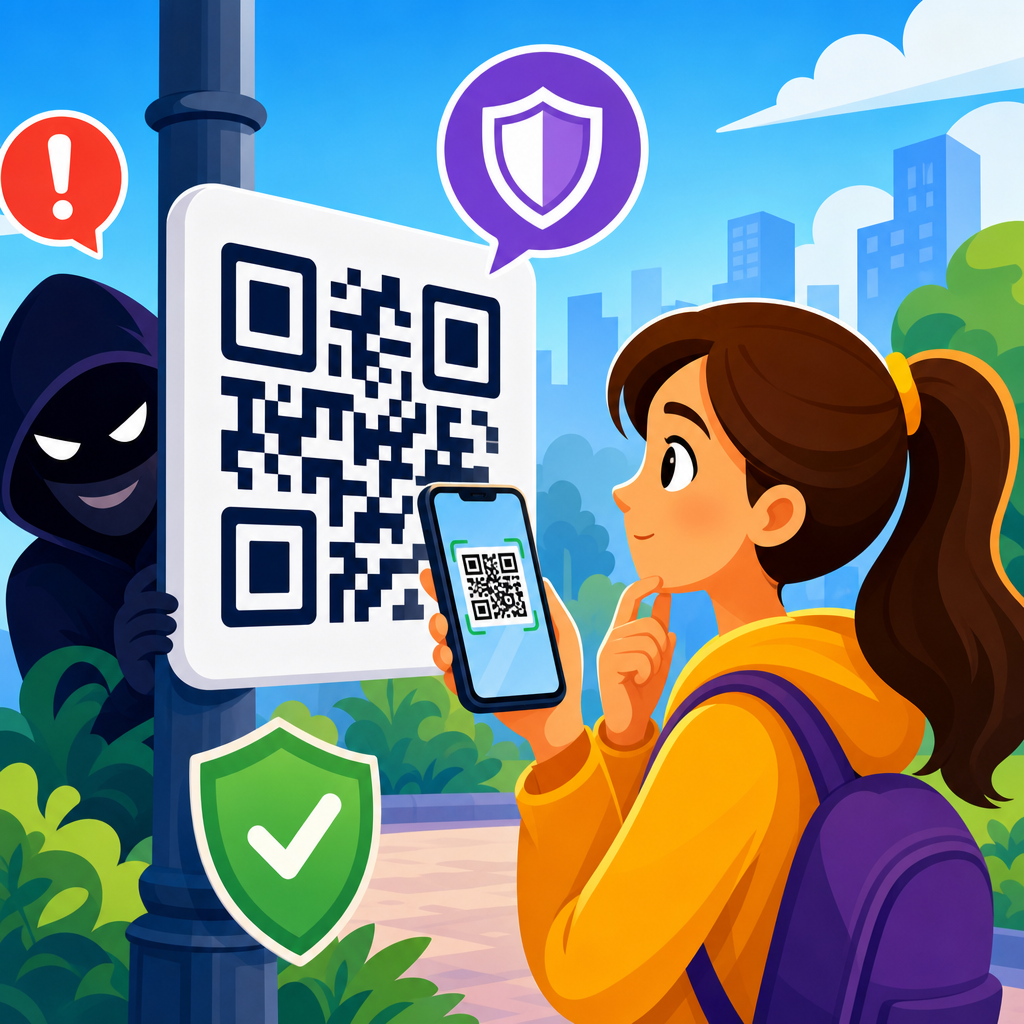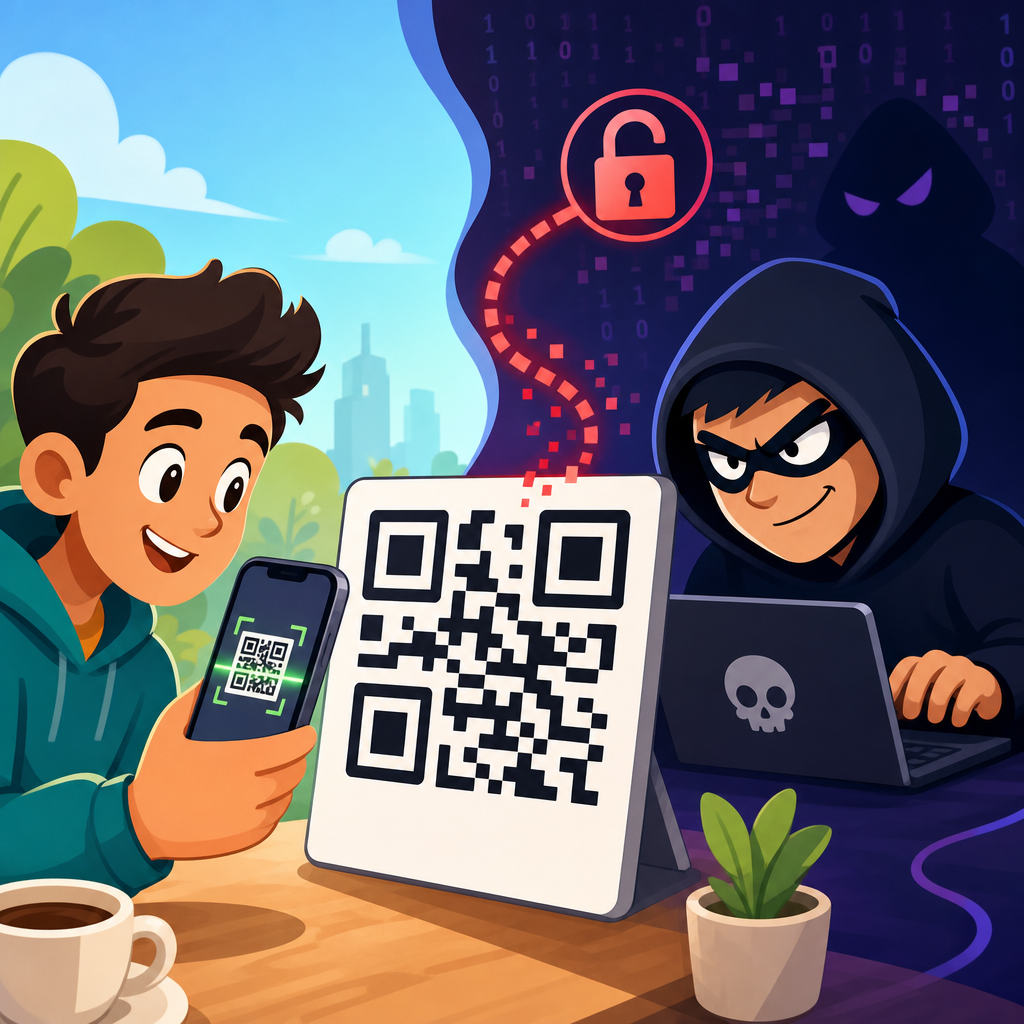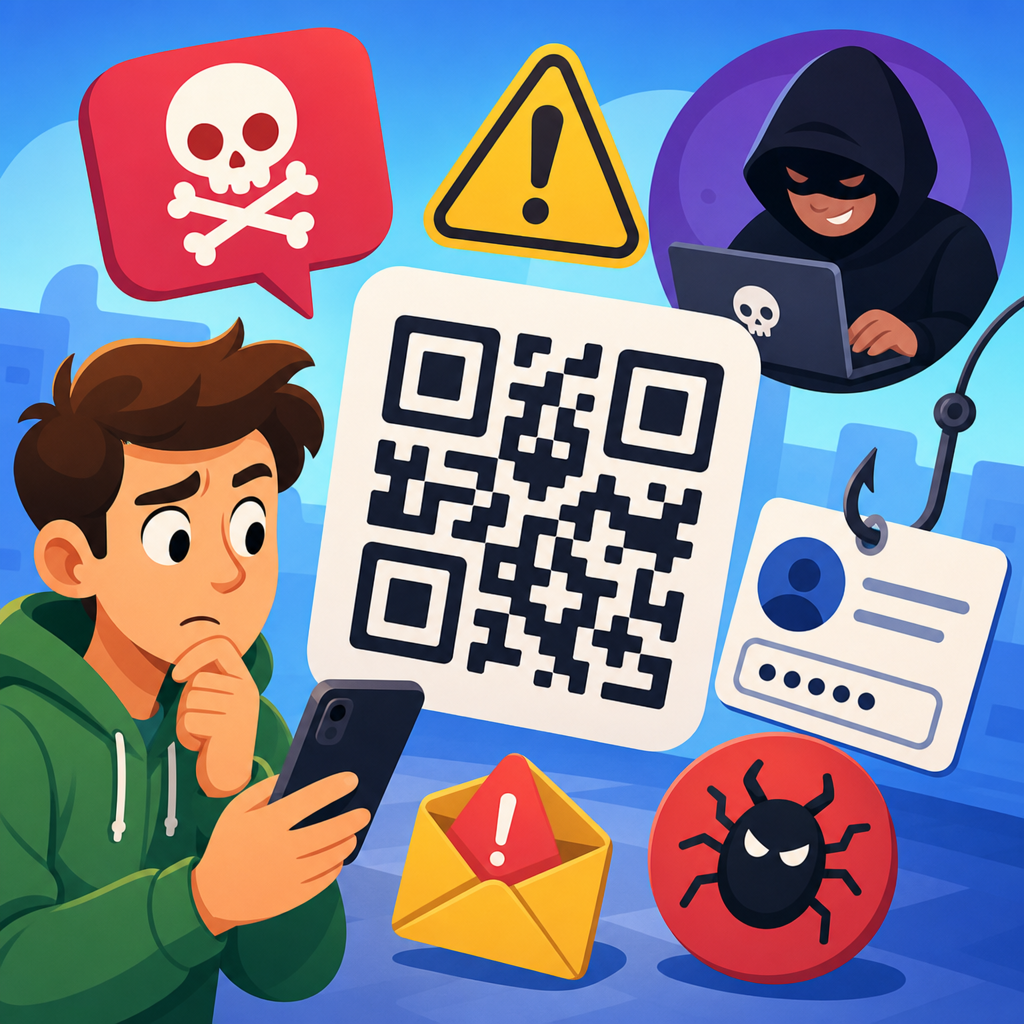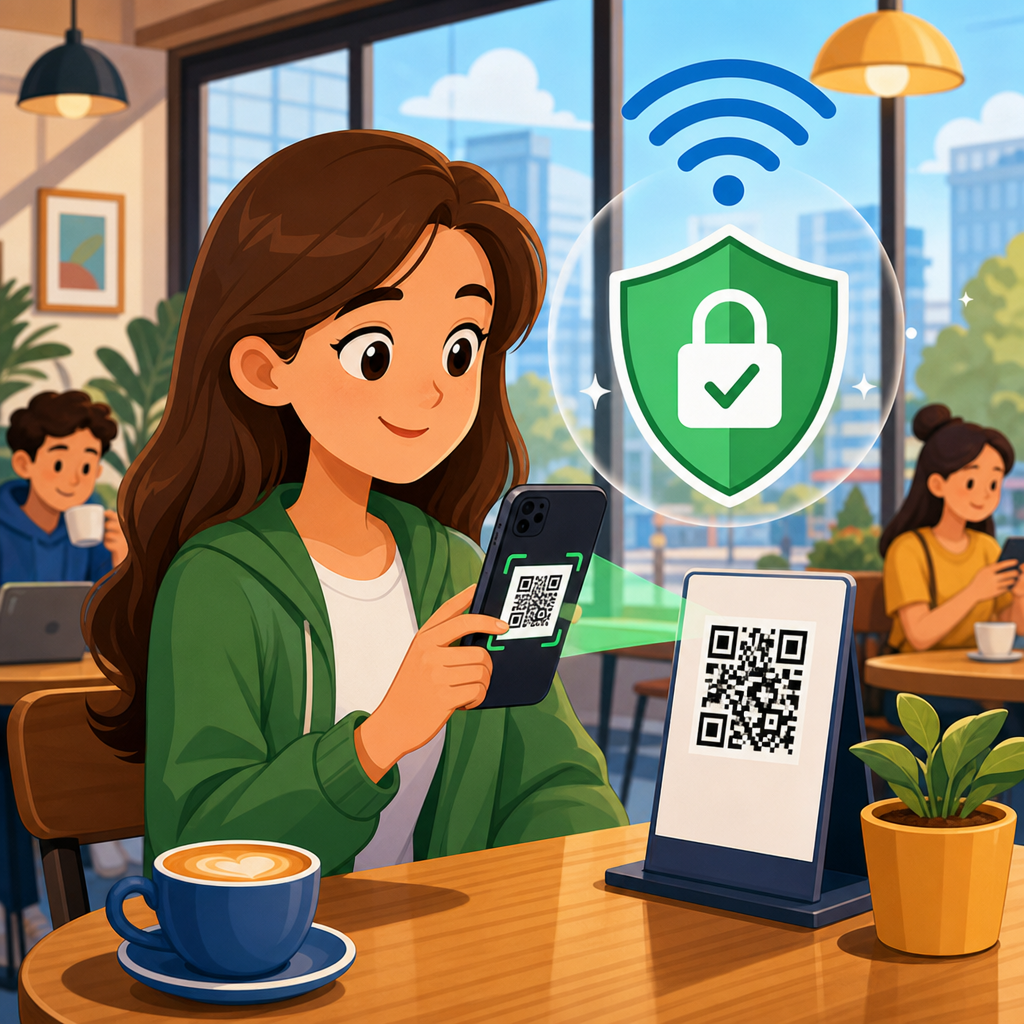
Safe QR code scanning on public WiFi has become a basic digital hygiene skill because two common conveniences—instant camera-based links and free internet access—create an easy path for fraud, tracking, and device compromise when used carelessly. A QR code, short for Quick Response code, is a two-dimensional barcode that stores data such as a website address, payment request, contact card, app link, WiFi credential, or file location. Public WiFi is any shared wireless network offered in places like airports, hotels, cafés, libraries, stadiums, hospitals, conferences, and retail stores. Each technology is useful on its own. Together, they can expose users to redirected phishing pages, fake captive portals, malicious downloads, man-in-the-middle interception on poorly configured networks, and privacy leakage through aggressive tracking scripts.
I have worked on mobile security reviews where the problem was not the QR code format itself but the trust users placed in whatever opened after the scan. That distinction matters. A QR code is only a container; the risk appears in the destination, the network path, the permissions requested, and the actions a user takes next. On public WiFi, attackers exploit urgency and distraction. A code posted near a parking meter may send someone to a fake payment page. A flyer in a coffee shop may route a phone through a shortened link that hides the final domain. A login prompt on free WiFi may ask for an email, social account sign-in, or card details when none are necessary. Safe scanning means verifying context before the scan, validating the link before opening it, reducing network exposure, and containing damage if something goes wrong.
This guide is the hub for safe scanning tips within QR Code Security & Privacy because it connects the full decision process: assessing a physical code, inspecting the preview, choosing a safer connection, recognizing payment and login traps, hardening the phone, and responding after a suspicious scan. If you understand these steps, you can safely use QR menus, transit posters, event badges, app setup screens, and guest-network signs without treating every code as dangerous. The goal is practical risk reduction. Most attacks rely on simple mistakes—opening unfamiliar domains, entering credentials into cloned pages, installing apps outside trusted stores, or completing sensitive tasks over untrusted networks. Prevent those mistakes, and the odds of harm drop sharply.
Why QR codes on public WiFi create a higher-risk moment
The risk spikes when scanning and connecting happen together because users often lower their guard in exchange for speed. In many venues, the QR code is the doorway to internet access, a menu, a payment form, or an event resource. That means the code can prompt immediate action before a user has verified anything. Public WiFi also removes the familiarity of a trusted home router. Even when traffic is encrypted with HTTPS, users can still be tricked into visiting a legitimate-looking phishing site, surrendering credentials, approving a malicious sign-in, or exposing metadata to trackers and ad networks. If the network is open, local traffic discovery and device exposure become additional concerns, especially when file sharing or AirDrop-style features are enabled.
There is also a physical trust problem. People assume a printed code on a table tent, wall poster, or storefront window was placed there by the venue. Attackers know this and sometimes cover legitimate codes with stickers. I have seen restaurant payment stands where the malicious overlay was almost impossible to notice unless you looked for mismatched edges or printing quality. Codes on temporary signs are particularly risky because there is no baseline design to compare. Public WiFi environments make this worse because users are distracted, often traveling, and more likely to be in a hurry or low on battery. That combination increases clicks and reduces scrutiny.
How to inspect a QR code before you scan
Start with the physical context. Ask whether the code belongs there and whether the action it promises is normal for the setting. A museum exhibit code linking to an audio guide makes sense. A code in an airport bathroom promising free lounge access does not. Look for tampering: sticker edges, different paper stock, blurry printing, inconsistent branding, or a code pasted on top of another code. If the sign requests payment, account login, software installation, or a banking action, raise your threshold for trust immediately.
When possible, use a first-party path instead of the code. If a café menu code looks questionable, ask staff for the official website or search the business by name. For transit, parking, ticketing, and government services, manually navigate to the known website or use the official app from Apple App Store or Google Play. This one habit prevents many high-impact scams because it bypasses the attacker’s link entirely. It is especially important for peer-to-peer payments and utility bills, where fraud losses can be immediate and hard to reverse.
What to check in the link preview before opening
A safe scanning workflow depends on link preview. Most modern phone cameras and dedicated scanner apps display the target before opening it. Use that pause. Read the full domain, not just the brand name inside the path. Attackers rely on lookalikes such as paypaI.com with a capital i, parking-city-pay.net instead of the city’s .gov site, or event-login.co instead of the organizer’s real domain. Shortened links like bit.ly or tinyurl are not automatically malicious, but they remove context, so treat them with extra caution unless they come from a verified source.
Check for HTTPS, but do not stop there. HTTPS only means the connection to that site is encrypted; it does not prove the site is honest. A phishing page can use HTTPS too. Look for unnecessary complexity, random subdomains, misspellings, extra hyphens, or country-code domains that do not fit the business. If the code leads straight to an app download, a file, or a login screen, that is a reason to slow down. In my reviews, the safest choice in these moments is often to close the link, leave the public WiFi, and revisit the task over cellular or through a manually typed official address.
Safer connection choices while scanning and browsing
The best network for a sensitive QR task is usually your mobile data connection. Cellular networks are not magically immune to fraud, but they remove many local WiFi risks and make captive portal confusion less likely. If you must use public WiFi, prefer networks that are clearly identified by staff and documented on receipts, signage, or the venue website. Avoid similarly named networks like HotelGuest, Hotel_Guest_Free, and HotelFastWiFi unless an employee confirms the exact SSID. Evil twin hotspots remain a practical attack because users choose what looks familiar.
A reputable VPN can add protection on public WiFi by encrypting traffic between your device and the VPN provider, especially on open networks. It is not a cure-all. It will not stop you from entering your password into a fake site, approving a malicious payment, or installing a harmful app. Think of a VPN as one layer, not the whole strategy. You should also disable auto-join for open networks, turn off file sharing, keep Bluetooth non-discoverable when not needed, and use Private Wi-Fi Address or MAC randomization features available on current iPhone and Android devices. Those settings reduce passive tracking and local exposure.
High-risk QR scenarios and the safest response
Not all scans carry equal risk. The danger rises when money, credentials, software, or identity verification enters the flow. The table below shows common scenarios and the safest default response I recommend.
| Scenario | Main Risk | Safest Response |
|---|---|---|
| Restaurant menu on table | Malicious overlay or tracking-heavy site | Scan only after checking for tampering; avoid logging in or entering card details |
| Parking meter payment code | Fake payment portal and card theft | Use the city or operator app, or manually type the official web address |
| Public WiFi login sign | Credential harvesting through fake captive portal | Confirm SSID with staff; never reuse an important password on access pages |
| Event badge or poster download | Malicious file or app install | Open only from official event domain; download apps from trusted app stores only |
| Crypto or peer payment code | Irreversible transfer to attacker wallet | Verify recipient through a second channel before sending anything |
| App setup or device pairing code | Link to fake companion app or phishing page | Search the vendor site directly and confirm model-specific instructions |
The principle is simple: the more irreversible the action, the more independent verification you need. Viewing a menu is low impact. Sending money, entering a corporate password, or installing software is high impact. Treat high-impact scans as untrusted until confirmed through a second source. That second source can be staff, a printed receipt, the official website, or a known app listing.
Protecting payments, logins, and personal data
Payment and login pages deserve special handling because they are the favorite destinations for QR fraud. Never enter banking credentials, employer single sign-on credentials, or your main email password after reaching a site via an unverified QR code on public WiFi. If the task is important, disconnect and continue later over cellular or on a trusted network. Use a password manager to autofill only on recognized domains. This is a strong anti-phishing control because the manager typically will not offer credentials on a fake lookalike domain. If it does not autofill where you expected, stop and inspect the address carefully.
For payments, use tokenized methods where available, such as Apple Pay or Google Pay in a trusted browser or app, rather than typing full card details into an unfamiliar page. Credit cards usually provide better fraud protections than debit cards, but prevention is still better than dispute resolution. Avoid QR pages that demand excessive personal information unrelated to the transaction, such as date of birth for a café guest network or passport details for a small retail purchase. Data minimization matters because even a real business may use third-party forms and trackers that collect more than necessary.
Device settings and tools that improve scanning safety
Your phone can help you make safer decisions if it is updated and configured well. Install operating system updates promptly because browser, WebView, and WiFi stack vulnerabilities do get patched. Keep Safe Browsing or equivalent malicious-site protection enabled in Chrome, Safari, or your security app. Use DNS filtering from a reputable provider if you already understand how it works; services such as Quad9, Cloudflare’s malware filtering options, or enterprise secure web gateways can block known bad domains before the page loads. These tools do not catch every threat, but they reduce commodity attacks significantly.
Also review camera and scanner app behavior. Use the built-in camera scanner on iPhone or Android unless you have a compelling reason for a third-party app. Many third-party scanners add advertising SDKs, tracking, or unnecessary permissions. Remove scanner apps you no longer need. Turn on multi-factor authentication for important accounts, ideally with an authenticator app or hardware security key. If a password is stolen through a QR phishing page, MFA can still prevent account takeover. Finally, back up your phone regularly. If a scan ever leads to malware or account compromise, recovery is faster when your data is protected and your reset path is clear.
What to do immediately after a suspicious scan
If you scanned a code and something felt wrong, act quickly. Close the page without interacting further. Do not download anything, approve prompts, or enter credentials. Disconnect from the public WiFi and switch to cellular. Clear the browser tab and, if you submitted information, change the affected password from a trusted connection right away. If you reused that password anywhere else, change those accounts too. Review recent account activity for sign-in alerts, forwarded email rules, new devices, or payment changes. For financial exposure, contact the card issuer or bank promptly and monitor statements.
If you installed an app from the scan, uninstall it, review granted permissions, run a mobile security scan if available, and consider resetting the device if behavior becomes abnormal. Enterprise users should notify IT or security teams immediately, especially if corporate credentials were entered. Fast reporting helps contain phishing campaigns and can trigger domain blocking or credential resets. Safe QR code scanning on public WiFi is ultimately about disciplined verification: trust the context less, verify the destination more, and move sensitive actions onto safer channels. Build those habits now, share this guide with your team or family, and use it as your starting point for every scan in public spaces.
Frequently Asked Questions
Why is scanning a QR code on public WiFi riskier than doing it on a trusted network?
Scanning a QR code always involves a trust decision, because the code itself hides the destination until your device reads it. On a trusted home or work network, you still need to be careful, but public WiFi adds another layer of exposure. Shared networks in airports, hotels, cafes, libraries, and shopping centers often have many unknown users connected at once, and some are poorly secured or deliberately imitated by attackers. If a QR code sends you to a fake login page, a malicious download, or a phishing form, using public WiFi can make that experience even more dangerous because traffic may be easier to intercept on misconfigured networks, and fake captive portals can look convincing when you already expect a login screen.
Another issue is that QR codes are commonly used for fast actions: opening a website, joining a network, making a payment, downloading an app, or viewing a menu. That convenience reduces the pause people normally take before typing a web address manually. On public WiFi, that split-second loss of caution can lead to credential theft, payment fraud, browser-based attacks, excessive tracking, or device compromise. In practical terms, the risk comes from the combination of hidden destinations, urgency, and an untrusted internet environment. The safest habit is to preview the link before opening it, avoid entering passwords or payment details unless the site is clearly legitimate and encrypted, and switch to cellular data or a trusted VPN for anything sensitive.
How can I tell whether a QR code is safe before I open it?
The best first step is to use your phone’s link preview instead of tapping immediately. Most modern camera apps and QR scanners show the destination URL before opening it. Read that address carefully. Look for misspellings, extra words, unusual subdomains, random strings, or domain endings that do not match the brand or organization you expected. For example, a code claiming to be from a bank, restaurant, parking provider, or event organizer should lead to a domain that clearly belongs to that business, not a shortened link or an unrelated site. If the code launches a payment screen, app store page, file download, or form without giving you context, that is a reason to stop and verify.
You should also inspect the physical context of the QR code. Fraudsters often place stickers over legitimate codes on parking meters, posters, restaurant tables, and public kiosks. If the code looks tampered with, poorly printed, oddly placed, or inconsistent with official branding, do not scan it. When possible, confirm through another channel such as the business’s official website, printed materials, or staff. Be especially cautious with codes that ask you to sign in, install software, enable permissions, connect to WiFi, or pay immediately. A safe QR interaction usually makes sense in context, points to a recognizable destination, and does not pressure you into fast decisions. If anything feels off, assume it is unsafe until verified.
What should I avoid doing after scanning a QR code while connected to public WiFi?
After scanning a QR code on public WiFi, avoid any action that exposes valuable information unless you have independently verified the destination. That includes logging into email, banking, cloud storage, social media, work accounts, or shopping accounts; entering payment card details; sending money; downloading apps or files; and granting permissions such as camera, microphone, location, contacts, or notification access. Even if the page looks polished, attackers rely on realistic design and familiar branding to trick users into acting before they verify. Public WiFi makes this worse because people are often in a hurry and more willing to accept pop-ups, redirects, or login prompts that seem normal in hotels, airports, or cafes.
You should also avoid joining a new WiFi network from a QR code unless you are certain it belongs to the venue. QR codes can encode network names and passwords, and a malicious code could connect you to a rogue hotspot designed to monitor traffic or push fake login pages. Likewise, avoid installing configuration profiles, mobile apps from unofficial sources, browser extensions, or APK files triggered by a scanned code. If a QR code leads to a website you genuinely need, a safer approach is to close it, manually navigate to the organization’s official site, or use a trusted app you already installed from the legitimate app store. The rule is simple: if the action involves money, credentials, downloads, or permissions, slow down and verify outside the QR path.
What are the safest ways to use QR codes on public WiFi if I need the convenience?
You can use QR codes more safely on public WiFi by layering a few practical protections. Start with your device itself: keep the operating system, browser, and security updates current so known vulnerabilities are patched. Use your built-in camera or a trusted scanner instead of random third-party QR apps that may collect data or add risk. Preview every link before opening it, and prefer websites that use HTTPS with a valid, recognizable domain. If the QR code is supposed to take you to a menu, ticket page, event schedule, or product information, compare the destination with the business’s official website or app. For anything sensitive, switching from public WiFi to cellular data is often the safest move.
A reputable VPN can also reduce exposure on public networks by encrypting traffic between your device and the VPN server, although it does not make a malicious website safe. That is an important distinction: a VPN helps protect the connection, but it cannot fix phishing, fake payment pages, or harmful downloads. Enabling multifactor authentication on important accounts adds another strong defense, because stolen passwords are less useful on their own. Browser security features, password managers that only autofill on the correct domain, and mobile security settings that block unknown app installs all help as well. The most effective habit, however, is still deliberate verification. Convenience is fine, but convenience without validation is exactly what attackers count on.
What should I do if I scanned a suspicious QR code or think I entered information on a fake page?
If you scanned a suspicious QR code, act quickly but calmly. First, close the page immediately and disconnect from the public WiFi network. If you can, switch to cellular data or a trusted network for any follow-up steps. Do not continue interacting with the site, download anything, or approve prompts. If you entered a username and password, change that password right away from the legitimate website or app, not from the page you reached through the QR code. If the same password was reused elsewhere, change those accounts too. Review recent account activity for unauthorized logins, enable or confirm multifactor authentication, and sign out of active sessions where that option exists.
If you entered payment information, contact your bank or card issuer promptly, explain that the details may have been exposed, and watch for fraudulent charges. If you downloaded a file or app, run a security scan if available, remove suspicious apps, and monitor your device for unusual behavior such as pop-ups, battery drain, unknown profiles, new permissions, or browser redirects. On work devices, report the incident to your IT or security team immediately, because a single compromised login can affect more than one person. It is also wise to clear your browser data for that session and forget the public WiFi network so your device does not reconnect automatically later. Fast response matters, but the long-term lesson matters too: when a QR code appears in a public place, treat it as an unverified link until you have confirmed exactly where it goes and what it wants you to do.