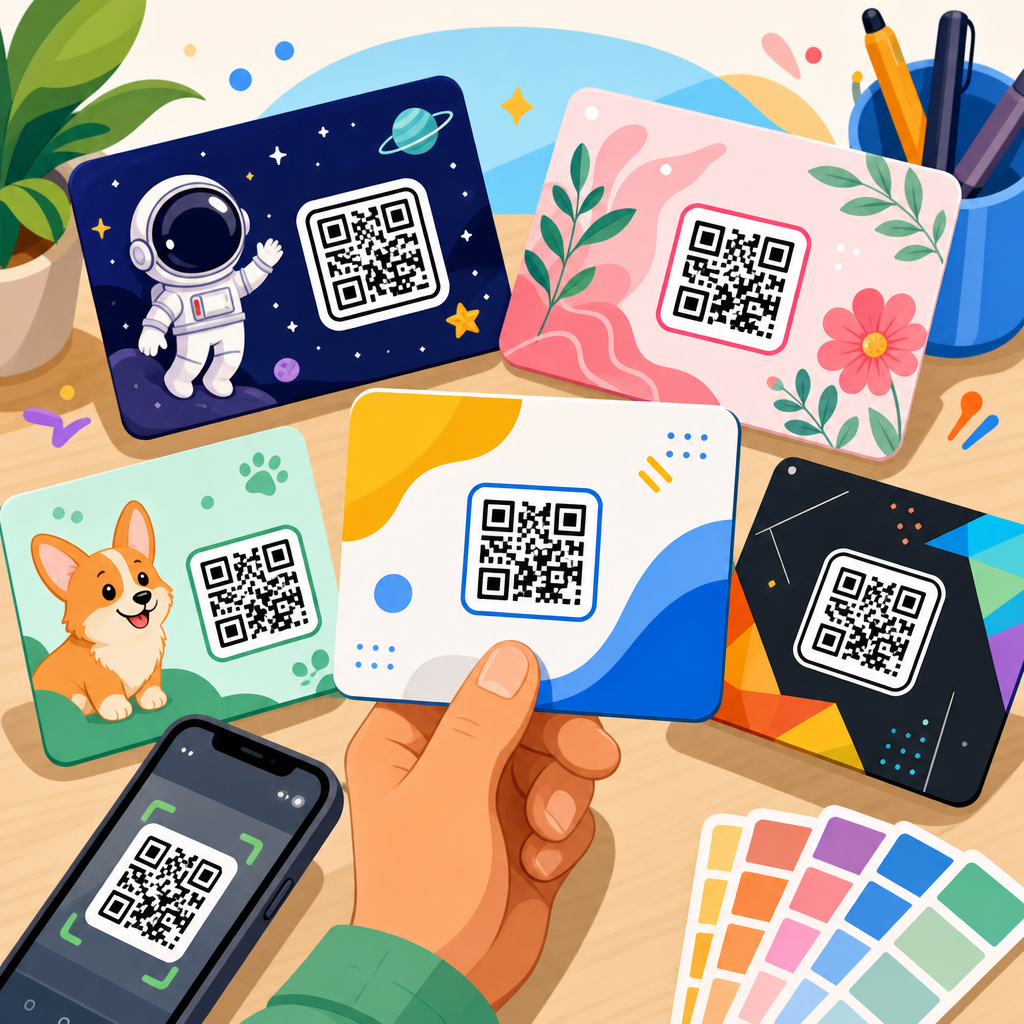
QR code campaigns fail for predictable reasons, and a practical QR code troubleshooting checklist is the fastest way to find those problems before customers do. A QR code is a two-dimensional matrix barcode that stores data such as a URL, contact card, Wi-Fi credential, payment request, app deep link, or plain text. When scanned by a smartphone camera or dedicated imager, the code converts a printed or displayed pattern into a machine-readable action. That sounds simple, but the real-world success of a code depends on many variables: encoding, contrast, size, quiet zone, error correction, print quality, lighting, destination speed, and the user’s device. In my experience auditing print mailers, menus, retail signage, event badges, and packaging, most failed scans come from small implementation mistakes rather than broken technology.
This hub article explains how to troubleshoot QR codes systematically and use a repeatable checklist across design, production, placement, and analytics. The term checklist matters here because ad hoc testing misses edge cases. A working code on the designer’s phone does not guarantee reliable performance in bright sunlight, on curved bottles, behind reflective glass, or on a low-end Android handset with weak autofocus. Businesses care because every failed scan is a lost conversion opportunity: a missed menu order, an abandoned product registration, a bounced payment, or a dead lead from out-of-home advertising. A structured QR code troubleshooting checklist reduces those failures by turning best practices into verification steps. It also creates cleaner handoffs between marketers, designers, printers, web teams, and operations staff.
As the hub for QR code checklists, this page covers the full diagnostic workflow and points to the kinds of supporting articles teams typically need next: print readiness, dynamic versus static code selection, scan testing methods, campaign QA, landing page optimization, analytics setup, and accessibility review. The core principle is straightforward. Troubleshoot from the code outward. First confirm the encoded content and generation settings. Then verify the symbol itself. Next check the physical or digital environment where the code appears. Finally confirm the destination experience after the scan. That sequence avoids the common mistake of reprinting materials when the true issue is a redirect loop or blocked mobile page. If you need one page to anchor QR code checklists across your organization, this is it.
Start with the encoded content and destination
The first checkpoint in any QR code troubleshooting checklist is the payload. Ask: what exactly does the code contain, and what should happen after a scan? If the answer is “a website,” inspect the full URL. I routinely find broken campaigns caused by simple issues: missing HTTPS, accidental spaces, UTM parameters with malformed characters, expired short links, or links copied from staging instead of production. If the QR code is dynamic, test the redirect chain with tools such as Redirect Checker, Chrome DevTools, or Screaming Frog in list mode. Multiple redirects slow the experience and increase the chance of failure on poor mobile networks. For payments, verify the required fields and regional compatibility. For Wi-Fi codes, confirm SSID, password, encryption type, and hidden-network settings.
Then test the destination itself as a mobile experience, not merely a reachable page. A QR code that opens a desktop-first page with intrusive pop-ups, cookie banners covering the content, or heavy scripts is effectively broken. Use PageSpeed Insights, Lighthouse, and real-device testing on both iPhone and Android. Confirm the page returns a 200 status code, loads over HTTPS, and does not trigger certificate warnings. If the destination is an app deep link, define the fallback path for users who do not have the app installed. If it is a PDF, verify the file opens on mobile data and is compressed enough for fast loading. Troubleshooting at this stage often resolves complaints that users describe vaguely as “the QR code doesn’t work.”
Verify generation settings and symbol integrity
Once the destination is confirmed, inspect how the code was generated. Not all QR code generators handle settings, exports, and redirects with the same reliability. Use a reputable platform that supports vector export, dynamic management where needed, and scan analytics without injecting unnecessary interstitials. Check the error correction level: Level M or Q is usually a good balance, while H is useful if the code will include a logo or face rough handling. More error correction increases resilience but also increases module density, which can hurt small-format scans. Confirm the encoding mode is appropriate and avoid unnecessary characters that bloat the symbol. Long URLs should typically use a controlled short domain rather than encoding an unwieldy destination directly.
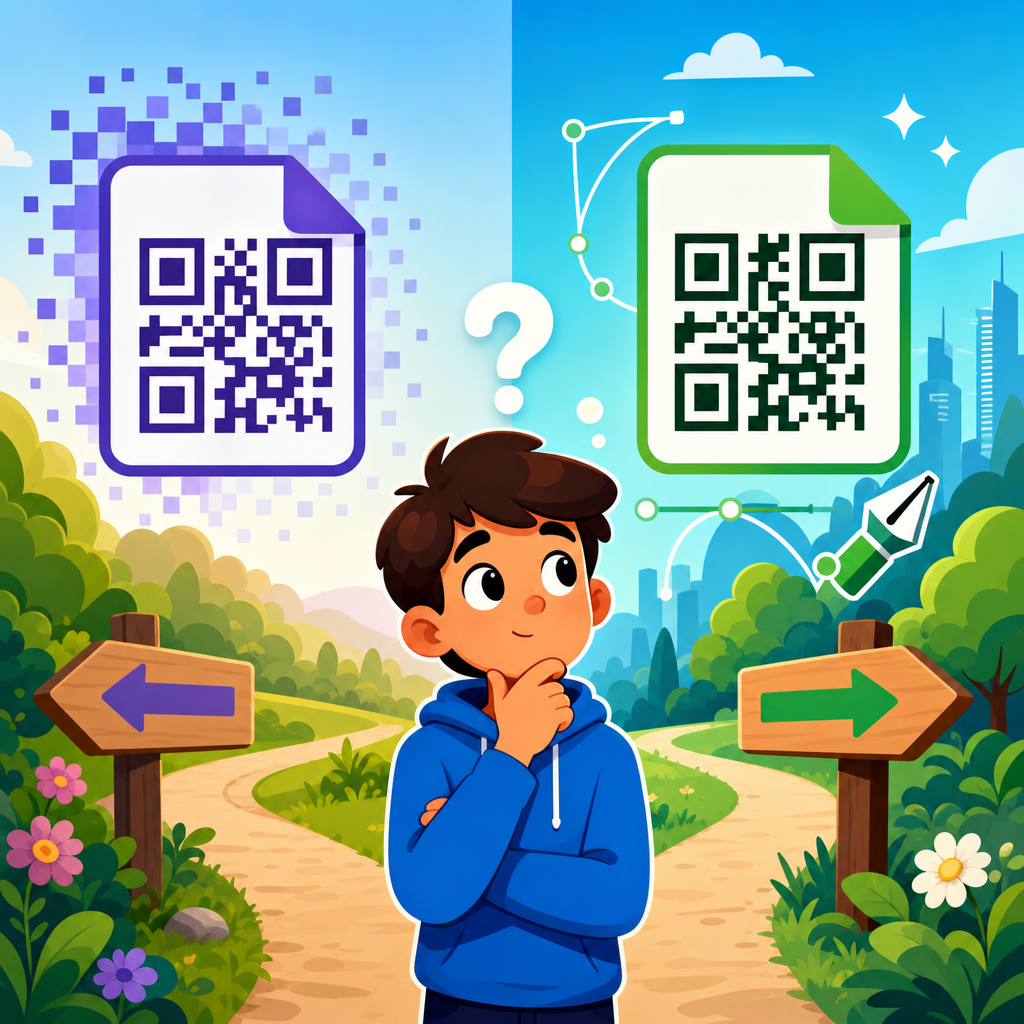
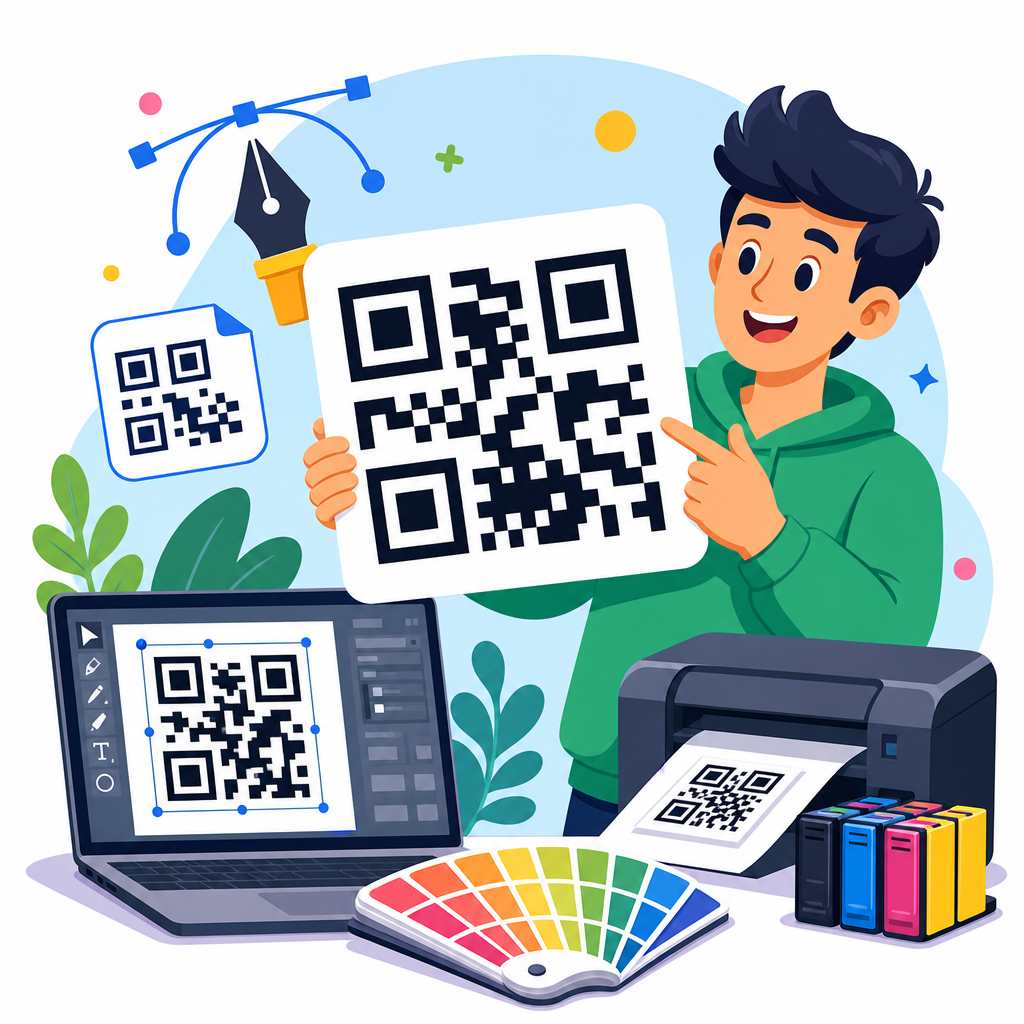
Next inspect the symbol’s physical integrity. The three finder patterns must be crisp and unobstructed. The quiet zone, the empty margin around the code, should be at least four modules wide on all sides; cutting into that border is one of the most common print errors I see. If a logo is embedded, confirm it does not cover critical data areas beyond what the chosen error correction can tolerate. Prefer SVG, EPS, or high-resolution PNG for production. Low-resolution screenshots pulled from presentation slides often introduce anti-aliasing and blur that damage scan performance. Also verify the code has not been stretched disproportionately. A QR code must remain square; non-uniform scaling distorts module geometry and confuses scanners.
Check size, contrast, material, and placement
Most scan failures happen in the physical world, where camera limitations meet poor production choices. Size is the first variable to validate. A useful rule is that viewing distance should be roughly ten times the code’s width. A 2-centimeter code may work in hand, but not from across a store aisle. For posters, transit ads, and trade-show signage, test the code from the actual standing distance and angle, not from an office desk. Contrast matters just as much. Dark code on a light background remains the most reliable combination. Inverted schemes, gradients, metallic inks, and low-contrast brand colors may look polished but often reduce readability. If brand styling is non-negotiable, compensate with larger size and aggressive real-world testing.
Material and placement introduce another layer of risk. Gloss laminates, curved packaging, glass storefronts, and backlit screens can create reflections that wash out modules. Textured paper and fabric can break edges. Codes placed near seams, folds, bottle shoulders, perforations, or die cuts may deform. I also flag codes mounted too high, too low, or where people cannot physically stop to scan safely, such as on moving vehicles or in narrow walkways. If the campaign depends on an on-the-go scan, the landing page must load almost instantly and the code must be readable from a realistic approach path. Accessibility matters too: pair the code with a short URL or instruction so users have an alternative if scanning is difficult.
Use a repeatable testing checklist before launch
A QR code troubleshooting checklist works best when it becomes part of pre-launch quality assurance. Teams should test across devices, lighting conditions, distances, and network speeds, then record the results in a shared template. The goal is not simply “it scanned once,” but “it scanned consistently under expected conditions.” I recommend including at least one recent iPhone, one mid-range Android device, and, if the audience warrants it, an older handset with a lower-quality camera. Test in portrait and landscape where relevant, through native camera apps and a secondary scanner. If the code appears on a screen, test different brightness levels and any motion effects. If it is printed, test first articles from the actual press run, not only design proofs.
| Checkpoint | What to verify | Common failure | Fix |
|---|---|---|---|
| Destination | 200 status, HTTPS, mobile-ready page | Redirect loop or slow page | Clean redirects, optimize page speed |
| Symbol | Square code, intact quiet zone, no blur | Cropped border or stretched image | Export vector, preserve 4-module margin |
| Size and contrast | Readable at actual distance, dark-on-light | Too small or low contrast | Increase size, simplify colors |
| Material and placement | No glare, no distortion, safe scan position | Reflection on glossy surface | Reposition or change finish |
| Analytics | Tracked scans and campaign parameters | No attribution data | Add UTM governance and dashboards |
Documenting failures is as important as fixing them. Note scan time, device model, operating system, camera app used, viewing distance, light condition, and whether mobile data or Wi-Fi was active. That evidence reveals patterns. For example, if only Android devices struggle, the issue may be autofocus or a dense symbol with a small print size. If failures happen only under store lighting, reflections are likely the culprit. A standardized test log also helps vendors act faster because the feedback is specific. Instead of “customers can’t scan it,” you can report “the code fails on Galaxy A-series devices at 60 centimeters under fluorescent light due to low contrast and curved placement.” That level of detail shortens the troubleshooting cycle dramatically.
Diagnose analytics, redirects, and campaign governance
Many teams focus on scanability and overlook measurement, but analytics problems can hide campaign failure. A complete QR code troubleshooting checklist should confirm what counts as a scan, where that data is stored, and how it maps to business outcomes. Dynamic QR platforms often report raw scans, unique scans, location, device type, and time. Web analytics platforms such as Google Analytics 4 then track sessions, engagement, and conversions. These systems must align. Use consistent UTM naming conventions, dedicated campaign parameters, and clear redirect ownership. I have seen organizations lose attribution because a design team used one shortener, a media agency used another, and the web team stripped parameters during redirects. The code scanned fine, but no one could prove performance.
Governance prevents those downstream issues. Maintain an inventory of active codes with fields for owner, destination, launch date, print location, status, and retirement policy. For dynamic codes, set link monitoring and expiration alerts. For static codes, archive the exact encoded content so future teams know what was printed. If you update a destination page, retest the entire scan path. Browser changes, app link settings, and security headers can break flows that once worked. Also check privacy and consent impacts. If the scan opens a form, verify that tracking scripts do not interfere with submission on mobile browsers. When analytics are clean, troubleshooting becomes easier because you can distinguish poor scan rates from poor post-scan conversion rates and optimize the right stage.
Build a checklist library for different QR code use cases
No single checklist fits every QR code deployment, which is why this hub should anchor a broader library of specialized QR code checklists. Restaurant menus need checks for network reliability, menu update workflows, and accessibility in low light. Packaging codes need validation for curved surfaces, abrasion, condensation, and multilingual destinations. Event QR codes require fast scans at check-in, badge-print tolerances, and fallback procedures for gate staff. Retail shelf tags call for close-range readability, price update governance, and anti-tamper review. Direct mail adds postal handling, paper stock, and household lighting conditions. By use case, the same core principles apply, but the failure modes change, and your checklist should reflect the operational reality of the channel.
This is also where internal linking and content organization help teams move from the hub to the right supporting resource. Create companion articles for print specifications, dynamic QR code management, QR landing page best practices, analytics setup, accessibility standards, and scanner testing protocols. Keep each checklist actionable with pass-fail criteria rather than general advice. For example, “quiet zone minimum four modules” is testable; “leave enough space” is not. Update templates as operating systems and camera behavior change. Apple and Android camera apps have improved dramatically, but edge cases still exist with older devices, social app in-app browsers, and enterprise mobility environments. A living checklist library turns QR codes from a creative afterthought into a controlled, measurable conversion channel.
A strong QR code troubleshooting checklist does more than rescue broken scans; it creates a reliable process that protects campaign performance from design through deployment. The most important lesson is to diagnose in order. Validate the encoded content and mobile destination first, then inspect generation settings and symbol quality, then verify size, contrast, materials, and placement, and finally confirm analytics and governance. That sequence separates technical faults from production faults and prevents expensive guesswork. Across print, packaging, events, retail, and digital displays, the same pattern holds: the code itself is rarely the only variable. The user’s device, the environment, and the post-scan experience matter just as much.
As the hub for QR code checklists, this page should guide your team toward consistent standards and specialized templates for each use case. Build a shared QA routine, test on real devices, document failures with specifics, and maintain an inventory of active codes and owners. When you do that, scan rates improve, attribution becomes cleaner, and downstream conversions become easier to optimize. If you are expanding your QR program, start by turning this framework into a working checklist for your next campaign, then create supporting checklists for print, landing pages, analytics, and accessibility. A few disciplined checks before launch will prevent the majority of QR code problems your customers would otherwise discover first.
Frequently Asked Questions
What should be included in a practical QR code troubleshooting checklist?
A practical QR code troubleshooting checklist should cover the full path from code generation to the final scan experience. Start by verifying the destination itself: confirm the URL, payment link, app deep link, contact card, or Wi-Fi credential is correct, live, and loading properly on both iPhone and Android devices. Next, inspect the QR code image quality. The code should be sharp, high contrast, and free from distortion, stretching, compression artifacts, or accidental edits. Check that the quiet zone, the blank margin around the code, is intact, because scanners rely on that spacing to detect the symbol correctly.
Then review size and placement. A code that is too small, too high on a wall, wrapped around curved packaging, or placed on reflective material can fail even if the data is valid. Lighting matters too, especially for glossy prints and digital screens with glare. Test scan distance, viewing angle, and environmental conditions such as shadows or low brightness. If a logo or design customization has been added, confirm it does not cover too much of the pattern or interfere with the finder elements.
Finally, test the code with multiple devices, camera apps, and real users. Some phones decode more aggressively than others, and what scans in a controlled office environment may fail in a retail aisle, on a moving package, or outdoors in sunlight. A strong checklist also includes analytics validation for dynamic QR codes, redirects, page speed, mobile usability, and campaign tracking. In other words, the best troubleshooting process checks not just whether the QR code scans, but whether the entire user journey works smoothly after the scan.
Why does a QR code scan on some phones but not on others?
This usually happens because QR scanning is a combination of code quality, camera performance, software interpretation, and environmental conditions. Different smartphones use different camera sensors, autofocus systems, image processing, and native scanning behavior. A newer phone may successfully read a small or slightly damaged code, while an older device may struggle with focus, glare, low contrast, or dense data patterns. Some phones rely on the default camera app, while others perform better with dedicated QR scanning apps, so the same code can produce inconsistent results across devices.
The structure of the code also plays a role. A QR code carrying a long URL, complex payment string, or deep link creates a denser symbol with smaller modules, which can be harder for lower-quality cameras to resolve. If the code has been stylized with brand colors, gradients, transparent backgrounds, or a central logo, the scan margin narrows further. Printing issues such as ink spread, blur, pixelation, or low contrast often show up first on less capable devices.
The destination can also be the hidden cause. Sometimes the QR code scans correctly, but the landing page is slow, blocked, not mobile-friendly, or incompatible with certain browsers. Users may think the code failed when the real problem is what happens after decoding. That is why reliable troubleshooting means testing scan recognition and destination performance separately. If a code works inconsistently, simplify the data, increase the size, improve contrast, preserve the quiet zone, and test on a range of real devices before rollout.
How do print quality, size, and placement affect QR code performance?
They affect performance more than most people expect. A QR code is machine-readable, but only if the scanner can clearly distinguish the pattern. If the code is printed too small, the camera may not resolve the individual squares accurately, especially at normal scanning distance. As a rule, the farther away a person is expected to scan, the larger the code needs to be. A code on product packaging can be relatively compact, but a code on a poster, window sign, menu board, or trade show banner must be sized for real-world viewing distance, not just for how it looks in the design file.
Print quality is equally important. Low-resolution exports, JPEG compression, blurred edges, over-inking, faded toner, and poor material choices can all degrade readability. QR codes should be exported in a high-quality format, ideally vector for print, so they stay crisp at any size. Dark code on a light background is still the most dependable option. Reversing the colors, using low-contrast brand tones, or placing the code over a busy image often hurts scan reliability. Reflective laminates, metallic surfaces, textured substrates, and folds in packaging can create distortion or glare that interferes with scanning.
Placement matters because users need a realistic chance to scan the code comfortably. Avoid wrapping codes around corners, seams, bottle necks, or curved areas where the square grid becomes warped. Keep the code away from trim lines and crowded visual elements, and preserve the quiet zone on all sides. Think through the user’s context: whether they are standing, walking, holding a product, sitting at a table, or scanning through glass. The best placement is visible, reachable, well lit, and easy to frame with a phone camera in one attempt.
Can a customized or branded QR code cause scanning problems?
Yes, absolutely. Customized QR codes can be effective for branding, but every design change reduces the margin for error. Standard QR codes are built for maximum readability, with high contrast, square modules, and clearly visible finder patterns. When marketers add logos, rounded shapes, brand colors, gradients, frames, or decorative backgrounds, they are trading some technical reliability for visual appeal. If that balance is pushed too far, scan performance drops quickly.
The biggest risks are low contrast, obstruction, and excessive modification. A logo placed in the center may cover too much of the data area, especially if the error correction level was not chosen appropriately during generation. Light colors, transparent backgrounds, or patterned imagery behind the code can make edge detection difficult for camera software. Altering the corner markers or changing module shapes too aggressively can confuse scanners that expect standard geometry. Even if the code still scans under ideal conditions, it may fail in dim light, on older phones, or at awkward angles.
The right approach is to customize conservatively and validate aggressively. Use strong contrast, protect the finder patterns, maintain the quiet zone, and keep decorative elements within tested limits. Generate the code at a suitable error correction level, but do not assume error correction can rescue poor design decisions. Most importantly, test the final branded version in the exact formats where it will appear: print, packaging, posters, menus, screens, and social graphics. A custom QR code should still behave like a utility first and a design element second.
What should you do if the QR code scans, but the user experience still fails?
If the code scans but the campaign still underperforms, the problem is usually after the decode. Start by checking the destination experience on mobile devices. The landing page should load quickly, display correctly on small screens, and make the next step obvious. Slow pages, broken redirects, intrusive pop-ups, app-store detours, expired offers, login walls, and non-mobile forms create friction that users interpret as a failed QR code interaction. In practical terms, a successful scan means very little if the destination does not convert smoothly.
Review the link structure and tracking setup as well. Dynamic QR codes can fail because of misconfigured redirects, analytics tagging errors, expired short links, or permissions issues inside the QR management platform. Deep links may behave differently depending on whether the app is installed, while payment links can fail because of unsupported apps, geo restrictions, or browser compatibility. If the QR code points to Wi-Fi credentials or contact data, verify the payload is formatted correctly for broad device support.
It is also important to assess user intent and context. Someone scanning a code from a print ad expects immediate value, not a maze of choices. Someone scanning on packaging may want product information, setup instructions, or support in a few taps. A good troubleshooting checklist therefore includes post-scan checks such as page speed, browser compatibility, call-to-action clarity, form usability, accessibility, and conversion tracking. The strongest QR campaigns are not just technically scannable; they deliver a fast, relevant, and low-friction experience from first scan to final action.