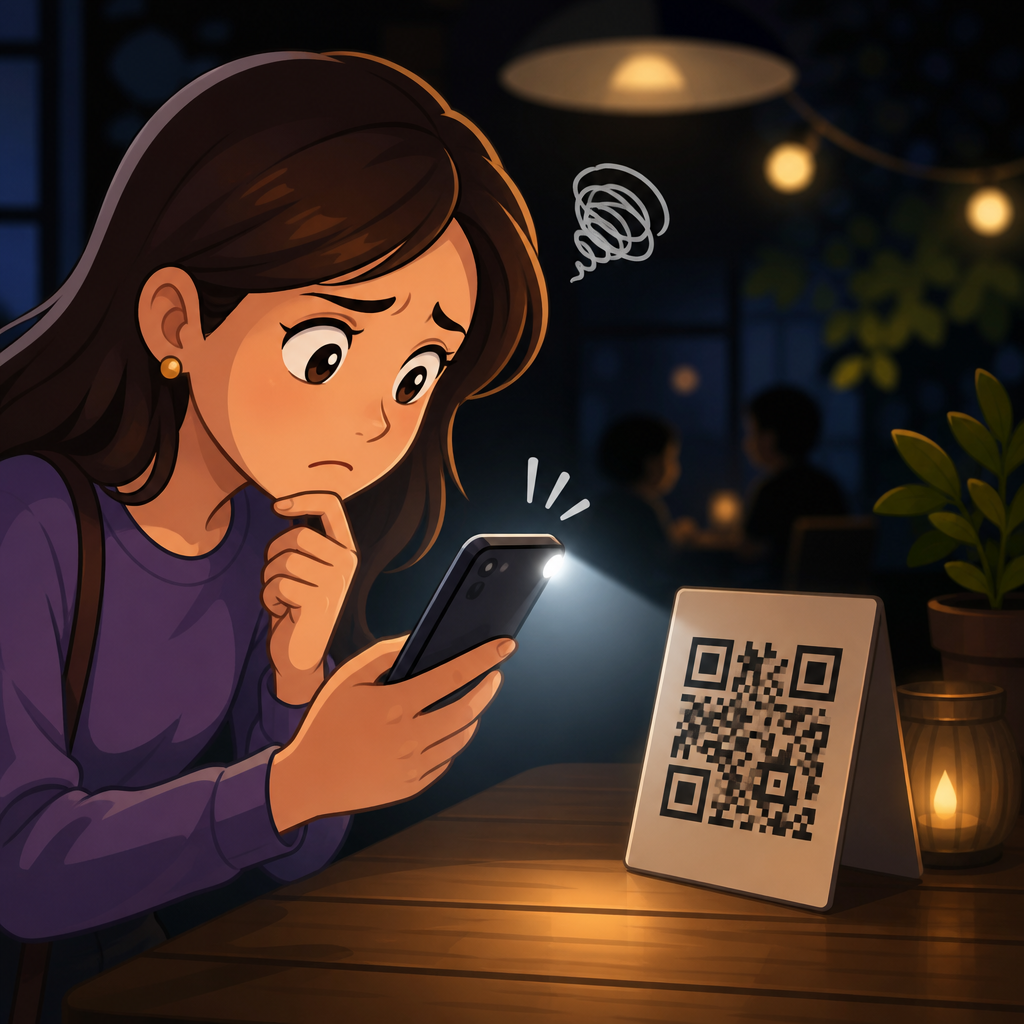
QR code scanning issues on low-light conditions are one of the most common causes of failed mobile scans, even when the code itself is printed correctly and the landing page works. In QR Code Troubleshooting & Support, this topic sits inside the broader Scan Issues on Devices category because lighting affects camera hardware, autofocus behavior, image processing, and decoding software at the same time. A QR code is a two-dimensional matrix barcode that stores data in square modules, while scanning is the process of capturing that pattern with a camera and converting it into usable information such as a URL, payment request, ticket, or Wi-Fi credential. Low-light conditions include dim indoor rooms, nighttime retail environments, bars, warehouses, event venues, car dashboards, and outdoor spaces at dusk where cameras struggle to produce a sharp, high-contrast image. I have seen teams blame the generator, the print vendor, or the phone model, only to discover that the real failure point was inadequate illumination interacting with a glossy label or a small code placed too far from the lens. Understanding that chain of failure matters because poor scan performance directly reduces conversions, check-ins, payments, support completion rates, and customer trust. If a user must try three times, turn on a flashlight, or ask staff for help, the QR experience has already broken. This hub explains why low light causes QR code scanning issues, how different devices fail, what environmental factors make the problem worse, and which corrective actions reliably improve scan success across iPhone, Android, tablets, kiosks, and specialized scanners.
Why low light breaks QR scanning on phones and tablets
Low light reduces the amount of visual information available to the camera sensor, and QR decoding depends on crisp edges, stable contrast, and accurate focus. When illumination drops, the camera compensates by raising ISO sensitivity, slowing shutter speed, or widening processing thresholds. Each adjustment creates side effects. Higher ISO increases noise, which can blur the border between black and white modules. Slower shutter speed increases motion blur from small hand movements. Aggressive noise reduction can smear fine detail, especially on dense version codes with many modules packed into a small print area. In practical support work, this is why a code may scan instantly at a front desk under bright overhead lights but fail at the same distance in a restaurant corner or warehouse aisle.
Autofocus performance also degrades in dim environments. Most smartphone cameras rely on phase detection, contrast detection, or hybrid autofocus, and all of them perform worse when scene contrast falls. The QR code may be physically sharp to the human eye but not to the sensor. Devices then “hunt” for focus, shifting between foreground glare, background textures, and the actual code. On older budget Android phones, I frequently see this behavior when a small QR label is placed on reflective plastic packaging under weak shelf lighting. The user thinks the scanner is broken, but the camera simply cannot lock focus long enough to decode the pattern.
Screen-based QR codes add another layer. If one phone is displaying a QR code and another is scanning it in a dark room, brightness mismatch becomes a problem. The display may be dimmed by battery-saving settings, the scanner may expose for the bright screen while underexposing the modules, or pulse-width modulation and refresh artifacts may interfere at close range. This explains why support teams should treat printed-code issues and on-screen code issues as related but not identical troubleshooting paths.
How device differences change scan reliability in dark environments
Not all scan failures in low light are equal because camera stacks vary widely by device class, operating system, and scanner app. Newer iPhones generally perform better in dim conditions because Apple combines strong autofocus, image stabilization, computational photography, and tight integration between the Camera app and system QR detection. Recent flagship Android phones from Samsung, Google, and other major brands also perform well, but results differ more widely because manufacturers tune camera processing differently. Midrange and low-cost Android devices often use smaller sensors, slower lenses, and weaker image signal processors, which can make the same code fail in conditions where a flagship scans immediately.
Tablets and rugged enterprise devices are another category. Many tablets have acceptable rear cameras but awkward ergonomics, leading to shake and poor framing in low light. Rugged warehouse devices may include dedicated scan engines that outperform standard cameras on damaged codes, yet some field units rely on legacy camera modules that need stronger illumination than workers expect. Kiosks can be especially tricky because fixed-angle cameras cannot adapt to glare or user height, and ambient venue lighting changes throughout the day. The practical lesson is simple: a QR code that works on the designer’s current phone in a bright office is not validated for real-world use.
Software matters as much as hardware. Native camera scanners, Google Lens, OEM camera apps, retail banking apps, ticketing apps, and embedded web scanners use different decoding libraries and confidence thresholds. ZXing-based implementations, ML Kit integrations, and proprietary retail scanner SDKs can behave differently on the same phone in the same room. Some apps require a stronger lock before opening a link, while others attempt decode from noisier frames. If your support logs show “works in Camera app but not in our app,” that is a software pipeline issue, not just a lighting issue.
Environmental causes that make low-light QR code scans fail faster
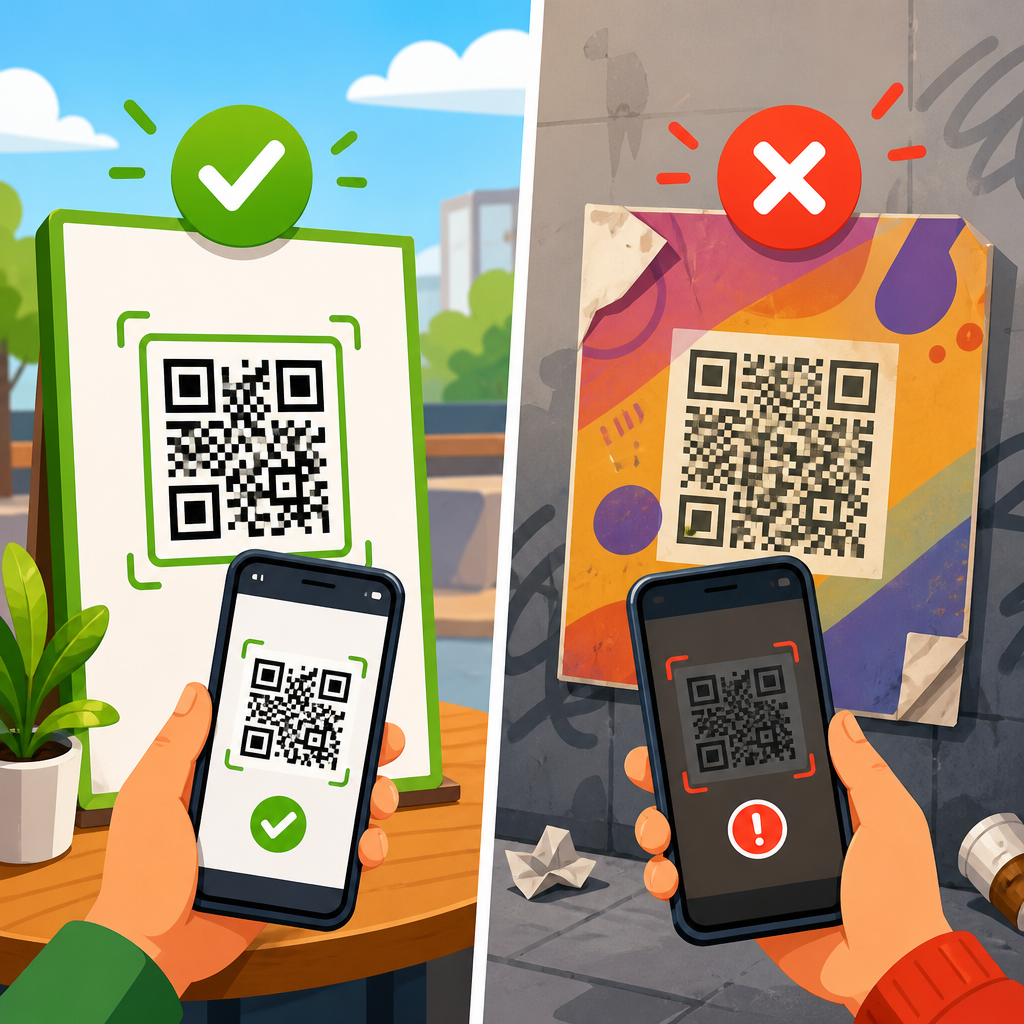
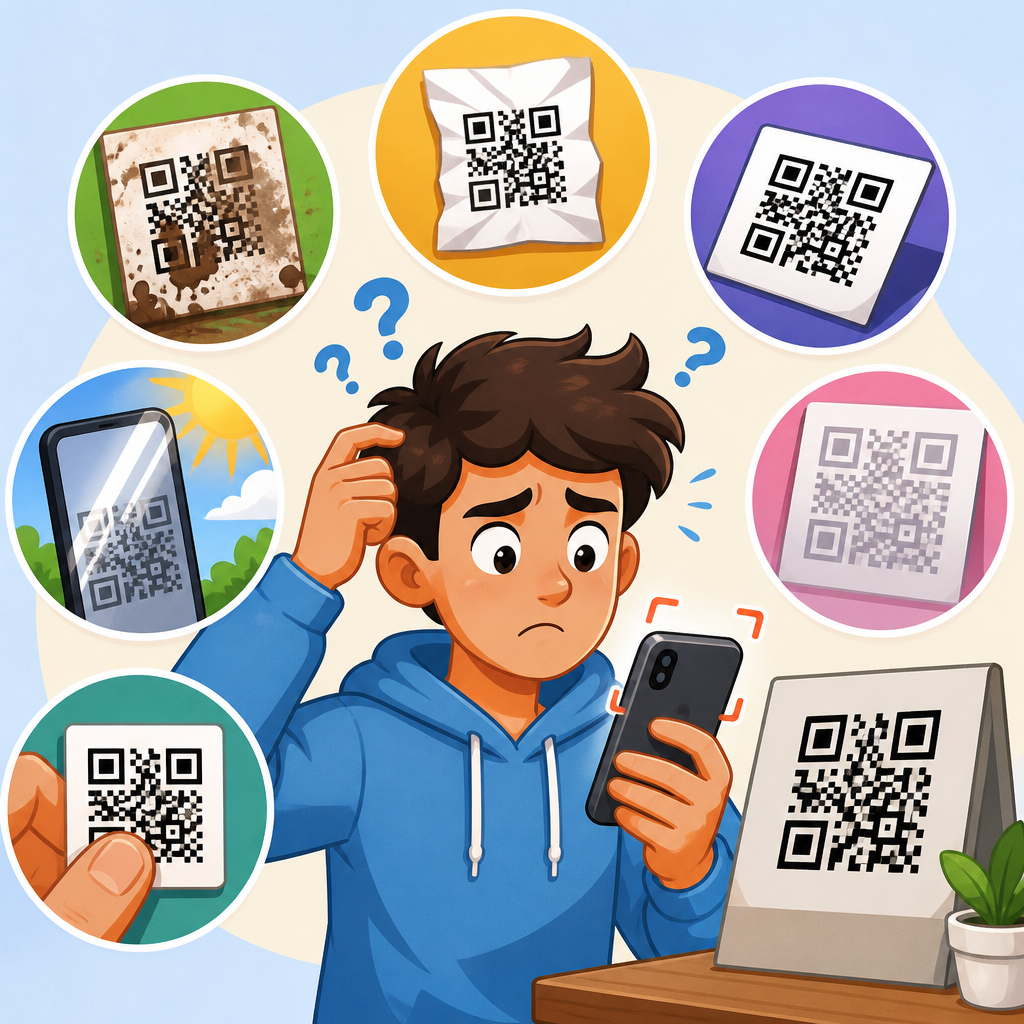
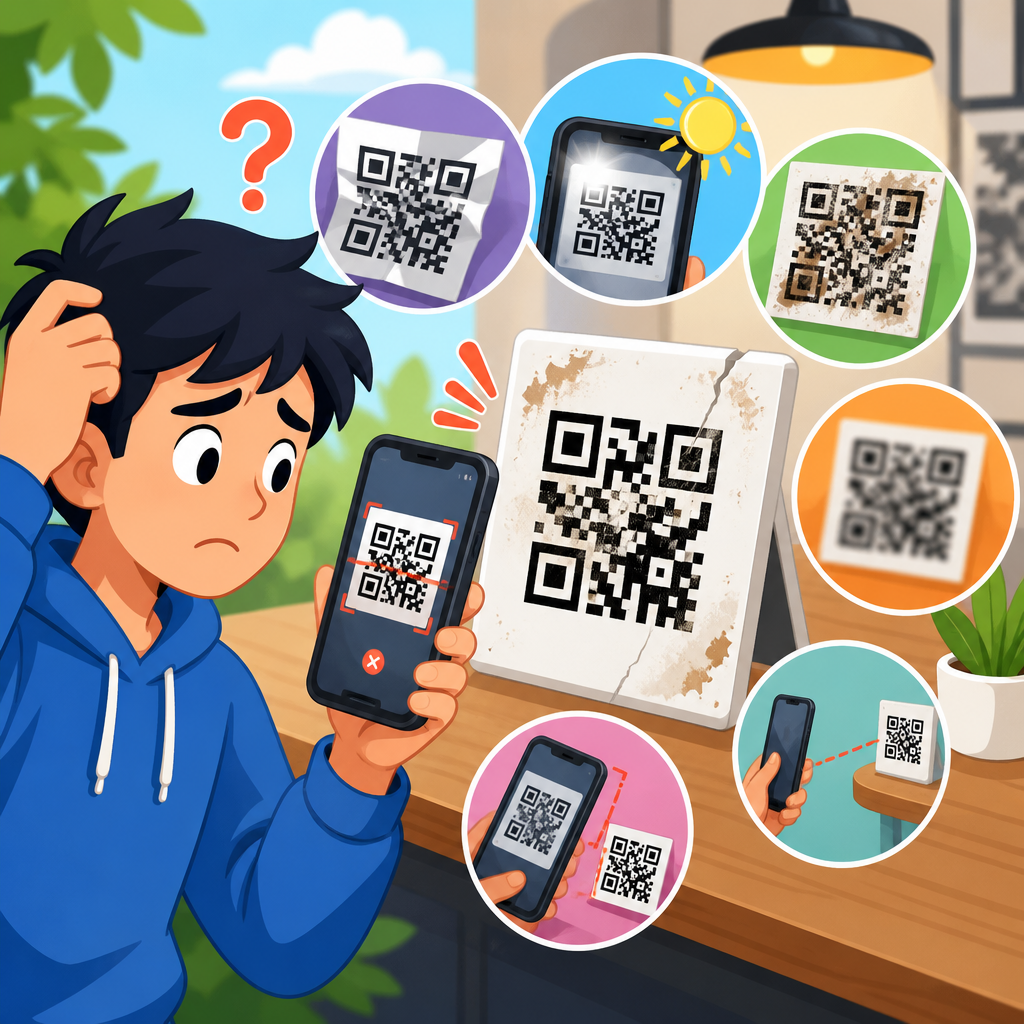
Dim light alone is rarely the only problem. Most repeated failures happen when low illumination combines with poor print choices, reflective surfaces, awkward placement, or user movement. Glossy lamination is a classic example. In a dark room, a user often turns on a flashlight or moves near a point light source, creating a bright hotspot on the code. That glare wipes out module contrast and blocks decoding, especially if the code is behind acrylic, on a menu sleeve, or printed on metallic stock. Matte finishes and non-reflective covers consistently produce better low-light scan results.
Size and distance also matter. A small QR code requires the camera to resolve tiny modules. In good light, a modern phone can compensate. In poor light, the scanner needs more distance stability and cleaner focus than most users can provide. For printed materials, the common rule of thumb is that scan distance should be roughly ten times the code width, but low-light environments usually require a larger code or closer placement. I advise teams to test at realistic distances with older devices, not just the newest phones in ideal lighting.
Color contrast remains a frequent hidden issue. Black on white is still the most reliable combination because it gives decoders the highest luminance contrast. Brand-driven choices such as dark blue on black, gray on cream, or transparent overlays may appear stylish under studio lighting yet fail in bars, concerts, hotel corridors, and curbside pickup lanes. Quiet zone violations are another accelerant. If the white margin around the code is too tight, low-light noise makes the code blend into nearby graphics, leaving the decoder unable to detect boundaries cleanly.
| Factor | What happens in low light | Practical fix |
|---|---|---|
| Glossy surface | Flash or overhead lights create glare that hides modules | Use matte stock, reposition lighting, or tilt the code slightly |
| Small code size | Camera cannot resolve module detail without perfect focus | Increase print size and reduce scan distance |
| Low contrast colors | Decoder struggles to separate dark and light areas | Use dark foreground on a light background |
| Motion blur | Slow shutter speed smears the pattern during capture | Stabilize the device or improve illumination |
| Dirty lens | Scattered light lowers sharpness and contrast further | Clean the camera lens before scanning |
How to troubleshoot scan issues on devices in low-light conditions
The fastest troubleshooting sequence starts with the device, then the environment, then the code. First, clean the camera lens. Pocket lint, fingerprints, and skin oils reduce local contrast and amplify flare in dim scenes. Second, increase available light before changing anything else. Move closer to a brighter area, raise screen brightness for on-screen codes, or add diffuse front lighting rather than a harsh direct beam. Third, steady the device and let autofocus settle for a second instead of pushing the phone immediately toward the code. Fourth, test with the native camera app and at least one secondary scanner such as Google Lens to separate app-level issues from camera-level issues.
If the code still fails, evaluate the code presentation. Check whether the quiet zone is intact, whether the print has softened due to low-resolution output, and whether the material is reflective. For digital displays, verify that dark mode, blue-light filters, privacy screens, cracked glass, or screen protectors are not reducing readability. For printed codes, inspect ink spread, dot gain, and edge sharpness. Thermal labels in logistics are especially vulnerable because heat, abrasion, and low contrast combine badly with dim warehouse lighting. In support operations, I usually ask for three comparison tests: the same code in bright light, a different phone in the same low light, and a different scanner app on the original phone. Those three checks isolate most root causes within minutes.
Device settings can help but have limits. Enabling the flashlight often improves scan success, yet it may introduce glare on glossy surfaces. Night mode features are generally not useful for QR scanning because they optimize for photography, not instant code detection, and often require longer exposures. Macro mode can help when users are too close, but it can confuse them if the app switches lenses unexpectedly. Accessibility zoom, camera permissions, and battery saver restrictions should also be reviewed in managed-device fleets where scanner behavior changes after policy updates.
Design and deployment practices that prevent low-light scan failures
The best fix is prevention. If a code must be scanned in dim environments, design for that environment from the start. Use a larger code than the minimum, maintain a clear quiet zone, keep data density reasonable, and select a stronger error correction level only when needed. Error correction can recover from damage or partial obstruction, but it also increases complexity if it forces a denser symbol at the same printed size. In many retail and venue deployments, shortening the encoded URL and enlarging the symbol produces better real-world performance than relying on a dense code with high correction.
Material choice is critical. Matte paper, non-gloss labels, etched signage with strong contrast, and backlit display panels consistently outperform shiny laminates and transparent stickers. Placement matters just as much. Avoid putting QR codes under spotlights, behind curved plastic, near bright windows, or on moving surfaces such as swinging doors. For restaurants, menus should place the code where table shadows do not fall across it. For parking, access, and ticketing systems, consider adding localized illumination near the scan point instead of expecting drivers or visitors to supply light from their own devices.
Testing should mirror actual use conditions. A proper validation plan includes old and new iPhones, flagship and budget Android phones, native and in-app scanners, multiple viewing angles, and realistic lighting levels measured in lux. Codes that pass only under office fluorescents are not production-ready for nightlife, field service, or warehouse use. Teams that document scan distance, time-to-scan, and first-attempt success rate catch problems early and reduce support costs later. This hub should lead naturally to deeper articles on camera permissions, autofocus failures, reflective surfaces, blurry codes, and app-specific scanner bugs because low-light issues often overlap with each of those categories.
What support teams, marketers, and operators should do next
QR code scanning issues on low-light conditions are not random glitches; they are predictable results of weak illumination colliding with camera limits, surface glare, code density, and software differences. The most reliable path to better scan performance is to control the variables you can control: increase light, improve contrast, enlarge the code, reduce reflectivity, preserve the quiet zone, and test across real devices in the actual environment. When teams diagnose these failures systematically, they stop wasting time blaming the wrong component and start fixing the user experience where it breaks.
For a Scan Issues on Devices hub, the key takeaway is that lighting should be treated as a primary troubleshooting dimension, not an afterthought. A code that scans in one condition but fails in another is telling you something measurable about focus, exposure, material, or app behavior. Use that signal. Build support playbooks that start with lens cleaning, lighting checks, distance adjustment, and cross-app testing. Build deployment standards that specify matte finishes, minimum print sizes, contrast requirements, and field validation. Those practices raise first-scan success rates and protect conversions across payments, tickets, menus, authentication, and customer support journeys.
If you manage QR campaigns, product labels, venue signage, or mobile workflows, audit your current codes in dim conditions this week. Test them with older phones, reflective surfaces, and real user distances. Then prioritize fixes that remove friction before customers ever notice it.
Frequently Asked Questions
Why do QR codes often fail to scan in low-light conditions even when the code is printed correctly?
Low-light environments make QR scanning harder because the camera has less visual information to work with. A QR code is made of small square modules that must appear with strong contrast against the background for the scanner to detect and decode them accurately. In dim settings, phone cameras often increase exposure time, raise ISO sensitivity, or slow autofocus behavior to compensate for the lack of light. That can introduce blur, digital noise, and reduced edge definition, all of which make it more difficult for scanning software to distinguish the QR pattern clearly.
Even if the QR code itself is perfectly generated and the destination link works, the device may still struggle because scanning is not just about the code. It depends on camera hardware, lens quality, autofocus speed, image stabilization, screen brightness, and the decoding algorithm used by the app or operating system. In low light, all of these factors are under more stress at the same time. That is why a code that scans instantly in daylight may fail repeatedly in a dim restaurant, warehouse, event venue, parking garage, or nighttime outdoor setting.
What are the most common signs that lighting is the real cause of a QR code scanning problem?
There are several clear signs that poor lighting is behind the issue. One common symptom is that the camera recognizes something is in view but never locks onto the QR code long enough to scan it. Another is repeated hunting or pulsing in focus, where the image sharpens briefly and then goes soft again. Users may also notice that the QR code appears grainy, blurry, washed out, or shadowed on the phone screen, even if it looks readable to the human eye.
Lighting is especially likely to be the root problem when the same QR code scans normally after moving closer to a light source, turning on the phone flashlight, changing the viewing angle, or trying again in a brighter area. If multiple users report failures only in dim locations but not in daylight or office lighting, that is another strong indicator. In troubleshooting terms, this points away from problems like a broken URL, poor QR code generation, or unsupported encoding, and toward environmental scan conditions that are affecting image capture and decoding.
How can users improve QR code scanning performance in low-light conditions on mobile devices?
The fastest fix is usually to increase available light. Users should move to a brighter area, angle the code toward a direct light source, or enable the device flashlight if the scanning app supports it. Holding the phone steady is also important because low-light scanning often requires slightly longer exposure, which makes motion blur more likely. Bringing the phone too close can make focus worse, so it is usually better to start a little farther back, let the camera lock focus, and then adjust distance slowly until the code appears crisp on screen.
Users should also clean the camera lens, increase screen brightness if the code is displayed digitally, and avoid glare from glossy paper or reflective surfaces. If the first app fails, trying the native camera app or a different scanner can help because decoding performance varies by software. In some cases, rotating the phone, changing angle, or framing only the QR code without distracting background elements improves recognition. These small adjustments matter because the goal is to give the camera a high-contrast, stable, well-focused image that the decoding engine can process reliably.
Are some phones and scanning apps better than others in dim lighting?
Yes. Device quality plays a major role in low-light QR performance. Newer phones generally have better image sensors, faster autofocus systems, improved low-light processing, and more advanced computational photography features. These improvements help the device preserve contrast and detail when lighting is poor. Budget phones, older models, damaged camera modules, or devices with weak autofocus systems often struggle more because they produce noisier images and less precise focus in the same environment.
Software matters just as much. Some scanning apps rely on more capable decoding libraries and better real-time image enhancement, while others are less tolerant of blur, noise, or uneven lighting. Native camera apps on modern phones are often optimized at the system level and may outperform third-party scanners, but this is not always the case. From a support perspective, it is common to see the same QR code scan successfully on one device and fail on another under identical conditions. That does not automatically mean the code is defective. It usually reflects the combined effect of hardware sensitivity, autofocus reliability, image processing, and the decoder’s tolerance for imperfect images.
What can businesses do to reduce low-light QR code scanning failures before they happen?
The best prevention strategy is to design for real-world conditions, not ideal ones. Businesses should place QR codes where lighting is consistent and sufficient, avoid dark corners or reflective mounting surfaces, and ensure the code is large enough to be scanned from the expected distance. Strong contrast is essential, so dark modules on a light matte background usually perform best. It also helps to leave enough quiet space around the code and avoid overly stylized designs that reduce readability, especially in environments where users may already be dealing with dim light and shaky handheld scanning.
Testing is critical. A QR code should be checked on multiple devices, using both iPhone and Android cameras, in the same lighting conditions where customers will actually scan it. If the code is intended for bars, night events, theater lobbies, delivery entrances, vehicle dashboards, or outdoor evening use, it should be tested there specifically. Businesses can also provide supplemental lighting, increase print size, improve placement angle, or add short instructions such as “turn on flashlight if needed.” In QR Code Troubleshooting & Support, this issue is treated as part of broader device scan behavior because low-light failures are rarely caused by one single factor. They are usually the result of environmental lighting interacting with camera hardware, autofocus performance, image processing, and decoding software all at once.