QR codes are built into everyday tasks on iPhone, from joining Wi-Fi networks and opening restaurant menus to authenticating accounts and launching app downloads, so when scanning stops working, even simple actions become frustrating. In practical terms, enabling QR code scanning on iPhone means turning on the software path that allows the Camera app, Control Center Code Scanner, and in some cases third-party apps to detect and interpret the square matrix barcode. Apple has supported native QR detection for years, but users still run into preventable problems: the Scan QR Codes setting may be off, camera permissions may be restricted, the lens may be blocked, or the code itself may be poorly printed. I have walked clients through all of these scenarios, and the pattern is consistent: most issues are not hardware failure but configuration, environment, or workflow problems. This matters because iPhone scanning is increasingly tied to payments, ticketing, two-factor authentication, and contactless customer service. If scanning fails, the user is blocked at the exact moment speed matters. This guide explains how to enable QR code scanning on iPhone, how to verify that it is working, and how to troubleshoot device-specific scan issues in a structured way so this page can serve as the central reference point for the broader QR Code Troubleshooting and Support topic.
How to Enable QR Code Scanning on iPhone
The fastest way to enable QR code scanning on iPhone is to open Settings, tap Camera, and make sure Scan QR Codes is turned on. When that toggle is enabled, the built-in Camera app can recognize a QR code automatically and display a notification banner or link. On modern iPhones running current versions of iOS, this is the primary control that determines whether native scanning works from the Camera interface. If the switch is missing, the device may be running an older iOS version, may have restrictions applied, or may be managed by an organization through mobile device management policies.
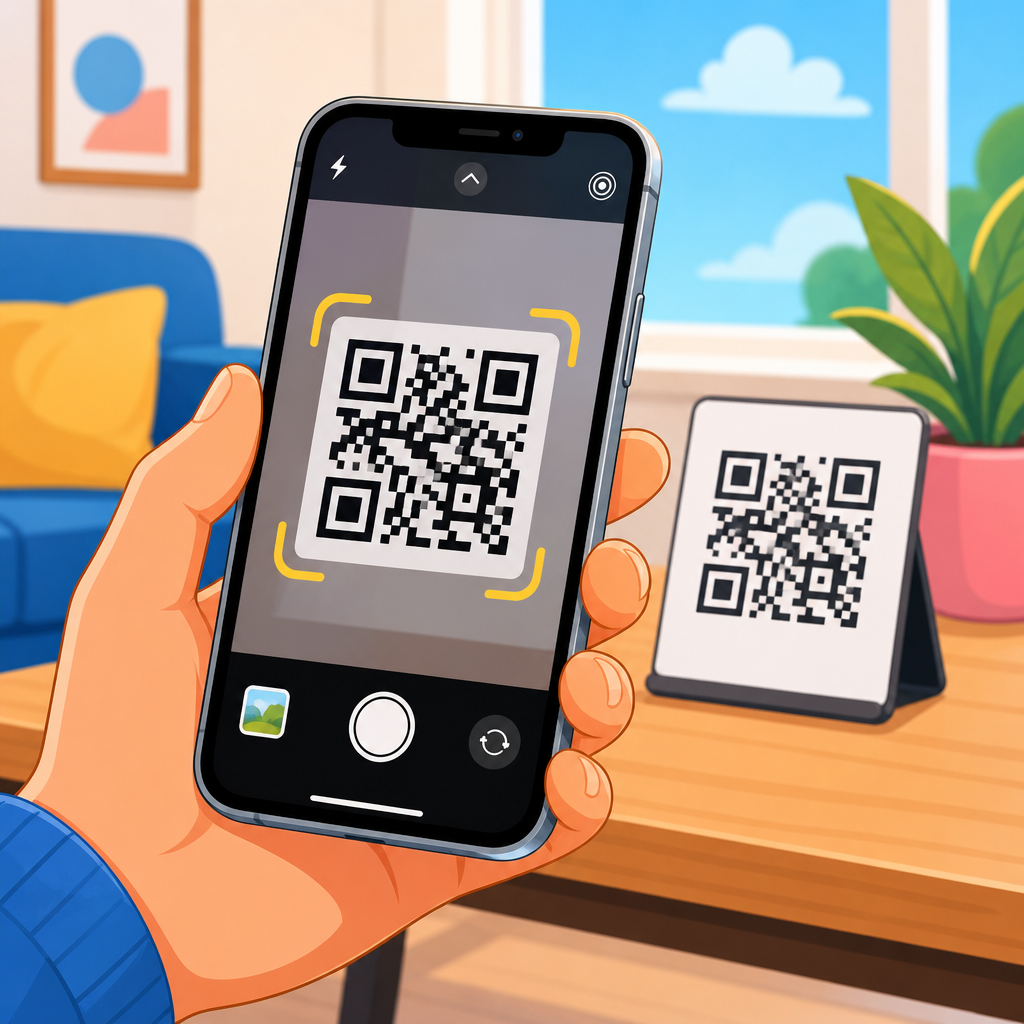
After enabling the setting, open the Camera app and point it at a well-lit QR code from a comfortable distance, usually about six to ten inches away depending on the code size. You do not need to press the shutter button. The code should be framed fully on screen and held steady for a second or two. If the code is valid, iPhone will surface an action prompt near the top or bottom of the display. Tap the prompt to open the destination. In real support cases, users often move too quickly, get too close, or expect a scan from a damaged code. Native scanning is automatic, but it still needs a readable image.
There is also a second built-in path: Code Scanner in Control Center. Go to Settings, tap Control Center, then add Code Scanner if it is not already included. This tool opens a dedicated scanner optimized for QR reading and can be more reliable for some users because it removes other Camera modes and distractions. I recommend it when someone says, “My camera works, but QR codes are inconsistent.” It is especially useful in retail, field service, and event environments where repeated scans are part of the workflow.
What to Check First When iPhone Will Not Scan a QR Code
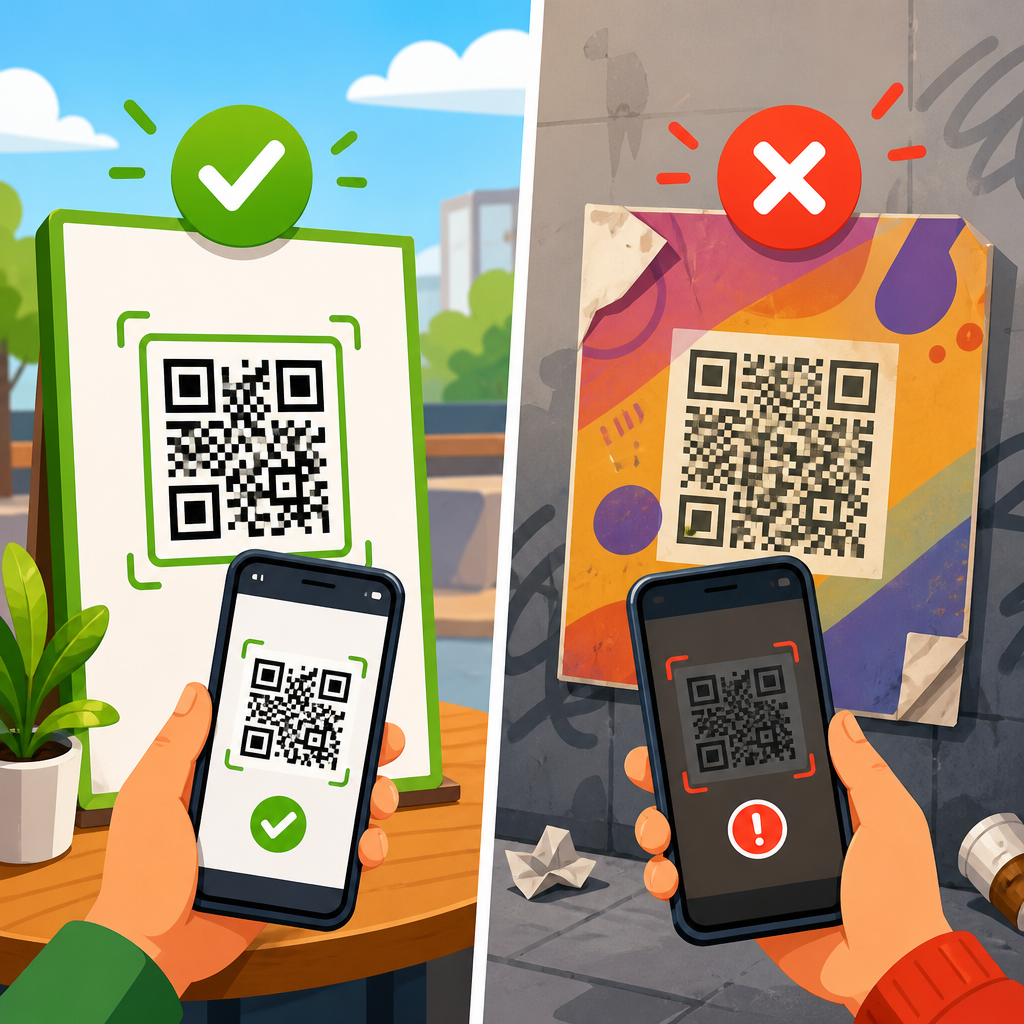
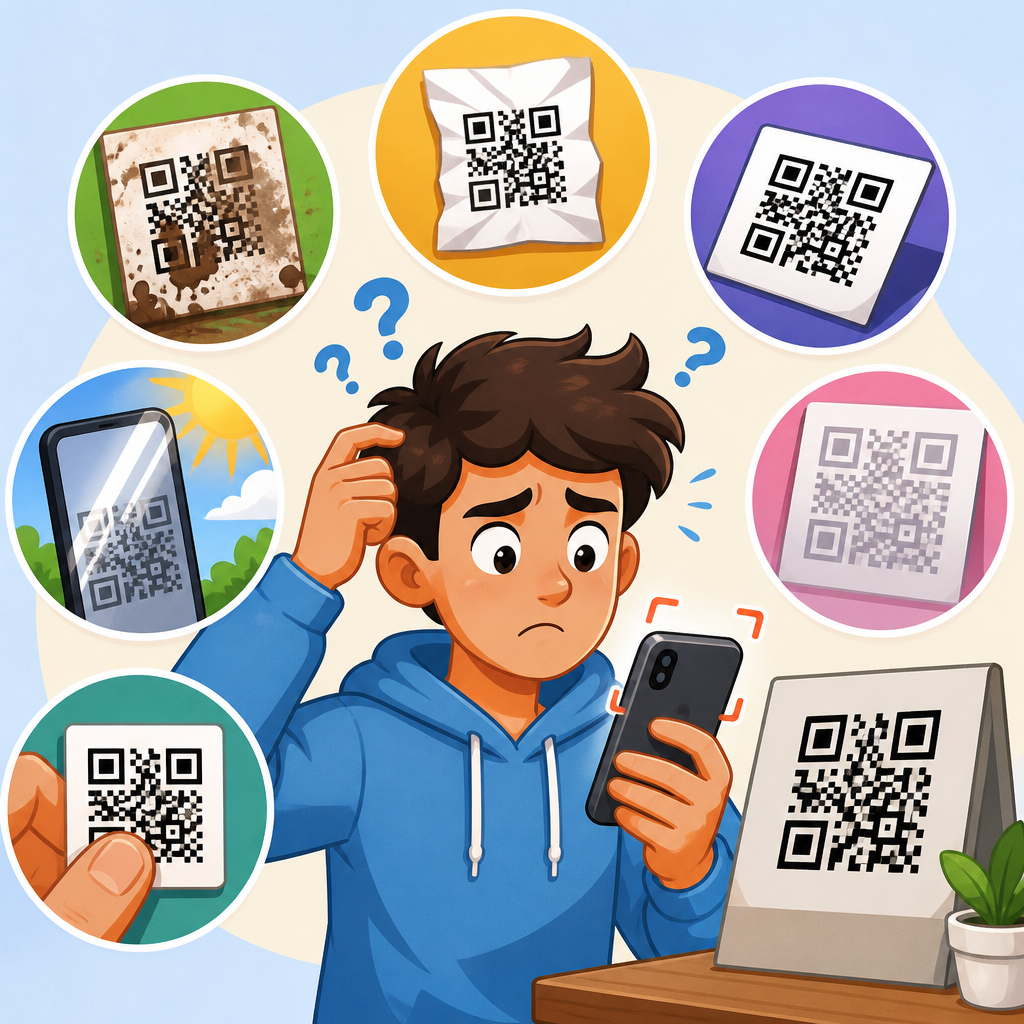
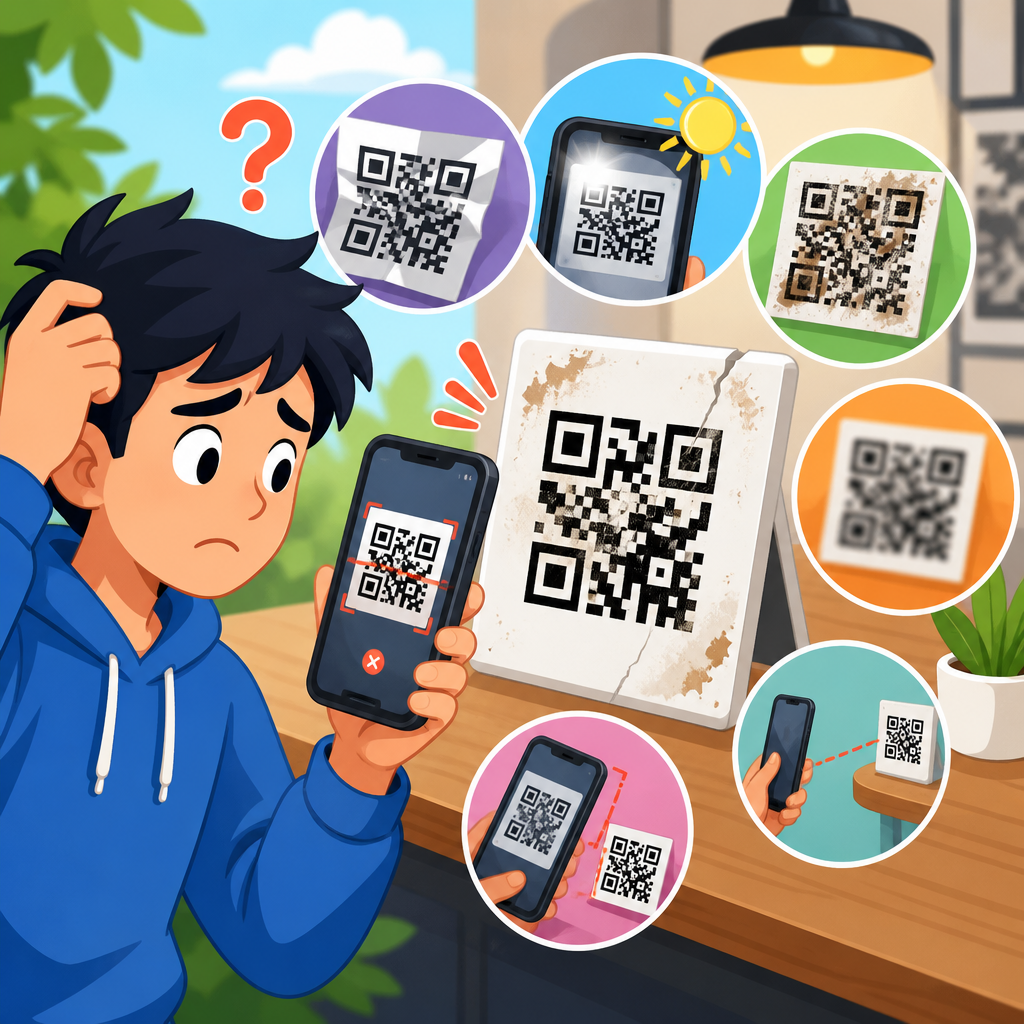
If QR scanning is enabled but still not working, start with the simplest failure points. Confirm the code is a true QR code rather than another barcode type such as PDF417, Data Matrix, or Code 128. iPhone Camera handles QR codes well, but user expectations can get confused when a boarding pass, inventory label, or ID barcode is different from the square code they expect. Next, inspect the code itself. A low-resolution print, glare from lamination, a torn corner, or excessive styling can all break readability. Branded QR codes often fail because contrast is too low or the quiet zone, the blank border around the code, has been trimmed.
Then check the environment. Lighting matters more than most users realize. A glossy flyer under overhead light can cause reflections that hide modules in the code. Move the phone slightly, angle the paper, or step into brighter but indirect light. Clean the camera lens with a microfiber cloth. Even a fingerprint smudge can soften focus enough to stop recognition. If the code is on another phone screen, raise that screen’s brightness and reduce glare. I frequently see successful scans happen immediately after increasing brightness on the source device.
Distance and framing also matter. If you are too close, the camera cannot focus on the pattern. If you are too far, the modules become too small to decode. A practical rule is to start farther back and slowly move closer until the code fills roughly one quarter to one third of the preview. Hold steady for a moment. Many failed attempts are really focus failures, not software failures. That distinction is important because changing settings will not solve a focus problem.
Settings, Permissions, and Restrictions That Block Scanning
Several iPhone settings can interfere with QR code scanning even when the Camera app appears normal. The first is Screen Time content and privacy restrictions. If restrictions are enabled, camera access may be limited, which can indirectly affect scanning. Open Settings, tap Screen Time, then Content & Privacy Restrictions, and review allowed apps and camera permissions. On company-managed devices, MDM profiles can also disable camera functions or constrain app behavior. In enterprise support, this is common on warehouse, healthcare, and field inspection phones.
Privacy settings can matter when scanning occurs inside another app. For example, banking apps, ticketing apps, authentication apps, and social platforms may have their own in-app scanner. If that app does not have camera permission, scanning inside it will fail even though the native Camera app works. Go to Settings, scroll to the app, and verify Camera access is enabled. This is one of the most common support mistakes: users test in one app, assume the iPhone scanner is broken, but the issue is only that app’s permission state.
Software version is another checkpoint. Apple improves camera behavior through iOS updates, and bugs affecting focus, permissions, or notification prompts do occur. Navigate to Settings, General, Software Update, and install the latest stable release appropriate for the device. I avoid promising that every update fixes scanning, but staying current removes known issues from the troubleshooting tree. A forced restart can also help when the Camera app becomes unresponsive or fails to trigger code detection after an update or long uptime.
Best Ways to Scan: Camera App, Control Center, and App-Based Scanners
iPhone users effectively have three scanning routes, and each has a best use case. The standard Camera app is fastest for occasional scans because it is always available from the Lock Screen or Home Screen. Control Center’s Code Scanner is better for repeated scanning because it opens directly into recognition mode and often locks onto codes more quickly. In-app scanners are necessary when the destination action must stay inside a specific service, such as adding a login credential to an authenticator app or checking in within an airline application.
| Scanning method | Best use case | Common issue | Practical fix |
|---|---|---|---|
| Camera app | General links, menus, Wi-Fi setup | Scan QR Codes toggle off | Enable it in Settings > Camera |
| Code Scanner | Frequent scans, retail, events | Not added to Control Center | Add Code Scanner in Settings > Control Center |
| In-app scanner | Banking, tickets, authentication | App lacks camera permission | Turn on Camera access for that app |
| Third-party scanner | Legacy workflows or custom decoding | Poor privacy practices or ads | Use reputable apps only when native tools fail |
Third-party scanner apps should be a last resort, not the default recommendation. Native iPhone tools are usually sufficient and safer because they avoid unnecessary data collection and intrusive advertising. If a specialized workflow requires scanning nonstandard symbologies or storing scan history, choose a reputable app from a recognized developer and review permissions closely. In support environments, I only recommend third-party tools when there is a clear technical reason, such as a line-of-business process that depends on formats beyond standard QR behavior.
Why an iPhone Scans Some QR Codes but Not Others
Not all QR codes are equally scannable. A well-made QR code follows ISO-aligned structure, uses strong contrast, preserves the quiet zone, and matches data density to the physical size. A poor code may technically exist but still fail in practice. Dense codes that pack long URLs, tracking parameters, or vCard fields into a tiny print area become difficult to read. I often explain this with a simple example: a short URL on a poster scans from across a room, while a dense code on a business card may fail unless the camera is perfectly aligned and close.
Error correction also affects performance. QR codes support several levels of error correction, commonly referred to as L, M, Q, and H. Higher error correction can preserve readability when part of the code is damaged or branded with a logo, but it also increases density. That creates a tradeoff. Designers sometimes add large center logos and still shrink the code, producing a symbol that looks polished but scans poorly. If one iPhone can read a code only in ideal conditions, the problem is usually the code quality, not the phone model.
Destination behavior matters too. Sometimes the scan succeeds, but the result appears broken because the target URL is dead, blocked, or malformed. Test the QR code with multiple devices and, if possible, inspect the underlying link. If the prompt appears but nothing useful happens after tapping, the camera did its job. The issue may belong to the website, app deep link, or redirect chain. This distinction is essential for support teams triaging whether the fix belongs to the device owner, the app publisher, or the QR code creator.
Device-Specific Scan Issues Across iPhone Models
Different iPhone models can show different scanning behavior because of camera hardware, autofocus performance, and iOS support windows. Newer models generally focus faster and perform better in low light, while older devices may struggle with small or low-contrast codes. An iPhone SE, for example, can still scan QR codes reliably, but it may need steadier handling and better lighting than a recent Pro model. That does not mean the older device is defective; it means the margin for error is smaller.
Physical condition matters as much as model generation. Cracked lens covers, third-party lens protectors, and worn camera modules can reduce clarity. I have seen decorative lens films cause subtle blur that users did not notice until QR scanning became unreliable. Removing the accessory restored normal performance immediately. Battery health can also indirectly contribute when thermal throttling or system sluggishness affects camera responsiveness, though this is less common than focus or permission issues.
If a specific device consistently fails while others succeed on the same code, compare settings first, then compare camera output. Open the camera, point at small printed text, and see whether focus snaps in cleanly. If focus hunts continuously, the issue may be optical or hardware-related. At that point, testing with Apple Support diagnostics or an authorized service provider becomes reasonable. For a support hub, the key principle is to separate repeatable device-specific failures from code-specific or environment-specific failures before recommending repair.
A Practical Troubleshooting Workflow for Scan Issues on Devices
The most efficient troubleshooting sequence is consistent. First, verify Settings, Camera, Scan QR Codes is on. Second, test with Apple’s Camera app, not a third-party app. Third, try a known-good QR code from a trusted source, such as a major website or a standard Wi-Fi setup label. Fourth, improve lighting, clean the lens, and adjust distance. Fifth, test Control Center Code Scanner. Sixth, check app permissions if the issue only happens inside one app. Seventh, restart the device and update iOS. This order saves time because it moves from high-probability software causes to lower-probability hardware causes.
For teams supporting multiple users, documenting outcomes at each step is valuable. If ten users cannot scan one event poster but can scan other codes, the poster is the problem. If one managed device cannot scan any code in a ticketing app while others can, review app permissions or MDM rules. If one phone cannot focus on any close subject, escalate to hardware evaluation. Good support depends on isolating variables rather than changing several things at once and hoping the issue disappears.
This hub page should anchor related troubleshooting content across the wider support topic. From here, users can branch logically into articles about blurry camera fixes, QR code design problems, app permission errors, damaged or expired codes, MDM restrictions, and cross-device testing methods. That hub structure mirrors how real troubleshooting happens: start broad, identify whether the failure is on the device, in the app, in the environment, or in the code, then move to the relevant specialized guide.
Enabling QR code scanning on iPhone is usually simple, but dependable scanning requires more than one switch. The essential step is turning on Scan QR Codes in Settings, then confirming that the Camera app or Control Center Code Scanner can read a known-good code. From there, most failures trace back to a short list of causes: poor lighting, dirty lenses, incorrect distance, app-level camera permissions, device restrictions, outdated software, or low-quality QR code design. When you diagnose those causes in order, iPhone scan issues become predictable and fixable instead of random and frustrating.
The biggest takeaway for users and support teams is that successful QR scanning is a system, not a single feature. The phone must be allowed to scan, the camera must be able to focus, the app must have permission when relevant, and the code itself must be well made and reachable. That is why a hub article on scan issues on devices needs to connect settings, hardware, app behavior, and code quality in one workflow. When those pieces are reviewed together, the correct fix usually appears quickly.
If you are troubleshooting right now, start with the Camera setting, test a known-good code, and work through the device checks in this guide step by step. Then use this hub as your starting point for deeper QR code troubleshooting across related device, app, and code-specific support articles.
Frequently Asked Questions
How do I enable QR code scanning on an iPhone?
To enable QR code scanning on an iPhone, open the Settings app, scroll down to Camera, and make sure Scan QR Codes is turned on. When this setting is enabled, the built-in Camera app can automatically recognize QR codes and display a notification banner or link at the top of the screen. This is the main software setting that controls native QR code detection on most iPhones running modern versions of iOS.
Once the feature is turned on, open the Camera app and point it at the QR code so the code appears clearly within the frame. You do not need to press the shutter button. If the iPhone detects the code successfully, it will show a tappable prompt. In addition to the Camera app, many users also enable the dedicated Code Scanner in Control Center by going to Settings > Control Center and adding Code Scanner. That gives you a fast way to scan codes even when you want a more direct, scanner-focused tool than the full Camera app.
Why is my iPhone not scanning QR codes even though the feature is enabled?
If QR code scanning is already enabled but your iPhone still is not recognizing codes, the issue is usually related to focus, lighting, camera positioning, or software conditions rather than the setting itself. Start with the basics: make sure the QR code is not blurry, damaged, too small, or placed in poor lighting. Hold the phone steady, keep the code centered on the screen, and give the camera a second or two to focus. If you are too close, the camera may struggle to interpret the code, so try pulling back slightly until the image looks sharp.
It is also worth checking whether the Camera lens is dirty or obstructed, because smudges can interfere with recognition. Restarting the iPhone can help clear temporary glitches. If the code still will not scan, test with a different QR code to determine whether the original code is the problem. You should also confirm that iOS is updated to the latest available version under Settings > General > Software Update, since camera and recognition features can be improved through updates. If you are using a third-party app to scan QR codes, review that app’s camera permissions under Settings > Privacy & Security > Camera, because the app cannot scan anything if it does not have access to the camera.
What is the difference between the iPhone Camera app and the Code Scanner in Control Center?
The built-in Camera app and the Code Scanner in Control Center both scan QR codes, but they are designed for slightly different experiences. The Camera app is the default, all-purpose option. It works well when you are already using the camera or want the fastest familiar method. As long as Scan QR Codes is enabled in Camera settings, the iPhone can detect codes automatically and offer a link, app prompt, website, Wi-Fi connection option, or other action depending on the code’s contents.
The Code Scanner tool in Control Center is a dedicated scanner interface. Many users find it more direct because it launches straight into QR recognition without extra camera controls. It can be especially helpful if the standard Camera app is not immediately catching the code or if you want a cleaner scanning workflow. To add it, go to Settings > Control Center and include Code Scanner in your controls. After that, swipe down from the top-right corner of the screen to open Control Center and tap the scanner icon whenever you need it. In practical use, both methods rely on the iPhone’s native QR recognition system, so if one works and the other does not, that can point to a temporary app-specific issue rather than a complete scanning failure.
Can all iPhones scan QR codes natively, or do some models need an app?
Most modern iPhones support native QR code scanning through iOS, but the exact experience depends on the model and software version. Apple introduced native QR code recognition in the Camera app several iOS generations ago, so iPhones running current or relatively recent versions of iOS typically do not need a separate app just to scan standard QR codes. For everyday tasks such as opening websites, joining Wi-Fi networks, viewing menus, verifying logins, or downloading apps, the built-in tools are usually enough.
Older devices or iPhones running outdated versions of iOS may not offer the same seamless behavior, and in those cases a third-party QR scanner app may be necessary. Even on supported devices, some specialized apps include their own scanning tools for account authentication, payments, ticketing, or business workflows. Those apps may not replace the iPhone’s native scanner, but they can be required for certain services. If you are unsure whether your iPhone supports native scanning, the easiest test is to enable Scan QR Codes in Settings > Camera, then point the Camera app at a known working QR code. If no recognition prompt appears and the setting does not exist, your device or iOS version may be too old for the standard built-in method.
Is it safe to scan QR codes on iPhone, and what should I watch out for?
Scanning QR codes on iPhone is generally safe when you use Apple’s built-in tools, but the real security risk comes from the destination behind the code, not the act of scanning itself. A QR code can open a website, trigger a download, launch an app, add contact information, connect to a Wi-Fi network, or begin another action. Before tapping the prompt, look carefully at what the iPhone displays. If it shows a suspicious web address, a misspelled domain, or an unexpected action, do not proceed. Native iPhone scanning helps by previewing the result before opening it, which gives you a chance to avoid malicious or misleading links.
As a best practice, scan QR codes only from trusted sources such as reputable businesses, official product packaging, known contacts, or verified documents. Be cautious with codes posted in public places, especially stickers placed over existing signs, as these can be used in phishing attempts. Avoid entering passwords, payment details, or personal data into websites that open from unfamiliar QR codes unless you have verified the site independently. Keeping iOS updated also improves security protections across Safari, the camera system, and system-level link handling. In short, the iPhone makes QR scanning convenient and relatively secure, but smart judgment still matters every time you tap the result.