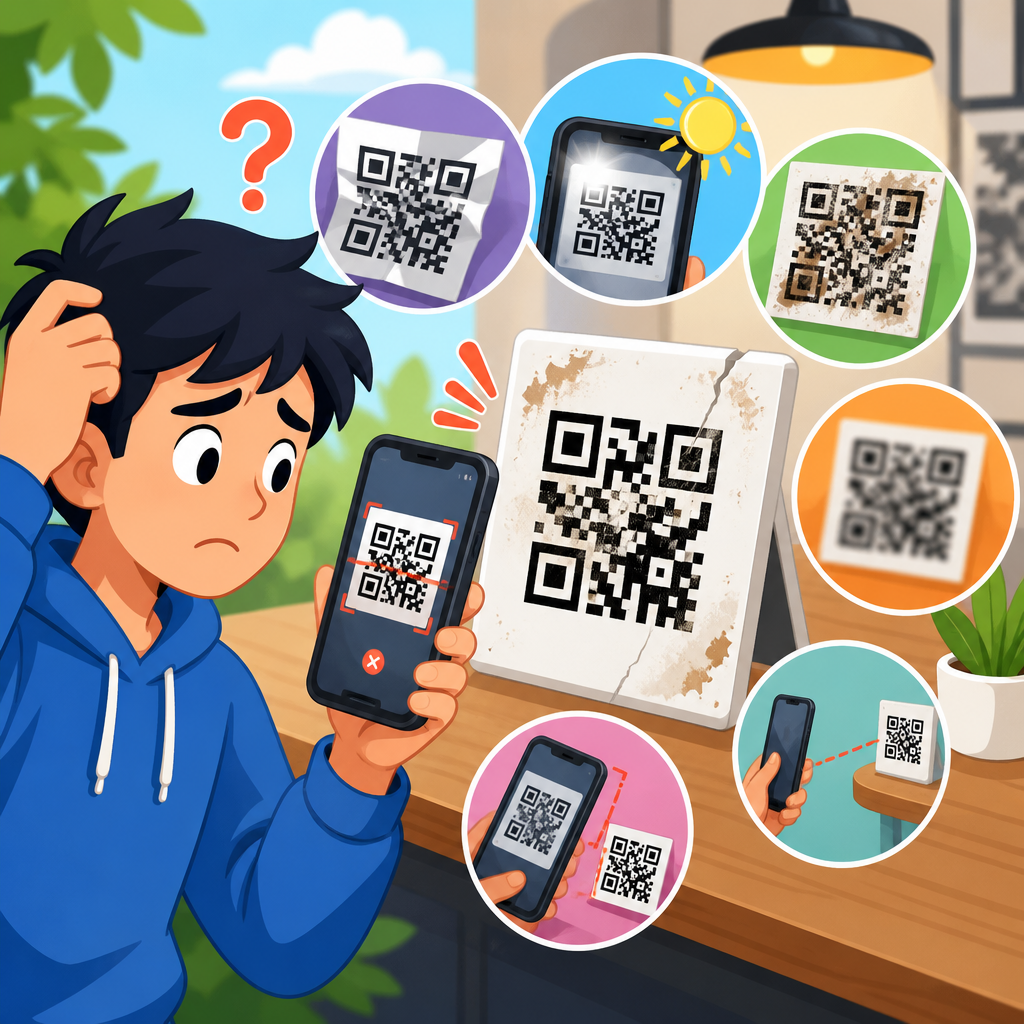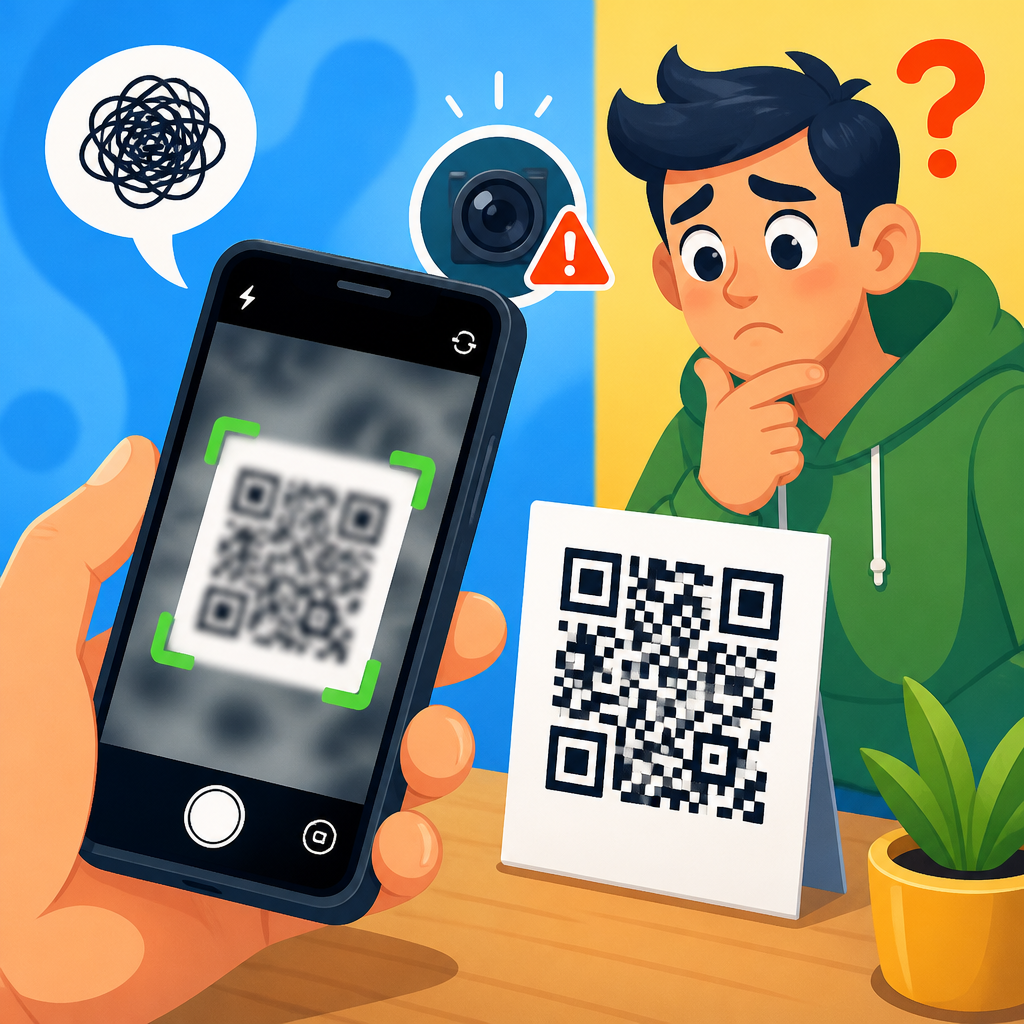
QR code camera issues on smartphones are common, but most failures trace back to a small set of causes: camera permission blocks, weak focus, low light, outdated software, app conflicts, damaged lenses, or QR codes that are poorly printed or displayed. A QR code is a two-dimensional barcode designed to store text, links, payment details, login tokens, or app actions in a pattern of black modules and white spaces that a phone camera can quickly decode. On modern Android phones and iPhones, scanning is usually built into the default camera app, though some brands still route decoding through Google Lens, a control-center scanner, or a manufacturer utility. That variation is exactly why users get confused when one phone reads instantly and another does nothing.
I have worked through these problems on consumer devices, enterprise rollout projects, and retail checkout deployments, and the pattern is consistent: people assume the code is broken when the device is actually the bottleneck. This matters because QR codes now sit at critical points in daily workflows, from restaurant menus and event check-in to banking, Wi-Fi sharing, parcel tracking, two-factor authentication, and contactless payment. When scanning fails, conversion drops, support tickets rise, and trust erodes fast. A support hub on scan issues must therefore answer three questions clearly: what stops a smartphone from recognizing a QR code, how do you diagnose the exact failure, and which fixes solve the problem without guesswork. This page covers those device-level scan issues comprehensively so readers can identify the cause, apply the right remedy, and know when a deeper hardware or software fault is involved.
How smartphone QR scanning is supposed to work
Smartphone QR scanning depends on three layers working together. First, the camera must capture a sharp, properly exposed image with enough contrast to distinguish the code’s modules from the background. Second, the operating system or scanning app must have permission to use the camera and run a decoder, such as Apple’s built-in detector, Google Lens, or a library like ZXing or ML Kit inside a third-party app. Third, the decoded payload must trigger the expected action, such as opening a URL, joining a Wi-Fi network, or passing payment data to the right application. If any layer breaks, the user experiences a “camera issue,” even when the camera itself still takes photos normally.
On iPhone, the native Camera app has supported QR recognition for years, but settings can disable code scanning, and enterprise-managed devices sometimes restrict camera access. On Android, behavior is less uniform. A Samsung Galaxy may detect codes directly in Camera or through Bixby Vision; a Pixel often relies on Camera plus Lens; budget devices may need a dedicated scanner app despite running a recent Android version. In support work, I always start by confirming expected behavior for the exact model and OS build, because “my phone won’t scan QR codes” means different things on an iPhone 13, a Pixel 8, and a low-cost Motorola running a carrier-modified interface.
The most common reasons QR code camera issues happen
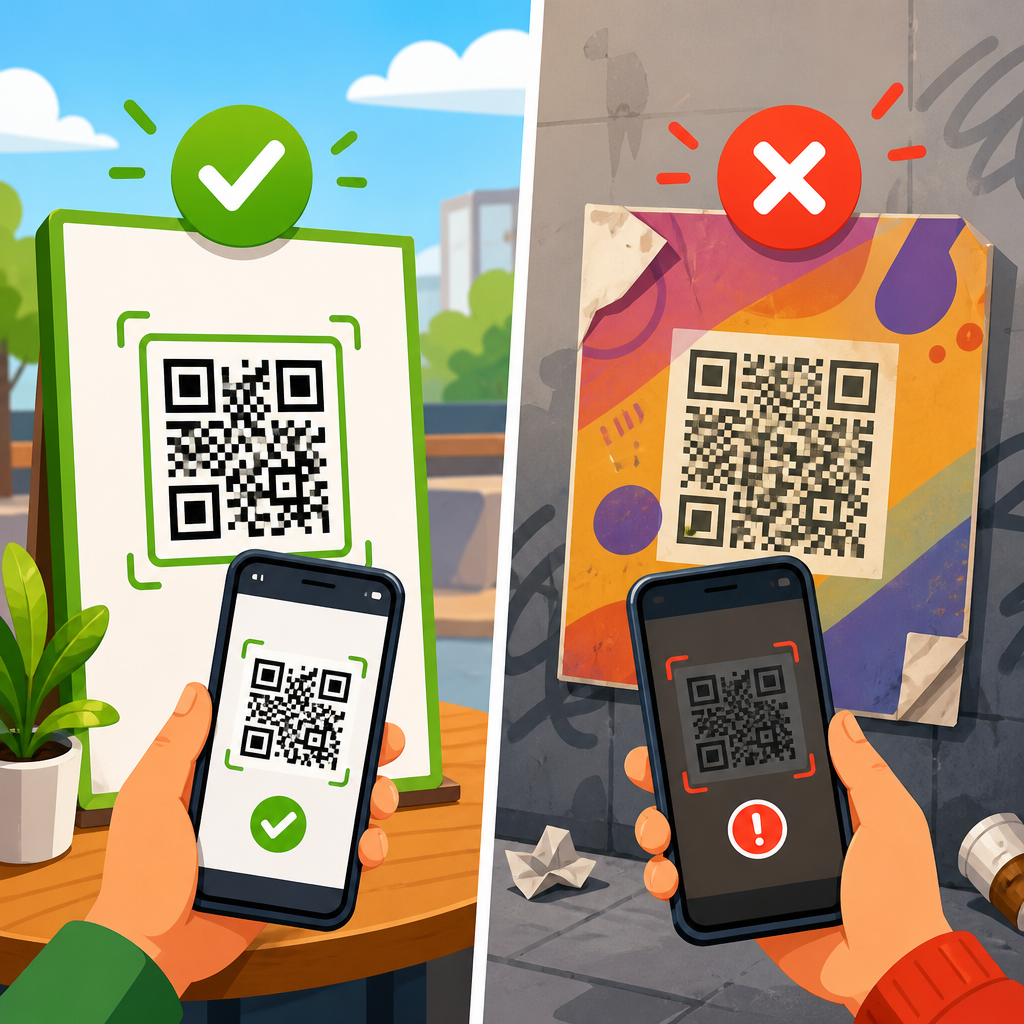
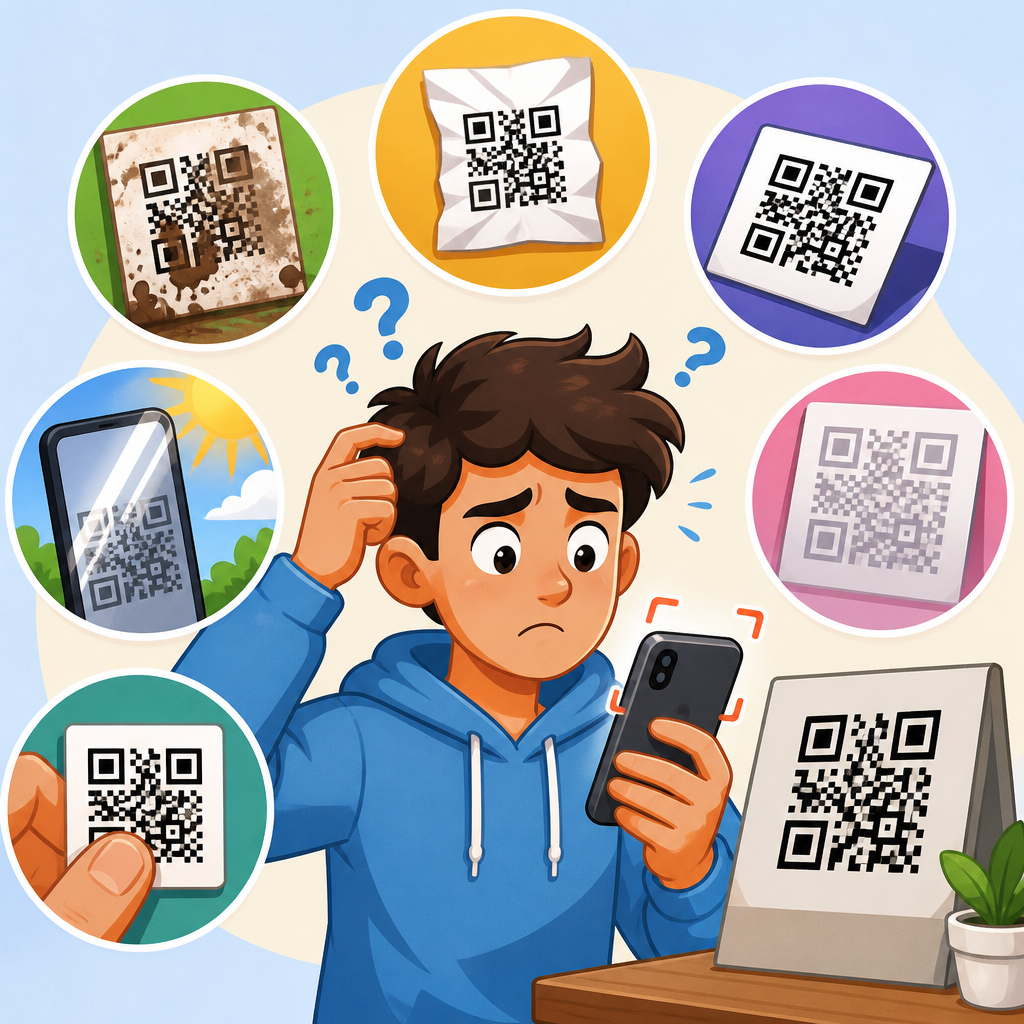
The biggest cause is poor image acquisition. A smudged lens, cracked lens cover, aggressive digital zoom, glare from laminated signage, or a screen set too dim can stop detection before decoding even begins. QR readers need a visible quiet zone around the code, square geometry, and sufficient contrast. If the code is tiny on a poster, curved around a bottle, stylized with inverted colors, or cropped at the edges on a laptop screen, the camera may see it but the decoder rejects it. I have repeatedly seen marketing teams blame phone models when the printed code violated basic ISO/IEC 18004 design principles.
The next common issue is software configuration. Camera permission may be denied to the scanner app. The default camera may have QR recognition turned off. Battery saver can limit background components that handle scan suggestions. Security software or mobile device management profiles may block camera use inside work apps. Outdated operating systems also matter: camera frameworks and machine vision models improve over time, and vendors patch bugs that affect autofocus, low-light performance, and scanner reliability. A device can appear healthy while failing in a narrow but important path, such as reading a payment code inside a banking app after an app update changed camera permission prompts.
| Issue | Typical symptoms | Likely cause | Most effective fix |
|---|---|---|---|
| Camera sees code but no prompt appears | No banner, no vibration, no action | QR detection disabled, unsupported camera app, app conflict | Enable code scanning, try native camera or Lens, update software |
| Image looks blurry up close | Code pulses in and out of focus | Dirty lens, damaged autofocus, code too near camera | Clean lens, move back slightly, tap to focus, test other distances |
| Scanner works outdoors but not indoors | Slow recognition under warm lighting | Low light, motion blur, glare, low contrast | Increase light, steady phone, tilt screen or paper to reduce reflections |
| Only one app fails to scan | Camera works elsewhere | App bug, revoked permission, outdated SDK | Check permissions, clear app cache, update or reinstall app |
| No camera access at all | Black preview or permission error | OS restriction, MDM policy, hardware fault | Review privacy settings, work profile rules, service device if persistent |
Device-specific scan issues on iPhone and Android
iPhone QR scanning problems usually fall into predictable categories. The first is settings: under Camera, “Scan QR Codes” must be enabled, and Screen Time restrictions can interfere in managed or family devices. The second is interaction: users often hold the phone too close, especially with Pro models that shift lenses automatically. Backing up a little helps the camera choose the right focal distance. The third is environment: reflective restaurant menus and glossy event badges generate glare that prevents clean edge detection. If the control center includes Code Scanner, testing it isolates whether the issue is with the main Camera app or system-wide recognition.
Android requires more brand-specific troubleshooting. Pixels generally perform well, but users sometimes disable Lens suggestions or assume every camera mode supports live recognition. Samsung devices may scan through Camera, Bixby Vision, or a quick settings tile depending on model year and One UI version. Xiaomi, Oppo, Vivo, and Motorola phones can vary by region, carrier firmware, and preinstalled apps. I advise checking three things immediately: whether the stock camera supports QR detection in photo mode, whether Google Lens is installed and updated, and whether camera permissions are granted to the app handling the scan result. That sequence resolves many “Android won’t scan QR code” tickets quickly.
Foldables and rugged phones introduce special cases. Protective films over camera modules can soften detail. Secondary displays sometimes show the code too small for another device to read. Ruggedized enterprise phones may enforce work profile restrictions or custom camera apps that block external links. In field deployments, I have also seen barcode-oriented devices tuned for 1D labels struggle with shiny consumer QR placements unless the scanner engine settings were adjusted. Knowing the hardware class prevents wasted time on generic advice.
How to diagnose whether the problem is the phone, the app, or the code
A reliable diagnosis follows a simple sequence. First, test the camera outside the scanning context by taking a normal photo and checking sharpness, exposure, and autofocus. If the image is consistently blurry, the issue is hardware, lens contamination, or camera software instability. Second, test scanning with the native camera app. If that works, the device and code are probably fine, and the failing app deserves scrutiny. Third, test the same code on another smartphone and test a known-good code on the original phone. Cross-testing separates a bad code from a bad device in minutes.
I also recommend checking scan distance, angle, and brightness systematically rather than randomly waving the phone. Move from about six to twelve inches for printed codes and farther for large posters. Keep the code flat in frame with the quiet zone visible. Raise screen brightness to near maximum when scanning a code displayed on another phone, tablet, or laptop. If available, use a different network state too; some users think scanning failed when the code decoded correctly but the target page could not load because of weak connectivity, captive Wi-Fi, or DNS filtering.
For support teams, logs and reproducibility matter. Note the phone model, OS version, scanner app version, camera mode, code type, display medium, and lighting conditions. Was the QR static or rotating in an app? Did the device show a detection box with no action, or no detection at all? Those distinctions point to separate causes. Detection without action often means payload handling or app routing failed. No detection usually means image capture quality, permissions, or decoder support is at fault.
Practical fixes that solve most smartphone QR scanning failures
Start with the basic corrections that produce outsized results. Clean the rear lens with a microfiber cloth. Remove thick or misaligned protective cases that intrude near the camera module. Increase ambient light or move away from reflections. Hold the device steady and let autofocus settle for a second before moving closer or farther away. If the code is on a screen, raise brightness, disable blue-light filters temporarily, and avoid PWM flicker interactions by slightly changing the angle. These steps sound simple, but in practice they eliminate a large share of real-world scan failures.
Then correct the software path. Confirm camera permission is enabled for the scanning app. Update the phone’s operating system, the camera app if it updates separately, and any scanner utility such as Google Lens. Force-close and reopen the failing app; on Android, clear cache before reinstalling. On iPhone, toggle QR scanning off and on in settings, then test both Camera and Code Scanner. Restart the device if the camera preview freezes or remains black, because camera services can become locked by another app. If a work-managed phone is involved, check configuration profiles or MDM policies before assuming user error.
When the code itself is suspect, regenerate or reprint it. Maintain high contrast, preserve the quiet zone, avoid excessive logo intrusion, and size the code appropriately for scanning distance. A practical rule is that larger codes are easier, but density matters more than raw dimensions; a complex payload packed into a tiny symbol becomes hard to decode even on premium phones. For on-screen use, export crisp vector artwork or high-resolution PNG files and avoid screenshots that add blur or cropping. If scan rates matter commercially, test across several phone models before launch.
When camera hardware, accessibility settings, or advanced conditions are involved
Not every QR code camera issue is solved by permissions and cleaning. Hardware faults do occur. A scratched lens cover can scatter light enough to degrade machine vision while leaving casual photos looking acceptable. Failed autofocus motors, shaky optical stabilization modules, and moisture intrusion can selectively hurt close-range scanning. Third-party camera replacements are another hidden source of trouble; I have seen devices with non-genuine modules produce unstable focus behavior that breaks QR reading but passes basic photo checks. If multiple apps fail, normal photos are soft, and the issue persists after software resets, hardware service is justified.
Accessibility and system features can also interfere indirectly. Magnification gestures may alter framing unexpectedly. Display zoom and enlarged text can push scanner prompts offscreen in poorly designed apps. Privacy dashboards, parental controls, or enterprise work containers may revoke permissions after updates. On some devices, battery optimization aggressively suspends scanner apps, especially when the app expects to hand off results to a browser or payment wallet. In low-vision use cases, external lighting and larger printed codes are not optional conveniences; they are required for consistent recognition and should be part of support guidance.
Finally, some failures are really content-routing issues rather than scan issues. A QR code that opens a deep link may decode successfully but appear broken if the required app is not installed, the link association is misconfigured, or the organization’s network blocks the destination. Payment and authentication codes are especially sensitive because they may expire, depend on regional apps, or reject screenshots for security reasons. The best troubleshooting approach is to confirm decoding first, then confirm destination handling second. For anyone managing scan performance at scale, document your recurring failure modes, link this hub to device-specific guides, and test your own codes under real conditions before users ever need support.
QR code camera issues on smartphones are frustrating because the failure looks simple while the causes span optics, software, permissions, code design, and destination handling. The practical takeaway is that most scan problems can be isolated quickly by checking camera clarity, native scanner behavior, permissions, lighting, and whether the same code works on another device. Once you separate phone issues from app issues and code issues, troubleshooting becomes faster and more accurate.
For users, the biggest win is knowing that a non-scanning QR code does not automatically mean a broken code. Clean the lens, improve lighting, adjust distance, update the device, and test with the default camera before trying random apps. For teams responsible for support, this hub should anchor your broader QR Code Troubleshooting & Support content by pointing readers toward model-specific fixes, app-level guidance, print quality standards, and link destination checks. Use these steps as your baseline process, then build internal troubleshooting articles around the exact devices and apps your audience uses most.
If you manage QR experiences for customers, staff, or events, audit your scan journey now. Test your codes on current iPhone and Android models, document common failure patterns, and create simple support flows that start with the device. That work reduces friction, protects conversions, and keeps QR interactions dependable when people need them most.
Frequently Asked Questions
Why is my smartphone camera not recognizing a QR code at all?
If your smartphone camera is not recognizing a QR code, the cause is usually something simple rather than a major hardware failure. Most phones can scan QR codes directly through the default camera app, but that feature depends on a few things working correctly at the same time. First, make sure the camera has permission to operate fully and that QR scanning is enabled in your camera settings if your phone includes a separate toggle for it. On some Android devices, QR detection can be disabled inside the camera app, while on iPhones the built-in scanner may be affected by Screen Time restrictions or camera settings.
Another common issue is focus. If the camera cannot lock onto the code clearly, it cannot decode the pattern of black squares and white spaces. Hold the phone steady, move it slightly closer or farther away, and tap the screen where the QR code appears to help the camera focus. Lighting also matters more than many people expect. In dim environments, glare-heavy rooms, or when the code is displayed on a reflective surface, the camera may see a washed-out or blurry image instead of a readable code.
You should also consider the quality of the QR code itself. If it is too small, poorly printed, low contrast, scratched, folded, or displayed on a cracked screen, the phone may not be able to read it. Dirty lenses are another frequent culprit. Even a thin layer of fingerprints on the camera glass can interfere with sharpness. Finally, if your phone software is outdated or another scanning app is conflicting with the camera, the built-in recognition feature may behave inconsistently. In most cases, checking permissions, cleaning the lens, improving lighting, and updating the device solves the problem.
How can I fix blurry or inconsistent QR code scanning on my phone?
Blurry or inconsistent scanning usually comes down to focus, distance, movement, or lens condition. A QR code is a two-dimensional barcode that stores information in a grid pattern, so your camera needs a reasonably sharp image to interpret it correctly. If you are too close, too far away, or moving the phone while the camera is trying to focus, the code may appear readable to your eye but still fail for the software. A good rule is to hold the phone steady, center the code on screen, and slowly adjust your distance until the code fills a comfortable portion of the frame without being cropped.
Tap-to-focus can help significantly. On many smartphones, tapping the code on the display tells the camera where to lock focus. If the code is on a curved label, glossy package, or bright monitor, try changing the angle slightly to reduce reflections. Harsh glare can hide parts of the pattern and make the code unreadable. Low light creates a different problem by forcing the camera to use slower shutter speeds or digital sharpening, both of which can reduce scan reliability. If possible, move to a brighter area or use neutral lighting instead of direct flash bouncing off the surface.
Do not overlook the camera lens itself. Smudges, dust, pocket lint, or minor scratches can soften image detail enough to interrupt scanning. Wipe the lens gently with a microfiber cloth and test again. If performance is still inconsistent across all apps, check whether your phone has a protective lens cover or camera protector affecting clarity. Software can also contribute. If your camera app or operating system is outdated, QR recognition may lag or fail randomly. Installing updates, restarting the phone, and testing with the default camera app instead of a third-party scanner are all practical ways to isolate the issue.
Do I need a separate app to scan QR codes on Android or iPhone?
In most cases, no. Modern Android phones and iPhones typically include native QR code scanning through the standard camera app. On iPhones, Apple has supported built-in QR recognition for years, and many Android manufacturers also integrate scanning directly into the camera. That means you usually just open the camera, point it at the code, and wait for a notification banner or prompt to appear. Some devices also offer a dedicated scanner in quick settings, control panels, or wallet and payment apps.
That said, not every phone behaves the same way. Some Android models require QR scanning to be turned on manually in camera settings. Others rely on services like Google Lens for recognition rather than pure camera detection. If the default camera does not respond, it does not automatically mean your phone is broken. It may mean the feature is disabled, unavailable in that camera mode, or dependent on a software component that needs updating. Portrait mode, video mode, and certain beauty or filter modes can also interfere with scanning.
Separate QR scanner apps can still be useful, but they should be chosen carefully. Some third-party apps add features like scan history, bulk scanning, or custom code generation, but others are unnecessary, ad-heavy, or overly aggressive with permissions. If your built-in scanner works, it is usually the safest and simplest option. If you do install a separate app, use one from a reputable developer and avoid apps asking for unrelated access such as contacts or microphone use unless there is a clear reason. For basic scanning, the built-in camera remains the best first choice on both Android and iPhone.
Can a damaged lens, cracked screen, or poor-quality QR code cause scanning failures?
Yes, absolutely. Physical problems with either the phone or the QR code itself are among the most overlooked reasons scanning fails. A smartphone camera does not need a perfect image to read a QR code, but it does need enough clean visual contrast to detect the square alignment markers and data pattern accurately. If the camera lens is scratched, smudged, fogged, or damaged, the image may lose just enough detail to prevent decoding. This is especially true in lower light, where the camera already struggles to capture a sharp image.
A cracked phone screen can also create problems if the QR code is being displayed on that screen rather than printed. Cracks, dead pixels, low brightness, color distortion, screen protectors with heavy glare, and refresh flicker can all reduce readability. Likewise, if you are scanning a code printed on paper or packaging, quality matters. A code that is too small, stretched, faded, pixelated, poorly inked, folded across the pattern, or printed with weak contrast may not scan reliably. Even design choices such as placing a QR code on a busy background or using decorative colors with insufficient contrast can interfere with recognition.
There is also the issue of presentation. A code displayed on another device screen may fail if the brightness is too low or if moiré effects appear between the two screens. If you suspect code quality is the issue, try viewing or printing a cleaner version, enlarging it, increasing screen brightness, or testing the same code with another phone. If multiple devices cannot scan the same code, the code itself is likely the problem. If only your phone struggles while others work fine, the issue is more likely with your lens, camera settings, or software environment.
What should I check first when troubleshooting QR code camera issues on a smartphone?
The fastest way to troubleshoot QR code camera issues is to work through the most common causes in a simple order. Start with camera permissions and settings. Confirm that the camera app has access in your phone’s privacy settings and that QR scanning is enabled if your device uses a separate switch for that function. Next, test the default camera app rather than a third-party scanner so you can rule out app-specific bugs or conflicts. If another camera-based app is open in the background, close it and try again.
Then check the physical basics. Clean the camera lens, make sure your hands are steady, and scan in a bright environment with minimal glare. Try moving the phone slightly closer and farther away while keeping the full code visible. Tap the screen to focus on the QR code, and avoid extreme angles. If the code is on a screen, turn up its brightness. If it is printed, flatten it if possible and make sure it is not wrinkled, damaged, or cut off. These small adjustments solve a surprisingly large percentage of scan failures.
After that, move on to software troubleshooting. Restart the phone, install any pending operating system updates, and update the camera app or related services such as Google Lens if your phone depends on them. If scanning still fails, test with another QR code you know is valid. That helps you determine whether the issue is with your phone or with the specific code you are trying to scan. If no valid codes work across multiple apps, there may be a deeper camera hardware problem or a system-level bug. At that point, resetting camera settings, removing conflicting scanner apps, or contacting the device manufacturer or carrier support becomes the next logical step.