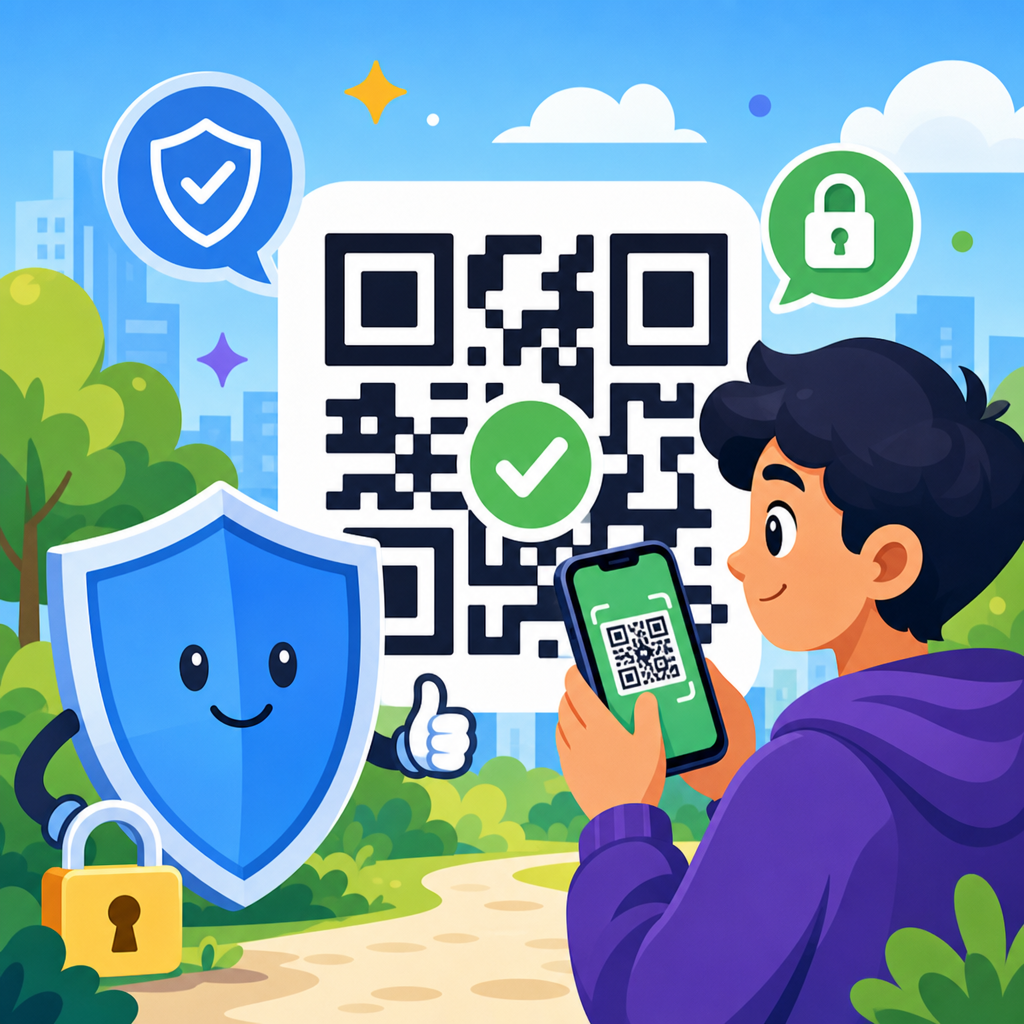
QR codes are now part of everyday life for iPhone users, appearing on restaurant menus, parking meters, delivery lockers, transit posters, product packaging, and payment screens. A QR code is a machine-readable matrix barcode that stores a link, text string, contact card, Wi-Fi credential, payment address, or app action that the iPhone camera can interpret instantly. That convenience is exactly why safe scanning matters. In my own security reviews of mobile workflows, QR codes repeatedly show up as a trust shortcut: people assume a printed square is neutral, even when it can redirect them to a phishing page, trigger a malicious download prompt, or expose them to unwanted tracking. Because iPhones make scanning fast from the Camera app, Control Center Code Scanner, Photos, and third-party apps, users can move from curiosity to risk in seconds. Understanding how QR code scams work, what protections iOS already provides, and what habits reduce exposure is the difference between useful convenience and avoidable compromise.
For iPhone users, QR code safety means verifying the source, previewing the destination, limiting what happens after the scan, and recognizing the signs of manipulation before entering any personal information. Apple has built meaningful safeguards into iOS, including link previews, app permission controls, Private Relay options for some traffic, and stronger warnings around suspicious website behavior in Safari. Still, the operating system cannot judge intent. If a fake parking QR code leads to a convincing payment page, the phone may technically work as designed while the user is being deceived. That is why this topic deserves a practical, plain-language guide. A safe scanning routine protects passwords, card details, Apple ID credentials, location privacy, and business data on managed devices. It also helps families, students, travelers, and employees make better decisions in public spaces where QR codes are common and easy for criminals to replace. The goal is not to avoid QR codes entirely, but to use them with informed caution.
How QR code threats affect iPhone users in real situations
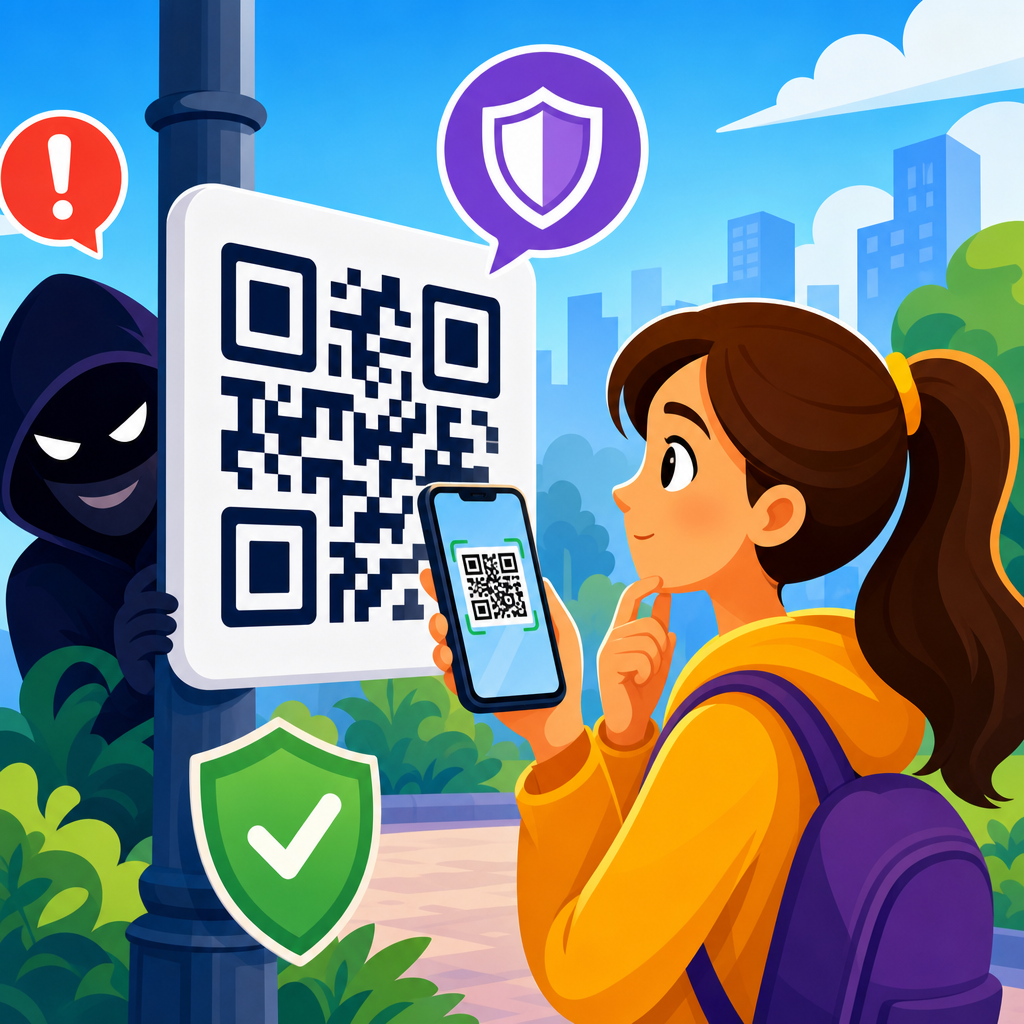
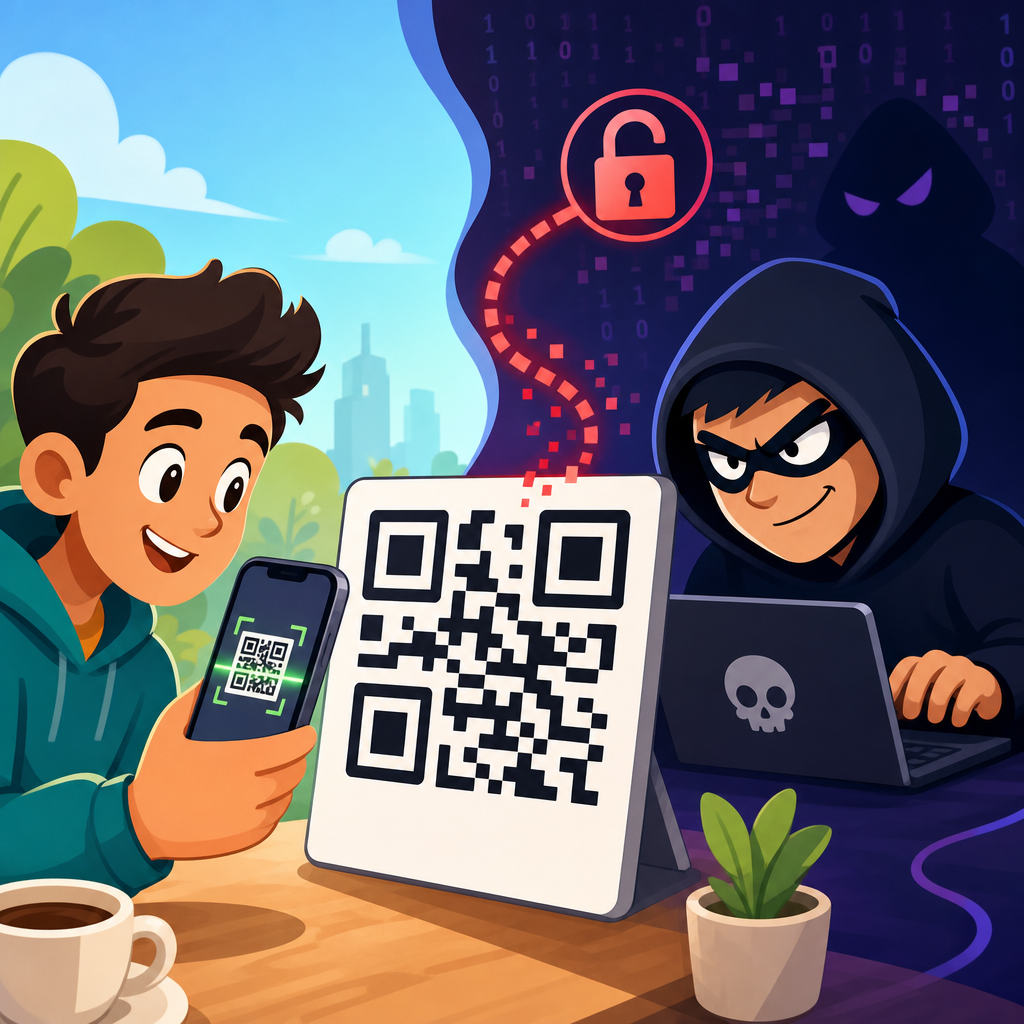
The most common QR code risk is simple redirection to a harmful or deceptive destination. Attackers print a fraudulent code and place it over a legitimate one on a parking kiosk, café table, public notice, or retail display. When scanned, the code opens a lookalike website designed to collect card numbers, login credentials, one-time passcodes, or personal details. Security teams often call this quishing, a form of phishing that uses QR codes instead of email links. The technique works because users cannot read the destination just by looking at the code. On an iPhone, the Camera app usually displays a notification banner or yellow link bubble before opening the site. That moment is your inspection window.
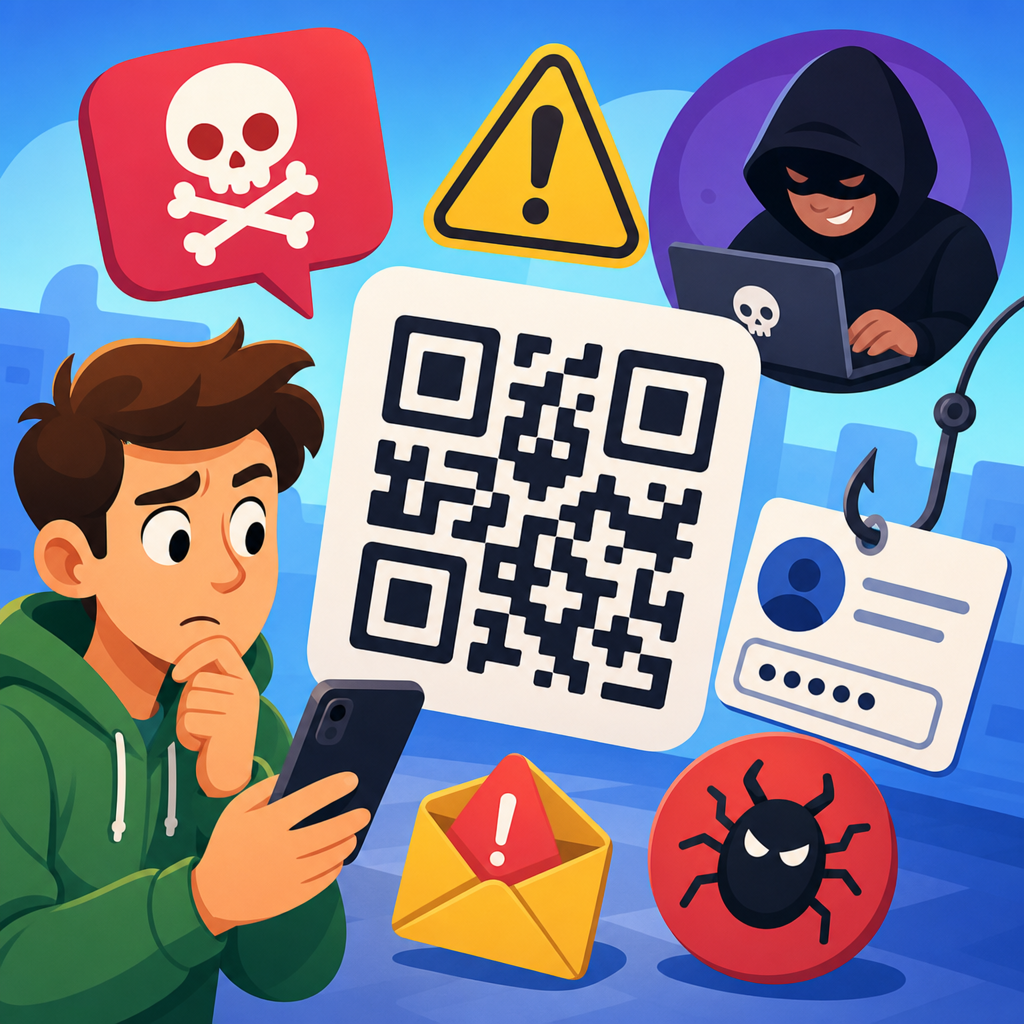
Another common threat involves account theft through fake sign-in pages. I have seen examples where a QR code on a package tracking notice led to what appeared to be an Apple ID login page, complete with familiar branding and a clean mobile layout. The page captured credentials and then asked for a two-factor authentication code. Once submitted, the attacker had enough information to attempt account access in real time. Similar tactics target Microsoft 365, Google Workspace, bank logins, and payroll portals, especially in workplaces that use QR codes for device enrollment or visitor onboarding. A code can also direct users to malicious app download pages outside the App Store, trick them into installing configuration profiles, or prompt them to join rogue Wi-Fi networks that intercept traffic.
Privacy loss is another issue, even when no obvious scam is involved. A legitimate marketing QR code can embed campaign identifiers, geolocation tags, or unique tokens that tie a scan to later browsing activity. Payment and event check-in codes may reveal more data than users expect, especially if the destination requests contacts, camera access, Bluetooth, precise location, or notification permissions. iPhone users should think of every scan as the start of a chain of requests. The code itself is not dangerous in a magical sense; the risk comes from where it leads and what it asks you to do next. That distinction matters, because the safest approach is behavioral: inspect before tapping, verify before paying, and pause before granting access.
Built-in iPhone features that help you scan more safely
Apple gives iPhone users several native ways to scan QR codes, and each has small safety implications. The standard Camera app is the most familiar method. Point the camera at the code and iOS recognizes the content, then shows a preview prompt instead of opening the destination instantly. This preview is useful because it gives you a chance to read the domain and decide whether it makes sense. The dedicated Code Scanner in Control Center behaves similarly but is optimized for scanning speed and often works better in low light or at awkward angles. Photos can also detect QR codes already captured in an image, which is helpful if you want to inspect a code without interacting with it in public.
Safari adds another layer of protection after the scan. Fraudulent website warnings, pop-up blocking, cross-site tracking prevention, and passkey support all reduce harm when a QR code opens a page. If the destination prompts you to sign in, iCloud Keychain can help verify whether the site matches a saved credential domain. If your password manager does not recognize the page as the legitimate login, treat that as a strong warning sign. Mail Privacy Protection and Hide My Email do not secure a scan directly, but they can limit secondary privacy exposure if a QR campaign tries to build a profile around you later. For users on recent iOS versions, Lockdown Mode is worth knowing about for high-risk situations, because it narrows the attack surface from sophisticated web content, though it is not necessary for most people.
Device management settings also matter. On work iPhones supervised through mobile device management platforms such as Microsoft Intune, Jamf, or VMware Workspace ONE, administrators may restrict profile installation, unknown app sources, website categories, or network changes. Those controls sharply reduce what a malicious QR destination can do. On personal devices, Screen Time content restrictions can provide a lighter version of that protection for families. None of these tools eliminate the need for judgment, but they create friction in the places where scams usually escalate: account entry, app installation, and payment submission.
Safe scanning habits every iPhone user should follow
The most effective QR code safety tip is to verify context before you scan. Ask whether the code is expected, who placed it there, and what action it should trigger. A code on a utility bill from your known provider is different from a random sticker on a lamppost. In physical locations, inspect the code itself. If it looks like a sticker placed over another sticker, has mismatched branding, poor print quality, or sits in an unusual location, avoid it. Criminals commonly layer fake parking and payment codes over legitimate signage because users are in a hurry and less likely to question the source.
After scanning, read the destination carefully before tapping through. On an iPhone, focus on the full domain, not just the brand name in the page title. Attackers rely on lookalikes such as paypaI.com using a capital I, or service-support-secure.example.net that sounds official but is not the company’s main domain. If the code is supposed to take you to a restaurant menu, a URL shortening service or unrelated domain should raise suspicion. When in doubt, do not proceed from the QR code. Open Safari yourself and navigate to the organization’s website manually, use a saved bookmark, or call the business directly.
Once the website opens, slow down around any request for money, login credentials, or device permissions. Legitimate services can still be risky if they ask for more access than necessary. A menu does not need your location, microphone, or contacts. A parking payment site may need your plate number and card details, but it should not ask for your Apple ID password. If the page pushes urgency with language such as “pay now or be fined,” “session expires in 60 seconds,” or “verify account immediately,” that pressure is part of the scam pattern. I advise users to leave the page and confirm through a trusted source whenever a QR interaction combines urgency with sensitive data entry.
| Situation | Safer iPhone action | Red flag to watch for |
|---|---|---|
| Parking meter payment | Use the city or operator app already installed, or type the official website manually | Sticker placed over another code or domain unrelated to the city |
| Restaurant menu | Scan, preview the domain, and expect a simple menu page without login | Prompts for account creation, payment card, or excessive permissions |
| Package tracking or delivery notice | Check the courier app or website directly using your tracking number | QR page asking for Apple ID, card details, or SMS codes |
| Event entry or ticket validation | Use the event organizer app, Wallet pass, or official confirmation email | Code leads to app sideload prompts or profile installation |
| Business login or device setup | Confirm with IT, use a known portal, and rely on saved password manager entries | Unexpected login page or password manager fails to match the domain |
How to verify a QR code destination before sharing data
Verifying a QR code destination means checking both the source and the technical destination. Start with the source. If the code came in an email, text message, social media post, or flyer, confirm the sender independently. Attackers increasingly use QR codes in emails to bypass filters that inspect normal links. A human resources email about benefits enrollment may include a code instead of a button, hoping employees will scan with personal phones and enter work credentials outside monitored systems. The safest response is to ignore the code and access the service through the company intranet or a trusted bookmark.
Next, evaluate the domain structure. Trusted organizations generally use short, consistent domains. Banks, government agencies, and major retailers rarely send users to obscure subdomains or free hosting platforms. Learn to identify the registrable domain, the core part immediately before the top-level extension. In secure.bank.example.com, the key domain is example.com, not secure.bank. Attackers exploit this confusion by placing familiar words to the left of the real domain. On an iPhone, you can usually spot this once Safari opens the page, and tapping the address bar shows the full URL. If the destination uses URL shorteners, redirects through multiple domains, or loads a page that does not match the expected brand, stop there.
Then look for payment and identity signals. A legitimate payment page should use HTTPS, present coherent branding, and offer a payment workflow consistent with the operator you expected. However, the padlock alone is not proof of legitimacy; free certificates are easy to obtain. More useful clues are whether Apple Pay is offered in a normal way, whether the merchant descriptor is explained, and whether the site asks only for needed details. For logins, passkeys and password manager autofill are helpful trust checks. If your saved credentials do not appear on a website where they normally would, treat that mismatch seriously. Verification is not one feature. It is a layered process of source confirmation, domain review, and request minimization.
What to do if you scanned a suspicious QR code on your iPhone
If you scanned a suspicious code but did not tap the link, your risk is usually low. Close the Camera prompt and move on. If you opened the website but did not enter information or install anything, close the Safari tab, clear that page from your recent tabs if you want, and avoid revisiting it. If the page requested downloads, profile installation, calendar subscriptions, browser notifications, or VPN settings, decline them. On iPhone, configuration profiles deserve special caution because they can alter network routing, certificate trust, and management behavior. Check Settings under General to confirm that no unexpected profile or device management item was added.
If you entered a password, change it immediately from the legitimate website or app, not through the scanned page. If the same password was reused elsewhere, change those accounts too. Enable or confirm multi-factor authentication, preferably with passkeys or an authenticator app rather than SMS where possible. If you entered payment information, contact the card issuer, monitor transactions, and request a replacement card if advised. If you submitted your Apple ID credentials, go directly to Apple’s account management tools, review trusted devices, and change your password at once. For work accounts, notify your IT or security team quickly so they can review sign-in logs, reset sessions, and block suspicious access.
Also inspect privacy and permission settings after a risky scan. In Settings, review Safari website data, notification permissions, calendar subscriptions, VPN entries, and any newly installed apps. If the phone behaves oddly, such as opening repeated pop-ups or redirecting searches, update iOS and consider resetting Safari settings. Full device compromise from a simple QR scan is uncommon on modern iPhones without further user action, but account compromise is common enough to justify immediate response. Speed matters because many scams are designed to use stolen credentials within minutes.
Building a long-term QR code security routine
Good QR code safety is not one trick; it is a repeatable routine. Use the Camera app or Control Center scanner rather than unknown third-party scanner apps unless you have a clear business need, because extra apps may collect scan histories or add unnecessary permissions. Keep iOS updated so Safari protections, certificate handling, and web security patches stay current. Use a reputable password manager or iCloud Keychain, because domain matching is one of the strongest practical defenses against fake login pages. Prefer Apple Pay or known payment apps over typing card details into unfamiliar pages whenever possible. And for work use, follow company mobile security policies instead of improvising with personal scanning workflows.
Education inside families and organizations matters too. Teach children and older adults that a QR code is just another link, not a seal of legitimacy. In offices, train employees to verify setup codes, visitor Wi-Fi codes, and document access codes with IT or facilities staff. Businesses should also protect their own customers by checking public-facing codes for tampering, printing short plain-text URLs beside QR codes, and using consistent branded domains. Those simple operational steps reduce the success rate of physical sticker replacement attacks.
The main benefit of safe scanning is control. iPhone users can still enjoy the speed of QR codes for menus, payments, tickets, and logins without surrendering judgment to a black-and-white square. Verify the source, inspect the domain, distrust urgency, and limit what you share until legitimacy is clear. If a scan feels off, back out and use a trusted route instead. Make that your default habit today, and every future QR interaction becomes safer, faster, and easier to assess.
Frequently Asked Questions
1. Are QR codes safe to scan with an iPhone?
QR codes themselves are not automatically dangerous, but they are only as safe as the content they point to. On an iPhone, scanning a code with the Camera app is generally secure because iOS does not instantly execute unknown software just from reading the code. In most cases, the QR code simply opens a preview notification for a website, payment page, contact card, app link, Wi-Fi setup prompt, or another action. The real risk begins when a code leads you to a malicious destination or tricks you into taking the next step without thinking.
That is why context matters so much. A QR code on a restaurant table, parking meter, package insert, or transit sign may look legitimate while actually covering a real code underneath. Attackers use this tactic to redirect people to fake login pages, fraudulent payment screens, and scam downloads. Before tapping the prompt on your iPhone, read the preview carefully and ask whether the destination makes sense for the place and purpose. If a parking meter code opens a strange domain, or a menu code asks for unnecessary personal data, treat it as suspicious.
For everyday safety, use the built-in iPhone camera rather than random third-party QR scanner apps, keep iOS updated, and avoid entering passwords or payment details on pages you reached by surprise. A QR code should be treated like a shortened link in physical form: convenient, useful, and common, but never something to trust blindly.
2. How can iPhone users tell whether a QR code is suspicious before opening it?
The first step is to inspect the environment around the code. Look for signs of tampering such as a sticker placed over another sticker, crooked printing, low-quality labels, mismatched branding, or codes posted in odd locations. Criminals often rely on people scanning quickly without looking closely. On shared surfaces like parking kiosks, restaurant stands, utility boxes, vending machines, and public posters, physical replacement or overlay attacks are especially common.
Next, pay attention to what your iPhone shows before you open the result. The Camera app usually displays a preview link or action prompt, and that preview is your chance to pause. Check whether the domain name is spelled correctly, matches the business you expected, and uses a believable top-level domain. Be careful with lookalike domains, extra words, unusual subdomains, or misspellings designed to imitate known brands. If the code is supposed to take you to a local transit authority, but the preview points to an unrelated address, do not proceed.
You should also evaluate whether the requested action makes sense. A restaurant menu should not require you to sign in with Apple ID credentials. A product package code should not demand banking details. A delivery locker code should not direct you to install an unknown configuration profile. Suspicion should increase any time a scanned code creates urgency, asks for sensitive information, redirects several times, or pushes you toward app downloads outside the normal App Store experience. When in doubt, bypass the code and visit the company’s website manually, use a bookmarked app, or ask staff for an official alternative.
3. What should I do if a QR code on my iPhone opens a website asking for payment, login details, or personal information?
Stop and verify before entering anything. One of the most effective QR-related scams is “quishing,” where a code sends users to a convincing fake page designed to capture usernames, passwords, card numbers, or one-time codes. If your iPhone opens a page that requests payment or account access, ask whether you expected that request and whether the website address is authentic. Many scam pages look polished enough to fool people who are focused on speed rather than verification.
If the request is legitimate, there should usually be another trusted path to the same action. For example, instead of paying through a QR-linked page, open the official app for the parking service, transit provider, retailer, or restaurant. Instead of logging in through a code from a public poster, type the known web address into Safari yourself. This simple habit removes much of the attacker’s advantage, because the scam depends on getting you to trust the code rather than the destination.
If you already entered information and then became suspicious, act immediately. Change the affected password, especially if it was reused elsewhere. Review saved payment methods, enable or confirm two-factor authentication, and monitor your bank or card statements for unauthorized activity. If you downloaded anything, installed a profile, or approved unusual permissions, check your iPhone settings and remove anything unfamiliar. Depending on what was exposed, it may also be wise to contact your bank, notify your employer if a work account was involved, and report the scam to the business whose name was impersonated.
4. Is it safer to scan QR codes with the iPhone Camera app instead of third-party scanner apps?
Yes, in most cases the built-in Camera app is the safer choice. Apple’s native QR scanning is integrated into iOS, requires no extra app permissions, and reduces your exposure to ad-heavy, poorly maintained, or overly invasive scanner apps. Many third-party QR apps ask for unnecessary access, collect analytics data, push ads, or bundle features that create more privacy risk than benefit. Since the iPhone already supports QR scanning natively, most users do not need another app just for this purpose.
The built-in experience also encourages safer behavior because it typically shows a preview before opening the content. That extra moment gives you time to inspect the link and decide whether to continue. A low-quality third-party app may auto-open links too aggressively, redirect you through tracking networks, or present confusing prompts that make scams harder to detect. Security is often improved by simplicity, and the default iPhone tools are usually the simplest and most controlled option.
That said, no scanner is a substitute for judgment. Even the Camera app cannot guarantee that a destination is trustworthy. It can read the code, but it cannot always know whether the website, payment request, contact file, or Wi-Fi credential behind it is malicious. The safest workflow is to scan with the iPhone camera, read the preview carefully, avoid rushed decisions, and switch to a verified app or manually entered website whenever a transaction or login is involved.
5. What are the best QR code safety habits every iPhone user should follow?
Start with a simple rule: do not scan automatically just because a code is there. Pause, check the physical source, and think about whether the code belongs in that setting. Public QR codes should be treated with the same caution as links in unexpected emails or text messages. If you notice a sticker placed over another label, poor printing, strange branding, or anything that feels off, skip it. When possible, get the service through an official app, printed URL, or employee confirmation instead.
Second, always inspect the destination before interacting with it. On your iPhone, read the preview prompt, confirm the domain, and be skeptical of pages that ask for passwords, payment data, verification codes, or device changes right away. Avoid downloading unknown apps, approving configuration profiles, joining unfamiliar Wi-Fi networks, or granting permissions simply because a code prompted you to do so. Keep Safari fraud warnings enabled, use strong unique passwords with a password manager, and make sure two-factor authentication is active on important accounts.
Finally, keep your iPhone security basics in good shape. Install iOS updates promptly, because they include protections against known web and system threats. Use Face ID or a strong passcode, review app permissions periodically, and monitor financial and account activity for anything unusual if you scan codes frequently in public places. The goal is not to fear QR codes but to handle them with the same healthy skepticism you would apply to any fast, convenient digital shortcut. With a few habits in place, iPhone users can scan confidently while greatly reducing the chance of being tricked.