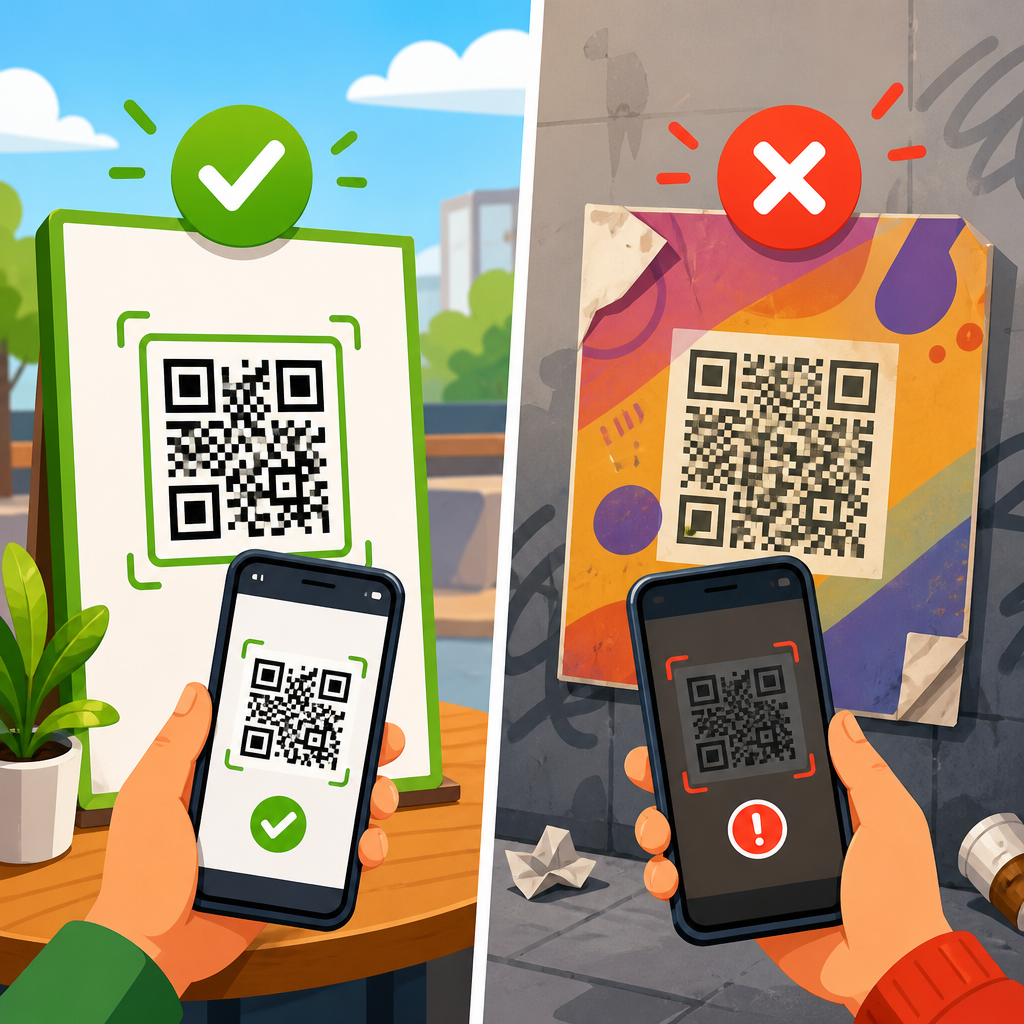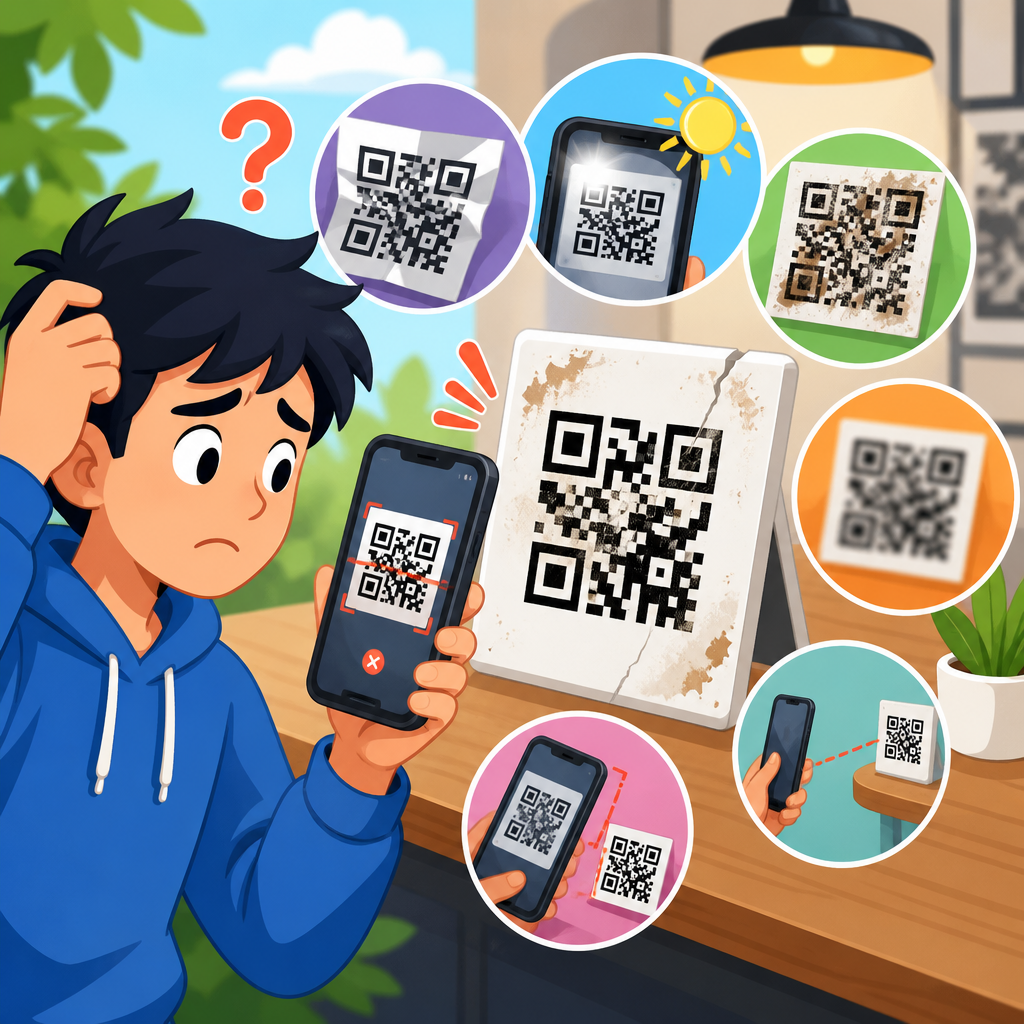
QR code URL errors are one of the most common reasons scans fail, campaigns underperform, and support teams get flooded with avoidable complaints. In practical terms, a QR code URL error happens when the code scans correctly but the destination link does not open the intended page, loads the wrong content, triggers a browser warning, or fails completely. I have seen this pattern repeatedly in retail packaging, restaurant menus, event check-ins, product manuals, and field service labels: the printed code is fine, but the link behind it is broken, outdated, blocked, misconfigured, or redirected badly. Because most users will not troubleshoot after a failed scan, every link problem directly affects conversion, trust, and measurable revenue.
Understanding the difference between a QR symbol problem and a URL problem is the first step. If a camera cannot recognize the code at all, that is a print, contrast, sizing, or damage issue. If the phone recognizes the code, displays a link, and then the destination misbehaves, the problem sits in the redirect path, the web server, the DNS record, the page configuration, or the app deep link logic. That distinction matters because it changes the fix. Teams often waste time reprinting labels when the real issue is an expired landing page, a 404 response, an HTTPS certificate mismatch, or a mobile page blocked by a firewall rule.
This hub article explains how to fix QR code URL errors from diagnosis through prevention. It covers direct link failures, redirect chain problems, dynamic QR code misconfiguration, mobile compatibility issues, deep-link conflicts, analytics interference, and testing methods that catch issues before release. It also serves as the central resource for redirect and link issues within QR code troubleshooting and support, so the goal is not just to list symptoms but to help you isolate root causes quickly and fix them in a way that stays fixed across devices, networks, and campaigns.
Start by identifying where the QR code URL fails
The fastest way to fix a QR code URL error is to map the failure point. I always test the full scan path in order: scan recognition, previewed URL, first server response, redirects, final landing page, and page behavior after load. If the camera shows the expected link but the browser returns a 404, the QR code itself is not broken. If the browser spins and then times out, the issue is usually DNS, hosting, network filtering, or an overloaded origin server. If the link opens a different page than expected, review redirect rules, campaign parameters, shortened URLs, and dynamic QR management settings.
Use standard diagnostic tools instead of guessing. Browser developer tools show HTTP status codes, mixed-content warnings, blocked scripts, and redirect chains. Redirect checkers such as httpstatus.io or Redirect Checker reveal whether the URL is passing through too many hops, switching protocols incorrectly, or looping. DNS tools like dig, DNS Checker, or your registrar console confirm whether the domain resolves worldwide. SSL Labs helps verify whether the certificate is valid and trusted on mobile devices. For dynamic codes, inspect the QR platform dashboard and confirm the current target URL, scheduling rules, geotargeting logic, and expiration settings.
One overlooked step is comparing results across environments. A QR code can work on office Wi-Fi and fail on mobile data because of captive portals, enterprise firewalls, or IPv6 routing issues. It can work in Safari and fail in an embedded social browser because the destination blocks third-party cookies or script-based redirects. It can work on Android and fail on iPhone because of an Apple App Site Association issue or an unsupported URI scheme. Good troubleshooting always includes at least one iPhone, one Android phone, one native camera app, and one alternate scanning app.
Fix the most common direct URL errors first
The majority of scan failures come from basic URL problems that are easy to verify and quick to repair. The most common are 404 Not Found, 403 Forbidden, 500-level server errors, expired domains, and malformed links. I have also seen many QR campaigns fail because someone copied a staging URL into production, removed a landing page after a promotion ended, or changed site structure without preserving old paths. If your QR code points to a page that moved, implement a permanent 301 redirect from the original path to the new one. Do not rely on users to navigate manually after they land on an error page.
Malformed URLs are especially common when teams build codes from spreadsheets or marketing automation exports. Missing slashes, accidental spaces, broken UTM parameters, duplicate question marks, and incorrect URL encoding can all create unpredictable behavior. Always validate the exact destination string before generating the code. If the campaign uses non-Latin characters, test encoded and human-readable versions. If the QR code contains a shortened link, verify that the shortener account is active and that the destination has not been flagged by browser safe-browsing systems.
HTTPS issues deserve immediate attention. Modern mobile browsers strongly prefer secure destinations, and some in-app browsers behave poorly with certificate errors. If a QR code points to an HTTP page that redirects inconsistently to HTTPS, users may see warnings, blank loads, or repeated prompts. Install a valid TLS certificate, force a clean HTTP-to-HTTPS redirect, and update canonical internal links so every version resolves predictably. Certificates must include the correct hostname, intermediate chain, and renewal automation. A single expired certificate can break thousands of scans overnight.
Resolve redirect chain and shortened link problems
Redirects are useful for campaign flexibility, but every extra hop adds latency and another failure point. A common pattern looks like this: QR code to short URL, short URL to tracking URL, tracking URL to geolocation rule, geolocation rule to mobile detector, and finally to the landing page. On fast networks that may still work, but on slower mobile connections it creates delay, increases timeout risk, and can trigger browser privacy protections. As a rule, keep the chain as short as possible and avoid mixing multiple redirection systems unless each one is necessary and documented.
Temporary and permanent redirects should be used deliberately. A 301 tells browsers and crawlers the move is durable; a 302 signals a temporary change. For long-running QR assets printed on packaging, manuals, posters, and product labels, stable redirects matter because you may need to preserve the original printed URL indefinitely. Dynamic QR codes are often the safer option for physical materials because you can update the destination without changing the symbol. Even then, the management layer should point directly to a reliable final URL rather than nesting one shortener inside another.
Looping redirects are another major source of QR code URL errors. They usually happen when CMS rules, CDN edge rules, and origin-server rewrites conflict. For example, Cloudflare may force HTTPS while the origin tries to force HTTP, causing a loop. Or a multilingual plugin may redirect mobile users repeatedly between regional variants. The fix is to map every redirect rule in sequence and remove overlaps. I recommend maintaining a redirect inventory that lists each source path, target path, status code, owner, and expiration date.
| Error pattern | Likely cause | Practical fix |
|---|---|---|
| 404 after scan | Page removed or path changed | Create a 301 redirect to the correct live page |
| Too many redirects | Conflicting HTTPS, CMS, or CDN rules | Audit and simplify the redirect chain |
| Security warning | Invalid or expired TLS certificate | Renew certificate and verify full chain |
| Wrong page opens | Dynamic QR target misconfigured | Correct destination in the QR platform dashboard |
| Works on desktop, fails on phone | Mobile page, script, or deep-link issue | Test native mobile browsers and fix responsive behavior |
Check dynamic QR code settings and campaign logic
Dynamic QR codes solve many maintenance problems, but they introduce a management layer that can break quietly. In day-to-day support work, I often find that the printed code is still valid while the dashboard configuration changed after a campaign handoff. Someone updates the target for one region but not another. A time-based rule expires at midnight UTC instead of local time. A password gate is enabled unintentionally. A destination is paused because usage limits were reached on a lower-tier account. When users report inconsistent behavior, inspect the dynamic settings before changing the artwork.
Rules-based destinations need extra scrutiny. Geolocation, language detection, device targeting, and scheduled rotations all increase complexity. If a QR code sends iPhone users to the App Store, Android users to Google Play, and everyone else to a mobile web fallback, every branch must be tested independently. I strongly recommend maintaining a default destination that remains functional even if targeting logic fails. Without a fallback, unsupported devices may hit dead ends. This is especially important for public signage, mass mailers, and durable product packaging that cannot be recalled easily.
Analytics settings can also interfere with link reliability. Some platforms append tracking parameters or route clicks through measurement domains. If those domains are blocked by privacy tools, ad blockers, or corporate firewalls, scans may fail before reaching the final page. Keep measurement architecture lightweight and favor first-party tracking where possible. If you need campaign attribution, use validated UTM parameters on the final URL rather than stacking several external trackers. The more systems a scan depends on, the more support incidents you create later.
Fix mobile landing page, app link, and browser compatibility issues
A QR code is inherently mobile-first, so desktop-only validation is not enough. I have seen perfectly functional URLs fail in real scanning scenarios because the destination page used oversized scripts, intrusive pop-ups, unsupported video players, or aggressive cookie banners that covered the content on small screens. Start with the landing page itself. It should load quickly on 4G, render correctly in Safari and Chrome, avoid blocking interstitials, and present the core information without requiring pinch zoom. Google PageSpeed Insights and Lighthouse are useful here because they expose mobile performance bottlenecks that directly affect scan completion.
Deep links require even more care. If your QR code is meant to open an app, configure universal links on iOS and Android App Links properly, including association files, HTTPS hosting, and fallback web URLs. If the app is not installed, users should land on a helpful page, not an error. Custom URI schemes alone are fragile because many camera apps and browsers restrict them or prompt users with unclear warnings. For support documentation, event tickets, and service workflows, a mobile web fallback is not optional; it is the safety net that keeps scans useful across unpredictable environments.
Embedded browsers inside platforms such as Instagram, Facebook, LinkedIn, and Gmail can handle redirects differently from native browsers. JavaScript redirects, authentication flows, and file downloads often break there. If your QR destination requires login, test the exact path from a scan into the embedded browser and then into the authenticated session. Single sign-on systems using SAML or OAuth can misfire if cookies are blocked or if the return URL is not whitelisted. In those cases, simplify the flow or provide a clean browser-open option immediately after landing.
Build a repeatable testing and prevention process
The best fix for QR code URL errors is catching them before print, shipment, or launch. My standard process includes URL validation, redirect inspection, SSL verification, mobile rendering review, analytics confirmation, and real-device scans under multiple network conditions. Every destination gets tested with Wi-Fi and cellular data, current iOS and Android versions, and at least one older device still common among customers. For printed assets, I also test the final production sample because contrast, placement, and finish can affect scan initiation even when the URL is correct.
Governance matters as much as technology. Assign ownership for each QR destination, document the purpose of every printed code, and keep a living inventory that includes creation date, physical placement, destination URL, redirect owner, campaign end date, and fallback plan. When sites are redesigned, that inventory should be part of migration planning so legacy QR paths are preserved. I have seen expensive packaging runs rendered useless because web teams retired old directories without checking what was printed in the field. A redirect map costs far less than a reprint.
Finally, monitor live performance. Server logs, analytics events, uptime tools, and synthetic tests can reveal scan-related failures before customers escalate them. Watch for sudden drops in landing page visits from QR-tagged URLs, spikes in 404 responses, certificate renewal failures, or unusual differences by device category. For high-volume programs, set alerts on critical destinations and review them after any CMS deployment, CDN rule change, or DNS update. QR code support becomes much easier when link integrity is treated as an operational responsibility rather than a one-time setup task.
Fixing QR code URL errors comes down to disciplined diagnosis and careful link management. Separate symbol-scanning issues from destination issues, then check the basics first: the exact URL, HTTP status, DNS resolution, certificate health, and final landing page behavior. From there, review redirects, dynamic QR settings, app-link logic, and mobile browser compatibility. Most failures are not mysterious. They are usually the result of changed paths, conflicting redirect rules, expired certificates, unsupported deep links, or overcomplicated tracking layers.
The biggest practical lesson is that printed QR codes create long-lived dependencies. Once a code is on packaging, signage, manuals, receipts, or labels, the URL behind it must remain trustworthy across devices and over time. That is why direct destinations, short redirect chains, reliable fallbacks, and documented ownership matter so much. Teams that treat QR links like permanent infrastructure have far fewer support issues and much better scan-to-conversion rates than teams that launch fast and forget the maintenance burden.
If you manage QR code troubleshooting and support, use this page as your starting point for every redirect and link issue. Build an inventory, test like a user, simplify your redirect architecture, and monitor live destinations continuously. Those steps will prevent most QR code URL errors before customers ever see them.
Frequently Asked Questions
What is a QR code URL error, and how can I tell whether the problem is the QR code or the link itself?
A QR code URL error happens when the code can still be scanned, but the destination URL does not behave the way it should. In other words, the camera recognizes the QR code, yet the page may fail to load, open the wrong page, show a security warning, return a 404 error, or redirect users into a dead end. This distinction matters because many people assume every failed scan means the QR code image is damaged, when in reality the printed code may be perfectly readable and the actual issue is with the destination link, redirect logic, hosting setup, or mobile browser compatibility.
A practical way to diagnose this is to separate scanning from browsing. First, scan the code with multiple devices and note whether the same URL appears each time. If the code consistently resolves to a readable link, the QR pattern itself is likely fine. Next, copy that URL and open it directly in several browsers on both mobile and desktop. If the page still breaks, redirects incorrectly, or loads inconsistent content, the error is almost certainly in the URL path, page configuration, or server response rather than in the QR code image. This is especially common in restaurant menus, packaging, event check-ins, product manuals, and service labels where teams update landing pages after codes have already been printed.
It also helps to watch for specific failure patterns. If users cannot scan the code at all, the issue may be print quality, contrast, sizing, placement, or physical damage. If users scan successfully but get an error page or warning, the issue is usually a URL problem. If some users reach the correct page and others do not, look for device-specific behavior, redirect chains, geotargeting rules, app deep-link conflicts, or mobile-only SSL and DNS problems. The fastest path to a fix is always to identify exactly where the breakdown occurs: recognition, resolution, redirection, or page load.
What are the most common causes of QR code URL errors?
The most common cause is a simple destination mistake: the QR code points to the wrong URL, an outdated page, or a page that has been renamed or removed. This happens often when campaigns move quickly and someone generates the code before the final landing page is ready. Once the page structure changes, the QR code still scans, but it sends users to a location that no longer exists. In static QR codes, this can be especially painful because the destination cannot be edited after printing.
Redirect issues are another major cause. A code may point to a shortened URL, tracking link, or redirecting domain that has expired, been misconfigured, or is blocked by some devices or browsers. Too many redirects can also create failures, especially on slower mobile connections. In other cases, the final landing page works on desktop but fails on mobile because of unsupported scripts, intrusive pop-ups, poor responsive design, or app-intent conflicts. Security warnings can appear when the linked page lacks a valid SSL certificate, uses mixed content, or lives on a domain with a poor reputation.
There are also operational causes that teams overlook. DNS changes may not have propagated fully. Hosting may be down temporarily. Parameters added for analytics may break the URL syntax. A CMS migration may alter slugs without maintaining proper redirects. Some links fail because of capitalization differences, trailing slash mismatches, or copy-and-paste errors introduced during QR generation. In physical environments, the problem can be compounded by assumptions: when a code is printed on labels, packaging, menus, or manuals, people often blame the print job first, even though the true issue is usually the web destination behind it. A disciplined review of the full URL path, redirect behavior, security configuration, and mobile page performance usually reveals the root cause quickly.
How do I fix a QR code URL error once I find it?
The right fix depends on whether the QR code is static or dynamic. If it is a dynamic QR code, the solution is usually straightforward: update the destination URL in the management platform, test the new link across devices, and publish the change without reprinting the code. This is one of the biggest advantages of dynamic codes in live campaigns, product packaging, field service labels, and long-term signage. You can correct broken pages, swap outdated destinations, or redirect users to a temporary fallback page while a permanent issue is being resolved.
If the code is static, the URL embedded in the QR code cannot be changed. In that case, you typically need to restore the original page, recreate the missing URL, or set up a server-side 301 redirect from the broken address to the correct destination. This is often the fastest and least disruptive fix because it preserves the printed code already in circulation. For example, if a printed manual points to an old product support page, re-establishing that page path or redirecting it to the current support center can immediately recover the user experience without replacing the materials.
After making the correction, test the entire path thoroughly. Scan the code on iPhone and Android, try multiple camera apps and browsers, and verify the final landing page loads properly on both Wi-Fi and cellular data. Check for SSL warnings, redirect loops, cookie banners that block content, and mobile rendering problems. If analytics matter, confirm that UTM parameters still work and are not breaking the page. It is also wise to document the fix, note what caused the failure, and create a simple approval checklist for future QR launches. The goal is not only to repair the current error but to prevent the same issue from recurring the next time codes are deployed at scale.
Can I prevent QR code URL errors before printing or publishing a campaign?
Yes, and prevention is far easier than fixing a large batch of printed materials after distribution. The most reliable approach is to treat QR codes like production assets, not quick add-ons. Before anything goes live, verify that the destination URL is final, secure, mobile-friendly, and owned by a domain that will remain active for the life of the campaign. If the QR code will appear on packaging, manuals, event signage, menus, or equipment labels, think in terms of months or years of use, not just launch day. A landing page that works today but gets renamed next quarter can create a long tail of avoidable scan failures.
A strong pre-launch workflow includes several layers of testing. Scan the code from the final artwork file, not just from the generator preview. Test printed proofs at real size and real distance. Scan in different lighting conditions and on different phones. Open the resolved URL in mobile browsers and make sure the page loads quickly, displays correctly, and does not trigger privacy, certificate, or unsafe-site warnings. If redirects are involved, reduce unnecessary hops and confirm the chain leads cleanly to the intended final page. Dynamic QR codes are often the safer choice for any campaign where content may change over time.
It is also smart to create backup plans. Use a stable redirect URL you control rather than linking directly to pages that may be changed by a CMS update. Maintain SSL certificates and hosting renewals on a schedule. Keep a record of every QR code, its intended destination, where it was used, and who approved it. For larger organizations, a QR code QA checklist can save enormous time: confirm URL accuracy, test mobile compatibility, validate analytics, check response codes, and assign ongoing ownership. These simple controls dramatically reduce the chance of broken links, customer complaints, and underperforming campaigns.
Why do some QR codes work for some users but fail for others?
Inconsistent results usually point to environmental or technical differences rather than a single universal failure. One user may have a newer phone, a faster browser, or a more stable network, while another may be on an older device, behind a restrictive Wi-Fi network, or using a scanner app that handles redirects differently. The QR code itself may scan for everyone, but the destination experience can vary based on operating system, browser version, connection quality, security settings, and whether the linked page relies on scripts or app behaviors that are not universally supported.
Redirects and mobile-specific behavior are frequent culprits. A URL may pass through a shortener, analytics tracker, regional redirect, and final landing page before content appears. On one device this chain resolves correctly; on another it times out, gets blocked, or opens a browser warning. Geolocation rules can send users to different pages by country or language, which may explain why one audience reaches the right content and another lands on an error page. DNS caching, expired certificates, content delivery network issues, and captive Wi-Fi portals can also create scan experiences that feel random from the user’s perspective.
To fix this, test broadly and compare the full journey across devices and networks. Try iPhone and Android, current and older models, Chrome and Safari, Wi-Fi and cellular, and at least one third-party scanning app if relevant. Record the exact URL each device resolves and whether any step in the chain changes. Check server logs and analytics for spikes in failed responses, device-specific drop-off, or unusual redirect behavior. If reliability is critical, simplify the destination path as much as possible, use a secure and reputable domain, and avoid relying on fragile redirect chains. When a QR code must serve a broad audience in the real world, consistency comes from reducing dependencies and testing under realistic conditions, not just proving that the link worked once in the office.