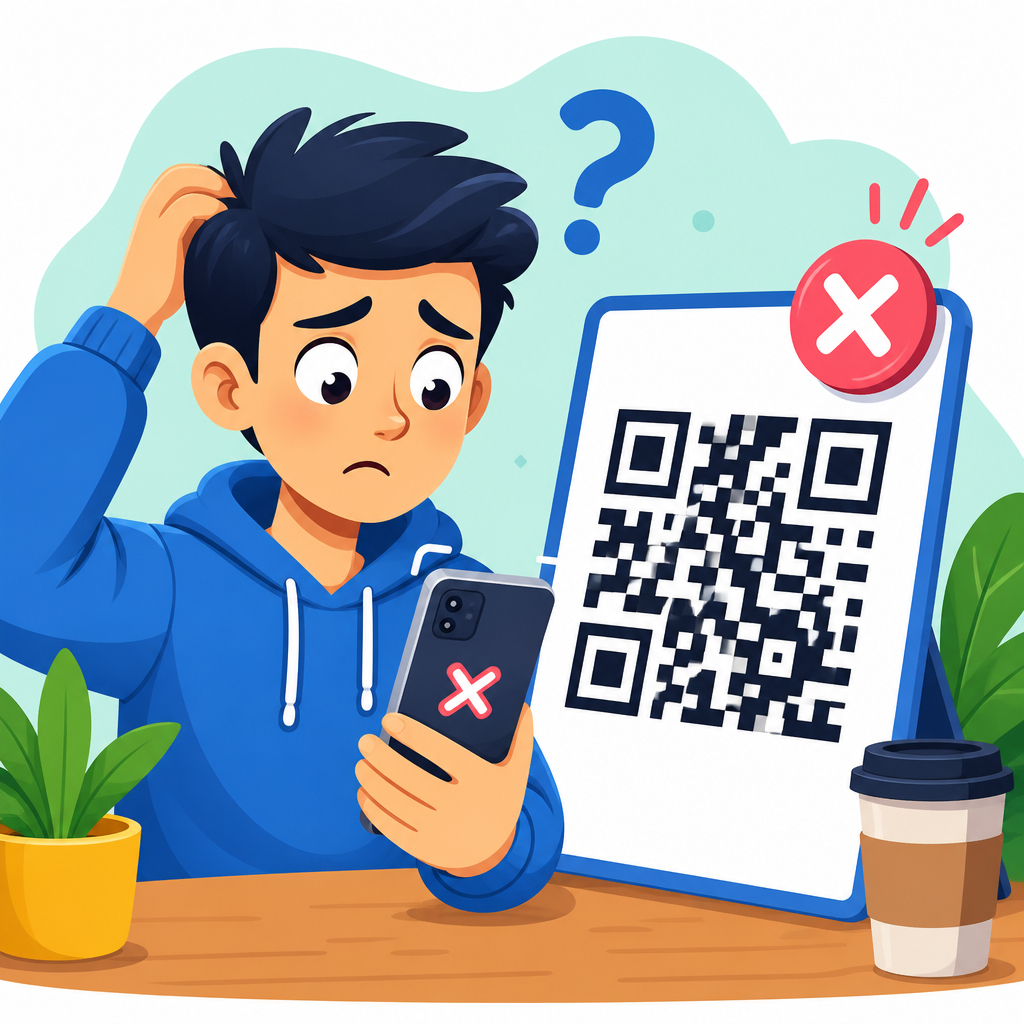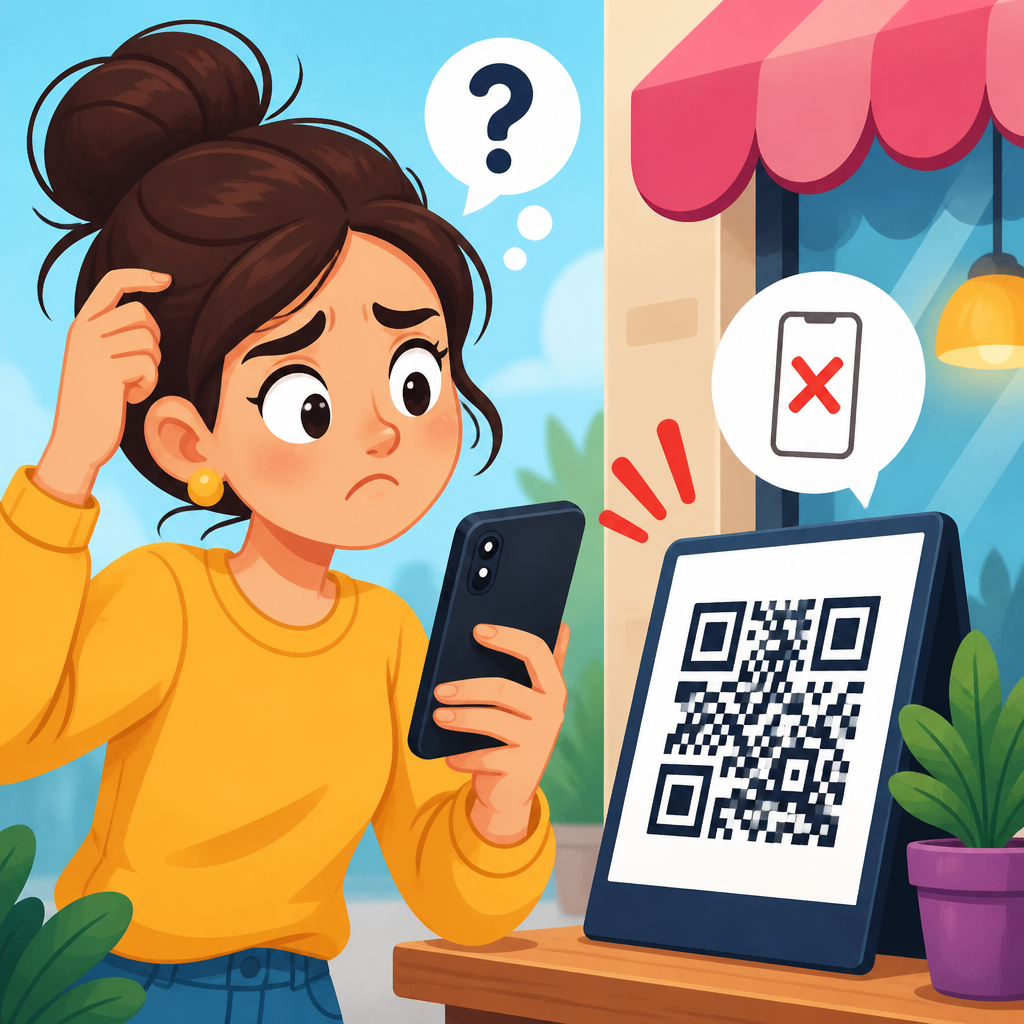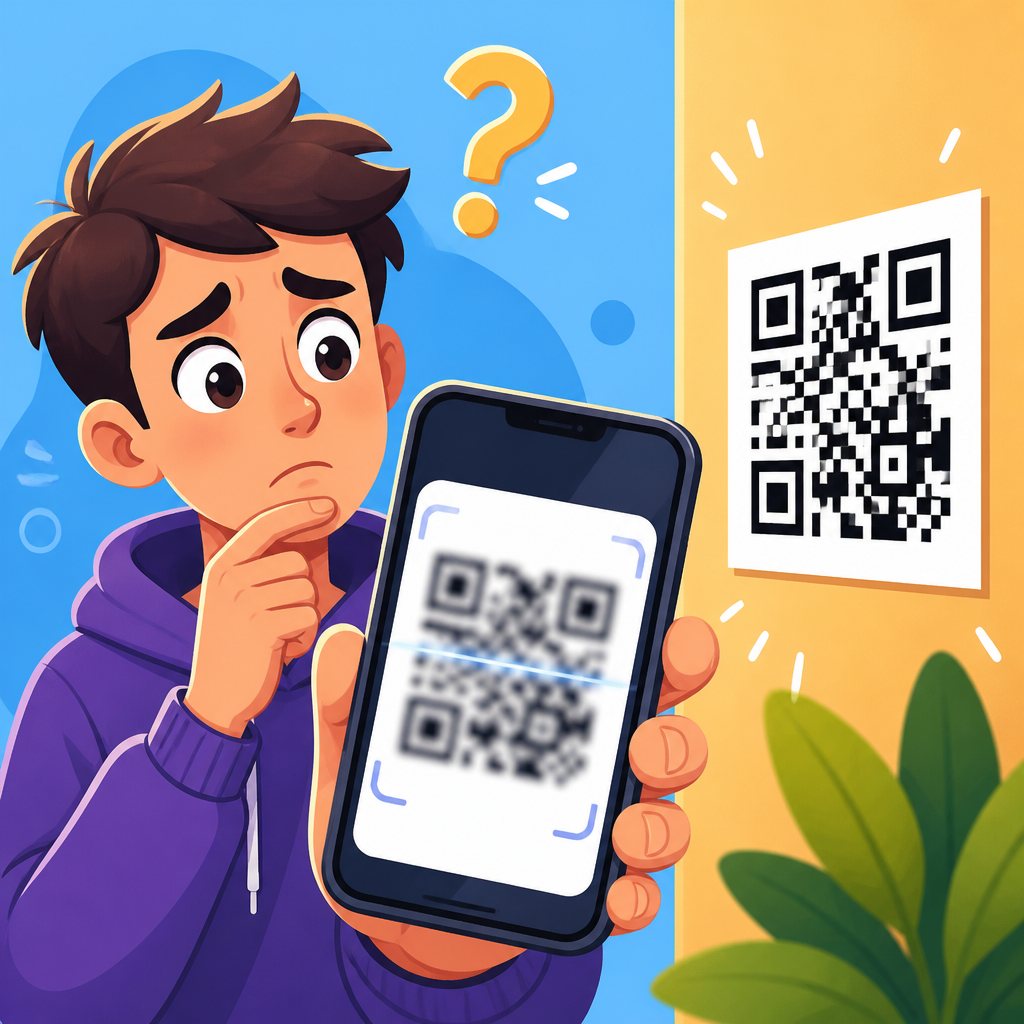
A QR code that won’t scan is usually failing for a small number of predictable reasons: poor contrast, damaged modules, bad sizing, low quiet-zone margins, weak lighting, an outdated scanner, or a destination that no longer works. When I troubleshoot broken QR codes for packaging, menus, posters, and event signage, I start by separating the problem into two categories: the code cannot be read, or the code reads but the action fails. That distinction saves time because a scanning issue is visual and technical, while a destination issue is usually tied to the URL, redirect, app behavior, or network access.
QR stands for Quick Response. The square pattern stores data in black and white modules arranged on a grid, with finder patterns in three corners helping a camera locate and orient the symbol. A functioning QR workflow depends on three things working together: the printed or displayed code, the scanning device, and the destination content. If any one of those breaks, users see the same result: nothing useful happens. That is why fixing a QR code requires a full-path diagnosis rather than guessing at one cause.
This matters because QR codes often sit at high-intent moments. A restaurant guest wants a menu now. A customer on a package wants setup instructions now. An attendee at a trade show wants to register now. If the scan fails, the drop-off is immediate. In campaigns I have audited, even simple issues like reducing the quiet zone or placing glossy laminate over a code caused measurable conversion loss. A broken QR code is not just a design flaw; it is a failure at the exact point where offline attention is supposed to become digital action.
This guide serves as the main resource for fixing broken QR codes across print and digital use cases. It explains how to identify the failure mode, test the symbol correctly, repair common design and production mistakes, and decide when a code must be regenerated. It also covers prevention, because the cheapest fix is catching errors before a code reaches a box, banner, label, flyer, kiosk, or screen.
Start with the right diagnosis
The fastest way to fix a QR code that won’t scan is to determine exactly where it fails. Ask three direct questions. First, does any device recognize the code at all? Second, if it recognizes the code, does it open the intended destination? Third, does the problem happen everywhere or only in one environment? Those answers narrow the issue quickly.
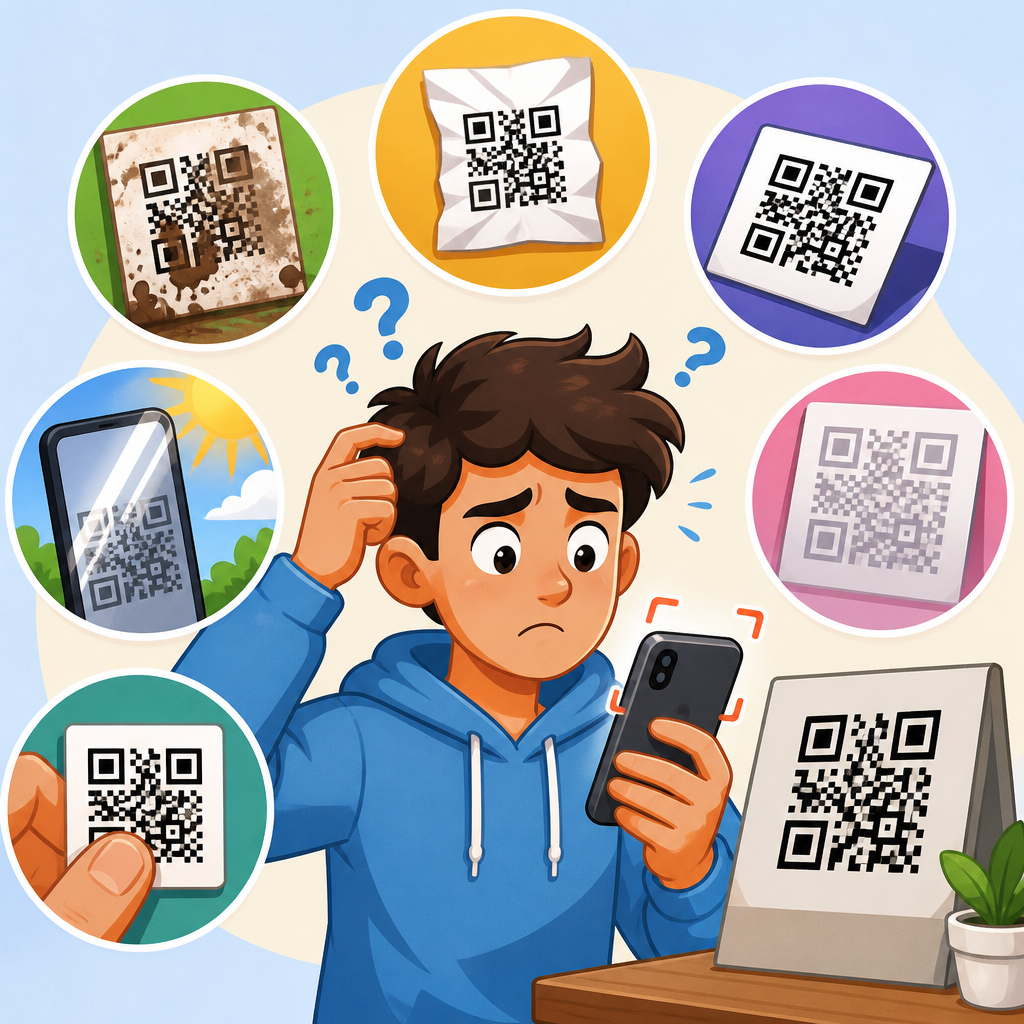
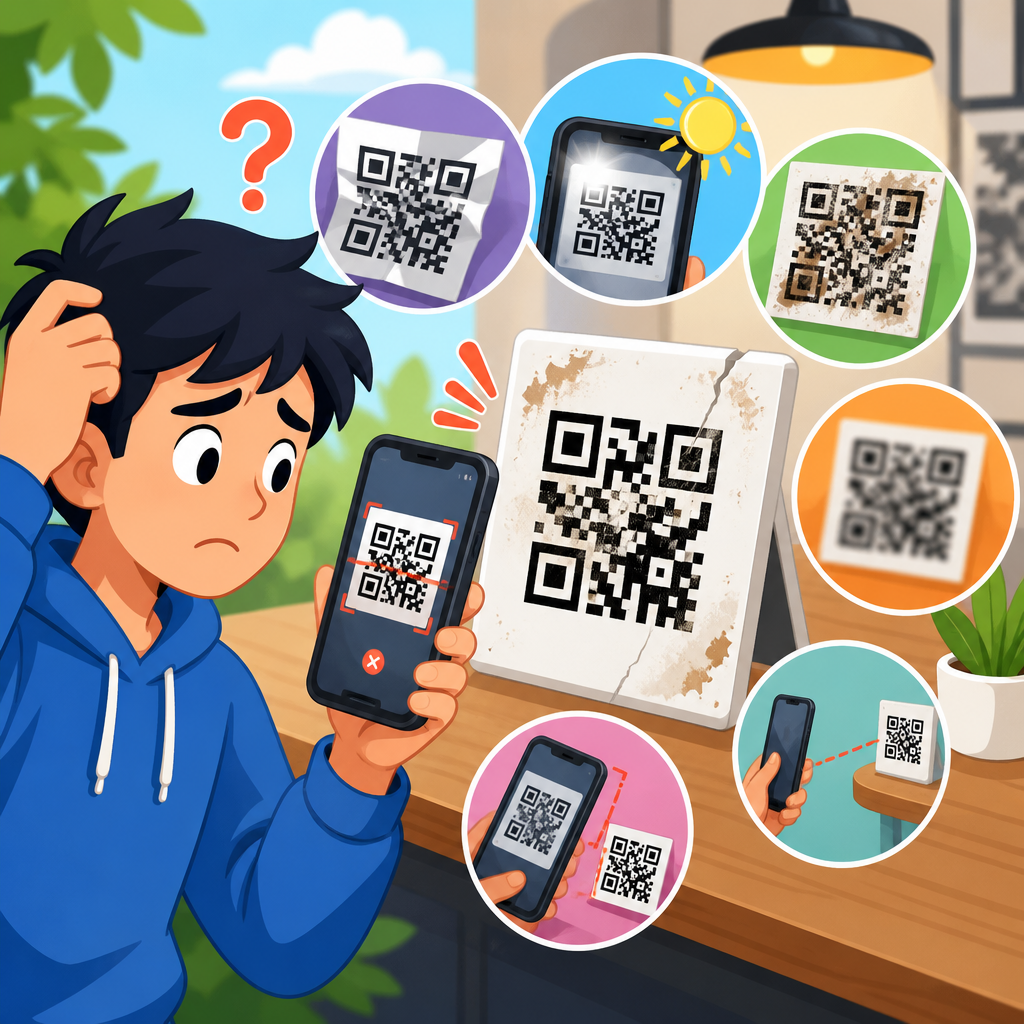
If no phone recognizes the code, the problem is usually with symbol quality. Common causes include insufficient contrast, pixelation, over-stylization, missing quiet zone, physical damage, glare, small print size, and poor placement on curved or textured surfaces. If one phone scans and another does not, the code may be marginal rather than fully broken. Marginal codes often work under perfect conditions but fail in normal real-world use.
If the code scans but lands on an error page, the symbol is fine and the destination is broken. That may mean a mistyped URL, expired short link, deleted landing page, redirect loop, geoblocked content, app deep link failure, or a Wi-Fi dead zone that prevents the page from loading. Dynamic codes add another layer: the symbol may be valid while the management platform, redirect rule, or analytics setting is misconfigured.
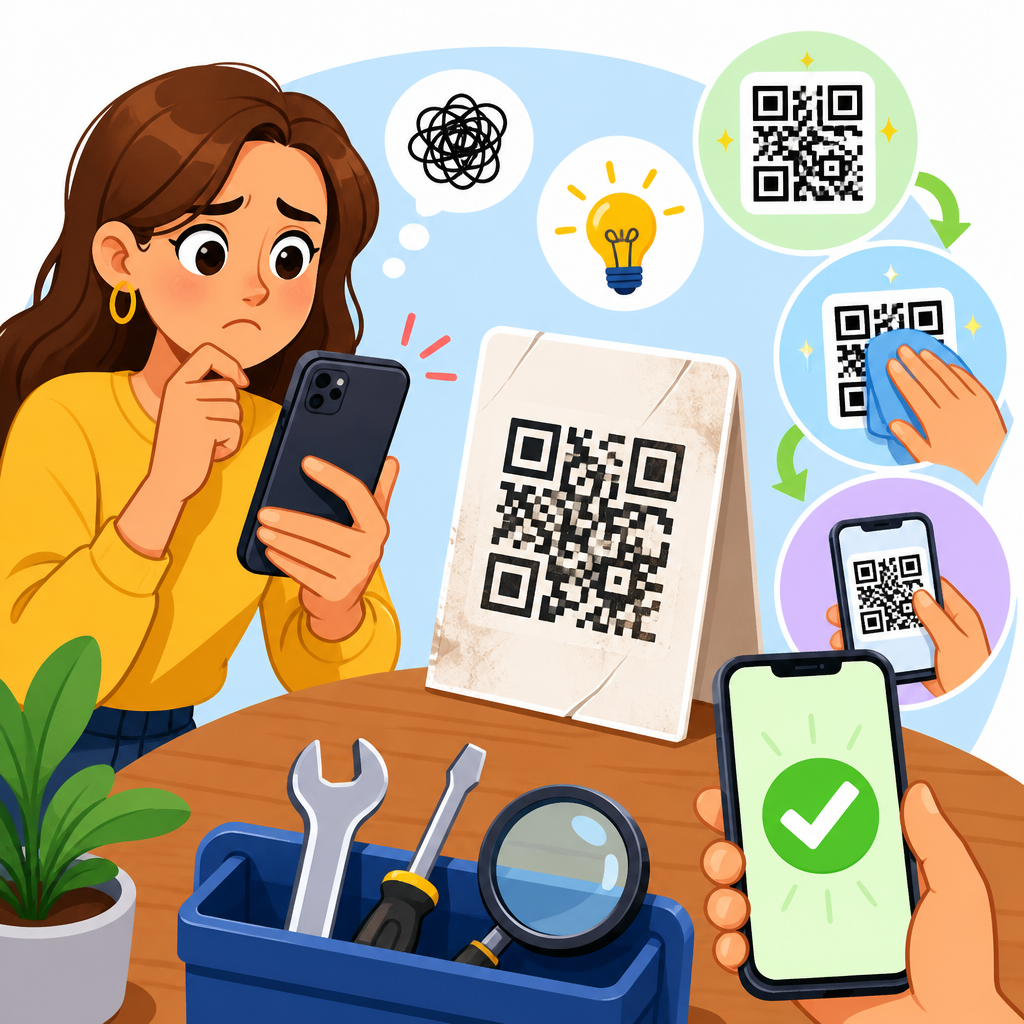
My standard diagnostic process is simple: scan with at least two iPhones and two Android phones, test both native camera apps and one dedicated scanner, verify behavior in bright and dim conditions, and inspect the destination URL independently in a browser. If a QR code fails only on one old device, you may be looking at an edge-case compatibility problem. If it fails on modern devices from both operating systems, the code or destination needs immediate correction.
Fix visual scanning problems first
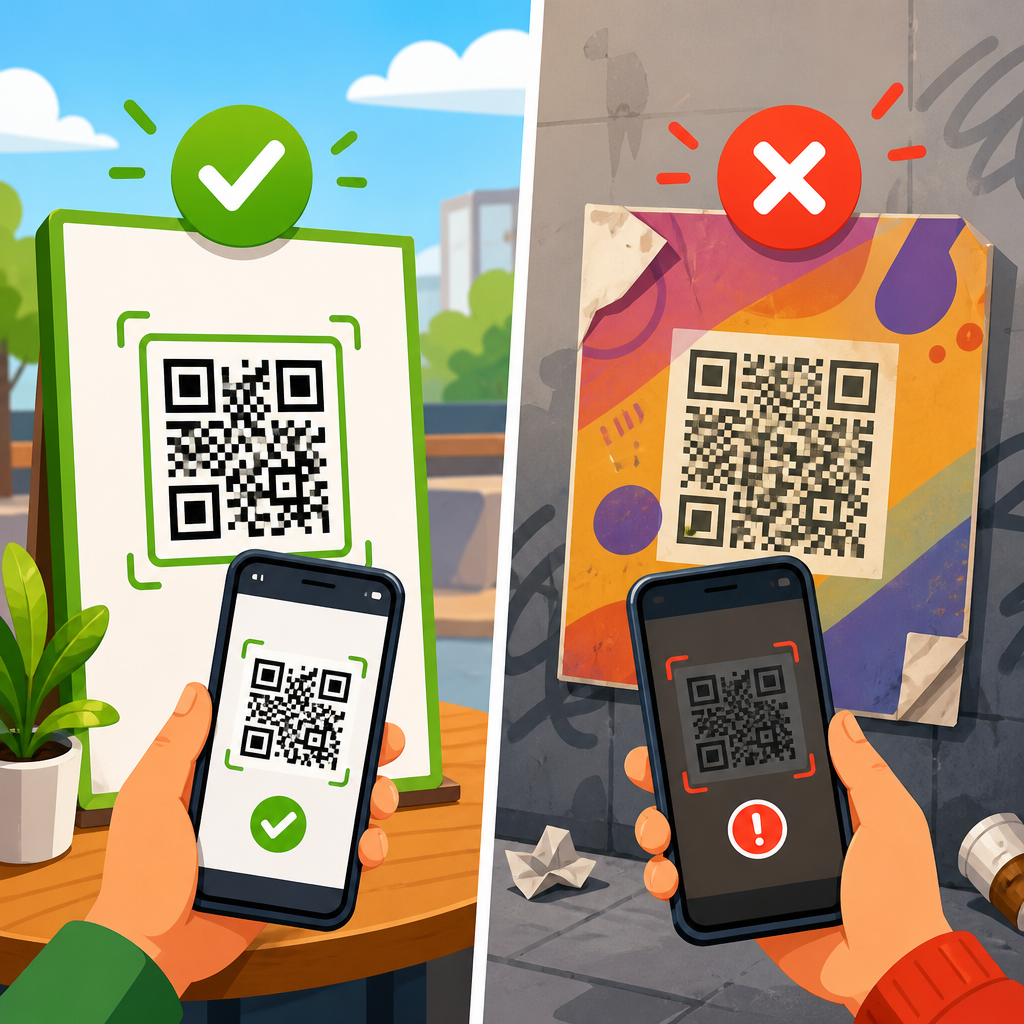
Most broken QR codes fail because the camera cannot reliably separate dark modules from light background. The safest fix is high contrast: black modules on a white background. Dark gray on light gray, metallic ink on glossy stock, or pastel-on-pastel branding may look refined in a mockup, but they scan poorly in stores, lobbies, and sidewalks where lighting is uncontrolled. If you need brand colors, keep the luminance contrast strong and test under realistic conditions, not only on a calibrated monitor.
The quiet zone is another frequent failure point. A QR code needs empty space around all four sides so the scanner can isolate the symbol from surrounding design elements. Industry guidance is a margin at least four modules wide. In practice, I leave more room on crowded layouts because trim, folds, shadows, and nearby text can interfere. When designers place borders, icons, or background patterns too close to the edge, scan reliability drops sharply.
Size matters more than many teams expect. A code printed too small for the expected scanning distance becomes unreadable even if the file itself is perfect. For hand-held items such as business cards or product inserts, around 2 x 2 cm can work for short URLs, but larger is safer. For posters and signs, use the common rule that the scanning distance should be roughly ten times the code width. A code meant to be scanned from two meters away should be close to 20 centimeters wide.
Resolution and export settings also cause failures. Never screenshot a QR code and reuse the image. Generate it from the source and export in a format suited to the medium. SVG, EPS, or PDF are preferred for print because vectors stay sharp at any size. PNG can work for digital display when exported at sufficient resolution, but low-resolution JPEGs introduce artifacts that blur module edges. Once the square geometry is softened, scanner accuracy falls.
Physical production introduces additional risk. Gloss laminate creates glare that washes out modules. Flexible packaging can wrinkle the code. Bottles and cups curve the surface, distorting the grid. Fabric labels stretch. Corrugated boxes break up edges. On these materials, increase the code size, preserve a larger quiet zone, and avoid placing the symbol across seams, folds, perforations, or embossed areas. If the substrate is reflective, switch finishes or change the placement angle.
Repair design, printing, and placement mistakes
Stylized QR codes are common, but aggressive customization is one of the top reasons a code stops scanning. Rounded dots, embedded logos, gradient fills, custom finder patterns, and transparent backgrounds can work only when the underlying symbol remains robust. The more you alter the geometry, the more you depend on error correction and ideal scanning conditions. If a branded code fails, regenerate a plainer version and compare scan speed side by side. In many cases, the fix is simply reducing customization.
Error correction deserves careful use. QR codes support different recovery levels that help scanners read partially damaged symbols. Higher error correction can improve resilience when adding a small central logo or when a code may get dirty in the field. However, it also increases symbol complexity, which can hurt performance if you simultaneously shrink the printed size. The correct approach is not “max everything.” Balance data density, output size, and environmental risk.
Placement is often the hidden culprit. I have seen perfectly generated codes fail because they were mounted behind glass doors, placed under spotlights, printed near a fold on a brochure, or wrapped around narrow jars so the finder patterns bent out of shape. On screens, moiré patterns, low brightness, and cracked protectors can interfere. Move the code to a flat, matte, well-lit area where a user can frame it comfortably without awkward angles or physical obstruction.
Use this checklist when correcting a broken code in production:
| Issue | What to check | Best fix |
|---|---|---|
| Low contrast | Dark modules on dark or busy background | Use black on white or increase luminance contrast |
| Missing quiet zone | Text, borders, or graphics too close to edges | Add at least four modules of empty margin |
| Too small | Code width does not match scan distance | Increase physical size and retest at real distance |
| Low resolution | Blurry edges, screenshot artifacts, JPEG compression | Export fresh vector or high-resolution PNG |
| Surface distortion | Curve, fold, wrinkle, seam, glare, texture | Relocate code or change material and finish |
| Over-stylized design | Logo too large, gradients, custom eyes, transparency | Simplify styling and raise error correction carefully |
For print runs already in market, your options depend on scale and risk. Temporary overlays, corrective stickers, shelf talkers, table tents, or in-box inserts can bridge the gap while inventory is used up. For digital assets, replacement is easier: update the file in the CMS, app, email, kiosk software, or signage playlist, then verify cache refresh and version control so old creative does not reappear.
Fix destination and device-related failures
When the camera recognizes the code but the experience breaks after scanning, inspect the destination path end to end. Open the encoded URL in a desktop and mobile browser. Check for 404 errors, expired domains, redirect chains, TLS certificate warnings, blocked robots settings on staging pages, and mobile-unfriendly layouts. If a link shortener is involved, verify the target has not been edited incorrectly and that analytics or UTM parameters are not corrupting the URL.
Dynamic QR codes are especially useful for remediation because you can update the destination without reprinting the symbol. If a restaurant menu moved, a campaign page changed, or a PDF was replaced, edit the target in the dashboard and test again. Still, dynamic systems can fail if the subscription lapses, the redirect domain is misconfigured, or a firewall blocks requests. Always monitor the live redirect, not just the final landing page.
Some failures are device-specific. Older camera apps may struggle with dense codes, low contrast, or unusual framing. Android fragmentation also matters: scanner behavior differs across manufacturers and software versions. Encourage testing with native cameras on recent iOS and Android devices first, because that reflects most user traffic. If the code only works in a third-party scanner, the symbol is not production-ready.
Network conditions can mimic a broken QR code. A code inside a basement venue, elevator lobby, stadium concourse, or rural trailhead may scan correctly but appear dead because the page cannot load. In those environments, use lightweight mobile pages, preloaded app content, or fallback text instructions. If the scan opens an app deep link, ensure there is a web fallback for users who do not have the app installed. A QR code should never lead to a dead end.
Know when to regenerate the QR code
Some codes can be fixed by improving the environment or destination. Others should be rebuilt immediately. Regenerate the QR code if the original contains the wrong data, the image file is too degraded to recover, the design removed too much of the symbol, the print size is fundamentally too small, or the encoded string is unnecessarily long and creates a dense grid. Long URLs with tracking parameters often produce busy codes; shortening the destination cleanly can improve readability.
When regenerating, use a reputable generator that supports vector export, proper error correction settings, and dynamic management if needed. Then test the replacement under realistic use conditions: multiple phones, varied lighting, intended distance, and the actual material or display. I also recommend keeping a master record that includes the source URL, generation date, file format, owner, campaign, and placement list. Teams lose time when no one knows which version is live where.
The long-term benefit of disciplined QR code troubleshooting is reliability at the moment of intent. Strong contrast, adequate quiet zone, correct sizing, sharp export, smart placement, and a verified destination solve most failures. Start by deciding whether the symbol cannot be read or the destination cannot be reached. Then correct the exact weakness instead of guessing. If you manage QR codes across packaging, print, signage, or digital screens, build a repeatable test process and audit your live codes regularly. That one habit prevents broken scans, protects conversions, and gives users the seamless experience they expect. Review your highest-traffic QR placements today and fix marginal codes before they become missed opportunities.
Frequently Asked Questions
Why won’t my QR code scan even though it looks fine?
A QR code can appear normal to the eye and still fail because scanners are much less forgiving than people. In most cases, the issue falls into one of two buckets: the code cannot be visually read, or the code is readable but the action after scanning fails. If the phone camera never recognizes the code at all, start with visual factors. Poor contrast is one of the most common causes. A dark code on a light background works best, while low-contrast combinations such as gray on black, pastel on white, or glossy reflective printing can prevent proper detection. Size also matters. If the code is printed too small for the expected scanning distance, phones struggle to resolve the individual modules, which are the tiny square data cells that make up the pattern.
Another frequent problem is the quiet zone, which is the empty margin around the QR code. If text, borders, images, or design elements crowd too close to the edges, many scanners cannot distinguish where the code begins and ends. Damage can also interfere, especially on packaging, outdoor posters, menus, or event signage where scratches, folds, smudges, glare, or fading may obscure key modules. Lighting is another variable people underestimate. A code under dim light, harsh shadows, or reflective overhead lighting may not be captured clearly enough to decode. If the code does scan on one device but not another, test the scanning app or camera software too. Older devices and outdated scanner apps can be less reliable. The fastest troubleshooting method is to test the same QR code in different lighting, at different distances, and on multiple phones to isolate whether the failure is caused by the code itself or by the scanning conditions.
How can I tell whether the problem is with scanning or with the destination link?
This is one of the most useful distinctions you can make, because it changes the entire troubleshooting process. If a phone camera never detects the QR code or fails to produce any prompt, you are dealing with a scan-readability problem. That points to issues such as poor contrast, bad sizing, missing quiet-zone margins, distortion, damage, glare, or inadequate lighting. On the other hand, if the phone recognizes the code and opens something, but the result is an error page, blank page, broken app behavior, or expired content, then the QR code itself is being read correctly and the failure is happening after the scan.
To confirm which type of problem you have, test the code with at least two or three different devices. If all of them can detect the code but land on a dead page or produce an error, inspect the destination. The URL may be mistyped, the page may have been moved, the redirect may be broken, or the linked content may no longer exist. This is especially common with dynamic QR codes tied to shortened links, campaign redirects, event pages, or third-party platforms. Also check whether the destination is blocked by poor mobile optimization, certificate errors, login walls, app deep-link problems, or region restrictions. If the code opens a website but users report “it doesn’t work,” the landing page experience may be the real issue rather than the QR code. Separating “cannot read” from “reads but fails” saves time and prevents unnecessary redesign when the actual fix is simply updating the destination.
What is the quiet zone, and why does it matter so much?
The quiet zone is the blank space around the outer edge of a QR code, and it is far more important than many people realize. Scanners use that clear margin to identify the boundaries of the code before decoding the data inside it. When a QR code is placed too close to text, logos, borders, background patterns, or other graphic elements, the scanner may struggle to separate the code from its surroundings. The result is often inconsistent scanning, where the code works on some devices or at some angles but fails in real-world use.
In practical terms, the quiet zone should remain completely clear on all four sides. It should not be filled with decorative frames, crowded by typography, or interrupted by packaging folds and trim lines. Problems often show up when designers enlarge the code but place it inside a tight layout, assuming the code itself is the only area that matters. It is not. The empty margin is part of the functional scanning area. If you are troubleshooting a code on a menu, product label, poster, or event sign, inspect what is happening around the edges before changing the data or regenerating the code. Restoring adequate white space often fixes a “mystery” scanning problem immediately. If you need a branded layout, build the design around the quiet zone rather than sacrificing that margin for aesthetics.
How big should a QR code be to scan reliably?
There is no single perfect size for every use case, because reliable scanning depends on both the printed size and the expected scanning distance. A QR code on product packaging that will be scanned from a few inches away can be much smaller than one on a wall poster, trade show banner, storefront window, or overhead event sign. The core rule is simple: the farther away people will stand, the larger the code needs to be so phone cameras can clearly resolve the modules. If the code is too small, the pattern may blur together, especially on older phones or in weak lighting.
Size also interacts with data density. A QR code containing a long URL or more complex data requires more modules, which means each individual square becomes smaller unless you increase the overall printed size. That is why two QR codes with the same physical dimensions may scan very differently. One may contain a short, simple destination and work well, while another may be packed with data and become difficult to read. If you are fixing a stubborn code, print or display it larger and test again before assuming the file is defective. For public-facing materials such as posters, menus, table tents, retail displays, and event signage, always test from the actual user distance, not just from arm’s length at your desk. Real-world testing is essential because a code that scans in ideal conditions may fail when people are standing farther back, moving quickly, or dealing with glare and crowding.
What are the best ways to fix a QR code that reads inconsistently across different phones?
Inconsistent scanning usually means the code is borderline usable rather than completely broken. That is actually helpful, because it points to a quality issue you can often correct. Start with contrast. Use a dark foreground on a light, non-reflective background, and avoid color combinations that reduce edge clarity. Next, examine the print or display quality. Blurry printing, pixelation, stretched proportions, low-resolution exports, and glossy surfaces can all reduce scan reliability. Make sure the code has an adequate quiet zone and has not been cropped too tightly. If the code includes a logo in the center, heavy styling, rounded modules, gradients, or decorative frames, simplify the design and retest. Visual customization can be useful for branding, but every design choice reduces margin for error.
Then check environmental and device factors. Test in brighter, more even lighting and reduce glare by changing the viewing angle. Try multiple phones, including both newer and older models, because camera quality and scanning software vary significantly. If one device scans and another does not, the code may be technically valid but not robust enough for general public use. Also verify that the linked destination works properly on mobile browsers and loads quickly. A slow, broken, or poorly optimized landing page can be mistaken for a scan problem. If you manage QR codes for packaging, menus, posters, or event signage, the most reliable fix is usually a combination of improvements: enlarge the code, restore a clean quiet zone, increase contrast, use a sharper source file, and confirm the destination still works. Thorough testing under real conditions is what turns a QR code from “sometimes works” into “scans reliably for almost everyone.”