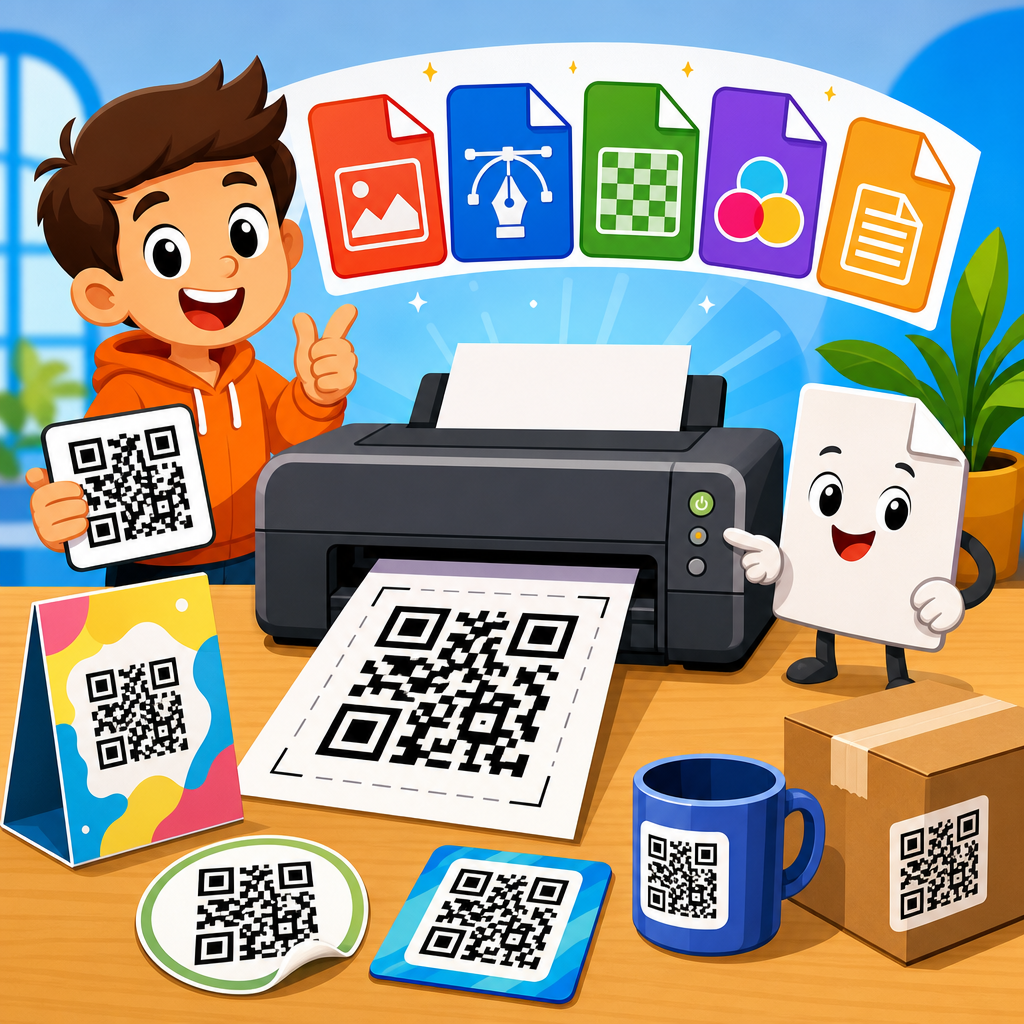
Printing a QR code successfully starts long before ink touches paper. The best file formats for printing QR codes determine whether a code scans instantly from a product box, storefront poster, shipping label, menu card, or trade show banner. In practice, I have seen the same QR code perform perfectly in one format and fail in another because of scaling artifacts, compression, transparency issues, or poor handoff between design and print teams. Choosing the right file type is not a minor production detail; it directly affects scan reliability, print sharpness, brand consistency, and reprint costs.
A QR code is a two-dimensional matrix barcode that stores data in a grid of black and white modules. When printed, scanners do not read “an image” in the abstract; they detect module edges, contrast, quiet zone spacing, and geometric integrity. That is why file format matters. Raster formats such as PNG, JPG, and TIFF store fixed pixels. Vector formats such as SVG, EPS, and PDF describe shapes mathematically, allowing the code to scale without losing edge definition. For printing QR codes, the central question is simple: will this format preserve crisp module boundaries at the final physical size, on the chosen substrate, through the actual print workflow?
This hub article explains the best file formats for printing QR codes and how to use them in real production settings. It also covers resolution, color mode, substrate effects, sizing, error correction, and prepress checks, because file format alone never guarantees a scannable result. If you print QR codes on packaging, flyers, signage, labels, menus, direct mail, or industrial materials, this guide gives you the framework to choose correctly the first time and avoid expensive rescans, reprints, and frustrated users.
Why file format has a direct impact on QR code print quality
The best printable QR code format is the one that protects shape accuracy from design through output. QR codes depend on square modules with clean edges and consistent spacing. When a format introduces blur, anti-aliasing, compression noise, or accidental resizing, scanners may struggle to separate one module from the next. I have seen this most often when teams export a tiny web JPG, place it in a print layout, and enlarge it for a brochure cover. The result looks acceptable on screen but prints with softened edges and broken contrast transitions that reduce scan speed.
Print workflows add more risk. A designer may generate a QR code in one application, send it through Canva, Adobe Illustrator, InDesign, Figma, or a packaging proofing tool, and then hand it to a commercial printer using RIP software. Every conversion step can alter the code. Vector files generally survive these workflows better because they are resolution independent. Raster files can still work well, but only if created at the correct dimensions and resolution for the final print size. For QR codes, “good enough” image handling is often the source of failure.
Another factor is substrate and viewing distance. A QR code on corrugated cardboard printed by flexography behaves differently from one on a glossy postcard printed digitally. Dot gain, ink spread, texture, lamination, and glare all change how clearly modules appear. File format is therefore part of a larger printing QR codes strategy: preserve geometry in the file, then match output conditions to the material and intended scan distance.
Best file formats for printing QR codes: when to use SVG, PDF, EPS, PNG, TIFF, and JPG
For most professional printing, vector is the safest answer. SVG is often the best working format because it scales cleanly, keeps module edges sharp, and is widely supported in modern design tools and web-to-print workflows. PDF is equally strong, especially when sending finished artwork to a printer, because it can embed vector QR codes alongside fonts, bleeds, and other page elements in a controlled output package. EPS remains useful in legacy print environments and certain packaging workflows, though it is less convenient than PDF or SVG in many current teams.
Among raster formats, PNG is usually the best option for simple black-and-white QR codes when vector is unavailable. PNG uses lossless compression, so it avoids the block artifacts common in JPG. TIFF is also excellent for print because it supports high resolution and lossless storage, making it common in professional imaging and prepress settings. JPG is the weakest choice for printing QR codes because its lossy compression creates artifacts around hard edges, exactly where QR codes need precision. A high-quality JPG may scan, but it is rarely the optimal production file.
| Format | Type | Best use | Main advantage | Main risk |
|---|---|---|---|---|
| SVG | Vector | Layouts, scaling, packaging, signage | Infinite scaling with sharp edges | Occasional compatibility issues in older print systems |
| Vector/container | Final print delivery to printers | Stable handoff with embedded vector art | Improper export settings can flatten or alter artwork | |
| EPS | Vector | Legacy workflows and some packaging vendors | Reliable vector output | Less flexible than PDF/SVG in modern collaboration |
| PNG | Raster | High-resolution labels, office print, short-run jobs | Lossless compression | Blurs if enlarged beyond native size |
| TIFF | Raster | High-end print imaging | Large, lossless, prepress friendly | Bigger file sizes and less convenient for casual teams |
| JPG | Raster | Last resort only | Small file size | Compression artifacts reduce scan reliability |
If you need a direct recommendation, use SVG while designing, keep the QR code vector inside your layout, and export a press-ready PDF for the printer. If the workflow requires raster, use PNG or TIFF at final size with sufficient resolution. Avoid JPG unless there is no alternative and testing confirms reliable scanning after print.
Vector versus raster for QR code printing
Vector files are superior for most printed QR codes because they represent each module as a mathematically defined shape. That means a two-centimeter code and a two-meter code can come from the same source without pixelation. In Illustrator or InDesign, I can place a vector QR code, scale it repeatedly during layout review, and still maintain precise corners and quiet zone boundaries. This matters especially for packaging line extensions, where one master asset may be reused across labels, cartons, and point-of-sale displays.
Raster files are fixed-resolution images. They can be perfectly acceptable if generated at the exact output size and at a suitable resolution, often 300 ppi or higher for standard commercial print. For very small QR codes, I prefer even higher effective resolution because the modules themselves become tiny. The problem comes when a raster code is repurposed. A 600-pixel image that works on a business card may fail when stretched for a poster. Once pixels are invented through interpolation, edge clarity drops immediately.
There are exceptions. Some office printers, thermal printers, and label systems work best with PNG because their software does not handle vector gracefully. In those environments, the right answer is not “vector always,” but “the most stable format for the actual device.” Production reality matters more than theory, which is why physical scan testing on the final stock should always decide the winner.
Resolution, size, and quiet zone requirements for printed QR codes
No file format can rescue a QR code that is physically too small or lacks a proper quiet zone. The quiet zone is the empty margin around the code, typically at least four modules wide on all sides. Scanners use it to distinguish the code from surrounding graphics. I regularly find print failures caused not by the QR code file itself but by decorative borders, background textures, or nearby text violating that margin.
Minimum size depends on data density, print process, and expected scan distance. A practical baseline for many consumer uses is about 0.8 x 0.8 inches, though simple URLs can scan at smaller sizes if printed cleanly. A common field rule is that scan distance should be roughly ten times the code width. If a poster is scanned from 40 inches away, a four-inch code is a safer starting point. Denser codes with more characters need larger physical dimensions because each module shrinks.
For raster files, create the image at final print size or larger. Standard 300 ppi is often sufficient for brochures and menus, but 600 ppi can provide extra confidence for small labels and high-density codes. For industrial marking, thermal labels, or textured substrates, testing matters more than theoretical resolution. The code must remain high contrast and geometrically stable after the actual print engine renders it.
Color mode, contrast, and material considerations
Black on white remains the most reliable choice for printing QR codes. High contrast helps smartphone cameras and fixed scanners separate modules quickly, especially in uneven lighting. Dark blue, dark green, and other deep tones can work on light backgrounds, but low-contrast combinations such as light gray on beige often fail. In packaging reviews, I advise teams to validate contrast with printed proofs under store lighting, not just calibrated monitors.
Color mode matters because print usually ends in CMYK, while many code generators preview in RGB. A rich black that looks solid on screen may separate into multiple plates in print, increasing the chance of slight registration issues on small codes. For tiny QR codes, a single-channel black can produce cleaner results than a rich composite build. On absorbent stocks, ink spread can also close small white gaps between modules. That is another reason to avoid overly dense codes at minimal sizes.
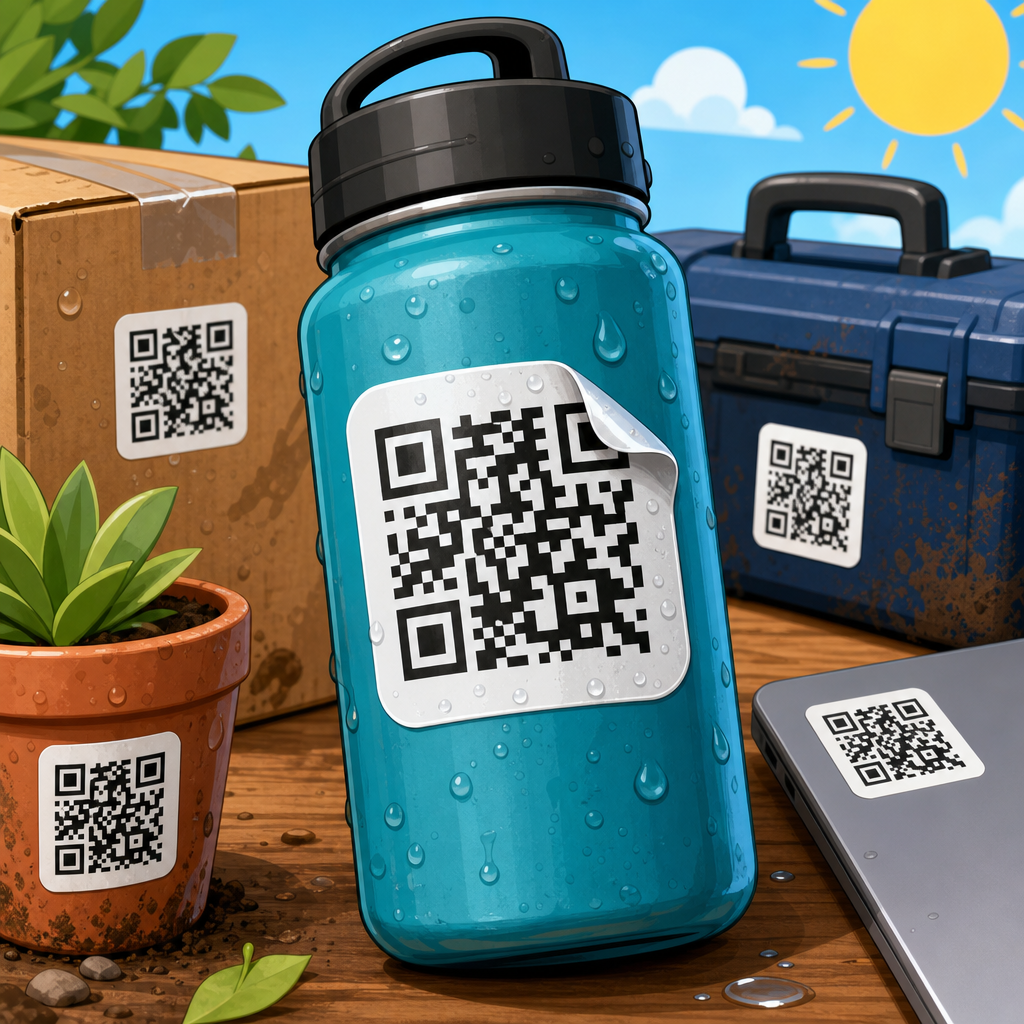
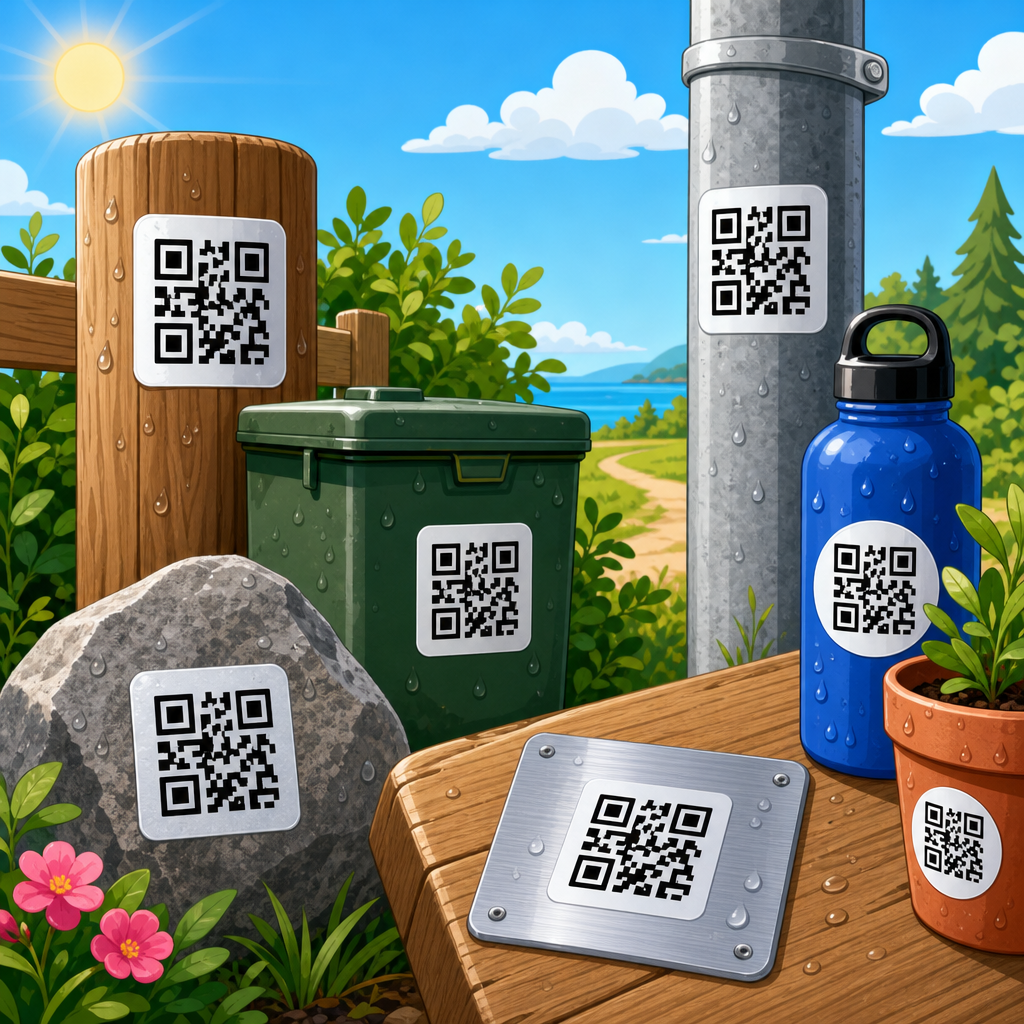
Materials change everything. Gloss lamination can cause glare that hurts scanning. Uncoated paper absorbs ink and softens edges. Corrugated board introduces surface variation. Clear stickers on dark containers reduce contrast unless a white ink layer is used beneath the code. Metal, fabric, and curved bottles create further complications. The best file format still needs the support of the right substrate, finish, and print method.
How print workflows affect QR code file choice
Commercial offset, digital presses, large-format printers, thermal transfer devices, and flexographic systems do not treat files the same way. In offset and digital commercial print, a vector QR code embedded in a PDF is usually the cleanest path. In packaging, suppliers may request EPS or PDF/X-compliant files to fit established prepress systems. For large-format signage, SVG or PDF works well because the code may need dramatic scaling without quality loss.
Thermal label printers are different. Many operate through driver-based image rendering and may rasterize vector files unpredictably. In that environment, a tested monochrome PNG at native size can outperform a theoretically better vector file. Office environments have similar constraints when staff print from Word, Google Docs, or label software. A high-resolution PNG can be the practical standard because it survives common software behavior more consistently than embedded vectors handled by non-design tools.
File choice also affects collaboration. Marketing teams often need flexible assets for campaign variations, while printers need stable final files. The most efficient workflow is to maintain a master vector QR code, place it in source layouts, and export output-specific files only at the final delivery stage. That prevents teams from passing around degraded derivatives that get reused beyond their intended size.
Common mistakes that make printed QR codes fail
The most common mistake is using a low-resolution web asset for print. Others include exporting as JPG, removing or crowding the quiet zone, placing the code over busy photography, distorting it non-proportionally, and adding excessive branding modifications such as rounded modules, heavy logos, or decorative frames without testing. Dynamic QR platforms make customization easy, but every visual change reduces tolerance.
Another frequent issue is poor destination planning. A printed QR code can be technically perfect and still underperform if it leads to a slow, non-mobile page, a dead link, or content blocked by geography or app requirements. Printing QR codes is not only about the symbol; it is about the complete scan experience. Use dynamic codes where appropriate so destinations can be updated without reprinting. Then test scans on both iPhone and Android across varied lighting and network conditions.
Finally, teams often skip physical proofs. On-screen validation is not enough. Print on the real stock, at final size, with final finishes, then test from the expected distance and angle. That single step catches more problems than endless digital review.
Best-practice recommendations for a reliable QR code printing workflow
Use a vector source whenever possible, preferably SVG for design flexibility and PDF for final printer delivery. Keep the code black on a white or very light background unless there is a strong brand reason to do otherwise. Preserve a quiet zone of at least four modules. Size the code according to data density and scan distance, not aesthetic preference. If you must use raster, export PNG or TIFF at final size and high resolution, never a recycled web JPG.
Choose a reputable generator or platform that allows error correction control, dynamic destinations, and export in multiple formats. Validate links, add tracking where appropriate, and document the final approved asset so it is not replaced later by an inferior copy. For enterprise or packaging environments, standardize naming, version control, and proof approvals across marketing, design, and print vendors. That operational discipline reduces costly surprises.
The best file formats for printing QR codes are the ones that preserve crisp geometry through real production conditions. In most cases, that means SVG or PDF first, PNG or TIFF when raster is required, and JPG almost never. Pair the right format with proper size, contrast, quiet zone, substrate selection, and proof testing, and your QR codes will scan quickly and consistently. If you are building or updating a print workflow, audit your current QR assets, identify where degradation happens, and standardize your export rules now.
Frequently Asked Questions
What is the best file format for printing QR codes?
The best file format for printing QR codes is usually a vector format such as SVG, EPS, or PDF. Vector files are ideal because they store the QR code as mathematical shapes instead of fixed pixels, which means the code can be scaled up or down without becoming blurry, distorted, or soft around the edges. That matters in print because scanners rely on sharp contrast and clean square modules to read a code quickly. If a QR code will appear on everything from a small product label to a large poster or trade show graphic, a vector file gives the printer and designer much more flexibility while preserving scan reliability.
PDF is often the most practical choice for commercial printing because it travels well between design software, print shops, and production workflows. SVG is excellent for digital design teams and modern workflows, while EPS is still common in some legacy print environments. If you must use a raster format, PNG is typically the safest option because it uses lossless compression and maintains crisp edges better than JPG. In most professional print scenarios, though, vector wins because it reduces the risk of quality loss during resizing, export, or handoff between teams.
Is PNG better than JPG for printing a QR code?
Yes, PNG is almost always better than JPG for printing a QR code. The reason is simple: JPG uses lossy compression, which can introduce visual artifacts around the hard edges of the code’s black and white squares. Those artifacts may seem minor on screen, but in print they can soften boundaries, create noise, and reduce scanner accuracy, especially when the QR code is printed at a small size or on lower-quality materials. QR codes depend on precise geometry, so any format that blurs or muddies the module edges increases the chance of scan failure.
PNG, by contrast, uses lossless compression, so it preserves the sharp edges that a QR code needs. It is a solid choice when a vector file is not available or when the QR code is being placed into common design tools that accept raster graphics more easily. That said, PNG still has limitations because it is resolution-dependent. If a low-resolution PNG gets enlarged for packaging, signage, or banners, the code can become pixelated and difficult to scan. So while PNG is better than JPG, it is still not as robust as SVG, EPS, or PDF for professional print production.
Why do vector formats matter so much when printing QR codes?
Vector formats matter because QR codes are made of precise geometric shapes, and print quality depends on those shapes staying exact throughout the production process. In a vector file, each square and alignment pattern remains mathematically defined, so the design can be enlarged for a storefront window or reduced for a label without introducing blur, aliasing, or interpolation errors. That consistency is extremely important when the same QR code is being used across multiple printed assets with different dimensions.
Vectors also help prevent common workflow mistakes. In real-world print environments, files often move between marketing teams, freelance designers, packaging vendors, and print operators. A raster QR code might be accidentally stretched, exported at the wrong resolution, or resaved in a compressed format. A vector file is much more resistant to those issues and tends to hold up better in professional layout applications. In other words, vector formats do not just improve visual quality; they improve process reliability. That makes them one of the smartest choices for anyone who wants a QR code to scan consistently across many print applications.
Can I print a QR code from a PDF file?
Yes, and in many cases PDF is one of the best formats for printing a QR code. A properly prepared PDF can preserve the QR code as vector artwork, maintain clean edges, and integrate smoothly into commercial print workflows. Printers, packaging vendors, and production teams commonly prefer PDF because it packages artwork in a stable, widely accepted format that is less likely to shift unexpectedly between devices or software platforms. If the QR code was originally created as vector art and saved correctly into the PDF, it should reproduce very well in print.
However, not every PDF is automatically high quality. A PDF can still contain a low-resolution raster image, flattened transparency, or export settings that reduce clarity. That is why it is important to confirm whether the QR code inside the PDF is vector-based or at least high-resolution if raster is unavoidable. It is also wise to request a proof and test-scan the code from the printed sample, not just from the screen. PDF is an excellent delivery format, but the underlying artwork quality still determines whether the final printed QR code performs reliably.
What file format mistakes cause printed QR codes to fail?
Several file format mistakes can cause printed QR codes to scan poorly or fail entirely. One of the biggest is using JPG, especially after repeated exports or compression, because it can introduce artifacts that distort the code’s edges. Another common problem is enlarging a low-resolution raster file, which creates pixelation and softens the module boundaries. Transparency can also create trouble if the QR code is placed over a background in a way that reduces contrast or exports unpredictably. In addition, some teams accidentally convert the code during layout, flatten it at low quality, or place it into print files with incorrect scaling.
Workflow issues are often just as damaging as file type choice. For example, a code may start as a clean SVG but get screenshotted, pasted into a slide deck, exported as a JPG, and then sent to a printer. Each step increases the risk of degradation. Another frequent mistake is assuming a code that scans on a phone screen will automatically scan after printing on textured stock, corrugated packaging, glossy labels, or large-format materials. The safest approach is to use vector whenever possible, preserve strong contrast, avoid unnecessary compression, and test the final printed piece under real conditions. File format is not a minor technical detail; it is one of the core factors that determines whether the QR code works in the real world.