QR code scanning lag turns a one-second action into a frustrating pause, and when users are trying to pay, sign in, open a menu, or verify a ticket, that delay feels much longer than it is. In practical terms, scanning lag is the gap between pointing a device camera at a QR code and getting a stable recognition result. Sometimes the camera preview stutters. Sometimes autofocus hunts back and forth. Sometimes the code is recognized, but the operating system or app takes too long to open the link or complete the action. I have worked through these failures on retail tablets, warehouse handhelds, consumer phones, and kiosk cameras, and the pattern is consistent: lag is rarely caused by one issue alone. It usually comes from a chain of small bottlenecks involving camera hardware, screen brightness, code quality, app permissions, network checks, and device resource limits.
Understanding how to fix QR code scanning lag matters because QR workflows now sit inside critical customer journeys. Restaurants use table ordering. Logistics teams use QR labels for receiving and picking. Clinics use patient check-in codes. Event venues use timed-entry tickets. If scanning is slow, the visible symptom is annoyance, but the business impact is larger: abandoned actions, longer lines, repeated scans, support tickets, and lower trust in the system. This hub article covers scan issues on devices comprehensively, with direct answers to the most common questions: why QR scanning is slow, how to diagnose whether the device, app, or code is at fault, what settings improve scan speed, and when to replace hardware or redesign the code itself. It is also the central guide for the wider QR Code Troubleshooting & Support topic, so each section points you toward the next class of fixes you should document in related support content.
What causes QR code scanning lag on devices?
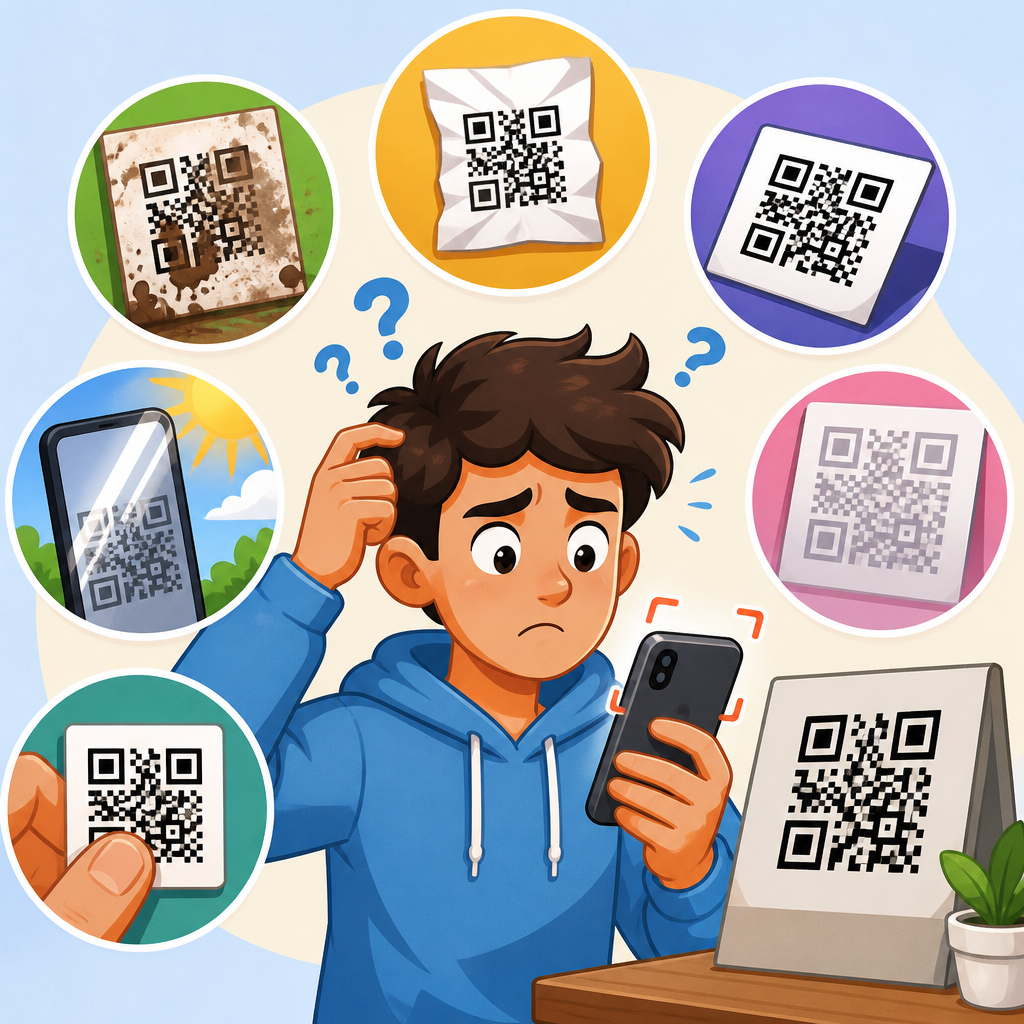
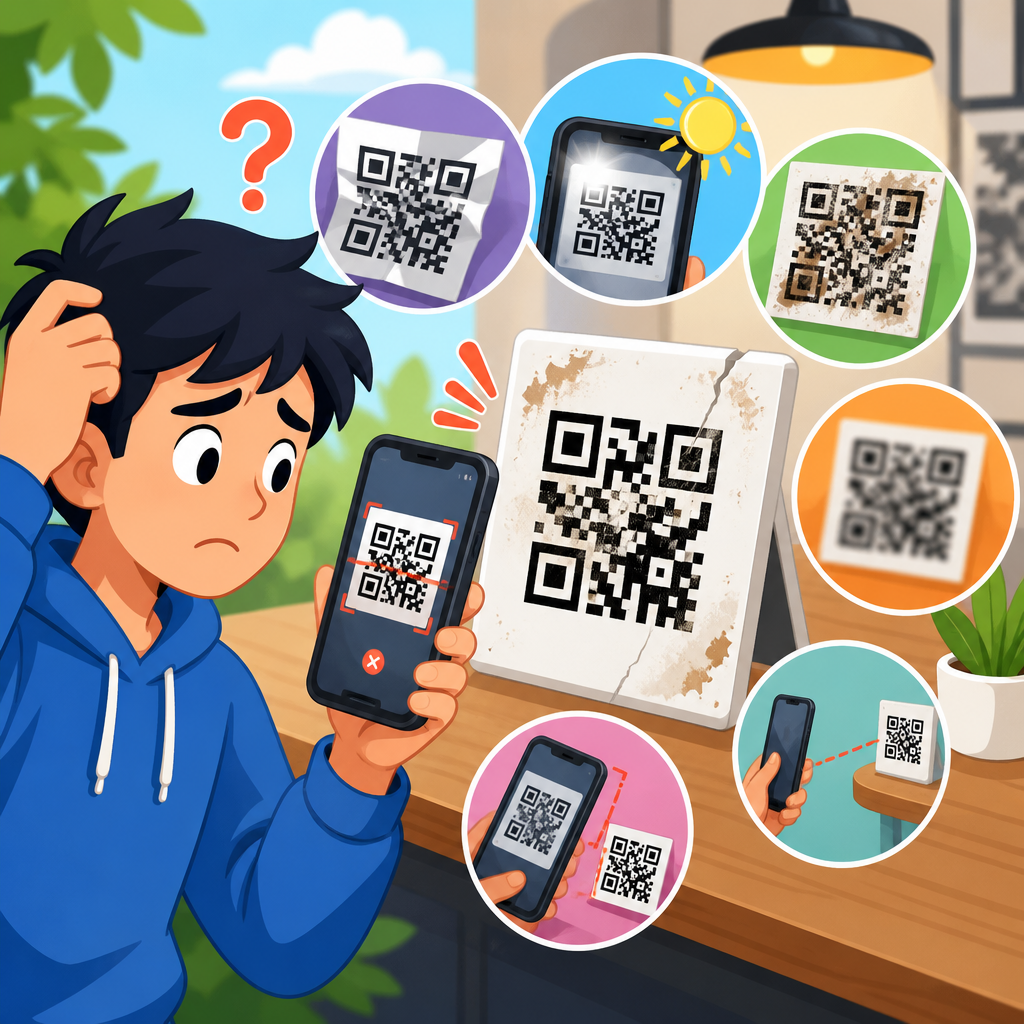
QR code scanning lag usually comes from five sources: poor image capture, weak code presentation, slow decoding software, operating system friction, or delayed post-scan actions. Poor image capture includes dirty lenses, low light, screen glare, motion blur, and cameras with weak autofocus. Weak code presentation includes tiny modules, low contrast, reflective packaging, curved surfaces, and overdesigned branded codes with reduced quiet zones. Slow decoding software appears when the scanning app processes frames inefficiently, uses outdated libraries, or runs too many checks before accepting a read. Operating system friction includes denied camera permissions, battery saver restrictions, thermal throttling, and background processes consuming memory. Delayed post-scan actions happen when the code decodes quickly, but opening the destination is slow because of network validation, redirect chains, captive portals, or deep-link handoff problems.
In field testing, the fastest way to narrow the problem is to separate recognition lag from action lag. If the camera takes several seconds to lock onto the code, focus first on optics, lighting, and code design. If the app detects the code quickly but stalls before opening it, focus on connectivity, browser behavior, mobile app routing, or endpoint performance. On Android, I often test with both the native camera and a dedicated scanner app such as Google Lens or Zebra DataWedge to see whether the issue is app-specific. On iPhone, comparing the Camera app with an in-app scanner can reveal whether the custom app is delaying decode or navigation. This distinction saves time and prevents replacing good hardware when the real problem is a slow destination page or a tracking redirect.
How to diagnose whether the device is the problem
Start with the device because it is the variable users notice first. Check the camera lens for smudges, scratches, and case obstructions. A light fingerprint can soften edges enough to delay decoding, especially on dense Version 4 and higher QR codes. Verify camera permissions and confirm the scanner is using the rear camera rather than a lower-quality front camera. Then watch the live preview. If the viewfinder is choppy, dark, or constantly refocusing, the device is struggling before decoding even begins. Low-end tablets, older phones, and rugged devices with aging sensors commonly show this behavior under indoor lighting. In warehouses, I have seen lag disappear immediately when operators moved from sodium-vapor lighting to a better-lit packing bench because autofocus could finally find contrast.
Next, test CPU, memory, and thermal state. A phone with many apps open, low free storage, or aggressive battery saving may deprioritize camera processing. On Android, Developer Options can help reveal frame pacing problems, while device care dashboards on Samsung or Pixel models show memory pressure and battery restrictions. On managed enterprise devices, mobile device management policies sometimes limit background services or camera access in ways that interfere with scanning. If the device becomes hot during repeated scans, performance may be throttled. A simple test is to reboot, charge above 30 percent, disable battery saver, close heavy apps, and retry on the same code. If scan speed improves, the issue is local device overhead rather than code quality. For support teams building a QR Code Troubleshooting & Support workflow, this is where a device-specific checklist and model matrix become essential internal links.
Settings and environmental fixes that improve scan speed
The most effective fixes are often basic. Increase ambient light instead of relying only on the screen or camera flash. QR decoders work best when module edges are crisp, and edge contrast drops fast in dim conditions. Reduce glare by tilting either the device or the printed code slightly rather than scanning straight into a reflective surface. Hold the camera farther back when users are too close; many devices focus more reliably at a moderate distance, then let the code fill the frame naturally. On-screen QR codes should be shown at high brightness, but not with blue-light filters, privacy screens, or cracked glass that distort the pattern. If users scan from another phone, disable auto-rotate and animations that shift the image while focus is locking.
Software settings matter too. Turn off battery saver, confirm camera access is allowed, update the scanning app, and clear app cache if previews freeze. Some enterprise apps expose camera resolution, continuous autofocus, or scanning mode options. Higher resolution is not always faster; in several deployments, dropping from maximum resolution to a balanced preset improved frame rate and reduced lag because the decoder processed cleaner, more stable frames. For dedicated scanners, continuous scan mode usually outperforms single-shot modes in repetitive tasks. If your app supports multiple barcode symbologies, limiting active formats to QR only can reduce processing overhead. These changes are practical, measurable, and easy to document across device support articles for specific brands, operating systems, and rugged handheld families.
Code quality, print quality, and display quality
Many teams blame devices when the QR code itself is the bottleneck. A QR code should have strong contrast, an intact quiet zone, and a size appropriate to scanning distance. A common rule is a minimum scanning distance ratio of about 10:1, meaning a code intended to scan from 10 inches away should be roughly 1 inch wide, though real-world conditions often demand larger sizes. Dense codes with long URLs, heavy UTM parameters, or unnecessary redirects create smaller modules that are harder to resolve on older cameras. Dynamic QR services can help by shortening destinations, which produces simpler symbols and faster scans. Error correction levels matter: higher correction can protect damaged codes, but it also increases density. In practice, overusing decorative logos and high correction together is a common reason for lag.
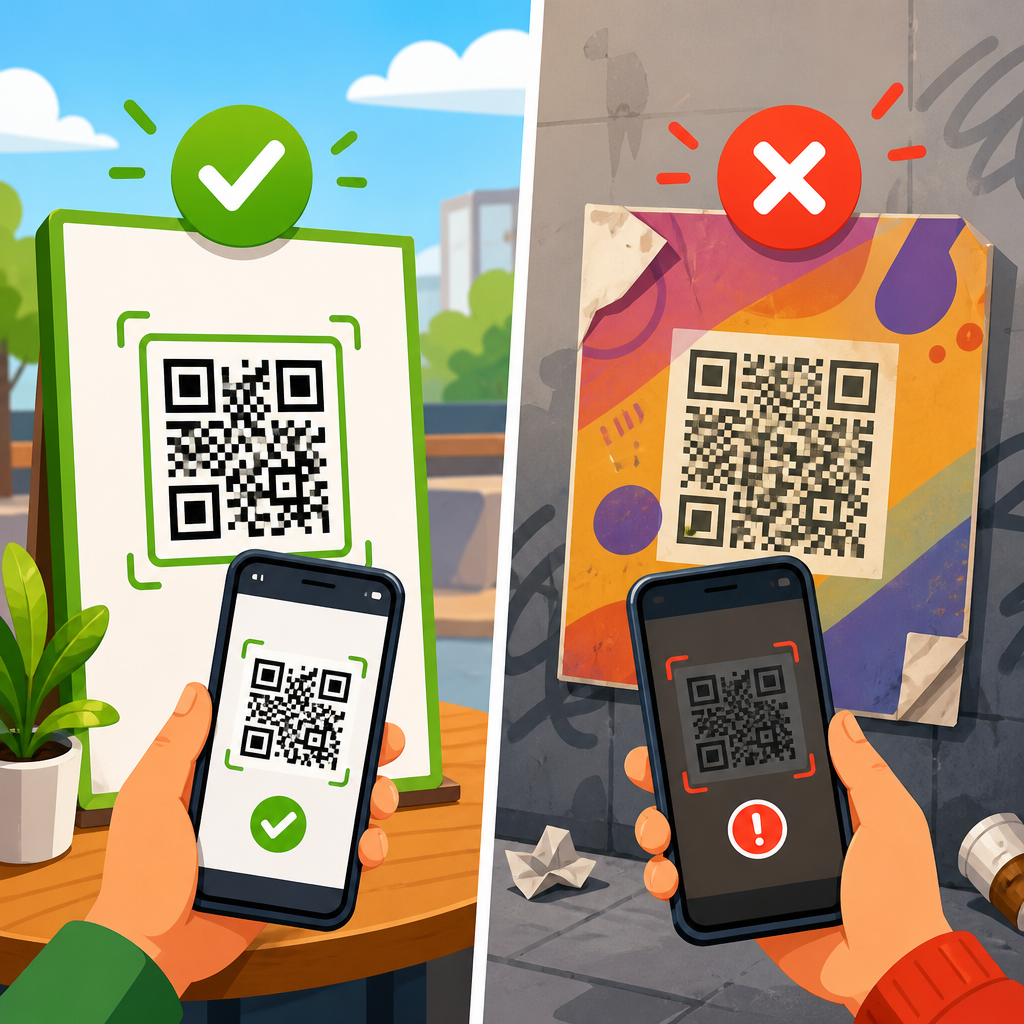
Print surfaces and screens introduce their own issues. Thermal labels can fade or streak. Laminated menus create specular glare. Curved bottles warp module geometry. OLED displays with low brightness or PWM dimming can flicker subtly in camera previews, especially in dark mode environments. Here is a practical comparison support teams can use when troubleshooting scan issues on devices:
| Issue | Typical symptom | Most likely fix |
|---|---|---|
| Tiny or dense QR code | Camera sees code but takes seconds to recognize | Enlarge code, shorten URL, reduce design elements |
| Low light | Preview is grainy, autofocus hunts | Add ambient light, steady device, avoid digital zoom |
| Reflective surface | Code disappears at certain angles | Tilt code or camera, use matte print finish |
| Dirty lens | Soft image and repeated failed reads | Clean lens with microfiber cloth |
| Slow post-scan page | Code detects fast but destination opens slowly | Reduce redirects, optimize page speed, check network |
App, browser, and network bottlenecks after the scan
If the QR code is recognized quickly but users still perceive lag, the slowdown is often happening after decoding. This is common with payment links, app deep links, ticketing systems, and login flows. A code may point to a tracking URL that redirects through analytics, geo-routing, campaign attribution, and consent logic before landing on the final page. Each redirect adds latency, and on weak mobile networks that delay becomes obvious. The fix is straightforward: reduce redirect chains, use fast hosting, compress assets, and test the destination with Lighthouse, WebPageTest, or real-user monitoring. For login or identity flows, server-side checks such as token validation, certificate handshakes, or SSO redirects can make a successful scan feel broken even though decoding was instant.
Browsers and in-app webviews also behave differently. Some enterprise apps open links inside a constrained webview with disabled caching or limited JavaScript performance. Others hand off to the default browser, introducing an extra delay while the operating system decides which app should open the link. Universal links on iOS and app links on Android can fail over inconsistently, especially if domain association files are misconfigured. In support practice, I recommend testing the same QR destination in the native camera, the target app, and the default browser on both Wi-Fi and cellular. If only one path is slow, the issue is not scanning at all; it is routing, rendering, or network policy. This distinction helps structure subtopic articles under Scan Issues on Devices, such as app-specific lag, mobile browser lag, and captive portal interference.
When to change hardware, workflows, or support processes
Some scanning lag cannot be fixed with settings because the hardware is simply below the task. Older tablets with weak autofocus, budget phones with noisy sensors, and rugged devices using worn camera modules will continue to struggle with dense or poorly lit QR codes. If scanning is mission-critical, define minimum device requirements: rear camera autofocus, stable low-light performance, current operating system support, adequate RAM, and enough CPU headroom for continuous preview processing. In high-volume environments, purpose-built scanners or enterprise handhelds from Zebra, Honeywell, or Datalogic may outperform consumer phones because they combine tuned optics with mature decoding stacks. The higher upfront cost is justified when each saved second reduces queue time, labor cost, or customer drop-off.
Workflow design matters just as much. Place codes where users can scan comfortably without bending, glare, or crowding. Avoid requiring scans while people are walking, carrying parcels, or standing in direct sun. Provide fallback options such as short URLs, NFC, or manual entry for damaged labels and unsupported devices. For support teams, build issue intake around evidence: device model, operating system version, app version, network type, lighting condition, whether the code was printed or on-screen, and whether lag happened before or after detection. This data turns vague complaints into patterns you can solve. To improve QR Code Troubleshooting & Support at scale, link this hub to deeper guides on camera permission errors, blurry scans, QR code not opening links, Android-specific scanning problems, iPhone scanning problems, and best practices for printable and on-screen QR code design.
Fixing QR code scanning lag starts with a simple principle: identify where the delay actually happens before changing anything. If the camera struggles to see the code, improve lighting, distance, angle, lens clarity, and code quality. If the code is recognized quickly but nothing happens, investigate redirects, browser handoff, app routing, and network speed. Most persistent issues come from combinations of factors, not a single dramatic failure. A small code on a glossy surface under poor light may still scan on a flagship phone, but it will lag badly on an older budget device. That is why reliable troubleshooting has to consider the whole chain: symbol design, display or print conditions, device hardware, operating system settings, scanner software, and the destination experience.
As the hub page for Scan Issues on Devices, this article gives you the framework for diagnosing nearly every common lag complaint. Start with the fastest checks: clean the lens, raise brightness, improve lighting, disable battery saver, and test with another scanner app. Then move deeper into code density, app configuration, redirects, and hardware capability. Teams that document these steps clearly reduce support time and improve scan success across retail, logistics, healthcare, hospitality, and events. If you manage QR experiences, audit one real-world scanning journey this week from camera open to destination complete, note every delay, and fix the slowest step first.
Frequently Asked Questions
What usually causes QR code scanning lag?
QR code scanning lag is usually caused by a combination of camera, software, and environmental issues rather than one single fault. In many cases, the delay starts before the code is even recognized. If the camera preview is choppy, the device may not be feeding enough clean frames into the scanner, which slows detection. Autofocus problems are another common cause. A phone may keep shifting focus between the QR code and the background, especially in low light, at awkward angles, or when the code is small on screen. That makes recognition take longer because the scanner never gets a consistently sharp image.
Lag can also happen after the code is recognized. Some apps add extra processing, such as validating the content, checking network permissions, loading a webview, or passing the result to the operating system. If the device is low on memory, has too many background apps running, or is in battery-saving mode, that handoff can feel slow even when the code itself was detected quickly. Other contributors include poor lighting, glare on glossy surfaces, low-contrast or damaged QR codes, weak internet connections when opening a URL, and older devices with limited image-processing performance. In short, scanning lag often comes from the entire chain: camera capture, focus, QR decoding, app processing, and final link or action launch.
How can I reduce QR code scanning lag on a smartphone?
The fastest improvements usually come from fixing the scanning conditions first. Hold the phone steady, make sure the QR code is well lit, and avoid harsh reflections from glossy paper, plastic, or screens. Keep the code large enough in the camera frame to be readable, but not so close that the lens cannot focus. If autofocus is hunting, moving the phone slightly farther back often helps more than moving closer. Cleaning the camera lens can also make a noticeable difference, especially if fingerprints are softening the image and forcing the camera to refocus repeatedly.
On the device side, close unnecessary background apps, disable power-saving mode during testing, and make sure the camera and scanning app are updated. If one app feels slow, try the built-in camera scanner instead of a third-party app, or compare both to see whether the lag is coming from the app itself. Restarting the phone can help clear temporary performance issues. If the QR code opens a webpage, test the same scan on a stronger network connection because the scanner may be fast while the destination is slow. For businesses or teams troubleshooting repeated complaints, it is also smart to test on multiple phone models. That quickly reveals whether the lag is tied to one operating system version, one app, or one class of older hardware.
Does the quality or design of the QR code affect scanning speed?
Yes, very much. A clean, high-contrast QR code is typically recognized faster than one that is stylized, tiny, blurry, or printed on a difficult surface. The scanner works best when the code has a clear difference between dark and light modules, a proper quiet zone around the edges, and enough overall size for the camera to resolve the pattern without strain. If the code is too small, compressed in a low-resolution file, or placed on a busy background, the camera may capture it, but the decoder has to work harder to interpret it accurately. That extra effort often shows up as lag.
Decorative QR codes can be especially risky if branding has reduced contrast, changed the shape of modules too aggressively, or covered too much of the code with a logo. Even when these codes remain technically valid, they often scan more slowly in real-world situations such as dim restaurants, outdoor ticket lines, or handheld payment counters. Print quality matters too. Smudging, fading, warped labels, and screen glare all make recognition slower. If scan speed is a priority, use a larger code, preserve strong contrast, leave enough white space around it, and test it on several common devices before publishing. A code that scans instantly in ideal office lighting may still lag badly in public use.
Why does the QR code get recognized, but the phone still takes too long to open the link or action?
That usually means the lag is happening after recognition rather than during scanning. Once the QR code is decoded, the device or app still has to decide what to do with the result. If it is a URL, the operating system may hand it to the browser or an in-app webview, which then has to initialize, connect to the network, and load the destination page. If that page has heavy scripts, redirects, analytics tags, cookie banners, or large images, the user experiences a pause even though the camera already did its job. From the user’s perspective it all feels like “slow scanning,” but technically it is a slow post-scan launch.
The same thing can happen with app deep links, payment flows, sign-in systems, and digital tickets. A QR code might point to a service that requires authentication, token verification, or server-side validation before the result becomes visible. On a weak connection or overloaded backend, that can introduce noticeable delay. To fix this, optimize the destination just as seriously as the code itself. Reduce redirects, compress page assets, simplify landing pages, preload where appropriate, and make sure app links resolve cleanly. If the scan is part of a payment or access flow, backend response times matter just as much as camera performance. The best QR experience depends on both instant recognition and a fast follow-through action.
What is the best way to test and troubleshoot QR code scanning lag systematically?
The most effective approach is to break the experience into stages and test each one separately. Start by checking camera acquisition: does the preview feel smooth, and does the camera lock focus quickly? Then check recognition: once the code is framed, how long does it take before the device detects it? Finally, check post-recognition behavior: how long does it take to open the link, ticket, payment screen, or sign-in result? Timing these stages separately helps you avoid guessing. Many teams assume the QR code itself is the problem when the actual delay is in the app handoff or webpage load.
Run tests across different lighting conditions, distances, code sizes, surfaces, and device types. Compare iPhone and Android behavior, newer and older phones, built-in camera apps and third-party scanners, strong Wi-Fi and weaker mobile data. Test printed codes and on-screen codes separately because glare, refresh behavior, and brightness can change performance. It is also useful to test alternative versions of the same code, such as a larger print size or a less stylized design, to see whether recognition speed improves. If you are troubleshooting for a business setting, document exact models, operating systems, app versions, and network conditions. That turns vague complaints like “it scans slowly” into actionable findings. The goal is not only to make the QR code valid, but to make the entire scan experience consistently fast in the real environments where people actually use it.