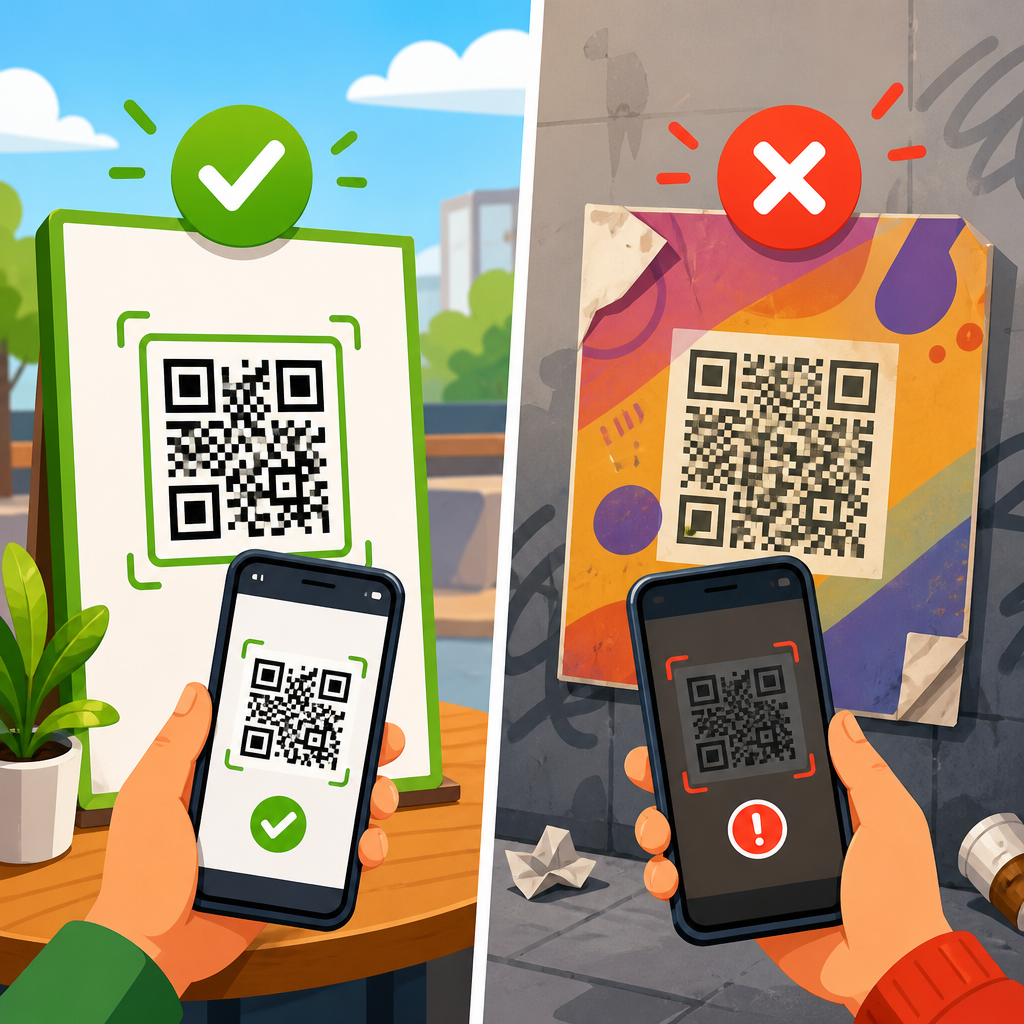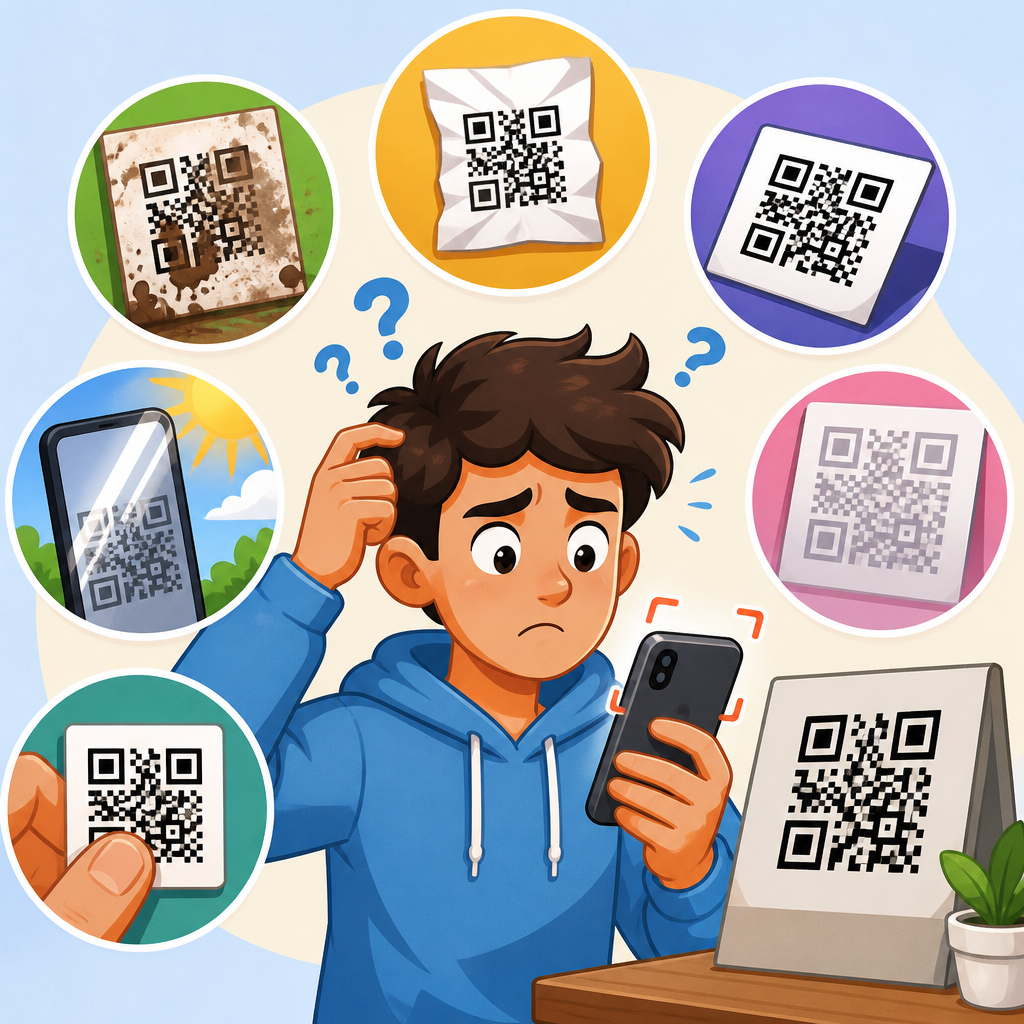
QR codes seem simple: point a phone camera, tap the prompt, and open a link. In practice, many scans fail inside camera apps because decoding depends on far more than the black-and-white square itself. Device hardware, camera software, autofocus behavior, lighting, print quality, screen glare, and even the destination content can interrupt the scan flow. For businesses using QR codes on packaging, menus, posters, invoices, or product labels, these failures translate directly into missed conversions, support requests, and avoidable friction.
In day-to-day troubleshooting, I have found that people usually blame the code first, yet the code is only one part of the scanning chain. A successful scan requires image capture, pattern detection, error correction, decoding, and a handoff from the camera app to the browser or another app. If any stage breaks, users conclude the QR code does not work. Understanding why QR codes fail in camera apps matters because smartphone cameras are now the default scanner. If a code cannot be scanned quickly with the native camera, performance suffers in the real world, no matter how well it tests in ideal conditions.
This hub page explains the main causes of scan issues on devices and shows how to diagnose them clearly. It also points to the larger troubleshooting discipline behind QR Code Troubleshooting & Support: test on multiple phones, verify content delivery, and design for imperfect environments rather than studio conditions. Whether you manage marketing campaigns, retail signage, operational labels, event check-in, or customer support assets, the goal is the same: make scanning reliable on ordinary devices used by impatient people in inconsistent settings.
How camera apps actually scan a QR code
A camera app does not read meaning from a QR code the way a person reads text. It captures a live image, identifies the three position markers, estimates orientation, isolates the symbol area, samples the grid, applies error correction, and extracts data. Most current phones do this natively in the default camera app, while some older models rely on Google Lens, manufacturer-specific code readers, or third-party apps. Apple integrated QR recognition into the Camera app beginning with iOS 11, and many Android devices now include native support, but implementation quality still varies by model and software version.
That variation is one major reason scan issues on devices remain common. Different camera apps use different image processing pipelines. Some sharpen aggressively, some smooth noise, some alter exposure rapidly, and some hesitate before presenting a detection banner. On budget devices, limited processing power and lower-quality sensors make recognition slower in dim scenes or at awkward angles. In testing across mixed fleets, I routinely see a newer midrange phone scan a damaged printed code faster than an older flagship because the software stack is better optimized for machine-readable patterns.
The practical lesson is simple: a QR code must be designed and deployed for the weakest likely scanner, not the best one in the office. If a code only works when the user holds a premium phone perfectly still under bright light, it is fragile. Robust QR implementation starts with scan tolerance.
Device and software limitations that break scans
Not every failed scan indicates a defective symbol. Sometimes the device cannot support the required workflow. Older phones may not have native QR detection enabled. Some enterprise-managed devices disable camera permissions or browser handoffs through mobile device management policies. Certain Android skins suppress the QR prompt unless AI scene detection is active. Users may also be in battery saver mode, which can reduce background processes and create lag between detection and action.
Software age matters. If a device has not been updated, the camera app may contain bugs already fixed in later releases. I have seen native scanners fail to recognize dense codes carrying long URLs, vCard payloads, or Wi-Fi credentials, while a current third-party scanner reads them instantly. Low available storage can also affect temporary image processing and app responsiveness. On some devices, if the browser tied to the scan result is disabled or corrupted, the QR prompt appears but does nothing when tapped, leading users to think the code itself failed.
Permissions create another hidden failure point. If the camera lacks permission to access network services used by a scanner extension, or if parental controls block the destination domain, the user experiences a dead end after a valid read. That is why device-level troubleshooting should include operating system version, camera app version, default browser status, network availability, and content restrictions, not just visual inspection of the code.
Image quality problems: focus, light, distance, and motion
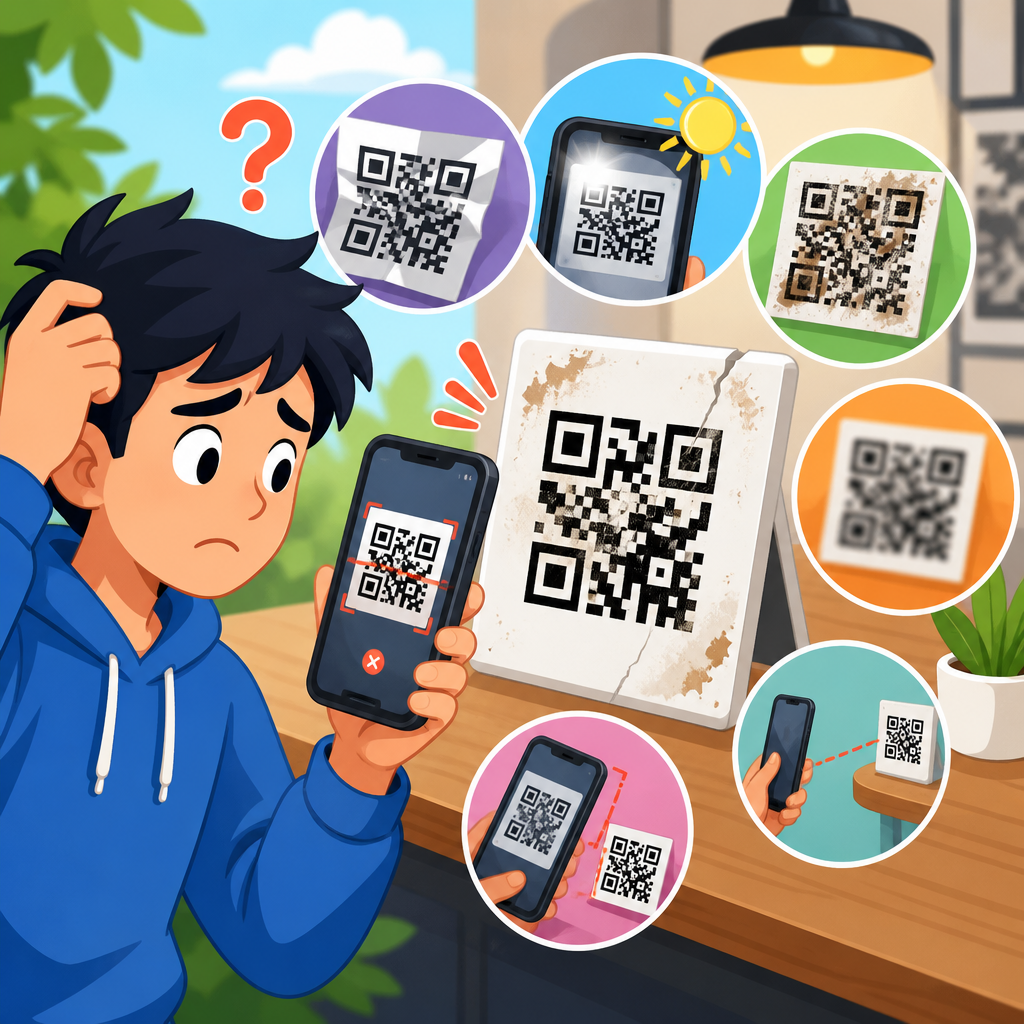
Most camera app failures begin with image quality. A QR code needs sharp edge contrast for reliable detection. Autofocus is often the first issue. When the code is too close, the camera hunts and never locks; when it is too far away, the code occupies too few pixels to decode accurately. The result looks clear enough to the human eye, but the scanner cannot resolve module boundaries. As a rule, larger symbols are more forgiving because they maintain readable structure at greater distances and on weaker cameras.
Lighting is equally important. Low light introduces noise, softens contrast, and increases shutter time, which adds motion blur. Harsh overhead lighting can wash out glossy surfaces, while direct sunlight creates reflections on laminated posters, plastic labels, and phone screens. In restaurants, one of the most common complaints about QR menu scanning is not the code design but table lighting combined with reflective printing. Tilt the menu slightly and the code works immediately because glare no longer obscures the finder patterns.
Motion also matters more than many teams assume. People scan while walking, holding coffee, standing at transit gates, or reaching across a counter. A camera app that needs an extra half second to detect the symbol may fail under these conditions even though static testing passes. This is why field testing should include realistic use: one-handed scans, low-angle scans, and scanning from a quick stop rather than a carefully staged pose.
Printing and display mistakes that make codes unreadable
Bad production is a leading cause of QR code failure. Common problems include insufficient quiet zone, low contrast, over-stylized branding, tiny physical size, ink spread, compression artifacts, and placement on curved or textured surfaces. The quiet zone, the empty margin around the code, is not optional. Without it, the scanner struggles to separate the symbol from surrounding graphics. ISO/IEC 18004 defines the structure of QR codes, and ignoring those fundamentals increases scan risk dramatically.
Size should match scanning distance. A small code on a poster viewed from several feet away is a predictable failure. As a practical guideline, the farther the expected scan distance, the larger the printed code must be. On packaging, codes placed along folds, seams, bottle necks, or crinkled pouches often distort enough to break detection. Matte finishes usually outperform glossy ones because they reduce reflections. For on-screen QR codes, low screen brightness, cracked glass, moiré effects, and screenshot compression can all reduce readability.
I regularly advise teams to avoid decorative modifications unless they have formal test results. Rounded modules, embedded logos, inverted colors, and gradient fills can work, but they shrink the margin for error. A code that scans on a designer’s latest phone may fail on an older warehouse handset or a customer’s budget Android. Reliability should outrank novelty when the code supports payments, authentication, support flows, or regulated product information.
Content and network issues that look like scan failures
Users rarely distinguish between scanning failure and destination failure. If the camera detects the code but the landing page loads slowly, returns a 404 error, triggers a certificate warning, or redirects too many times, people still report that the QR code does not work. In support logs, these cases are often mislabeled. The scan succeeded; the content delivery failed.
Broken redirects are especially common when campaigns end, domains change, or tracking parameters are appended carelessly. A static QR code pointing directly to an outdated URL becomes useless until reprinted. Dynamic QR platforms reduce that risk because the short link can be updated centrally, but they introduce their own dependency: the redirect service must stay available and fast. If mobile users are on weak Wi-Fi, captive portals, or unstable cellular networks, the camera handoff may appear stalled. Deep links can add another failure layer when the required app is not installed or the operating system handles the URI scheme inconsistently.
For troubleshooting, always separate these stages: detection, decode, prompt, tap action, browser launch, redirect, and destination load. That framework prevents wasted effort. If a code decodes consistently but users see a blank page, redesigning the symbol will not solve the problem.
Common scan issues on devices and what they usually mean
When teams need a fast diagnosis, symptom patterns are useful. The table below summarizes the most common device-side scanning problems I encounter and the likely causes behind them.
| Symptom | Likely cause | What to check first |
|---|---|---|
| No prompt appears in camera app | Native QR detection disabled, outdated OS, poor focus, low contrast | Test another phone, update OS, improve lighting, increase code size |
| Prompt appears intermittently | Glare, motion blur, curved surface, small symbol | Change angle, steady device, flatten surface, reprint larger code |
| Code scans on one phone but not another | Hardware or software variance, older camera pipeline | Compare OS versions, native scanner behavior, Lens or third-party app results |
| Prompt opens but page fails | Broken URL, redirect loop, weak network, browser issue | Open URL manually, test on mobile data and Wi-Fi, inspect redirect chain |
| On-screen code will not scan | Low brightness, cracked screen, screenshot compression, moiré interference | Raise brightness, display original asset, enlarge code, avoid messaging compression |
| Printed code fails in store or warehouse | Glossy lamination, low light, damaged label, poor print resolution | Check reflections, replace label, print at higher resolution, use matte stock |
How to troubleshoot QR code failures systematically
Effective troubleshooting follows a repeatable sequence. First, test the same code on at least three devices: a recent iPhone, a recent Android, and an older or lower-cost Android. If all fail, inspect the symbol itself. If only one fails, investigate device-specific limitations. Second, test the destination URL outside the QR flow by typing or sharing it directly. Third, evaluate the environment: lighting, glare, surface distortion, expected scan distance, and user motion. Fourth, verify production quality by checking size, contrast, quiet zone, and file source.
Use purpose-built tools where possible. Google Lens can help determine whether the issue is limited to the native camera app. QR decoding libraries such as ZXing-based testers or professional barcode verifier workflows can confirm whether the encoded payload is valid. URL inspection tools, redirect checkers, and browser developer tools help isolate destination problems. In enterprise settings, mobile device management logs and network filtering policies are often essential because they reveal blocked domains or disabled handlers.
Document test conditions each time. I recommend recording device model, OS version, camera app used, network type, lighting conditions, viewing distance, and whether the code was printed or on-screen. This turns vague complaints into actionable data. Over time, patterns emerge. You may find that failures cluster around one print vendor, one glossy finish, one Android version, or one redirect service. Good QR support is operational discipline, not guesswork.
Best practices for reliable scanning across devices
The most dependable QR codes are visually boring and operationally well tested. Use high contrast, preserve a full quiet zone, choose a size appropriate for distance, and print from vector artwork whenever possible. Keep encoded data compact by using short URLs instead of bloated links stuffed with tracking parameters. Compact payloads usually produce less dense symbols, which scan more easily on weaker devices. If branding is required, keep customization conservative and validate it on multiple phones under realistic lighting.
Plan for the complete mobile journey, not just detection. Landing pages should be fast, mobile-optimized, and available over HTTPS without redirect chains longer than necessary. Include fallback text near the code, such as a short URL or support instruction, especially in critical use cases like payments, check-in, and service access. For physical deployments, review placement as carefully as design. A perfect code mounted behind reflective glass or above average eye level can still underperform badly.
As the hub for Scan Issues on Devices, this page points to the core truth behind QR Code Troubleshooting & Support: scan success is a systems problem. Camera apps fail when hardware, software, environment, production, and destination handling are not aligned. The fix is rarely mystical. Test broadly, isolate the stage that breaks, and remove unnecessary complexity from the code, the placement, and the content path. If you manage QR campaigns at scale, build a device testing checklist now, audit your existing codes in real environments, and treat every scan failure as measurable evidence you can use to improve the next deployment.
Frequently Asked Questions
Why do QR codes fail to scan in camera apps even when the code looks perfectly fine?
A QR code can appear visually correct and still fail inside a camera app because successful scanning depends on an entire chain of conditions, not just the symbol itself. The camera has to detect the code, focus on it, capture enough detail, interpret the data pattern accurately, and then trigger the phone’s built-in prompt or handoff behavior. If any step in that sequence breaks down, the user experiences a failed scan. In many cases, the issue is not that the QR code is technically invalid, but that the camera app cannot gather a clean enough image to decode it quickly and confidently.
Several factors commonly interfere with that process. Low light reduces contrast. Motion blur softens the edges the decoder needs to identify the modules, or tiny squares, inside the code. Glossy packaging, laminated menus, curved bottles, and reflective screens can create glare that hides parts of the pattern. Poor print quality, low ink density, overdesigned branding, and insufficient white space around the code can also make recognition harder. On top of that, different phones use different image processing pipelines and scanning algorithms, so a code that scans easily on one device may struggle on another.
There is also a software layer many people overlook. Some camera apps are more aggressive about recognizing QR codes, while others require steadier framing or a closer focal distance. Older devices may have weaker autofocus systems or lower-quality sensors. In short, a QR code does not fail only because it is “bad.” It often fails because real-world conditions expose the limits of the device, the camera app, the environment, or the code’s presentation. That is why businesses should evaluate QR performance in realistic use cases rather than assuming a code that works on a designer’s desk will work equally well in stores, restaurants, warehouses, or outdoor settings.
How do camera quality and autofocus affect QR code scanning performance?
Camera hardware and autofocus behavior play a major role in whether a QR code scans instantly, slowly, or not at all. A camera app needs a sharp, readable image to decode the symbol, and that depends heavily on lens quality, sensor performance, focal distance, and the speed and accuracy of autofocus. If the phone cannot lock focus on the QR code quickly, the pattern becomes too soft for reliable decoding, especially when the code is small, printed on textured material, or viewed in dim conditions.
Autofocus issues are especially common when users hold the phone too close to the code. Many smartphone cameras have a minimum focusing distance, so if the code fills the frame but the lens cannot focus at that range, the image stays blurry no matter how long the user waits. Conversely, if the user stands too far away, the code may become too small for the camera app to resolve clearly. This is one reason scan experiences vary so much: success often depends on the user finding the right distance, angle, and level of steadiness. On newer phones with better autofocus systems and image stabilization, this adjustment happens more smoothly. On older or budget devices, it can take longer or fail outright.
Sensor quality also matters. Better sensors preserve detail in low light and high-contrast scenes, which helps the decoder distinguish the QR modules from the background. Inferior sensors may introduce noise, crush shadows, or blow out highlights, making the code harder to interpret. In practice, this means businesses should not test QR codes only on high-end phones. If customers, diners, shoppers, or field staff are likely to use a wide range of devices, the code should be sized, printed, and placed with weaker cameras in mind. A QR experience is only as strong as the least capable real-world device expected to scan it.
Can lighting, glare, and surface materials really stop a QR code from working?
Yes, and they are among the most common reasons camera-app scans fail. QR decoding relies on strong visual contrast and clearly visible edges. When lighting is too dim, the camera raises exposure or ISO, which often introduces blur and noise. When lighting is too harsh, especially under direct sunlight or bright overhead fixtures, reflective surfaces can produce hotspots that wash out sections of the code. If enough modules are obscured, the decoder may not be able to reconstruct the data even if the code itself is correctly generated.
Surface material makes a surprisingly large difference. A QR code printed on matte paper usually scans more reliably than the same code printed on glossy packaging, glass, foil labels, or laminated menus. Curved surfaces add another challenge because they distort the square geometry that scanning software expects to see. A code on a bottle, cup, pouch, or shrink-wrapped package may be technically readable, but much harder for a camera app to interpret when part of the pattern bends away from the lens or catches reflections. Similarly, QR codes displayed on screens can fail when brightness is too low, the screen is smudged, or another screen is trying to scan through glare or a privacy filter.
For businesses, the lesson is practical: placement and production choices matter as much as the code design. Choosing matte finishes, avoiding cramped or highly reflective areas, increasing code size, and testing in the actual lighting environment can dramatically improve scan rates. A QR code intended for a poster in a sunny window, a restaurant table under pendant lights, or a warehouse shelf with mixed lighting should be tested in those exact conditions. Scanning reliability is environmental, not theoretical.
What design and printing mistakes make QR codes harder for camera apps to read?
Many QR failures come from avoidable design and production decisions. One of the biggest mistakes is making the code too small for the expected scanning distance. A code on a product label may be readable up close, but the same dimensions can fail on a wall poster or storefront sign because the camera cannot capture enough detail from where users naturally stand. Another common issue is reducing contrast. While branded QR codes can be effective, they still need strong differentiation between dark and light areas. Light gray on white, pastel colors, textured backgrounds, or over-stylized patterns often reduce readability, especially on weaker cameras.
The quiet zone is another critical but frequently ignored requirement. This is the empty margin around the QR code that helps scanning software distinguish the code from surrounding text, borders, icons, or graphics. If designers place the code too close to other visual elements, the camera app may struggle to isolate it. Distortion is also a problem. Stretching a QR code, placing it on a busy background, adding excessive logos, or exporting it at low resolution can all compromise the symbol structure. Even if error correction allows some damage, there is a limit to what a decoder can recover from in real use.
Print quality matters just as much as layout. Ink spread, low-resolution printing, weak black density, misregistration, and damaged labels can blur the sharp module boundaries the camera needs to detect. On packaging and labels, folds, seams, and curved application can further degrade readability. The best approach is to treat QR production like any other conversion-critical asset: keep contrast high, preserve the quiet zone, use appropriate size for context, export at sufficient resolution, and test final printed samples rather than relying on on-screen proofs. A code that is technically valid in a design file can still underperform once it reaches physical production.
Why does the scan sometimes work, but the user still never reaches the intended content?
A QR interaction can fail after the code is successfully decoded, and this is an important distinction for businesses measuring results. From the user’s perspective, the scan has failed if they do not quickly reach useful content, even if the camera app recognized the QR code correctly. Problems at this stage often include broken links, expired redirects, slow-loading landing pages, region-restricted content, intrusive interstitials, app-deep-link conflicts, and pages that are not optimized for mobile browsers. In other words, the camera did its job, but the destination experience broke the conversion.
Camera-app behavior can also influence what happens next. Some devices show a small banner or prompt that users can easily miss or accidentally dismiss. Others may preview the URL in ways that make cautious users hesitate, especially if the domain is unfamiliar or looks suspicious. If the landing page then loads slowly, triggers certificate warnings, asks for immediate login, or opens content that is hard to use on mobile, the user may abandon the interaction almost instantly. This is particularly costly for QR codes on menus, packaging, invoices, posters, or product labels, where the expectation is speed and simplicity.
To reduce these failures, businesses should think beyond scanability and optimize the full scan flow. Use clear, trustworthy URLs or branded short domains when appropriate. Ensure redirects are maintained and monitored. Build mobile-first landing pages that load fast on standard cellular connections. Avoid unnecessary pop-ups, excessive scripts, or forms that interrupt the first interaction. Most importantly, test the complete journey across different devices and network conditions. A QR code campaign should be evaluated not only by whether the camera detects the code, but by whether the user reaches the intended content without friction. That is the point where scanning becomes conversion.