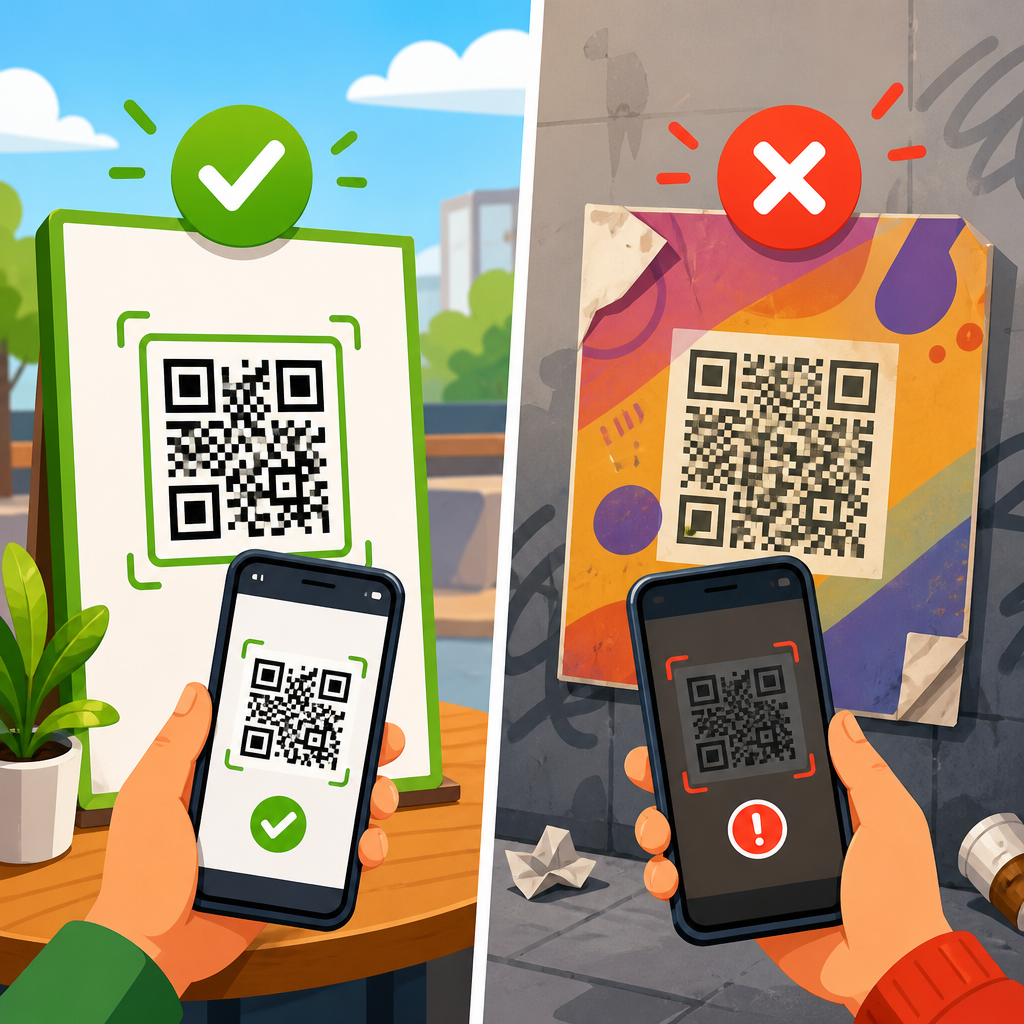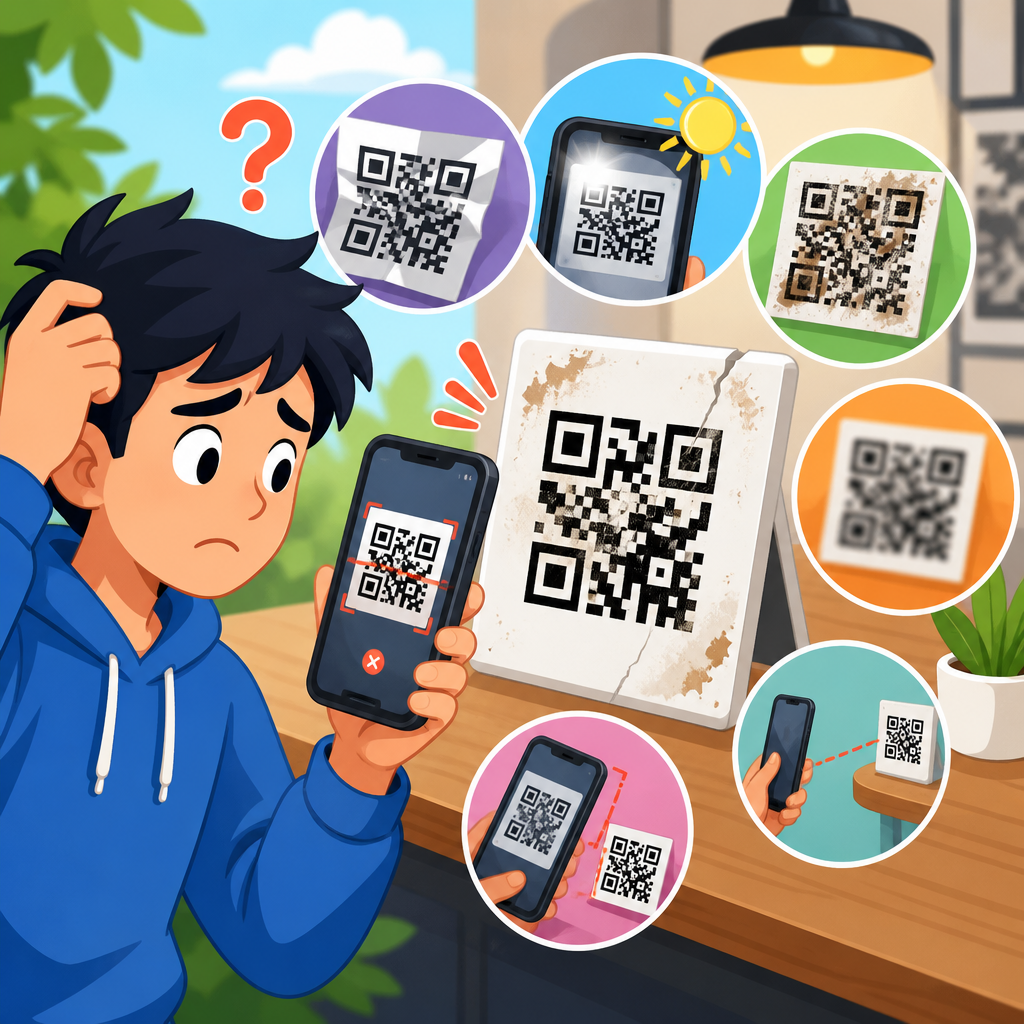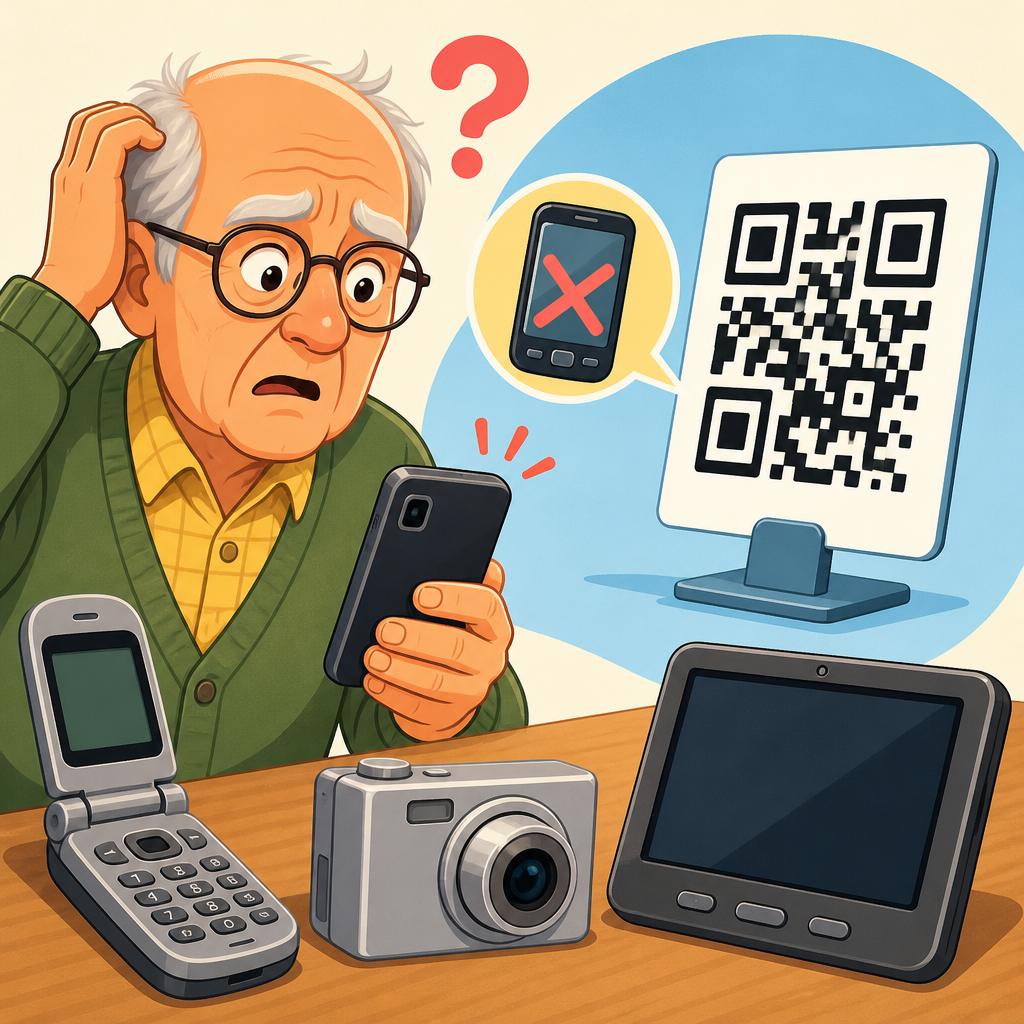
QR codes seem universal, but anyone who has supported customers in the field knows that scan issues on devices are far more common on older phones and tablets. A QR code is a two-dimensional matrix barcode that stores data, usually a URL, Wi-Fi credential, payment token, contact card, or app deep link. Newer devices usually decode that pattern instantly through the native camera app, while older devices often struggle because of outdated camera hardware, limited autofocus, slower image processing, unsupported operating systems, and missing software integrations. Understanding why QR codes don’t work on older devices matters for marketers, retailers, event teams, restaurants, healthcare providers, and IT managers because a failed scan creates friction at the exact moment a user is ready to act. In practical terms, poor scan performance reduces sign-ins, form completions, menu views, product checks, and mobile payments. This article serves as the central guide to scan issues on devices, explaining the technical causes, the common symptoms, the device-specific variables, and the best fixes so teams can improve reliability across mixed fleets of smartphones.
When people ask why a QR code fails on an older device, they are usually describing one of four problems: the camera cannot capture a clear image, the software cannot recognize the code, the phone recognizes it but cannot open the destination, or the experience breaks after the scan because the linked page is too heavy for the device. Those are different failure points and they need different solutions. I have seen this repeatedly in restaurant ordering rollouts and event check-in systems, where teams blamed the printed code when the real issue was a five-year-old handset with a scratched lens and no native scanner support. Older devices are not one category either. A 2017 flagship phone may outperform a low-end 2020 handset, and an older iPhone may scan more reliably than an aging budget Android because of camera quality and operating system support. To troubleshoot well, you need to separate code design issues from device limitations and test the full scan journey, not only whether a code can be detected.
What makes older devices fail to scan QR codes
The most common reason QR codes don’t work on older devices is weak image capture. Scanning begins with contrast detection, edge recognition, focus, and enough detail to identify the finder patterns in three corners of the symbol. Older cameras often have lower resolution sensors, worse low-light performance, slower shutters, and less reliable autofocus. Many early budget phones also lack phase-detection autofocus or advanced computational photography, so the camera hunts for focus and never resolves the small square modules sharply enough to decode. A cracked lens cover, sensor noise, or motion blur makes the problem worse. This is why a code that scans instantly on a recent iPhone can fail repeatedly on an older Android held at the same distance.
Software support is the second major factor. Native QR recognition became mainstream at different times across platforms. Apple integrated broad native QR scanning into the Camera app with iOS 11. On Android, support depended heavily on the manufacturer, the camera app, and Google services. Some older devices require Google Lens, a third-party scanner, or a specific OEM camera update that never arrived. Even if the camera can capture the code, the operating system may not know what to do with it. I have also seen enterprise-managed devices where the camera app was present but barcode scanning permissions were restricted through mobile device management, making users think the QR code itself was broken.
Display and environmental factors also matter more on aging devices. A small screen can make on-screen QR codes harder to scan from another phone because the displayed modules are too tiny or the brightness is low. Older devices tend to have dimmer screens and narrower viewing angles, so glare can wash out contrast. Printed codes create a different problem: if the code is too small, printed on reflective material, placed behind curved acrylic, or shown in a dark venue, older cameras struggle first. The code may meet theoretical specifications yet still fail in the real world because older hardware needs a larger margin for error.
Hardware limitations: camera, focus, sensor, and processor
Hardware determines the ceiling for scan performance. Most older phones use smaller sensors with weaker dynamic range, which means they lose detail in both shadows and highlights. QR decoders need clear boundaries between dark and light modules; once those edges smear together, detection confidence drops sharply. Autofocus is often the decisive issue. Fixed-focus or worn autofocus systems cannot lock onto a nearby code, especially one printed below about 2 x 2 centimeters. In retail support projects, I routinely found that moving the code farther away actually helped older devices, because the camera could finally focus at that distance even though users naturally tried to scan up close.
Processor speed matters after the image is captured. Decoding a QR code is not computationally heavy on a modern chipset, but on older entry-level phones the camera preview can lag, making real-time recognition inconsistent. If the scanning app adds analytics, in-app browsers, or security checks, delay increases. Battery-saving modes can throttle CPU performance and reduce camera responsiveness further. Some aging devices also overheat quickly, which can degrade frame rate and slow recognition in busy environments such as stadium gates or trade show entrances.
| Device factor | How it affects scanning | Typical symptom on older devices | Practical fix |
|---|---|---|---|
| Low-resolution camera | Captures less module detail | Code looks sharp to the eye but will not decode | Increase code size and lighting |
| Weak autofocus | Cannot lock on near objects | Image pumps in and out of focus | Hold farther back and use larger print |
| Dim screen | Reduces contrast for screen-to-screen scans | Another phone fails to read displayed code | Raise brightness to maximum |
| Slow processor | Delays live decoding | Long pause before recognition | Use a lighter scanner app |
| Old operating system | Lacks native QR support | Camera sees image but shows no prompt | Install Google Lens or a trusted scanner |
Software and operating system issues on older phones
Operating system age is one of the clearest predictors of QR frustration. On iPhones running iOS 10 or earlier, users often need a dedicated scanning app because the default camera does not provide seamless detection. On Android, version number alone is not enough; fragmentation means two phones on the same Android release can behave differently based on manufacturer software. Samsung, Motorola, LG, Huawei, and Xiaomi have all handled QR support differently across generations. Older devices may rely on Bixby Vision, Google Lens, or a custom camera mode hidden in settings. If users do not know that path, they conclude the code does not work.
App compatibility is another overlooked issue. Some QR campaigns link directly into apps, wallet passes, ticketing systems, payment flows, or deep links using URI schemes. Older devices may scan the code but fail when the destination requires a newer app version, a modern browser engine, TLS support for secure connections, or current certificate chains. This is especially relevant for devices stuck on old versions of Android WebView or Safari. I have seen QR scans fail not because the code was unreadable, but because the linked landing page used JavaScript features unsupported on older browsers. From the user’s perspective, the scan failed; technically, the post-scan experience failed.
Permissions and security settings can block scanning too. Camera permissions may be denied, enterprise restrictions may disable links, or privacy tools may intercept redirects. Older phones are also more likely to run outdated third-party scanner apps loaded with ads or aggressive permissions, which slows performance and erodes trust. For support teams, the safest approach is to verify the device OS version, default camera behavior, browser capability, and scanner app quality before changing the code artwork.
Code design problems that older devices expose first
Many QR codes are technically valid but not robust. Older devices reveal those weaknesses sooner than newer ones. The first issue is size. A practical rule is that the scanning distance should be about ten times the code width, but older cameras need more generous sizing. If a user scans from one meter away, the code should often be at least 10 centimeters wide, and larger in dim conditions. Tiny table tent codes, labels on curved bottles, and badges printed with low contrast commonly fail on older phones even when premium devices still manage to read them.
Error correction level matters too. QR codes support four levels: L, M, Q, and H, allowing recovery from increasing amounts of damage or obstruction. Designers often add logos in the center without adjusting module density or testing with older hardware. If the code is already dense because it stores a long URL with UTM parameters, a decorative logo can push it past the tolerance of low-quality cameras. Dynamic QR platforms help by shortening the encoded URL, reducing density. In deployments I have managed, switching from a long static URL to a short dynamic link measurably improved first-scan success on older Android devices.
Contrast and quiet zone are equally important. The standard guidance is dark modules on a light background with a clear margin around the code, typically four modules wide. In practice, reverse colors, gradients, metallic inks, glossy lamination, and patterned backgrounds create avoidable risk. Newer phones compensate better because their image processing is stronger; older phones do not. If this hub leads to deeper troubleshooting pages, the natural next topics are QR code size requirements, low-contrast code fixes, logo-related scan errors, and best practices for screen versus print display.
Environmental conditions and user behavior
Not every scan issue on devices is a device defect. Light, angle, distance, movement, and cleanliness all influence success, and older devices are less forgiving in every category. Backlit environments can wash out a printed code. Warm restaurant lighting can introduce blur on low-end sensors. Outdoor glare on a phone screen can make a displayed code unreadable. Fingerprints on the lens reduce micro-contrast enough to break recognition. During support sessions, simply cleaning the lens and asking the user to step into brighter light often resolves the issue faster than changing software.
User behavior also affects results. People move too quickly, hold the phone too close, tilt the device sharply, or scan through social media camera overlays that do not include a decoder. Some older users do not know that their native camera supports QR scanning at all, while others try to take a photo first and expect a result afterward. Clear instructions near the code help: open camera, point steadily, hold 6 to 10 inches away, increase brightness if scanning from a screen, and tap the notification banner. These basics sound simple, but they consistently lift completion rates, especially when older devices are common in the audience.
How to troubleshoot scan issues on devices systematically
A reliable troubleshooting process starts by isolating the failure point. First, test whether the code is valid using multiple tools such as the native iPhone camera, Google Lens, and a trusted third-party scanner like Zebra or NeoReader in managed contexts. If modern devices scan instantly, inspect the older device: OS version, camera app, permissions, focus behavior, lens condition, battery saver state, and browser support. Next, test the exact environment: same lighting, same print size, same stand, same distance. Finally, verify the destination experience by opening the encoded URL directly on the older device. This sequence prevents teams from misdiagnosing a landing-page compatibility problem as a camera problem.
For organizations, the best long-term fix is design for the oldest realistic device in your audience. Use short dynamic URLs, medium data density, high contrast, generous quiet zones, and larger print sizes than the minimum. Avoid relying solely on a QR code; add a short fallback URL or NFC alternative where possible. Test across iPhone and Android generations, including at least one older low-end Android device, because that is often the weakest real-world case. If this page anchors a support cluster, companion articles should cover camera permission errors, failed scans from cracked screens, browser incompatibility after scanning, MDM restrictions, and accessibility considerations for low-vision users.
The core lesson is simple: QR codes usually do not fail on older devices for one mysterious reason. They fail because scanning is a chain of dependencies, and older hardware and software weaken every link in that chain. Camera quality, autofocus, processor speed, native operating system support, browser compatibility, code density, contrast, print conditions, and user behavior all contribute to first-scan success. Once you view QR troubleshooting through that full-device lens, support becomes much more effective. Instead of reprinting assets blindly, you can identify whether the problem is capture, recognition, launch, or post-scan rendering and fix the exact constraint.
For teams responsible for QR performance, the benefit of this approach is measurable: fewer abandoned scans, smoother check-ins, stronger conversion rates, and less frontline support time. Start by auditing your current codes on an older iPhone and an older budget Android in real lighting conditions. Enlarge any small codes, shorten long URLs with dynamic links, confirm browser compatibility, and publish clear user instructions beside the code. Then build out the rest of your QR Code Troubleshooting & Support resources around the device issues outlined here. If you want better scan rates across mixed audiences, optimize for the oldest device that still matters to your customers.
Frequently Asked Questions
Why do QR codes often fail on older phones and tablets?
Older devices usually struggle with QR codes because successful scanning depends on several pieces of technology working together, and older hardware and software are often limited in exactly those areas. A QR code may look simple, but the device has to capture a sharp image, recognize the square positioning markers, separate the code from the background, correct perspective distortion, and decode the data quickly enough for the user to complete the scan without frustration. On newer phones, this all happens almost instantly because modern camera sensors, autofocus systems, image processors, and operating systems are designed to support native QR detection.
On older phones and tablets, the most common problems are weak cameras, slow autofocus, poor low-light performance, and outdated operating systems that do not include built-in QR code reading in the default camera app. Many older devices also have lower screen brightness and weaker processors, which can make it harder to scan a QR code displayed on another screen. If the code is small, printed poorly, placed on a reflective surface, or shown under uneven lighting, the limitations become even more noticeable. In practice, the QR code itself may be perfectly valid, but the older device simply cannot capture and interpret it reliably under real-world conditions.
Is the problem usually the QR code itself or the age of the device?
It can be either, but in many support situations it is a combination of both. A well-generated QR code with enough contrast, proper sizing, and a clean quiet zone can still fail on an older device if that device has a weak camera or lacks QR support in the native software. At the same time, a poorly designed code that newer phones can still manage to decode may completely fail on older phones because those devices have much less margin for error. In other words, newer devices are often more forgiving, while older devices expose weaknesses in code quality very quickly.
Common QR code design issues include low contrast, overly dense data, logos that cover too much of the pattern, missing padding around the code, glossy print finishes, and codes reproduced at too small a size. If the destination is a long URL, the QR code becomes more complex, which can make scanning harder for legacy devices. That is why testing matters. If a code only works on current flagship phones, it is not truly robust. For broad compatibility, especially in field, retail, healthcare, logistics, or event environments, the code should be produced with older devices in mind, not just the latest smartphones.
What technical limitations on older devices make QR scanning harder?
Several technical limitations make a major difference. First is camera quality. Many older devices have lower-resolution sensors, less accurate autofocus, and weaker dynamic range, which means the QR code may appear blurry, washed out, or too dark to decode. Second is image processing power. QR scanning requires the device to analyze the captured frame, identify the code boundaries, correct for tilt or skew, and then decode the encoded data. Older processors and memory constraints slow this down and can cause failures, especially if the user is moving the device or the lighting is poor.
Software support is another major factor. Many older operating systems did not include native QR scanning in the camera app, so users had to install third-party scanner apps. Those apps varied widely in quality and often depended on camera APIs that were less advanced than what modern devices use today. Browser behavior can also create issues after the scan. Even if the device reads the code, the resulting URL may open slowly, fail to render on an outdated browser, or trigger a deep link the device cannot handle. In some cases, security settings, unsupported TLS versions, or outdated app versions can make it look like the QR code failed when the real problem happens after decoding.
How can you make a QR code easier for older devices to scan?
The best approach is to reduce complexity and increase visual clarity. Start by encoding the shortest possible destination, ideally a short URL rather than a long, parameter-heavy link. This creates a less dense QR code with larger modules, which is much easier for older cameras to resolve. Maintain strong contrast, usually black on white, and avoid stylized colors that reduce readability. Keep a generous quiet zone around the code so the scanner can clearly distinguish the edges. If printing, use a matte finish when possible to reduce glare, and make sure the final printed size is large enough for the expected scanning distance.
Placement and context matter as well. Do not put codes in dim corners, behind glass with reflections, on curved packaging, or in locations where users must scan at awkward angles. If the code is displayed digitally, increase screen brightness and avoid tiny on-screen placement. It is also smart to provide a human-readable fallback such as a short typed URL, SMS keyword, or NFC alternative. Most importantly, test the code on actual older devices, not just emulators or recent phones. Real-world compatibility testing is the fastest way to identify whether the code is truly accessible to users working with aging hardware.
What should businesses do if customers using older devices still cannot scan the code?
Businesses should treat QR scanning as a convenience, not the only path to access. If customers in the field are using older phones or tablets, build redundancy into the experience from the start. That means offering a short URL beneath the QR code, including clear instructions, and making sure the destination page loads well on older mobile browsers. If the QR code is used for payments, check-ins, product information, menus, or support flows, there should always be a backup method that does not depend entirely on camera-based scanning. This is especially important in industries where a failed scan can interrupt operations or create lost conversions.
From a support perspective, it helps to diagnose whether the failure happens during scanning or after the scan. If the camera never detects the code, the issue is likely optical, hardware-related, or caused by code design. If the code scans but nothing useful happens, the issue may be the destination URL, browser compatibility, app deep linking, or network conditions. Businesses that understand this distinction can solve problems faster and design better QR experiences. The most reliable strategy is simple: create clean codes, test on older devices, optimize the mobile destination, and always provide a fallback so no user is blocked by legacy hardware limitations.