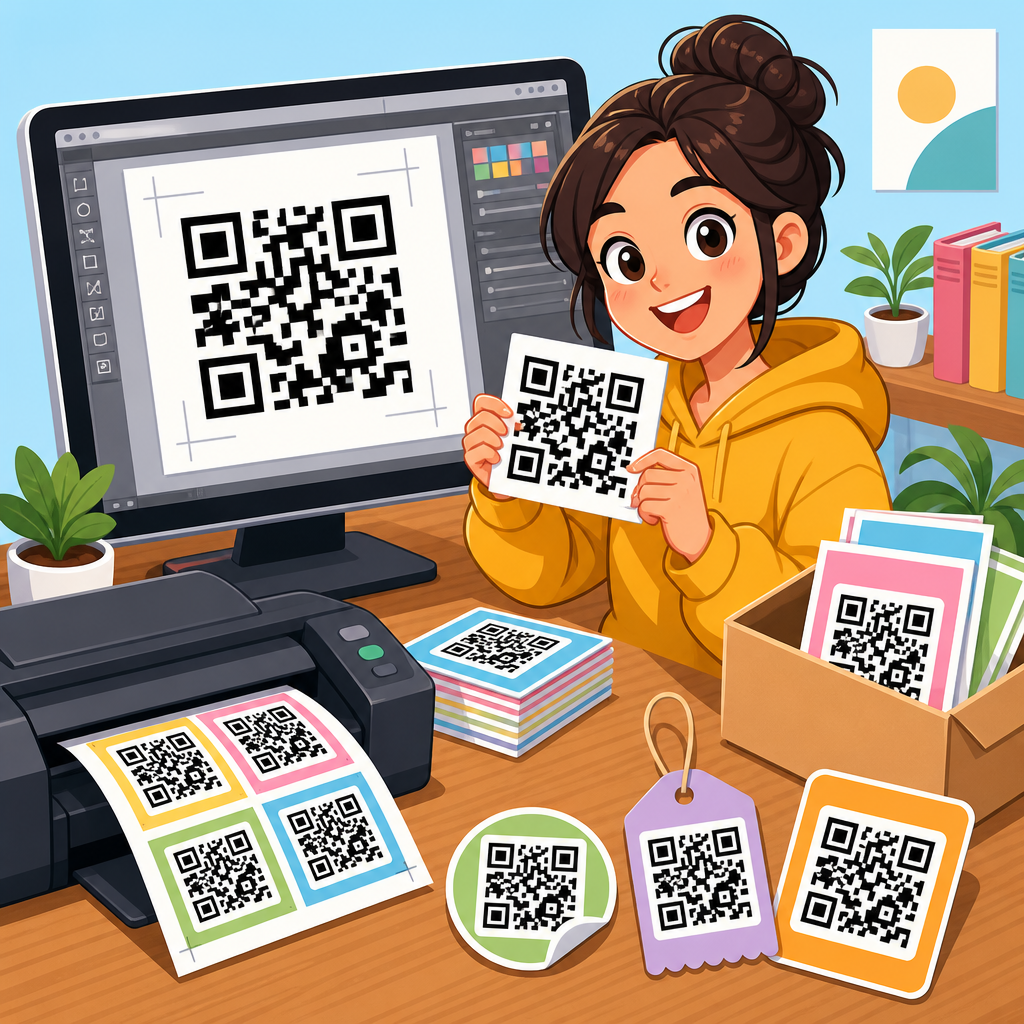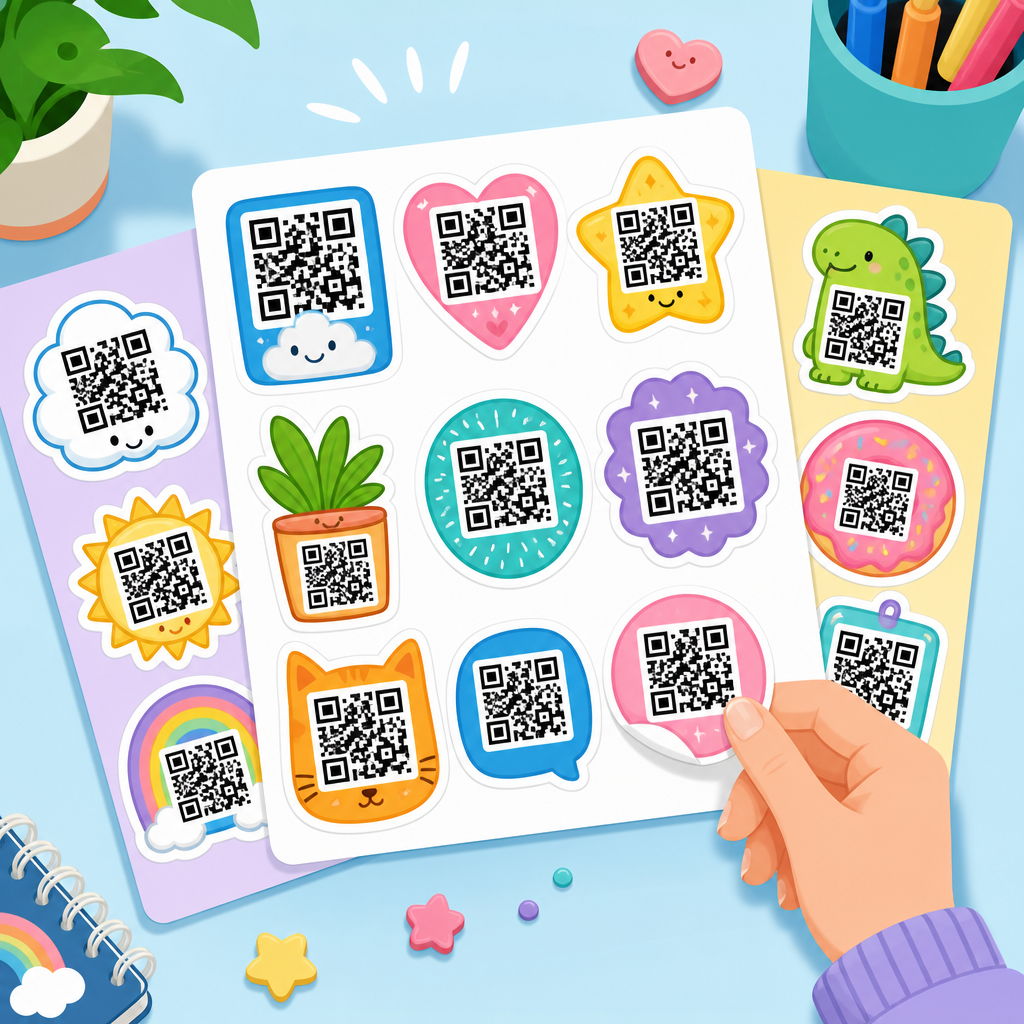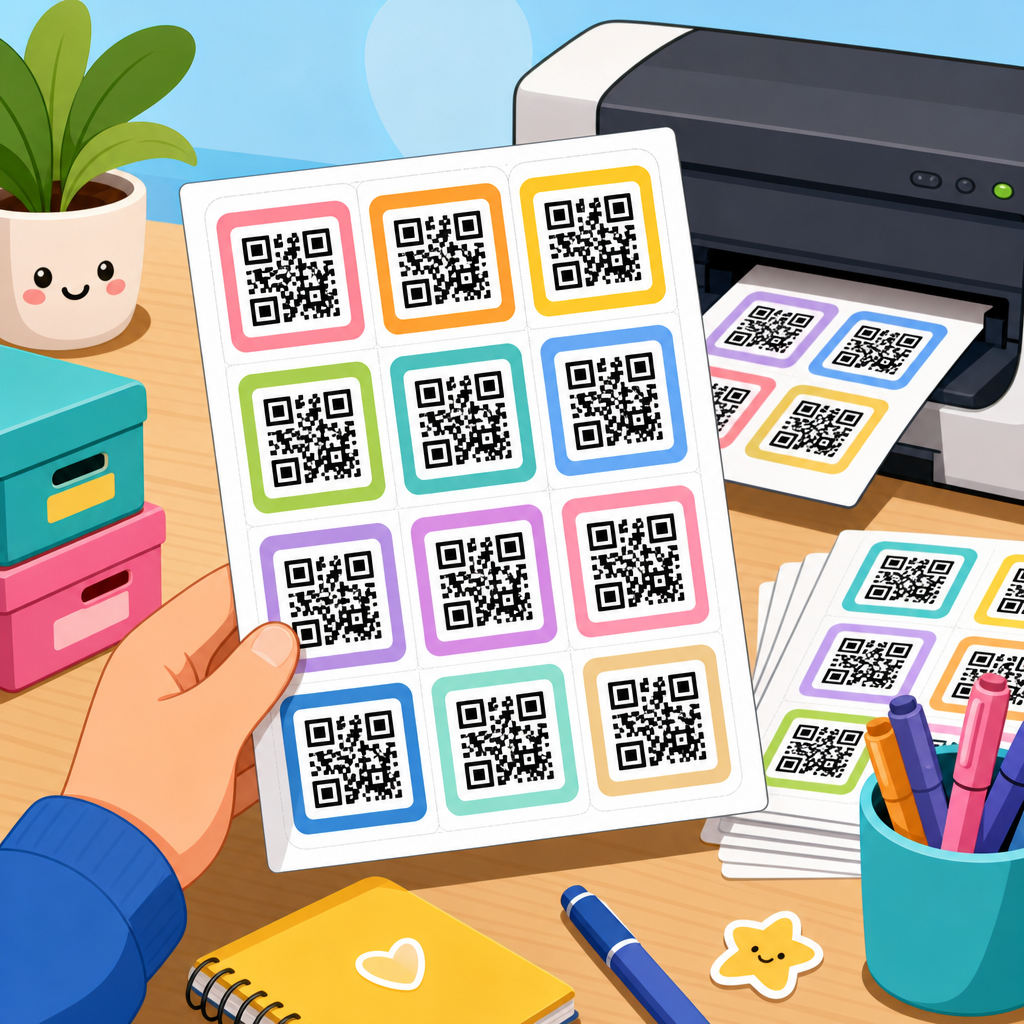
QR code label sheets give teams a fast, low-cost way to turn digital links, asset records, inventory IDs, and support instructions into scannable physical labels that can be printed in bulk and applied anywhere. In practical terms, a QR code label sheet is a preformatted printable layout, usually sized for common label stock such as Avery 5160, A4 multi-label sheets, or thermal sticker rolls, that places multiple QR codes on one page with consistent spacing and margins. I have used these sheets for equipment tagging, classroom handouts, event check-in cards, warehouse bin labels, and product inserts, and the pattern is always the same: when the sheet template is accurate, deployment is easy; when sizing is off by even a few millimeters, scanning reliability and print waste become immediate problems.
For a resource hub, downloadable assets matter because most users do not want to design label geometry from scratch. They need a file they can open today, map to a destination URL or text string, print on standard stock, and trust in production. That requires more than a pretty template. A useful QR code label sheet download must account for print bleed, quiet zone clearance, code size, error correction, adhesive stock limitations, camera autofocus behavior, and the difference between desktop laser output and direct thermal printers. It should also fit broader workflows, including spreadsheet mail merge, bulk code generation, asset management systems, and print quality checks.
This page serves as the central guide to QR code label sheet downloads within the broader QR Code Resources, Templates & Tools library. It explains what formats are worth downloading, how to choose the right sheet for your use case, what technical standards affect scan performance, and which related templates you should use next. If you need free QR code label sheets for inventory, office assets, product packaging, classroom distribution, marketing handouts, shipping inserts, or facility signage, this hub will help you select the right file and avoid the common mistakes that make labels fail in the field.
What a QR code label sheet download should include
A reliable QR code label sheet download should include four elements: a print-ready layout, an editable source file, clear sizing specifications, and usage guidance. Print-ready layouts are typically provided as PDF because PDF preserves dimensions across systems and prints consistently from Adobe Acrobat, Preview, Chrome, and enterprise print queues. Editable source files may be offered in Canva, Google Slides, PowerPoint, Word, Illustrator, or spreadsheet-linked formats depending on the audience. Sizing specifications should identify page size, label dimensions, corner radius, sheet margins, and compatibility with specific stock numbers. Usage guidance should explain minimum QR size, recommended quiet zone, and whether the template is intended for inkjet, laser, or thermal output.
In my own production work, the templates that save the most time are the ones that separate the code generation task from the sheet placement task. For example, a bulk operations team may generate 500 destination URLs in a CSV, create the QR images with a batch tool, then place them into a 30-up Avery-compatible sheet. A school administrator may need a simpler path: type one link, auto-fill 24 identical labels, print, and hand them out at orientation. Both are valid, but they need different downloadable assets. That is why a hub page should organize downloads by workflow, not only by page size.
Users also expect files that support common real-world variations: square labels for packaging, rectangular labels for file folders, mini labels for electronics, and larger labels for scan-at-distance applications. A good free library will include sheets for US Letter and A4, because regional paper standards still matter. It will also offer versions with and without text fields beneath the code. Text matters when the label needs a human-readable short URL, serial number, room name, SKU, or fallback instruction such as “Scan for setup guide.”
Best use cases for downloadable QR code label sheets
QR code label sheets are most valuable when many items need the same structure with different destinations or identifiers. Asset tracking is one of the strongest examples. IT departments label laptops, monitors, docks, test devices, and loaner equipment with a QR code that opens a maintenance form, device record, or help article. Facilities teams do the same for HVAC units, extinguishers, inspection points, and room signs. In each case, the label sheet allows batch printing and fast deployment while preserving standard placement and branding.
Inventory management is another major use case. Warehouses often apply QR labels to shelves, bins, pallets, or kits so staff can scan locations and items with a phone or scanner. If the code maps to a WMS location code, replenishment becomes faster and picking errors drop because the scan confirms the right bin. Small retailers use label sheets for backroom organization and product storytelling. A label on a product box can open assembly instructions, warranty registration, or ingredient details without expanding the packaging.
Education and events benefit as well. Teachers use printable QR label sheets for station activities, library linking, assignment submission, and lab safety references. Event teams use them for table IDs, sponsor activations, lead capture pages, and check-in support. Healthcare-adjacent environments use controlled internal QR labels to open cleaning logs, room readiness forms, or equipment instructions, though regulated settings should validate privacy and device policies before deployment. In every scenario, the value of the downloadable asset is speed: no one wants to rebuild a label grid every time a new campaign or operations need appears.
| Use case | Recommended label format | Typical destination | Key print consideration |
|---|---|---|---|
| Asset tracking | Small durable square labels | CMMS, help desk, asset record | Lamination and abrasion resistance |
| Inventory bins | Medium rectangular sheets | Location ID or SKU page | High contrast for warehouse lighting |
| Classroom handouts | Letter or A4 multi-up labels | Lesson, video, form | Readable text under code |
| Product packaging | Compact square labels | Manual, support, registration | Quiet zone preserved near edges |
| Events | Large labels or cards | Check-in, maps, offers | Fast scan from different angles |
How to choose the right template size and file format
The best QR code label sheet template depends on scanning distance, available surface area, printer type, and whether the code is static or dynamic. For close-range phone scanning, a code printed around 0.8 to 1 inch square can work well if the payload is short and contrast is strong. For shelves, wall placements, and industrial environments, larger codes are safer. A common rule in labeling practice is that physical size should increase as scan distance increases, and density should decrease when conditions are poor, such as glossy surfaces, curved containers, or low light.
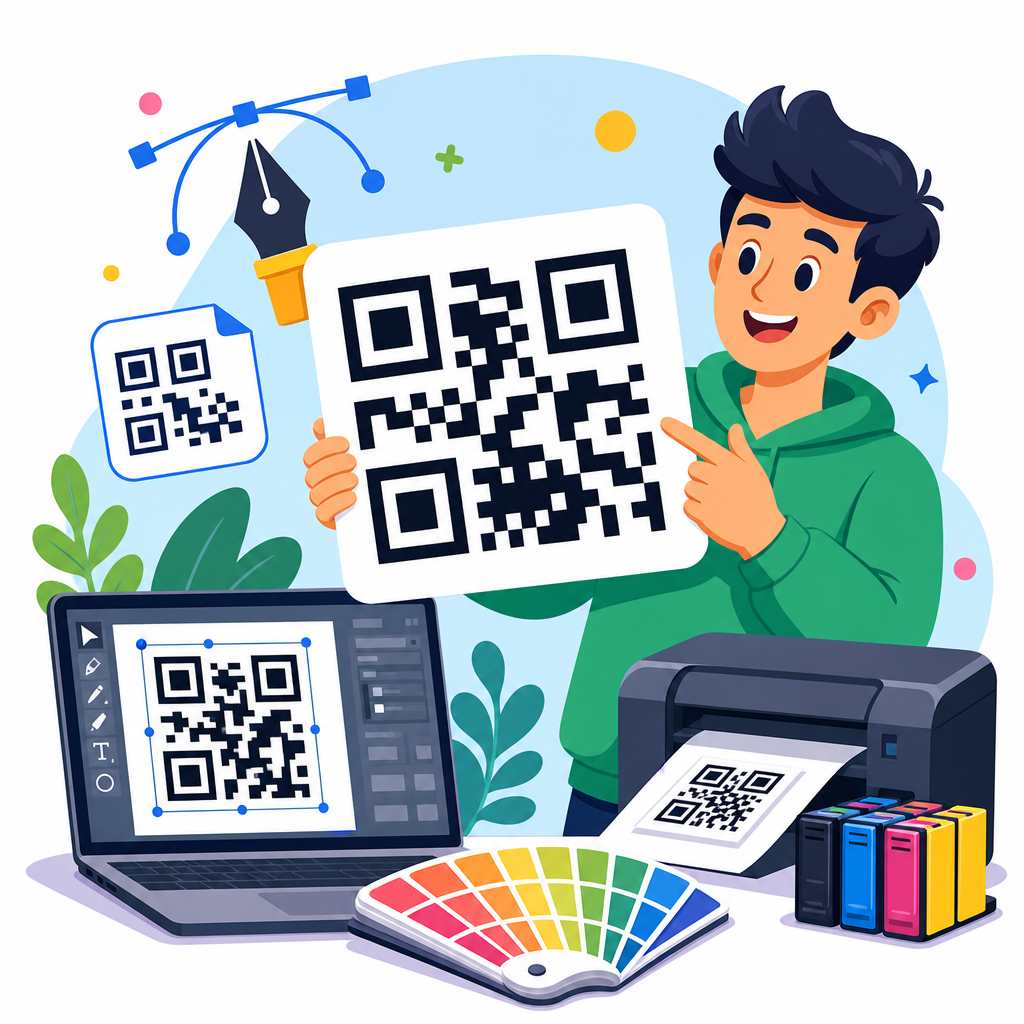
File format matters because different teams edit in different systems. PDF is the safest final print format. Word and Google Docs are familiar but can shift object alignment if margins or printer settings change. PowerPoint and Google Slides are often better for drag-and-drop label placement because they handle fixed-position objects more predictably. Adobe Illustrator is ideal for design teams that need vector precision, spot colors, and dieline alignment. CSV-driven templates are best for bulk personalization because they let users merge names, IDs, and URLs into hundreds of labels at once.
Stock compatibility should be stated explicitly. If a download says it fits Avery 5160, users know the sheet is a 30-label US Letter format with established dimensions. If it fits Avery L7160 or another A4-equivalent pattern, European users avoid scaling errors. This is not a small detail. One of the most common failures I see is printing a correctly designed template with “fit to page” enabled. That single setting shrinks or enlarges the entire grid and causes the label positions to drift. Any useful download should instruct users to print at 100 percent actual size and test on plain paper before using adhesive stock.
Technical standards that make QR labels scan reliably
Scan reliability depends on geometry and contrast, not design enthusiasm. The most important concept is the quiet zone, the blank margin around the QR code. ISO/IEC 18004 defines the structure of QR codes, and in practical labeling, preserving a clear quiet zone on all sides is essential because nearby text, borders, and graphics can confuse camera detection. Error correction level also matters. Higher error correction can improve resilience when labels are scratched or partly obscured, but it increases module density, which can make very small printed codes harder to scan. The right choice depends on label size and expected wear.
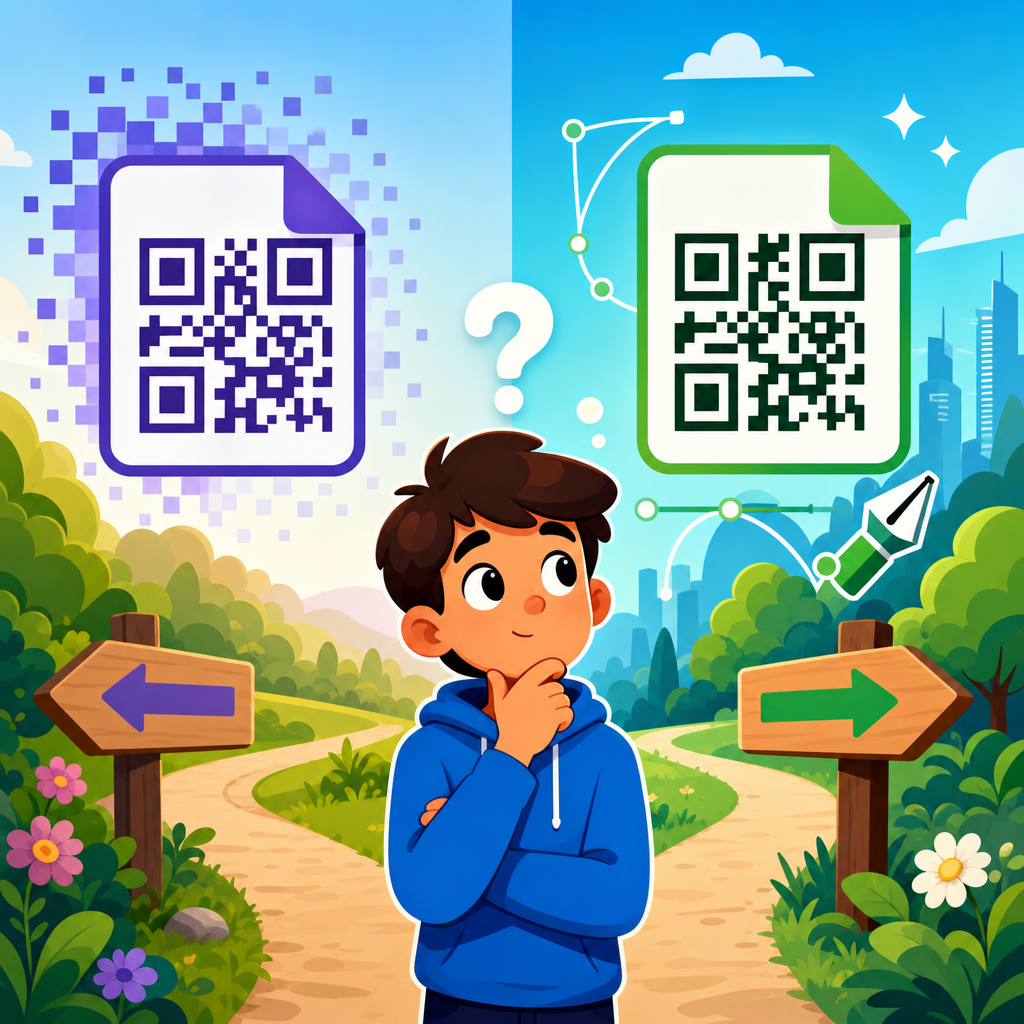
Contrast should be dark code on a light matte background whenever possible. Black on white remains the safest option. In marketing contexts, branded colors can work if luminance contrast stays high, but pale backgrounds, metallic foils, transparent stickers on dark surfaces, and inverse white-on-black treatments regularly underperform. Print resolution matters too. Most office laser printers are adequate for standard label sizes, but cheap thermal devices can soften edges if the code is too dense. Vector artwork is preferable when available because it scales cleanly without introducing raster blur.
Payload design influences the label more than many users realize. A short dynamic URL usually produces a cleaner, less dense code than a long static URL with tracking parameters. For that reason, many teams use redirect-based codes managed through a QR platform or their own short domain. The benefit is not only easier scanning. Dynamic destinations let you change the landing page after labels are printed, which is valuable for product documentation, temporary campaigns, and maintenance workflows. The tradeoff is platform dependence, link governance, and the need to preserve redirects over time.
Download categories every resource hub should offer
A complete QR code label sheet hub should organize downloadable assets into clear categories so users can find the right template in one visit. The first category is blank label sheet templates, intended for users who already have QR images and simply need a correctly sized layout. The second is prebuilt editable templates, where the user can replace placeholder codes and text directly inside Canva, Slides, Word, or PowerPoint. The third is bulk-merge templates that connect to spreadsheets for serial labels, product batches, classroom rosters, or inventory lists.
Beyond those basics, a strong hub should include industry-specific variations. Asset tags benefit from versions with fields for device ID, owner, or service date. Product labels often need room for a SKU, batch number, or support note. Event labels may need larger codes and minimal surrounding text for faster check-in. Educational templates often work best when multiple identical labels can be duplicated for worksheets, desks, or folders. If the library includes printable cards, tent signs, sticker dots, and mini labels in addition to standard sheets, it becomes much more useful as a true downloadable assets center rather than a single-template page.
This hub should also connect users to adjacent resources in the same topic cluster. Relevant next-step assets include QR code business card templates, QR table tent templates, asset tag templates, bulk QR generator guides, dynamic versus static QR code explainers, print testing checklists, and Avery label mapping references. Those supporting pages strengthen usability because many visitors do not actually need a generic sheet; they need a specific operational outcome, such as labeling inventory or preparing marketing collateral. A well-structured sub-pillar hub helps them navigate from the generic template to the specialized tool without starting a new search.
Practical printing and deployment tips for free downloads
Before printing any free QR code label sheet download at scale, run a three-step test. First, print on plain paper at actual size and place that sheet behind the label stock to confirm alignment. Second, scan several labels with both iPhone and Android devices under the lighting conditions where the labels will be used. Third, apply a sample to the final surface and test again, because curved plastic, brushed metal, and glossy packaging can change readability. This test cycle takes minutes and prevents expensive misprints.
Placement is as important as print quality. Avoid wrapping a code around a curved edge, placing it over seams or rivets, or positioning it where a hand naturally covers it during use. Add a short callout when the action is not obvious: “Scan for manual,” “Scan to report issue,” or “Scan to check inventory.” Human-readable context increases scan rate because people do not have to guess the value. For permanent labels, choose adhesive and laminate based on the environment. Indoor paper labels are fine for offices and classrooms. Warehouses, tools, and outdoor equipment usually need polyester, polypropylene, or laminated stock.
Finally, manage the destinations behind the labels. Broken links turn even perfect print assets into failures. Keep a register of what each QR code points to, who owns it, and when it was last reviewed. If using dynamic QR software, monitor analytics for scan volume, device type, and failure patterns. If using your own short domain, maintain redirect hygiene and renew the domain well ahead of expiration. Downloadable assets solve the printing problem, but durable QR programs also require content governance. Start with the free template, then build a simple maintenance habit so the labels remain useful long after installation.
QR code label sheets are simple on the surface, but the best free downloads combine accurate layout, editable files, print guidance, and standards-aware design. That combination is what makes them useful across asset tracking, inventory, packaging, education, events, and support workflows. If this page is your entry point into downloadable QR assets, the main takeaway is straightforward: choose templates by use case, verify stock compatibility, preserve quiet zones, print at actual size, and test in the real environment before rollout.
As the hub for downloadable assets within QR Code Resources, Templates & Tools, this page should guide you to the right format instead of forcing you into a one-size-fits-all file. Blank sheets help when you already have codes. Editable templates save time for small projects. Bulk-merge layouts handle high-volume labels with unique destinations or IDs. Specialized variants support inventory, classrooms, products, and facilities. When these resources are organized clearly and linked logically, teams can move from idea to printed label without design bottlenecks or scanning surprises.
Use this hub as your starting point, then download the template that matches your stock, printer, and deployment goal. Print a test sheet, scan it on multiple devices, and keep a record of every linked destination. That disciplined approach turns a free QR code label sheet into a reliable operational tool, not just a printable file.
Frequently Asked Questions
What is a QR code label sheet, and how is it used?
A QR code label sheet is a printable template that places multiple QR codes in a precise grid so they can be printed on adhesive label stock and applied quickly to equipment, products, storage bins, packaging, documents, or signage. Instead of generating and placing each code one at a time, a label sheet lets teams produce many scannable labels in a single batch with consistent alignment, spacing, and sizing. This makes it especially useful for inventory control, asset tracking, maintenance workflows, customer support links, digital menus, file access, onboarding instructions, and product identification.
In day-to-day use, the process is straightforward: you generate the QR codes, place them into the preformatted sheet, print onto compatible label stock, and then apply the labels wherever they are needed. Once attached, each label can direct a smartphone or scanner to a webpage, shared file, form, serial record, support guide, internal database entry, or unique item ID. For teams trying to connect physical items to digital records without investing in expensive hardware or custom labeling systems, QR code label sheets offer a simple, low-cost, and scalable solution.
What label sizes and sheet formats are most common for QR code label sheets?
The most common formats are built around standard printable label products such as Avery 5160 address labels, A4 multi-label sheets, and thermal sticker layouts. Avery 5160 is popular because it is widely available and familiar in office environments, while A4-based templates are common in international settings where A4 paper is the standard. Thermal sticker rolls are also widely used when teams need fast, high-volume printing for warehouses, logistics stations, or field operations.
The best format depends on how and where the label will be used. Smaller labels work well for asset tags, file boxes, electronics, and compact inventory items, while larger labels are easier to scan from a distance or when extra text must be printed alongside the code. It is important to match the template dimensions exactly to the label stock you are using, including page size, margins, label width, label height, and spacing between labels. Even slight mismatches can cause printing drift and lead to misaligned labels. If you are downloading a free QR code label sheet, always confirm that the template was designed for your exact stock type before printing a full batch.
How do I make sure QR code labels print clearly and scan reliably?
Reliable scanning starts with good QR code generation and careful print setup. First, make sure each QR code is exported at a high enough resolution for print. A blurry or compressed image can reduce scan performance, especially on small labels. Second, use a code size that fits the intended scanning distance. Tiny QR codes may look fine on screen but become difficult to scan once printed, particularly if they are placed on curved surfaces, textured materials, or low-quality labels. In most cases, keeping sufficient white space around the code, often called the quiet zone, is just as important as the code itself.
Print testing is essential. Before running an entire sheet, print a sample page on plain paper and hold it against the label stock to confirm alignment. Then scan several test labels with different phones and scanning apps under normal lighting conditions. Use strong contrast, typically black on white, unless there is a specific branding need and you have already tested color variations. Also avoid stretching or distorting the QR code to fit a label shape. If you need to include text such as an asset number, item name, or short instruction, place it beneath or beside the code without interfering with the code area. A label that looks clean and prints sharply will almost always perform better in real-world scanning.
What are the best use cases for free downloadable QR code label sheets?
Free downloadable QR code label sheets are ideal for organizations that need a practical labeling system without committing to specialized software or expensive printing services. They work particularly well for asset management, where each label links to an equipment record, service history, warranty page, or check-in/check-out form. They are also highly effective in inventory environments, allowing bins, shelves, products, and stock locations to connect to digital counts, reorder links, or item databases. In offices, schools, clinics, workshops, and event spaces, they can be used to provide instant access to Wi-Fi instructions, training documents, room guides, safety procedures, or support requests.
Another strong use case is operational consistency. When teams use a standardized printable sheet, everyone labels items in the same format, which improves readability, scanning speed, and record accuracy. This matters in multi-person workflows where labels are printed regularly by different departments or locations. Free templates are especially valuable for pilots, small businesses, nonprofits, field teams, and internal process rollouts because they lower the barrier to entry. You can test a labeling workflow, refine the size and placement, and scale later if needed. For many teams, a simple downloadable sheet is more than enough to launch an effective QR-based system.
Can I customize QR code label sheets with text, branding, or unique IDs?
Yes, and in many cases customization makes the labels far more useful. A QR code by itself can be functional, but adding human-readable information such as an asset number, serial ID, product name, room code, department, or short call to action helps users understand what they are scanning before they scan it. This is especially important in environments where speed matters or where multiple labels may appear similar at a glance. Branded elements such as a company name, logo, or color accents can also improve trust and make labels feel more official, provided the branding does not reduce contrast or interfere with scannability.
Customization should be done carefully. Keep the QR code large enough to scan easily, maintain the required white space, and avoid placing logos or decorative elements over the code unless the code has been generated with sufficient error correction and thoroughly tested. If each label needs a unique destination, such as a different inventory record or support page, the sheet can be populated using a list of URLs, IDs, or database exports. This makes batch creation efficient and accurate. For most teams, the best approach is to combine a clean QR code with a short identifier and a consistent layout so the label works both for people and for scanners.