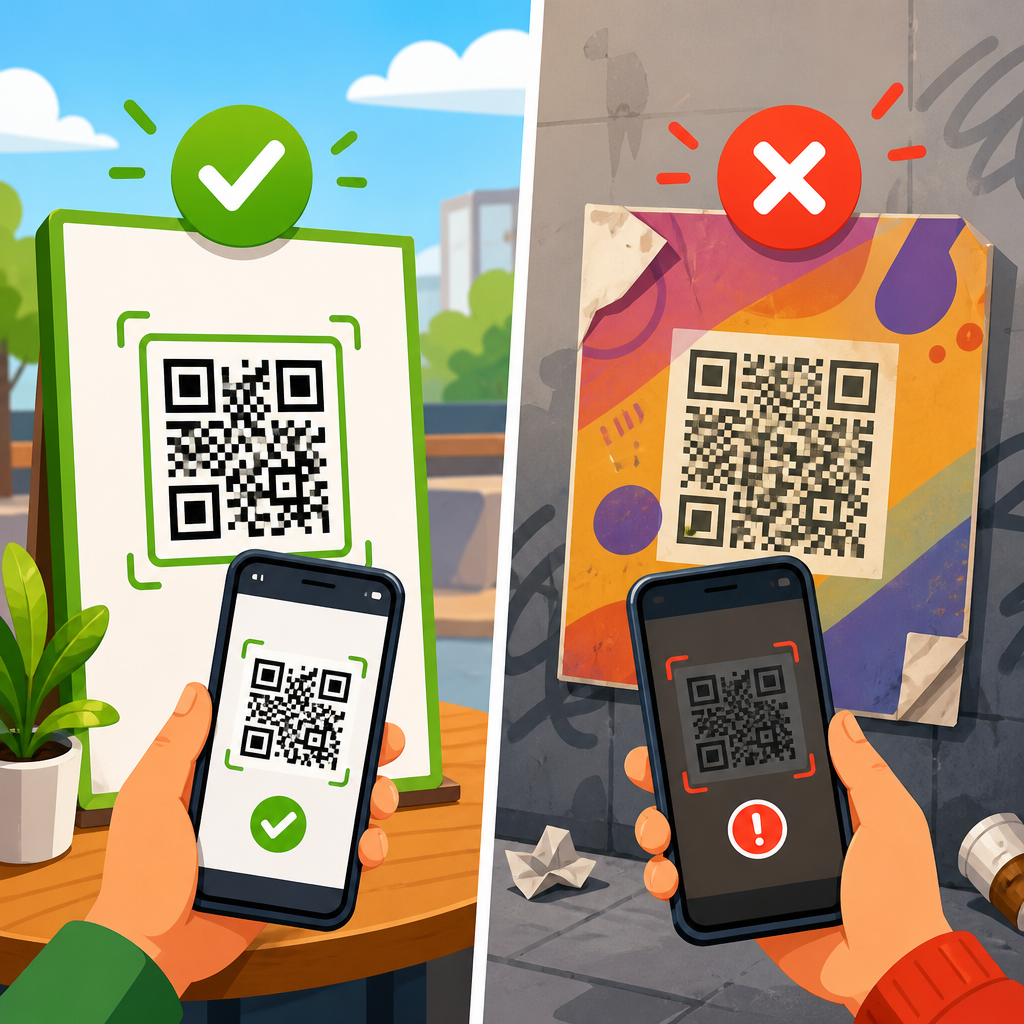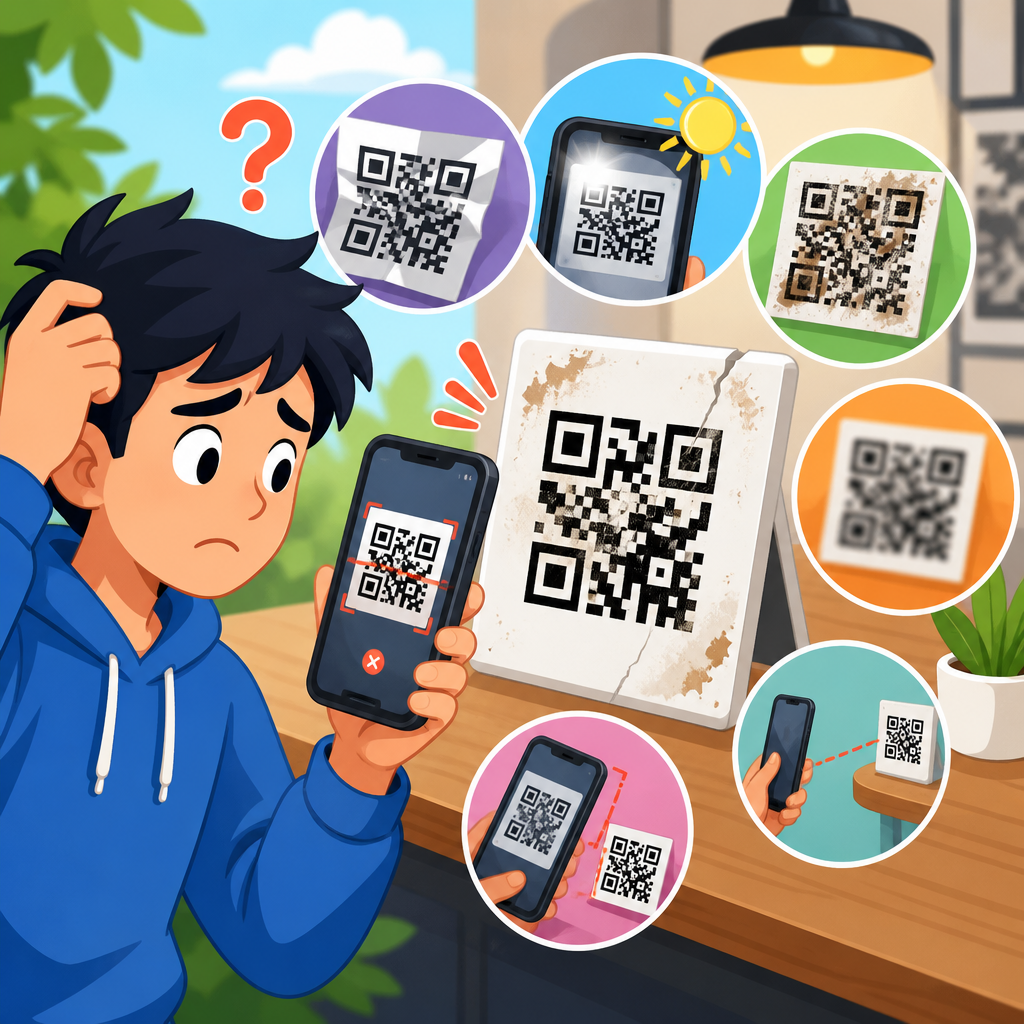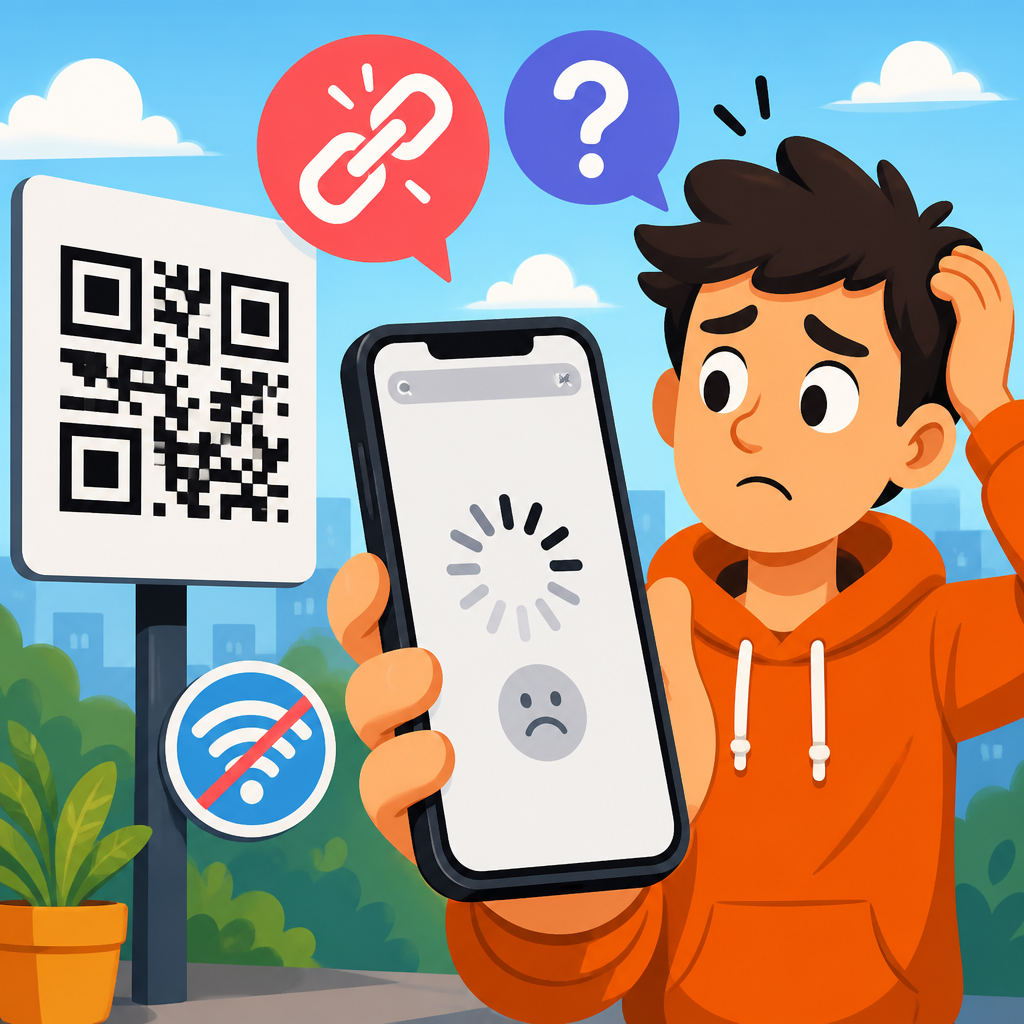
QR code links fail on mobile for a handful of predictable reasons, and most of them have nothing to do with the printed code itself. In my work troubleshooting campaigns, product packaging, restaurant menus, event signage, and field service labels, the same patterns appear repeatedly: broken redirects, bad URL formatting, mobile browser restrictions, app-level blocking, captive Wi-Fi portals, and destination pages that were never tested on real phones. When someone says a QR code does not work, the useful question is not whether the code scans. The useful question is what happens after the scan and where the handoff breaks.
For clarity, a QR code usually stores a URL, either directly or through a short link managed by a dynamic QR platform. A direct URL points straight to the final page. A dynamic code points first to a redirect service, which logs the scan and then forwards the user to the destination. Redirect and link issues happen in that forwarding path: the short domain may be blocked, the redirect may loop, the final page may return an error, or the browser may refuse the request because of security, cookie, or app-link settings. On mobile, these small defects become large failures because networks change, browsers are stricter, and users abandon quickly.
This matters because QR codes are often scanned in high-friction moments: standing on a sidewalk, inside a warehouse, at a checkout counter, or in a moving transit queue. A desktop-friendly redirect chain that survives in-office testing can collapse in the field. Even a one-second delay can cut completions, and a certificate warning or blank page usually ends the interaction entirely. If your QR code supports payments, check-in flows, downloads, support documents, or regulated disclosures, a broken mobile link is not just inconvenient. It reduces conversion, increases support volume, and can create compliance risk. Understanding redirect and link issues is the foundation for fixing them systematically.
How QR code link failures happen on mobile
A QR workflow on a phone has several steps, and each one can fail differently. First, the camera or scanning app reads the code and extracts the encoded string. Second, the operating system decides whether that string is a web link, deep link, phone number, Wi-Fi payload, or another action type. Third, the selected app, usually the default browser or an in-app webview, requests the URL. Fourth, any redirects execute until the final page loads. Finally, the page itself must render correctly on the device, network, and browser version. A failure at any stage looks to the user like the QR code is broken, even when the image is perfectly scannable.
In practice, I separate problems into three buckets. Scan failures happen before the link opens and are usually caused by size, contrast, glare, print distortion, or insufficient quiet zone. Redirect failures happen after scanning but before the final page appears. Destination failures happen when the browser reaches the page, yet the page errors, hangs, blocks content, or displays unusably on mobile. This hub focuses on the second bucket, but the boundaries matter because teams often chase the wrong cause. If analytics show scans but no pageviews, the issue is usually redirect or destination related, not image quality.
Common symptoms point to specific technical causes. A “site cannot be reached” message often indicates DNS problems, expired hosting, or blocked short domains. A browser warning about security usually means an expired or misconfigured TLS certificate, mixed content, or a redirect from HTTPS to HTTP. A page that opens in one app but not another suggests user-agent handling, app webview limitations, or universal link conflicts. A code that works on Wi-Fi but not cellular often reveals firewall rules, geofencing, carrier filtering, heavy pages timing out, or location-based redirect logic. Good troubleshooting starts by matching the symptom to the most likely layer.
Redirect chains, URL structure, and why mobile breaks first
Dynamic QR codes are convenient because you can change the destination without reprinting the code, but that flexibility adds dependency. The scan may travel through a branded short domain, a QR management platform, a campaign tracker, a consent manager, and finally the destination site. On desktop broadband, that chain may still complete. On mobile, every extra hop adds latency, increases timeout risk, and introduces another point of failure. I have seen campaigns with five redirects where one removed UTM parameters, another stripped fragments, and a third redirected differently by country. The result was inconsistent loading that only appeared on phones using mobile data.
URL formatting errors are another frequent cause. Missing the scheme, malformed query strings, accidental spaces, unsupported characters, or bad percent-encoding can break links in stricter mobile contexts. Some browsers correct these mistakes silently on desktop but not in-app webviews. Likewise, uppercase or lowercase sensitivity on certain paths, a trailing slash mismatch, or redirect rules written too broadly can send mobile users to 404 pages. If the QR code stores a shortened URL, the shortener itself may also be the problem. Free short domains are occasionally blocked by security products because of historical abuse, and enterprise firewalls may classify them as risky.
Deep links create their own category of failure. A QR code might send users to an app via a custom URI scheme, an Android intent, or an iOS universal link. If the app is not installed, the fallback path must be clean and immediate. Too often it is not. I regularly find fallback pages that require JavaScript before redirecting, pages blocked by content security rules, or app store links that ignore regional storefronts. Universal links can also fail when the association files are missing or stale. When that happens, iOS may open Safari instead of the app, or do nothing in some app webviews. The fix is usually in the link logic, not the code image.
Mobile browser, webview, and network conditions that stop QR destinations
Not all mobile browsers behave the same. Safari, Chrome, Samsung Internet, Firefox, and embedded webviews inside apps each apply slightly different rules for pop-ups, cookies, autoplay, cross-site tracking, and file downloads. A support PDF linked from a QR code might open normally in Chrome but fail silently inside Instagram’s browser. A login-protected destination might work in Safari yet loop in an embedded webview because third-party cookies are blocked and the identity provider cannot complete the session. This is why “it works on my phone” is not a sufficient validation standard. The browser context matters as much as the handset.
Network conditions are just as important. Mobile devices often shift between 5G, LTE, Wi-Fi, and captive portals in seconds. If a redirect depends on a fast response from analytics, consent, or geolocation services, the link can stall under packet loss or high latency. Captive portals are especially disruptive in hotels, stadiums, campuses, and retail guest networks. The QR code appears to fail, but the real issue is that the user must accept network terms before external pages load. DNS filtering, ad blockers, and privacy relays can also interrupt redirects, especially when a chain relies on tracking parameters or script-based forwarding.
Security controls sometimes block QR destinations by design. Mobile threat defense tools, Secure Web Gateway products, and enterprise MDM policies may prevent access to newly registered domains, domains with low reputation, or pages delivered through multiple redirects. Apple’s iCloud Private Relay and similar privacy features can affect geolocation-based routing. Some apps suppress automatic jumps to external browsers for safety. Even consumer antivirus apps can flag shortened links. When a code fails only on managed corporate devices, investigate policy restrictions before changing the campaign. The destination may be legitimate, but the route to it resembles phishing patterns that security systems are trained to stop.
How to diagnose redirect and link issues quickly
The fastest path to a fix is to test the stored URL independently from the QR image. Scan the code, copy the exact link, and inspect it with redirect checkers and developer tools. I typically use Chrome DevTools remote debugging, Safari Web Inspector, curl with the -I and -L flags, and an HTTP status checker to map the full chain. A healthy path should be short, HTTPS-only, and return a final 200 status quickly. If you see 301 and 302 hops bouncing repeatedly, a 307 forcing method preservation unexpectedly, or a final 4xx or 5xx response, you have found the break point.
Analytics can narrow the search if they are interpreted correctly. Compare QR scan counts from the dynamic platform with landing-page sessions in analytics. If scans rise but sessions do not, suspect redirect failures, browser blocking, or very slow load times. If sessions appear but conversion events vanish on mobile, the destination probably loads yet breaks later in the flow. Server logs are even more useful. Look for user-agent clusters, status-code spikes, geo patterns, and requests ending at intermediate URLs. A sudden increase in 403 responses from a bot firewall sometimes catches legitimate mobile webviews because their user agents resemble automation tools.
| Symptom on mobile | Likely cause | What to check first |
|---|---|---|
| Scans, then blank page | JavaScript redirect blocked in webview | Open stored URL in Safari and Chrome; inspect console errors |
| Security warning | Expired TLS certificate or HTTPS to HTTP downgrade | Validate certificate chain and redirect rules |
| Works on Wi-Fi, fails on cellular | Geo-routing, carrier filtering, or heavy page timeout | Test direct final URL on LTE and review CDN logs |
| Opens app for some users only | Broken universal link or missing app fallback | Verify association files and store fallback behavior |
| 404 after scan | Malformed path or case-sensitive redirect mismatch | Compare encoded URL with live destination exactly |
Field testing is nonnegotiable. I test on iPhone and Android, on at least one in-app browser, and on both Wi-Fi and cellular. I also test with the app installed and not installed when deep links are involved. If the QR code appears on printed material, I verify the exact production file, not a designer’s proof, because substitutions happen at export and in print workflows. For high-stakes deployments, monitor the first live scans in real time. That is when DNS propagation issues, stale CDN caches, bot mitigation rules, and region-specific redirects usually reveal themselves.
Fixes, prevention, and how this hub connects the full support workflow
The most reliable fix is simplification. Encode a clean HTTPS URL, reduce redirects, and avoid script-based forwarding whenever a server-side 301 or 302 will do. Use a reputable custom short domain with valid DNS, automatic certificate renewal, and uptime monitoring. Keep fallback paths explicit for deep links. Ensure the final page is lightweight, mobile responsive, and functional without fragile dependencies. If tracking is necessary, use standard UTM parameters and verify that analytics scripts are not required for the page to become usable. A QR code destination should still deliver core information even if tags, cookies, or personalization fail.
Governance matters as much as technical cleanup. Maintain an inventory of active QR codes, their encoded URLs, owners, campaign dates, and retirement rules. In every organization where I have seen repeated QR failures, the root cause was not one broken link but missing ownership. Domains expired, redirects were edited without change control, and landing pages were unpublished after a site migration. A simple link audit schedule prevents most of this. Monthly checks are enough for stable assets; event, packaging, and regulated-use cases need tighter monitoring. Synthetic testing from multiple regions can catch redirect errors before customers do.
As the hub for redirect and link issues, this page should guide readers deeper into the full troubleshooting set: broken short URLs, redirect loops, SSL certificate errors, app deep-link failures, social app webview problems, 404 and 500 responses, DNS and domain expiration, blocked downloads, and analytics mismatches after scans. The key takeaway is straightforward: when a QR code does not load on mobile, start with the link path, not the image. Trace the redirects, test on real devices, shorten the chain, and verify the fallback. Do that consistently, and most mobile QR failures become measurable, fixable, and preventable. Review your active QR links today and test the top ten on real phones.
Frequently Asked Questions
Why does a QR code scan successfully but the link still will not open on mobile?
A successful scan only confirms that the camera or QR reader was able to decode the pattern into text, usually a URL. It does not guarantee that the destination will load correctly on a phone. In many cases, the printed QR code is perfectly fine, but something goes wrong after the scan. The most common issues are broken redirects, expired short links, malformed URLs, browser security restrictions, or destination pages that are not mobile-friendly. For example, a code may point to a shortened link that once worked but now returns an error, loops through too many redirects, or forwards to a page blocked by the phone’s browser.
Another frequent cause is inconsistency in how different apps handle scanned links. Some camera apps open links in the default browser, while others use an in-app browser with tighter privacy settings, limited cookie support, or blocked pop-ups. That means the same QR code can appear to work on one device and fail on another. If the user is on weak cellular data, behind a captive Wi-Fi portal, or trying to open a page that requires scripts, cookies, or permissions that the mobile browser restricts, the result can look like a “bad QR code” even though the problem is farther downstream. The right way to troubleshoot is to test the exact final URL on multiple real phones and networks, not just verify that the QR image scans.
Can bad URL formatting cause a QR code link to fail on mobile?
Yes, and it happens more often than most people expect. Mobile devices can be less forgiving than desktop browsers when a URL is formatted incorrectly. Missing the proper protocol, such as leaving off https://, using unsupported characters, including spaces, or accidentally introducing line breaks or encoding errors can all prevent a link from opening correctly. Some QR generators also preserve exactly what was entered, so if the original destination includes a typo, an extra slash, a broken parameter, or a tracking string copied incorrectly, every scan will reproduce that problem. A desktop browser may sometimes “guess” what the user meant, while a mobile scanner may not.
Formatting issues also become more serious when redirects and analytics tags are layered onto the URL. Long campaign links with UTM parameters, dynamic routing rules, or app-deep-link logic can break if even one character is wrong. In real-world campaigns, I often see QR codes that lead to shortened links created in one system, redirected through another, and then sent to a final landing page in a third platform. That chain increases the chance of syntax errors, SSL mismatches, or unsupported mobile behavior. Before printing or distributing a code, it is smart to test the exact encoded URL, confirm that it resolves cleanly to a secure mobile page, and make sure there are no unnecessary redirect hops.
How do redirects and link shorteners make QR code links unreliable on phones?
Redirects are one of the biggest hidden causes of QR code problems on mobile. Many QR campaigns rely on short URLs, tracking links, geo-routing, device detection, or marketing automation rules before the user reaches the final destination. Each additional step adds another point of failure. If a redirect service is misconfigured, paused, expired, rate-limited, or blocked by a privacy feature, the phone may never reach the landing page. On mobile, this is especially important because browsers and in-app viewers often impose tighter limits on redirect behavior, cookie handling, and script execution.
Some phones also treat redirect-heavy links as suspicious, particularly if the chain jumps between multiple domains or attempts to open an app before falling back to a web page. Users may see a blank screen, a security warning, or nothing at all. In other cases, the redirect technically works, but it introduces enough delay that users assume the QR code failed and abandon the attempt. The best practice is to keep redirect chains short, use reputable domains with valid HTTPS certificates, avoid unnecessary tracking layers, and test the link in native camera apps, social media in-app browsers, and both iPhone and Android environments. If a QR code leads through three or four systems before the destination loads, that complexity alone can explain why it behaves inconsistently on mobile.
Why do QR code links sometimes fail on public Wi-Fi, at events, or inside buildings?
Network conditions are a major factor, especially in environments where QR codes are commonly used, such as conferences, restaurants, retail stores, transit hubs, and field locations. A user may scan the code correctly but still be unable to load the page because the phone is connected to a captive Wi-Fi network that requires sign-in first. In that situation, the browser may silently stall, redirect to a login page, or fail to pass the user to the destination site at all. From the user’s perspective, the QR code seems broken, but the real issue is that the phone does not yet have full internet access.
Weak signal strength, congested cellular service, VPN filtering, enterprise firewalls, and DNS resolution problems can create the same symptom. This is common at crowded venues where hundreds or thousands of people are trying to access links at once. It also happens in warehouses, hospitals, factories, and service environments where internal networks or restricted browsing policies interfere with external URLs. If the landing page is heavy, script-dependent, or hosted on a slow server, poor network conditions make the issue even more obvious on mobile. That is why testing should include real-world conditions, not just office Wi-Fi. If the QR code will be used in a basement, stadium, trade show floor, or parking lot, it should be validated in that type of environment before launch.
What is the best way to troubleshoot a QR code that does not load on mobile?
Start by separating the QR image from the destination link. First, scan the code with more than one device and confirm what exact URL it decodes to. Then open that same URL manually on several phones, using both Wi-Fi and cellular data. If the page fails even when typed or pasted directly into the browser, the issue is not the QR code itself. From there, check for obvious problems: invalid HTTPS certificates, redirect loops, 404 errors, blocked pop-ups, app-only deep links without a browser fallback, or destination pages that are too slow or broken on mobile. It is also important to test in different contexts, including the native camera app, Chrome, Safari, and in-app browsers from platforms like Instagram, Facebook, or Gmail.
Next, review the full mobile experience. Make sure the landing page is responsive, loads quickly, does not depend on unsupported plugins, and does not require desktop-only interactions. Confirm that any forms, buttons, cookie banners, age gates, or location prompts are usable on a phone screen. If analytics or ad tools are involved, verify that scripts are not delaying or blocking the page. In campaign settings, inspect every redirect and final URL, and remove unnecessary layers where possible. In practice, the fastest fix is often not redesigning the QR code, but simplifying the link path and testing the destination on real devices under realistic conditions. When a QR code link does not load on mobile, the root cause is usually technical and predictable, not mysterious.