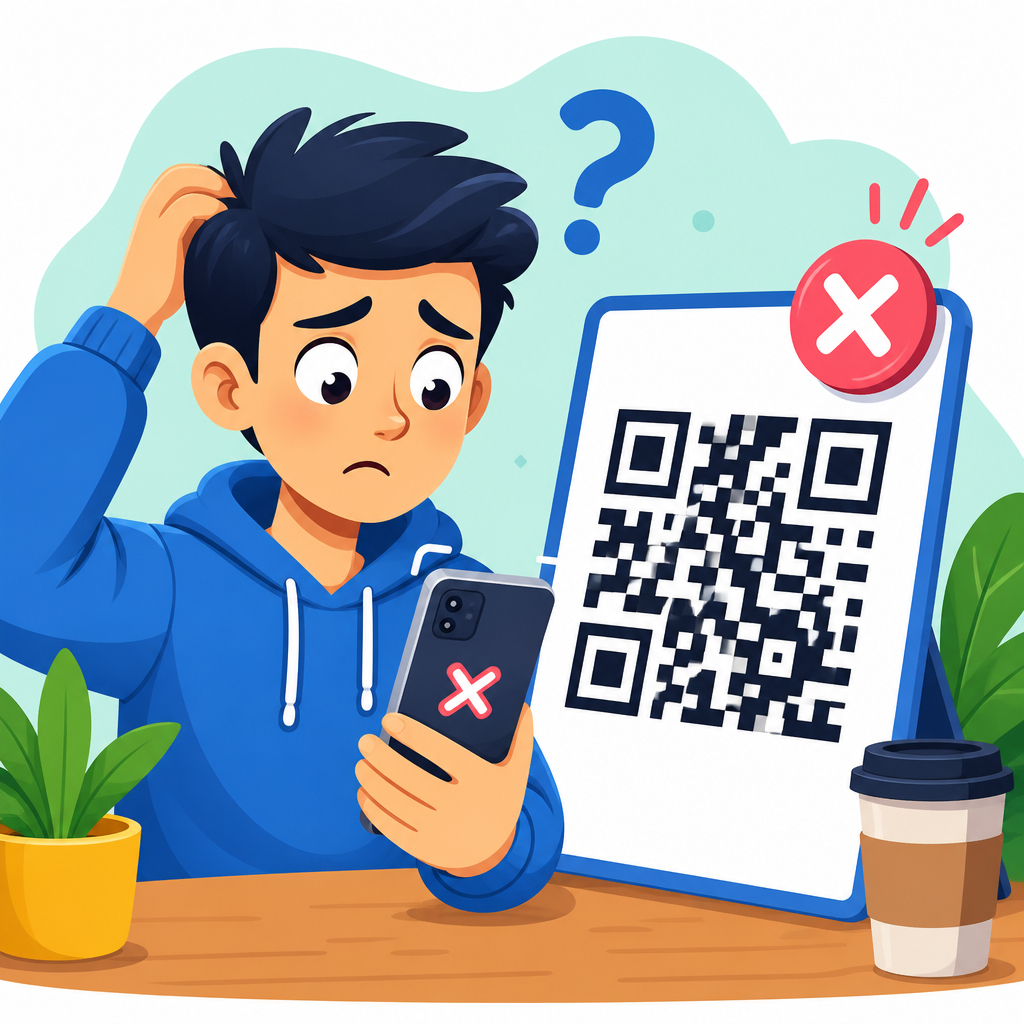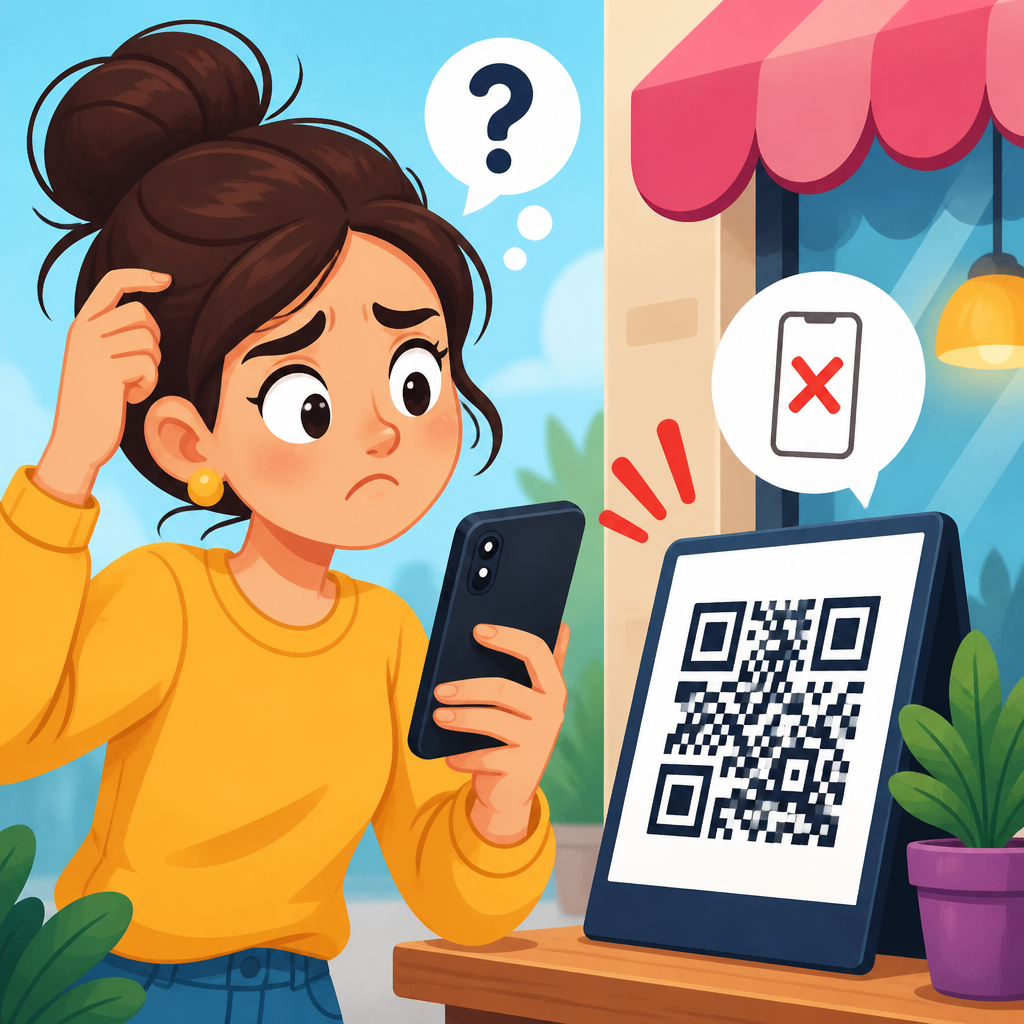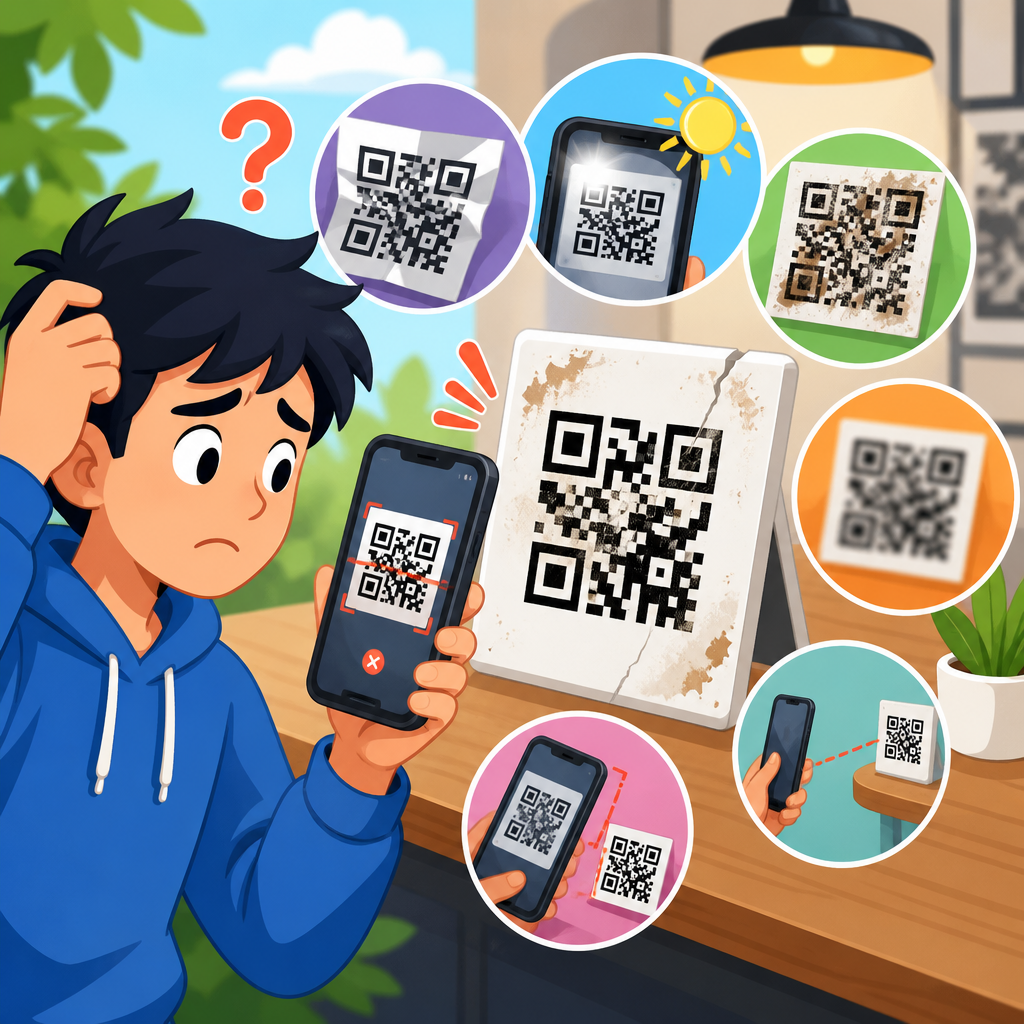
QR codes are supposed to be instant: open the camera, point, tap, and go. When that simple flow breaks, users usually ask the same question in different ways: why does my camera not recognize QR codes, why is my phone not scanning, and what device issue is blocking detection? In practice, QR scanning failures come from a short list of causes: camera app limitations, poor focus, weak lighting, damaged codes, software restrictions, or device-specific settings. This matters because QR codes now power payments, menus, authentication, event check-ins, package tracking, app downloads, and customer support journeys. If scanning fails, the problem is rarely the user alone; it is often the interaction between the code, the camera hardware, the operating system, and the app interpreting the image.
A QR code, short for Quick Response code, is a two-dimensional barcode that stores data in a grid of dark and light modules. A camera does not “read” it the way people read text. The device captures an image, identifies finder patterns in three corners, corrects perspective, analyzes contrast, and decodes the payload. If any step is interrupted, recognition fails or becomes unreliable. I have seen this in field testing across iPhone, Samsung Galaxy, Pixel, and budget Android devices: the same code can scan instantly on one phone and fail repeatedly on another because camera software, autofocus speed, or built-in scanner behavior differs.
As the hub for scan issues on devices, this guide explains the full troubleshooting path. It covers the most common reasons a camera does not recognize QR codes, how to isolate whether the fault is with the phone or the code, and when to use alternate scanners. It also points readers toward the related support topics that usually branch from this issue, including blurry camera lenses, permission errors, outdated operating systems, third-party app conflicts, and damaged printed codes. If you need a clear answer fast, start with this rule: when a phone cannot detect a QR code, check the camera app, clean the lens, improve lighting, move to the correct distance, and test another code to determine whether the issue is device-based or code-based.
How QR code recognition works on phones
Most modern smartphones recognize QR codes through the native camera app, a built-in scanning service, or a visual intelligence layer integrated into the operating system. On iPhone, native QR detection has been standard for years through the Camera app and Control Center Code Scanner. On Android, support varies more. Google Pixel devices usually decode through Google Camera or Google Lens, while Samsung often relies on the Camera app, Bixby Vision, or the quick settings scanner depending on model and software version. Lower-cost Android phones may advertise QR support but depend on a separate app, making the experience less consistent.
Recognition is not just about whether the phone has a camera. The device needs autofocus, enough resolution, adequate contrast detection, and software capable of decoding the symbol type. A worn budget sensor with slow focus can struggle with small codes on glossy surfaces. An older tablet may have a camera but no native decoder. Some enterprise-managed devices intentionally disable link previews or camera permissions for security reasons. I regularly test support tickets by asking one question first: does the phone fail on every QR code, or only one? That answer narrows the issue dramatically.
If the phone cannot scan any QR code, the cause is usually on the device side. If it scans some but not others, the issue may be code quality, size, placement, color, or data format. For example, Wi-Fi QR codes and payment QR codes may invoke system handlers differently than a simple website URL. A camera might recognize the symbol but not know which app should open the payload. Users interpret that as “not scanning,” even though decoding happened and the handoff failed.
Common device-side reasons cameras miss QR codes
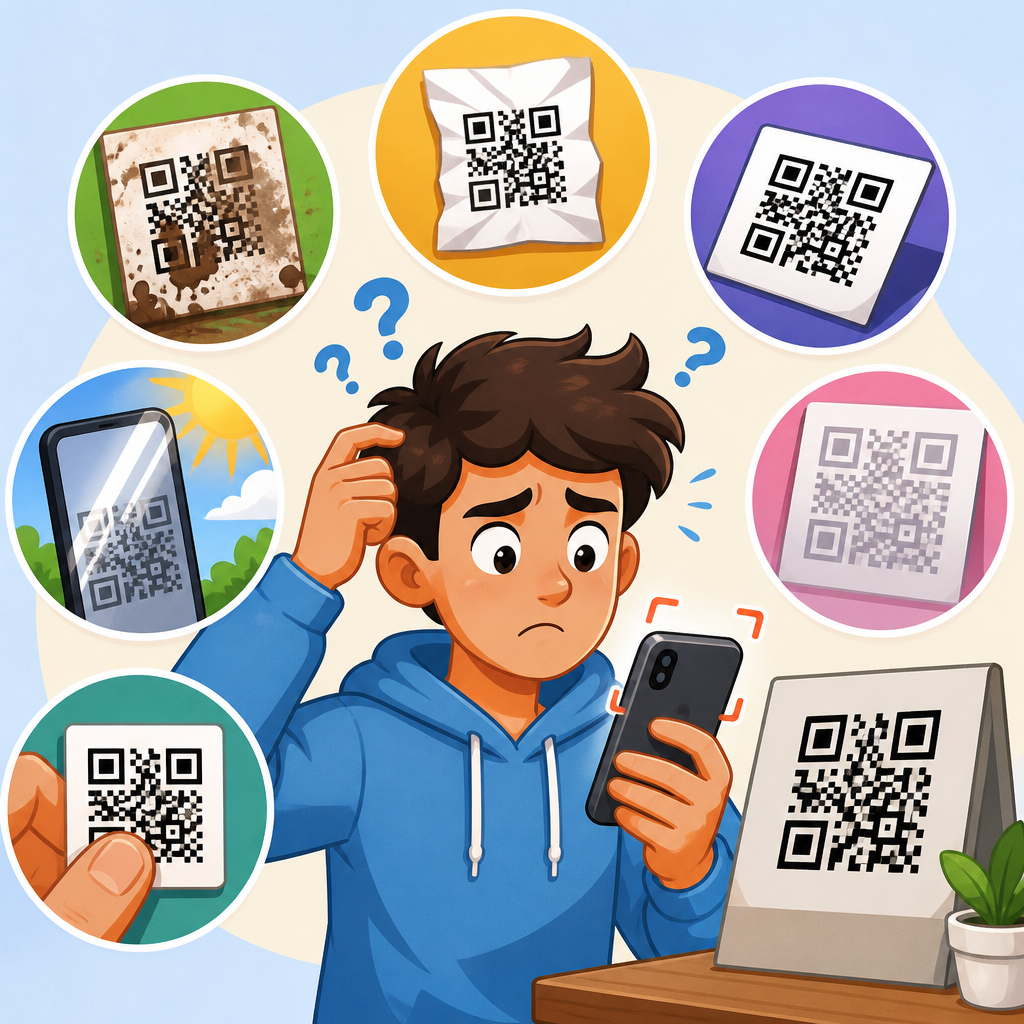
The most frequent cause is basic image quality. Smudged lenses, motion blur, low light, glare, and being too close to the code all prevent clean capture. Many people move the phone within a few centimeters of the code, assuming closer is better. In reality, most cameras need enough distance to focus across the full symbol. If the edges look soft on screen, the decoder will often ignore the image entirely. Cracked camera glass can also scatter light and lower contrast, especially under indoor LED lighting.
Software settings are the next major category. On iPhone, the “Scan QR Codes” camera setting may be disabled, though this is less common now. On Android, the native camera may lack QR detection unless a visual search option is enabled. Permissions also matter. If the camera app has restricted access after a privacy prompt, or if Digital Wellbeing, parental controls, or mobile device management policies limit app behavior, scanning may fail silently. I have seen business phones where QR links would not open because the managed browser blocked external intents.
Outdated software can break detection in subtler ways. Camera apps improve decoder libraries over time, especially for low-contrast or stylized codes. A phone running an old Android skin may have a buggy scanner that fails on inverted colors or micro QR formats. Third-party camera apps are another problem. Users often replace the stock camera with social media or beauty camera apps that do not include a QR decoder. In those cases, the device is functioning, but the chosen app lacks the feature.
| Symptom | Likely cause | Best first fix |
|---|---|---|
| Camera sees code but no popup appears | QR detection disabled or unsupported in that app | Try native camera or built-in scanner |
| Code appears blurry at every distance | Dirty lens, damaged glass, or autofocus fault | Clean lens and test on another subject |
| Scans some codes but not one specific code | Poor print quality, low contrast, or damaged symbol | Test a different phone and inspect the code |
| Popup appears but link will not open | Browser handoff, app association, or policy restriction | Copy URL or try Google Lens/Code Scanner |
| Works in bright daylight only | Low-light noise or glare indoors | Increase lighting and reduce reflections |
Code-side problems that look like camera problems
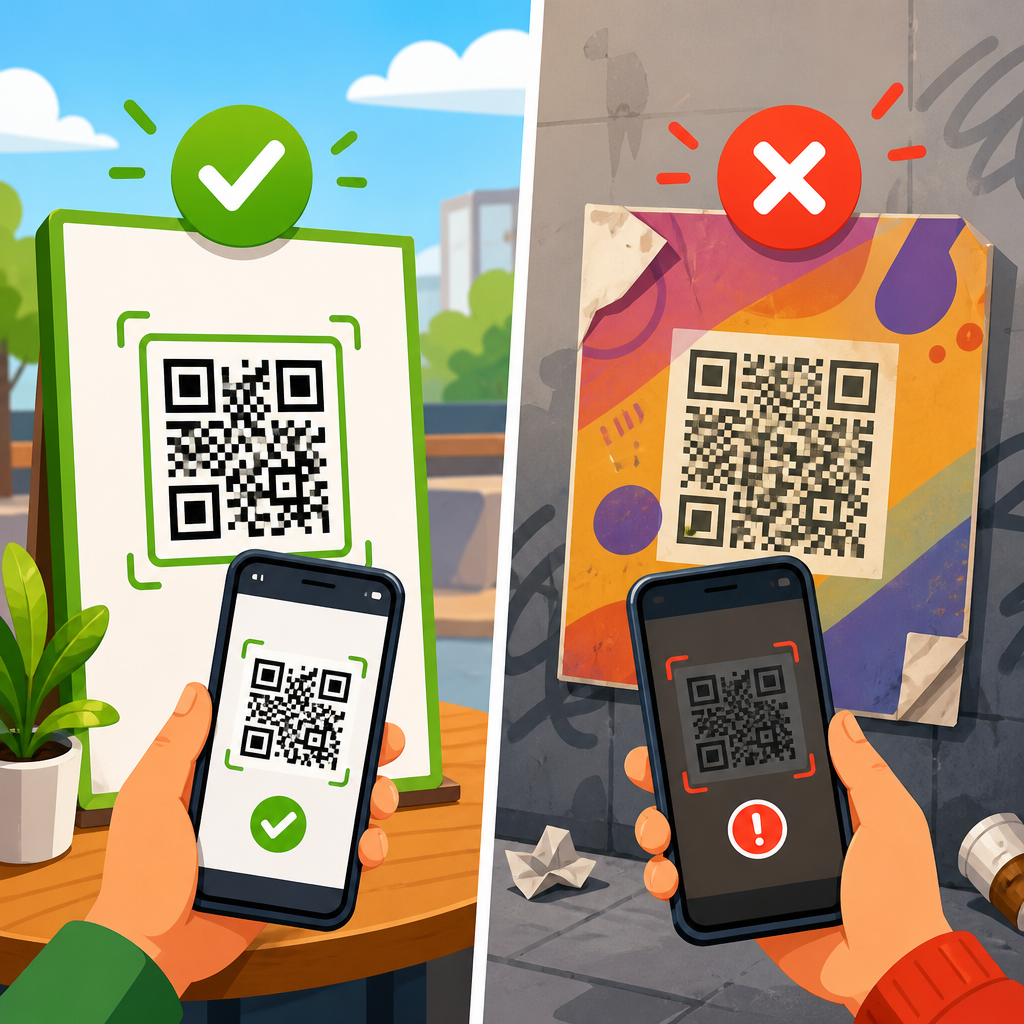
Not every failed scan is the phone’s fault. A large share of support cases come from poor QR code production. The code may be too small, stretched, cropped, printed on a curved surface, or placed behind reflective plastic. If the quiet zone, the blank margin around the code, is missing, many decoders hesitate because they cannot separate the symbol from its background. I often see restaurant table tents with attractive branding added too aggressively, leaving almost no margin. One phone may decode them; another may not.
Contrast is critical. Black on white remains the safest choice because the luminance difference is high. Light gray on beige, metallic ink, or transparent overlays reduce detectability. Inverted codes, such as white modules on a black background, are supported by many modern scanners but not all. Logos in the center can work if error correction is chosen correctly, yet oversized logos often cover timing patterns needed for reliable reading. Screen-based codes can also fail when the display brightness is low or the refresh pattern creates moiré with the camera sensor.
Data payload matters too. A valid QR image can still lead to a poor user experience if it contains malformed data. For example, a URL without the proper scheme may decode but not trigger a browser action. A vCard with unusual character encoding might scan on one platform and fail on another. Dynamic QR services sometimes expire, redirect incorrectly, or get blocked by network filters, causing users to blame the camera. A useful test is to save the QR image and scan it with a dedicated decoder app or a desktop tool such as ZXing Decoder Online to verify the payload independently.
Device-specific fixes for iPhone, Android, and tablets
On iPhone, start with the native Camera app, not a third-party app. Go to Settings, confirm Camera access is allowed, and verify that QR scanning is enabled if the option is present. If the normal camera is inconsistent, use the Control Center Code Scanner because it is purpose-built and often more direct. Restart the phone if detection suddenly stopped after an update. If Live Text or visual lookup features appear normal but QR detection does not, test another code and then update iOS. Hardware issues become more likely when autofocus hunts constantly or the rear camera struggles with ordinary text as well.
On Android, the path depends on the manufacturer. Pixels usually perform best with Google Camera and Google Lens. Samsung users should try the stock Camera app first, then QR Scanner in quick settings or Bixby Vision if available. Xiaomi, Motorola, OnePlus, and Oppo devices vary by region and software build. If the stock camera does not scan, install Google Lens from Google Play and test again. If Lens works but the camera does not, the problem is software support, not optics. Also check battery saver modes, which can sometimes reduce background services involved in camera analysis.
Tablets and rugged enterprise devices deserve separate attention. Many tablets have mediocre front or rear cameras optimized for video calls rather than close-range scanning. Warehouse devices may require a dedicated barcode engine or enterprise app rather than the consumer camera. On school-issued or company-managed hardware, mobile device management can block cameras, external links, or app installs. When troubleshooting these devices, involve the administrator early. A scanner can fail perfectly consistently because it has been intentionally locked down.
A practical troubleshooting workflow that isolates the cause
The fastest way to solve scan issues is to work in sequence instead of changing everything at once. First, test the phone with a known-good QR code from a major website or payment provider. Second, test the problem code with a second phone. Third, switch apps: native camera, built-in scanner, then Google Lens or an equivalent. Fourth, control the environment by increasing light, avoiding glare, and holding the phone steady at a moderate distance. Fifth, inspect the code itself for damage, low contrast, missing margins, or design interference.
This workflow reveals patterns. If no phone can scan the code, replace the code. If only one phone fails, focus on settings, software, and hardware. If the camera detects the code only from unusual angles, glare or lamination is the likely issue. If a screenshot of the code scans but the printed version does not, print quality is at fault. If the camera recognizes the code but the action fails, investigate network access, redirects, app associations, or managed device restrictions. These distinctions matter because they prevent wasted time resetting devices when the real problem is a glossy poster under spotlights.
For support teams building a broader QR code troubleshooting and support library, this hub should connect users to narrower articles on camera permissions, blurry lenses, unsupported phones, damaged printed QR codes, low-light scanning, and app-specific behavior. That internal structure helps readers self-diagnose quickly and helps support agents route issues consistently. In my experience, a concise decision tree outperforms generic advice because users want to know what to test next, not just a list of possible causes.
Prevention tips for reliable scanning across devices
Reliable QR performance starts before the code reaches a user. Generate codes at adequate size, preserve the quiet zone, use high contrast, and avoid decorative distortions unless you have tested across multiple devices. For print, choose matte finishes when possible and avoid placing codes on folds, curves, or transparent surfaces. For screens, raise brightness and keep the code large enough that older cameras can resolve the modules. When linking to a URL, use a clean HTTPS address and avoid redirect chains that can trigger browser or network issues.
On the device side, keep operating systems updated, use native camera apps when possible, and clean lenses regularly. If your audience includes older phones, publish a fallback short link beneath the QR code so users can still reach the destination. Businesses that depend on QR codes for payments or check-in should test with iPhone, Samsung, Pixel, and one lower-end Android device before printing at scale. That one step prevents many avoidable complaints because edge-case failures usually appear first on lower-cost hardware with weaker autofocus and decoding software.
The key takeaway is simple: when a camera does not recognize QR codes, the root cause is usually traceable and fixable. Start by separating device issues from code issues, then narrow the problem through controlled tests. Most failures come down to focus, lighting, software support, permissions, or poor code quality. Use this page as the central guide for scan issues on devices, then move to the specific troubleshooting article that matches your symptom. If you support customers, teams, or printed materials that rely on QR codes, review your current scanning process today and test it on multiple devices before the next failure reaches a user.
Frequently Asked Questions
Why does my camera not recognize QR codes even though the code looks fine?
In most cases, the problem is not the QR code itself but the conditions around scanning it. A phone camera needs enough light, a clear view, and proper focus to detect the square pattern and read the data inside it. If the image is blurry, too dark, too bright, or partially blocked by glare, the camera may fail to recognize the code even when it appears perfectly normal to your eyes. Distance also matters. If you hold the phone too close, the camera may not focus correctly. If you are too far away, the code may not fill enough of the frame to trigger recognition.
Another common reason is that not every camera app handles QR scanning the same way. Some phones support QR detection directly in the default camera app, while others require a setting to be turned on or a separate scanning feature to be used. Older devices may not support native QR reading at all. In addition, if the QR code is printed poorly, stretched, low contrast, scratched, or displayed on a damaged screen, the code can become harder for software to interpret. A good test is to try scanning the same code with another device. If another phone reads it instantly, the issue is likely your camera settings, focus, or app behavior rather than the code itself.
Why is my phone not scanning QR codes automatically in the camera app?
Automatic QR scanning depends on both hardware and software support. Many modern smartphones can detect QR codes directly inside the built-in camera, but some models require you to enable a feature such as “Scan QR Codes,” “Lens suggestions,” or a similar option in the camera or system settings. If that option is disabled, the camera may open normally and still never respond to a QR code. This often leads people to assume the camera is broken when the real issue is simply that the detection feature is turned off.
Software version is another major factor. If your phone is running an outdated operating system, native QR scanning may be missing, unstable, or less reliable than on current versions. Camera app updates can also affect performance. On some devices, QR recognition is built into a separate tool, such as Google Lens or a manufacturer-specific scanner, rather than the standard photo mode. If your phone does not scan automatically, check whether your camera settings include QR detection, install any pending system updates, and test with a dedicated scanner app or Lens feature. If a separate app works, that usually confirms the issue is with the default camera app’s settings or capabilities, not the phone’s camera hardware.
Can lighting, focus, or camera quality stop a phone from reading a QR code?
Yes, absolutely. QR scanning depends heavily on the camera’s ability to capture sharp contrast and clear edges. In poor lighting, the camera may raise exposure or slow the shutter, which can create blur and reduce the crisp detail needed to identify the code. In very bright conditions, reflections or overexposure can wash out the black-and-white pattern. Even a high-quality phone can struggle if the code is backlit, glossy, or shown on a reflective surface such as laminated paper or a bright monitor.
Focus is just as important. If the camera locks onto the background instead of the code, detection may never happen. Smudges on the lens can also reduce clarity more than people expect. Cleaning the lens, moving to a brighter area, tilting the phone to reduce glare, and holding the device steady for a second or two can make a dramatic difference. Camera quality matters more on older or lower-end devices because they may have weaker autofocus and image processing. If your phone consistently fails to scan while newer devices work, your camera may still function for photos but struggle with the precision that QR recognition requires.
What device settings or restrictions can block QR code detection?
Several device-specific settings can interfere with QR scanning. The most common is that QR recognition is disabled in the camera settings, but there are other possibilities as well. Screen time controls, enterprise device management, privacy restrictions, or security settings can limit camera features or prevent links from opening after a code is detected. On work phones or school-managed devices, administrators may disable certain scanning or browser behaviors for security reasons. In those cases, the camera might detect the code but fail to give you the expected prompt.
Battery-saving modes, app permissions, and software conflicts can also play a role. If the camera app lacks permission to use related services, or if the phone is aggressively limiting background features, QR recognition can become unreliable. Some devices route QR actions through services like a browser, digital assistant, or visual search engine, so disabling those components may break scanning. If you suspect a device setting is blocking detection, check camera settings first, then review permissions, security restrictions, and any management profiles installed on the phone. Restarting the device and testing another camera or scanner app can help narrow down whether the issue is a system-level restriction or just a problem with one app.
How can I fix a camera that will not recognize QR codes?
The fastest way to troubleshoot is to work through the most likely causes in order. First, clean the camera lens and make sure there is enough light. Hold the phone steady, place the QR code in the center of the frame, and move slightly closer or farther away until the image becomes sharp. Avoid glare, shadows, and extreme angles. If the code is on a screen, increase the screen brightness and reduce reflections. If the code is printed, check for damage, fading, or distortion. These simple physical adjustments solve a large percentage of scanning failures.
If that does not work, move to software checks. Open your camera settings and confirm QR scanning is enabled. Update your phone’s operating system and camera app, then restart the device. If the built-in camera still does not respond, try Google Lens, Apple’s built-in code detection features, or a reputable QR scanner app. This helps determine whether the problem is with the default camera app or with the phone more broadly. Finally, test multiple QR codes, because a single damaged or poorly generated code can be misleading. If your phone cannot scan any QR code after all these steps, especially while other phones can, the issue may be tied to your device model, outdated software support, or camera performance limitations rather than user error.