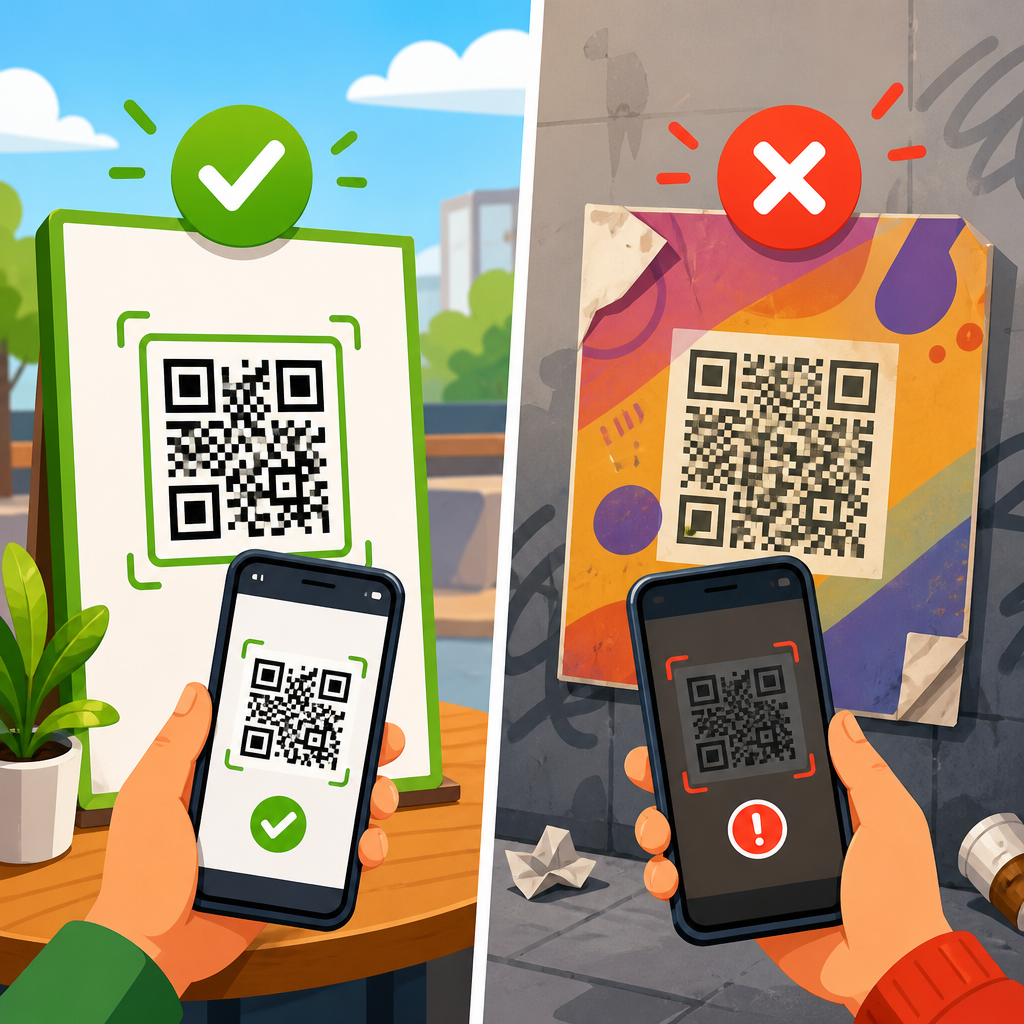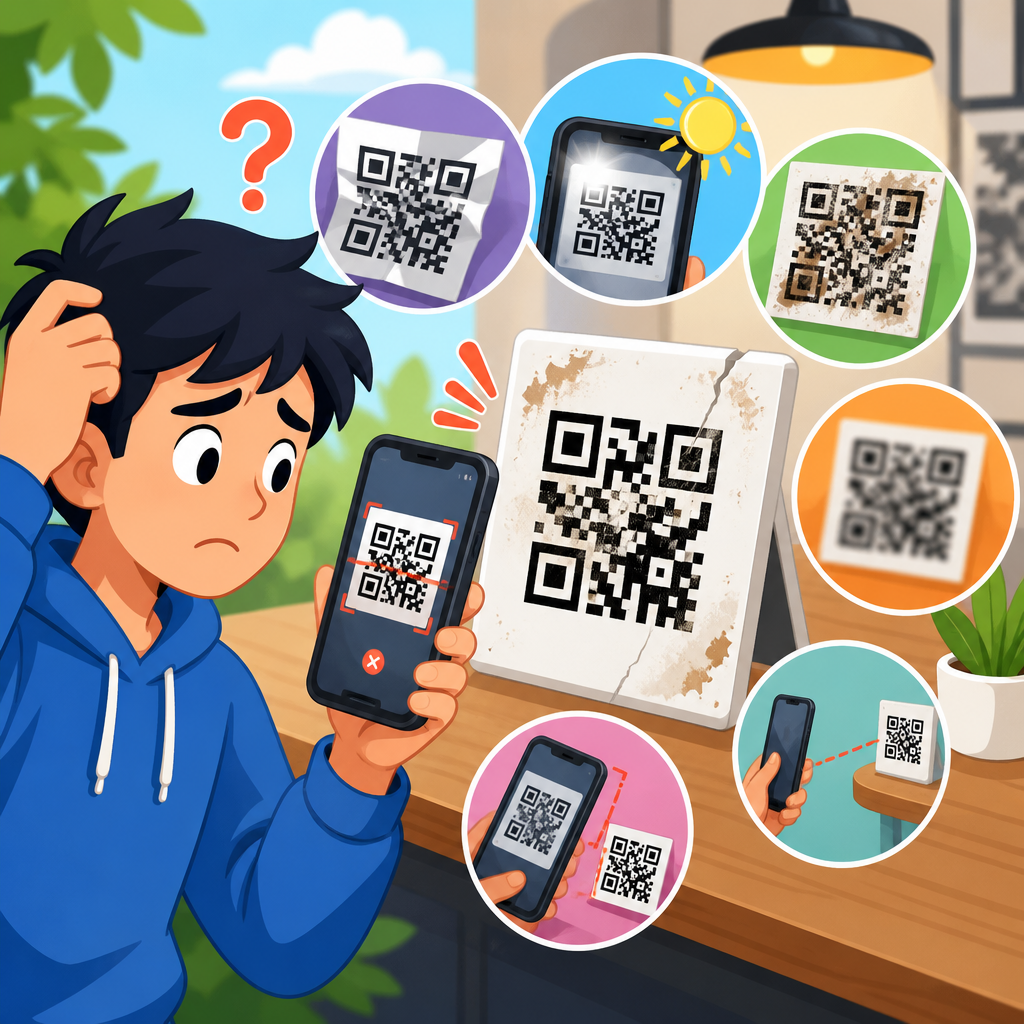
Dynamic QR code links fail in predictable ways, and when you know where the redirect chain, destination URL, device behavior, and analytics layer can break, troubleshooting becomes faster and far more accurate. A dynamic QR code is a scannable code that points to a short URL controlled by a QR platform, which then redirects the user to a final destination. That extra redirect layer is what makes dynamic codes editable, trackable, and suitable for campaigns, but it also creates more points of failure than a static QR code. In practice, I have found that most link problems fall into a handful of categories: the short link is disabled, the destination URL is malformed, the redirect rules are conflicting, the landing page is blocking certain devices, or the analytics and consent scripts interfere with page load. This matters because redirect and link issues do not just reduce scans; they damage trust, waste print budgets, and break attribution across offline and online channels.
For a support hub under QR Code Troubleshooting & Support, the goal is not merely to list symptoms. It is to create a reliable process that answers the questions users actually have: Why does my QR code open the wrong page? Why does it work on one phone but not another? Why does a dynamic QR code suddenly stop redirecting? Why are scans recorded but visits missing in analytics? The most effective way to troubleshoot is to isolate each hop in the path: camera scan, short URL resolution, HTTP status code, redirect destination, landing page response, and post-click measurement. Standards such as HTTP 301, 302, 307, and 308 behavior, TLS certificate validity, DNS propagation, and mobile browser constraints all influence the result. If you approach the problem systematically, you can usually identify the root cause in minutes instead of guessing and changing multiple settings at once.
Understand the Dynamic QR Redirect Path Before You Change Anything
The first rule of troubleshooting dynamic QR code links is simple: map the full journey before editing settings. A scan typically starts in a native camera app or QR scanner, opens a short URL such as a branded domain or platform domain, hits one or more redirects, and ends at a page, app store listing, file download, vCard, form, or deep link target. Problems can occur at any step, so begin by testing the short URL directly in a browser. If the QR code image is hard to scan, that is a symbol quality issue. If the short URL opens but lands on the wrong destination, that is a redirect configuration issue. If the destination opens intermittently, suspect DNS, caching, regional routing, bot protection, or server availability. This distinction prevents teams from misclassifying a scan failure as a link failure.
In real support work, I use browser developer tools and command-line checks early. A cURL request with the -I or -L flag shows HTTP response headers and redirect hops clearly. Chrome DevTools reveals whether the destination page returns a 200, 403, 404, 429, or 500 status and whether scripts delay rendering. Link checkers such as Redirect Path, httpstatus.io, and Screaming Frog help verify chains quickly. If the QR platform provides a destination preview, compare it against the live browser result. Many errors come from a copied URL that contains tracking parameters, expired signed tokens, or a staging hostname that was never intended for production. Before changing anything, document the exact scan context: device model, operating system, camera app, network type, location, timestamp, and whether the tester was on Wi-Fi, cellular, or a corporate VPN.
Diagnose the Most Common Redirect and Link Failures
Most dynamic QR code redirect issues come from a short list of technical failures. The table below organizes the most common patterns I see, along with likely causes and the fastest checks. Using a structured matrix like this helps support teams move from symptom to root cause without trial and error. It also creates a consistent internal workflow for escalation, which is important when marketing, IT, and web teams all touch the same campaign link.
| Symptom | Likely cause | What to check first |
|---|---|---|
| QR opens wrong page | Incorrect destination URL, outdated redirect rule, cached browser session | Open short URL directly, inspect redirect chain, compare platform settings to live response |
| QR works on desktop but not phone | Mobile-only page errors, app deep link misconfiguration, blocked scripts | Test on iOS and Android, inspect mobile status codes, validate deep link fallback |
| QR stops working suddenly | Expired domain, paused campaign, destination page removed, SSL failure | Check DNS, certificate status, account status, and final URL availability |
| Scans recorded but no visits | Analytics blocked, consent banner interruption, JavaScript dependency | Verify server logs, page load events, and analytics tagging separately |
| Redirect loops | Conflicting platform and site redirects, HTTP/HTTPS mismatch, locale rules | Trace each hop with cURL or browser tools and remove duplicate rules |
| Intermittent failures by region | CDN propagation, geo-routing error, firewall or bot protection challenge | Test through multiple networks and regions, review CDN and WAF logs |
When a QR code opens the wrong page, start with the obvious but often overlooked causes: copy-paste mistakes, URL encoding problems, and redirect rules inherited from older campaigns. I have seen marketers replace a destination URL in the platform dashboard, then discover that the website itself has a separate redirect sending traffic elsewhere. Another common issue is UTM parameter corruption. If a campaign URL contains ampersands, fragments, or encoded characters copied from a spreadsheet, the final destination can truncate or misread the address. For platforms using branded short domains, verify that the DNS records still point correctly to the QR provider. If the custom domain expired or was repointed, scans may lead nowhere or return certificate warnings.
When a dynamic QR code stops working without warning, focus on expiration and access controls. Some QR platforms allow campaigns to be paused, archived, or limited by date, scan count, geography, or device type. Those settings are useful, but they often look like link failures to the end user. On the destination side, links to cloud files, ticketing pages, event registrations, and password-protected content frequently expire. Signed URLs from Amazon S3, temporary share links from Google Drive, and one-time checkout sessions from commerce platforms are especially fragile as QR destinations. The dynamic QR code itself is still functioning, but the target has become invalid. This is why stable landing pages are usually better than directly linking to temporary assets.
Check Destination URL Quality, Status Codes, and Security
A dynamic QR code is only as reliable as its destination URL. After confirming that the short link resolves, verify the final page manually and technically. A healthy destination should return a 200 status, load over HTTPS with a valid TLS certificate, respond quickly on mobile networks, and avoid forcing unsupported behaviors. If the page returns a 301 or 302, that may be fine, but long chains increase latency and can break app handoff. Redirect chains beyond two hops are a maintenance risk. I recommend reducing them wherever possible, especially for packaging, posters, menus, and direct mail where the physical code may remain in circulation for months. Every extra hop adds another dependency that can fail.
Status codes provide the clearest diagnostic signal. A 404 means the destination page is gone. A 403 often indicates a firewall, geo-block, or permission rule. A 429 suggests rate limiting, which can appear during high-volume scans at events. A 500-series error means the server or application is failing. If the page loads in one browser but not another, compare the network waterfall and console errors. Content Security Policy misconfigurations, mixed-content warnings, and broken JavaScript bundles can create blank pages that users interpret as dead links. SSL issues also matter. If the custom short domain or landing page certificate expires, many phones will refuse to proceed. Use tools like SSL Labs, Chrome DevTools, and your hosting provider logs to confirm certificate chains and handshake behavior.
Security tools can also interfere with legitimate QR scans. Web application firewalls such as Cloudflare, Akamai, or Imperva may challenge traffic from embedded browsers, in-app browsers, or privacy-focused mobile clients. Some scanner apps open links in lightweight web views that trigger bot detection unexpectedly. I have seen destination pages protected by country restrictions, CAPTCHA gates, and aggressive abuse prevention logic that blocked conference attendees using public Wi-Fi. If a page works on desktop but fails through the QR path, review firewall and CDN logs for blocked requests, challenge pages, or browser integrity checks. Where possible, exempt trusted campaign paths from unnecessary friction, especially when the purpose of the QR code is fast mobile access.
Resolve Device, Browser, and Deep Link Behavior
Many QR link complaints are really mobile compatibility problems. Native camera apps on iOS and Android do not behave identically, and third-party scanners can introduce their own quirks. Some open links in Safari or Chrome, while others use embedded web views with limited cookie support or stricter cross-site tracking rules. If the destination relies on JavaScript redirects, client-side cookies, or local storage before loading critical content, it may work inconsistently across devices. Deep links add another layer of complexity. Universal Links on iOS and Android App Links require proper association files, valid signatures, and fallback handling. When those files are missing or cached incorrectly, the app may not open, or the user may get stuck between the browser and app.
The safest approach is to build and test fallbacks deliberately. If the QR code should open an app, confirm what happens when the app is installed and when it is not. The redirect should send installed users to the correct in-app screen and everyone else to a mobile web page or app store listing. Deferred deep linking can improve acquisition flows, but it demands careful implementation with providers such as Branch, AppsFlyer, Firebase Dynamic Links replacements, or your app stack’s native link handling. Test on current and older operating systems, because link association behavior can differ after updates. Also watch for locale redirects, age gates, login requirements, and cookie consent banners that interrupt the path before users reach the intended content.
Separate QR Platform Analytics from Website Analytics
One of the most confusing support cases is when the QR code platform reports scans, but Google Analytics 4, Adobe Analytics, or the site’s server logs show fewer visits than expected. This does not always mean the dynamic QR code is broken. A scan is recorded when the short URL is requested, while a website visit is recorded only if the destination page loads and the analytics tag fires successfully. Those are different events. If a user scans but closes the browser before the page loads, the platform may count the scan while the site records nothing. Consent banners, ad blockers, privacy browsers, and JavaScript errors can further widen the gap. This discrepancy is normal within limits; large gaps signal a destination or measurement problem.
To troubleshoot accurately, compare three data sources: the QR platform’s scan logs, web analytics sessions, and server or CDN access logs. If scans appear in the platform and requests appear in server logs, the link is working and the issue likely sits in analytics tagging or consent logic. If scans appear in the platform but there are no destination requests, the redirect may be failing before the final page. If there are destination requests but no analytics sessions on specific devices, inspect the tag manager, page view triggers, and consent mode settings. I recommend adding unique UTM parameters or campaign IDs to dynamic QR destinations so support teams can isolate QR traffic clearly. Stable naming conventions make it much easier to identify whether the failure is in redirection, rendering, or reporting.
Build a Repeatable Workflow for QR Code Link Support
The best hub page for redirect and link issues should leave readers with a process they can repeat across campaigns. Start by confirming whether the problem is with scanning, redirection, the destination page, or analytics. Test the short URL outside the QR image. Capture status codes and redirect hops. Validate the destination on multiple devices and networks. Review domain, DNS, SSL, and firewall status. Then compare scan data against server logs and analytics. In my experience, teams solve these issues faster when ownership is explicit: marketing controls destination intent, the QR platform admin controls redirect settings, and IT or web operations controls domains, hosting, and security layers. Without that separation, troubleshooting stalls because everyone changes different parts of the system at once.
This sub-pillar hub should also point readers toward deeper articles on specific scenarios: redirect loops, expired destinations, branded short domain failures, app deep linking problems, analytics mismatches, and region-specific blocking. The core benefit of dynamic QR codes is flexibility, but flexibility requires disciplined maintenance. Use stable landing pages, limit redirects, monitor certificates, avoid temporary share links, and retest whenever campaigns, domains, or app behaviors change. If you manage QR codes at scale, create a prelaunch checklist and a quarterly audit of active dynamic links. That simple habit prevents most failures before customers ever see them. Review your active QR destinations today, document the redirect path for each one, and fix weak links before the next scan turns into a lost conversion.
Frequently Asked Questions
What are the most common reasons a dynamic QR code link stops working?
The most common failures usually happen in one of four places: the QR image itself, the short redirect URL managed by the QR platform, the final destination URL, or the device and browser trying to open it. Because a dynamic QR code does not send users directly to the final page, it depends on an extra redirect step. That redirect is what gives you flexibility to update destinations and collect analytics, but it also adds more opportunities for something to go wrong.
A dynamic QR code may fail because the destination URL was edited incorrectly, the final page was removed, the website is returning a 404 or 500 error, the domain was changed without updating the QR code settings, or the QR platform’s redirect settings were misconfigured. In other cases, the code scans successfully but users land on a blank page, a blocked page, or the wrong version of the site because of device-specific behavior, app browser limitations, or operating system handling.
There are also account-level and platform-level causes to consider. Some QR providers disable codes when a subscription expires, when scan limits are exceeded, or when a custom domain loses its DNS or SSL configuration. If analytics scripts, tracking parameters, or conditional redirects were added, they can interfere with the redirect chain as well. The fastest way to troubleshoot is to test each layer separately: confirm the QR image scans, open the short URL directly, inspect every redirect hop, and verify that the final destination loads correctly across devices.
How can I test the redirect chain of a dynamic QR code to find exactly where it breaks?
The most reliable method is to stop thinking of the QR code as a single link and instead test it as a sequence. First, scan the code with more than one device and more than one camera app. Then extract or copy the short URL behind the code and open it directly in a desktop browser. This helps you determine whether the issue is with the printed or displayed QR code, or with the redirect behavior itself. If the short URL fails even when opened manually, the problem is almost certainly in the redirect chain or destination settings.
Next, inspect each redirect hop. Use browser developer tools, an HTTP header checker, or command-line tools to see whether the short URL returns a proper redirect status such as 301 or 302, and whether it points to the intended destination. Look for redirect loops, broken HTTPS handoffs, malformed tracking parameters, mixed-case path issues, or accidental redirects to old campaign pages. A loop or excessive number of redirects can cause some mobile browsers and in-app browsers to fail silently.
It is also important to test the final destination independently. Paste the landing page URL into multiple browsers, on both mobile and desktop, with and without tracking parameters attached. If the page only fails after the redirect, the issue may be on the QR platform side. If the page fails even when opened directly, the problem is likely with the website, server, CMS, or security configuration. By isolating each step—scan, short URL, redirect response, final page—you can identify the precise failure point instead of guessing.
Why does a dynamic QR code work on some phones but fail on others?
Device-specific failures are very common because scanning and link handling are not identical across phones, operating systems, browsers, and apps. One user may scan with the native camera app and open the link in Safari or Chrome, while another may scan inside a social app, messaging app, or third-party QR scanner that uses its own in-app browser. Those environments can handle redirects, cookies, scripts, and app deep links very differently. As a result, a QR code may appear broken only for a segment of users even when the link technically works.
Common causes include aggressive privacy settings, disabled JavaScript, ad blockers, app browser limitations, unsupported deep links, or mobile pages that do not render correctly on specific screen sizes or OS versions. In some cases, the redirect works, but the destination page immediately fails because the website blocks certain user agents, requires cookies, or sends users into a mobile redirect that conflicts with the QR platform’s own routing. Captive Wi-Fi portals, weak signal conditions, and regional network filtering can also create inconsistent results.
To troubleshoot, test on iPhone and Android, on both Wi-Fi and cellular, and in native browsers as well as in-app browsers. Confirm whether the problem appears only when scanned through a specific app or only on a certain OS version. If so, review the destination page for compatibility issues, simplify redirects, remove unnecessary scripts from the initial landing experience, and avoid fragile device-detection rules unless they are absolutely necessary. Dynamic QR code troubleshooting becomes much faster when you treat device behavior as a separate diagnostic layer instead of assuming every scan environment behaves the same way.
Can analytics, UTM parameters, or tracking scripts cause a dynamic QR code link to break?
Yes, and this is one of the most overlooked causes. Dynamic QR codes often sit at the center of campaign tracking, so marketers frequently add UTM parameters, retargeting logic, analytics scripts, conditional redirects, or tag manager rules. Each added layer increases complexity. If a parameter is malformed, duplicated, improperly encoded, or appended in the wrong format, the final URL may fail to load or may route users to the wrong page. Even when the link loads, tracking additions can slow the redirect or create browser compatibility issues.
Problems often appear when the QR platform adds parameters automatically and the destination URL already contains its own query string, anchors, or redirect logic. A missing ampersand, a broken question mark, double encoding, or an overly long URL can cause partial page loads, 404 errors, or analytics sessions that never register correctly. JavaScript-based tracking can create additional issues if the page depends on scripts that are blocked by privacy tools, consent banners, or in-app browsers that restrict cookies and storage.
The best practice is to simplify and validate. Start by testing the destination without any tracking parameters at all. If that works, add your UTM values and test again. Then verify whether analytics events fire correctly in both desktop and mobile environments. If the problem appears only after adding tracking, review the exact URL syntax, encoding, and redirect behavior. Keep campaign parameters consistent, avoid stacking unnecessary redirects, and make sure your analytics implementation does not interfere with the user reaching the destination page quickly and reliably.
What is the best step-by-step process to troubleshoot a dynamic QR code quickly and accurately?
A strong troubleshooting process begins with isolation. First, scan the code yourself and confirm whether the issue is reproducible. Then test the QR image quality: make sure the code is not blurry, cropped, too small, low-contrast, or distorted by print placement or screen glare. If the code scans but does not open the correct page, move immediately to the link layer. Copy the short URL from the QR code and test it directly in a browser. This tells you whether the problem is scanning-related or redirect-related.
Second, trace the full redirect chain. Check whether the QR platform is issuing a proper redirect, whether a custom domain is active, whether SSL certificates are valid, and whether the destination URL is entered exactly as intended. Open the final destination directly to confirm that the website is live, secure, and not generating 404, 403, 500, or timeout errors. Review any recent changes to the destination page, CMS, DNS, hosting environment, or campaign settings. If analytics or conditional routing were recently added, temporarily remove them and test again.
Third, validate the user environment. Test on multiple phones, browsers, networks, and scanning apps. Compare native camera behavior with in-app browser behavior. Check whether the issue affects all users or only a subset, such as Android users, users in a specific country, or users behind corporate firewalls. Finally, document the outcome of each test so you know exactly where the failure occurs. The most effective troubleshooting is methodical: verify the scan, inspect the redirect, confirm the destination, test the device conditions, and then adjust only the layer that is actually failing.