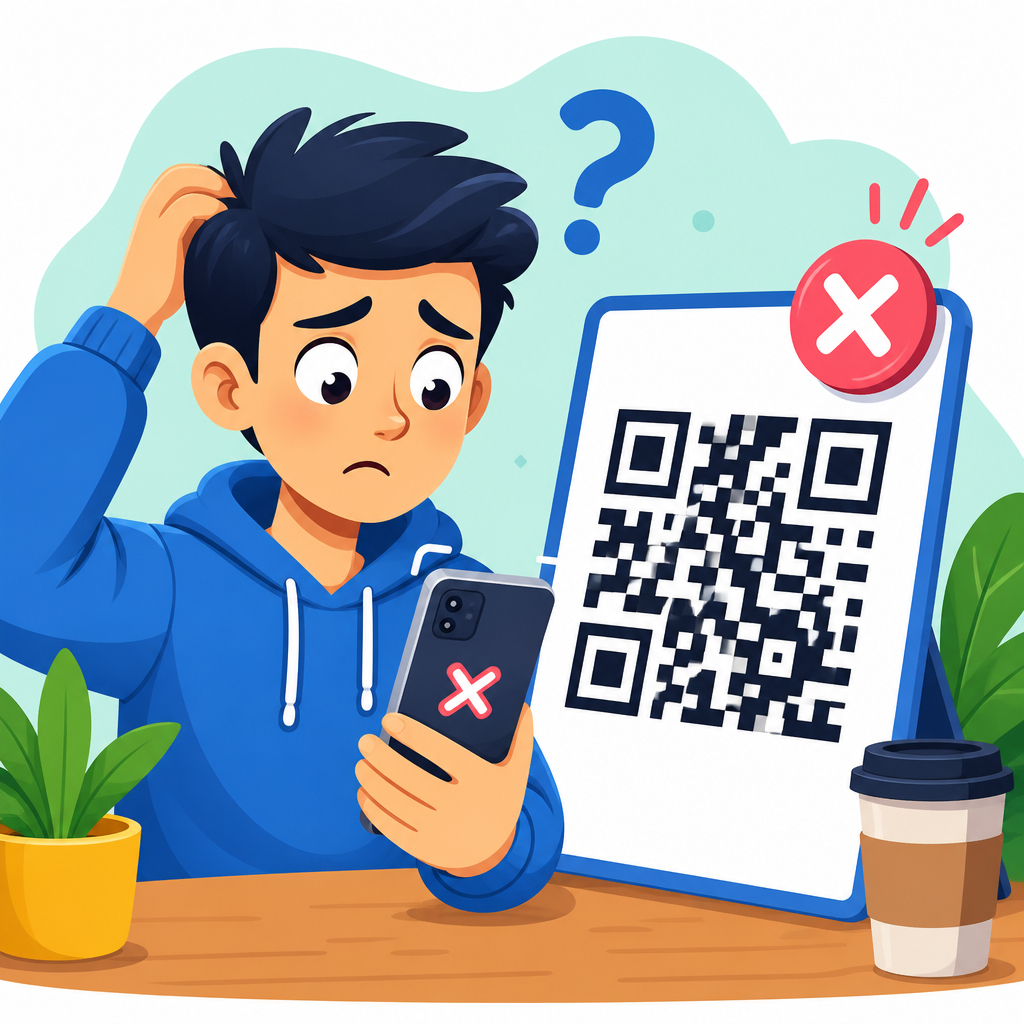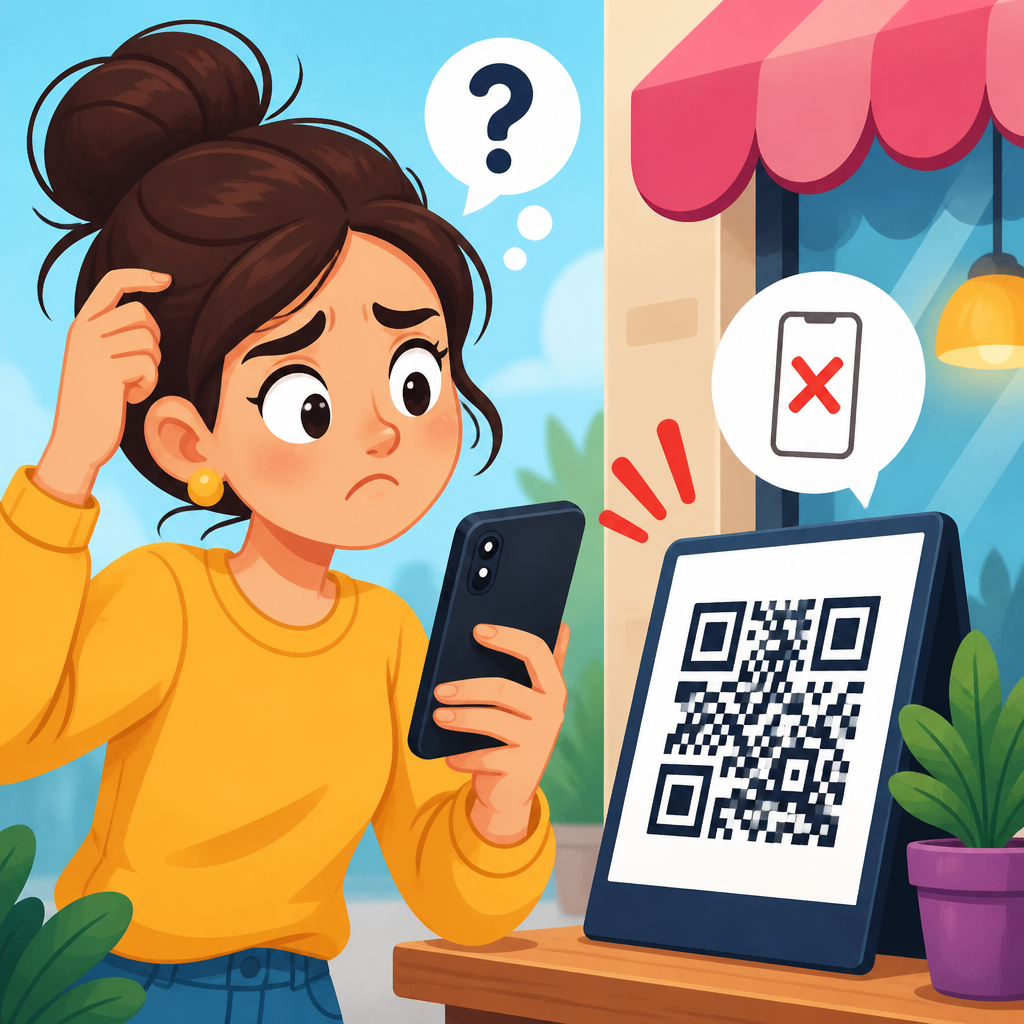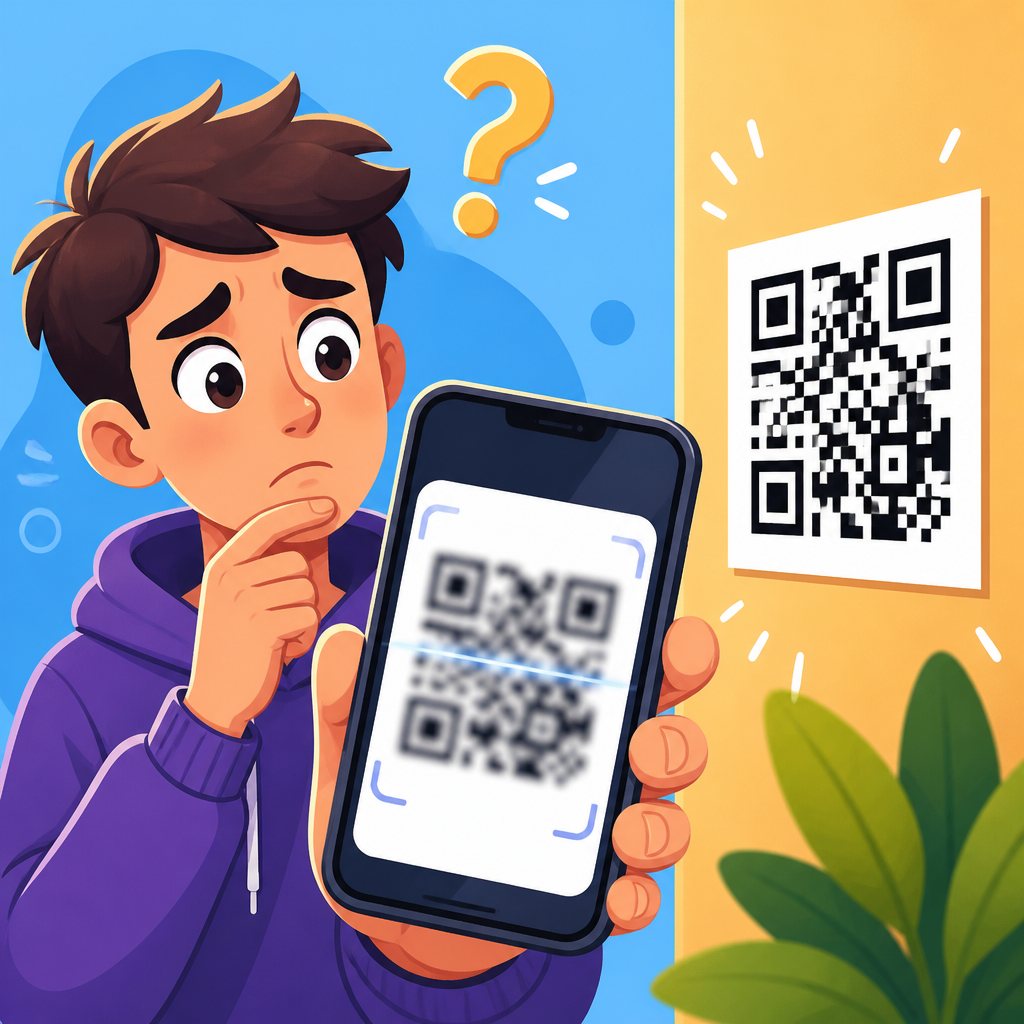
QR codes fail for predictable reasons, and most of them can be fixed without rebuilding an entire campaign. In support work for packaging, retail signage, event tickets, restaurant menus, and app onboarding flows, I have seen the same pattern repeatedly: the code looks fine on screen, but users cannot scan it, scanners open the wrong destination, or analytics show a sudden drop in successful reads. When people search for how to fix QR code generator issues, they usually mean one practical question: why is this QR code broken, and what exact steps will make it scan reliably again?
A QR code is a two-dimensional matrix barcode that stores data such as a URL, vCard, Wi-Fi credentials, payment string, or plain text. A QR code generator is the tool that encodes that data into the square pattern of modules, finder patterns, alignment patterns, timing patterns, and quiet zone that scanner software expects. A broken QR code is any code that fails at one of three stages: encoding, rendering, or scanning. Encoding problems happen when the wrong data, wrong format, or unsupported characters are used. Rendering problems appear when design changes distort the symbol, reduce contrast, remove the quiet zone, or export a low-quality image. Scanning problems happen in the real world because of glare, distance, print defects, low light, curved surfaces, or an outdated camera app.
This topic matters because QR codes sit at the final step of many customer journeys. If a checkout poster, parcel insert, warranty card, or product label fails, the conversion is lost at the point of action. A user rarely tries more than once. In measured campaigns, even small design mistakes can cut scan rates dramatically. ISO/IEC 18004 defines how QR codes should be structured, but many generator issues come from ignoring those basic constraints during design or deployment. The good news is that broken QR codes are highly diagnosable. If you test the payload, image quality, print setup, destination behavior, and scanning environment in a disciplined order, you can usually isolate the failure quickly and prevent it from returning across future assets in your QR Code Troubleshooting & Support workflow.
Start with the most common causes of broken QR codes
The fastest way to fix QR code generator issues is to check the failure points in order from most common to least common. In day-to-day troubleshooting, the biggest offenders are incorrect destination URLs, insufficient contrast, missing quiet zones, overdesigned branding, and export settings that blur module edges. If the QR code opens a 404 page, the code itself may be technically valid but functionally broken. If the destination is correct but the camera hunts and never locks, the issue is usually visual rather than data-related.
Begin by scanning the code with at least three tools: the default iPhone camera, the default Android camera from a recent device, and a dedicated scanner app such as QRbot or NeoReader. If one device works and two fail, compare camera behavior. If all fail, inspect the symbol itself. Dynamic QR codes can add another layer of failure, because the short URL may redirect through a platform that is down, rate-limited, blocked by a network, or misconfigured after an edit. Static QR codes fail less often at the destination layer, but they cannot be edited once printed. That tradeoff matters when choosing whether to replace the code or repair the linked content.
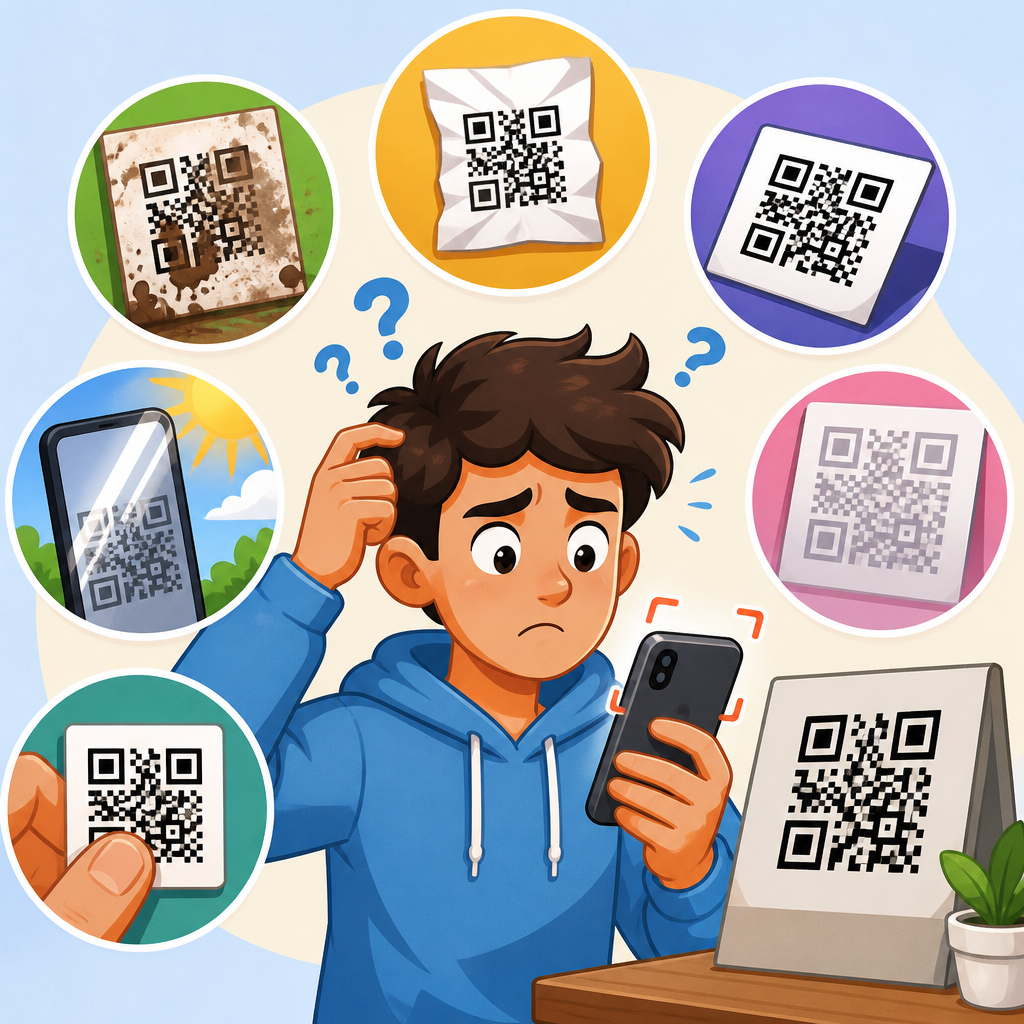
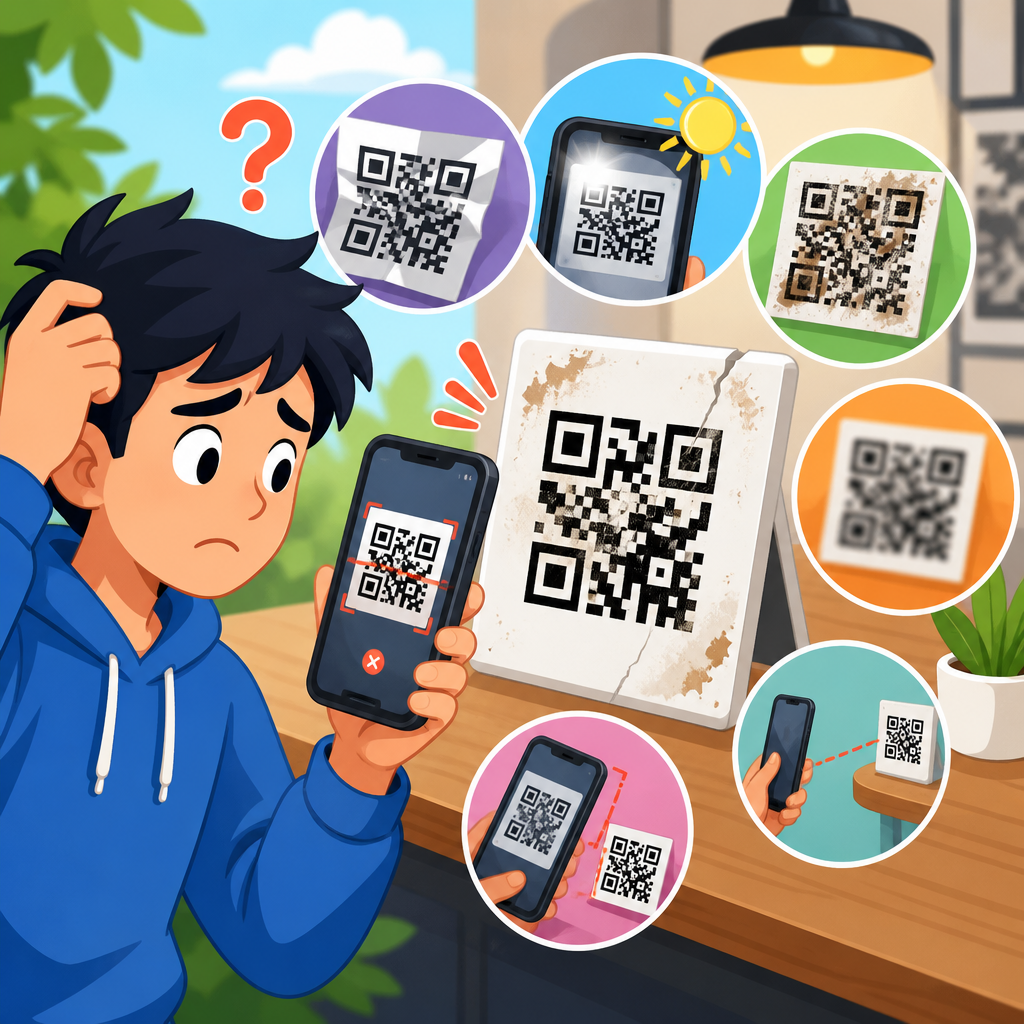
Also confirm whether the problem is universal or context-specific. A code on glossy acrylic may fail under overhead lights but scan indoors at an angle. A code wrapped around a bottle may be unreadable because the finder patterns bend outside a scanner’s tolerance. A restaurant menu code might work in the design file yet fail after being compressed in a messaging app before the print vendor used it. These are not abstract possibilities; they are routine production errors. The key is to define the failure precisely: cannot detect, detects but will not open, opens wrong page, opens slowly, or scans only in ideal conditions. Each symptom points to a different fix.
Check the encoded content before changing the design
Many broken QR codes are caused by bad payloads rather than bad graphics. Before editing colors or resizing artwork, inspect the encoded content. For URL QR codes, verify the full destination with the exact protocol, usually https://. Remove accidental spaces, malformed UTM parameters, double slashes in paths, and tracking fragments inserted by marketing tools. Watch for smart punctuation copied from documents, especially curly quotes, en dashes, and nonbreaking spaces. These characters can invalidate a payload or produce a destination different from the intended one.
If the generator offers data types such as URL, text, email, SMS, vCard, Wi-Fi, or payment, use the correct mode. Encoding Wi-Fi credentials as plain text can display the password but not trigger automatic network join behavior. Payment payloads often require strict formatting and country-specific standards. For example, EPC QR for SEPA transfers has field order rules, and EMVCo-style merchant-presented payment codes depend on exact identifiers. When those values are wrong, scanners may decode the symbol but downstream apps reject it.
Dynamic QR platforms deserve special attention. Confirm that the redirect is active, the domain has a valid TLS certificate, and the final landing page does not block mobile user agents. I have fixed campaigns where the QR code platform worked in desktop browsers yet failed on captive Wi-Fi portals because the redirect chain was too long. Keep redirects short, avoid unnecessary JavaScript interstitials, and test on mobile networks as well as office Wi-Fi. If analytics tags are appended automatically, make sure they do not break existing query strings. A working QR code is not just scannable; it must resolve cleanly to the right mobile experience.
Fix image quality, size, contrast, and quiet zone
When the payload is correct, the next priority is symbol quality. QR codes are machine-readable graphics, not decorative icons. They depend on sharp module boundaries, adequate size, strong contrast, and an untouched quiet zone around the entire symbol. The quiet zone is the blank margin that separates the code from surrounding elements. A practical rule is four modules wide on every side. When designers crop too close, add borders, or place text against the pattern, scanners struggle to identify the symbol.
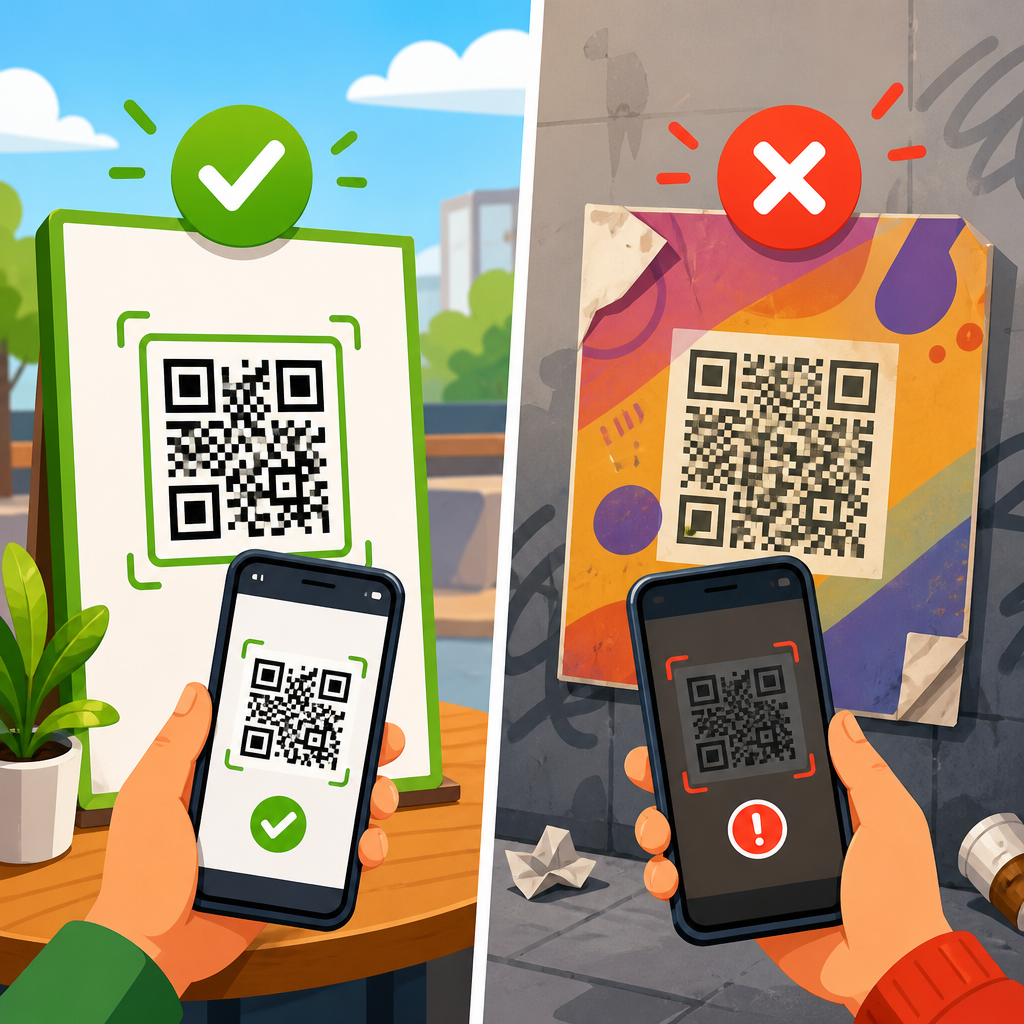
Contrast should be dark modules on a light background. Black on white remains the safest choice. White modules on black can work in some apps, but reliability drops because many scanners assume dark foreground. Metallic inks, low-opacity overlays, gradients, and patterned backgrounds reduce decoder confidence. The same applies to transparent PNG files placed over photography. If the image behind the code changes by channel or responsive layout, a once-scannable code can become unreadable in production.
Export format matters. For print, use vector files such as SVG, EPS, or PDF whenever possible. Vector output preserves crisp edges at any size. If you must use raster images, export at high resolution and avoid resaving through software that applies compression. JPEG is especially risky because it introduces artifacts around hard edges. PNG is safer for raster delivery. On packaging lines, I have seen a code pass prepress review and fail after being flattened into a low-resolution JPEG inside a shared slide deck. Protect the original file and lock approved assets.
| Issue | Typical symptom | Recommended fix |
|---|---|---|
| Quiet zone removed | Camera never detects code | Restore a blank margin at least four modules wide |
| Low contrast colors | Intermittent scanning in bright light | Use dark foreground on light background, avoid gradients |
| Low-resolution raster export | Code scans on screen, fails in print | Use SVG or high-resolution PNG from the original generator |
| Code printed too small | Users must move very close to scan | Increase size based on scan distance and environment |
| Heavy logo customization | Some devices decode, others fail | Reduce logo area and raise error correction carefully |
Size should match viewing distance. A common field rule is about one inch of QR code width for every ten inches of scanning distance, though environment and camera quality change the threshold. Tiny codes on business cards can work because the user can bring the phone close. The same size on a wall poster will fail because the camera cannot resolve the modules from several feet away. If your code contains a long URL and uses a high symbol version, it may require a larger physical size than a short redirect URL. Shorter payloads generally create simpler, more robust patterns.
Handle design customization without breaking scan reliability
Branding can coexist with scan performance, but only within limits. The safest QR code uses square modules, standard finder patterns, no background noise, and no embedded logo. Every deviation increases risk. The question is not whether custom QR codes can work; many do. The question is how much visual change the chosen scanners, print process, and environment will tolerate. In support audits, the biggest design mistake is stacking multiple risky choices at once: rounded modules, a center logo, a gradient fill, low contrast, and tight cropping.
Error correction often creates false confidence. QR codes support four levels: L, M, Q, and H, with H allowing the most damaged modules to be recovered. That does not mean you should cover large portions of the symbol with a logo. Error correction is intended for real-world damage, not aggressive redesign. If you add a logo, keep it small, centered, and tested across devices. Preserve finder patterns completely. Do not alter the three corner squares or the timing patterns that run between them.
Rounded modules, custom eyes, and color inversions should be validated with printed proofs, not just digital previews. Scanners vary. Some modern phone cameras decode stylized codes well, while older enterprise devices and embedded scanners in payment terminals can be less forgiving. If your audience includes warehouse staff, drivers, healthcare workers, or field technicians using specialized hardware, design to the lowest tolerance device. I recommend maintaining a plain fallback version for critical operations and a brand-styled version only where user experience justifies the risk.
Test the real-world environment, not just the generator preview
A QR code generator preview proves only that the software rendered a symbol, not that people can scan it where it will actually appear. Reliable troubleshooting requires environment testing. Print a sample at final size on the actual material, then test under realistic lighting, viewing angles, and device conditions. Matte paper behaves differently from gloss laminate. Corrugated cardboard prints differently from coated labels. Curved cans and shrink sleeves distort modules. Window decals suffer from reflections and backlighting.
Distance and motion matter too. A code intended for drive-thru pickup, transit posters, trade show booths, or warehouse bins must be readable quickly from imperfect positions. In one retail rollout I worked on, the code scanned perfectly from a desktop printout but failed on shelf talkers because the adhesive film created glare under spotlights. The fix was not a new generator. It was a larger code, darker ink, and matte finishing. In another case, event badges failed at entry because lanyards bent the print. Moving the code to a flatter badge zone solved it immediately.
Use a structured test matrix. Check iOS and Android, new and older devices, native camera and a dedicated scanner, bright and dim conditions, Wi-Fi and cellular, portrait and landscape placement, and at least one damaged sample. If the code points to a mobile web page, include page speed and usability in the test. A QR code that scans but lands on a slow, intrusive page still feels broken to users. This hub article supports all related Fixing Broken QR Codes workflows because it separates symbol readability from landing-page performance, both of which must work together.
Know when to regenerate, redirect, or replace the code entirely
Some QR code problems can be repaired in place, while others require regeneration. If the destination URL changed and the code is dynamic, update the redirect and retest. If the code is static and points to the wrong location, you cannot edit the data inside the printed symbol. Your choices are to create a replacement sticker, reprint the asset, or set up a server redirect from the old destination if you control that domain. In practice, redirect control is often the fastest rescue for misprinted static URL codes.
If the code itself is visually compromised by low contrast, missing quiet zone, excessive customization, or insufficient size, regenerate it from the source data with conservative settings. Use a shorter URL where possible, choose an appropriate error correction level, export as vector, and lock the file in an approved asset library. If campaign scale is large, issue versioned filenames and a deployment note so teams do not reuse obsolete art. Broken QR codes often persist because old files continue circulating in chat threads, slides, and shared folders long after the fix is available.
Finally, build a repeatable quality checklist. Verify payload, mobile destination, redirect behavior, contrast, quiet zone, size, file format, substrate, and multi-device scans before release. Document known-safe settings in your QR Code Troubleshooting & Support process so future teams do not repeat preventable mistakes. When you fix QR code generator issues methodically, you reduce support tickets, protect conversion, and make every printed or digital touchpoint easier to trust. Audit your current codes today, starting with the assets that matter most to revenue or customer access.
Frequently Asked Questions
Why is my QR code not scanning even though it looks correct?
A QR code can look perfectly normal and still fail in real-world scanning conditions. The most common causes are low contrast, insufficient quiet zone, poor sizing, image distortion, and over-customization. A scanner needs a clear difference between the dark modules and the light background, so if the code uses gray on black, pastel colors, gradients, glossy reflections, or a patterned background, readability drops quickly. In many cases, the issue is not the generator itself but how the code was exported, resized, printed, or placed into a design.
Start by checking the basics. Make sure the code is dark on a light background, with a clear white margin around all sides. That margin, often called the quiet zone, is essential because scanners use it to detect where the code begins and ends. If the QR code has been stretched horizontally or vertically, compressed in a layout tool, or saved from a screenshot instead of exported properly, the module pattern may be damaged enough to prevent scanning. Also inspect the final version where users actually encounter it, such as packaging, posters, menus, tickets, or mobile screens. A code that scans on a laptop may fail once printed too small, placed on curved material, or viewed under glare.
The fastest way to troubleshoot is to test the code with multiple phones, multiple camera apps, and different distances. If none of them scan reliably, regenerate the code using a clean export, preferably in a vector format for print or a high-resolution PNG for digital use. Then confirm the destination URL works independently. In support scenarios, this solves the majority of “it looks fine but will not scan” problems without requiring a full campaign rebuild.
What size should a QR code be to scan reliably on packaging, signs, menus, or tickets?
There is no single universal size that works everywhere because scanning reliability depends on viewing distance, print quality, surface material, and the amount of data encoded. A simple QR code pointing to a short URL can often be printed smaller than a code containing a long link with tracking parameters. As a practical rule, the farther away the user is expected to scan from, the larger the code should be. Small labels and product packaging may work with compact codes, while retail signage, event displays, and window posters need much larger versions to accommodate distance and motion.
For close-range uses like restaurant menus, product inserts, and app onboarding cards, a code that is physically large enough to be clearly seen and framed by a phone camera is usually sufficient if contrast is strong and the print is sharp. For tickets and labels, issues often appear when the code is printed near folds, edges, perforations, or glossy laminates. On packaging, curved surfaces can warp the code geometry, which means a size that worked flat may become unreliable after application. In those cases, increasing the physical size and simplifying the design treatment usually improves performance immediately.
The best approach is to validate the final production format, not just the design file. Print samples at actual size, test them under normal lighting, and scan from realistic distances with different phones. If users must scan while standing, walking, or holding the item at an angle, build in extra tolerance by making the code larger than the minimum you think you need. Reliable QR performance is usually the result of field testing, not guessing based on what looked acceptable on screen.
Why does my QR code open the wrong page or fail after I update the link?
This usually happens for one of two reasons: the QR code is static and cannot be changed after creation, or the redirect behind a dynamic code has been edited incorrectly. A static QR code permanently stores the exact destination data inside the pattern. If that original URL is wrong, outdated, misspelled, or later removed, the QR code will continue sending users there until you replace the printed or published asset. Many people assume all QR codes are editable after generation, but that is only true when a dynamic redirect system is being used.
With dynamic QR codes, the destination can usually be changed without replacing the visual code, but problems arise when redirects are chained, tracking parameters are malformed, or the updated destination is blocked by browser rules, app deep-link behavior, or geolocation settings. In analytics-heavy campaigns, it is also common to accidentally paste a preview link, a staging URL, or a shortened URL that later expires. Another frequent issue is caching: one device may appear to open the old page because the browser or app has retained a previous redirect result.
To fix this, first determine whether the QR code is static or dynamic. Then test the exact destination URL directly in a browser before scanning the code. If the code is dynamic, inspect the redirect settings and remove unnecessary hops. Make sure the target page loads properly on mobile, does not require login unless intended, and does not trigger security warnings. After any update, test with fresh devices, different networks, and multiple scanning apps. In most cases, the “wrong page” issue is really a link management problem rather than a scanning problem.
Can design changes like logos, colors, or custom shapes break a QR code?
Yes, and this is one of the most common causes of QR code generator issues in branded campaigns. Custom styling can work well, but it reduces the safety margin that standard black-and-white codes naturally have. When you add a logo in the center, round off modules, change corner markers, use brand colors, or place the code over an image, you are making it harder for scanners to interpret the pattern quickly. Error correction helps, but it is not a guarantee that any artistic treatment will remain scannable.
The biggest risks are low contrast and excessive obstruction. If a logo covers too much of the data area, if light-colored modules blend into the background, or if decorative effects soften the edges of the code, scanners may fail or become inconsistent across devices. Problems often appear only after export or printing, when anti-aliasing, compression, glare, or ink spread slightly alters the shapes. A design that scans on one flagship phone in office lighting may fail on older devices, budget cameras, or in a dim retail environment.
If you want a branded QR code, keep the functional rules intact. Use strong contrast, preserve the quiet zone, avoid busy backgrounds, and keep any logo modest in size. Test the exact final asset, including print finish and placement, not just the artwork in your design app. It is smart to compare the custom code against a plain black-and-white version that points to the same URL. If the plain version scans instantly and the branded one struggles, the styling is the issue. In practice, subtle branding almost always performs better than aggressive customization.
How do I troubleshoot a sudden drop in QR code scans or analytics performance?
A drop in scans does not always mean people stopped engaging. It can indicate a technical failure, a redirect issue, a page-speed problem, changes in placement, or tracking data being interrupted. Start by separating scanning performance from post-scan performance. If users can still scan the code but the landing page is slow, broken, blocked, or poorly rendered on mobile, completions may fall even while scan attempts remain stable. If analytics show a sharp decline, also consider whether the measurement setup changed, such as UTM handling, redirect configuration, consent settings, or platform reporting rules.
Begin with a controlled checklist. Scan the code yourself on multiple devices and networks. Confirm that the code resolves quickly, the destination loads correctly, and the analytics platform is still recording visits. Check whether the printed code has degraded physically through scratches, fading, glare, poor reprints, or changes in store signage. In event and retail environments, a code can become partially blocked by fixtures, reflections, protective covers, or new layout elements. If the code is displayed digitally, verify that scaling, responsive layout, or image compression has not altered the asset. Even a CMS update or social platform image crop can affect scanability.
Also review operational factors. A campaign may show fewer successful reads because the code is now placed too high, too low, too far away, or in poor lighting. If a dynamic QR platform is involved, inspect account status, redirect rules, expiration settings, and domain health. The most efficient way to isolate the problem is to trace the full path: scan detection, redirect response, destination page behavior, and analytics capture. Once you know where the failure occurs, the fix is usually straightforward. Most QR-related performance drops come from one broken link in the chain, not from the QR format itself.