QR codes are now part of daily school life, from homework links and cafeteria payments to museum worksheets and event check-ins, so teaching QR code safety tips for kids and students is no longer optional. A QR code, or Quick Response code, is a square barcode that stores information such as a website address, contact card, app link, payment request, or file download. When scanned with a phone, tablet, Chromebook, or classroom device, it opens that destination almost instantly. That speed is useful, but it also removes the pause people once had when typing a web address by hand, which means a bad link can be opened just as quickly as a legitimate one.
I have worked with schools rolling out device programs and have seen the same pattern repeatedly: adults focus on content filtering and passwords, while students are taught to scan first and think later. Attackers know this. They place malicious sticker codes over real ones, print fake scholarship offers on posters, and use shortened links that hide risky destinations. In practice, most QR threats are not about the code image itself being magical or infected. The danger is where the code sends the user and what it asks them to do next.
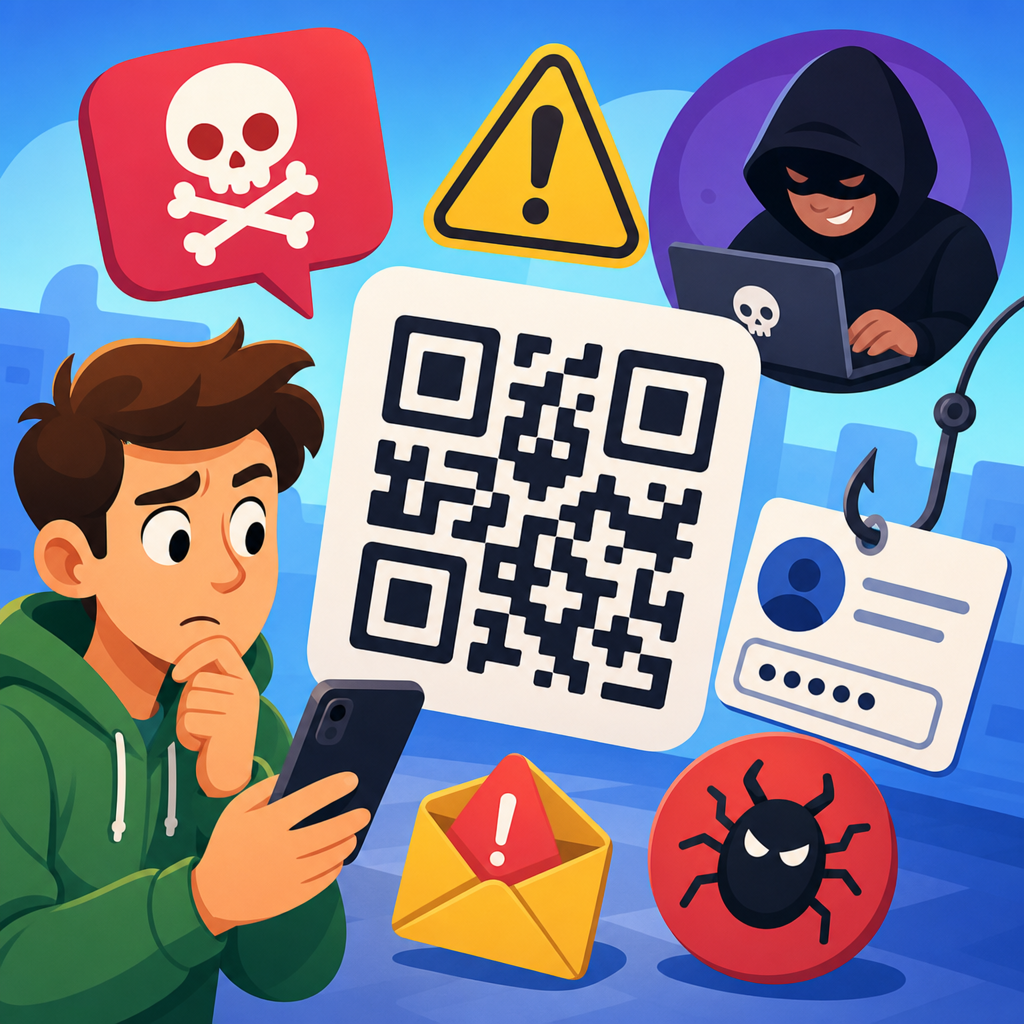
For kids and students, safe scanning matters because scams target curiosity, urgency, and convenience. A student may trust a code on a hallway flyer, on social media, or in a group chat from a classmate whose account was compromised. Common risks include phishing pages that steal school logins, fake app download prompts, malware disguised as PDFs, payment fraud, and forms that collect personal data. Younger students are especially vulnerable because they may not distinguish between a school-managed page and a convincing imitation.
This guide explains safe scanning tips in plain language and covers the habits I recommend in student training sessions. You will learn how to check whether a QR code is expected, preview its destination, spot warning signs before tapping, protect personal information, and respond correctly if something goes wrong. Used well, QR codes are efficient and safe. Used carelessly, they create an easy path for scams. The goal is not to make students afraid of technology. The goal is to help them pause, verify, and scan smart every time.
Why QR Codes Create Unique Safety Risks for Students
QR codes feel trustworthy because they are physical, visual, and common in schools, but that familiarity can be misleading. A printed code on a worksheet looks official even when anyone could have created it for free in seconds. Unlike a typed website address, a QR code hides the destination until after the scan. Some camera apps show a preview link before opening it, but many students tap quickly without reading. That behavior is exactly what scammers count on.
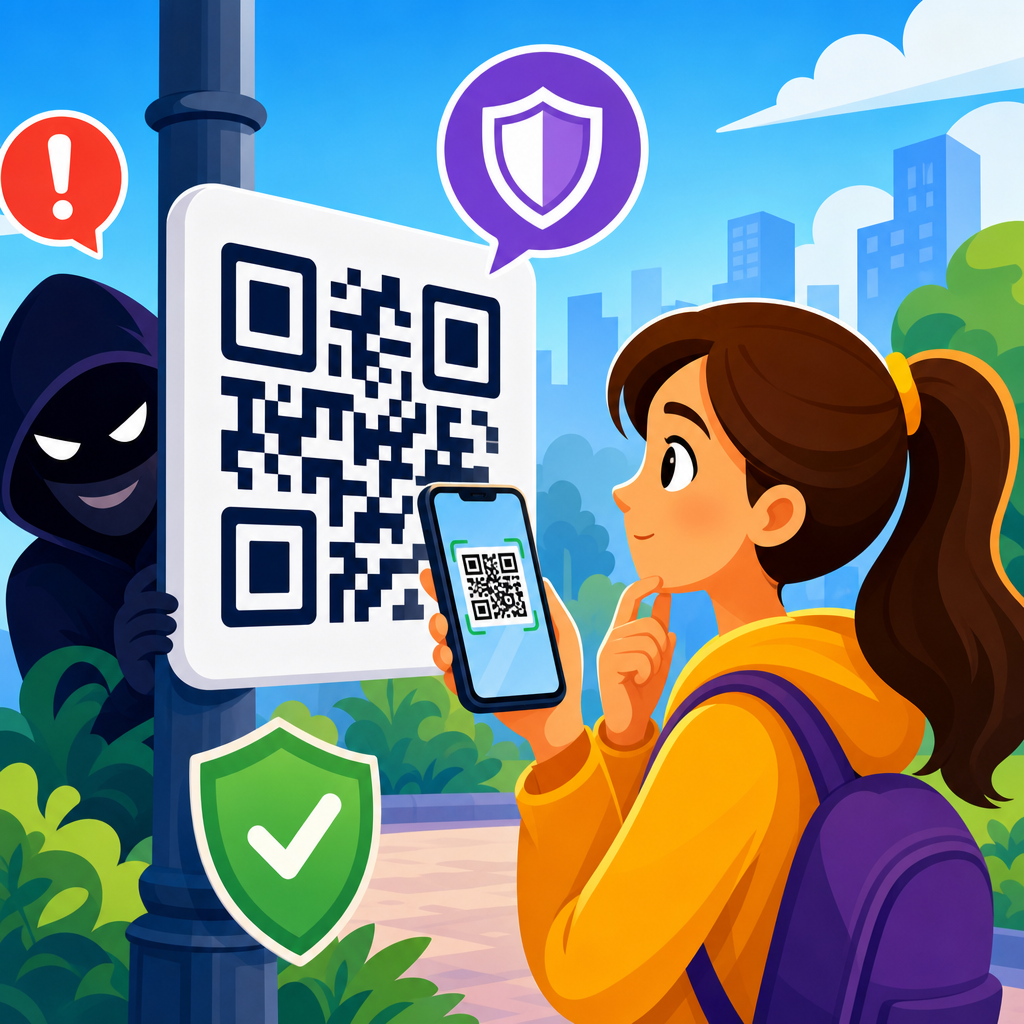
Students also use shared environments where codes appear constantly: classroom walls, library signs, sports handouts, buses, clubs, and fundraisers. In one school deployment I supported, we found event posters with third-party codes added later by outsiders promoting unrelated offers. The poster still looked school-approved, so students scanned it. This is why physical placement is not proof of legitimacy. A code can be replaced, covered, or redistributed in a screenshot with almost no effort.
Another risk is device context. On a personal phone, a student may have fewer safety controls than on a managed school tablet. Consumer devices often autofill passwords, store payment cards, and stay signed into email or cloud storage. If a QR code opens a phishing page that imitates Google Workspace or Microsoft 365, a single tap can expose an account tied to assignments, messages, and family information. For older students, mobile payment scams and fake internship applications are growing concerns as well.
The Core Rule: Scan Only When the Code Is Expected
The safest scanning habit is simple: if you did not expect a QR code, do not scan it until you verify why it is there. Expected means it comes from a known teacher, school office, textbook publisher, museum guide, or organization you intentionally chose to interact with. Unexpected means it appears in a random social post, text message, public flyer, game chat, or sticker on top of another sign. This one rule prevents many common scams before they start.
Students should ask three quick questions before scanning. Who shared this code? Why does this activity need a code? Can I confirm it another way? If a teacher gives a code in class and also posts the same link in the learning management system, that consistency is a good sign. If a code promises free rewards, urgent account fixes, or surprise prizes, treat it as suspicious. Scammers often use emotional triggers because they know fast decisions reduce careful thinking.
In schools, expected codes usually have context around them: a class title, teacher name, assignment directions, or a clearly branded handout. Suspicious codes often stand alone with vague language such as “scan now,” “claim here,” or “verify immediately.” Students should be taught that a real school request will still be valid after a quick check. Legitimate organizations do not mind verification. Pressure and secrecy are warning signs, especially when a code demands immediate login or payment.
How to Check a QR Code Before Opening the Link
Safe scanning does not end at the moment the camera recognizes the code. Students should pause at the preview and inspect the destination. On most modern phones and tablets, the camera app displays a banner or link before opening it. Read that preview carefully. Look for the main domain name, not just the first words. For example, schoolname.org is very different from schoolname-login-support.example.com. Attackers often place trusted words before or after the real domain to create confusion.
If the preview uses a URL shortener such as bit.ly or tinyurl, treat it with extra caution. Short links are not always malicious, but they hide the final destination. In classrooms, I advise students to open only short links that come directly from a teacher or official school channel. If there is any doubt, ask for the full web address. On managed devices, schools can also use secure browsers, DNS filtering, and link inspection tools to reduce risk, but these controls should support, not replace, student judgment.
Another strong habit is to avoid logging in through a page reached only by QR code when a safer route exists. Instead of signing in from the scanned page, open the school portal or known app separately and navigate from there. This defeats many phishing attempts because fake pages usually depend on users entering credentials immediately after the scan. Students should also watch for poor spelling, generic logos, odd page layouts, and requests unrelated to the stated purpose of the code.
| Situation | Safer Student Response | Why It Helps |
|---|---|---|
| Code on a classroom worksheet | Check teacher name and preview the domain before opening | Confirms the code matches the lesson and expected site |
| Code on a public poster | Ask staff if the poster is official before scanning | Prevents sticker replacement and fake event scams |
| Shortened link appears after scan | Do not open unless it came from a trusted school source | Shorteners hide the final destination |
| Page asks for school login | Close it and sign in through the official portal instead | Reduces phishing risk |
| Code promises prizes or urgent action | Stop and verify with an adult or teacher | Scams commonly use urgency and rewards |
Recognizing Red Flags After a Scan
Some malicious QR codes look harmless until the destination loads, so students need clear red-flag rules for what happens next. The biggest warning sign is a request for sensitive information that does not match the reason for the scan. A code for a field trip handout should not ask for a personal email password, home address, bank details, or payment card. A code for club registration should not require app installation from an unknown source. If the request feels unrelated, stop immediately.
Students should also notice technical red flags. Secure websites usually use HTTPS, shown by a padlock or similar browser indicator, though HTTPS alone does not guarantee legitimacy. The page should also look professional and consistent with the organization it claims to represent. Typos, broken images, mismatched logos, odd pop-ups, and aggressive download prompts are strong signs to leave. On Android devices especially, prompts to install APK files from outside the official app store should be treated as high risk.
Behavioral clues matter too. If a page threatens account deletion, says a package cannot be delivered, or claims a prize expires in minutes, it is likely trying to create panic. Students are safer when they remember that real schools, publishers, and public institutions do not demand rushed decisions through anonymous QR codes. In digital safety training, I tell students that confusion itself is a warning sign. If they cannot clearly explain what the code is for and where it leads, they should not proceed.
Protecting Privacy and Personal Information
Good QR code safety includes privacy, not just malware prevention. Many codes lead to forms, sign-ups, feedback surveys, or promotional pages that collect more data than necessary. Students should share the minimum information required. For most school activities, a first name, student ID through an approved platform, or school email may be enough. A request for personal phone number, private email, birthday, home address, or parent payment details should trigger a second look and often a refusal unless a trusted adult confirms it.
This matters because data collected through a harmless-looking form can be combined for impersonation, social engineering, or targeted scams later. A student who enters full name, graduation year, school, and phone number into an unverified scholarship form may receive convincing follow-up texts pretending to be counselors or admissions staff. That is why privacy training should include purpose limitation: if a detail is not clearly needed for the task, do not provide it.
Students should also understand permission requests. After scanning, some websites ask for camera access, microphone access, location sharing, or notification permissions. Most pages do not need all of these to display information. Declining unnecessary permissions reduces exposure. For younger students, parental controls and school mobile device management can restrict permissions, but students still benefit from learning the reason behind the rule. Smart privacy habits travel with them from school devices to personal phones and future workplaces.
What Schools, Parents, and Students Should Do Together
QR code safety works best when schools, parents, and students follow the same playbook. Schools should publish official guidance on where class and event QR codes will appear, use consistent branding, and provide non-QR alternatives such as typed short links in the student portal. Teachers should avoid posting destination links only on hallway papers where anyone can tamper with them. Parents should remind children that asking before scanning is a strength, not an inconvenience.
Students need a simple reporting path. If they find a suspicious code, they should know whether to tell a teacher, librarian, coach, help desk, or parent. Quick reporting helps remove malicious stickers before others scan them. In my experience, the schools that handle QR risk well treat it like hallway safety: repeat the rule often, make reporting normal, and remove hazards quickly. Technical controls such as web filters, Safe Browsing, Microsoft Defender SmartScreen, and managed app stores add protection, but awareness remains the first layer.
It also helps to practice with examples. Show students two event posters, one legitimate and one altered, then ask what clues stand out. Let them compare a real school login page with a fake one on a training platform. These exercises build pattern recognition far better than abstract warnings. The goal is not perfect suspicion of everything. The goal is calm verification of anything that asks for trust.
What to Do If You Scanned a Suspicious QR Code
If a student scans a suspicious QR code, the right response depends on what happened next. If the page opened but no information was entered, close the tab immediately and do not interact further. If any download started, stop it, delete the file if possible, and notify a teacher, parent, or school technology staff. If login details were entered, change the password at the official site right away and enable multifactor authentication if the account supports it. Then report the incident so administrators can watch for misuse.
When payment information or personal data was submitted, speed matters. Parents may need to contact the card issuer, monitor transactions, or place fraud alerts depending on the type of data involved. On school accounts, administrators should review sign-in logs, session history, and account recovery settings. For managed devices, security teams can run scans, review browser history, and check whether unsafe apps were installed. The main lesson for students is that mistakes should be reported quickly, not hidden out of embarrassment.
QR codes are useful tools, and kids and students do not need to avoid them completely to stay safe. They need practical habits: scan only expected codes, read the preview link, question urgency, avoid entering credentials from a scanned page, share minimal personal data, and report anything suspicious fast. Those steps prevent the most common school-related QR scams and support broader digital literacy. If you are building a safer student environment, start by teaching one repeatable phrase: pause, preview, verify, then scan.
Frequently Asked Questions
1. Why do kids and students need to learn QR code safety?
Kids and students use QR codes all the time, often without realizing how much trust they place in a single scan. In schools, QR codes may link to homework assignments, reading materials, sign-up forms, lunch payment systems, digital hall passes, museum activities, event check-ins, and classroom videos. Because a QR code opens a destination so quickly, students may not stop to think about where it leads or whether it is safe. That convenience is exactly why QR code safety matters.
Teaching students how to use QR codes safely helps protect them from scams, fake websites, unwanted app downloads, phishing pages, and malware. A code can look harmless on a poster, worksheet, email, or sticker, but it may send a student to a page designed to collect personal information or trick them into logging in. Younger users in particular may assume that if a code appears in a school-related setting, it must be trustworthy. That assumption can put their accounts, devices, and privacy at risk.
QR code safety education also supports broader digital citizenship skills. When students learn to pause, verify links, and ask an adult before entering information, they build habits that apply to websites, emails, text messages, and apps as well. In other words, QR code safety is not just about one kind of barcode. It is part of teaching children how to navigate connected technology with awareness, confidence, and good judgment.
2. What are the biggest QR code risks for students at school or in public?
The biggest risk is being sent to a harmful or misleading destination. A QR code can open a fake login page that looks like a school portal, Google sign-in screen, or learning platform. If a student types in a username and password, that information can be stolen. This is a common phishing tactic because students often expect school-related links to request a login.
Another major risk is scanning a tampered code. For example, someone could place a sticker with a fake QR code over a real one on a bulletin board, cafeteria sign, bus stop poster, library display, or event flyer. To students, both codes may look equally official. The fake one could lead to an unsafe site, download page, or scam payment request.
Students can also be exposed to privacy risks. Some QR codes lead to forms that ask for personal details such as full name, school, email address, phone number, student ID, or location. Children may share more than they should if they think they are completing a normal school activity. In some cases, codes may even trigger app downloads or encourage students to grant permissions they do not understand.
Public places add another layer of risk because there is less supervision and less certainty about who created the code. A QR code on a restaurant table, community board, transit sign, or handout may be legitimate, but students should understand that not every code in the real world is safe to trust automatically. The safest mindset is simple: scan thoughtfully, not instantly.
3. How can students tell whether a QR code is safe before they open it?
Students should start by looking at where the QR code appears and who provided it. A code shared directly by a trusted teacher inside a classroom platform is usually safer than a random code found on a wall, in a social media post, or on a printed sticker in a public place. Context matters. Students should ask themselves whether the code makes sense for the situation. If it appears out of place, has spelling mistakes nearby, or seems unrelated to the activity, that is a warning sign.
It is also important to preview the link before opening it whenever possible. Many devices show the web address before launching the site. Students should be taught to look closely at the URL. If the link is misspelled, unusually long, uses strange characters, or does not match the expected organization, they should not continue. For example, a real school or museum website should generally match the official name of that organization, not an unrelated or suspicious web domain.
Students should also be careful with codes that immediately ask them to log in, download an app, make a payment, or enter personal details. A trustworthy educational QR code usually leads to content, instructions, or a familiar school-approved service. If a code creates pressure, urgency, or confusion, that is a sign to stop and check with a teacher, parent, librarian, or another trusted adult.
A good rule for kids is this: if you do not know who made the code, where it goes, or why it needs your information, do not use it until an adult helps you verify it. That small pause can prevent larger problems later.
4. What are the best QR code safety rules for kids and students to follow?
The best safety rules are easy to remember and practical enough to use every day. First, students should only scan QR codes from trusted sources. That means teachers, schools, official classroom materials, verified school emails, and established organizations. Random codes from strangers, social posts, or public stickers should be treated with caution.
Second, students should always preview the destination link if their device allows it. Before tapping through, they should check whether the website address looks legitimate and matches what they expected. If the code is supposed to lead to a school assignment, the link should not go to an unrelated website or a suspicious-looking page.
Third, students should never enter passwords, payment details, or personal information after scanning a code unless a trusted adult has confirmed that the page is real and necessary. This is especially important for younger students who may not recognize fake forms or imitation sign-in pages. Even older students benefit from a firm rule about not sharing information automatically.
Fourth, students should avoid downloading apps or files from QR codes unless the download is approved by the school or a parent. A safe-looking code can still lead to unsafe software or unnecessary permissions. School devices and family devices should also be kept updated so built-in security protections are current.
Finally, students should speak up when something feels wrong. If a page looks strange, asks odd questions, contains lots of pop-ups, or redirects unexpectedly, they should close it and tell a teacher or parent right away. QR code safety works best when students know they are not expected to solve every problem alone. Asking for help is a smart digital safety habit, not a mistake.
5. What should a student do if they scanned a suspicious QR code by accident?
First, the student should stop interacting with the page immediately. They should not click additional buttons, download anything, enter a password, or submit personal details. If possible, they should close the browser tab or app that opened. Acting quickly can reduce the chance of sharing information or allowing harmful content to load further.
Next, the student should tell a trusted adult right away. At school, that may be a teacher, librarian, technology staff member, or administrator. At home, it may be a parent or guardian. Adults can help check the device, review what happened, and decide whether passwords should be changed or whether the school should be alerted. Students should not feel embarrassed about reporting it. Quick reporting is one of the best ways to limit damage.
If the student entered login information, the password should be changed as soon as possible, preferably from a trusted device or through the official school or service website. If the same password was used elsewhere, those accounts should be updated too. If payment information or sensitive personal details were entered, an adult may need to contact the school, bank, or relevant provider for further protection steps.
It is also wise to check the device for any unusual behavior, such as new apps appearing, repeated pop-ups, redirects, or settings changes. In a school setting, the technology department may want to inspect the device. The incident can also serve as a learning moment: students can review what warning signs they missed and how to respond more confidently next time. The goal is not fear, but smarter habits and faster action when something does not look right.