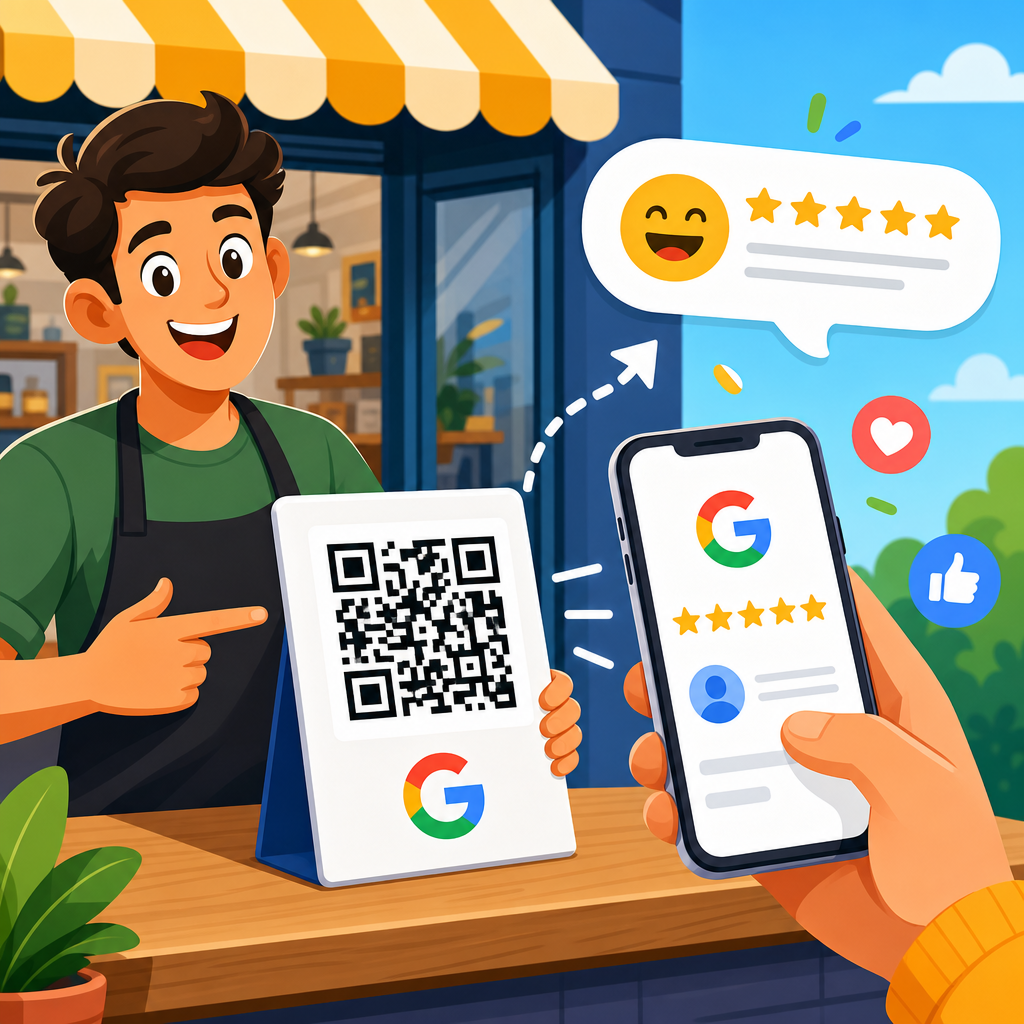
A Google review QR code turns a physical touchpoint into a direct path to your business review form. When customers scan it with a phone camera, they skip the usual search, map listing, and tap sequence, and land where they can rate their experience in seconds. I have implemented these codes for local service companies, clinics, restaurants, trade show teams, and multi-location retailers, and the pattern is consistent: reducing friction increases review volume. That matters because Google reviews influence local search visibility, click-through rate, trust, and conversion. A business with a steady flow of recent, authentic reviews generally earns more attention than one with an outdated profile, even when both offer similar services.
To create a QR code for Google reviews, you first need the correct review link from your Google Business Profile. That profile is the business listing that appears in Google Search and Google Maps, containing your name, category, hours, photos, and reviews. The review link is a unique URL that opens the “Write a review” prompt for your listing. A QR code is simply a machine-readable graphic that stores that link. Static QR codes point directly to a fixed URL and cannot be edited later. Dynamic QR codes use a short redirect URL managed by a QR code generator, which lets you change the destination, track scans, and reuse printed materials. Choosing between static and dynamic depends on your budget, measurement needs, and whether your review process may change.
This topic sits at the center of QR Code Creation & Tools because it teaches the full workflow behind how to create QR codes, not just one use case. Once you understand how to generate a destination URL, choose a code type, design for readability, test across devices, and deploy in print and digital channels, you can apply the same method to menus, payments, forms, Wi-Fi access, event check-in, product manuals, and lead capture. Google review QR codes are an ideal hub example because they combine local marketing strategy, technical setup, print production, and customer experience. If you master this process, you also build the foundation for every related article in this subtopic, from static versus dynamic QR codes to QR code design, tracking, and troubleshooting.
Get the correct Google review link before you create anything
The first step is obtaining the exact link that opens your review form. In your Google Business Profile dashboard, search for your business while logged into the managing Google account. Google typically shows a reviews card with an option such as “Ask for reviews” or a direct share link. Copy that URL. Another reliable route is through Google Maps: locate your business listing, open the reviews area, and use the share option if available. The link should point customers directly to the review interface, not merely to your homepage or general map listing. If you manage several locations, verify that each location has its own distinct link, because reviews must be attributed to the correct profile.
Accuracy matters here. I have audited campaigns where a business printed thousands of cards with the wrong destination: the homepage, the map pin, or even another branch. That wastes print spend and loses intent from satisfied customers who were ready to review on the spot. Before generating any QR code, open the copied link on desktop and mobile, signed in and signed out, and confirm it resolves correctly. A customer must still be logged into a Google account to leave a review, but the path should be obvious. If your business is newly verified, review prompts can take time to stabilize, so test again before placing a production order.
For businesses that want cleaner analytics or future flexibility, create a dedicated redirect URL first. You can use a dynamic QR platform, a branded short link, or a redirect on your own domain. The destination remains the Google review link, but the QR code points to your controlled URL. That approach is useful if Google changes link formats, if you want to track scans by campaign, or if you want location-specific attribution. It also helps when this page acts as a hub for how to create QR codes broadly, because the same redirect method applies to product pages, support resources, and event registrations.
Choose the right QR code type and generator
Once you have the destination URL, decide whether to create a static or dynamic QR code. Static codes are free and simple. The URL is encoded directly into the pattern, so they work indefinitely as long as the destination URL remains live. They are suitable for businesses with one stable review link and no need for scan data. Dynamic codes route scans through a short URL controlled by the QR provider. That enables editing, campaign tagging, and scan analytics such as time, device, and geography. In practice, I recommend static codes for low-risk, low-volume materials and dynamic codes for signage, packaging, fleet graphics, and anything expensive to reprint.
Not all QR code generators are equal. Reliable platforms include QR Code Generator, Bitly, Beaconstac, Flowcode, QR Tiger, and Canva for simple design use cases. Adobe Express also offers convenient creation for quick assets, while enterprise teams may use custom generators tied to their own domains. Evaluate tools on four factors: export quality, error correction options, analytics, and branding controls. Export quality matters because raster PNG files can blur when enlarged, while SVG, EPS, or PDF preserve sharp edges for print. Error correction determines how much damage or styling the code can tolerate and still scan. Branding controls include frame text like “Scan to review us,” custom colors, and logo insertion.
Use restraint with design features. A QR code is a functional object before it is a brand asset. If you invert colors, add a logo, round corners aggressively, or place the code on a busy background, scan performance can drop. Industry best practice is dark modules on a light background with strong contrast. Keep a quiet zone, the empty margin around the code, because scanners rely on it to detect boundaries. For review requests, plain language consistently outperforms clever copy. Customers respond to direct prompts such as “Scan to leave a Google review” because they immediately understand the value exchange.
| Option | Best for | Main advantage | Main limitation |
|---|---|---|---|
| Static QR code | Business cards, receipts, simple flyers | No ongoing subscription and fast setup | Destination cannot be edited after printing |
| Dynamic QR code | Posters, packaging, multi-location campaigns | Editable destination and scan tracking | Usually requires a paid platform |
| Branded short-link QR | Businesses focused on trust and analytics | Control over redirects and stronger brand recognition | Needs domain setup and maintenance |
Create, design, and test the QR code for real-world use
Generating the code itself takes minutes. Paste your Google review link or redirect URL into the generator, select the QR code type, and download a high-resolution file. Then focus on the step most businesses rush past: testing. I test every QR code on at least two iPhones and two Android devices, using native camera apps first and Google Lens second. Scan from different distances, in bright light and lower light, and from both glossy and matte print proofs if available. A code that scans perfectly on your monitor may fail once reduced on a countertop sign or printed on reflective laminate.
Size and placement drive performance. For most print applications, a minimum of 0.8 by 0.8 inches can work at close range, but around 1.2 to 1.5 inches is safer for handouts, table tents, and product inserts. Larger formats need proportionate scaling: posters in windows often require two inches or more, and codes meant to be scanned from several feet away should be significantly larger. A practical rule used in signage is roughly one inch of code size for every ten inches of scanning distance, then adjust based on lighting and device quality. Avoid placing a code on folds, curved surfaces, or near visual clutter.
Add a clear call to action and a fallback option. A QR code without context often gets ignored because people do not know what happens next. Effective review materials pair the code with one line of instruction and one line of reassurance, such as “Scan to leave a Google review” and “It takes less than a minute.” Include a short URL beneath the code so customers can type it manually if scanning fails. For accessibility, use readable type, strong contrast, and enough spacing. In hospitality and healthcare settings, I have seen review response improve simply by moving from a small unlabeled code to a larger sign with explicit instruction.
Deploy review QR codes where customer intent is highest
The best place for a Google review QR code is where satisfaction is freshest. In restaurants, that may be on the check presenter, takeaway bag, or exit sign. In home services, technicians can place the code on an invoice, leave-behind card, or SMS follow-up. In medical, dental, and wellness practices, front-desk signage and post-appointment emails work well, though regulated industries must respect privacy and communication rules. Retail stores often use counter displays, packaging inserts, and receipts. The principle is simple: ask after value has been delivered, not before. Timing is more important than volume of placements.
Train staff on how to present the request. The script should be polite, brief, and never coercive. For example: “If today’s visit was helpful, would you mind scanning this code to leave a Google review? It really helps other customers find us.” That wording is effective because it ties the action to social proof rather than pressure. Google prohibits review gating, meaning you should not selectively ask only happy customers through a filtering process that diverts unhappy customers elsewhere. You also should not offer incentives such as discounts, gifts, or contest entries in exchange for reviews. Authenticity protects both compliance and credibility.
Multi-location businesses need structured governance. Each branch should have its own QR code, file naming convention, and approved artwork so teams do not mix destinations. I usually recommend a simple asset library with fields for location name, review URL, QR type, print dimensions, owner, and last test date. That prevents a common operational error: one regional manager reusing another branch’s flyer template. If this article serves as your hub for how to create QR codes, this is the broader lesson to carry into every use case. Centralized standards save money, reduce mistakes, and make future campaigns easier to measure.
Measure results, avoid common mistakes, and expand your QR workflow
After deployment, monitor both scans and review outcomes. Dynamic platforms can report scan counts, but business impact appears in your Google Business Profile through review volume, recency, average rating, and sometimes customer language patterns. Do not expect every scan to become a review. Some users abandon the process because they are not logged in, are short on time, or prefer private feedback. What matters is whether the QR code increases completed reviews compared with your previous baseline. In one service business rollout I managed, moving from a texted review link only to a combined invoice QR plus follow-up SMS increased monthly review count materially because customers had two easy opportunities to respond.
Several mistakes repeatedly undermine performance. The first is linking to the wrong destination, which is why link verification must happen before and after printing. The second is overdesigning the code until it becomes hard to scan. The third is poor placement: behind glass glare, too low on a counter, or in a spot where customers are rushed. The fourth is missing copy. A code needs a clear reason to scan. The fifth is neglecting maintenance. If you use a dynamic service and the subscription lapses, the code may stop working. If you use a redirect on your own domain, monitor it like any other business-critical asset.
The wider opportunity is to treat this review code as the entry point to learning how to create QR codes across your marketing and operations stack. The same build process applies everywhere: define the user action, get the exact destination, choose static or dynamic, design for reliability, test under real conditions, deploy where intent is strongest, and measure outcomes. Start by creating your Google review QR code correctly, then extend the method to menus, appointment booking, product guides, coupons, event pages, and contact cards. Build one dependable workflow, document it, and your team can create QR codes faster, with fewer errors, and with stronger results across every channel.
Frequently Asked Questions
How do you create a QR code that sends customers directly to your Google review form?
To create a QR code for Google Reviews, the first step is getting the correct review link for your business. The goal is to send customers straight to the page where they can leave a rating and write a review, not just to your general Google Business Profile. In most cases, you can get this link from your Google Business Profile dashboard by locating the option to ask for reviews or share a review form. Google provides a direct URL that opens the review prompt with as few extra steps as possible.
Once you have that link, paste it into a QR code generator. The generator converts the URL into a scannable code that a smartphone camera can read instantly. When the customer scans it, they should land directly on the review screen or the closest possible page depending on their device, browser, and whether they are logged into Google. This is what makes review QR codes so effective in the real world: they remove the need for customers to search your business name, find the correct listing, click reviews, and then locate the write-a-review button.
After generating the code, test it carefully on both iPhone and Android devices. Scan it with the native camera app, confirm that it opens quickly, and make sure it leads to the intended review destination. If you operate a local business where every customer interaction matters, this testing step is not optional. A QR code that points to the wrong page, loads slowly, or creates confusion will reduce conversions immediately. Once confirmed, you can place the code on receipts, table tents, service invoices, packaging inserts, appointment cards, signage, and post-purchase follow-up materials.
Why does a Google review QR code help businesses get more reviews?
A Google review QR code works because it removes friction from the review process. In practice, most happy customers do not avoid leaving reviews because they dislike your business. They avoid it because the process feels like extra work. If they have to unlock their phone, open Google, search your business name, choose the correct location, navigate to the review section, and then sign in before writing anything, many will abandon the task before they begin. A QR code compresses that entire sequence into one quick scan.
This matters because review generation is heavily influenced by convenience and timing. The best moment to ask for feedback is often right after a positive experience, when the customer is already engaged and the experience is still fresh. A direct review QR code captures that moment. In restaurants, it can be placed near the check presenter. In clinics, it can appear at checkout. For home service businesses, it can be shown on an invoice or leave-behind card. At trade shows, it can be added to booth signage or printed collateral. Across industries, the pattern is the same: the fewer steps involved, the more customers follow through.
There is also a psychological advantage. A visible QR code acts as a gentle prompt that tells customers exactly what to do next. Instead of asking them vaguely to “leave us a review sometime,” you are providing an immediate action path. That clarity increases response rates. For local businesses especially, more reviews can strengthen visibility, trust, and click-through performance, which is why even small gains in review volume can have meaningful business impact over time.
What is the best place to use a Google review QR code?
The best placement depends on where customer satisfaction peaks and where people are most likely to have their phones available. In general, your QR code should appear at the point closest to a successful transaction or positive interaction. For restaurants, that might be on the receipt, menu insert, table tent, or exit signage. For clinics and professional offices, front-desk checkout areas, appointment summary printouts, and follow-up cards work well. For contractors and local service companies, invoices, thank-you cards, vehicle leave-behinds, and job completion emails with the same review link can be highly effective.
Retailers and multi-location businesses should think carefully about location-specific execution. If each location has its own Google Business Profile, each store should use its own review link and corresponding QR code. This avoids sending customers to the wrong location listing, which can create confusion and cost you reviews. In-person placements should also be large enough to scan easily, with clear supporting text such as “Scan to leave a Google review.” The code should never appear by itself without context. Customers are much more likely to scan when they understand the purpose immediately.
From a performance standpoint, physical placements should be tested in real conditions. Lighting, print size, surface glare, and scanning distance all affect results. A beautifully designed code that is too small on a glossy card may underperform compared with a plain, high-contrast code printed clearly on matte signage. The most effective businesses treat review QR code placement as part of customer experience design, not just as a marketing add-on. If the request appears at the right moment and in the right format, response rates tend to improve significantly.
Should you use a static or dynamic QR code for Google Reviews?
For many businesses, a static QR code is enough. A static code permanently encodes the destination URL, which means it is simple, reliable, and often free to create. If you already have the correct Google review link and do not expect it to change, a static code can work perfectly well on printed materials, packaging, signage, and receipts. It is a strong option for small businesses that want a straightforward setup without ongoing management.
That said, dynamic QR codes offer meaningful advantages, especially if you want flexibility. A dynamic code points to a redirect that you can update later without reprinting the code itself. This can be useful if your review link changes, if you rebrand, if you want to route users differently by campaign, or if you need to fix a destination issue after materials have already been distributed. Some dynamic QR platforms also provide scan analytics, such as how many times the code was scanned, when it was scanned, and sometimes where scans originated from. That data can help you compare which placements actually drive review requests effectively.
The choice comes down to simplicity versus control. If you want a low-maintenance option and are confident in the destination URL, static is often sufficient. If you operate multiple campaigns, multiple locations, or want the ability to adjust later, dynamic is usually the better long-term choice. In either case, the most important factor is not the code type itself but whether the scan experience is fast, accurate, and easy for the customer to complete.
Are there any best practices or policy concerns when asking customers to leave Google reviews with a QR code?
Yes, and they matter. The most important best practice is to ask for honest feedback from all eligible customers rather than trying to collect reviews only from people you think will leave five stars. Google expects reviews to reflect genuine customer experiences, and businesses should avoid review gating, which means filtering customers before deciding who gets the review request. In practical terms, your QR code should be presented as an open invitation to share feedback, not as part of a system that screens out unhappy customers.
You should also avoid offering incentives in exchange for reviews. Discounts, gifts, contest entries, or special perks tied to review submission can create policy issues and undermine trust. The strongest review strategies are based on timing, convenience, and service quality, not manipulation. Ask when the customer experience has been completed successfully, make the process easy with a direct QR code, and let the customer decide whether to leave a review. That produces more credible, durable results.
There are also execution best practices that improve outcomes. Use clear call-to-action wording, keep the landing path direct, and test the code regularly. If you manage multiple locations, make sure each QR code maps to the correct Google Business Profile. If you place codes on printed materials, use high contrast and adequate size. If you use digital versions in email or SMS follow-ups, make sure the review link is also clickable for users on desktop. Most importantly, treat the QR code as a convenience tool, not a substitute for delivering a review-worthy experience. The code reduces friction, but the service itself is what earns the feedback.