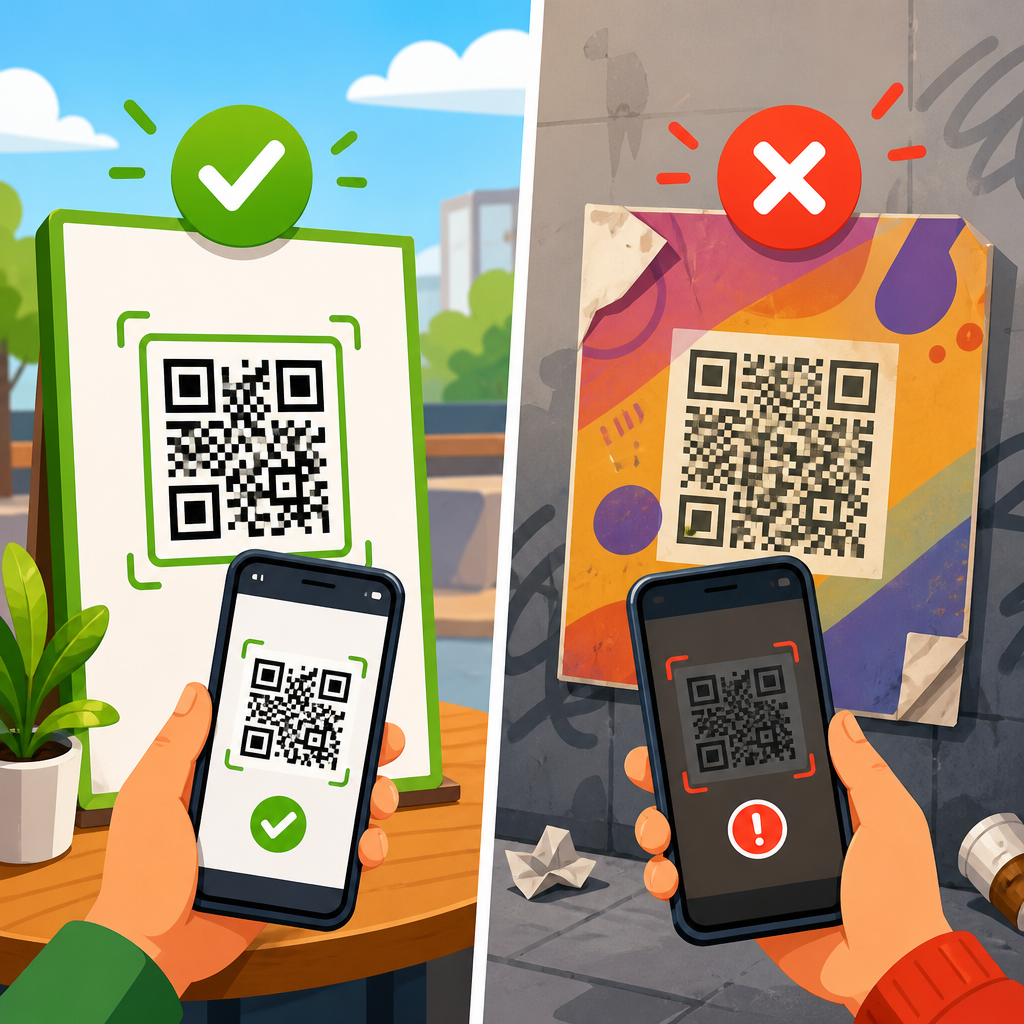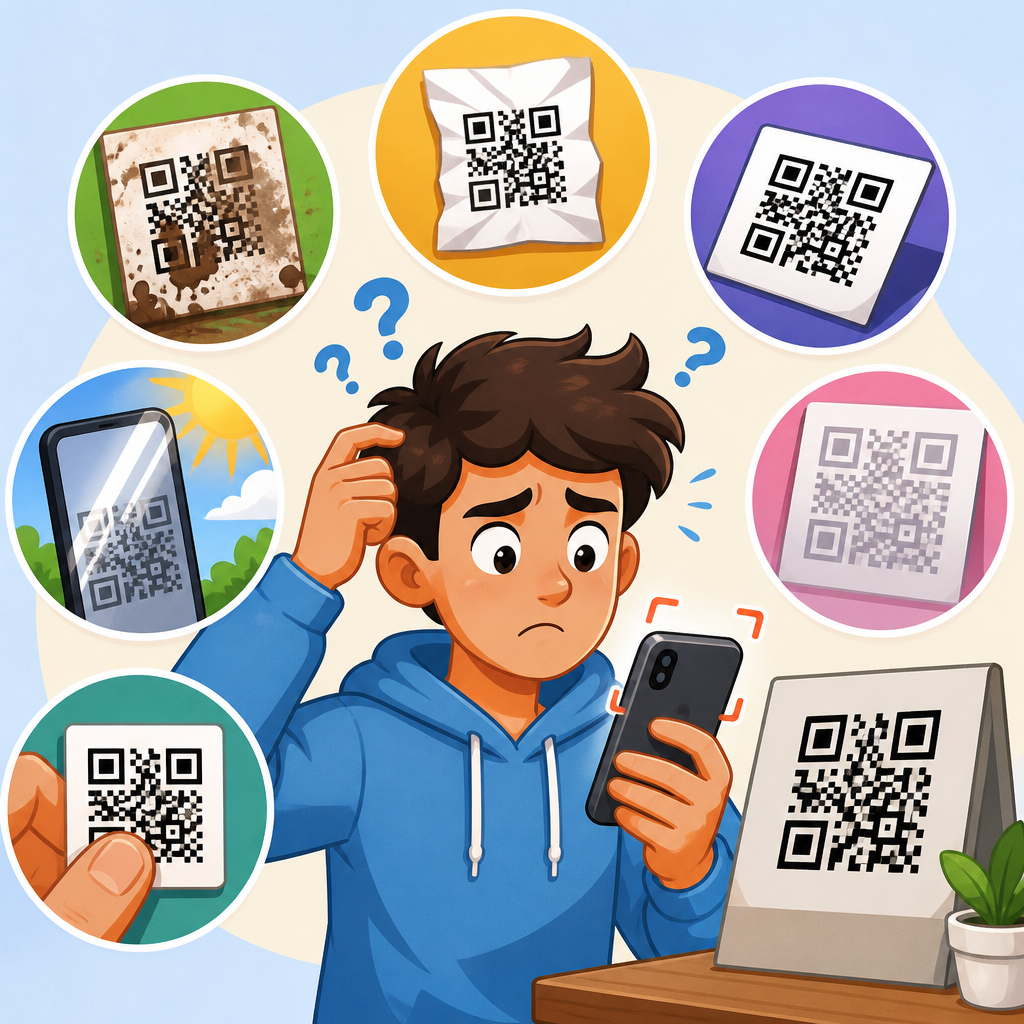
Android phones usually scan QR codes quickly, so when one refuses to read, the failure feels random even though the cause is usually easy to isolate. A QR code is a two dimensional matrix barcode that stores text, links, contact data, Wi Fi credentials, or app actions inside a pattern of black and white modules. On Android, scanning can happen through the default camera app, Google Lens, a manufacturer specific scanner, or a third party application. If any part of that chain breaks, the phone may not detect the code, may detect it but not open the content, or may open the wrong action.
I have troubleshot QR scanning problems across Samsung Galaxy devices, Google Pixel phones, Motorola models, rugged enterprise handsets, and older budget Android devices, and the pattern is consistent: most failures come from lighting, focus, screen glare, damaged codes, app permissions, or software limitations. Understanding which layer is failing matters because the fix for a blurry camera is different from the fix for a disabled Lens integration. This hub article explains the full landscape of scan issues on Android, answers the most common search questions directly, and gives you a practical framework you can use before diving into more specific device guides within a broader QR code troubleshooting and support workflow.
How Android QR Scanning Works
Android does not have one universal QR scanner. That is the first thing many users miss. On modern Pixels, the camera app often uses Google Lens detection in real time. Samsung devices may use Bixby Vision, the camera app’s built in scanner, or Google services depending on model and software version. Other brands such as OnePlus, Xiaomi, Oppo, and Motorola can ship with different camera pipelines, and some lower cost models rely on a gallery scanner or a separate app. Because of that fragmentation, a QR code can fail on one Android device and scan instantly on another.
For a scan to succeed, five things need to happen in sequence. The camera must capture a sharp image. The software must identify the finder patterns in three corners of the code. The decoding engine must read enough modules despite perspective distortion, glare, or damage. Android must recognize the payload type, such as a URL or Wi Fi string. Then the operating system or app must be allowed to launch the next action. A problem in any stage can produce the same visible symptom: nothing happens.
A quick way to diagnose the layer is to ask one question: does the phone see the code at all. If you get a frame, a pop up, or a Lens icon, detection is working and the problem is likely content, permissions, or app handling. If there is no response, the issue is usually optical or camera related.
Most Common Reasons a QR Code Will Not Scan on Android
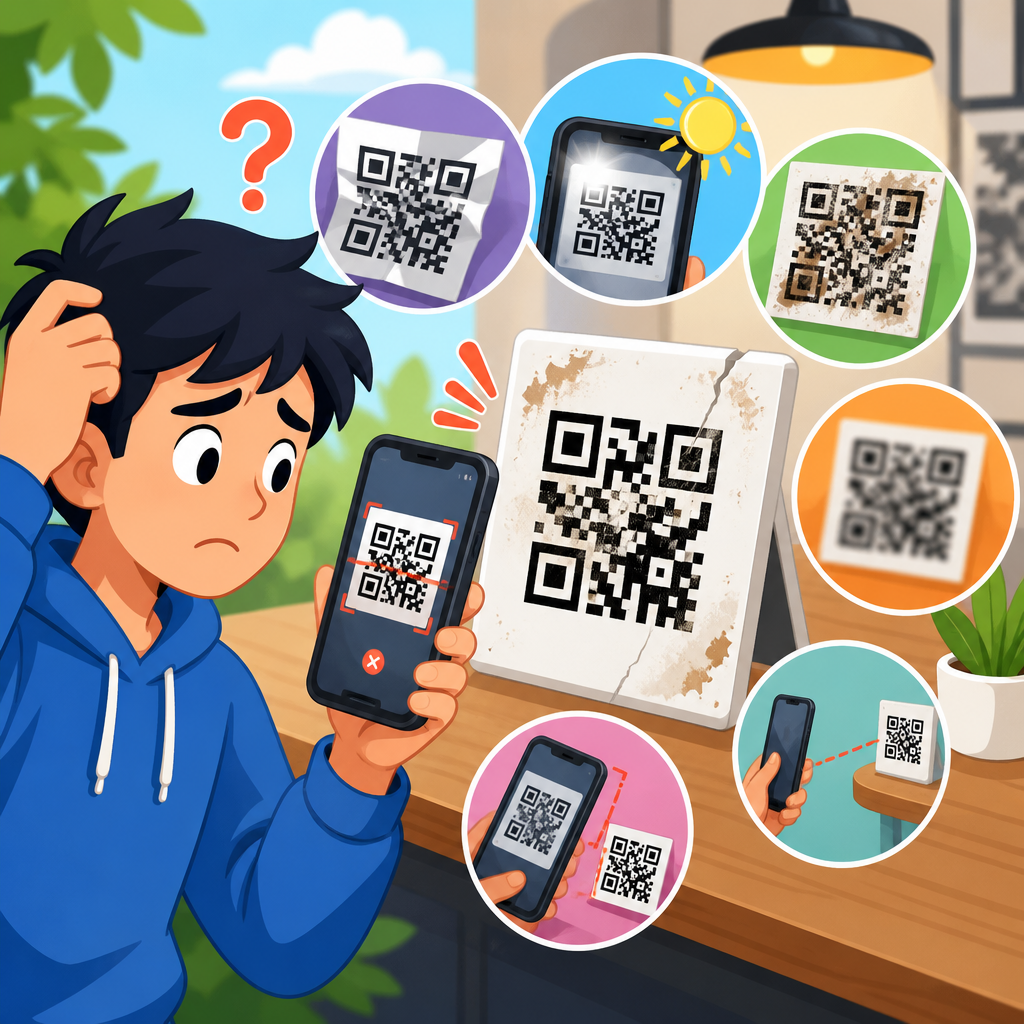
The biggest cause is poor image quality. QR decoding depends on contrast and edge definition. If the camera is dirty, smudged with skin oil, or scratched, the small square modules blur together. I regularly fix scan failures by wiping the lens with a microfiber cloth. Low light creates a similar problem because Android cameras raise ISO, soften detail, and increase motion blur. Strong direct sunlight creates the opposite issue: harsh reflection washes out parts of the pattern, especially when the code is printed on glossy packaging or shown on another screen.
Distance and angle also matter. A QR code that fills only a tiny portion of the frame may not have enough pixel density for decoding. If you hold the phone too close, autofocus may hunt and never lock. Mid range positioning usually works best, then slowly moving closer until the code occupies a healthy part of the preview. Extreme tilt can distort the square into a trapezoid, and while modern decoders correct some perspective, they still have limits.
The second major cause is code quality. Not every QR code is generated correctly. I often see low resolution exports used in flyers, menus, warehouse labels, and social graphics. When a code is compressed, stretched, recolored with poor contrast, or printed too small, Android devices struggle. A dark gray code on a black background is far less reliable than a black code on white. Error correction helps, but it is not magic. If too much of the pattern is obstructed by a logo, crease, scratch, or design overlay, the scanner cannot reconstruct the data.
Third, software configuration can block scanning. Camera permission may be denied. Lens suggestions may be turned off. The camera app may be outdated or replaced by a minimal build without QR support. Work managed phones sometimes restrict app actions or external links. On older Android versions, the stock camera may not support native scanning at all, forcing users to use Google Lens or a dedicated scanner.
| Symptom on Android | Most likely cause | Fastest test | Typical fix |
|---|---|---|---|
| No response when pointing at code | Dirty lens, low light, unsupported camera app | Try another QR code in brighter light | Clean lens, improve lighting, use Google Lens |
| Code detected but will not open | Bad payload, blocked browser action, network issue | Test the same code on another phone | Check link format, default apps, internet connection |
| Scans some codes but not others | Poor print quality or low contrast | Compare with a high quality sample code | Regenerate or reprint the failing code |
| Works on rear camera but not front or vice versa | Focus or resolution limitation | Switch cameras if app allows | Use rear camera and steady framing |
| Scans from paper but not from a screen | Moire pattern, refresh flicker, glare | Increase source screen brightness | Zoom code, reduce reflections, avoid cracked displays |
Camera, Focus, and Lighting Problems
If your QR code will not scan on Android, start with the camera before touching settings. In hands on support work, optical problems account for more failures than software bugs. Clean the lens first. Then open the camera and test basic autofocus on nearby text. If printed text cannot become sharp, the scanner will struggle too. Some budget phones and older rugged devices have weak close focus performance, so stepping back slightly often helps more than moving closer.
Lighting should be bright but diffuse. Office overhead light is usually better than direct flash reflecting off glossy labels. If the code is on a laminated poster, tilt the paper rather than the phone to move glare away from the finder corners. For on screen codes, increase the source device brightness, disable blue light filters, and make the code larger. OLED displays with cracks, deep dimming, or privacy screen protectors can interfere with readability.
Motion is another overlooked factor. Android camera apps may scan in real time, but they still need a stable frame. Shaky hands, moving packaging on a conveyor, or a phone scanning while walking can produce repeated failed detections. Bracing your elbows or using the viewfinder grid improves success. In warehouses and field service settings, I have seen scan rates jump simply by training teams to pause for one second before expecting the prompt.
Code Quality, Printing, and Design Mistakes
A valid QR code is not automatically a scannable QR code. The most reliable codes respect quiet zone spacing, high contrast, square geometry, and adequate size. The quiet zone is the blank margin around the code. Remove it in a design layout and many Android scanners lose the boundary needed for detection. Stretching a code to fit a banner can deform modules and break decoding even if the image still looks acceptable to the eye.
Minimum size depends on scan distance, but tiny printed codes are a routine problem. A label on product packaging may technically contain the right data yet remain unreadable because the modules are too fine for a midrange Android camera. The same goes for screenshots shared in messaging apps that recompress images. I advise teams to export in vector format when printing and in high resolution PNG when using digital placements.
Color choices matter more than many marketers expect. A light code on a dark background can work, but only if contrast is strong and the scanner can distinguish module boundaries. Pastel brand palettes, gradients, metallic ink, and textured paper increase failure rates. Decorative logos should be conservative. Error correction levels can protect against modest occlusion, but large center logos, rounded shapes, and custom art are common reasons why one designer approved code scans on an iPhone in the studio yet fails on Android in the field.
Android Settings, Permissions, and App Issues
If the camera image is sharp and the code is clean, move to software. Confirm that the camera app has permission to use the camera and, if needed, network access through normal device connectivity. On some phones, QR recognition can be toggled off inside camera settings under options such as Scan QR codes, Lens suggestions, or Smart features. When that switch is off, users assume the code is broken when the camera is simply acting like a plain camera.
Google Lens is the most dependable fallback on Android because it uses Google’s mature recognition engine and handles URLs, Wi Fi setup strings, event payloads, and contact cards well. If native camera scanning fails, open the Lens app or tap the Lens icon in Google Photos on a saved image. This is especially useful for screenshots, web images, or posters captured from awkward angles. On managed devices, however, administrators may disable Lens, browser launches, or app intents for security reasons.
Updates also matter. Camera improvements, decoder fixes, and security patches are frequently bundled into system updates, Google Play system updates, and app revisions. I have seen Samsung devices fail to surface QR prompts until the camera app updated through Galaxy Store, while Pixels recovered scanning after a Play Services refresh. Clearing the camera app cache can help when the scanner UI behaves oddly, though it will not fix a poor code or a bad lens.
When the Problem Is the Content Behind the QR Code
Sometimes the QR code scans, but Android appears not to work because the destination action fails. A malformed URL, expired dynamic code, unsupported deep link, or corporate network restriction can make the result look like a scan issue. If the prompt appears but tapping it leads nowhere, the camera did its job. The next step is to inspect the payload. Test the same code on another phone and, if possible, with a desktop QR decoder.
Web links should use a proper scheme such as https and should not redirect through broken tracking paths. Wi Fi QR codes must follow the expected string format exactly, including encryption type and escaping special characters. vCard and calendar payloads can fail if the generating tool produces nonstandard formatting. In business environments, mobile threat defense software may also block certain domains, which is a security control rather than a scanner failure.
Dynamic QR platforms add another layer. If the short URL behind the code has been paused, deleted, rate limited, or geo restricted, Android users may think the camera cannot scan. In reality, the code resolves to a dead end. That is why testing both the visual code and the destination content is essential during troubleshooting.
Device Specific Differences Across Android Phones
Not all Android hardware behaves the same. Pixels generally offer strong out of box QR recognition through the camera and Lens. Samsung support varies by generation, region, and camera app version. Motorola and Nokia devices often depend more heavily on Google components. Xiaomi, Oppo, and Vivo may include proprietary scanners with aggressive battery management that affects background services. Cheap tablets, Android Go phones, and ruggedized enterprise devices often have slower autofocus and weaker image processing, which makes borderline codes fail more often.
Screen protectors and camera lens covers are common physical variables. Thick privacy protectors dim on screen codes and force odd viewing angles. Cheap lens protectors reduce contrast and introduce haze. If a phone suddenly stopped scanning after an accessory change, remove the accessory before assuming the software broke.
Carrier customization can also alter the experience. Two Galaxy phones with similar model names may expose different menu options depending on firmware branch. That is why any serious QR code troubleshooting and support process should identify brand, Android version, camera app version, and whether the failure affects all codes or only one code.
Practical Troubleshooting Steps and When to Escalate
The fastest troubleshooting path is simple. Test with a known good QR code, such as one generated by a trusted tool. Clean the rear lens. Increase ambient light. Hold the phone steady and adjust distance. Turn on any built in QR setting. Try Google Lens. Then test whether the scanned content opens in a browser or another app. This sequence separates camera problems from code problems and content problems in minutes.
If only one code fails across multiple Android devices, regenerate or replace the code. If one device fails on every code, update the camera app, Google app, and system software, then retry. If the device belongs to a company, ask whether mobile management policies block scanner actions or browser launches. Hardware repair is appropriate when autofocus is visibly broken, the lens is scratched, or the camera cannot render nearby text sharply.
As the hub page for scan issues on devices, this article gives you the framework: identify whether the failure is optical, software based, content related, or device specific. Once you know that, the fix becomes much faster and more reliable. Start with the simplest checks, document the exact symptom, and test methodically. If your Android phone still will not scan a QR code, move to the next device specific guide in your QR code troubleshooting and support workflow and isolate the issue with confidence.
Frequently Asked Questions
Why won’t my Android phone scan a QR code even though the camera works normally?
A working camera does not always mean the QR scanning process is working correctly. On Android, QR reading depends on more than just the lens. The phone also needs adequate focus, enough contrast between the dark and light parts of the code, proper lighting, and software that can recognize the code pattern. In many cases, the camera app opens and takes photos perfectly well, but the built-in QR detection feature is turned off, unavailable in that specific app, or being blocked by another setting.
Distance and framing are also common causes. If the phone is too close, the code can blur and the small square modules blend together. If it is too far away, the QR code may not fill enough of the frame for Android to detect it. Smudges on the camera lens, motion blur from shaky hands, glare on a glossy label, and low screen brightness when scanning a code displayed on another device can all prevent a successful read. Even a slightly damaged or partially cut-off QR code can stop the scanner from locking on.
Another possibility is that the code itself is valid in theory but difficult to read in practice. Tiny printed codes, poor-quality screenshots, low-resolution images, unusual color combinations, or heavily stylized designs often cause trouble. The easiest way to isolate the issue is to test multiple QR codes in different environments. If your Android phone scans some codes but not others, the problem is probably with the specific code or how it is being presented. If it scans none of them, check camera permissions, software updates, built-in camera settings, and whether Google Lens or a dedicated scanner works better.
How do I fix an Android QR code scanner that is not detecting codes at all?
Start with the simplest checks first. Open your default camera app and look for a QR scan option in settings, modes, or shortcuts. Some Android phones detect QR codes automatically in standard photo mode, while others require a setting such as “Scan QR codes” to be turned on. If your phone supports Google Lens, try that next. Lens can often recognize codes even when the default camera app does not. If neither method works, restart the phone and test again, because temporary software glitches can interrupt scanner functions.
Next, verify permissions and software health. Make sure the camera app has camera access and, if relevant, internet access for opening links after a scan. Install Android system updates and any updates for the camera app, Google app, or manufacturer utilities. On some devices, clearing the camera app cache can help if QR detection suddenly stopped after working before. If you use a third-party scanner, uninstalling and reinstalling it can remove corrupted app data.
Then check the physical and visual conditions. Clean the camera lens with a soft cloth, use bright indirect lighting, hold the phone steady, and keep the entire QR code visible inside the frame. Avoid shadows and reflections. If the code is on a screen, increase that screen’s brightness and reduce moiré effects by adjusting the angle slightly. If the code is printed, flatten creases and make sure no part is covered. A good troubleshooting test is to scan a known, high-quality QR code from a reliable source. If that works, your phone is probably fine and the original code may be low quality, expired, broken, or unsupported by the app you were using.
Can a damaged, blurry, or poorly designed QR code stop Android from scanning?
Yes, absolutely. A QR code may look acceptable to the eye while still being difficult for Android software to decode. QR codes rely on precise alignment patterns, timing patterns, and clear separation between dark and light modules. If the code is blurry, stretched, pixelated, scratched, folded, cropped, or printed at too small a size, the scanner may not be able to identify those essential structural markers. Damage around the corners is especially problematic because those areas help the phone orient and decode the symbol.
Design choices can also reduce scan reliability. Many branded QR codes use custom colors, logos, decorative frames, or altered shapes. While these can look attractive, they often lower contrast or interfere with the code’s error correction limits. A code with dark gray modules on a colored background, a large center logo, or reversed colors may fail on some Android devices even if it scans on others. Similarly, screenshots compressed by messaging apps or social platforms may lose the sharp edges scanners need.
If you suspect the QR code itself is the issue, compare it against a better version of the same code if possible. Ask for the original file, a higher-resolution image, or a cleaner reprint. If you created the code, generate a new one with strong contrast, a plain white background, adequate quiet space around the edges, and sufficient size for the intended scanning distance. In short, Android scanning problems are often not random at all. They are frequently caused by a QR code that is technically present but visually compromised.
Does the app I use matter when scanning a QR code on Android?
Yes, the app matters more than many people realize. Android does not rely on a single universal scanning method across all devices. Depending on the phone brand and Android version, scanning may happen through the stock camera app, Google Lens, a built-in manufacturer feature, or a third-party scanner. These tools do not all behave the same way. One app may detect a code instantly, while another may ignore it, struggle with focus, or fail to interpret the data correctly.
Google Lens is often the most reliable fallback because it is designed for visual recognition and generally handles standard QR formats well. By contrast, some manufacturer camera apps offer only basic support or require a toggle to activate scanning. Third-party apps can be helpful, but quality varies. Some are excellent, while others are outdated, slow, overly aggressive with ads, or limited in the types of codes they can read. Security is another reason to be selective, since QR codes can trigger websites, downloads, or app actions.
If one app is not working, switch methods before assuming the code or phone is broken. Try the default camera first, then Google Lens, then a reputable third-party scanner if needed. This comparison quickly reveals whether the issue is app-specific. If only one app fails, update it or replace it. If all apps fail on the same code, the code quality, lighting, focus, or content may be the real problem. Using the right scanner often turns what seems like a hardware issue into an easy software fix.
What should I do if my Android scans the QR code but nothing opens or the result seems wrong?
If your Android phone recognizes the QR code but does not open the expected page or action, the problem has shifted from image detection to content handling. In other words, the phone can read the matrix barcode, but something about the stored data, destination, or follow-up action is failing. This can happen if the QR code points to a broken link, an expired dynamic QR destination, a malformed URL, unsupported data type, or an app-specific action your device does not know how to complete.
Start by reading the preview carefully before tapping it. Many Android scanners show the decoded text, domain, or action first. Confirm that it matches what you expected. If it is a web link, try copying the URL into a browser manually. If it is Wi-Fi information, contact data, or calendar content, make sure your phone supports that action through the app you used to scan it. Sometimes the scanner can decode the content but cannot hand it off properly because the relevant app is missing, disabled, or restricted.
You should also consider the possibility that the QR code was created incorrectly. Dynamic QR codes may stop working if the service behind them expires or is misconfigured. Shortened URLs can break. Printed materials may contain outdated codes that once worked but now lead nowhere. If the result looks suspicious, avoid opening it until you verify the destination. A successful scan does not always mean a safe or valid outcome. When Android reads the code but the next step fails, the best approach is to test the decoded content directly, update the responsible app, and confirm that the QR code’s underlying destination is still active and accurate.