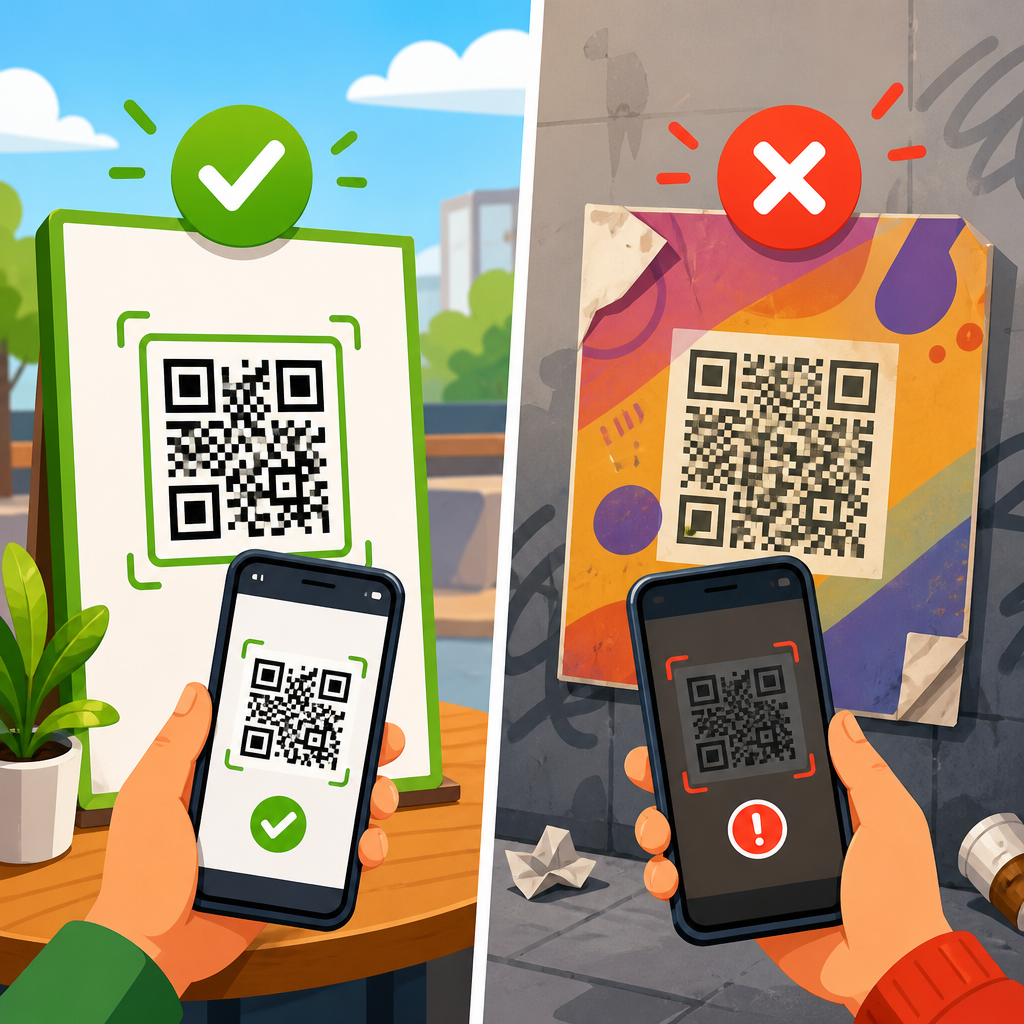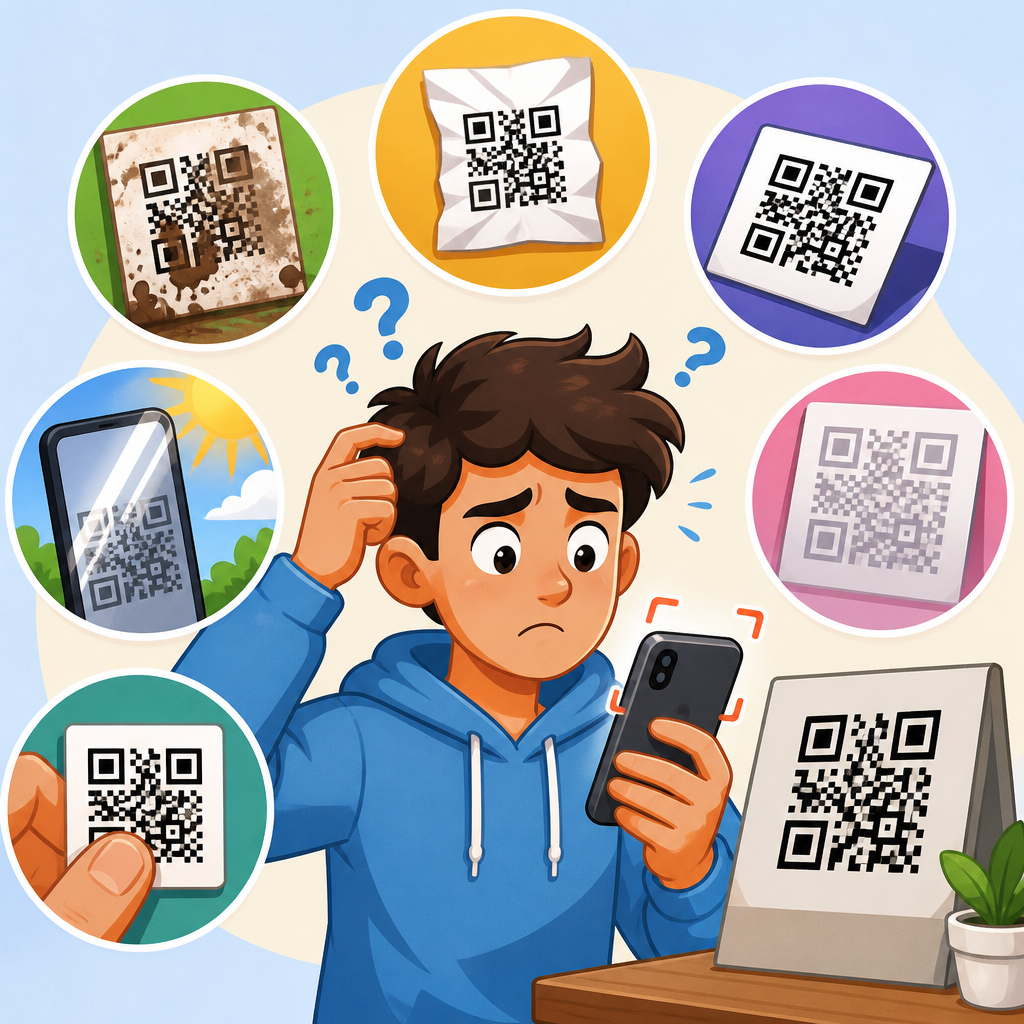
QR code resolution issues usually show up as blurry modules, jagged edges, unreadable prints, or codes that scan on one phone but fail on another. In practical terms, resolution is the amount of visual detail preserved when a QR code is displayed or printed, and it directly affects whether a scanner can distinguish the small square modules, quiet zone, alignment patterns, and finder patterns that make the symbol readable. When people search how to fix QR code resolution issues, they are often dealing with what users describe more generally as fixing broken QR codes: the code looks present, but it does not reliably scan. I have had to solve this problem for packaging teams, event marketers, restaurant operators, and ecommerce brands, and the same rule applies every time: a QR code fails when contrast, size, export quality, surface conditions, or error correction fall outside safe scanning tolerances.
A QR code is not an ordinary image. It is a machine-readable matrix defined by ISO/IEC 18004, and scanners interpret its structure mathematically. That means even visually minor damage can matter. If a designer stretches a square code into a rectangle, exports it as a low-quality JPEG, places it over a busy background, or prints it too small on corrugated cardboard, the scanning margin disappears fast. Resolution problems also overlap with content problems. A long URL creates denser data, denser data creates smaller modules, and smaller modules require better print quality and more viewing stability. This is why broken QR codes often are not broken at all in the generator; they are broken in production, placement, or distribution.
This hub explains how to diagnose and fix QR code resolution issues from first principles, then points you toward the related troubleshooting steps that matter most: checking image format, correcting print size, restoring contrast, preserving the quiet zone, choosing proper error correction, and testing across devices. If you manage QR codes in menus, labels, posters, business cards, product inserts, or digital ads, resolving these issues protects scan rates, user trust, and campaign attribution. A QR code should work instantly, under average lighting, on average phones, without forcing the user to hunt for a perfect angle.
What causes QR code resolution issues?
QR code resolution issues come from loss of edge clarity. Scanners need clean transitions between dark and light modules. Anything that softens those transitions lowers readability. The most common causes are raster export at insufficient pixel dimensions, lossy compression, screenshotting instead of downloading the original file, resizing in design software without preserving sharp edges, and printing on absorbent materials that cause dot gain. I routinely see teams generate a perfectly valid code, paste it into a slide deck, export the slide as an image, then upload that image to social media or send it to a printer. By that point, the code has been reprocessed several times and can fail.
Physical production introduces another layer. A QR code printed at 12 millimeters can scan if the data load is light and the print is sharp, but the same size can fail completely if the destination URL is long, the substrate is textured, or the black ink turns dark gray on uncoated stock. Curved bottles, glossy laminates, embroidered fabric, LED screens, and vehicle wraps all create resolution-related distortions. Digital display can be just as problematic. Anti-aliasing on web graphics, motion in video, moire patterns on LED walls, and low-brightness screens can make a code look acceptable to a person while remaining difficult for a camera autofocus system to decode.
How to diagnose a broken QR code before changing anything
Start by determining whether the problem is image quality, data content, or scanning context. First, test the original code file from the generator, not the version embedded in a design. If the original scans and the placed version does not, the issue is downstream. Second, scan at multiple distances using at least two operating systems, typically iPhone and Android, because camera pipelines and native scanning behavior differ. Third, inspect the code at 200 percent zoom. If module edges look fuzzy, smeared, or uneven, you likely have a resolution or compression problem. If the code looks crisp but still fails, check for inadequate quiet zone, poor contrast, or an overly dense symbol.
Next, isolate the environment. Print the same code on plain white office paper at a larger size. If it scans there but not on the production piece, the production material or size is responsible. For screen-based failures, display the code full-screen as a PNG or SVG on a high-resolution monitor and compare the result with the version inside your app, webpage, or ad placement. I also recommend using a dedicated verification tool such as ZXing Decoder Online, QR TIGER scanner tests, or native smartphone cameras under controlled light. These tests reveal whether the code is fundamentally decodable or only marginally readable.
Best fixes for QR code image quality, size, and format
The fastest fix for QR code resolution issues is to go back to the source and export a fresh file in the correct format. Use SVG, EPS, or PDF for print whenever possible because vector files scale without losing sharpness. Use PNG for digital placements that require raster images, and avoid JPEG because its compression artifacts blur module edges. If your workflow forces raster output, export at high pixel dimensions. For web use, 512 by 512 pixels is a practical baseline, while print should be sized based on final physical dimensions and printer capability rather than screen pixels alone.
Do not stretch the code non-proportionally. A QR code must remain perfectly square. Maintain a quiet zone of at least four modules on all sides, and do not crop it to fit a layout more tightly. Increase the physical size if the encoded content is long. A simple rule I use is ten to one: the ideal scanning distance is roughly ten times the code width. A 2 centimeter code is comfortable at around 20 centimeters, while a poster code meant to scan from 2 meters should be closer to 20 centimeters wide. That relationship is not absolute, but it is a dependable planning benchmark.
| Issue | What it looks like | Most likely cause | Reliable fix |
|---|---|---|---|
| Blurry modules | Soft edges, hard to focus | Low-resolution PNG or JPEG compression | Re-export as SVG or high-resolution PNG |
| Scans only up close | User must move phone very near | Code printed too small for data density | Increase print size or shorten URL |
| Fails on printed packaging | Works on screen, not on product | Absorbent material, texture, or curvature | Enlarge modules, improve substrate contrast, reposition |
| Intermittent scans | Works on some phones only | Low contrast or marginal quiet zone | Use darker foreground, lighter background, add padding |
| Broken after design edits | Original worked, final artwork fails | Resized, cropped, recolored, or overlaid logo | Restore square shape, margins, and clean finder patterns |
How print settings, materials, and placement affect scanning
Print is where many broken QR codes are created. Resolution on a press sheet is not only about DPI; it is about how ink or toner behaves on the chosen surface. On uncoated paper, small modules can spread and fill in. On flexible packaging, wrinkles distort geometry. On metallic labels, reflections lower effective contrast. On cardboard, fibers break edges. If you are fixing QR code resolution issues for packaging or signage, ask for a press proof or a production mockup rather than trusting an on-screen PDF. I have seen codes that passed every desktop test fail immediately once printed on matte varnish with dark navy instead of true black.
Placement matters as much as print quality. Avoid folds, seams, bottle shoulders, zipper closures, and perforations. Do not place a code where a retail shelf clip, thumb, or shipping label can cover part of the quiet zone. For posters and point-of-sale displays, keep the code away from glare sources and ensure the likely scanning angle is close to perpendicular. For vehicle graphics or windows, remember that distance, movement, and reflections reduce tolerance quickly. In those cases, use shorter URLs, higher error correction only when necessary, and a much larger code than you would choose for a flyer or menu.
Design mistakes that make a QR code look good but scan badly
Many modern QR designs fail because they prioritize style over decodability. Rounded modules, gradients, transparent backgrounds, heavy logo overlays, and decorative frames can work, but only within limits. The three finder patterns in the corners and the overall module grid must remain distinct. If a logo covers too much central area, error correction may not compensate. If foreground and background colors are too close in luminance, the camera sees weak contrast even if the palette looks elegant on brand. A dark green code on a black package is a classic failure, especially under retail lighting.
The safest design standard is simple: dark foreground, light background, no distortion, no drop shadows, no patterned backdrop, and clear margin space. If branding requires customization, test aggressively and reduce complexity. Keep logos small, preserve the quiet zone, and verify contrast in grayscale rather than by eye alone. Tools like Adobe Illustrator can export beautiful artwork, but they can also introduce clipping masks, transparency flattening, or anti-aliased edges if the file is handled carelessly. In support work, I often fix broken QR codes by removing unnecessary decoration rather than changing the encoded destination.
When the real problem is data density, not resolution
Sometimes the code is crisp and perfectly printed, yet still hard to scan because it contains too much data. Every additional character increases symbol complexity. Dense symbols produce smaller modules, and smaller modules need more precision from screens, printers, and camera sensors. Long UTM-tagged URLs are a common culprit. Marketers append campaign, source, medium, content, term, placement, and timestamp parameters, then wonder why the final code became fragile. The better solution is usually a short redirect URL under your own domain. That preserves analytics while dramatically reducing density.
This is also where dynamic QR codes help. Instead of encoding a long final destination directly, the code points to a short managed URL that redirects to the current landing page. That makes the symbol simpler and easier to reproduce across formats. It also supports updates if a page changes, reducing the risk of a code becoming functionally broken later. For a hub page about fixing broken QR codes, this is a critical point: not every scanning failure is visual damage. Sometimes the fix is architectural, reducing the encoded payload so the symbol gains larger, clearer modules and a wider scanning margin.
Testing methods that prevent resolution issues from reaching users
The most reliable way to prevent broken QR codes is to test them in the same conditions users will experience. Create a checklist before launch. Scan on current iPhone and Android devices, under bright and dim light, at expected distances, and with average network conditions. Print at actual size, not enlarged proofs. Test the final substrate, not a laser print substitute. If the code will appear on a website, test desktop-to-mobile scanning as well as same-device behavior where users may save the image and scan later with Google Lens or a photo scanner.
Use objective acceptance criteria. A code should scan within one to two seconds on multiple devices without requiring repeated framing attempts. If users must tilt the phone, zoom manually, or back up several times, the code is marginal and should be revised. Document file type, export settings, final dimensions, substrate, contrast values, and landing URL version so support teams can trace failures quickly. This hub exists because QR troubleshooting becomes expensive when teams skip that discipline. Audit your current codes, regenerate any weak assets, and build a repeatable approval process before the next campaign ships.
Fixing QR code resolution issues comes down to protecting clarity from generation through final use. The code must stay square, high contrast, adequately sized, and surrounded by a clean quiet zone. Export choices matter, with SVG or other vector formats preferred for print and high-resolution PNG preferred for digital. Production choices matter too: material, ink spread, glare, curvature, and placement can turn a valid symbol into a frustrating user experience. When people talk about fixing broken QR codes, these are the practical causes behind most failures.
The other major takeaway is that resolution is only one part of a reliable scan. Dense data, decorative styling, oversized logos, and weak testing can create the same symptoms as a blurry file. The best-performing codes are usually the simplest ones: short destination, dark foreground, light background, realistic size for scanning distance, and verified performance across devices. If you treat every QR code as a functional interface rather than a decorative graphic, scan rates improve and support requests drop.
Use this hub as your starting point for QR Code Troubleshooting & Support, then review each related issue in your workflow: file format, print quality, sizing, contrast, placement, and destination management. Audit one live QR code today, test it in real conditions, and fix any weak point before your users find it first.
Frequently Asked Questions
What causes QR code resolution issues in the first place?
QR code resolution problems usually happen when the code loses the visual clarity scanners need to read it accurately. A QR code is made up of tiny square modules, plus key structural elements such as finder patterns, alignment patterns, and the quiet zone around the outside. If any of these details become blurred, compressed, stretched, or partially removed, scanning reliability drops quickly. That is why a code may appear acceptable to the eye but still fail on certain phones or under certain lighting conditions.
Common causes include exporting the QR code at too small a size, enlarging a low-resolution raster image, using screenshots instead of original files, printing on low-quality materials, or compressing the image through messaging apps, website builders, or design software. Resolution issues can also appear when the code is placed on textured surfaces, printed with too little contrast, or positioned too close to other graphics so the quiet zone is reduced. In many cases, the issue is not just “image quality” in a general sense, but the scanner’s inability to separate each module cleanly enough to interpret the data pattern.
Another important factor is inconsistency across devices. Some smartphone cameras and scanning apps are more forgiving than others, so a QR code that works on one phone may fail on another with a lower-quality lens, slower autofocus, or different decoding software. That is why troubleshooting should focus on preserving sharp edges, adequate size, proper contrast, and clean spacing rather than assuming one successful scan means the code is production-ready.
How can I fix a blurry or unreadable QR code image?
The most reliable fix is to go back to the original QR code source and export it again at a higher quality. If possible, use a vector format such as SVG, EPS, or PDF because vector files scale without losing sharpness. If you must use a raster format like PNG, generate it at the exact display or print size you need, or larger, so the modules remain crisp. Avoid taking screenshots, copying the code from social posts, or enlarging a small file in a design app, because those shortcuts almost always soften the module edges and create scanning problems.
Make sure the QR code is displayed or printed at an appropriate physical size. For print, a tiny code often becomes unreadable even if the file itself is technically high resolution. For screens, the code should not be compressed by responsive layouts, lazy-loading effects, or image optimization tools that reduce detail. Check whether your content management system, email platform, or ad platform automatically resizes or recompresses uploaded images, because that step can quietly introduce artifacts that were not present in the original file.
You should also inspect the design itself. The QR code needs strong contrast, typically dark modules on a light background, with a clear quiet zone on all sides. Remove visual clutter, gradients, busy patterns, or decorative effects that interfere with scanner recognition. Then test the updated code in real conditions: multiple phones, different camera apps, varying distances, and both bright and dim lighting. A QR code is only “fixed” when it scans consistently across devices, not just once on the creator’s own phone.
Is it better to use a vector file or a PNG for QR codes?
In most cases, vector is the best choice, especially for print or any situation where the QR code may be resized. Vector files such as SVG, EPS, and PDF are mathematically defined rather than made of fixed pixels, so their edges remain sharp at almost any size. That matters because scanners depend on clean transitions between dark and light modules. If a code will be used on flyers, packaging, posters, signage, or product labels, a vector export gives you the safest path to preserving readability throughout the production process.
PNG can still work very well, but only when it is exported at sufficient resolution and used carefully. PNG is often preferable to JPG because PNG preserves hard edges better and does not introduce the compression artifacts that JPG commonly creates. If you use PNG, generate it large enough for the final use case, keep the aspect ratio locked, and never upscale a small file after export. A high-resolution PNG may perform perfectly on a website, in an app, or in a digital document, but it becomes risky if designers later stretch it for print or if software compresses it behind the scenes.
The practical rule is simple: use vector whenever flexibility and scaling matter, and use PNG when you need a stable raster image for screen-based environments. Regardless of format, always test the actual file after it has been placed into its final context. A technically correct export can still fail if the website, printer, or layout tool modifies it in a way that harms the code’s sharpness or spacing.
How large should a QR code be to avoid scanning and resolution problems?
There is no single perfect size for every QR code because the right dimensions depend on viewing distance, amount of encoded data, print method, and where the code appears. As a general principle, the smaller the modules become, the harder they are for cameras to resolve. A code with more data creates more modules, which means each square becomes smaller unless the overall code size increases. That is why dense QR codes often need to be printed larger than simple URL codes to maintain the same scan reliability.
For print, a commonly used baseline is at least 2 x 2 centimeters, or roughly 0.8 x 0.8 inches, for simple use cases at close range, but many practical applications benefit from going larger. If the code will be scanned from farther away, placed on signage, or printed on surfaces where ink spread or texture may affect clarity, increasing size is essential. A useful rule of thumb is that the scanning distance should be roughly ten times the width of the code, though this should be validated in real-world testing rather than treated as an absolute standard.
For screens, the code must remain large enough to be rendered sharply and viewed without excessive zooming. Responsive web layouts can unintentionally shrink QR codes too much on mobile devices, which is especially problematic when users are trying to scan the code from another screen. To avoid issues, maintain a clear quiet zone, preserve the square aspect ratio, and test the final size on different displays and pixel densities. If there is any doubt, making the QR code slightly larger is almost always safer than pushing it to the minimum possible dimensions.
How do I test whether a QR code resolution problem has actually been fixed?
The best way to confirm a fix is to test the QR code in the exact formats and environments where people will use it. Start by scanning it on multiple devices, including both newer and older phones, and use more than one scanning method if possible, such as the native camera app and a dedicated QR scanner. A code that works only on one flagship phone is not fully validated. You want consistent results across devices with different cameras, autofocus behavior, and decoding sensitivity.
Next, test under realistic conditions. Scan the code in bright light, normal indoor light, and lower-light situations. If it will be printed, test actual printed samples rather than only digital proofs. Check for readability at different distances and angles, and verify that the code still works after being placed into the final design, uploaded to the website, embedded in email, or sent through any platform that may compress images. This is where many hidden resolution problems appear, because the source file may be fine while the published version is not.
It is also smart to evaluate the QR code visually before and after deployment. Look for crisp module edges, an intact quiet zone, correct proportions, and strong contrast with the background. If the code includes custom branding, colors, or embedded logos, verify that these design elements do not interfere with critical patterns. Finally, if possible, monitor real-world scan performance over time. If users report that the code scans inconsistently, especially across certain devices or channels, that feedback is often the clearest sign that more refinement is needed.