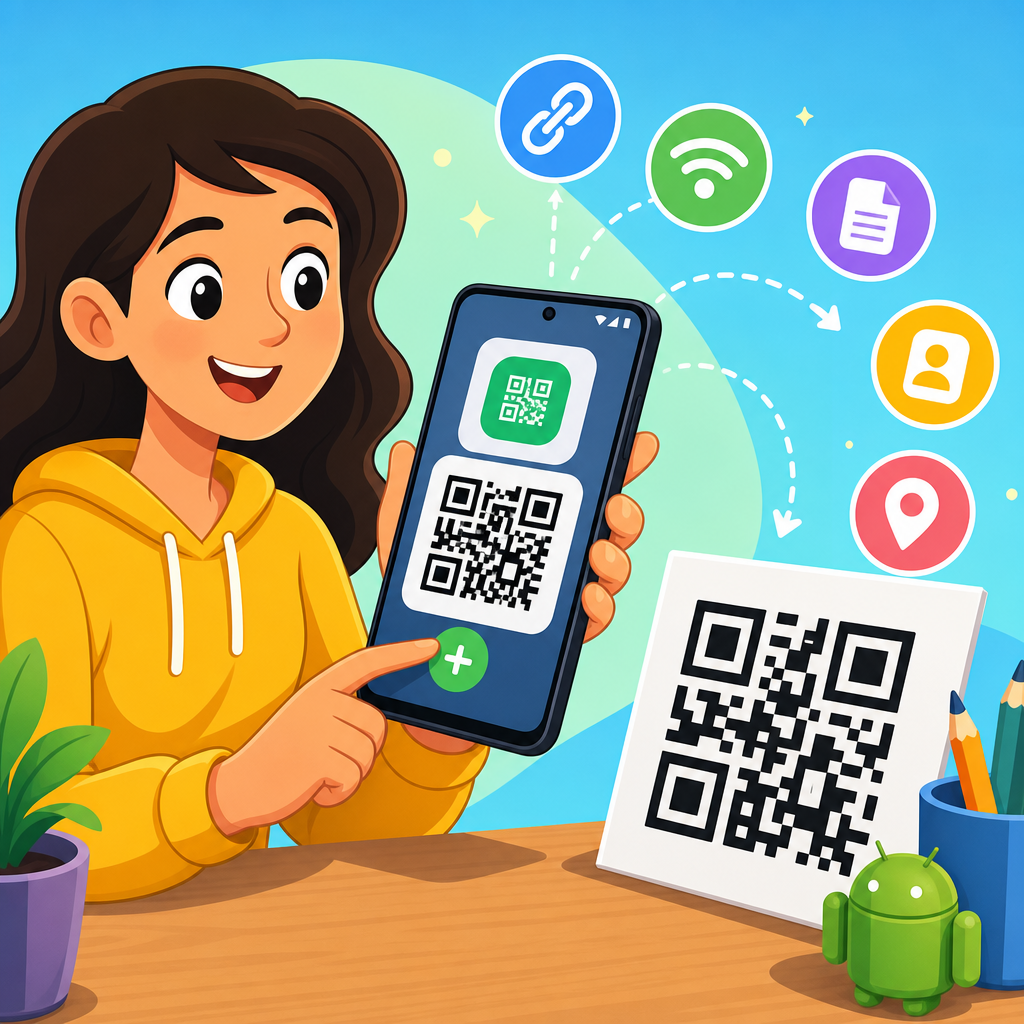
Creating a QR code on Android is straightforward once you understand which tools to use, what type of code you need, and how to avoid the common mistakes that make codes fail in real-world scanning. A QR code, short for Quick Response code, is a two-dimensional barcode that stores information such as a website URL, Wi-Fi login, contact card, text message, payment link, or app download page. Android matters here because it gives you multiple ways to generate QR codes: built-in sharing features, browser-based generators, dedicated apps, design tools, and business platforms. I have set up QR campaigns for retail counters, restaurant menus, event check-ins, and product packaging, and the pattern is always the same: the easiest code to create is not always the best code to deploy. A useful QR code must be scannable, match the user’s intent, and remain manageable after printing or publishing. This guide explains how to create a QR code on Android step by step, which methods work best for different goals, and how to choose between static and dynamic codes so your QR code creation process is reliable from the start.
Choose the right type of QR code before you generate anything
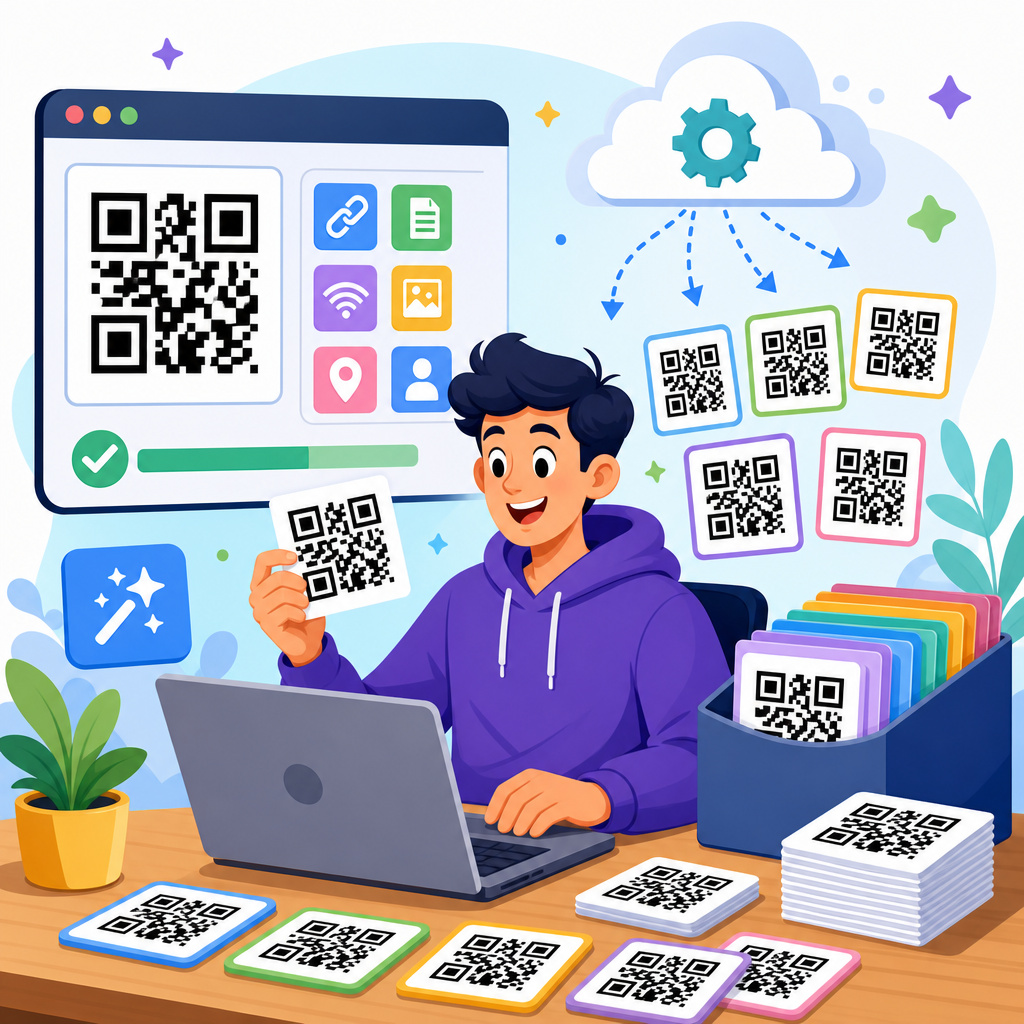
The first decision is not which app to install. It is what information the QR code should deliver. On Android, you can create codes for URLs, plain text, email addresses, phone numbers, SMS prompts, geographic coordinates, calendar events, Wi-Fi credentials, and vCard contact details. If you are promoting a website, a URL code is the simplest option. If you want customers to join a network quickly, a Wi-Fi QR code is more useful because it can store the SSID, password, and security type. If you need a business card replacement, a vCard QR code lets someone scan once and save your contact details directly.
You also need to understand the difference between static and dynamic QR codes. A static QR code contains fixed information directly in the image, so once you print it, you cannot change the destination. A dynamic QR code points to a short redirect URL managed by a platform, which means you can edit the final destination later, track scans, and run campaigns across locations. In my experience, static codes are fine for personal use, classroom handouts, and one-off links. Dynamic codes are the right choice for marketing, packaging, menus, and signage because they protect you from costly reprints if a link changes.
Error correction is another factor many Android users overlook. QR codes include built-in redundancy levels known as L, M, Q, and H. Higher levels make the code more resilient if part of it is obscured or damaged, but they also make the pattern denser. If you plan to add a logo in the center, use higher error correction and test it on several phones. If the code will be printed small, avoid excessive data and decorative styling because dense modules become harder to scan.
Use Android browser tools for the fastest QR code creation workflow
The quickest way to create a QR code on Android is usually through a mobile browser. Open Chrome or another browser, search for a reputable QR code generator, and choose a service that supports the exact content type you need. Reliable options commonly used by businesses include QR Code Generator, QRStuff, Canva, Bitly, Flowcode, and Beaconstac. Most of these tools work well on Android without requiring installation. You enter the content, choose static or dynamic if offered, customize colors or frames if needed, preview the result, then download the image as PNG or SVG.
This method works especially well because Android handles downloads, file sharing, and cloud storage cleanly. After generating the code, save it to your device, upload it to Google Drive, or send it directly into messaging apps, email, or a design platform. If you are creating a QR code for print, prefer SVG when the service provides it. SVG scales cleanly for posters, flyers, and packaging, while PNG is adequate for digital use such as social posts or screen display.
When evaluating browser generators, look beyond appearance. Check whether the platform allows editable destinations, analytics, UTM tagging, password protection, expiration rules, or bulk generation. For a personal QR code, these features may not matter. For business use, they matter a great deal. I have seen teams save a few minutes by using a free anonymous generator, then lose weeks later because no one could update the destination after a product page moved.
Create QR codes with Android apps when you need repeat use or offline access
If you create QR codes regularly, a dedicated Android app can be more efficient than a website. Search Google Play for QR code generator apps and evaluate them carefully. Good apps support multiple content formats, export high-resolution files, and avoid adding watermarks unless you pay for premium features. They should also have clear privacy policies, especially if you are encoding sensitive information such as contact details, internal Wi-Fi credentials, or payment links.
Dedicated apps are helpful in field settings where browser access is unreliable. I have used them at trade shows, warehouses, and pop-up events where a staff member needed to generate a fresh code quickly for a form, landing page, or shared file. An app can also keep a history of your generated codes, which is useful when you need to reuse assets or confirm what was published.
The tradeoff is quality variation. Many Play Store apps are built primarily for ad revenue, not long-term reliability. Read reviews with skepticism, check recent update dates, and test the export quality before you commit. If an app outputs only low-resolution images, avoid it for anything that might be printed. Also verify whether it creates genuine QR codes or merely wraps content in a short link you do not control.
Create a QR code directly from content you already use on Android
Android can also simplify QR code creation indirectly through the apps you already use. Some browsers, payment tools, messaging apps, and sharing platforms include built-in options to create a QR code from a link or profile. For example, several mobile browsers can share the current page as a QR code. Payments apps often generate QR codes for collecting money. Messaging platforms and social networks may create profile or invite QR codes. This route is convenient because it removes manual copying and reduces formatting errors.
The limitation is control. Built-in generators usually give you fewer customization options, little or no analytics, and limited file formats. They are excellent for quick sharing between nearby users but less suitable for branded campaigns. If you are making a QR code for a restaurant menu, a printed brochure, or a product box, use a generator that lets you control size, format, destination management, and testing.
Follow a practical step-by-step process that prevents scan failures
The most reliable process for how to create QR codes on Android is simple, repeatable, and easy to document for a team. Use these steps every time.
| Step | What to do on Android | Why it matters |
|---|---|---|
| 1 | Define the goal and choose the content type | A website, Wi-Fi login, vCard, payment link, or form requires a different setup |
| 2 | Choose static or dynamic | Dynamic codes allow edits and analytics after publishing |
| 3 | Open a trusted generator in your browser or app | Tool quality affects export formats, privacy, and reliability |
| 4 | Enter the destination carefully and shorten clutter | Clean inputs reduce complexity and scanning issues |
| 5 | Customize conservatively | High contrast and minimal styling improve scan success |
| 6 | Download PNG for digital or SVG for print | The correct format preserves image quality in context |
| 7 | Test on multiple phones and camera apps | Different devices interpret codes differently |
| 8 | Publish with enough size and quiet zone | Margin and scale directly affect readability |
That workflow sounds basic, but it prevents most failures. The quiet zone, the blank margin around the code, is essential. Remove it and the camera may struggle to identify the code boundaries. Likewise, dark modules on a light background remain the safest choice. In controlled testing, stylish inversions and gradient-heavy designs usually scan less reliably than standard black-on-white codes.
Design QR codes on Android without hurting usability
Branding matters, but scan performance matters more. If you customize a QR code on Android using Canva, Adobe Express, or a generator with styling tools, keep the contrast high and the shape changes modest. Rounded modules are usually fine. Low-contrast pastels, complex gradients, or heavy background imagery often reduce scan reliability. The safe rule is simple: if the code looks decorative first and machine-readable second, it probably needs revision.
Size is equally important. For print, a common baseline is at least 2 x 2 centimeters for close-range use, though larger is better when the scanning distance increases. On posters, storefront windows, or conference signage, a tiny code forces users to stand too close and often leads to failed scans. For screens, ensure the code is sharp, not compressed by a messaging app, and not placed where glare or motion blur becomes an issue.
Add a clear call to action near the code. “Scan to view the menu” performs better than placing a code with no instruction. Users should know what they will get and why it is worth the scan. Where possible, include a short fallback URL below the code. That improves accessibility and gives users an alternative if their camera has trouble or policy restrictions block scanning.
Test, track, and maintain QR codes after creation
Creating the image is only half the job. Before publishing, test the QR code on several Android devices and, ideally, at least one iPhone. Use the default camera app, Google Lens, and one third-party scanner if your audience includes older devices. Test in bright light, low light, and from the expected scanning distance. A code that works perfectly from six inches away may fail on a wall poster viewed from five feet.
If you use dynamic QR codes, review scan analytics regularly. Useful metrics include total scans, unique scans, device type, time of day, and location by city or region. Pair the destination URL with UTM parameters so traffic appears cleanly in Google Analytics 4. This lets you compare placements such as packaging versus counter display or flyer versus email signature. In campaigns I have managed, scan data often revealed that the code itself was fine but the page experience after the scan needed improvement, especially on slow mobile landing pages.
Maintenance also means governance. Keep a record of who owns each QR code, where it is used, what it links to, and whether it is static or dynamic. This sounds administrative, but it prevents broken experiences months later when pages are renamed, events expire, or staff changes occur. A simple spreadsheet or asset library is enough for many teams.
Match the creation method to the use case
The best way to create a QR code on Android depends on context. For personal sharing, use a built-in browser or app feature because speed matters more than analytics. For small businesses, a browser-based dynamic generator is often the sweet spot because it combines editing flexibility with light reporting. For larger organizations, use a platform that supports role-based access, bulk creation, campaign naming, and export control. If you are printing at scale, confirm that your designer receives vector files and final destination logs.
The central principle is this: create the simplest QR code that fully serves the user and can still be managed after launch. That means avoiding unnecessary styling, choosing dynamic codes when a destination might change, and testing on real devices before distribution. Android makes QR code creation easy, but effective QR code creation still requires decisions about format, usability, analytics, and maintenance. Start with a clear purpose, use a trusted tool, and validate the experience from scan to landing page. If you build that habit now, every future QR code you create on Android will be easier to deploy, easier to track, and far more likely to deliver results.
Frequently Asked Questions
1. What is the easiest way to create a QR code on Android?
The easiest way to create a QR code on Android is usually to use a trusted QR code generator app or a built-in sharing feature if your phone or the app you are using supports it. Android gives you several practical options. For example, some apps can instantly turn a website link, contact card, Wi-Fi network, or payment request into a scannable QR code without requiring any technical setup. If your goal is speed, start by deciding what information you want the code to contain, such as a URL, text message, phone number, email address, or Wi-Fi credentials. Then open a reputable QR code app, choose the content type, enter the information carefully, and generate the code.
For many users, the simplest route is creating a QR code for a website or a shared file directly from an app that already has a share menu. In other cases, installing a dedicated QR code generator gives you more flexibility, including color choices, image export, and support for more QR code types. Whichever method you choose, the key is to keep the content accurate and the design easy to scan. A plain black-and-white QR code is often the most reliable. After creating it, always test it with at least one Android camera app and, if possible, another phone as well. That final check helps catch formatting issues before you print or share the code.
2. What types of QR codes can I make on Android?
On Android, you can create several different types of QR codes depending on what you want people to do after scanning. The most common type is a URL QR code, which opens a website, landing page, app page, form, or product listing. You can also create QR codes for Wi-Fi access, which let someone connect to a network without typing the password manually. Another popular option is a contact QR code, often based on vCard data, which allows users to save a person or business contact directly to their phone. Android apps also commonly support plain text, SMS message templates, phone numbers, email addresses, calendar event details, and geographic locations.
Some Android tools go further and support payment links, social media profiles, digital menus, coupon pages, or app download destinations. The best type to choose depends on your real goal. If you want the broadest compatibility, a simple website URL is often the safest choice because nearly every phone can open it immediately. If you want convenience, Wi-Fi and contact QR codes are extremely useful. If you are promoting something in print, such as a flyer or poster, a short and clean destination is better than a long complicated one. Choosing the right format matters because it affects how people interact with the code, how reliably it scans, and whether the result feels seamless or frustrating.
3. Do I need a special app to generate a QR code on Android?
No, you do not always need a special app, but using one can make the process easier and more flexible. Some Android phones, apps, and online tools already include QR-related features, especially for sharing links, Wi-Fi details, or nearby content. In those cases, you may be able to create a QR code without downloading anything extra. However, built-in options are often limited to a few content types and may not give you control over size, file format, branding, or export quality. If you only need a quick code once, a built-in method or a browser-based generator may be enough.
If you plan to create QR codes regularly, a dedicated Android app is often the better choice. A good app can help you generate different QR code types, save them as high-resolution images, organize past codes, and customize the design while keeping it readable. The important part is choosing a reputable tool. Avoid apps that ask for unnecessary permissions, flood the process with ads, or make it hard to export the code cleanly. Also be cautious with unknown online generators, especially if you are creating QR codes that contain private information like Wi-Fi credentials or personal contact details. Whether you use a built-in feature, a website, or an app, the best method is the one that balances ease of use, privacy, and scan reliability.
4. Why do some QR codes fail to scan after they are created on Android?
QR codes usually fail to scan because of design, formatting, or content problems rather than because Android created them incorrectly. One of the most common mistakes is making the code too small, especially for printed materials. If the QR code is tiny on a business card, label, or sign, many phones will struggle to detect it quickly. Another common issue is poor contrast. A code should normally be dark against a light background. Light gray on white, bright colors, or busy backgrounds can make scanning inconsistent. Over-customization is another frequent cause of failure. Adding logos, rounded shapes, gradients, or decorative effects can look attractive, but too much styling can interfere with the code’s built-in error correction.
Bad destination data can also break the user experience. A QR code may scan correctly but still seem broken if the URL is wrong, the Wi-Fi password is mistyped, the link leads to a dead page, or the embedded content uses an unsupported format. Low-resolution exports are another problem, especially when a screenshot is stretched or compressed before printing. To avoid these issues, generate the code at a high resolution, keep a clear quiet zone around the edges, use strong contrast, and avoid crowding it with text or graphics. Most importantly, test the QR code in realistic conditions. Scan it on an Android phone from different distances, under normal room lighting, and from the actual printed version if it will be used offline. A code that works on your screen may still fail once it is resized, printed, or placed behind reflective material.
5. What should I do before sharing or printing a QR code created on Android?
Before sharing or printing a QR code created on Android, verify both the technical quality of the code and the experience waiting behind it. Start by scanning the code yourself with your Android camera or a trusted scanning app. Confirm that it opens the correct link, joins the right Wi-Fi network, saves the intended contact, or performs the expected action without extra confusion. Then test it on another device if possible. This matters because different phones and camera apps interpret QR codes slightly differently, and a second test can reveal issues you might miss on your own device.
Next, review the visual presentation. Make sure the code is large enough for its intended use, has a clean margin around it, and stands out clearly from the background. If it will be printed, export it in a high-quality format and avoid taking a screenshot as your final file. Think about placement too. A QR code on a poster should be reachable from a reasonable scanning distance, while one on packaging should not be folded over an edge or placed on a shiny curved surface. Finally, consider trust and clarity. Add a short label that tells people what they will get when they scan, such as “Scan to join Wi-Fi” or “Scan to open the menu.” That simple context improves scan rates and reduces hesitation. A QR code is most effective when it is not only technically correct, but also easy to notice, easy to trust, and easy to use in the real world.