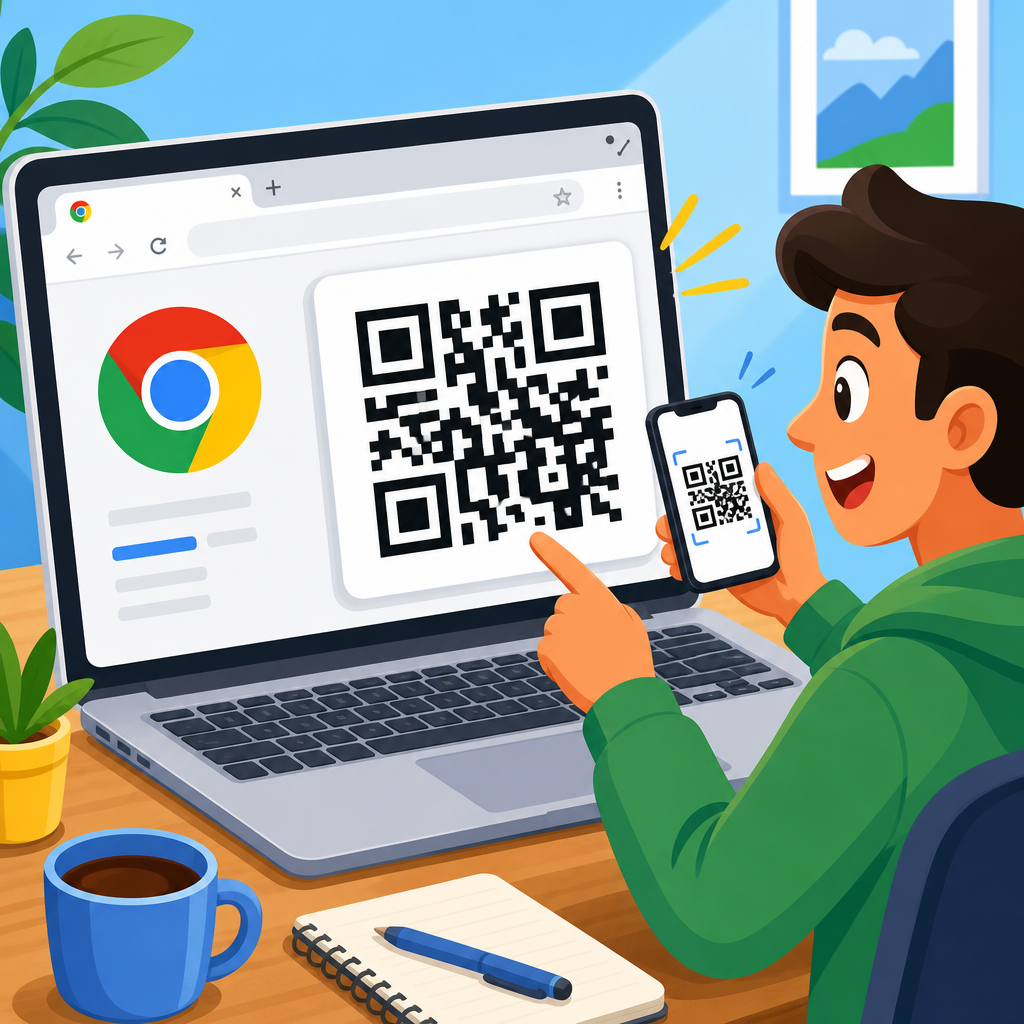
Google Chrome includes a built-in QR code generator that lets you turn any open webpage into a scannable link in seconds. If you want the fastest way to create a QR code in Google Chrome, you can use the Share feature on desktop or mobile, save the code, and distribute it for print or digital use. This matters because QR codes reduce friction: instead of typing a long URL, users scan once and land exactly where you want them. In campaigns, support materials, menus, event signage, and product packaging, that small square can improve response rates, shorten user journeys, and connect offline audiences to online actions.
A QR code, short for Quick Response code, is a two-dimensional barcode that stores data such as a website address, contact card, Wi-Fi credentials, SMS prompt, or payment link. Most people use QR codes for URLs, and that is exactly what Google Chrome creates natively: a code that points to the current page. Chrome does not replace advanced QR platforms, but it is one of the simplest built-in tools available, especially when you need a static code fast and do not want to install an extension. I have used Chrome’s generator for internal documentation, meeting-room signs, and on-the-fly client reviews because it is reliable, immediate, and familiar to nontechnical teams.
Understanding the distinction between static and dynamic QR codes is essential before you create one. A static QR code contains the final destination directly inside the code pattern. Once generated, you cannot change the destination without creating a new code. A dynamic QR code points to a redirect service that can be updated later, tracked, or scheduled. Chrome creates static QR codes for webpages. That makes Chrome ideal for stable links such as a homepage, public Google Doc, restaurant menu URL, help article, or product page that is unlikely to change. If you need scan analytics, editability, expiration rules, or A/B testing, you will usually outgrow Chrome and move to a dedicated QR code platform.
The reason this topic deserves a full hub article is that “how to create a QR code” sounds simple, but successful use depends on choices around destination, size, contrast, testing, error correction, and placement. Many failed campaigns come from the basics being skipped: tiny codes on posters, low contrast on packaging, broken mobile pages, or URLs that redirect through multiple hops. This guide explains how to create a QR code in Google Chrome, when Chrome is the right tool, what limitations you should expect, and how to make sure the code actually works in the real world.
How to create a QR code in Google Chrome on desktop and mobile
On desktop Chrome, open the webpage you want to share. In current versions of Chrome, click the address bar or the Share icon if it appears in your toolbar. You should see an option labeled “Create QR code” or a QR-style icon. Click it, and Chrome instantly generates a QR code for the active page. You can then download the image, usually as a PNG, and save it to your device. In some versions, right-clicking on the page also reveals a “Create QR code for this page” command. The exact location varies slightly by operating system and Chrome release, but the workflow is the same: open page, choose create QR code, download.
On Android, open the page in Chrome, tap the three-dot menu, then tap Share. Chrome may show a QR code option directly in the sharing sheet. Tap it, and the browser generates a code for the current URL. You can save the image, share it to another app, or sometimes scan a code from the same interface. On iPhone and iPad, Chrome’s sharing path is similar: open the page, tap Share, choose the QR option if available, and save the code. Mobile layouts change more often than desktop, so if you do not see the option immediately, update Chrome and look inside the Share panel rather than the main menu.
For most users, the fastest method is the desktop address bar because it removes extra steps. In training sessions, I tell teams to think of Chrome QR creation as “share this page visually.” If the page is already public and mobile-friendly, you can often generate a usable code in under ten seconds. That makes it valuable for ad hoc needs such as classroom slides, conference handouts, temporary signs, customer support articles, and collaborative docs.
Before downloading, confirm that the final URL is the one you want people to visit. If the page is still in staging, contains tracking parameters you do not need, or redirects through a long campaign URL, clean it up first. A shorter, cleaner destination usually produces a less dense code and is easier for older phone cameras to scan. URL shortening can help, but use it carefully. If the short link service fails or gets blocked by corporate filters, your QR code fails too. For business-critical uses, a branded short domain or a stable final URL is safer.
When Google Chrome is the best QR code tool and when it is not
Chrome is the best QR code tool when your priority is speed, zero setup, and a stable webpage URL. It is excellent for one-off sharing, internal resources, event agendas, published articles, Google Maps locations opened in a browser tab, and simple customer-facing links. Because it is built into the browser, there is no login friction, no extra extension to vet, and no learning curve for casual users. In organizations with strict software policies, that matters. I have seen teams abandon third-party generators simply because browser-native sharing was easier to adopt across departments.
Chrome is not the best tool when you need dynamic destination changes, detailed scan analytics, custom design controls, multiple QR content types, or large-volume asset management. A retail brand running packaging at scale needs trackable redirects, campaign segmentation, and error monitoring. A restaurant that changes menus weekly may need a dynamic QR code so the printed table tent never changes even if the destination does. A field service team may need vCard, Wi-Fi, or PDF codes rather than a simple webpage link. Chrome does none of that natively.
The practical rule is straightforward: if the destination URL is final and the use case is simple, Chrome is enough. If the code is part of a campaign, a printed asset with long shelf life, or a measurable conversion path, use a specialized platform. This distinction prevents the most common operational mistake: printing static QR codes in places where the landing page will eventually move.
| Use case | Chrome built-in QR code | Dedicated QR platform |
|---|---|---|
| Share a live webpage quickly | Best option | Usually unnecessary |
| Track scans by channel or location | Not available | Recommended |
| Edit destination after printing | Not possible | Recommended |
| Create Wi-Fi, vCard, PDF, or app links | Limited to webpage sharing | Recommended |
| Need a branded frame, logo, or color control | Very limited | Recommended |
| Internal documentation or temporary signage | Strong fit | Optional |
Best practices for creating QR codes that actually scan
A QR code is only useful if real phones can read it quickly in the environment where it appears. Start with contrast. Black on white remains the safest choice because many scanning systems struggle with low-contrast combinations, glossy reflections, or reversed light-on-dark designs. Keep a quiet zone around the code, meaning blank space on all sides. Without that margin, camera apps may have difficulty recognizing the boundary. If a designer crops too tightly or places text and icons against the modules, scanning reliability drops.
Size matters more than many teams expect. For print, a common baseline is at least 2 x 2 centimeters for close-range scanning, but posters, storefronts, and trade-show graphics often need much larger codes because users are standing farther away. A practical field rule is about one inch of QR size for every ten inches of scanning distance, then test with several phones. I have had postcard codes scan perfectly at 0.8 inches on recent iPhones but fail on older Android devices until increased to 1.2 inches. Always design for the least capable camera your audience is likely to use.
Landing-page quality is just as important as code quality. If the URL opens a non-mobile-friendly page, requires excessive cookie banners, or redirects through several trackers before loading, users will abandon the process. The QR code did its job, but the experience still failed. Audit the final destination on cellular data, not just office Wi-Fi. Check load time, readability, button placement, and whether the key action is visible without scrolling. For forms, reduce fields. For menus or support pages, put the answer near the top.
Test under realistic conditions. Scan from different distances, in bright light and low light, on iOS and Android, using both native camera apps and common third-party scanners. If the code will be laminated, printed on curved packaging, embroidered, or displayed on a screen, test that exact material. Reflections, warping, and screen moiré patterns can cause intermittent failures that you will not catch on a perfect digital mockup. This is where hands-on experience matters most: tiny production details affect scan rates far more than many marketing teams realize.
Common problems, limitations, and fixes in Chrome QR creation
The most common problem is not seeing the QR option in Chrome. Usually the cause is an outdated browser version, a different menu layout, or looking in the wrong place. Update Chrome first, then check the address bar and Share menu. On managed work devices, some features can be limited by policy, so if the option is missing only on corporate hardware, ask IT whether Chrome settings are standardized. Another issue is assuming Chrome can create QR codes for arbitrary text, phone numbers, or Wi-Fi credentials. It cannot; it creates a code for the current page URL.
A second problem is downloading the code and then stretching or compressing it improperly in design software. Distorting the image can reduce scanning accuracy. Keep proportions locked, export at sufficient resolution, and avoid excessive compression in messaging apps or social platforms. If you need large-format output, regenerate or place the file in a workflow that preserves sharp edges. Raster images can degrade when scaled too aggressively, so review the final print proof at actual size.
Users also run into destination issues. If the webpage requires a login, expires, or sits behind a temporary share token, outside users may scan successfully but hit an access wall. I have seen this happen with cloud documents and staging URLs during product launches. The code was technically valid, but the permissions were wrong. Always test with a device and account that match your real audience. If the asset is public-facing, use a public browser session or incognito mode to verify access.
There is also the analytics limitation. Chrome gives you the image, not scan reporting. If you need to measure performance, your options are indirect: add campaign parameters to the destination URL, monitor analytics in Google Analytics 4 or another platform, and segment traffic by source or landing-page query string. That works for broad attribution but not for full QR management. If scan counts, geography, device type, or time-based reporting are decision-critical, Chrome is the wrong layer of the stack.
How this hub fits into QR code creation and tool selection
This article is the central starting point for anyone researching how to create QR codes, especially users who begin with Google Chrome because it is already installed. From here, the broader topic expands in clear directions: static versus dynamic QR codes, QR code design standards, print sizing, tracking and analytics, QR code testing, and choosing between browser tools, free generators, and enterprise platforms. Chrome answers the “how do I make one right now?” question, but long-term success depends on understanding the surrounding workflow.
If you are building a content hub under QR Code Creation & Tools, Chrome deserves a prominent place because it captures high-intent users who need an immediate method. It also naturally leads to adjacent articles: how to create dynamic QR codes, how to track QR scans, how to make QR codes for PDFs, Wi-Fi, and business cards, and how to print QR codes without scan failures. In practice, many readers start with Chrome, discover the static-code limitation, then graduate to tools with redirect management and analytics. Structuring your resources in that progression matches real user behavior.
The key takeaway is simple: Google Chrome is one of the fastest ways to create a QR code for a webpage, and for many everyday uses, that is enough. Open the page, use the Share or address-bar QR option, download the image, and test it on real devices before publishing. Use Chrome when the link is stable and the job is straightforward. Move to a dedicated platform when you need editable destinations, richer formats, custom branding, or measurement. If you are creating QR codes regularly, treat this guide as your hub, apply the scanning best practices outlined here, and choose the tool that fits the lifespan and stakes of the link.
Frequently Asked Questions
How do you create a QR code in Google Chrome on desktop?
On desktop, Google Chrome makes QR code creation very simple because the feature is built directly into the browser. Open the webpage you want to share, then click the Share icon in the address bar if it appears. In some versions of Chrome, you can also right-click anywhere on the page and look for an option such as “Create QR code for this page.” Once selected, Chrome instantly generates a QR code linked to the current URL. From there, you can download the QR code image and save it for later use in documents, flyers, presentations, packaging, or digital campaigns. This is one of the fastest ways to turn a live webpage into something people can scan with a phone, especially when you want to remove the hassle of manually typing a long web address.
Can you make a QR code in Google Chrome on mobile devices?
Yes, you can create a QR code in Google Chrome on mobile, and the process is designed to be quick and user-friendly. Open Chrome on your Android device or iPhone, navigate to the page you want to share, and tap the Share option from the browser menu. Depending on your device and Chrome version, you may see a dedicated QR code option that lets you generate a scannable code immediately. On some phones, Chrome may also present sharing tools that include saving or displaying the code for others to scan on the spot. This is especially useful when you are sharing pages in person, such as event registration links, menus, support pages, or product details. Because the QR code is tied to the exact page you have open, it helps ensure users land on the intended destination without extra steps.
Where is the QR code feature in Google Chrome if you do not see it right away?
If you do not immediately see the QR code option in Google Chrome, the feature may appear in a different place depending on your device, operating system, or Chrome version. On desktop, check the address bar for the Share icon, or right-click on the page to see whether a QR code option appears in the context menu. On mobile, open the Chrome menu and then tap Share to look for a QR code tool. Browser interfaces can change over time, so the wording and placement may not be identical for every user. It is also a good idea to make sure Chrome is updated to the latest version, since older versions may display sharing features differently. In most cases, the capability is still present; it is simply nested under the browser’s share tools rather than shown as a standalone button.
Can you save and use a Google Chrome QR code for print or digital marketing?
Yes, once Chrome generates a QR code, you can typically download or save it as an image and use it across a wide range of print and digital materials. That makes the built-in feature practical not just for casual sharing, but also for business use. You can place the saved QR code on posters, brochures, product packaging, instruction sheets, table tents, event signage, email graphics, social posts, or internal support documents. The main advantage is convenience: people scan once and go directly to the linked page without typing anything. For marketing and communications, this can improve response rates and reduce drop-off caused by complicated URLs. Before wide distribution, it is smart to test the QR code on multiple phones and scanning apps, and if you plan to print it, make sure the image remains clear, large enough to scan easily, and placed where users have enough room and lighting to use their cameras.
What are the benefits of using Google Chrome’s built-in QR code generator instead of another tool?
The biggest benefit is speed. Because the QR code generator is already built into Google Chrome, you do not need to visit a separate website, install an extension, or copy and paste a URL into another platform. You simply open the page, use the Share function, and generate the code in seconds. That built-in workflow reduces friction and helps avoid mistakes, such as pasting the wrong link or creating a code for an outdated page. It is also convenient for day-to-day needs, whether you are sharing a support article with customers, linking to a menu, directing attendees to an event page, or giving people quick access to a product or campaign landing page. For many users, Chrome’s native tool is the fastest and easiest option because it is integrated into the browser experience. While advanced third-party QR platforms may offer custom branding, tracking, or dynamic code management, Chrome is often the best choice when your priority is creating a clean, functional QR code quickly and reliably.