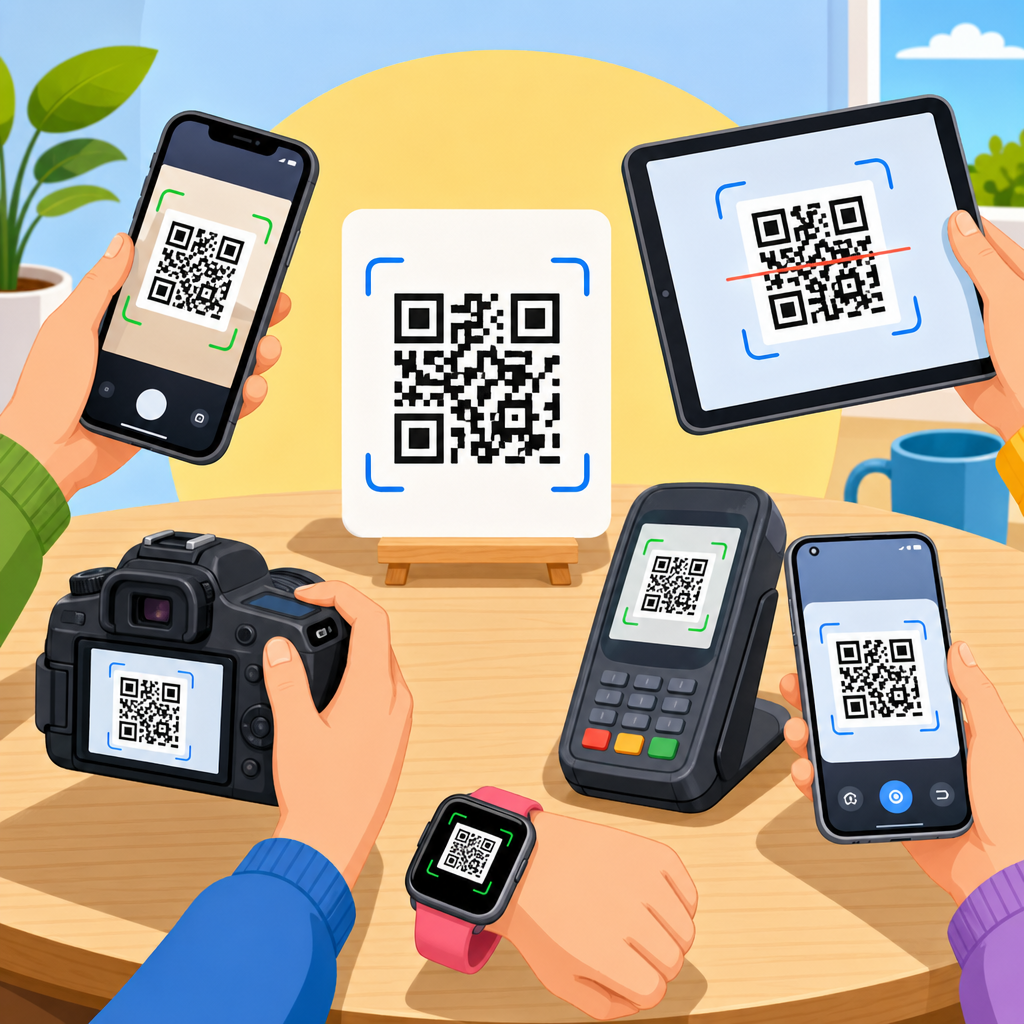
QR codes are everywhere, but many people still ask a practical question before they use them: what devices can scan QR codes? The short answer is that almost any modern smartphone, many tablets, some laptops, handheld scanners, and even certain wearable and industrial devices can read them. To understand which devices work best, it helps to start with the basics of what QR codes are, how they function, and why scanning reliability depends on both hardware and software.
A QR code, short for Quick Response code, is a two-dimensional barcode designed to store information in a square grid of black and white modules. Unlike a traditional one-dimensional barcode that holds data in a single horizontal line, a QR code stores data across both height and width. That design allows it to contain much more information, including website URLs, contact cards, Wi-Fi credentials, app links, payment instructions, menu files, PDF downloads, and product identifiers. I have implemented QR code campaigns for retail packaging, restaurant ordering, event check-in, and equipment labeling, and the same pattern always appears: scanning success depends less on the code itself than on whether the user’s device has a camera, decoding software, adequate focus, and proper lighting.
QR codes matter because they bridge physical and digital experiences with almost no friction. A printed label can open a landing page, start a phone call, launch a payment flow, or authenticate a login in seconds. Since smartphone camera apps now include built-in QR recognition on most major operating systems, scanning has become a mainstream behavior rather than a niche task requiring a dedicated app. For a QR Code Basics & Education hub, this topic is foundational because device compatibility shapes every downstream decision, from code size and print contrast to user instructions, landing page design, and analytics setup. If a code cannot be scanned easily on the devices your audience actually uses, the campaign fails before the content behind the code has any chance to perform.
People also use the phrase “scan a QR code” in two slightly different ways. One meaning is reading a physical code through a camera. The other is decoding a QR code already saved as an image or shown on another screen. Many devices can do the first, fewer handle the second natively, and some require an app or browser feature. Knowing that distinction prevents confusion when users try to scan a QR code displayed on the same phone they are holding. In that case, the device usually needs image recognition from the photo gallery, screen sharing to another device, or a built-in browser tool that can decode an uploaded image.
What devices can scan QR codes today?
Modern smartphones are the primary devices used to scan QR codes. iPhones running recent versions of iOS can scan directly through the Camera app, and Android phones from Google, Samsung, Motorola, OnePlus, Xiaomi, and other major manufacturers typically support scanning through the native camera as well. On iPhone, Apple integrated QR recognition into the Camera app years ago, and Control Center can also include a dedicated code scanner for faster access. On Android, support varies slightly by brand and software version, but Google Lens is now deeply integrated into Android’s camera ecosystem, making QR scanning available on most current models without installing a separate app.
Tablets can also scan QR codes if they include a camera and compatible software. iPads support QR scanning through the same camera-based tools available on iPhone. Android tablets can usually scan with the Camera app or Google Lens, though low-end tablets sometimes have weaker autofocus performance, which reduces reliability at close distances. In field testing, older budget tablets often struggle with small printed codes on glossy labels because the camera module lacks the sharp near-focus capability found in smartphones.
Laptops and desktop computers can scan QR codes if they have a webcam and a web-based or installed scanner tool. This is less common for everyday consumers, but it is useful in customer support, warehouse operations, and desktop-based authentication flows. A user might open a browser scanner that accesses the webcam, point a printed QR code at it, and decode the destination. Some messaging and login systems also display a QR code on a desktop screen so a mobile device can scan it for secure sign-in. In that scenario, the desktop is showing the code rather than scanning it, but organizations should understand both sides of the interaction.
Dedicated barcode scanners are another major category. Many retail, logistics, healthcare, and manufacturing environments use handheld 2D imagers from Zebra, Honeywell, Datalogic, and Cognex. These devices are built specifically to read QR codes quickly in varied conditions, including low light, damaged labels, curved packaging, and high-volume workflows. Unlike older laser barcode scanners that were primarily designed for one-dimensional codes, 2D imagers capture an image and decode the matrix pattern. If a business relies on frequent scanning, a dedicated scanner is usually faster, more durable, and easier to manage than a consumer phone.
Wearables and specialty devices can scan QR codes in limited cases. Some smart glasses and rugged wearable computers used in logistics or remote support have integrated cameras capable of code recognition. Kiosks, self-check-in terminals, and access control readers may also scan QR codes from paper tickets or phone screens. These are narrower use cases, but they matter because they show that QR code scanning is not tied to a single device category. Any device with image capture and decoding software can potentially read a QR code.
How QR code scanning works on different operating systems
On iOS, the process is straightforward. Open the Camera app, point it at the code, wait for the notification banner, and tap the prompt. Apple also supports code scanning in Control Center, Wallet-related flows, and some third-party apps that call the camera interface. In practice, iPhones are among the most consistent devices for consumer-facing QR code campaigns because Apple controls the camera software, hardware calibration, and operating system behavior across a relatively small product range. That consistency reduces troubleshooting compared with fragmented Android environments.
Android is more varied, but current support is broad. Pixel devices use Google Lens deeply within the camera app, while Samsung often includes QR recognition in its native camera software and Bixby Vision-related tools. If the built-in camera does not recognize the code, installing Google Lens or opening the Google app usually solves the problem. Android’s strength is reach; its weakness is inconsistency across older models. A five-year-old Android phone may still scan codes, but factors such as outdated software, disabled permissions, aggressive battery management, or weak camera sensors can interfere.
Windows and macOS do not offer universal, system-wide QR scanning in the way phones do, but browsers and apps fill the gap. Users can scan with web tools that request webcam access or upload a saved image for decoding. In office settings, this often supports desktop login, inventory intake, and document routing. Chrome-based environments also make it easy to move between scanned URLs and browser-based workflows. The key limitation is convenience: desktop scanning works, but it is not as immediate as using a phone camera already in hand.
Special-purpose operating systems used in warehouses, hospitals, and point-of-sale systems often provide the most reliable scanning of all because the software is tuned for a known camera and a defined workflow. I have seen rugged Android enterprise devices decode codes instantly from torn labels that consumer phones struggled with. That performance difference comes from better image sensors, optimized scan engines, hardware triggers, and software designed for repetitive operational use rather than general photography.
Which factors determine whether a device can scan a QR code well?
Camera quality is the first factor. A device needs enough resolution and, more importantly, enough focus control to distinguish the code’s square modules. Autofocus matters more than megapixels. A 12-megapixel phone with strong autofocus will outperform a higher-megapixel tablet with poor close-range clarity. Lighting is next. QR decoding software can compensate for some glare or dimness, but extremely reflective surfaces, low contrast printing, and motion blur will defeat many devices.
Software support is equally important. A camera alone does not scan a QR code; the device also needs decoding logic in the operating system, camera app, browser, or third-party application. Permissions can block scanning even when the hardware is capable. If camera access is denied, if QR recognition is disabled in settings, or if the app handling the scan is outdated, the user may conclude incorrectly that the device cannot scan codes at all.
Code design affects device performance too. A tiny QR code on dense packaging is harder to scan than a larger code with adequate quiet zone margins. Error correction helps if the code is scratched or partially obscured, but higher error correction also increases density, which can make very small codes harder to read on low-quality cameras. In print production, I generally recommend testing across at least one recent iPhone, one mainstream Android device, and one lower-end phone before approving a code for mass use.
| Device type | Typical scanning method | Best use case | Common limitation |
|---|---|---|---|
| Smartphone | Native camera or Lens | Consumer marketing, payments, menus | Varies by software version |
| Tablet | Camera app or scanner app | Check-in, education, field forms | Weaker autofocus on budget models |
| Laptop/Desktop | Webcam or uploaded image | Desktop login, support workflows | Less convenient than mobile |
| Handheld 2D scanner | Integrated scan engine | Retail, warehousing, healthcare | Higher hardware cost |
| Kiosk or specialty device | Embedded camera and software | Access control, ticketing | Narrow deployment scope |
What are QR codes used for, and why device compatibility matters?
QR codes are used anywhere fast access to digital information improves the user experience. In restaurants, they open menus and payment pages. In marketing, they connect packaging, posters, direct mail, and storefront displays to campaigns with trackable URLs. In operations, they identify assets, trigger maintenance logs, and link workers to standard operating procedures. In healthcare, they can support patient identification workflows, specimen tracking, and equipment records when paired with compliant systems. In education, they connect classroom materials to videos, assignments, and attendance tools. Every one of these use cases assumes the target audience has a compatible scanning device.
Compatibility matters because audience device mix changes the acceptable margin for error. A luxury retail brand whose audience primarily uses current iPhones can deploy smaller, design-led codes with more confidence than a public utility serving a broad population with older Android devices. An industrial facility issuing rugged scanners to staff can standardize code size, distance, and label materials more tightly than a consumer campaign placed on outdoor signage. Good QR planning starts with the expected scanner, not just the content behind the code.
This is also why hub content on QR basics should answer adjacent questions directly: do you need an app, can tablets scan codes, can a laptop read a code from a webcam, why will one phone scan instantly while another fails, and can a device scan a QR image saved in photos? Users searching these questions are usually moments away from trying to scan something important. Clear answers reduce abandonment and support every related article in the broader topic cluster.
Best practices for making QR codes scannable across devices
Use high contrast, usually black on white, and preserve a clean quiet zone around the code. Avoid placing the code on reflective, curved, or dark backgrounds unless you test thoroughly. Size the code for the expected scanning distance; a common field rule is that the scanning distance should be about ten times the code width, though this varies by camera quality. Choose a reputable generator that supports dynamic links, error correction settings, and export formats such as SVG or high-resolution PNG.
Test in realistic conditions. I never approve a production QR code from a desktop preview alone. Print it at final size, place it on the actual material, and scan it under the lighting conditions users will face. Test recent iPhone and Android models, plus at least one older or budget device if the audience is broad. Confirm that the destination page loads quickly on mobile networks, because a perfectly scanned code still fails if the landing experience is slow, blocked, or confusing.
Use plain-language instructions when needed. “Open your camera and point it at the code” performs better than generic prompts. For audiences with older devices, add a short fallback URL beneath the code. For accessibility, make sure any linked content is mobile friendly, readable, and actionable without requiring complex gestures. QR performance is not only about whether a device can technically scan; it is also about whether the full interaction works smoothly from scan to completion.
Choosing the right scanning device for the job
For most consumers, the best QR scanner is the smartphone already in their pocket. For organizations, the best device depends on volume, environment, and workflow. If scanning happens occasionally, phones and tablets are enough. If scanning happens hundreds of times per shift, choose a dedicated 2D scanner or rugged mobile computer. If users sit at desktops, a webcam-based tool may support internal processes, but it should not be the only method offered for public-facing tasks.
The main takeaway is simple: many devices can scan QR codes, but not all devices scan them equally well. Smartphones dominate because they combine cameras, built-in software, and user familiarity. Tablets, laptops, handheld scanners, kiosks, and specialty wearables extend QR use into education, operations, logistics, and access control. If you understand what QR codes are, what they are used for, and how scanning differs by device, you can design codes that work reliably in the real world. Start by testing on the devices your audience actually uses, then build the QR experience around clarity, speed, and ease of completion.
Frequently Asked Questions
What devices can scan QR codes?
A wide range of devices can scan QR codes. In most cases, any modern smartphone with a built-in camera can do it, including newer iPhone and Android models. Many tablets also support QR code scanning, especially if they have updated camera software or a QR-enabled camera app. Some laptops and desktop computers can scan QR codes too, but they usually need a webcam and either browser-based scanning software, a dedicated app, or a QR reader built into another program.
Beyond everyday consumer electronics, dedicated barcode scanners often read QR codes as well, especially 2D imaging scanners used in retail, healthcare, shipping, and warehousing. Certain smartwatches, industrial handheld terminals, kiosks, and point-of-sale systems can also scan them if they include the right camera or optical scanning hardware. The key point is that scanning a QR code depends on both hardware and software. A device may have a camera, but if the operating system or installed app cannot recognize and decode QR codes, scanning may not work smoothly.
Can all smartphones scan QR codes without downloading an app?
Most modern smartphones can scan QR codes without needing a separate app, but not all of them. On current iPhones, the native Camera app usually recognizes QR codes automatically and displays a prompt when the code is in view. Many recent Android phones do the same through the default camera app, and some also include QR scanning in tools like Google Lens. This built-in support has made QR scanning much more convenient than it used to be.
However, older smartphones may not have native QR recognition, even if they have a camera. In those cases, users often need to install a QR code scanner app. The same can be true if a phone’s camera app is very basic, outdated, or modified by the manufacturer in a way that limits QR functionality. If scanning does not work automatically, it is worth checking for system updates, camera settings, or built-in visual search features before downloading a third-party app. In general, if a smartphone was released in the last several years and is running current software, there is a very good chance it can scan QR codes right out of the box.
Can tablets, laptops, and desktops scan QR codes too?
Yes, they can, although the experience is usually less seamless than on a smartphone. Tablets with rear or front-facing cameras can often scan QR codes through the camera app, a QR scanner app, or a browser feature that supports image recognition. This can be useful in classrooms, business settings, healthcare environments, and shared workstations where a tablet is already being used for digital workflows.
Laptops and desktop computers are a little different because they are not typically designed for quick camera-based scanning. Still, if a laptop has a webcam or a desktop has a connected camera, QR codes can often be scanned through websites, browser tools, or software applications that access the camera. Users can also upload an image of a QR code to certain apps or online tools for decoding. While this works, it is usually not the fastest or most convenient method for everyday use. Smartphones remain the easiest option for most people, but tablets and computers are absolutely capable when the right hardware and software are available.
What makes one device better at scanning QR codes than another?
QR scanning quality depends on more than whether a device simply has a camera. Camera resolution matters, but so do autofocus performance, low-light capability, image stabilization, and how well the device handles glare, shadows, and small printed details. A newer phone with a strong camera system will usually scan codes faster and from a wider range of angles than an older device with a lower-quality lens or slower focus. Screen quality can matter too when scanning a QR code displayed on another device, since brightness and refresh behavior can affect readability.
Software is just as important as hardware. The device needs to recognize the QR pattern, isolate it from the background, decode the information correctly, and then trigger the right action, such as opening a link or showing contact details. Some camera apps are much better than others at detecting damaged, distant, curved, or low-contrast QR codes. Dedicated enterprise scanners often outperform general consumer devices in demanding environments because they are built specifically for rapid, repeated scanning. So while many devices can scan QR codes, the best device is usually the one with a reliable camera, up-to-date software, and a scanning interface designed for the setting in which it will be used.
Do you need internet access to scan a QR code?
Not always. A device does not need an internet connection just to visually detect and decode a QR code. The scanning process itself can happen offline, because the camera and software are simply reading the code’s stored data. For example, if the QR code contains plain text, contact information, Wi-Fi credentials, or other embedded data, the device may be able to display that information without needing to go online.
Internet access becomes important when the QR code points to online content, such as a website, payment portal, app download page, menu, or cloud-based document. In that case, the device can scan the code offline, but it will need a live internet connection to open the destination. This distinction is helpful because people often assume scanning and accessing content are the same thing. They are related, but separate. The device must first be able to read the QR code, and then, depending on what the code contains, it may or may not need network access to complete the intended action.